


 Video Converter Ultimate
 Gravadora de pantalla
 Reparació de vídeo
Intensifica la teva experiència per abordar problemes com ara com frenar un vídeo
Ets un artista novell i vols mirar un tutorial de disseny artístic per millorar les teves habilitats en les arts. Tanmateix, la majoria d’aquests tutorials són prou ràpids per acumular una certa durada i poder-se penjar amb una mida de fitxer reduïda. Així que penses en una solució que consisteix a disminuir la velocitat del vídeo. Però no saps com alentir un vídeo en time-lapse com passa en la majoria de tutorials d’art. Llegeix aquest article per ampliar els teus coneixements sobre aquest problema que tenen molts artistes principiants.

Part 1. 3 passos senzills per alentir un vídeo [escriptori/ordinador portàtil]
Hi ha molts enfocaments que ofereix el web, ja sigui en línia o fora de línia. Alguns d'ells s'han de descarregar, especialment quan utilitzeu un ordinador o un ordinador portàtil per editar. Hi ha una diferència significativa entre utilitzar un escriptori pel que fa als detalls d'ús; és per això que aquest article selecciona la millor manera de frenar un vídeo fora de línia o en línia des d'un escriptori. Aquests són els enfocaments amb els seus passos proporcionats:
Enfocament 1. Utilitzeu Video Converter Ultimate
És possible descarregar i utilitzar molts convertidors fins i tot quan no estan en línia. Per alentir un vídeo, pots utilitzar Video Converter Ultimate, una de les millors alternatives. És fàcil d’utilitzar i el pots descarregar gratuïtament. No t’has de preocupar que la connexió a internet faci anar lent un vídeo en línia, perquè aquest programari pot gestionar el teu vídeo sense complicacions. Gràcies a la seva impressionant eina Video Speed Controller, ara pots ajustar la velocitat de reproducció dels teus vídeos en menys d’un minut. Ara que t’intriga com es farà, aquí tens alguns procediments guiats que has de seguir:
Pas 1: Simplement fes clic al botó Free Download per descarregar el programari a l’escriptori de l’ordinador. A continuació, completa la instal·lació del programari i la personalització de la configuració seguint els passos següents.
Descàrrega gratuïtaPer a Windows 7 o posteriorDescàrrega segura
Descàrrega gratuïtaPer a macOS 10.7 o posteriorDescàrrega segura
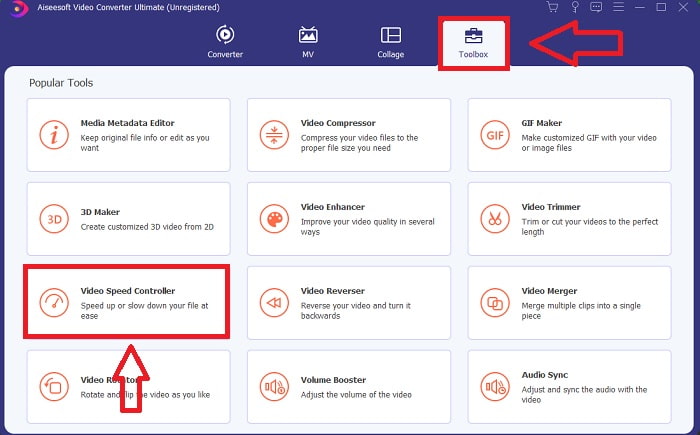
Pas 2: Per utilitzar el Video Speed Controller, inicia el programari immediatament després de la instal·lació i selecciona’l al menú Toolbox.
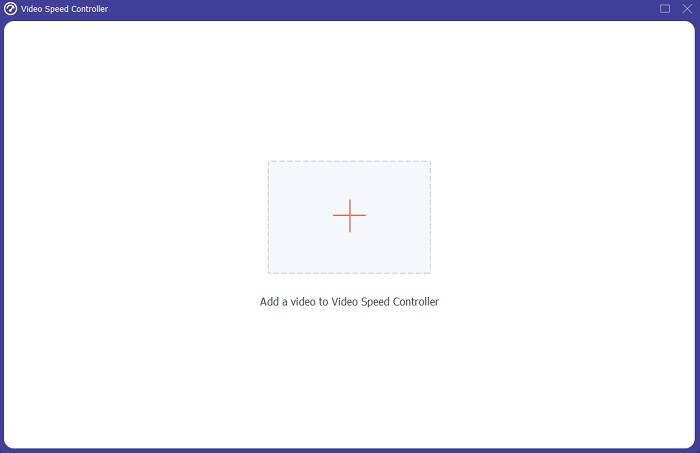
Pas 3: La interfície del Video Speed Controller apareixerà després de fer-hi clic. I per pujar-hi un fitxer, fes clic a la icona +.
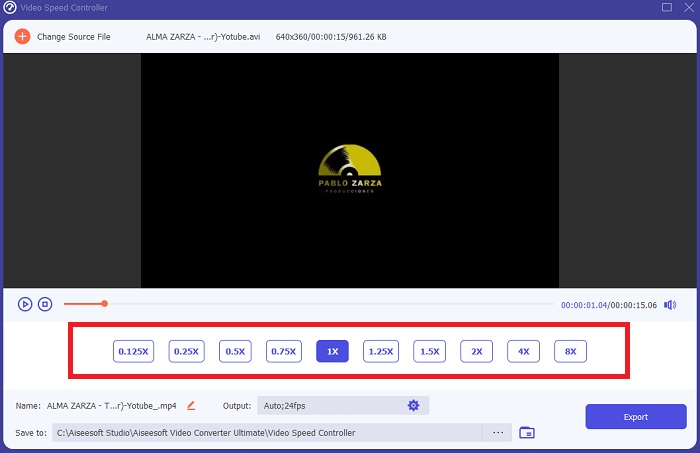
Pas 4: Ara ja pots començar a alentir el teu vídeo triant valors inferiors a la velocitat normal. La majoria dels valors apareixeran al costat esquerre de la velocitat real del teu vídeo.
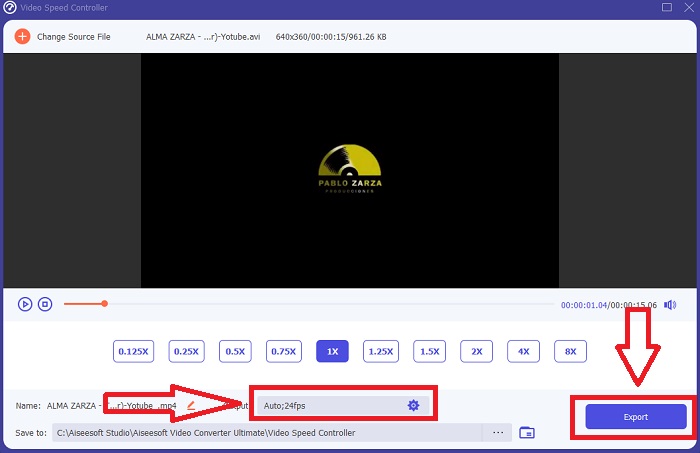
Pas 5: Un cop hagis acabat de modificar la velocitat de reproducció del teu clip de vídeo, pots seleccionar el format de sortida, la resolució, la qualitat i altres paràmetres que vulguis utilitzar. Quan hagis acabat, fes clic a Export i tria on vols que es desi el fitxer un cop tot estigui completat.
Enfocament 2. Utilitzeu VEED
Els creadors de contingut de tot el món confien en VEED i la seva eina web de codi obert per produir vídeos per a xarxes socials i altres usos. És una aplicació web que requereix una connexió sòlida per funcionar correctament, però pots pujar directament i canviar la velocitat de reproducció a la seva interfície d'usuari. A més, té diverses característiques, una de les quals és la disminució de la velocitat de reproducció del vídeo. Ara pots alentir un vídeo sense descarregar res al teu escriptori. Només necessiteu un motor de cerca i una connexió sòlida per accedir a aquesta eina en línia. Té una interfície d'usuari senzilla i fàcil d'utilitzar que pot beneficiar la majoria dels usuaris principiants que necessiten alentir un vídeo sense aprendre passos complicats. Aquests són els procediments d'exemple per digerir per aconseguir els ajustos desitjats al vostre vídeo.
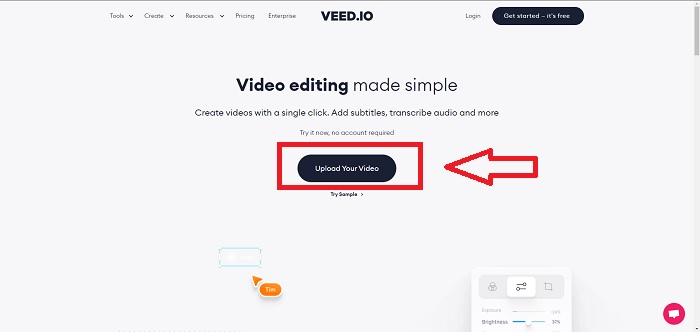
Pas 1: Fes clic al botó Upload Your Video per enviar un fitxer de vídeo des del teu ordinador al servidor.
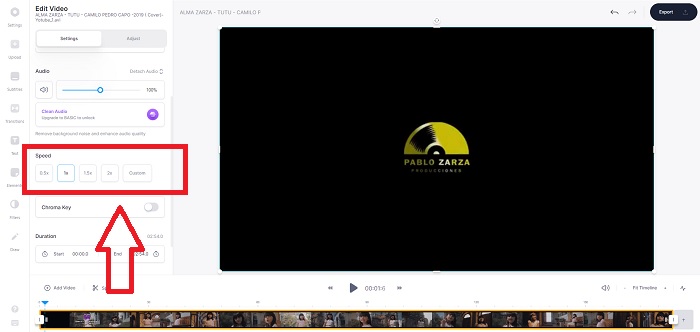
Pas 2: Pots accedir a la interfície d’edició de l’eina web fent clic a la Video Track a la cantonada superior esquerra. Selecciona una velocitat de reproducció més ràpida cercant l’opció Speed i fent-hi clic. Si la velocitat que prefereixes no apareix com a opció, pots triar Custom per substituir els valors predeterminats i reproduir el teu clip de vídeo a una velocitat personalitzada.
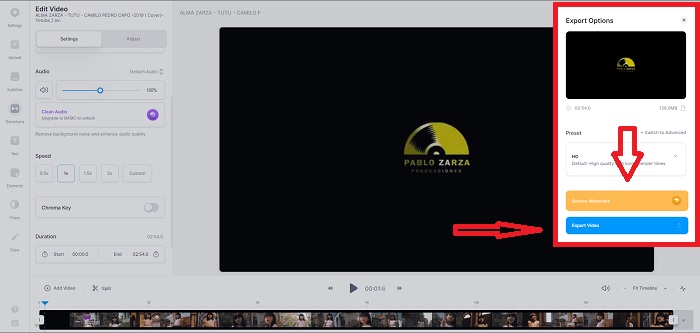
Pas 3: Després d’editar la velocitat desitjada del vídeo, continua a la pestanya d’exportació fent clic a Export. Mentrestant, pots triar la qualitat que prefereixis per al teu vídeo i eliminar la marca d’aigua comprant la versió premium de l’eina web. Si tot ja està llest, trasllada el vídeo convertit al teu ordinador mitjançant Exporting Video.
Part 2. 3 passos senzills per alentir un vídeo [telèfon mòbil]
Estàs cansat de pensar en una solució que respongui com frenar un vídeo a iPhone o Android? Hi ha moltes aplicacions i eines disponibles a Internet per utilitzar per justificar que hi ha una resposta al problema donat. Però aquí teniu les eines millors i més accessibles que us recomanem utilitzar si sou un editor de telèfons mòbils i voleu fer una obra mestra amb el petit dispositiu que teniu.
Enfocament 1. Utilitzeu iMovie
Ara pots controlar la velocitat de reproducció o alentir el teu vídeo a l’iPhone i l’iPad amb aquesta aplicació gratuïta i útil anomenada iMovie. És una de les aplicacions de confiança disponibles als dispositius amb sistema iOS que pot editar el teu vídeo i, sobretot, editar la velocitat de reproducció d’un vídeo. Per saber-ne més sobre aquesta aplicació, aquí tens els passos que has de seguir per resoldre el problema esmentat més amunt:
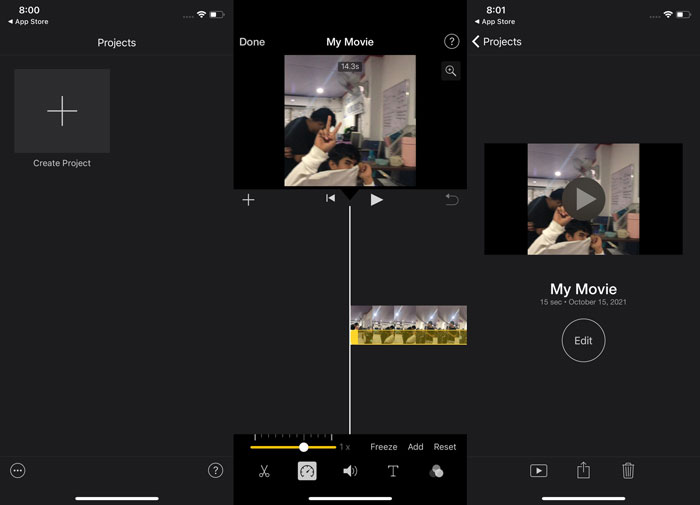
Pas 1: Comença a editar la teva pel·lícula a iMovie al teu iPhone o iPad. Pot ser que se’t mostri una breu visió general de la interfície d’usuari abans de continuar. A la pàgina Projects, fes clic al signe més per afegir un clip de vídeo nou i, a continuació, selecciona Movie al menú New Projects.
Pas 2: Abans de passar a la secció Create Movie, selecciona un vídeo del teu carret de la càmera. L’eina de velocitat s’assembla a un speedometer i es pot trobar tocant el clip de vídeo a la línia de temps i esperant que apareguin les eines d’edició. Rebobina o avança les imatges del teu vídeo lliscant el control lliscant groc de la part inferior. En comparació amb la seva velocitat original, els elements es poden accelerar fins al doble o alentir fins a una vuitena part d’aquesta velocitat.
Pas 3: Fes clic a Done a la cantonada superior esquerra del telèfon quan hagis acabat el procés. Pots desar el vídeo final seleccionant-lo al menú Share i decidint on el vols desar.
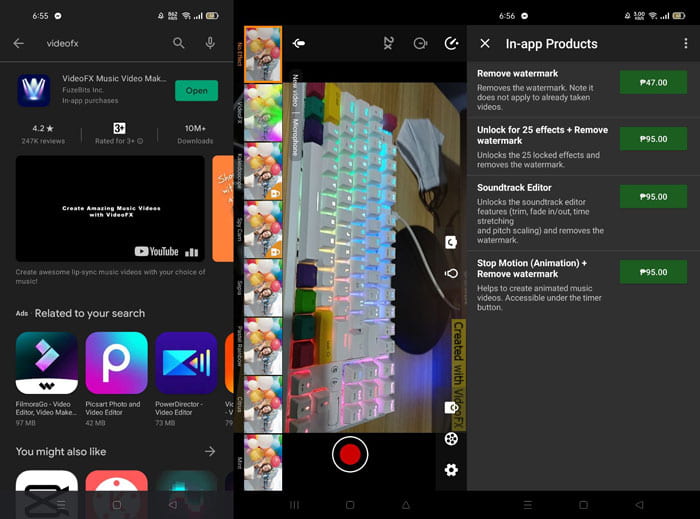
Enfocament 2. Utilitzeu VideoFX Music Video Maker
Crea els teus vídeos musicals en qüestió de segons amb l’eina VideoFX Music Video Maker. Tot el que has de fer és gravar un vídeo utilitzant un dels molts efectes disponibles, triar una cançó i desar-lo a la memòria interna del teu telèfon Android. Com que pots aplicar filtres abans de gravar el vídeo, és molt fàcil d’utilitzar. Tant si és bo com si no, l’edició en postproducció no és una opció; només és possible abans que el vídeo es gravi. Abans de començar a gravar, tria una cançó que vagi bé amb el teu vídeo. Pots accelerar o alentir la música, però els canvis s’han de fer abans que el vídeo es gravi. Aquí tens els passos a seguir:
Pas 1: Descarrega i instal·la VideoFX al teu telèfon Android.
Pas 2: Com que les funcions d’aquesta aplicació només s’apliquen després que el vídeo canviï, comença a gravar prement el botó Record.
Pas 3: A continuació, fes clic a 2x per ajustar la velocitat del vídeo que gravis. Abans de desbloquejar totes les funcions de l’aplicació, primer has de comprar-hi l’accés complet.
Part 3. Preguntes freqüents sobre la ralentització d'un vídeo
Com frenar un vídeo a l'iPhone?
Els creadors de contingut i videògrafs disposen d’una gran quantitat d’eines, i la càmera lenta és una de les millors. Un vídeo amb més fotogrames per segon t’oferirà una experiència de visualització més agradable. Tot i això, els vídeos alentits no sempre són el millor enfocament en tots els vídeos que crees. En alguns casos, la càmera lenta simplement no és apropiada o fins i tot és innecessària. Com a resultat, l’única opció és tornar el vídeo a càmera lenta de l’iPhone a la velocitat normal.
Com frenes un vídeo a la galeria?
Els telèfons Android i iOS tenen icones de configuració per tocar per activar el mode de càmera lenta o de càmera lenta abans de gravar el vídeo. Hauríeu d'enregistrar les vostres escenes a càmera lenta en ràfegues de cinc a deu segons per evitar tenir massa metratge.
Perdo la qualitat si freno un vídeo?
No, no perdreu la qualitat d'un vídeo, però veureu que la resolució i la velocitat de fotogrames del vostre vídeo disminueixen per cada segon que reduïu la velocitat mitjana. Quan la velocitat de reproducció del vostre vídeo augmenta o disminueix, només es dividirà el fotograma. Augmentar-lo tindrà l'efecte desitjat. Cinc vegades més ràpid, és a dir, 60 fotogrames per 1/120 de segon. En altres paraules, tret que el vídeo tingui una velocitat de fotogrames baixa, no tindrà cap efecte.
Conclusió
Per tant, a través d’aquest article, has après tots els diferents mètodes que té cada sistema operatiu per afrontar el problema de totes les aplicacions per alentir un vídeo. També s’hi proporcionen passos per a alguns usuaris principiants que no tenen cap experiència en l’edició de vídeos. Recomanant una aplicació que t’ajuda amb la velocitat de reproducció del teu vídeo i amb la resta d’eines d’edició que té un editor, descarrega el programari Video Converter Ultimate per experimentar el millor de ser un editor professional.
-
 Els 4 millors reproductors VOB per a mòbils Android per a diferents usos
 Quan descarregueu vídeos VOB i vulgueu veure'ls a Android, podeu triar el més adequat entre els 4 reproductors VOB principals següents en aquest article.
-
 Top 5 de les millors alternatives de reproductor de Windows Media per a mòbils Android
 Com que no podeu descarregar Windows Media Player per a Android, hauríeu de llegir aquest article i conèixer les 5 millors alternatives a Windows Media Player.
-
 Els 5 millors reproductors de vídeo per a iPhone que no us hauríeu de perdre el 2021
 Per reproduir vídeos en tots els formats i tenir una millor experiència de visualització al vostre iPhone, heu de llegir aquest article i conèixer els millors 5 reproductors de vídeo per a l'iPhone 12/11 / X / 8/7/6.
