


 Video Converter Ultimate
 Gravadora de pantalla
 Reparació de vídeo
 Baixada segura
Maneres fàcils d'accelerar el vostre vídeo a Sony Vegas
Sony Vegas és una eina molt completa que pots fer servir per a l’edició professional. Aquesta eina et permet fer moltes coses amb el resultat final del teu vídeo. Però no només això, Sony Vegas també pot accelerar o alentir el teu vídeo per obtenir una transició perfecta al vídeo final que compartiràs amb els teus amics. Per tant, si et preguntes com accelerar un vídeo a Sony Vegas, llegeix aquest article fins al final.

Part 1. Sony Vegas: la millor eina d'edició per a tu
Si estàs buscant el millor programari d’edició amb moltes eines, aquesta és la solució. Sony Vegas és un programari d’edició àmpliament conegut a internet. Aquest programari d’edició és ideal per a programes de televisió, pel·lícules i videoclips. A més, disposa de moltes funcions avançades, com ara afegir subtítols, aplicar filtres i efectes, i optimitzar imatges. També ofereix edició multicàmera, estabilització d’imatge i màscares.
I si teniu un vídeo amb resolucions de 4k, 8k i HD, aquesta eina pot funcionar amb això. Tot i que aquesta eina té una interfície de programari difícil d'utilitzar, esdevé intuïtiva un cop l'agafeu. A més, si busqueu una eina que pugui accelerar el vostre vídeo, aquesta és la millor per a vosaltres. Si voleu saber més sobre aquesta eina, llegiu les funcions següents.
Funcions:
- Té funcions d'edició avançades com afegir subtítols, afegir filtres i efectes al vostre vídeo.
- Pot ser compatible amb vídeos HD, 4k i 8k.
- Admet un connector Open FX.
- Té efectes d'àudio i vídeo excepcionals.
- Disponible en gairebé totes les plataformes multimèdia, inclosos Windows i Mac.
Part 2. 3 opcions sobre com accelerar el vídeo a Sony Vegas
Com s'ha esmentat anteriorment, Sony Vegas també pot accelerar o alentir el vostre vídeo. Hi ha tres maneres senzilles d'accelerar el vostre vídeo amb Sony Vegas. Per tant, llegiu aquesta part exhaustivament per saber com accelerar el vostre vídeo a Sony Vegas.
Opció 1. Utilitzeu la velocitat de fotogrames de reproducció
La primera opció que pots utilitzar és ajustar la velocitat de reproducció del teu vídeo. Primer, has d’obrir Vegas Pro a l’ordinador i després anar a Properties (Propietats). A la finestra de propietats veuràs l’opció Playback (Reproducció). Ajusta la velocitat de fotogrames de reproducció del teu vídeo fent clic als botons de pujar i baixar. Després fes clic a OK per aplicar-ho.
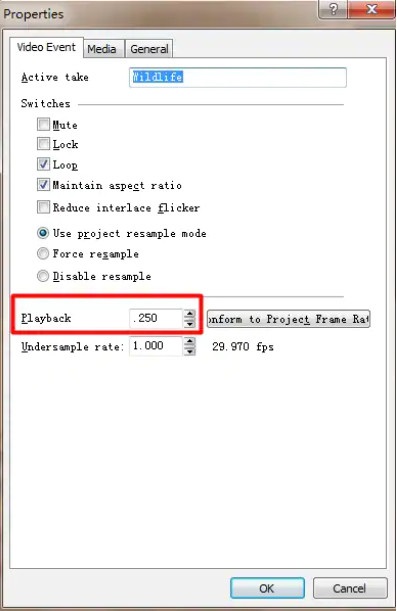
Opció 2. Ajustar la velocitat
Si us pregunteu quina és la velocitat, la velocitat és la velocitat i la direcció d'un objecte. Aquest mètode us ajudarà a saber com ajustar la velocitat del vostre vídeo amb Sony Vegas.
Fes clic amb el botó dret sobre el vídeo que vols accelerar i, al menú desplegable, selecciona Insert/Remove Envelop. Després tria Velocity.
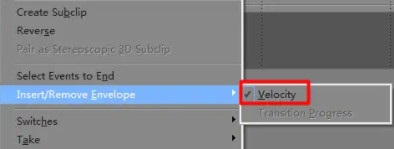
A continuació, arrossegueu el sobre a la velocitat que vulgueu. Quan arrossegueu el sobre cap amunt, la velocitat augmentarà i el vostre vídeo serà més lent quan arrossegueu el sobre cap avall.
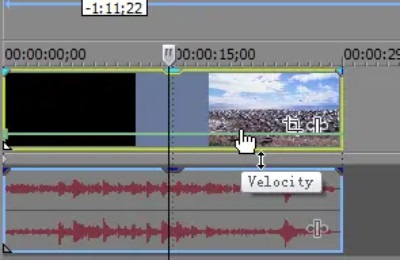
Opció 3. Retalla l'estirament
Aquest és el més fàcil de fer amb les tres opcions. Premeu la tecla Ctrl i arrossegueu qualsevol extrem del vostre vídeo; serà més lent quan estireu el vostre vídeo. Però quan comprimiu el vostre vídeo, la seva velocitat serà més ràpida.
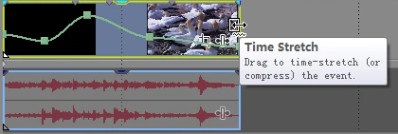
Per comprovar si s'apliquen els canvis, aneu a propietats i, a continuació, comproveu la velocitat de reproducció del vostre vídeo.
Part 3. 2 Manera més fàcil d'accelerar el vostre vídeo
Tot i que Sony Vegas té moltes funcions d'edició avançades per utilitzar i molts editors professionals l'utilitzen, la gent té dificultats per entendre la interfície de l'eina. Per tant, hem cercat una eina popular de canvi de velocitat de vídeo a Internet amb una interfície de programari fàcil d'utilitzar. Aquí teniu les tres eines més còmodes d'utilitzar per accelerar el vostre vídeo.
FVC Video Converter Ultimate
FVC Video Converter Ultimate és el millor programari per canviar la velocitat del teu vídeo. Aquest programari funciona fora de línia i inclou moltes funcions, com ara eliminador de marques d’aigua de vídeo, reversor de vídeo, sincronització d’àudio, etc. Admet molts formats de fitxer que es troben a internet, incloent-hi MP4, AVI, WMV, MOV, FLV i més de 1000 formats addicionals.
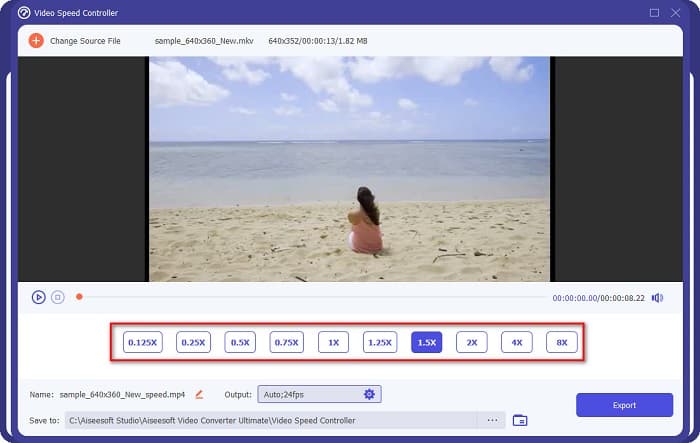
A més, té una interfície d'usuari senzilla, la qual cosa la converteix en una eina amigable per a principiants. A més, pot canviar la velocitat del vostre vídeo en 0,125x, 0,25x, 0,5x, 0,75x, 1,25x, 1,5x, 2x, 4x i 8x. Per tant, si esteu interessats a utilitzar aquesta eina, seguiu els senzills passos que s'indiquen a continuació.
Pas 1. Per descarregar FVC Video Converter Ultimate, fes clic al botó Download que trobaràs a continuació. A continuació, segueix el procés d’instal·lació i obre l’aplicació.
Descàrrega gratuïtaPer a Windows 7 o posteriorDescàrrega segura
Descàrrega gratuïtaPer a macOS 10.7 o posteriorDescàrrega segura
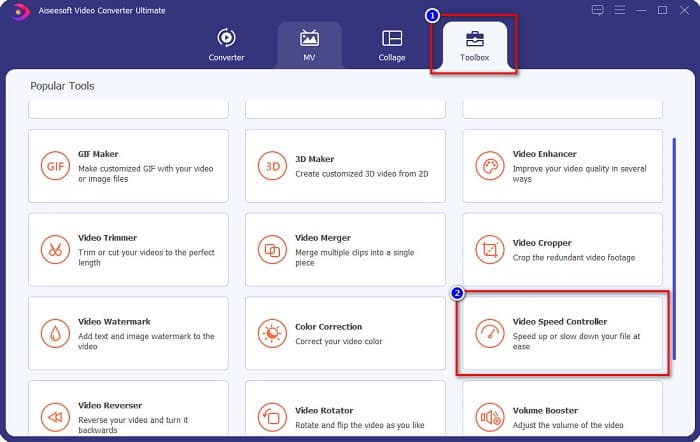
Pas 2. Tot seguit, fes clic a la pestanya Toolbox, situada a la part superior de la interfície principal del programari. Després fes clic a Video Speed Controller.
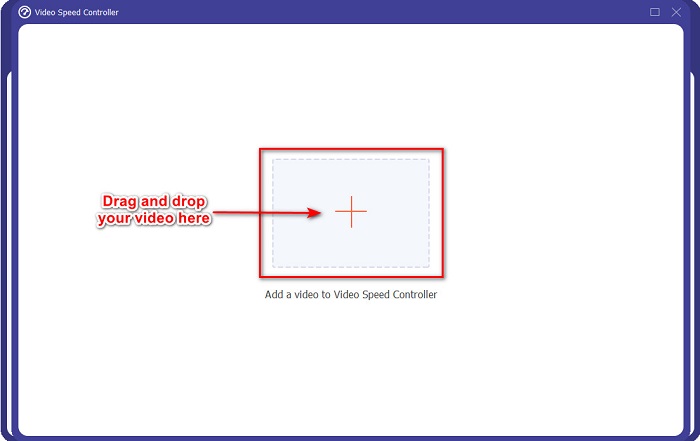
Pas 3. A la interfície següent, fes clic al botó amb el signe +, o bé arrossega i deixa anar el teu vídeo sobre el botó amb el signe més.
Pas 4. A continuació, selecciona la velocitat que vulguis per al teu vídeo triant entre les opcions de velocitat que hi ha sota la previsualització del vídeo. Si vols accelerar-lo més, tria una velocitat d’entre 1,25x i 8x.
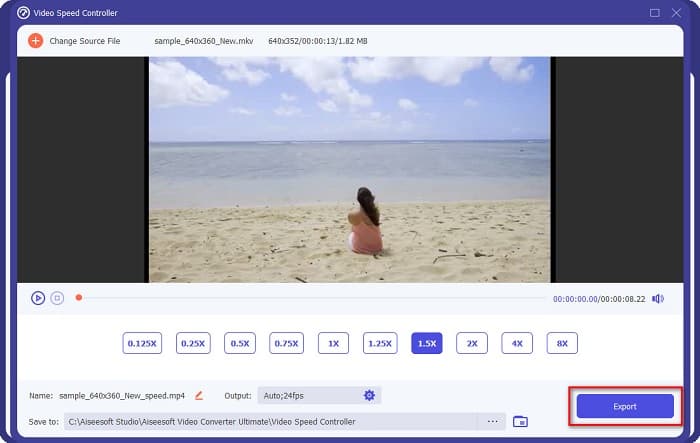
Pas 5. Finalment, fes clic al botó Export per aplicar el canvi a la velocitat del vídeo.
Pros
- Té moltes funcions avançades com Creador de GIF, creador de 3D, fusió de vídeo, etc.
- Admet diversos formats de fitxer, inclosos els formats MP4, WebM, WMV, M4V, MKV, AVI i més de 1000.
- Té una interfície de programari fàcil d'utilitzar.
- Disponible a totes les plataformes multimèdia, inclosos Windows i Mac.
Contres
- Compra l'aplicació abans d'accedir a les seves funcions especials.
Fastreel
Fastreel és una eina en línia que et permet canviar la velocitat del teu vídeo de 0,25 fins a 4x. Aquesta eina també té una interfície molt fàcil d’utilitzar i un alt nivell de seguretat. A més, et permet desar automàticament el resultat del teu vídeo als teus fitxers, amb una marca d’aigua.
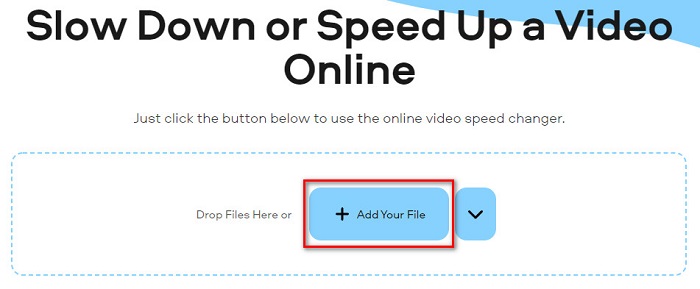
Pas 1. Al navegador, busca el canviador de velocitat de vídeo Fastreel. Després fes clic al botó Add Your File per pujar el teu vídeo. Es mostraran els fitxers de l’ordinador i podràs seleccionar el vídeo que vols pujar.
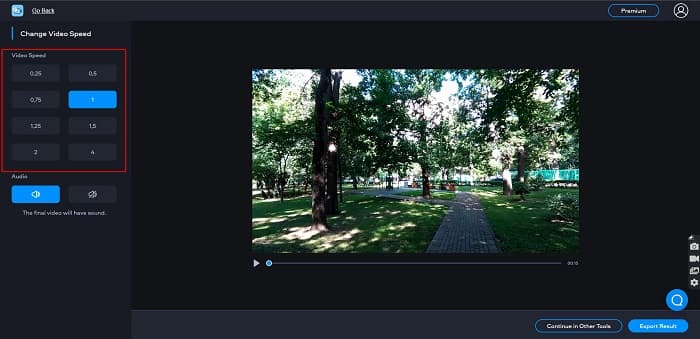
Pas 2. A continuació, selecciona la velocitat de vídeo que vulguis al costat esquerre de la interfície del programa.
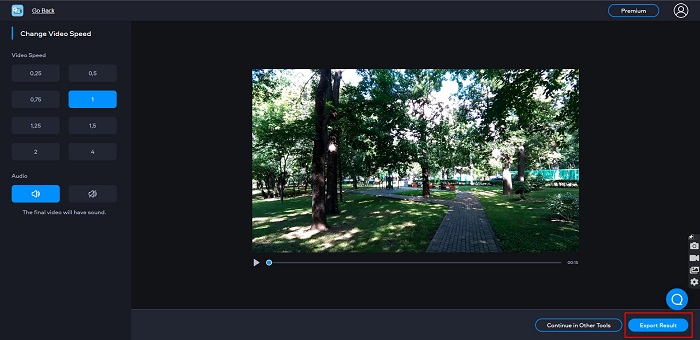
Pas 3. Finalment, fes clic a Export Result per canviar la velocitat del teu vídeo.
Pros
- Té una GUI senzilla.
- És gratuït i segur d'utilitzar.
Contres
- És possible que experimenteu un procés de càrrega lent quan la connexió a Internet és lenta.
Part 4. Preguntes freqüents sobre Sony Vegas Speed Up Video
Sony Vegas té una prova gratuïta?
Sí. Sony Vegas té una versió de prova gratuïta durant 30 dies. Quan la prova gratuïta de 30 dies hagi expirat, heu de comprar l'aplicació per utilitzar-la contínuament; costa $16,67 al mes.
Què és millor, Sony Vegas o Filmora?
Molts professionals diuen que Filmora és millor que Sony Vegas perquè Filmora té una interfície d'usuari més fàcil que Sony Vegas. Els editors professionals també diuen que Filmora pot produir una producció de millor qualitat que Sony Vegas.
Canviar la velocitat del vídeo a Sony Vegas afecta la qualitat del vostre vídeo?
No. Canviar la velocitat del vídeo a Sony Vegas no afectarà la qualitat del vostre vídeo.
Conclusió
En resum, ja hem respost a la qüestió de com accelerar un vídeo a Sony Vegas. Sony Vegas és un dels millors programes d’edició de vídeo. Molta gent fa servir aquesta eina per les grans funcions que ofereix. Tanmateix, si vols un canviador de velocitat de vídeo més pràctic i fàcil d’utilitzar, prova FVC Video Converter Ultimate, que també és molt recomanat per molts usuaris.
-
 [4 maneres] Com accelerar fàcilment els vostres vídeos en línia
 Vols accelerar un vídeo en línia? Llegiu aquest article per obtenir més informació sobre com accelerar un vídeo de diferents maneres possibles.
-
 Maneres més fàcils d'accelerar els vídeos en format MP4 [fora de línia i en línia]
 Vols accelerar el teu vídeo, però està en format MP4? Aquest article us pot ajudar a conèixer les diferències en com accelerar el vostre vídeo en línia o fora de línia.
-
 [Gratis i de pagament] GIF Speed Changer: eleccions populars del 2021
 No estàs satisfet amb el GIF que has fet en línia perquè és tediós i lent? Aquest serà el vostre dia de sort perquè us presentem un article sobre el canviador de velocitat GIF i els detalls que us ajudaran a utilitzar-lo i dominar-lo.
