


 Video Converter Ultimate
 Gravadora de pantalla
 Reparació de vídeo
Com accelerar el vídeo de moltes maneres possibles amb iPhone
Estàs a punt de crear el millor vídeo musical del teu projecte escolar i vols representar-hi una escena del cicle vital. Vols avançar ràpid tot el vídeo musical augmentant-ne la velocitat de reproducció i executant correctament la transició de jove a adult, però només tens el telèfon per fer-ho possible. Només tens un iPhone, per ser exactes, per augmentar la velocitat de reproducció i editar tot el vídeo musical. Tanmateix, l’iPhone és famós pel seu enfocament restrictiu a l’hora de descarregar aplicacions, perquè algunes de les seves apps requereixen comprar la versió completa per tenir-hi accés total. Continua llegint aquest article per entendre profundament com accelerar un vídeo a l’iPhone.

Part 1. La millor manera d'accelerar el vídeo a l'iPhone
Anteriorment conegut com a iPhone OS, iOS és un sistema operatiu mòbil d’Apple Inc. desenvolupat exclusivament per al maquinari de l’empresa. També és conegut per la seva exclusivitat a l’hora de descarregar aplicacions, a diferència d’Android. Tot i així, l’iPhone ofereix altres aplicacions que poden editar i personalitzar un clip de vídeo i que estan disponibles en el seu sistema operatiu. Algunes d’aquestes aplicacions també poden controlar la velocitat de reproducció; parlant del control de velocitat de vídeo a l’iPhone, aquestes aplicacions són fàcils d’utilitzar i es poden descarregar gratuïtament a qualsevol dispositiu iOS. Per saber-ne més sobre el control de la velocitat del vídeo a l’iPhone, aquí tens els passos que es detallen a continuació:
Mètode 1. Utilitzeu iMovie per accelerar el vídeo a l'iPhone
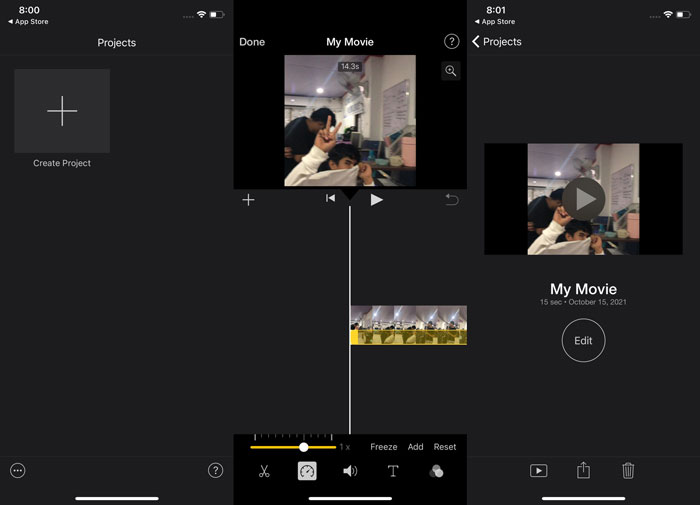
Pots crear tràilers d’estil Hollywood en resolució 4K amb iMovie al teu iPhone. Un cop hagis editat tots els teus vídeos, pots afegir-hi títols animats, música i altres tocs finals com filtres i efectes. El programari iMovie d’Apple facilita explicar la teva història d’una manera polit i professional i després compartir la teva feina amb amics i família. iMovie ofereix funcions que poden millorar la qualitat del teu vídeo amb els seus diversos templates i eines de finalització disponibles; també introdueix la seva capacitat de controlar la velocitat de reproducció a l’iPhone. Atès que la majoria d’editors han de donar importància als punts tractats, aquí tens els passos a seguir per aconseguir la velocitat desitjada amb aquesta eina a l’iPhone.
Pas 1: Obre l’app iMovie al teu iPhone o iPad. Si apareix una vista general de la interfície, selecciona Continua. Per començar un clip de vídeo nou, ves a la pàgina Projectes i toca la icona del signe +. Ves a la finestra Projectes nous i selecciona Pel·lícula per continuar.
Pas 2: Fes clic a Crea pel·lícula a la part inferior de la pantalla després de seleccionar un vídeo del teu Carret. L’eina de velocitat s’assembla a un velocímetre i es pot trobar tocant el clip de vídeo a la línia de temps i esperant que apareguin les eines d’edició abans d’utilitzar-les. Només cal que moguis el control lliscant groc de la part inferior per avançar o alentir el teu material de vídeo. Pots duplicar-ne la velocitat o reduir-la fins a una vuitena part de la velocitat original.
Pas 3: Si tot ja és com vols, fes clic a Fet a l’angle superior esquerre de la pantalla del telèfon. Per desar el teu vídeo acabat, fes clic al botó Comparteix a la part inferior de la pantalla i selecciona on el vols desar.
Mètode 2. Utilitzeu Videoshop per accelerar el vídeo a l'iPhone
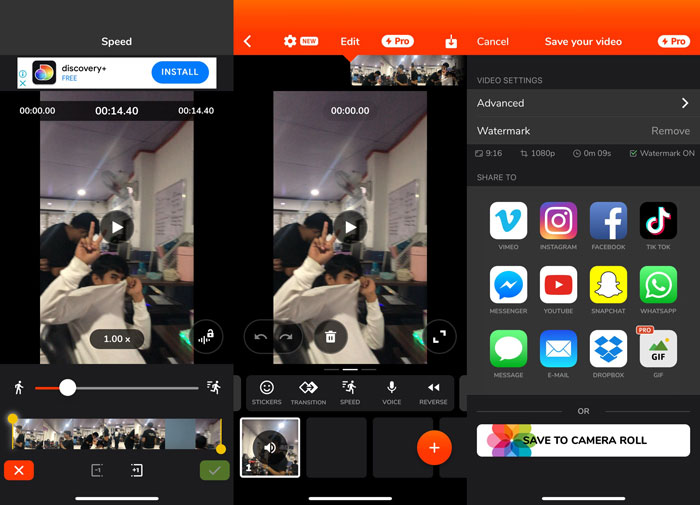
Quan es tracta de programari d’edició de vídeo, hi ha poques opcions millors que Videoshop. Amb aquesta aplicació, pots editar ràpidament el teu vídeo afegint-hi efectes com música, veu en off, text i imatges. També pots aplicar ràpidament filtres espectaculars als teus vídeos, crear presentacions de fotos i editar, unir, copiar, enganxar, girar i capgirar els teus vídeos. A més, també pots ajustar ràpidament la velocitat de reproducció del vídeo per crear vídeos a càmera ràpida o a càmera lenta amb aquesta aplicació. Amb només uns passos senzills, ja pots canviar la velocitat de reproducció del teu vídeo fins que aconsegueixis la velocitat desitjada. Per aprendre més sobre com accelerar un vídeo amb Videoshop a l’iPhone, aquí tens la llista de passos a seguir perquè la puguis utilitzar amb facilitat.
Pas 1: Quan obris per primera vegada l’editor de vídeo al teu iPhone, se t’oferirà l’opció d’enregistrar un vídeo nou o importar-ne un de desat prèviament. Fes servir l’editor de vídeo i apareixerà una interfície nova un cop hagis afegit un fitxer de vídeo a la finestra de l’editor. A la part inferior de l’editor de vídeo hi ha una barra d’eines amb nombroses eines. Llisca o fes clic a la pantalla cap a l’esquerra i la dreta dins d’aquesta barra. Quan hagis seleccionat Velocitat, se t’obrirà un menú de control de la velocitat del vídeo.
Pas 2: Amb aquest editor de vídeo a l’iPhone, pots canviar fàcilment la velocitat del teu vídeo. Pots alentir o accelerar la reproducció arrossegant el control de velocitat cap a l’esquerra o cap a la dreta. Per previsualitzar el canvi, prem el botó Reprodueix. Aleshores pots tornar a ajustar la velocitat del vídeo fins que estiguis satisfet amb el teu vídeo personalitzat.
Pas 3: Desa la teva feina fent clic al botó Fet a l’angle superior dret.
Part 2. Una forma alternativa d'accelerar el vídeo a l'iPhone
Si et costa assimilar tots els passos de l’eina anterior, aquest article presenta una alternativa que ajuda amb el problema de com accelerar el vídeo fins a 2x a l’iPhone. No estàs gaire familiaritzat ni avesat a fer servir l’iPhone com a editor del teu vídeo, sobretot quan vols augmentar la velocitat de reproducció del teu vídeo. Video Converter Ultimate serà la millor alternativa que has de considerar, ja que et permetrà accelerar el teu vídeo de manera permanent. Descarrega i utilitza Video Converter Ultimate com a controlador de velocitat per als teus vídeos. Aquest programari inclou nombroses funcions i eines que poden millorar les teves habilitats d’edició. També incorpora una eina de Control de velocitat de vídeo per solucionar el problema que tenen tots els usuaris d’iOS. Amb aquesta eina, ara pots ajustar la velocitat del teu vídeo amb facilitat i produir un vídeo de bona qualitat. A més, pot canviar la velocitat del teu vídeo en només uns segons, gràcies al seu procés de conversió ràpid. En resum, aquest programari funciona de manera professional amb la interfície fàcil d’utilitzar que ofereix. Com que aquesta via alternativa és un programari al qual només pots accedir des de l’ordinador, cal que aprenguis com transferir el vídeo de l’iPhone a l’ordinador per dur a terme aquesta alternativa.
1. Per començar, utilitzeu un cable USB per connectar el vostre iPhone a un ordinador.
2. Obriu l'aplicació Fotos al vostre PC fent clic al botó Inici i després a Fotos.
3. Seguiu les instruccions de la pantalla després de seleccionar Importa des d'un dispositiu USB. Teniu control complet sobre què importeu i on es desa. Doneu-vos una mica de marge de respiració mentre es duen a terme els processos de detecció i transferència.
Ara podeu seguir els passos següents per accelerar els vostres vídeos al vostre iPhone.
Pas 1: Per executar el programari a l’ordinador, primer l’has de descarregar fent clic a Baixada gratuïta al botó inclòs a continuació. Després de descarregar-lo a l’escriptori, ja el pots instal·lar i fer clic a Comença ara per finalitzar la instal·lació.
Descàrrega gratuïtaPer a Windows 7 o posteriorDescàrrega segura
Descàrrega gratuïtaPer a macOS 10.7 o posteriorDescàrrega segura
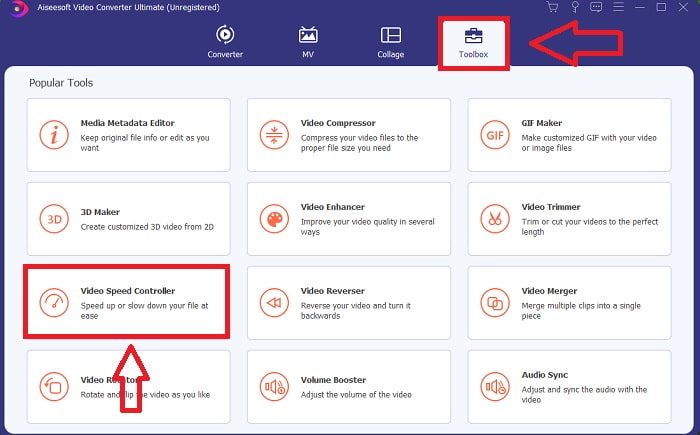
Pas 2: Després d’instal·lar el programari, prova d’obrir-lo i veuràs la fase de conversió a la interfície principal del programa. A continuació, ves a la funció Caixa d’eines. Des d’allà veuràs diferents eines destacades que té el programari i, per ajustar la velocitat del teu vídeo, selecciona Controlador de velocitat de vídeo.
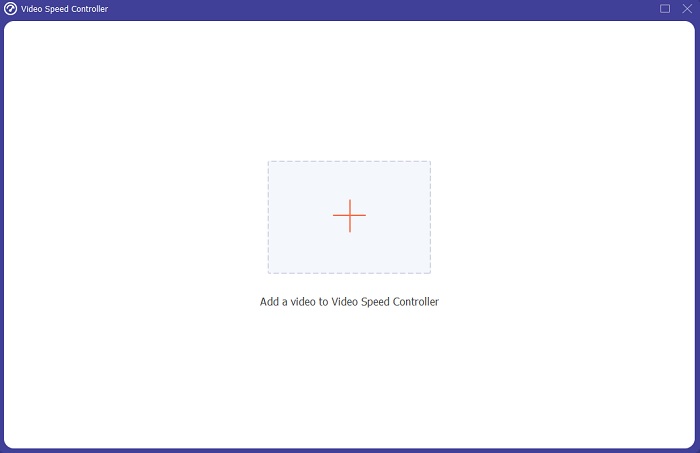
Pas 3: Després de continuar, apareixerà una altra pestanya a la pantalla. Comença el procés d’edició prement el signe +.
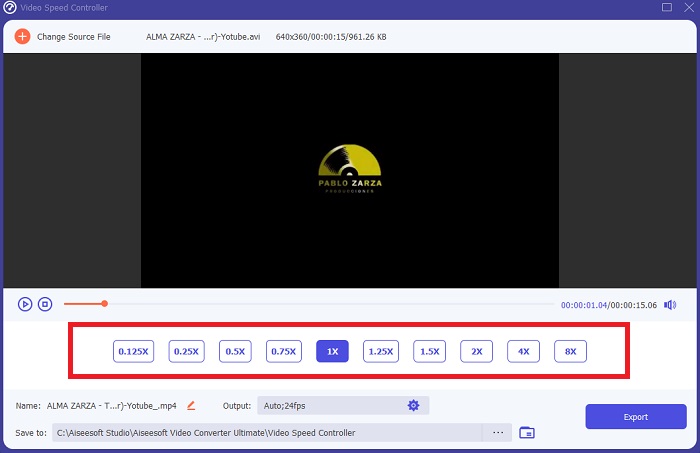
Pas 4: Pots començar la fase d’edició seleccionant quantes vegades augmentarà o disminuirà la velocitat de fotogrames del vídeo per modificar la velocitat de reproducció. Si ja estàs satisfet amb la velocitat del teu vídeo, ja pots personalitzar la qualitat del vídeo de sortida ajustant-ne el format, la resolució, la velocitat de fotogrames, etc. També tindràs l’oportunitat de canviar el nom del vídeo de sortida.
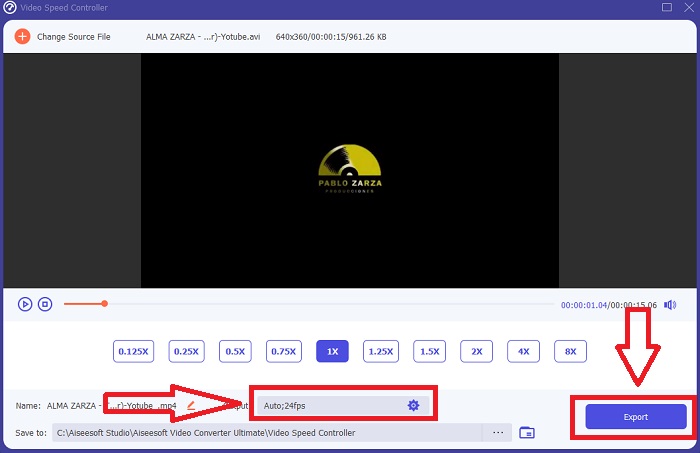
Pas 5: Per desar la teva feina, fes clic a Exporta i selecciona una destinació al sistema de fitxers de l’ordinador.
Relacionat:
Part 3. Preguntes freqüents sobre com accelerar el vídeo a l'iPhone
Com funciona un controlador de vídeo?
El control de velocitat del reproductor de vídeo determina la velocitat de reproducció del vídeo. Quan utilitzeu un reproductor multimèdia per veure una pel·lícula, el vídeo es reproduirà a la mateixa velocitat que un vídeo estàndard. L'objectiu del control de velocitat del reproductor de vídeo és permetre que l'usuari modifiqui la velocitat de reproducció del vídeo. Alguns dels vídeos s'han de frenar perquè pugueu seguir l'acció.
Com puc canviar permanentment la velocitat de reproducció de vídeo?
Penseu en quants passos cal per canviar la velocitat de reproducció dels vostres vídeos. Tot i que les eines de vídeo i els editors de vídeo estan disponibles en línia, encara esteu buscant la millor eina per solucionar problemes de velocitat de reproducció amb el vostre videoclip. Hi ha nombroses eines web disponibles a Internet, algunes de les quals són gratuïtes però requereixen pagament per desbloquejar totes les funcions. Video Converter Ultimate, un programa gratuït per accelerar els vídeos, és la vostra millor aposta per canviar la vostra velocitat de reproducció permanentment.
Com puc accelerar un vídeo MP4?
Hi ha nombrosos convertidors disponibles per descarregar i utilitzar fora de línia. Podeu accelerar la reproducció de vídeo utilitzant Video Converter Ultimate com a alternativa a altres convertidors de vídeo. El reforç de velocitat de vídeo és només una de les moltes funcions disponibles perquè és un programari gratuït i de codi obert.
Conclusió
Com he dit, els usuaris d'iPhone que somien amb resoldre la velocitat de reproducció del seu vídeo no han de comprar diferents eines. Hi ha molts editors d'ús gratuït disponibles que cal cercar; alguns necessiten una comprensió crítica per utilitzar-lo correctament, però la majoria són accessibles. Parlant de les millors eines disponibles, us recomanem que utilitzeu Video Converter Ultimate per accelerar els vostres clips de vídeo fins a 2 vegades la velocitat normal o fins i tot fins a 8 vegades més ràpid. A més, el vídeo es pot reduir a una quarta part de la seva velocitat normal mitjançant aquesta funció. Aquest programari té tot el que un editor professional vol tenir i, fent-lo servir, tindreu la possibilitat de convertir-vos en un professional.
-
 [2 millors solucions] Com reproduir pel·lícules AVI a iPhone/iPad fàcilment
 No podeu reproduir pel·lícules AVI al vostre iPhone/iPad i no voleu descarregar reproductors de vídeo de tercers? Podeu aprendre 2 maneres eficients de convertir vídeos AVI per reproduir-los a l'iPhone.
-
 [Resolt] Com solucionar els vídeos que no es reprodueixen a l'iPhone amb passos detallats
 Els vídeos locals de la galeria no es poden reproduir al vostre iPhone mitjançant el reproductor de vídeo predeterminat? Els vídeos de YouTube en línia que no es reprodueixen a l'iPhone sempre passen? Aquí teniu 5 solucions per ajudar-vos en aquest article.
-
 Els 5 millors reproductors de vídeo per a iPhone que no us hauríeu de perdre el 2021
 Per reproduir vídeos en tots els formats i tenir una millor experiència de visualització al vostre iPhone, heu de llegir aquest article i conèixer els millors 5 reproductors de vídeo per a l'iPhone 12/11 / X / 8/7/6.
