


 Video Converter Ultimate
 Gravadora de pantalla
 Reparació de vídeo
Com accelerar el vídeo en línia: enfocaments extensos disponibles a Internet
La classe en línia és un altre mètode d’ensenyament utilitzat en els plans d’estudis híbrids, sobretot durant aquesta pandèmia, i consisteix a fer presentacions en vídeo com a alternativa als cursos síncrons. No obstant això, la majoria de presentacions en vídeo que duren una hora són molt avorrides de veure. Alguns estudiants no tenen més remei que augmentar la velocitat o avançar el vídeo per captar els detalls essencials de la lliçó. Aquest article és perfecte per solucionar aquest tipus de problema que tenen la majoria d’estudiants. A continuació tens alguns exemples de com accelerar un vídeo en línia.

Part 1. Diferents maneres disponibles per augmentar la velocitat de reproducció de vídeo
Pot semblar estrany accelerar vídeos perquè tots es reprodueixen a una velocitat mitjana. Però hi ha gent que vol veure un clip de vídeo 2 vegades més ràpid del normal. Per exemple, hi ha qui ho fa per saltar-se els detalls poc essencials d’un vídeo que poden fer que una pel·lícula sigui avorrida, com quan la tornes a veure. Només vols saltar-te les escenes de conversa i avançar fins a la part d’acció o al clímax. En canvi, alguns prefereixen veure els vídeos de manera ràpida. Hi ha aplicacions d’edició, la majoria de pagament, que poden ajudar-te amb aquest dilema. No obstant això, el programari i les eines web següents et permetran accelerar un vídeo en línia de manera gratuïta.
Mètode 1. Utilitzeu Clideo
El programari de màrqueting de vídeo Clideo inclou la creació, edició, compressió i preparació de vídeos per distribuir-los pràcticament a qualsevol públic en línia. Disposa de moltes funcions, com ara un conjunt d’eines d’edició, un motor de personalització i diversos formats disponibles. Una de les eines permet avançar ràpid i accelerar el vídeo. I si et preguntes com l’has d’utilitzar, aquí tens els passos per fer servir Clideo:
Pas 1: Fes clic a Choose File a la interfície de Clideo i puja el clip de vídeo que vols accelerar.
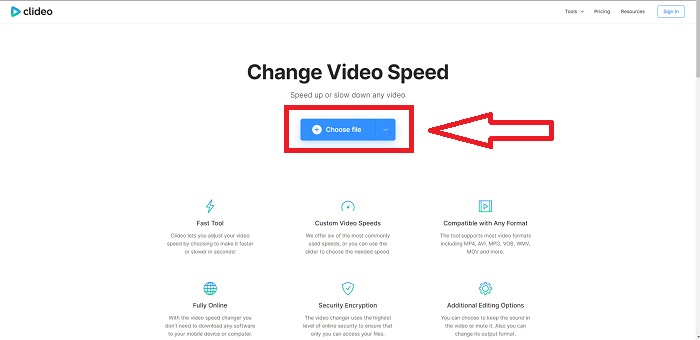
Pas 2: Un cop hagis pujat el vídeo, selecciona la velocitat desitjada per aplicar-la al teu fitxer de vídeo a la cantonada dreta de la interfície. Pots triar si vols fer un vídeo més ràpid o més lent que la velocitat real del clip. També tens l’opció de silenciar tot el vídeo.
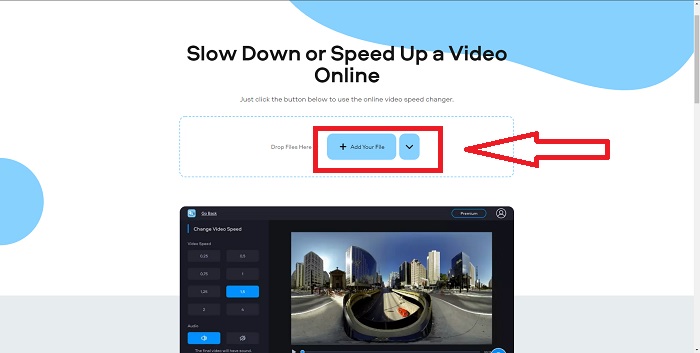
Pas 3: Si ja estàs satisfet amb la velocitat del teu vídeo, selecciona el format compatible que vulguis. Els formats disponibles són AVI, 3G2, 3GP, F4V, ASF, FLV i M2TS. Després, si tot és a punt per pujar-ho, exporta el teu fitxer fent clic a Export i prem Download per transferir el fitxer a l’escriptori.
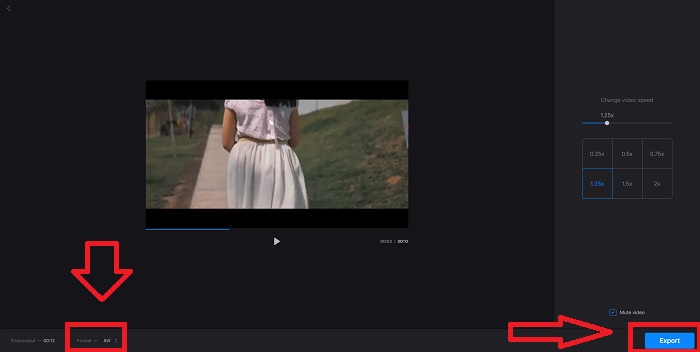
Mètode 2. Utilitzeu Fastreel
L’eina d’edició de vídeo Fastreel et permet crear clips curts, editar vídeos i utilitzar plantilles predissenyades per fer el procés més ràpid i eficient. Una de les empreses que hi ha darrere d’aquest servei és Movavi, també coneguda pel seu programari d’edició i conversió de vídeo. Com que funciona en qualsevol navegador – Firefox, Google Chrome, Opera i Safari – Fastreel és una excel·lent alternativa al programari d’escriptori tant per a usuaris de Windows com de Mac. Igual que la primera eina web, Fastreel disposa de funcions que t’ajuden a accelerar un vídeo en línia. Segueix els passos següents:
Pas 1: A la interfície de Fastreel, fes clic a Use Online Tools per obrir totes les eines destacades disponibles.
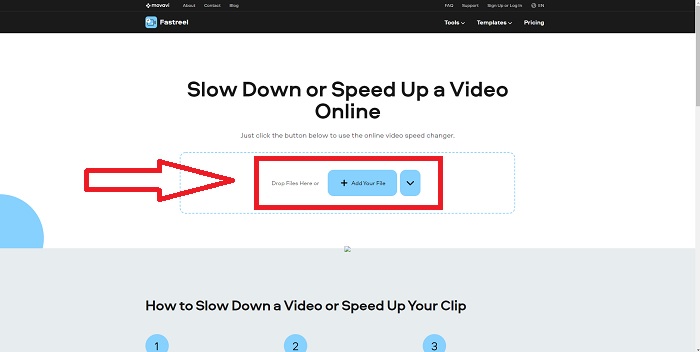
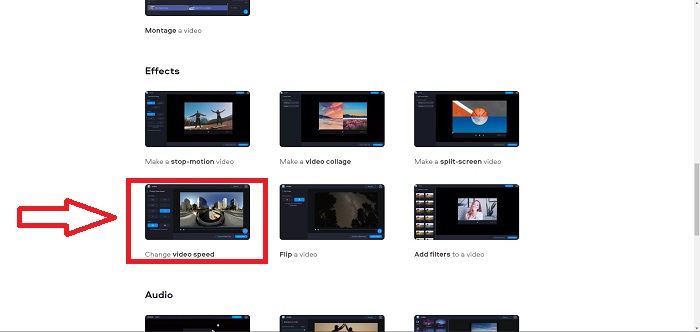
Pas 2: Després veuràs el resum de totes les funcions de Fastreel. Desplaça’t cap avall i localitza la secció Effects i fes clic a Change Video Speed per començar a editar el clip de vídeo. Continua fent clic a Add file i segueix editant.
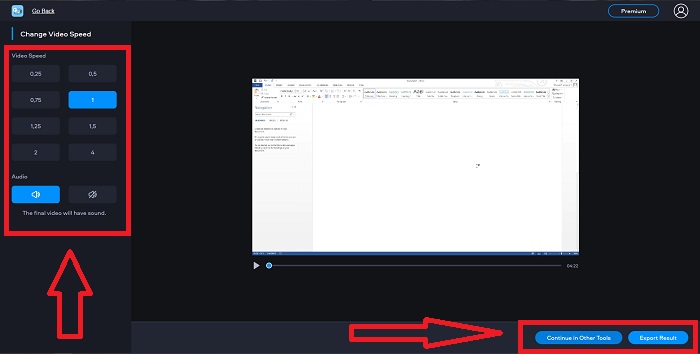
Pas 3: Finalment, ajusta la velocitat de reproducció, bé augmentant-la o disminuint-la. Podràs triar si vols exportar el fitxer o fer servir una altra eina de Fastreel. Tanmateix, pots desbloquejar totes les altres funcions si fas clic a Premium.
Mètode 3. Utilitzeu Flixier
L’eina web següent no té cap limitació de mida de fitxer a l’hora d’editar la velocitat de reproducció perquè pot accelerar un vídeo gran en línia. Prova Flixier, el nostre editor de vídeo en línia que crea vídeos directament al navegador de la manera més senzilla possible. Afegir text i imatges als vídeos és tan fàcil com arrossegar-los i deixar-los anar a l’editor. No cal descarregar ni instal·lar cap programari per retallar, tallar o escalar vídeos en qüestió de minuts. Sigui quin sigui el teu nivell d’experiència, pots produir contingut d’alta qualitat ràpidament. A continuació, et presentem els passos:
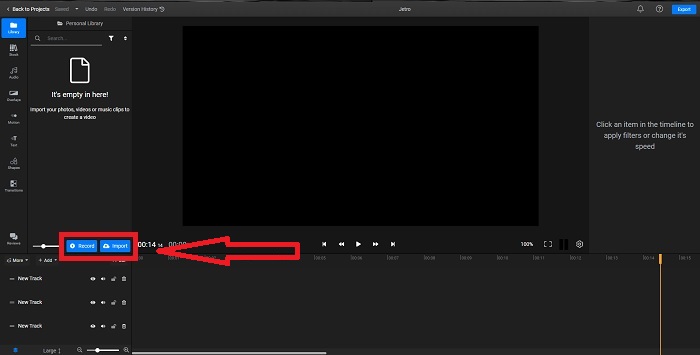
Pas 1: Obre Flixier en una altra pestanya i comença a importar el clip de vídeo des de l’escriptori fent clic a Import o comença a gravar fent clic a Record. Arrossega el vídeo importat a la pista i comença a editar.
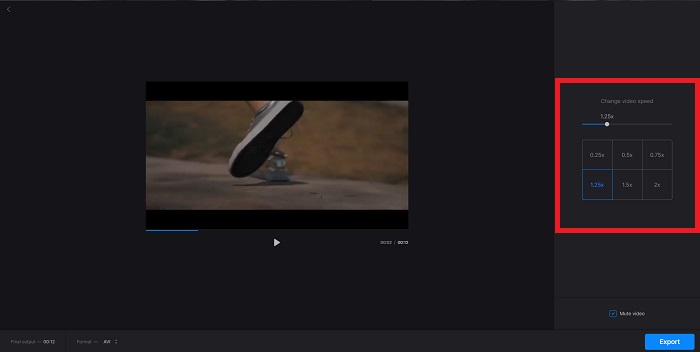
Pas 2: A la cantonada dreta veuràs la pestanya Video a les eines d’edició. Desplaça’t cap avall i fes clic a Video Speed per ajustar la velocitat de reproducció del clip importat. Selecciona si vols reduir o augmentar el teu vídeo a .5x, 1.5x, 2x, o bé arrossega el Slider si vols aplicar una velocitat de reproducció específica al teu clip.
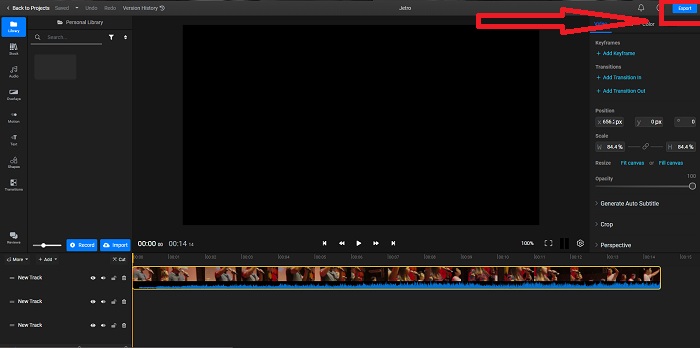
Pas 3: Exporta el clip fent clic a Export a la cantonada superior dreta de la interfície. Després apareixerà una altra interfície. En aquesta finestra podràs canviar el nom del fitxer exportat i triar diferents xarxes socials i serveis d’emmagatzematge en el núvol.
Mètode 4. Utilitzeu Video Converter Ultimate - La manera més fàcil
Si estàs dubtant a l’hora d’escollir la millor manera de fer el vídeo més ràpid, no vols utilitzar més un editor web en línia i prefereixes un programa descarregable, prova de fer servir Video Converter Ultimate per editar el teu vídeo i fins i tot personalitzar-ne la velocitat de reproducció.
Pas 1: Fes clic a l’opció Free Download per desar el programari al disc dur de l’ordinador. Després podràs personalitzar el sistema instal·lant i configurant el programari.
Descàrrega gratuïtaPer a Windows 7 o posteriorDescàrrega segura
Descàrrega gratuïtaPer a macOS 10.7 o posteriorDescàrrega segura
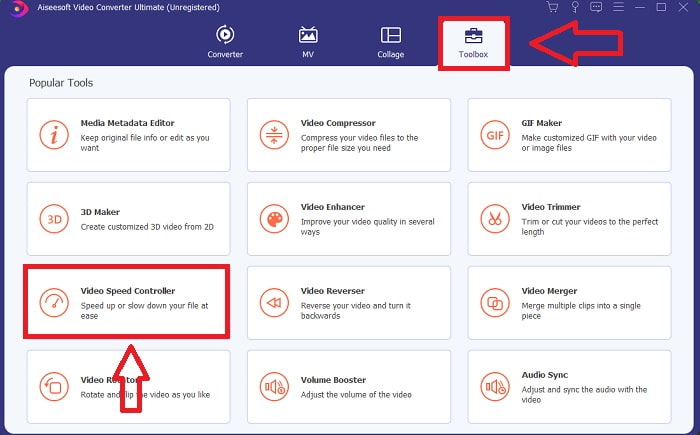
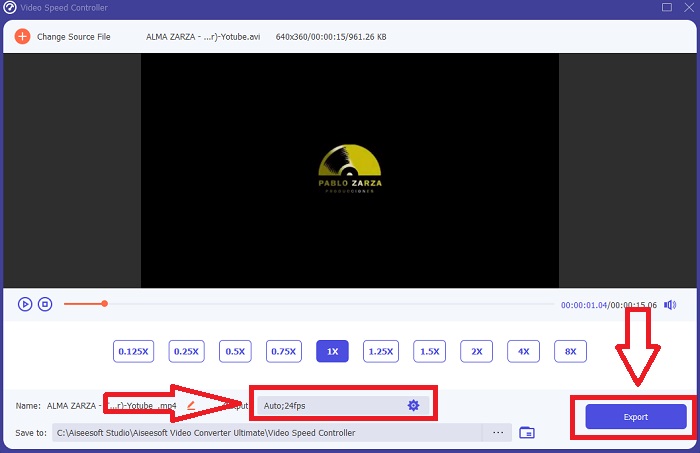
Pas 2: Un cop el programari estigui instal·lat, executa’l seleccionant l’opció Eines de la barra de menús i, a continuació, seleccionant Controlador de velocitat de vídeo de la llista que apareix.
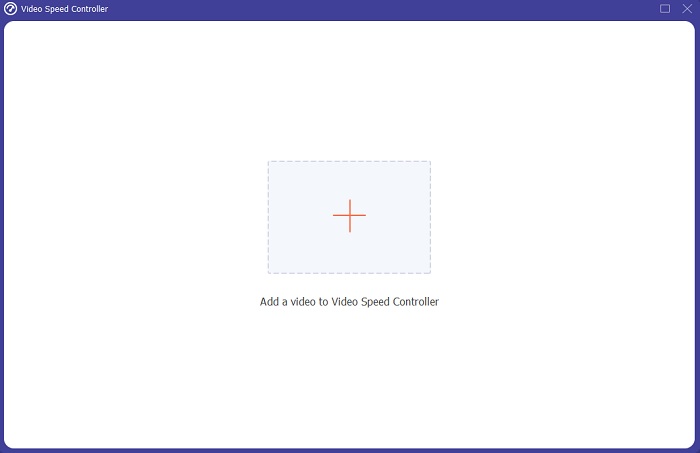
Pas 3: Fes clic al botó + que prefereixis per afegir un fitxer i continua modificant el vídeo.
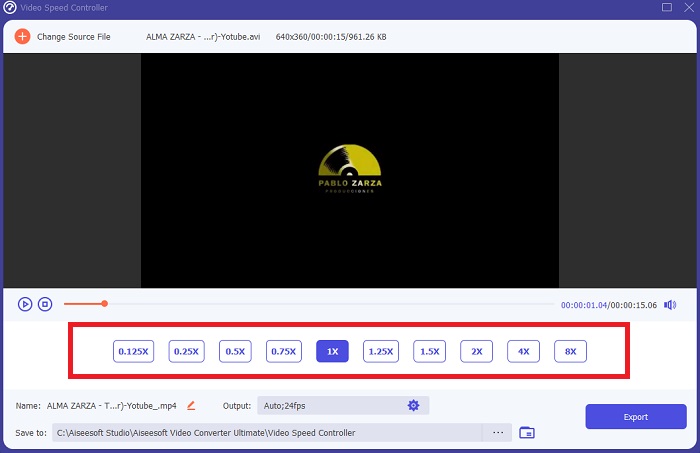
Pas 4: Ajusta la velocitat de reproducció triant quantes vegades vols augmentar o reduir la velocitat del vídeo.
Pas 5: Quan acabis d’editar la velocitat de reproducció del clip de vídeo, pots triar quin resultat vols modificant el format, la resolució, la qualitat, etc. Fes clic a Export i indica on es desarà el fitxer.
Relacionat:
El millor reproductor VOB per a Android
Millor reproductor de vídeo per a iPhone
Part 2. Preguntes freqüents sobre com accelerar el vídeo en línia
La mida del fitxer del vídeo es fa més petita si augmenteu la velocitat de reproducció?
Només es dividirà el fotograma cada vegada que augmenteu o reduïu la velocitat de reproducció del vostre vídeo. Si l'augmenteu 0,5 vegades més ràpid, el fotograma serà de 60 fotogrames per 1/120 de segon. En resum, no pot afectar el vídeo tret que el vídeo ja tingui una velocitat de fotogrames baixa.
Quina eina és molt més fàcil d'utilitzar per fer vídeo més ràpid?
Totes les eines són d'ús gratuït o de descàrrega gratuïta. Tanmateix, Video Converter Ultimate és la millor alternativa per a totes les eines web que s'han comentat a la part anterior de l'article. Aquesta eina també té moltes funcions disponibles i us pot ajudar a millorar el vostre vídeo de les maneres accessibles possibles.
L'eina accepta tots els formats?
No, algunes de les eines proporcionades només admeten un nombre limitat de formats. Alguns d'ells poden convertir la sortida a un format diferent. No obstant això, Video Converter Ultimate admet diversos formats i també està disponible per a tots els dispositius. També pot accelerar el vídeo mp4 en línia, ja que la majoria de reproductors multimèdia admeten el format mp4.
Conclusió
Accelerar els vídeos pot ser una idea estranya per a la majoria de la gent, i només va portar a alguns propòsits inusuals. Tanmateix, encara beneficia les persones que volen la idea de convertir els seus vídeos d'una manera ràpida. Aquest article pot ser una escriptura útil per a la gent que es dedica a explorar l'edició de vídeos i respondre a totes les preguntes sobre l'acceleració d'un videoclip.
-
 Com convertir fitxers MKV per jugar a PS3 sense problemes [Resolt]
 Vols reproduir vídeos MKV a la teva PS3? Tanmateix, PS3 no pot reproduir fitxers MKV directament. Aquest article us mostrarà maneres de convertir vídeos MKV a formats de vídeo compatibles amb PS3 per reproduir-los a PS3 sense cap molèstia.
-
 Reproductor de DVD Android: com reproduir vídeos de DVD en mòbils Android
 Com es reprodueixen fitxers DVD en mòbils Android? Hi ha reproductors de DVD Android? En aquest article, aprendreu sobre 3 maneres de reproduir vídeos de DVD en mòbils Android amb o sense el controlador extern.
-
 Els millors 10 reproductors MP4 Android gratuïts per reproduir vídeos en HD / 4K
 Tot i que els mòbils Android tenen els reproductors predeterminats per reproduir vídeos MP4, no admeten l'ajust de la configuració de reproducció i altres funcions. Així, podeu obtenir informació sobre els 10 millors reproductors MP4 d'Android d'aquest article.
