


 Video Converter Ultimate
 Screen Recorder
 Oprava videa
Užitečné tipy pro vytváření zpomalených videí v iMovie
iMovie je skvělý videoeditor, který je k dispozici v každém operačním systému iOS a macOS. Tato aplikace je zdarma ke stažení a nabízí různé nástroje, které velmi pomáhají při zásadních úpravách videa, zejména pokud jde o rychlost přehrávání videa nebo vytváření zpomalených záběrů. Protože je tato aplikace uživatelsky přívětivá, může být zároveň obtížné přesně pochopit a použít potřebné funkce tak, abyste dosáhli požadovaného zpomalení ve svém videu. Abyste plně porozuměli všem detailům, jak vytvářet zpomalená videa v iMovie, přečtěte si tento článek a pečlivě postupujte podle kroků.

Část 1. Jak vytvářet zpomalená videa v iMovie pomocí iPhone
Jak je uvedeno výše, iMovie funguje pouze v systémech iOS, jako je iPhone. Chcete-li pomocí této aplikace natočit ta nejlepší zpomalená videa, zde jsou uvedeny postupy, které vás provedou také tím, jak tuto aplikaci používat.
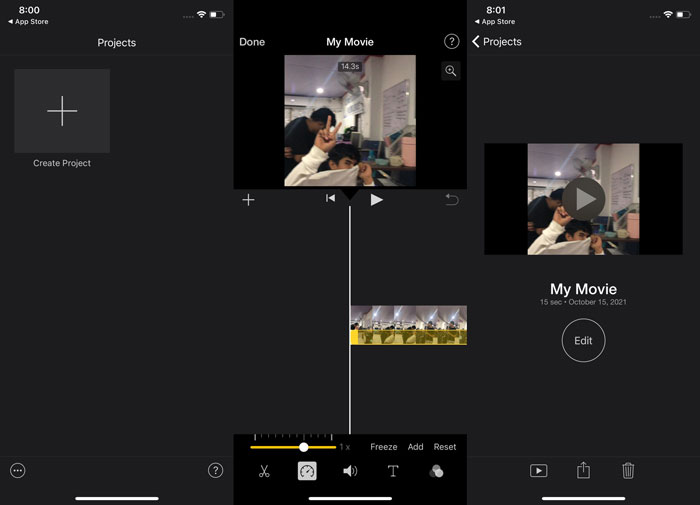
Krok 1. Na iPhonu nebo iPadu spusťte aplikaci iMovie. Pokud se zobrazí přehled uživatelského rozhraní, uvidíte tlačítko Pokračovat. Na kartě Projekty vyberte ikonu se znakem + pro úpravu nového videoklipu. Pro pokračování přejděte do okna Nový projekt a zvolte možnost Film.
Krok 2. Po výběru videa z vašeho filmového pásu a klepnutí na tlačítko Vytvořit film ve spodní části obrazovky. Nástroj rychlosti, který vypadá jako tachometr, najdete tak, že klepnete na videoklip na časové ose a počkáte, až se zobrazí editační nástroje, a poté vyberete jednu z možností. Chcete-li video zrychlit nebo zpomalit, jednoduše posuňte žlutý spodní posuvník doprava nebo doleva. Můžete zrychlit až na dvojnásobek původní rychlosti nebo zpomalit až na jednu osminu původní rychlosti.
Krok 3. Až budete se vším hotovi, klepněte v levém horním rohu obrazovky telefonu na Hotovo. Chcete-li uložit hotový film, klikněte na ikonu Sdílet ve spodní části stránky a vyberte umístění, kam se má uložit.
Část 2. Jak vytvářet zpomalená videa v iMovie pomocí Mac
iMovie je k dispozici také na počítačích Mac, díky čemuž jsou ta nejdokonalejší zpomalená videa tím nejjednodušším možným způsobem. Chcete-li vědět, jak dosáhnout požadovaného druhu videí, postupujte podle následujících kroků:
Krok 1. Změňte rychlost klipu v programu iMovie na Macu tak, že jej vyberete na časové ose a upravíte rychlost klipu.
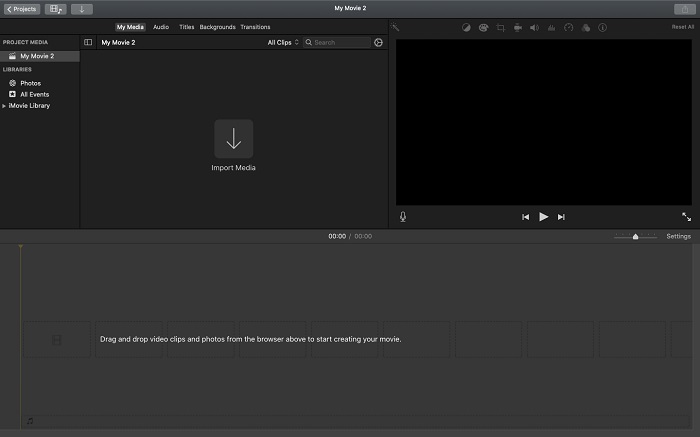
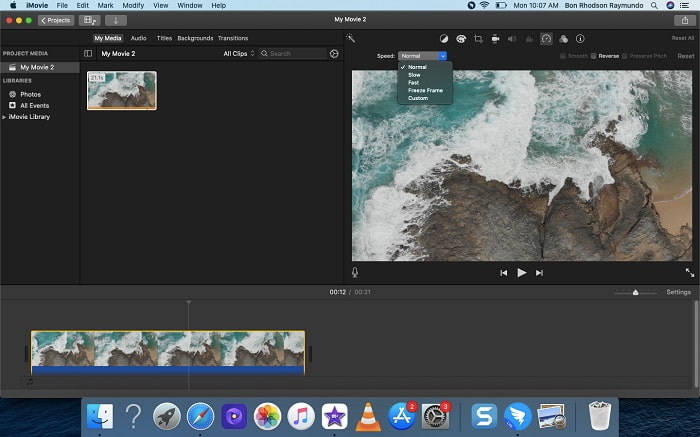
Krok 2. Nastavení rychlosti zobrazíte kliknutím na tlačítko Rychlost v pravém horním rohu obrazovky. Pro jemné doladění rychlosti si stačí na tomto tlačítku vybrat mezi pomalejšími (Slow) a rychlejšími (Fast) hodnotami.
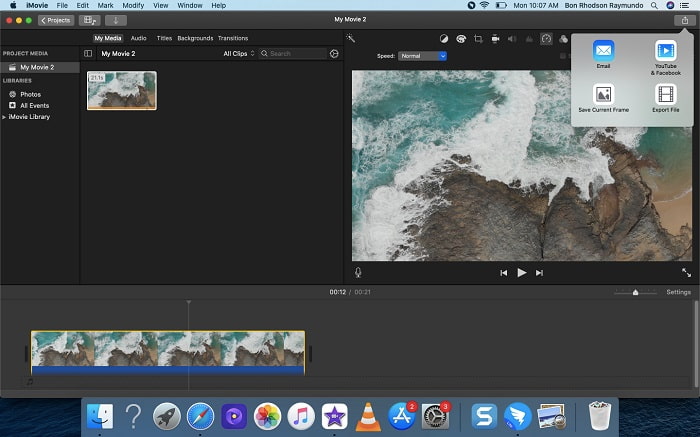
Krok 3. Chcete-li soubor uložit na pevný disk svého počítače, klikněte na ikonu Nahrát v pravém horním rohu obrazovky.
Část 3. Nejlepší alternativa při vytváření zpomalených videí
Kromě používání iMovie k vytváření zpomalených videí mohou z této nejlepší alternativy těžit všichni uživatelé stolních počítačů a notebooků. Video Converter Ultimate je software zdarma ke stažení, dostupný jak pro Windows, tak pro macOS. Snadno se používá a má uživatelsky přívětivé rozhraní, takže nebudete mít problém zorientovat se v nástrojích pro tvorbu zpomalených záběrů. Nabízí jeden z nejlepších nástrojů – ovladač rychlosti videa (Video Speed Controller) –, který můžete použít k úpravě rychlosti přehrávání videa, a díky tomu si můžete ze svého běžného videa vytvořit zpomalený záběr. Abyste se dozvěděli více o tom, jak tento software používat k dosažení požadovaného zpomalení, seznamte se s těmito kroky:
Krok 1. Než začnete software používat, musíte si jej nejprve stáhnout kliknutím na odkaz ke stažení níže podle vašeho operačního systému. Instalace je stejně jednoduchá jako stažení do počítače a kliknutí na Začít nyní.
Zdarma ke staženíPro Windows 7 nebo novějšíBezpečné stažení
Zdarma ke staženíPro MacOS 10.7 nebo novějšíBezpečné stažení
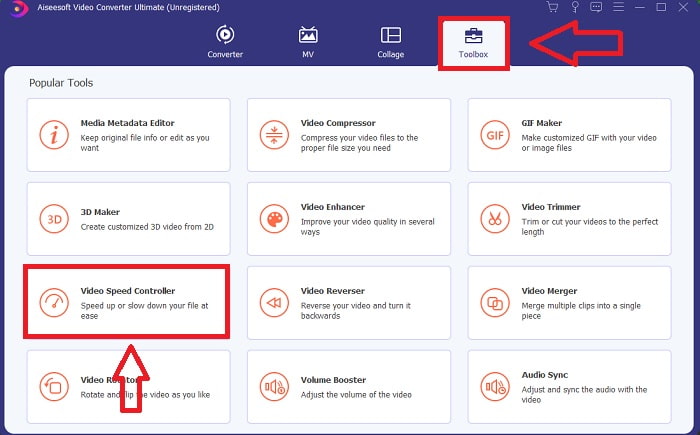
Krok 2. Po spuštění programu uvidíte na hlavním rozhraní funkci Converter. Dále použijte funkci Toolbox, abyste našli nástroje potřebné pro tvorbu zpomalených videí. Pokud chcete změnit rychlost videa nebo jen vytvořit zpomalené video, vyberte ze seznamu dostupných nástrojů možnost Video Speed Controller.
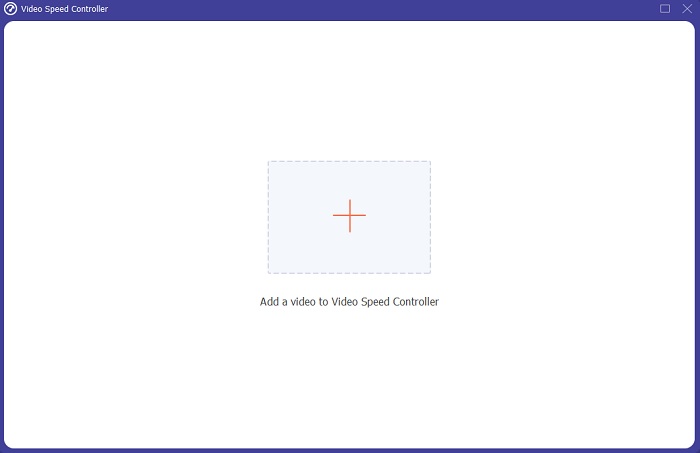
Krok 3. Po pokračování se na obrazovce počítače otevře další okno. Chcete-li začít s úpravami, klikněte na symbol plus +.
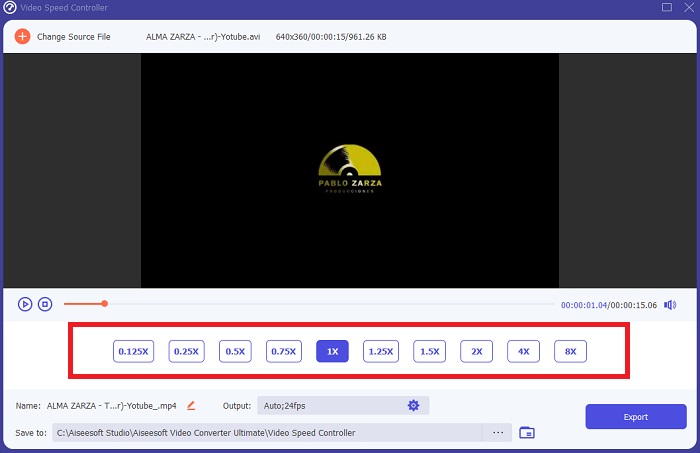
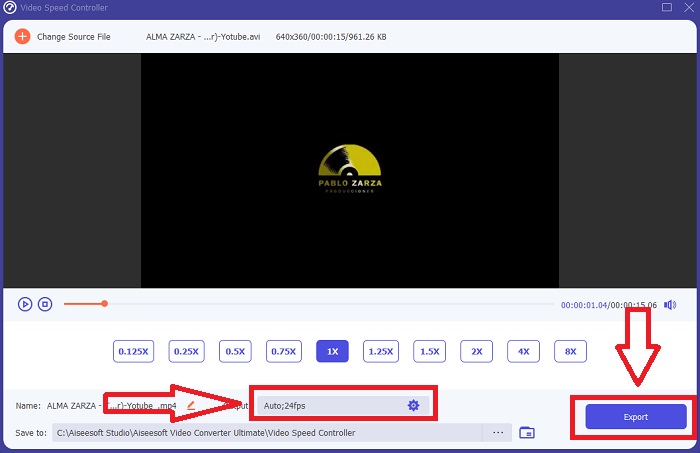
Krok 4. Pro zahájení úprav zvolte, kolikrát se má během přehrávání snímková frekvence videa zvýšit nebo snížit, abyste viděli, jak rychlé nebo pomalé bude; tím určíte efekt zpomalení, který na video použijete. Protože vytváříte zpomalené video, snížíte rychlost výběrem hodnot pod běžnou rychlostí. Pokud jste s rychlostí videa spokojeni, můžete nyní doladit kvalitu změnou formátu, rozlišení, snímkové frekvence atd. K dispozici budete mít také možnost přejmenovat výstupní video.
Krok 5. Klikněte na Exportovat a vyberte umístění v souborovém systému počítače, kam se má vaše práce uložit.
Související:
Část 4. Časté dotazy o vytváření zpomalených videí v iMovie
Co když iMovie nefunguje?
Pokud není k dispozici možnost, videoklip není dostatečně dlouhý, aby podporoval zrychlené přehrávání. Je také možné, že budete muset převést video. Určité typy videí, jako jsou videa natočená na iPhone nebo v H.264 na Flip kameře, musí být před změnou rychlosti převedeny. V prohlížeči projektu klikněte na soubor videa a poklepejte na něj, abyste jej otevřeli. Pokud v inspektoru, který se otevře, vidíte tlačítko Převést celý klip, vyberte ho. Opakujte klip a poté pokračujte v procesu Zpomalený pohyb / Převíjení vpřed.
Můžete zpomalit časosběrné video na iMovie?
Vaše časosběrné video se začne přehrávat, jakmile uvolníte tlačítko spouště, abyste záznam ukončili. Posuvník rychlosti časosběrného snímání najdete úplně dole na obrazovce. Když zastavíte záznam se stisknutou spouště, vaše časosběrné video se začne automaticky přehrávat. Posuvník rychlosti časosběrného snímání najdete úplně dole na obrazovce.
Jak zpomalíte videa na Youtube?
Přehrajte video v aplikaci Youtube, vyhledejte ikonu ozubeného kola nebo označovanou jako ikona nastavení. Klikněte na položku Rychlost přehrávání a vyberte možnosti vyšší než je normální rychlost, abyste začali zpomalovat přehrávané video.
Závěr
Abychom to shrnuli, iMovie je skvělý videoeditor, který je však k dispozici pouze v operačních systémech iOS a macOS. Ale co když používáte Windows a chcete vytvořit zpomalené video? Doporučujeme použít Video Converter Ultimate, abyste dosáhli takového zpomalení videa, jaké si přejete. Tento software je dostupný pro Windows i Mac. Kromě toho je zdarma a nabízí řadu nástrojů pro úpravu videa. Obsahuje také nástroj určený zejména k úpravě rychlosti přehrávání, díky čemuž lze vytvářet zpomalená videa. Kromě svých funkcí navíc podporuje různé videoformáty, takže nebudete mít problém se samotnou konverzí videa.
-
 [Zdarma a placeno] Měnič rychlosti GIF: Žhavý výběr roku 2021
 Nejste spokojeni s GIF, který jste vytvořili online, protože je zdlouhavý a pomalý? Toto bude váš šťastný den, protože přinášíme článek o měniči rychlosti GIF a podrobnostech, které vám pomohou jej používat a ovládat.
-
 Nejlepší 4 přehrávače videa s regulátorem rychlosti v roce 2021
 Nevšimli jste si rychlosti přehrávání každého přehrávače médií, kdykoli přehráváte video? Tento článek je vhodný, abyste se dozvěděli vše o přehrávačích videa s ovládáním rychlosti.
-
 3 způsoby, jak zrychlit video na iPhone [Osvědčeno&93;
 Máte potíže s úpravou rychlosti přehrávání videa, protože používáte iPhone? Toto je skvělý článek, který vám pomůže s vaším problémem.
