


 Video Converter Ultimate
 Screen Recorder
 Oprava videa
Tipy a triky pro zvýšení hlasitosti na vašem Windows/Mac/iPhone/Android
Most of the PC, Mac, Android or iPhone are capable only of fair loud volume. Although it is not good enough to be used to feel the shivers crawl to our skin or even enjoy it. Moreover, we can fix it by increasing the volume of it to the max. Although you make it louder, some of the videos we watch are still low. So now, we present different techniques for you to choose from to help you to listen to a good video with your own devices only. And if you are ready to start then let's proceed and explore how to increase volume easily on different platforms.

Část 1. Jak zvýšit hlasitost na Windows/Mac/iPhone/Android
1. Windows
Zvýšení hlasitosti MP3 na počítači se systémem Windows je mnohem jednodušší, i když nemusíte používat třetí stranu. Pokud však chcete zvýšit zvuk zde, nečekejte nic zvláštního. Protože tento operační systém neposkytuje žádný ekvalizér, který by vám s ním pomohl manipulovat. Můžete však upravit hlasitost ostatních aplikací, které chcete, aby zněly výše nebo níže. Nyní tedy pojďme pokračovat v níže uvedených krocích, abychom zjistili, jak zajistit, aby zvuk vašeho videa byl čistší na počítači se systémem Windows.
How to Increase the Volume of the Video on Windows:
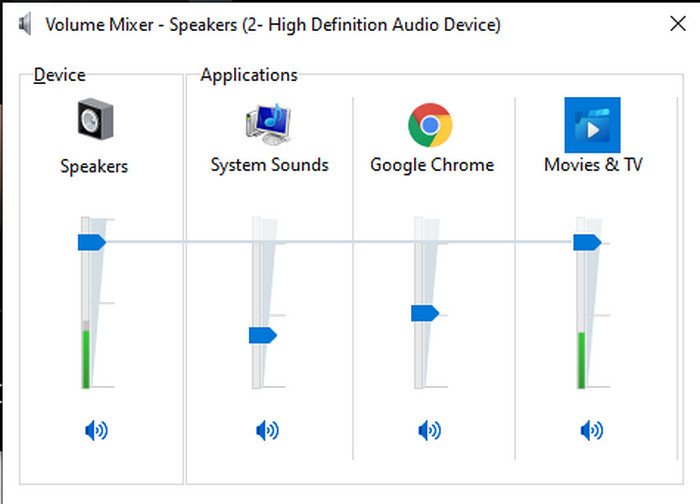
Step 1. On the interface of your Windows PC locate on the lower right side the Speaker.
Step 2. Press the right click on your mouse and click Open Volume Mixer.
Step 3. Adjust the Device to make it higher or lower all of the volume. However, if you want to adjust a single sound only then you can do it by dragging it up or down.
2. Mac
Stejně jako Windows můžete na Macu snadno manipulovat s videem a zvyšovat jeho hlasitost. Navíc, pokud chcete zvýšit zvukový výstup na vašem Macu, musí to být vaše volba, abyste to snadno provedli. Nicméně, jak již bylo řečeno dříve, je to jako Windows, ale v jiném programu, tento OS nemá vestavěný ekvalizér, který by výrazně změnil hlasitost. A nyní, pokud se chcete naučit, jak zvýšit hlasitost, postupujte podle tohoto kroku uvedeného níže.
How to Increase the Volume of the Video on Mac:
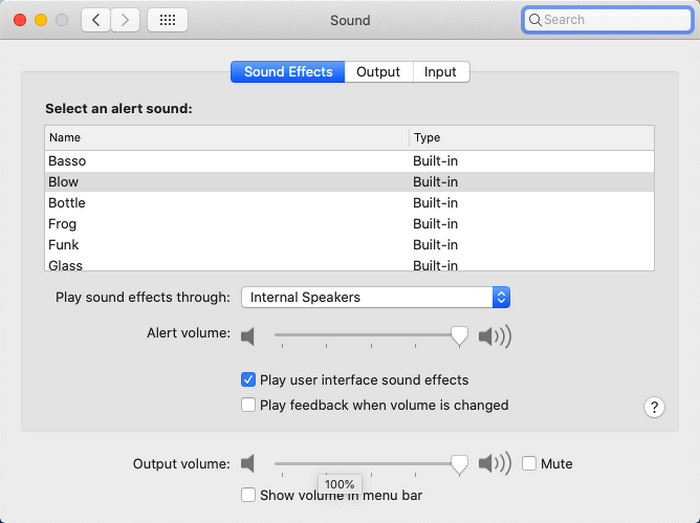
Step 1. Open your mac and click the apple shaped button at the top.
Step 2. Then click the System Preference under it. Press the Sound to proceed to the last step.
Step 3. Adjust the Output Volume by dragging the slider to increase or decrease the sound.
3. iPhone
Pokud máte iPhone, můžete se snadno naučit, jak zvýšit a zlepšit hlasitost. Protože toto zařízení má vestavěný ekvalizér, který vám určitě pomůže. Navíc, schopnost zvýšit zvuk v tomto telefonu nás stále udivuje. Protože jsme nevěděli, že existuje přenosný ekvalizér, který mohou uživatelé iOS používat. Takže teď, pokud nemáte představu, jak to použít, pak vám k tomu pomohou následující kroky.
How to Increase the Volume of the Video on iPhone:
Step 1. Go to the Settings and locate the Music then click it.
Step 2. Press the EQ and choose on the list below, after choosing go back to Home.
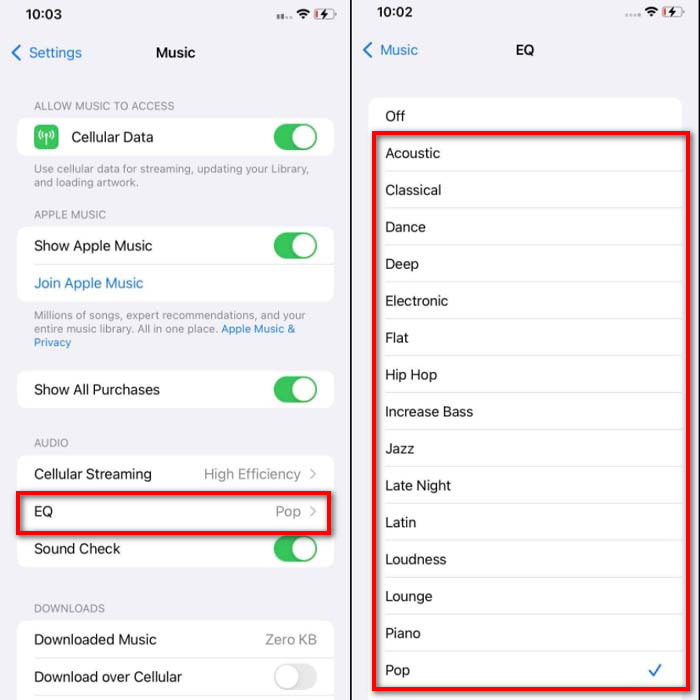
Step 3. Click Music now the Music and play the music there. Then increase the volume by clicking the volume up or down button on the side of your iPhone.
4. Android
Android svého uživatele nikdy nezklame, protože toto mobilní zařízení má také vestavěný ekvalizér. I když zvýšíte kvalitu a samotnou hlasitost pomocí zde dostupného ekvalizéru, stále to není tak efektivní jako na iPhone. Pokud jej však používáte a upravujete hlasitost se sluchátky nebo reproduktory, ucítíte drastickou změnu hlasitosti. Upozorňujeme však, že kroky se mohou lišit podle značky a modelu vašeho zařízení. Tyto kroky také fungovaly na Realme 7 pro, Android verze 11 a vyšší. Pokud vás tedy zajímá, jak mohu zvýšit hlasitost na svém telefonu Android, postupujte podle níže uvedených kroků.
How to Increase the Volume of the Video on Android:
Step 1. Go to the Settings and locate the Sound & Vibration.
Step 2. Scroll it down to locate the Dolby Atmos and click it to proceed.
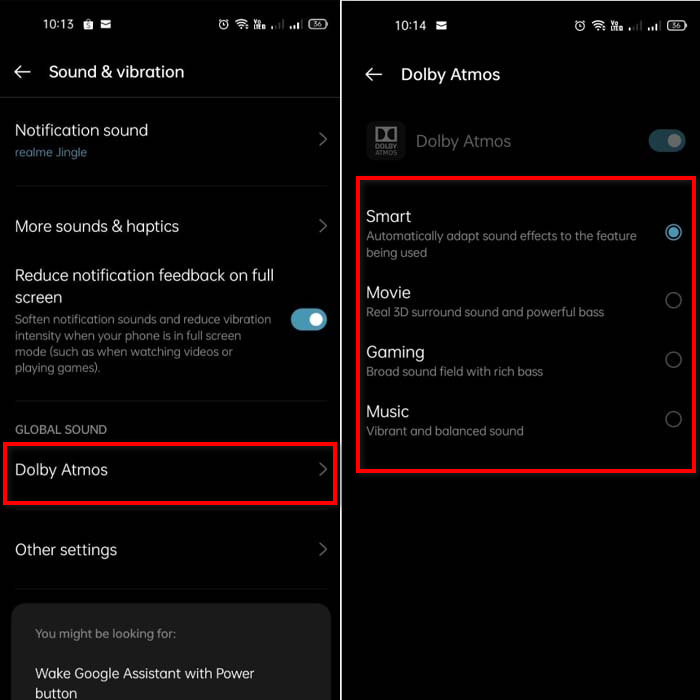
Step 3. Change the equalizers by choosing from the list. If you want to make your sounds better then insert a headphone to make much louder and better sounds. Then adjust the volume up and down on the side of your Android phone to make it sound higher or lower.
Část 2. Stále neslyšíte hlasitost videí? Zkuste to zvýšit pomocí Video Converter Ultimate
Although the steps provided above are great to help, still it lacks some of the increasing intensity of the volume. So now, we present to you the phenomenal volume booster you can use to convert your low volume and boost them in here, Video Converter Ultimate. This software has already been used by +10 million users over the entire globe. Also, you can't access this tool on your mobile devices because it is not supported. However, you can use this software on your PC or Mac then save it directly first on your drive and later transfer it to your phone. Without further ado, let's determine how to use the volume booster available in this tool and learn how to make your volume louder than ever.
How to Boost the Volume of the Video with the Help of Video Converter Ultimate:
Step 1. Before you can use the Video Converter Ultimate you must download it first on your hard drive. Then install the tool and do the set-up then click Start Now to launch it.
Zdarma ke staženíPro Windows 7 nebo novějšíBezpečné stažení
Zdarma ke staženíPro MacOS 10.7 nebo novějšíBezpečné stažení
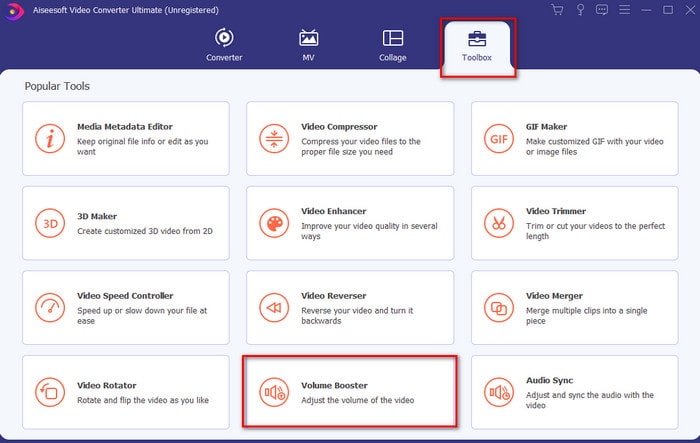
Step 2. After launching the tool, proceed to the next step, then go to the Toolbox and find the Volume Booster.
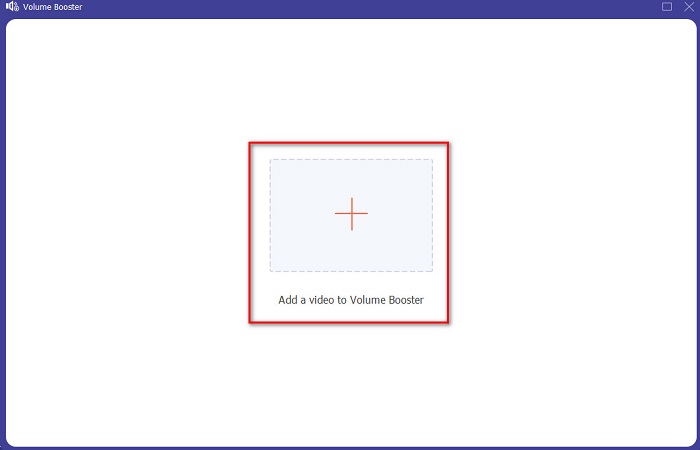
Step 3. Click + sign to add the video you want to be boosted. Locate the file on the folder that will show next on your display then click open to continue.
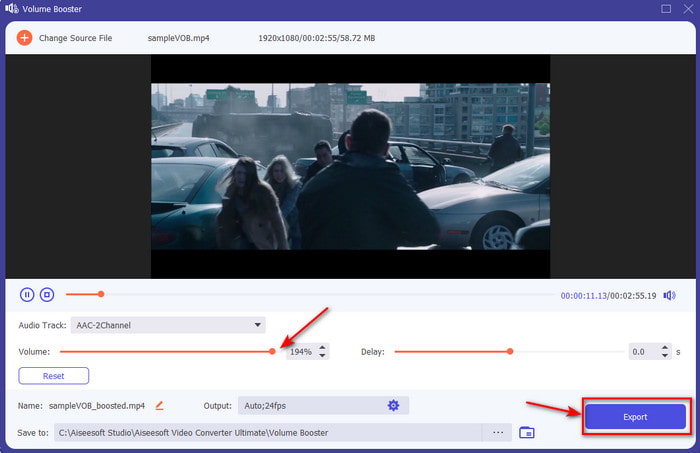
Step 4. On the tool interface you adjust the volume slider of the volume to the max or on your specific preference. If you are now satisfied with the volume, you've set click now Export to download the file.
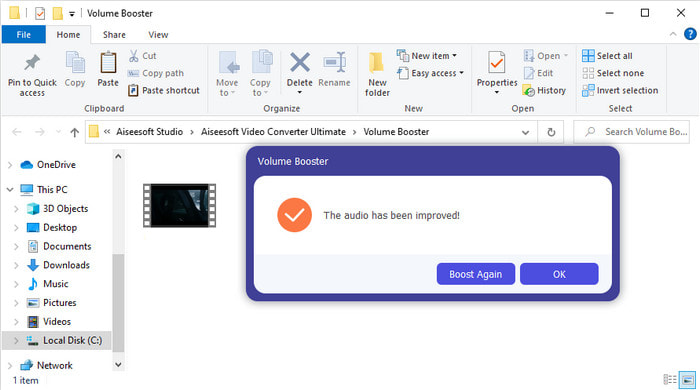
Step 5. Wait for a couple of seconds to be processed. If the file is already done a folder will automatically be shown to your screen, then click the file to listen to the volume of the video you've adjusted.
Část 3. Časté dotazy o zvýšení hlasitosti
Mohu zvýšit hlasitost na VLC?
Vlastně ano, místo použití zesilovače hlasitosti můžete použít VLC Player ke zvýšení zvukového výstupu vašeho videa. Místo omezení zvuku na 100% můžete také zvýšit jeho hlasitost až na 125%, pokud chcete.
Snižuje konverze videa kvalitu videa a zvuku?
Well, it depends on what format you want to convert. For example, if you convert an AVI to MP4 then expect some quality changes because the AVI format is uncompressed. However, we can avoid this by reading upon this article and to proceed just click this link. So, if you're about to convert a compressed file into an uncompressed or into another compressed format. Expect some changes as well if you do it regularly but if you do it once then quality will not be going to change.
Jak opravit zpoždění videa a zvuku?
Actually, there are two ways on how to fix it. The first one is to delete it and re-download the video if it is available on the web. And don't let the process be interrupted and have a stable internet connection to avoid missing some files. However, if this file is for you only then it is a must to choose a software that will help you to sync the audio and video. So now, to have an idea of the available software and how to sync audio and video easily then click the link and read the write-up. As we accumulate different software you can choose one.
Závěr
As we now know how to fix the low audio on our video, this is now the right time to do it. Just by following the simple steps provided above to make your volume even better than before. Although the step is not all about how to increase the audio by pressing or increasing it. But with the help of the other techniques, you can easily perform. However, if you feel that the audio on your PC, Mac, Android or iPhone are still low then boost it with the Video Converter Ultimate. So now, increase volume to the next level and experience a much louder and better audio.
-
 7 snadných kroků, jak opravit problémy se zpožděním zvuku OBS [Vyřešeno]
 Máte potíže se sledováním videoklipu po nahrávání kvůli zpoždění zvuku při používání OBS Studio? Přečtěte si článek níže, kde se dozvíte, jak efektivně opravit nesynchronizovaný zvuk.
-
 Skvělé možné způsoby | Jak opravit zpoždění zvuku VLC [2021]
 Máte potíže se sledováním svého oblíbeného filmu na přehrávači médií VLC kvůli nejistotě zvuku? Pokračujte ve čtení tohoto článku a zjistěte všechny možné způsoby, jak opravit zpoždění zvuku VLC.
-
 Nejlepší způsoby, jak zvýšit hlasitost MP4 online a offline
 Máte problém slyšet zvuky svého videoklipu? Přečtěte si níže uvedený článek, abyste věděli, jak zvýšit hlasitost mp4 různými způsoby.
