


 Video Converter Ultimate
 Screen Recorder
 Oprava videa
Převádějte MPEG do AVI pomocí 5 přístupného převaděče videa MPEG do AVI
MPEG je jedním z nejlepších formátů, se kterým jste se pravděpodobně už setkali, protože ukládá soubory pro video i audio. Není to jen kontejner, ale také používá kompresi MPEG‑1 a MPEG‑2. MPEG‑1 a MPEG‑2 jsou však starší formáty, které se dříve používaly na Blu-ray discích. Nyní si proto vysvětlíme, jak jej vylepšit převodem formátu na AVI. Níže uvádíme různé nástroje, které můžete použít k převodu MPEG na AVI, a podrobnější informace o formátech MPEG a AVI.
Část 1. Stručné vysvětlení O formátu souborů MPEG a AVI
MPEG a AVI jsou jedním ze špičkových formátů, které můžete použít k uložení mediálního souboru. I když jsou skvělé, stále existuje několik důvodů, proč musíte použít převodník videa MPEG do AVI. Ale zatím si vysvětlíme spoustu podrobností o těchto dvou formátech a budeme mít představu o MPEG a AVI.
Jak již bylo řečeno, MPEG není jen kontejner, ale má také vestavěný kompresor. V zásadě se jedná o dvouúčelový formát souborů. Tento formát je také nejpoužívanějším formátem na Blu-ray kvůli kvalitě a kompresi, kterou poskytuje. Kromě toho je formát MPEG klasifikován do 6, ale budeme diskutovat o dvou běžně používaných, a to je MPEG-1 a MPEG-2. Navíc MPEG-1 je první generací MPEGů. Tento formát ukládá standardní rozlišení, ale ve srovnání s rozlišením jiného formátu je MPEG-1 mnohem menší. Zatímco MPEG-2 nabízí mnohem lepší kvalitu než MPEG-1, funguje nejlépe na Blu-ray a DVD. Tento formát také televizní stanice nejčastěji používá k přenosu a přehrávání videa.
Ale AVI se od MPEG výrazně liší, protože není komprimované. Kromě toho poskytuje tento formát vysokou kvalitu, jelikož soubory v něm uložené nekomprimuje. Přestože je tento formát objemný, má ve srovnání se soubory MPEG širokou podporu na všech platformách.
Část 2. 2 Nejlepšího konvertoru používaného k offline převodu MPEG do formátu AVI
1. FVC Video Converter Ultimate
Pokud hledáte univerzální převodník a downloader z MPEG do AVI, pak pro vás musí být nástrojem právě FVC Video Converter Ultimate. Tento nástroj se v tomto článku umístil vysoko díky funkcím a jednoduchosti, kterou nabízí. Ačkoliv se snadno používá, dokážete s ním dosáhnout fenomenálního výsledku, jaký jste si vždy přáli. Na rozdíl od jiných převodníků posouvá tento software standard na vysokou úroveň. Chcete‑li tedy dosáhnout stoprocentního úspěchu před převodem, během něj i po něm, je nutné použít právě tento nástroj. A nyní přejděme k podrobnému návodu krok za krokem, jak používat FVC Video Converter Ultimate.
Krok 1. Chcete‑li nástroj stáhnout do počítače, klikněte na tlačítko uvedené níže. Po dokončení stahování jej nainstalujte, proveďte rychlé nastavení a klikněte na Start Now.
Zdarma ke staženíPro Windows 7 nebo novějšíBezpečné stažení
Zdarma ke staženíPro MacOS 10.7 nebo novějšíBezpečné stažení
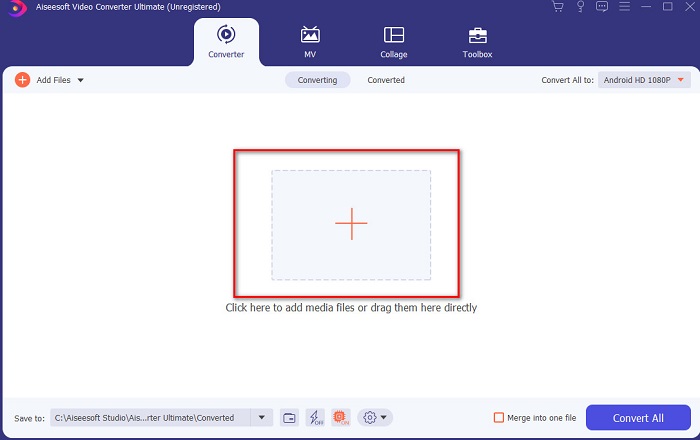
Krok 2. Rozhraní nástroje by mělo vypadat takto, poté klikněte na znak + uprostřed. Na obrazovce se zobrazí okno se složkami, ve kterém vyberte video soubor MPEG, který chcete převést, a klikněte na Open.
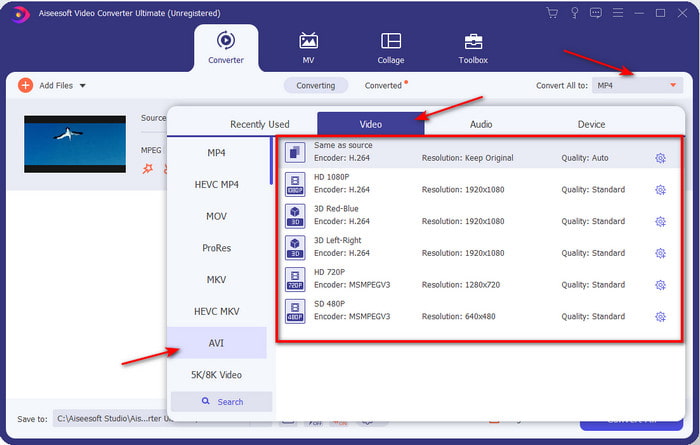
Krok 3. Jakmile je soubor v rozhraní, klikněte na Convert All to: a najděte formát AVI.
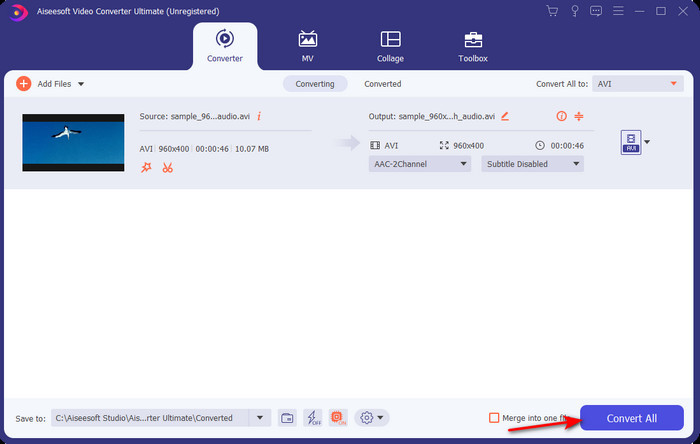
Krok 4. Nyní zahájíte převod filmů MPEG‑4 do formátu AVI stisknutím tlačítka Convert All.
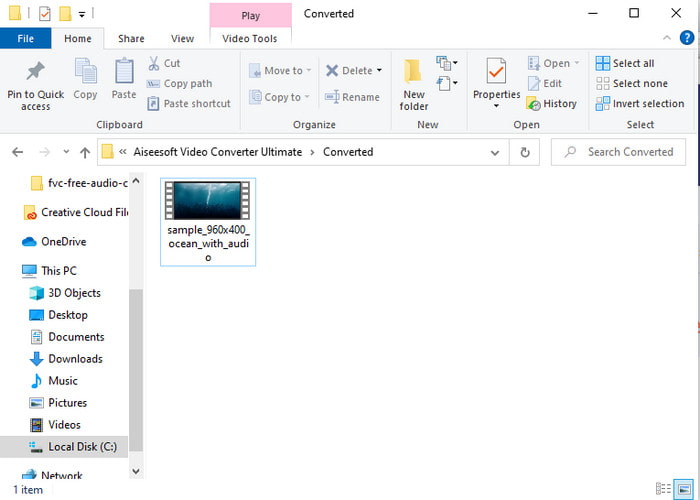
Krok 5. Stahování souboru zabere jen několik minut a po dokončení se zobrazí složka s převedeným formátem. Nyní klikněte na daný soubor a přehrajte si nově převedenou verzi vašeho MPEG.
2. FFmpeg
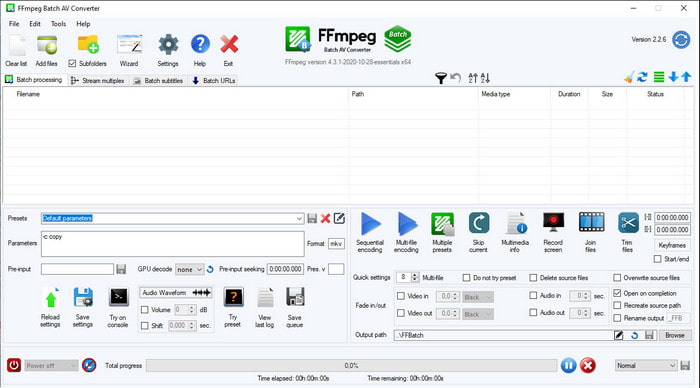
Dalším softwarem v tomto seznamu je FFmpeg. Pokud hledáte open‑source řešení, je to jedna z možností, které na webu najdete. Rozhraní tohoto nástroje je však obtížné na pochopení, a to jak pro začátečníky, tak pro pokročilé uživatele. Proces převodu je zde obecně vynikající a vytváří vysoce kvalitní výstup, jako jiné převodníky. Pokud tedy chcete pomocí FFmpeg převádět MPEG na AVI, postupujte podle následujících kroků, které jsme zjednodušili, aby byly snadno srozumitelné.
Krok 1. Stáhněte FFmpeg do počítače a vytvořte novou složku, do které soubor rozbalíte.
Krok 2. Ve svém Windows vyhledejte CMD a otevřete jej.
Krok 3. V příkazovém řádku najděte soubor a vložte tento příkaz ffmpeg -i input.mpeg -vn -ar 44100 -ac 2 -b:a 192k output.avi, poté stiskněte na klávesnici Enter a spusťte proces.
Část 3. 3 Nejlepšího konvertoru používaného k online převodu MPEG do formátu AVI
3. FVC Free Video Converter
Pokud hledáte nejlepší bezplatný online převodník MPEG na AVI, pak je FVC Free Video Converter online konvertor, který bude vyhovovat vašim požadavkům. Je to díky jednoduchému rozhraní, které tento webový nástroj nabízí. Skvělou zprávou také je, že k tomuto online nástroji máte snadný přístup v oblíbeném prohlížeči. Navíc u tohoto nástroje neexistují žádná omezení převodu, což znamená, že můžete kdykoli převádět jakýkoli formát. Nelze tu však provádět dávkové převody, na rozdíl od FVC Video Converter Ultimate. Pokud si tento online nástroj chcete vyzkoušet, postupujte podle níže uvedených kroků.
Krok 1. Abyste se dostali na hlavní stránku převodníku FVC, musíte nejprve kliknout na tento odkaz.
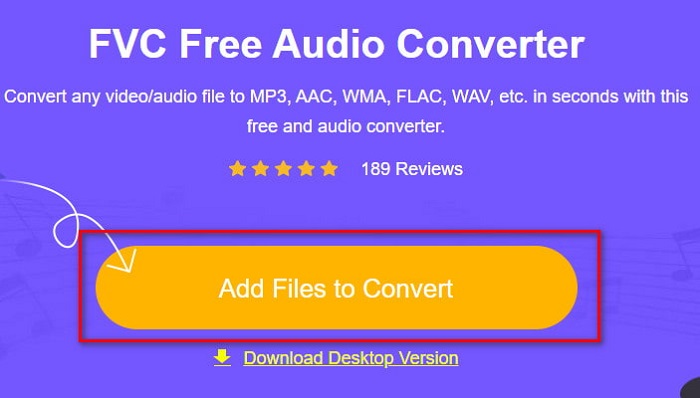
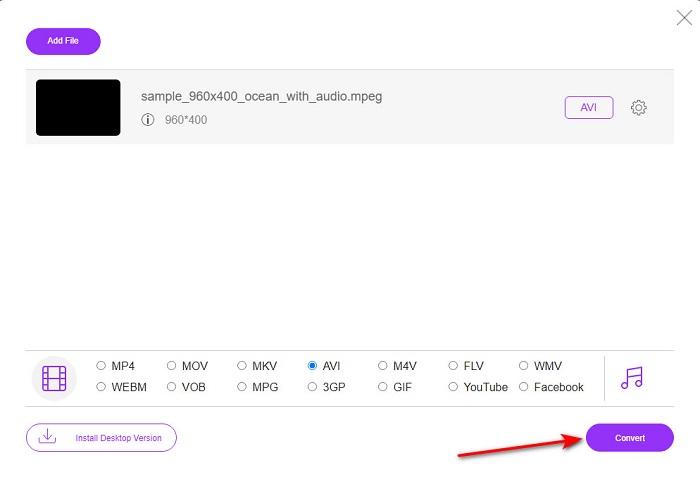
Krok 2. Klikněte na Add Files to Convert, poté se spustí webový nástroj a zobrazí se okno se složkami. Najděte soubor a klikněte na Open.
Krok 3. Jakmile je webový nástroj spuštěn, vyberte formát z nabídky v této části.
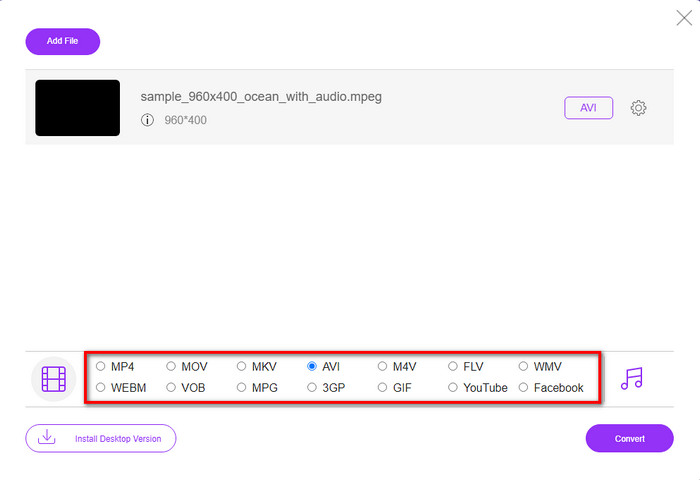
Krok 4. Jakmile jste formát vybrali, je čas zahájit převod kliknutím na tlačítko Convert.
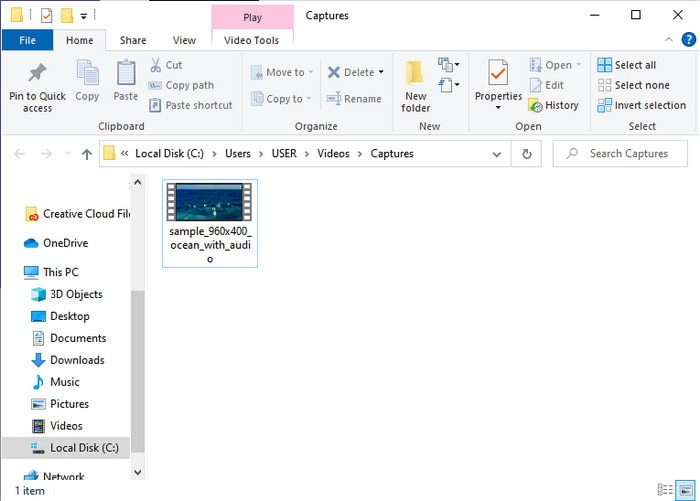
Krok 5. Chvíli vyčkejte, než proces začne. Po dokončení se zobrazí složka s převedeným souborem, který jste předtím vytvořili.
4. Freeconvert.com
Stejně jako u výše zmíněného online nástroje můžete využít další online nástroj, Freeconvert.com. Tento webový nástroj si již získal popularitu mezi uživateli na internetu. Mnozí jej chválí za snadné používání a další funkce. Pokud si však vyberete tento nástroj, má jedno zásadní omezení: podporuje jen omezené množství formátů. Další nevýhodou je, že proces převodu je zde o něco pomalejší, než byste čekali. Chcete‑li se nyní dozvědět, jak tento online převodník používat, řiďte se těmito kroky.
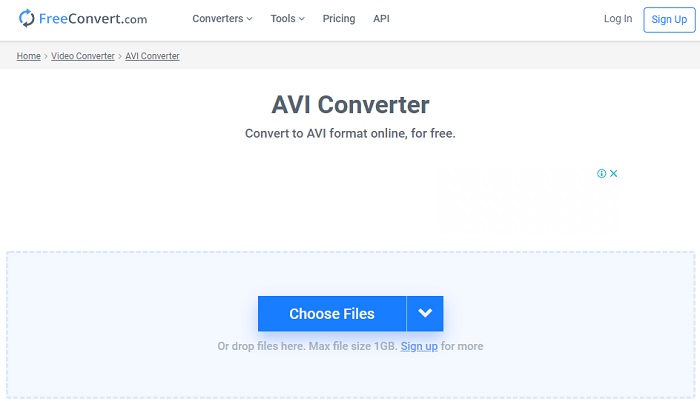
Krok 1. Na webu vyhledejte stránku freeconvert.com. Poté klikněte na AVI v části Video Converters.
Krok 2. Stiskněte Choose File a v okně, které se zobrazí, najděte soubor MPEG. Po výběru souboru klikněte na Convert To AVI.
Krok 3. Počkejte, až se soubor nahraje, a poté klikněte na Download AVI a soubor si uložte.
Část 4. Časté dotazy o převodu MPEG do AVI
Ztrácí převod MPEG kvalitu?
No, záleží na tom, do jakého formátu to převedete. Pokud tedy změníte svůj MPEG na GIF, očekávejte drastickou změnu, protože podporuje méně barevných kombinací než jiný formát. Pokud však použijete jiný formát než GIF, neočekávejte žádnou ztrátu.
Jsou MPEG ztrátové nebo bezztrátové?
MPEG podporuje ztrátovou kompresi, takže pokud použijete tento formát, počítejte s menší velikostí souboru, i když máte dlouhé video a zvuk.
Je MPEG dobrý formát?
Dříve to byl jeden z nejlepších formátů, které můžete použít k ukládání dat na disky DVD. V této době však MPEG není nejlepší volbou pro ukládání dat. Ale pokud jej chcete uložit na disky DVD, CD nebo Blu-ray a přenést je mnohem rychleji, pak to musí být volba.
Závěr
Abych to shrnul, veškerý zde prezentovaný online a offline software se skvěle hodí k převodu formátu. Existuje však jeden nástroj, který dokazuje, že s FVC Video Converter Ultimate můžete snadno dosáhnout fenomenální konverze. Ve skutečnosti to můžeme vysvětlit 3 slovy a to je také snadné, efektivní a bezpečné. Pokud tedy chcete dosáhnout velikosti, stáhněte si tento nástroj právě teď a vyzkoušejte jej.
-
 Jak převést soubory MPEG na MP4 zdarma v systému Windows, Mac, online
 Přečtěte si a získejte 3 bezplatné způsoby převodu souborů MPEG na MP4 v počítači. K převodu formátu MPEG na MP4 můžete snadno použít online a stolní video převaděče.
-
 [2021] Nejlepší nástroje a snadné způsoby, jak převést MPEG na MP3
 Tento článek pojednává především o tom, jak můžete převést vaše MPEG videa na MP3 s použitím nejspolehlivějších nástrojů na seznamu.
-
 Výukový program pro převod souborů MP4 na AVI se 7 bezplatnými převaděči videa
 Chcete získat všechny bezplatné způsoby, jak převést AVI na MP4 video? Tento článek byste si neměli nechat ujít. Zde je 7 způsobů, jak zdarma převést soubory AVI na MP4 na Windows, Mac, iPhone, Android a online.
