


 Video Converter Ultimate
 Screen Recorder
 Oprava videa
Prominentní a užitečné způsoby, jak převést 3GP na FLV [Osvědčeno]
Audio and video files can be stored in the 3GP format, commonly used in 3G phones. Even in 2G and 4G phones, it works. Over the internet, this MP4-based container sends and receives multimedia files. Although, many online videos and audio streaming services use FLV, a Flash-compliant video container. Aside from Adobe Flash Player, many other video players can play FLV files. To make 3GP files more accessible and smaller in size, several simple ways to convert them to FLV. Below are the converters you should consider using to convert 3GP to FLV.

Část 1. Vynikající metody pro převod 3GP na FLV [offline]
Video Converter Ultimate je dokonalý nástroj pro převod souborů 3GP do FLV bez obětování kvality. Pomocí technologie SuperSpeed programu mohou uživatelé převádět i velké soubory během několika minut. Kromě toho vám aplikace umožňuje upravovat soubory, jak uznáte za vhodné: oříznout, otočit a oříznout videa; upravit parametry barev; změnit rozlišení videa a datový tok; nebo přidat titulky. Tento software může podporovat všechna nejoblíbenější zařízení, včetně iPhone, iPad, zařízení se systémem Android, Xbox a PlayStation. Nyní znáte stručný úvod do tohoto softwaru, je čas, abyste pochopili, jak pomocí tohoto softwaru převést 3GP na FLV.
Step 1: Download the software first by clicking the Free Download located below. You have a chance to download it on Windows or Mac. After you download it, install the software on your computer and run it by clicking Start Now to a window that will pop up on your screen after you install the software.
Zdarma ke staženíPro Windows 7 nebo novějšíBezpečné stažení
Zdarma ke staženíPro MacOS 10.7 nebo novějšíBezpečné stažení
Step 2: To start the conversion, you have to upload a file first and by achieving that, click the + button in the middle of the software's interface, or you can easily drag your video files from your computer.
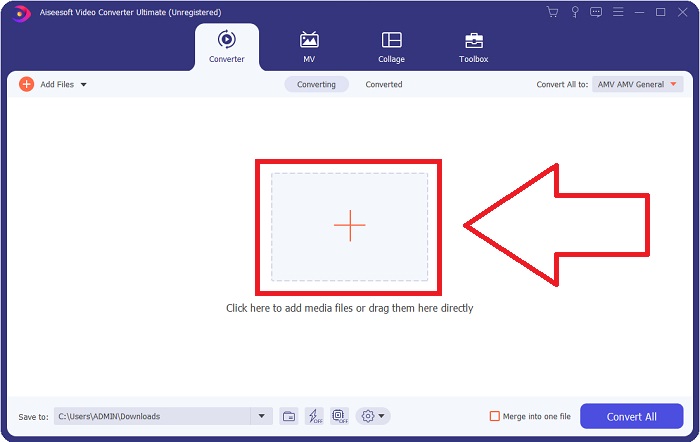
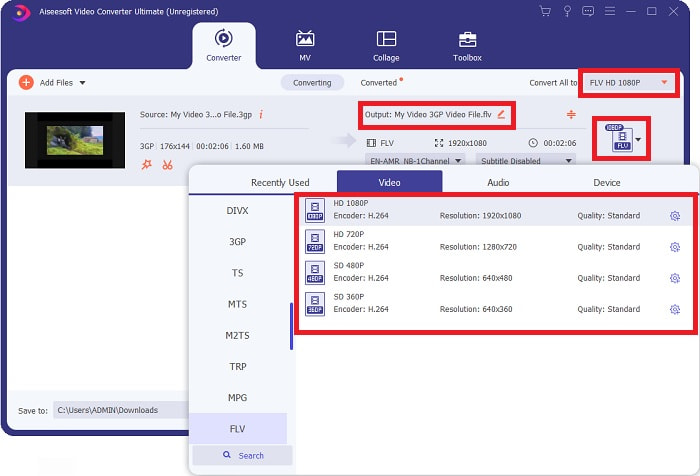
Step 3: After you proceed with uploading a file, you can now choose the FLV format on the format selection located at the right corner of your screen. You can choose what kind of quality you want since it will display all the possible attributes you might use.
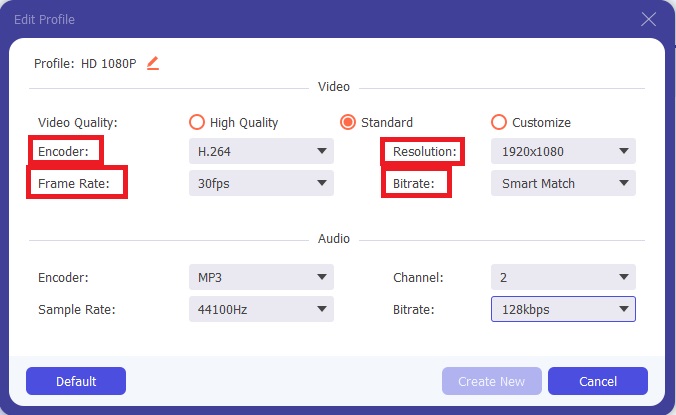
Step 4: Despite the quality choices presented, you can create the quality you want to become if your preferred quality doesn't exist on the options. Click the gear icon and adjust all the content you can see after a window pops up. Resolution talks about the screen display quality and frame rate on video playing frequency; the bit rate is for the amount of data encoded at a time. Lastly, the encoder is for the delivery of video format.
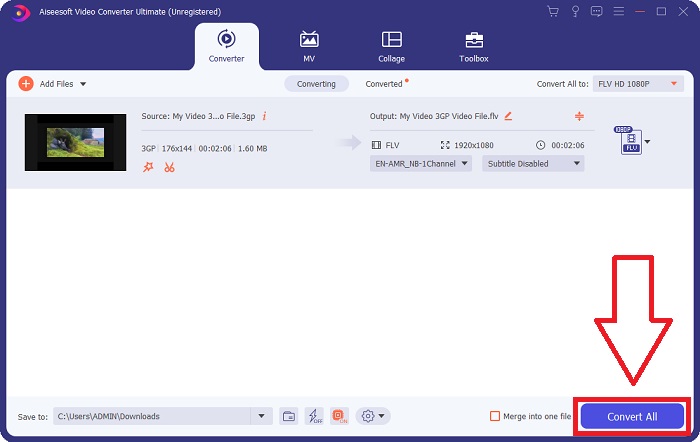
Step 5: Finally, after you adjust all the adjustments you need on your video output, you can now convert it by clicking the Convert All.
Část 2. Další zajímavá metoda převodu 3GP na FLV [Online]
Enough with the software itself; let's talk about this online tool that can surely help you convert 3GP to FLV. Presenting Free Video Converter Online with many formats are supported by this online converter, including 3GP and FLV. You can convert a file directly from your computer by uploading it. To upload a more significant than 500 MB file, you can use this online tool to convert 3GP to FLV. Users can change many settings before the conversion begins. You can, for example, change the audio codec and the volume of the audio. You can also change the video resolution too. After all the imparted knowledge, let's learn all the procedures you need to know.
Step 1: Here is the link for the online tool. Click it so that the primary webpage will open on your browser. Click Add Files to Convert to download the launcher that you will use to operate the online tool. Install the launcher and begin uploading a file.
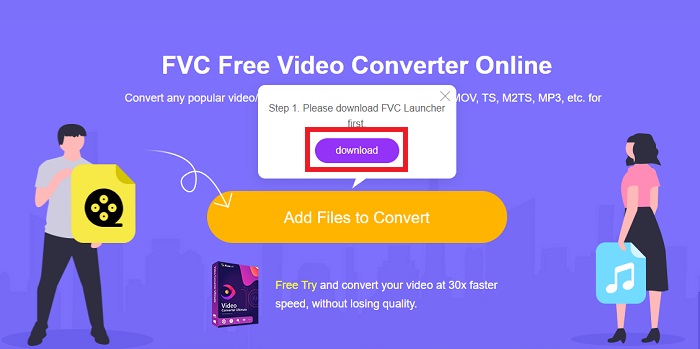
Step 2: To upload a file, click the Add Files to Convert once again. After uploading a file, you can now choose the FLV video format on the selection of video formats located at the bottom corner of the window.
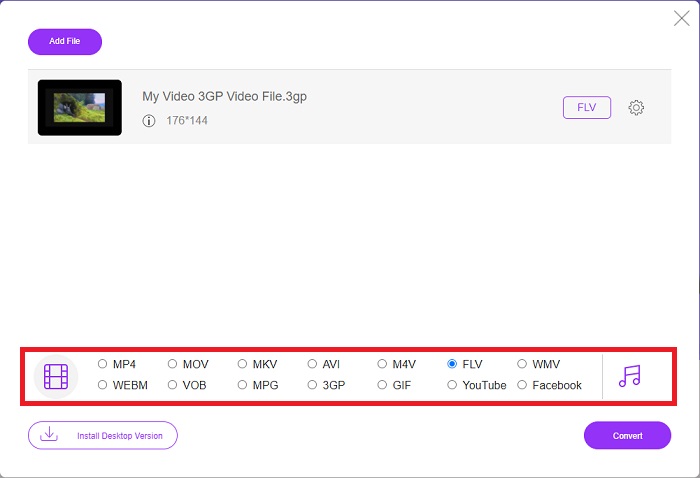
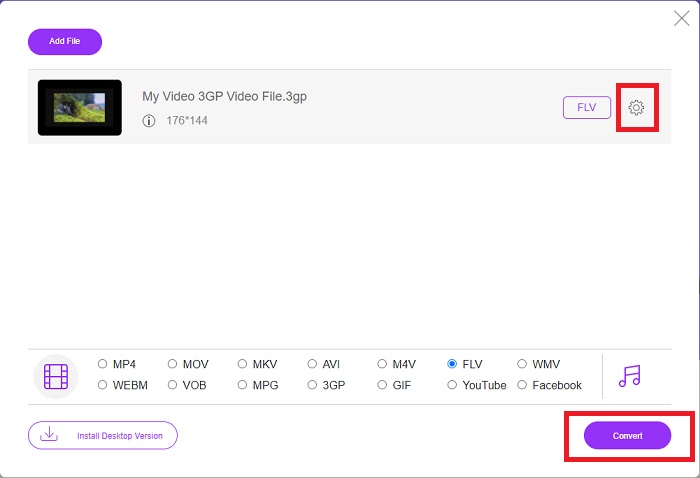
Step 3: You can also edit your video's quality or other specifications like the resolution, frame rate, or bit rate by clicking the gear icon right next to the video format you selected located at the right corner of the window. After you have adjusted all your preferred settings of your output, you can now convert the file by clicking the Convert.
Část 3. Přehled: 3GP vs. FLV
Pokud jste někdy chtěli uložit audio a video klip ve formátu 3GP, jste na správném místě! (3GPP). Formát mediálního souboru ISO slouží jako základ pro 3GPP, formát multimediálního kontejneru. Podporovány jsou video streamy H.263 nebo H.264 a audio streamy AMR-WB, AMR-WB+, AMR-NB, HE-AAC v1, AAC-LC nebo Enhanced aacPlus. Soubory 3GP obvykle používají k zachycení videa mobilní telefony 3G, ale uživatelé je mohou také přehrávat na některých telefonech 2G a 4G. Přestože se soubory 3GP stále používají, jejich popularita klesá, protože efektivnější video formáty nahradily formát 3GPP.
Video soubory uložené ve formátu kontejneru Adobe Flash Video (FLV) jsou však dokumenty FLV. Audio a video streamy lze kódovat stejným způsobem jako standardní Flash. Formát SWF a pakety metadat obsahují krátké záhlaví. Zásuvný modul Flash Video Exporter (dostupný s Adobe Animate) nebo aplikace, která podporuje soubory FLV, může vytvářet obsah Flash Video a exportovat jej jako soubory FLV. Adobe Media Encoder může také kódovat video ve formátech QuickTime nebo Windows Media. Nyní, když máte představu o 3GP a FLV, poskytujeme srovnávací tabulku, abyste věděli podrobnosti v konkrétních záležitostech.
| Přípona souboru | 3GP | FLV |
| Typ souboru | ISO mediální soubor | Flash video soubor |
| Vyvinuto | Projekt partnerství třetí generace | Systém Adobe |
| Klady | Pro mobilní uživatele je snazší sdílet a ukládat videosoubory, protože formát souboru 3GP zmenšuje velikost videa a zvukové komponenty. Ačkoli formát souboru navržený pro 3GP používá zařízení podporující 3G, mnoho zařízení 2G a 4G může tento formát přehrát. | Pro webové stránky, které chtějí zahrnout animace a interaktivní prvky, je Adobe Flash vynikající volbou. Z dlouhodobého hlediska to může mít zásadní dopad. Během svého vrcholu Flash používal jednoduché hry. |
| Nevýhody | Přestože video a audio streamy mohou komprimovat do jednoho souboru, kvalita a snížené rozlišení, uživatelé mohou výrazně zlepšit uživatelskou zkušenost ve srovnání s jinými formáty, jako je kvalita zvuku, rozlišení obrazovky, rychlost přehrávání atd. | Nevýhodou samozřejmě je, že popularita FLV za posledních několik let klesla. Vytvoření obsahu FLV vyžaduje spoustu času a peněz. Další nevýhodou Flashe je, že jej nelze zobrazit na zařízeních iOS, což výrazně omezuje jeho schopnost přilákat nové fanoušky. |
| Programy otevírají Video Format | ◆ Přehrávač QuickTime ◆Windows Media Player | ◆ VLC Media Player ◆Adobe Flash Player |
Část 4. Nejčastější dotazy o převodu 3GP na FLV
Je 3GP kvalitní?
Variabilní bitová rychlost a snímková frekvence podporují 3GP, stejně jako MP4. 3GP byl populární formát pro běžné telefony, když byly ještě nejběžnější formou komunikace. Potřebujeme video, které je malé, protože prostor byl v minulosti luxus. Kvalita je srovnatelná s fotoaparáty bramborové kvality, které jsme v té době měli v telefonech, takže to není šokující.
Proč nehraje 3GP?
Try playing the 3GP file on VLC Media Player instead of your default media player if it doesn't support 3GP codecs. VLC is a great open-source video player because it can play just about any video file. In addition to Windows and iOS, VLC is available for Linux and Android as well.
Je FLV vhodný formát záznamu?
Adobe Flash Player uses an FLV file format. As a universally supported video format, it is one of the most widely used formats. Online video streaming platforms such as YouTube benefit from using the FLV format. It is very convenient because they have a small file size. Here are the best FLV recorders you can try.
Závěr
Obecně řečeno, všechny poskytnuté převodníky jsou nejlepším a nejdoporučovanějším softwarem a online převodníky, o jejichž použití byste měli uvažovat. Protože mají tyto profesionální a přátelské uživatelské funkce, nemůžete je srovnávat s jiným softwarem a online nástroji. Užijte si jeho používání a po použití nezapomeňte napsat recenzi.
-
 Top 4 nejúčinnější způsoby, jak převést 3GP do formátu AVI [2025]
 Mohu převést své soubory 3GP do AVI? No, můžete to snadno převést, pokud vyzkoušíte tyto dostupné nástroje, protože jsme shromáždili všechna možná řešení vašeho problému s převodem 3GP na AVI.
-
 Nejlepší způsoby, jak převést VOB na FLV [zdarma a online v ceně]
 Chcete převést soubor VOB na soubor FLV? Úlohu můžete snadno dokončit pomocí převaděče pro stolní počítače nebo online. Přečtěte si tuto příručku a naučte se, jak snadno a rychle převést VOB na FLV.
-
 Nejlepší 3 způsoby, jak převést DAT na FLV na počítači a online
 Chcete převést DAT na FLV, ale nevíte jak? Podívejte se na naše doporučené převaděče videa DAT na FLV a postupujte podle našeho konkrétního průvodce pro snadné dokončení úlohy.
