


 Video Converter Ultimate
 Screen Recorder
 Oprava videa
 Bezpečné stažení
Nejrychlejší a nejjednodušší způsoby, jak zkrátit video pomocí nejlepších nástrojů
Oříznutí nebo zkrácení videa je důležité, protože zvýrazní pouze nezbytné klipy z vašeho videa. Oříznutí videa znamená odstranění začátku konce videoklipu. Tento základní prvek střihu je nezbytný, abyste neztratili pozornost publika. Pokud tedy chcete oříznout nebo zkrátit své dlouhé video, v tomto článku se dozvíte způsoby, jak zkrátit video.

Část 1. 2 Metody zkrácení videa na trimmeru pomocí nejlepší aplikace
FVC Video Converter Ultimate je nejlepší desktopový nástroj pro ořezávání videa. Tento nástroj má intuitivní softwarové rozhraní a je zdarma k použití. Tento offline převodník vám umožňuje přidávat segmenty do vašeho video souboru. Kromě toho má funkci, pomocí které můžete své video rychle rozdělit na různé části podle svých představ. A pokud hledáte nástroj, který dokáže sloučit více souborových formátů do jednoho, tato aplikace to pro vás zvládne.
Kromě toho tento nástroj nabízí mnoho pokročilých funkcí, jako je tvůrce GIF, slučovač videí, odstraňovač vodoznaku z videa atd. A co je ještě lepší, podporuje četné formáty souborů, včetně MP4, WMV, FLV, AVI, MPG, WebM, MKV a více než 1000 dalších. Pokud tedy chcete tuto aplikaci použít ke zkrácení svého videa, máme pro vás dva způsoby, kterými se můžete řídit.
Metoda 1. Použijte FVC Video Trimmer
Krok 1. Nejprve si stáhněte FVC Video Converter Ultimate kliknutím na tlačítko Stáhnout níže. Postupujte podle instalačního procesu a poté aplikaci spusťte.
Zdarma ke staženíPro Windows 7 nebo novějšíBezpečné stažení
Zdarma ke staženíPro MacOS 10.7 nebo novějšíBezpečné stažení
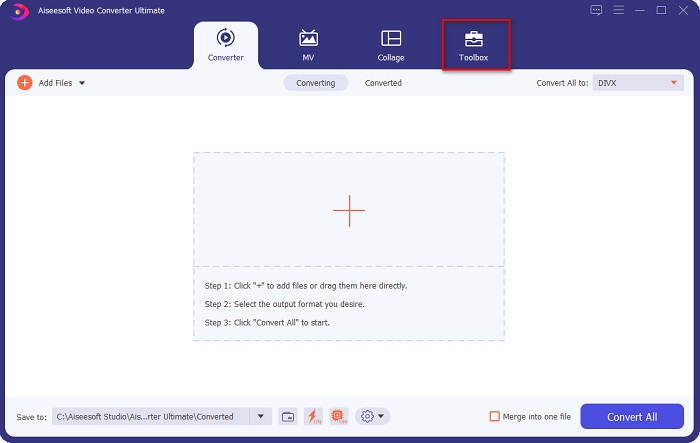
Krok 2. Dále vyberte panel Toolbox umístěný v horní části softwarového rozhraní. Poté na panelu Toolbox klikněte na Video Trimmer.
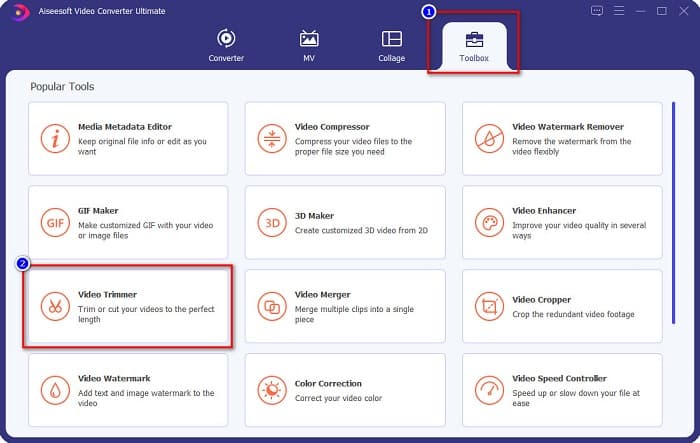
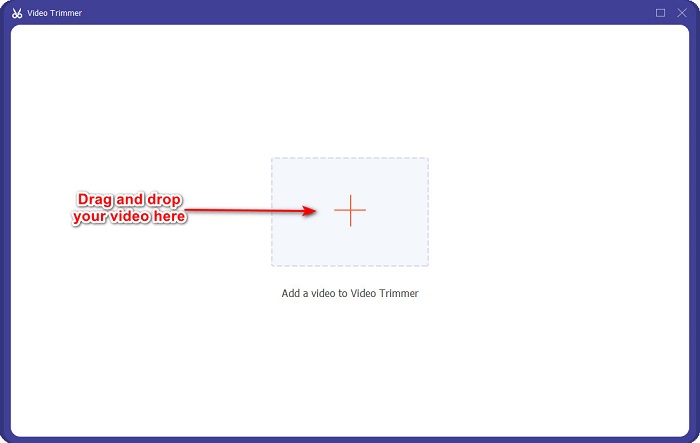
Krok 3. Na další obrazovce klikněte na tlačítko se znakem + nebo přetáhněte své video na symbol +.
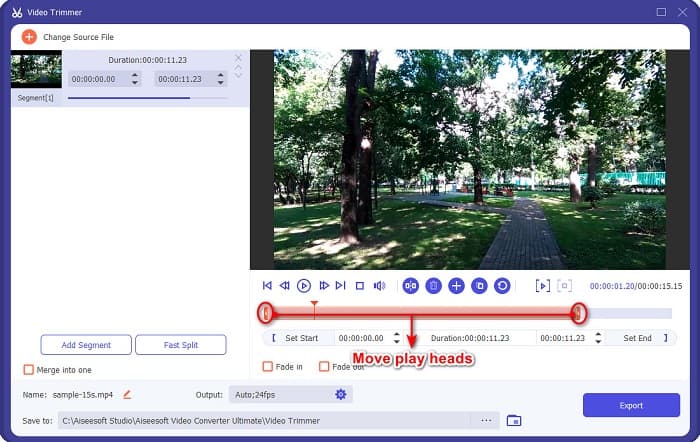
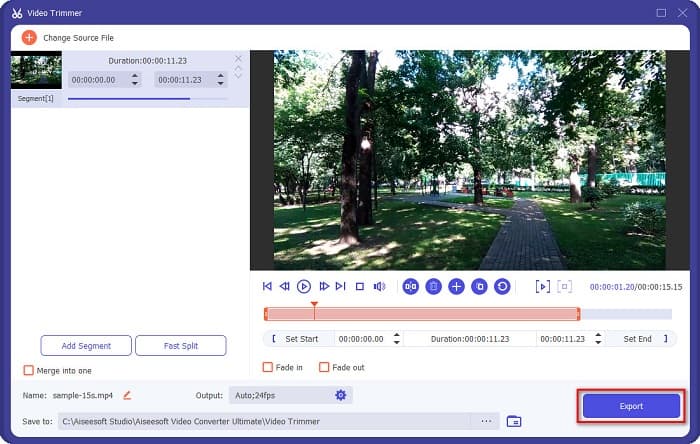
Krok 4. Poté posuňte posuvné jezdce přehrávání na požadovanou délku. Šipka ukazuje místo náhledu vašeho videa. A posuvníky přehrávání označují délku vašeho videa. Dočasné změny videa můžete vidět v náhledu.
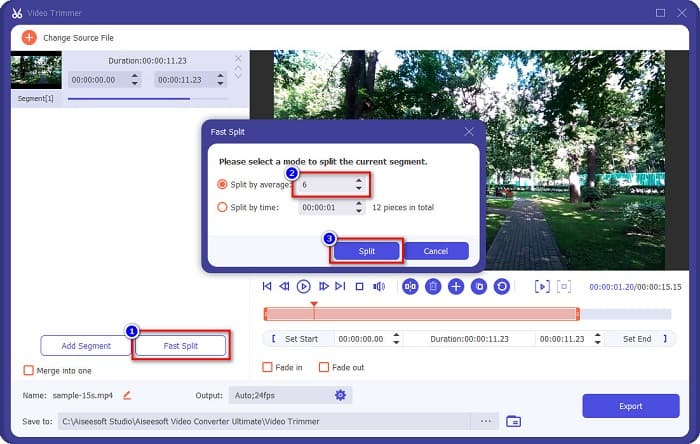
Volitelné. Pokud chcete jednodušší způsob, jak rozdělit video na segmenty:
1. Klikněte na tlačítko Fast Split.
2. Vyberte počet částí, na které chcete video rozdělit, a poté stiskněte Split.
3. Pokud nechcete video rozdělit, přejděte k dalšímu kroku.
Krok 5. Nakonec klikněte na tlačítko Export, abyste změny ve videu použili. Váš výstupní soubor se pak automaticky uloží do počítače.
Metoda 2. Použijte FVC Video Speed Changer
FVC Video Converter Ultimate má také funkci, kde můžete změnit rychlost vašeho videa rychlostí 0,125x, 0,25x, 0,5x, 0,75x, 1,25x, 1,5x, 2x, 4x a 8x. A pokud chcete zkrátit délku videa, upravte video na vysokou rychlost. Pro podrobnější kroky postupujte podle níže uvedeného průvodce.
Krok 1. Otevřete FVC Video Converter Ultimate. V hlavním rozhraní softwaru klikněte na možnost Toolbox.
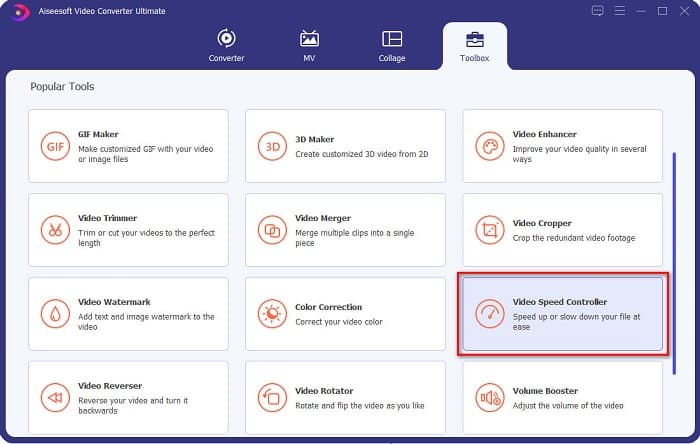
Krok 2. Poté klikněte na Video Speed Controller a pokračujte dalším krokem.
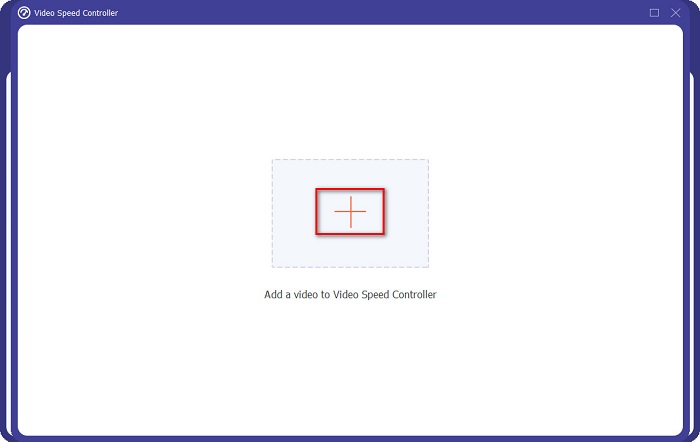
Krok 3. Dále klikněte na tlačítko se znakem + a nahrajte video, které chcete zkrátit. Zobrazí se složky v počítači, kde vyberete video a nahrajete ho do rozhraní softwaru.
Krok 4. Pro zkrácení videa zvolte rychlost od 1,25x do 8x.
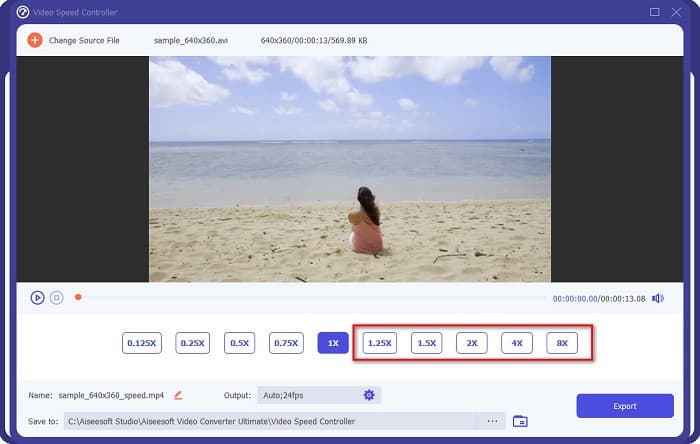
Krok 5. V závěrečném kroku klikněte na tlačítko Export, abyste změny ve videu uložili. Váš výstupní soubor se pak automaticky uloží do počítače.
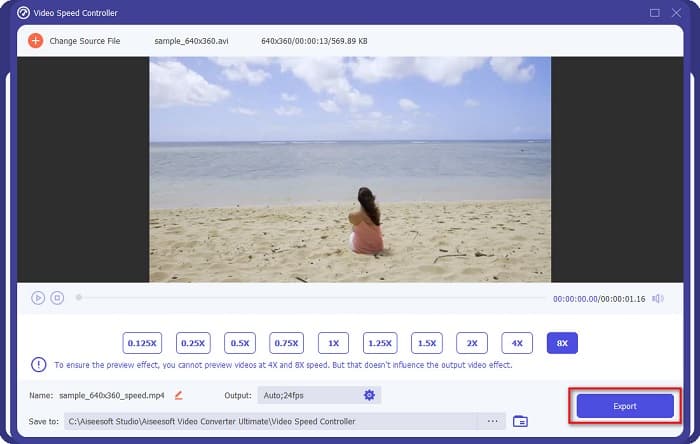
Pro kratší délku videa zvolte 8x rychlost.
Klady
- Podporuje řadu formátů souborů, včetně MOV, MKV, AVI, MP4, WMV, WMA, MPEG a 1000+ formátů.
- Má snadno použitelné softwarové rozhraní.
- Umožňuje vám rychle rozdělit video pomocí několika kliknutí.
- Ke stažení na všech platformách napříč médii, jako jsou Windows, Mac a Linux.
Nevýhody
- Před přístupem k dalším funkcím si aplikaci nejprve zakupte.
Část 2. 2 Online zastřihovač videa k vyzkoušení
Pokud chcete video oříznout, aniž byste cokoliv stahovali, existují online ořezávače videa, které můžete použít. V této části jsme uvedli nejlepší online zastřihovače videa, které mnoho lidí používá.
Oříznout video
Trim Video je online nástroj pro ořezávání videa, který se díky intuitivnímu uživatelskému rozhraní snadno používá. Je to praktický nástroj, protože nevyžaduje instalaci jako jiné online nástroje. Kromě toho má funkci, která umožňuje otáčet video o 90, 180 nebo 270 stupňů. Dále se nemusíte obávat o bezpečnost svých dat, protože tento nástroj je chráněný z hlediska soukromí. Jelikož se však jedná o webovou aplikaci, obsahuje reklamy, které vás mohou rozptylovat.
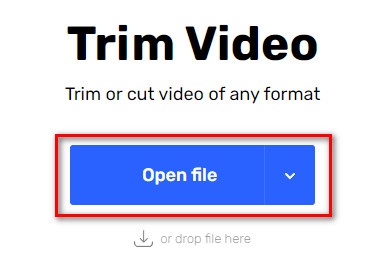
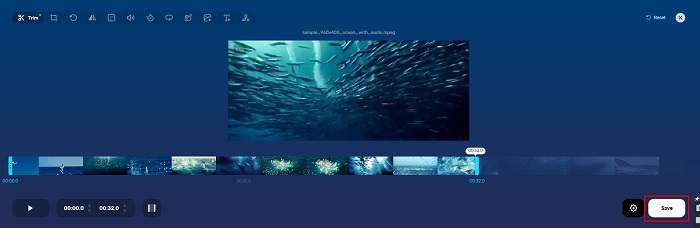
Krok 1. Ve svém prohlížeči vyhledejte online video trimmer. Poté klikněte na stránku Trim Video. V hlavním rozhraní softwaru klikněte na tlačítko Open File.
Krok 2. Poté upravte tlačítka posuvníku přehrávání na požadovanou délku.
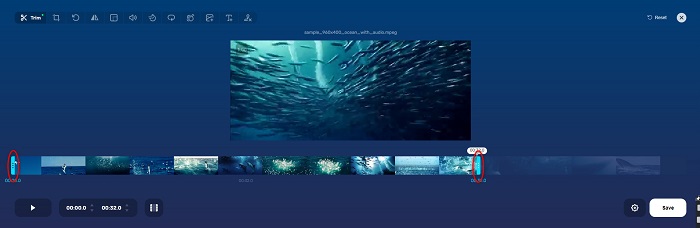
Krok 3. Kliknutím na tlačítko Save změníte délku svého videa.
Klady
- Má snadno použitelné GUI.
- Má funkce pro oříznutí a otočení videa.
- Použití je bezpečné.
Nevýhody
- Obsahuje otravné reklamy.
- Má pomalý proces načítání a nahrávání.
Clideo
Dalším online nástrojem pro ořezávání videa je Clideo. Tento online nástroj má jednoduché uživatelské rozhraní, díky čemuž je uživatelsky velmi přívětivý. Podporuje také většinu standardních formátů souborů, jako AVI, MP4, VOB, MPG, MOV atd. Dále tento nástroj klade velký důraz na bezpečnost, což znamená, že vaše data jsou v bezpečí a nikdo jiný je nemůže zobrazit. Navíc Clideo neobsahuje žádné reklamy, které by vás mohly rozptylovat.
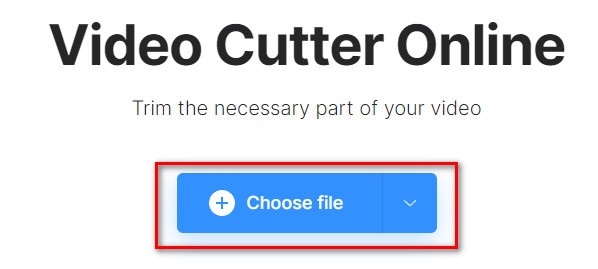
Krok 1. V prohlížeči, který používáte, vyhledejte Clideo video trimmer. Na úvodní obrazovce softwaru klikněte na tlačítko Choose File. Zobrazí se složky v počítači, kde vyberete video, které chcete zkrátit.
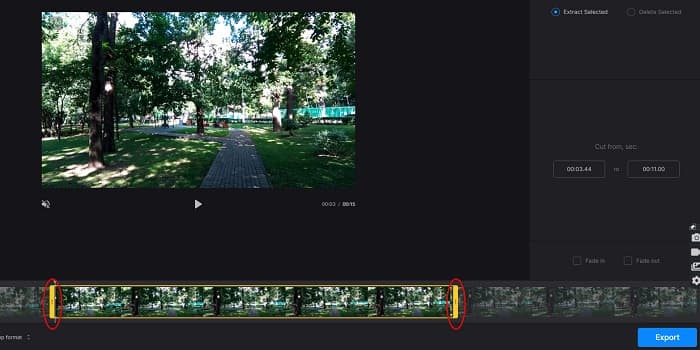
Krok 2. Posuňte tlačítka posuvníku přehrávání na délku, kterou chcete, aby vaše video mělo.
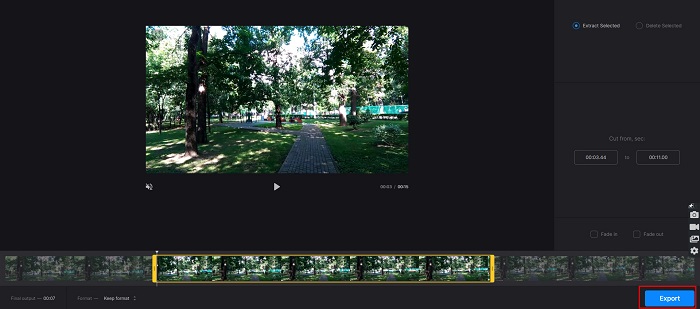
Krok 3. V závěrečném kroku klikněte na tlačítko Export, abyste změnili délku svého videa.
Klady
- Má snadno použitelné rozhraní.
- Použití je bezpečné.
- Neobsahuje žádné reklamy.
Nevýhody
- Při pomalém připojení k internetu můžete zaznamenat pomalý proces.
Část 3. Časté dotazy o tom, jak zkrátit video
Jak zkrátit video na iPhone?
Nejprve otevřete aplikaci Fotografie a vyberte video, které chcete oříznout. Poté klepněte na Upravit. Poté přesuňte posuvníky na požadovanou délku videa a klepnutím na Hotovo uložte změny z videa.
Ovlivňuje ořezávání videa kvalitu?
Ne. Většina nástrojů pro ořez neovlivňuje kvalitu vašeho videa. Pokud si ale jistíte nástrojem, který neovlivní kvalitu při zkracování videa, použijte FVC Video Converter Ultimate.
Má zkrácení videa vliv na velikost souboru?
Ano. Čím kratší je vaše video, tím menší je velikost souboru. Naproti tomu, pokud je vaše video dlouhé, obsahuje velký soubor.
Závěr
To je vše o tom, jak zkrátit video pomocí ořezávače a měniče rychlosti videa. Všechny uvedené nástroje poskytují vynikající výsledky a zaručují vám nejlepší výkon. Pokud však hledáte nejlepší nástroj s mnoha funkcemi a širokou popularitou v oblasti zkracování videí, FVC Video Converter Ultimate je pro vás tou nejlepší volbou.
-
 Jak stříhat a slučovat skladby online - 4 nejlepší způsoby, které byste měli vědět
 Chcete-li ořezávat a slučovat písničky online a vytvořit hudební skladbu, můžete se dozvědět více o 4 nejlepších online nástrojích pro ořezávání skladeb a kombinování souborů z článku.
-
 Objevte nejlepší vyžínač MP4 s postupem a informacemi
 Chcete se naučit stříhat videa jako vlogeři, které sledujete? Pak pokračujte ve čtení tohoto příspěvku, abyste věděli, jaké zastřihovače MP4 můžete použít.
-
 5 MP3 řezaček pro snadné řezání jakéhokoli zvuku [2022 Aktualizováno]
 Potřebujete MP3 řezačku pro oříznutí zvuku? V takovém případě si přečtěte tento článek, protože poskytujeme nástroje, na které se můžete spolehnout a které umožňují snadné řezání zvuku.
