


 Video Converter Ultimate
 Screen Recorder
 Oprava videa
 Bezpečné stažení
Jak změnit rychlost přehrávání VLC pomocí ovládání rychlosti a klávesových zkratek [Odhaleno]
Změna rychlosti videa může být u většiny přehrávačů obtížná, ale s přehrávačem VLC je to hračka. Představte si, že máte hodinové video a chcete ho sledovat vyšší rychlostí, abyste ušetřili čas – v takovém případě je zrychlení tou správnou volbou. Naopak, pokud chcete video sledovat kvůli detailům, musíte ho přehrát zpomaleně. Ve VLC můžete snadno změnit rychlost přehrávání videa, které sledujete – ať už ho chcete zrychlit nebo zpomalit, všechno je tu možné. Čtěte dál, tento článek odhaluje tajné postupy, jak měnit rychlost přehrávání ve VLC přesně podle vašich představ.

Část 1. Změna rychlosti přehrávání VLC pomocí ovládání rychlosti a klávesových zkratek
Existují dva způsoby, jak můžete změnit rychlost videa, které přehráváte na VLC; to jsou rychlost ovládání a klávesové zkratky. Naštěstí vám je dáme oba. Pokud jste připraveni ovládat rychlost VLC nahoru nebo dolů, vyberte si, kterou cestou chcete jít.
Než budeme pokračovat v těchto krocích, ujistěte se, že jste si již stáhli přehrávač médií na plochu. Pokud ne, můžete navštívit jeho oficiální web a mít přehrávač médií.
1. způsob. Použijte Speed Control na VLC Player na Windows a Mac
I když je ovládání rychlosti k dispozici ve verzích VLC pro Windows i Mac, kroky se pro každou z nich stále liší. Takže pokud jste uživatelem Windows a chcete změnit rychlost videa, sledujete a přečtěte si kroky pro uživatele Windows, ale pokud jste uživatelem Mac, přečtěte si ten druhý.
Pro uživatele Windows:
Krok 1. Po stažení přehrávače jej otevřete a poté otevřete mediální soubor, který chcete přehrát s jinou rychlostí.
Krok 2. Přejděte do nabídky Přehrávání a zvolte možnost Rychlost, abyste ve VLC změnili rychlost přehrávání.
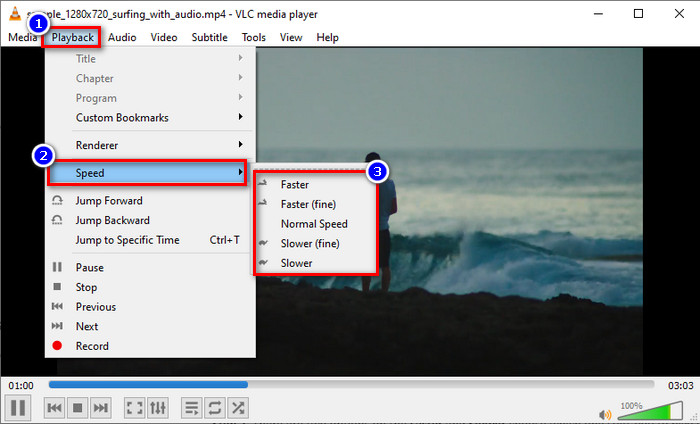
Krok 3. Vyberte rychlost, kterou chcete, a klikněte na ni. Přehrávejte nahrané video a sledujte ho ve zvolené rychlosti.
Pro uživatele Mac:
Krok 1. Přehrávejte libovolné video nebo zvukový soubor, který chcete, v macOS verzi tohoto softwaru.
Krok 2. Pro použití ovladače rychlosti klikněte na Přehrávání.
Krok 3. K dispozici jsou dvě volby – rychleji a pomaleji; posuňte jezdec a zvolte si tu, která vám vyhovuje pro přehrávání videa ve zvolené rychlosti.

2. cesta. Ke změně rychlosti na VLC Player použijte klávesové zkratky
Předpokládejme, že jste unaveni z výše uvedených kroků, pak musíte zkusit použít klávesovou zkratku pro rychlost přehrávání VLC. Dělají stejnou práci; klávesové zkratky mohou zrychlit nebo zpomalit video, jako je 1. způsob, který přidáváme v tomto článku. Na používání klávesových zkratek není nic zvláštního, kromě toho, že to usnadňuje a zefektivňuje práci. I když můžete rychlost videa ovládat pomocí zkratky, kroky pro klávesovou zkratku Windows a Mac se pro každou liší. Chcete-li vědět, jak změnit rychlost pomocí kláves klávesnice, postupujte podle následujících podrobností.
Pro uživatele Windows:
Krok 1. Otevřete v tomto přehrávači mediální soubor, který chcete přehrát.
Krok 2. Během přehrávání stiskněte na klávesnici klávesu [ pro zpomalení videa. Pokud jej chcete trochu zrychlit, stiskněte ]. Pro návrat videa na normální rychlost stiskněte =.
Pro uživatele Mac:
Krok 1. Spusťte přehrávač a otevřete mediální soubor, který zde chcete přehrát.
Krok 2. Při sledování souboru stiskněte command + pro zvýšení rychlosti videa, a pokud jej chcete zpomalit, stiskněte command -.
Část 2. Změna rychlosti videa navždy na Windows a Mac
VLC sice dokáže změnit rychlost aktuálně přehrávaného videa, ale nedokáže trvale uložit zrychlení nebo zpomalení, které nastavíte – co tedy dělat, pokud to chcete zachovat natrvalo? Můžete použít FVC Video Converter Ultimate, který trvale uloží zvolenou rychlost přehrávání přímo do videa. Nebudete tak muset znovu měnit rychlost přehrávání a opakovat kroky uvedené výše pokaždé, když chcete video sledovat v určité rychlosti. Přestože software umí rychlost měnit, nepodporuje zkratkové příkazy pro ještě rychlejší úpravu rychlosti.
Použitím tohoto softwaru máte nad videem plnou kontrolu, pokud chcete změnit rychlost videa. Chcete-li použít princip zrychlení nebo zpomalení jako ve VLC, můžete postupovat podle návodu krok za krokem, který uvádíme níže.
Krok 1. Kliknutím na tlačítko pro stažení níže si editor nainstalujte do počítače a poté podle pokynů dokončete instalaci. Pak na něj klikněte a ihned jej spusťte.
Zdarma ke staženíPro Windows 7 nebo novějšíBezpečné stažení
Zdarma ke staženíPro MacOS 10.7 nebo novějšíBezpečné stažení
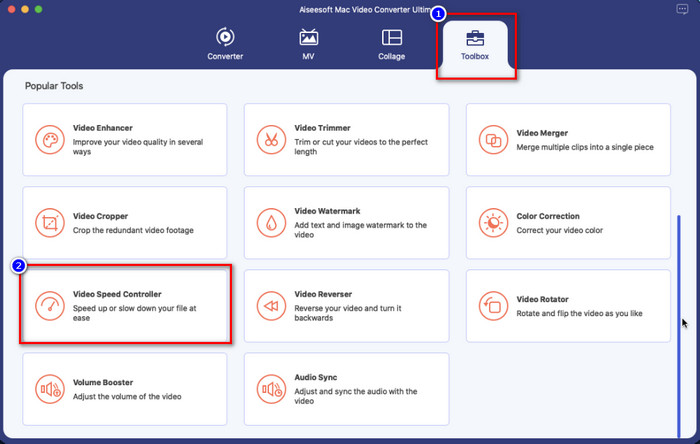
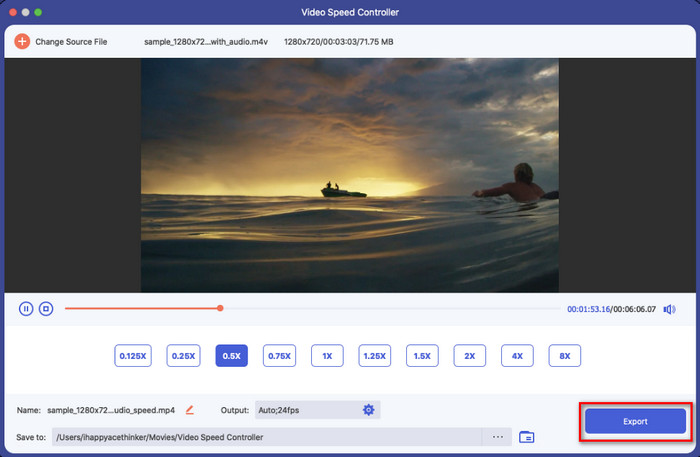
Krok 2. Otevřete Toolbox a mezi dostupnými možnostmi najděte Video Speed Controller.
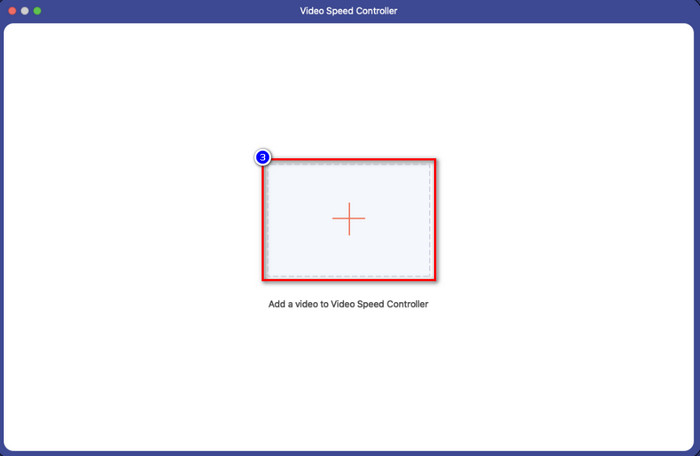
Krok 3. Nyní můžete přidat soubor, který chcete, z počítače kliknutím na tlačítko + a poté na Otevřít pro jeho nahrání.
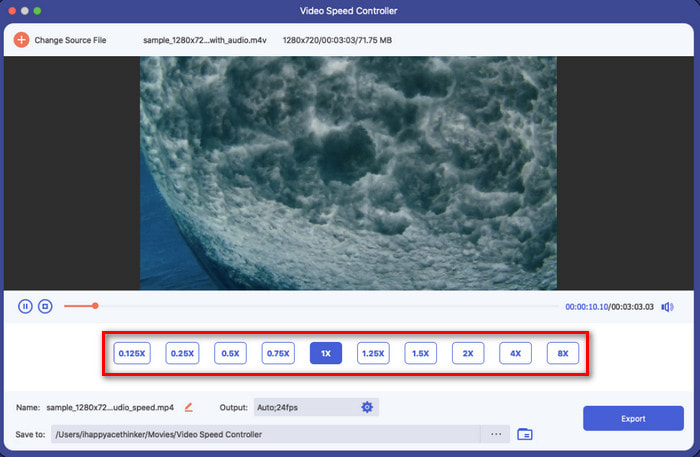
Krok 4. Vyberte rychlost, kterou chcete na video použít. Jakmile na rychlost kliknete, okamžitě se přehraje náhledová ukázka videa.
Krok 5. Pokud je vše hotovo, klikněte na Exportovat, abyste video uložili s trvalým zrychlením nebo zpomalením do počítače. Pokud chcete změny vrátit na původní rychlost, zopakujte stejné kroky jako předtím, jen tentokrát zvolte opačnou volbu.
Část 3. Nejčastější dotazy o rychlosti přehrávání VLC
Existuje nějaké omezení rychlosti přehrávání při používání VLC?
Konkrétně neexistuje nic jiného, než že video, které zrychlujete, nemůžete trvale uložit, protože přehrávač médií není pro tuto práci stvořen. Jakmile zde video zrychlíte, po pozastavení a přehrání se vrátí na původní rychlost. Chcete-li se tomu vyhnout, postupujte podle kroků, které přidáme ve druhé části, pokud se rozhodnete trvale změnit rychlost videa.
Proč se video zrychluje a přeskakuje příliš mnoho scén klipu VLC?
Vzhledem k rychlosti, kterou jste si vybrali, pokud nadměrně používáte regulátor rychlosti a používáte nejvyšší rychlost, počítejte s tím, že VLC přeskočí nějakou část, aby kompenzoval rychlost, kterou zvolíte. Abyste se tomuto problému vyhnuli, musíte správně zvolit rychlost a nepřetěžovat ji.
Jak mohu vrátit rychlost na normální na VLC?
Kliknutím na pauzu a přehrávání vrátíte rychlost videa na normální. Ale můžete také klepnout na = na klávesnici pro Windows; pro Mac je lepší kliknout na tlačítko pauza/přehrát a vrátit se zpět na normální rychlost videa.
Závěr
Můžete si vybrat, zda chcete použít ovládání rychlosti, nebo klávesové zkratky ke změně rychlosti přehrávání ve VLC. Ať už zvolíte jakýkoli způsob, obě metody dělají totéž – ovládají rychlost videa, které ve VLC přehráváte. Změněnou rychlost videa však nemůžete exportovat do počítače, protože VLC není určený k ukládání videí s upravenou rychlostí. Jakmile ale video převedete v FVC Video Converter Ultimate, můžete nastavenou rychlost uložit natrvalo. Pokud chcete vyzkoušet možnost Video Speed Controller, budete překvapeni, jak snadno a rychle to jde.
-
 Nejlepší 4 přehrávače videa s regulátorem rychlosti v roce 2021
 Nevšimli jste si rychlosti přehrávání každého přehrávače médií, kdykoli přehráváte video? Tento článek je vhodný, abyste se dozvěděli vše o přehrávačích videa s ovládáním rychlosti.
-
 3 způsoby, jak zrychlit video na iPhone [Osvědčeno]
 Máte potíže s nastavením rychlosti přehrávání videa, protože používáte iPhone? Toto je skvělý článek, který vám pomůže s vaším problémem.
-
 Windows Media Player | Naučte se, jak zrychlit videa [Osvědčeno]
 Chcete zpomalit svůj videoklip pomocí přehrávače Windows Media Player, ale nevíte, jak to udělat? Tento článek je ideální pro čtení a může objasnit váš pohled na to, jak zrychlit videa pomocí Windows Media Player.
