


 Video Converter Ultimate
 Screen Recorder
 Oprava videa
 Bezpečné stažení
Dokončete způsoby, jak efektivně odstranit vodoznak filtru Picsart z vašich videí
V dnešní době je velmi potřebnou „zbraní“ mít na stolním počítači spolehlivý software pro úpravu vizuálních médií, jako je Picsart. Díky němu můžete pár úpravami proměnit běžný obrázek ve fotografii, jakou ještě nikdo neviděl! S poutavým snímkem, který vytvoříte, můžete získat více zákazníků či publika. Při používání Picsartu je tu ale jeden problém – vodoznak, který se po exportu přidá. Vodoznak je dost otravný a může rušit výsledný vizuál, pokud ho neodstraníte. Pokud tedy chcete mít software i návod, jak odstranit vodoznak filtru Picsart, pokračujte ve čtení tohoto článku a dozvíte se víc!

Část 1. Jak odstranit vodoznak filtru Picsart pomocí bezplatného softwaru na ploše
FVC Video Converter Ultimate – odstraňovač vodoznaků číslo jedna na Windows a Mac
Začněme představením softwaru, který je naším prvním tipem a který vám pomůže a naučí vás, jak odstranit vodoznak Picsart. FVC Video Converter Ultimate je nepostradatelnou zbraní v arzenálu, kterou potřebujete k snadnému odstranění vodoznaku z videí a zároveň k dosažení profesionálního výstupu. Díky výkonu a jedinečným funkcím ho již mnoho uživatelů vyzkoušelo a nástroj je nezklamal. Pokud potřebujete pomoc s odstraněním vodoznaku z videa, zkuste si krok za krokem zopakovat postup uvedený níže.
Krok 1. Získejte tento špičkový software do svého zařízení kliknutím na příslušné tlačítko pro stažení níže. Poté jej nainstalujte do počítače a kliknutím na Start Now (Spustit nyní) program otevřete.
Zdarma ke staženíPro Windows 7 nebo novějšíBezpečné stažení
Zdarma ke staženíPro MacOS 10.7 nebo novějšíBezpečné stažení
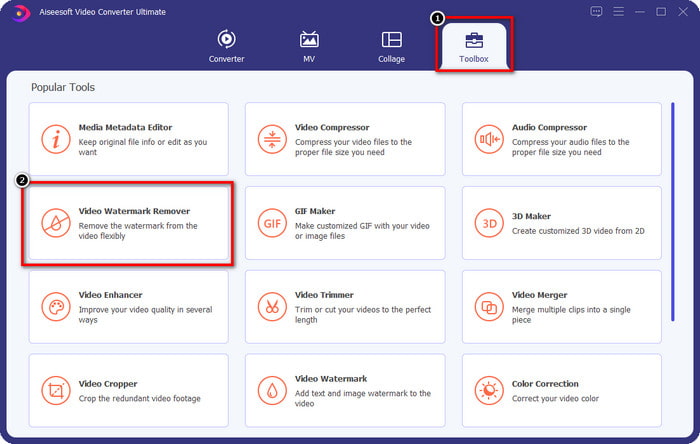
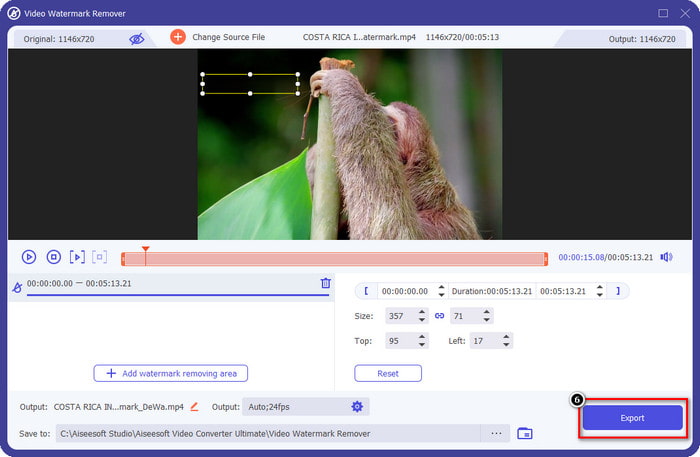
Krok 2. V části Toolbox uvidíte další funkce, které můžete použít a které vám pomohou dodat videu dokonalý finiš. Dnes ale klikněte na Video Watermark Remover.
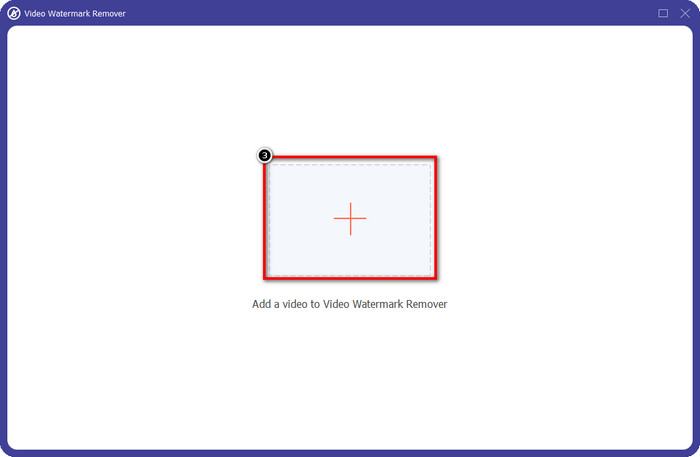
Krok 3. Nahrajte video upravené v Picsartu kliknutím na ikonu +. V otevřeném okně vyhledejte soubor, poté klikněte na Open (Otevřít).
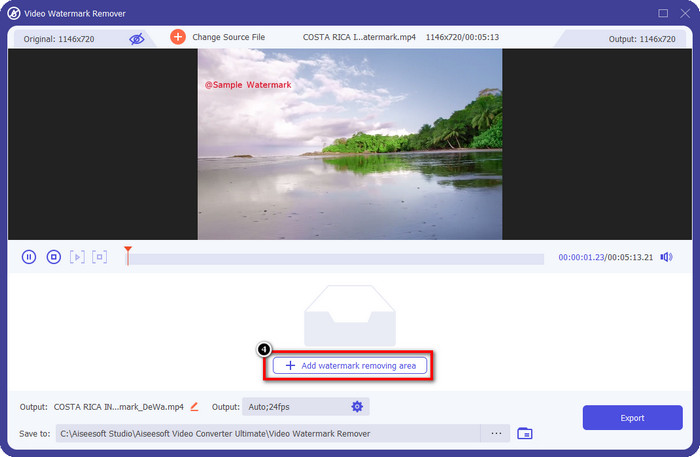
Krok 4. Stiskněte Add Watermark Removing Area, abyste označili oblast s vodoznakem, který je ve videu vložen.
Krok 5. Přidržte a přetáhněte výběrový rámeček na vodoznak a zakryjte jej. Rámeček můžete podle potřeby zvětšit nebo zmenšit.
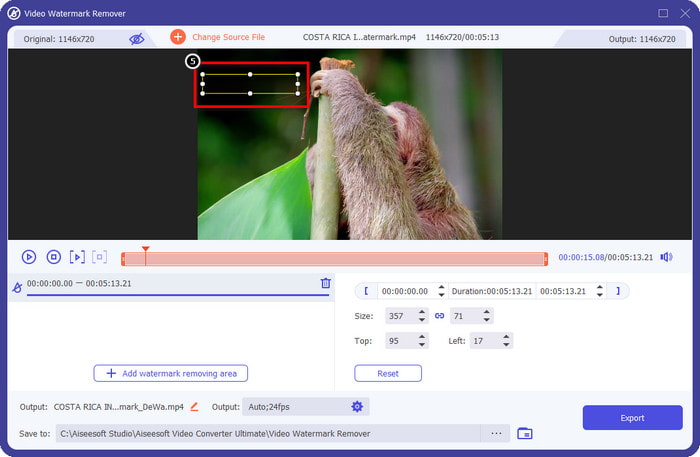
Krok 6. Jakmile máte vodoznak zakrytý výběrovým rámečkem, klikněte na Export, abyste uložili finální výstup na lokální disk.
Fotografie v systému Windows - Kryt vodoznaku s 3D designem
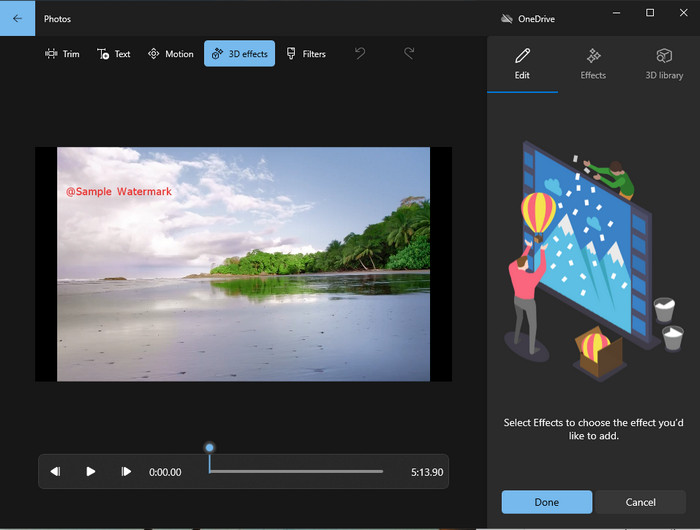
Pokud si nechcete instalovat další software a používáte Windows, měli byste zkusit použít aplikaci Fotky k úpravě vodoznaku ve videu. Naučit se, jak odstranit vodoznak Picsart tímto nástrojem, je ještě rychlejší, protože nemusíte nic stahovat. Nástroj sice vodoznak z videa přímo neodstraní, ale můžete ho překrýt 3D prvky. Přesto je výkon tohoto výchozího prohlížeče a editoru vizuálních médií velmi dobrý. Nejste si jisti? Pak si přečtěte kroky níže a postupujte podle nich, pokud chcete.
Krok 1. Klikněte na tlačítko Windows na hlavním panelu a vyhledejte aplikaci Fotky, abyste ji otevřeli.
Krok 2. Po otevření vestavěného editoru klikněte na znak + a nahrajte video, které zde chcete upravovat.
Krok 3. Přejděte do části 3D Effects, klikněte na 3D Library a vyhledejte motiv, kterým chcete vodoznak zakrýt. Umístěte vybraný motiv na část obrazu, kde se nachází vodoznak.
Krok 4. Stiskněte Finish Video, abyste finální výstup uložili na lokální disk ve Windows.
Vyberte si z rozostření videa online
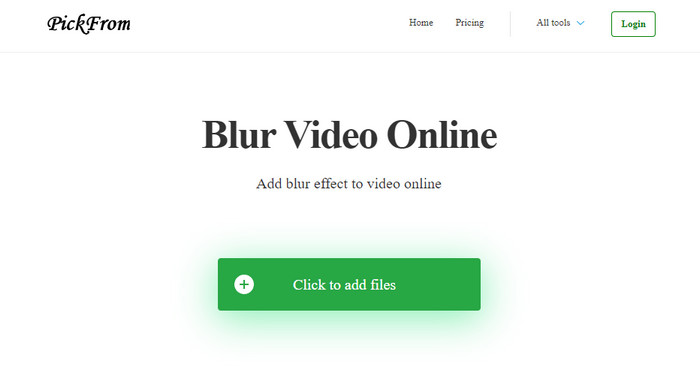
PickFrom Blur Video Online vám může pomoci odstranit vodoznak PicsArt z videí, která máte na webu. Tento nástroj mnoho lidí nezná, ale dnes vám ho představíme. Zařadili jsme ho díky jeho efektivitě při odstraňování vodoznaků z nahraných videí. Jeho rozhraní je jednoduché a přehledné, takže se v něm při používání neztratíte. Pokud tedy chcete vodoznak odstranit, postupujte podle následujících kroků.
Krok 1. Otevřete webový prohlížeč, vyhledejte název nástroje a klikněte na první výsledek, abyste otevřeli online odstraňovač vodoznaků.
Krok 2. Klikněte na Click to Add File (Klikněte pro přidání souboru), abyste sem mohli video nahrát.
Krok 3. Zaškrtněte Blur Part of the Video a poté umístěte výběrový rámeček na vodoznak.
Krok 4. Stiskněte Start, abyste stáhli video bez vodoznaku.
Část 2. Jak odstranit vodoznak Picsart zakoupením prémiové verze
Pokud nechcete mít potíže s odstraněním zlatého vodoznaku Picsart, musíte si software zakoupit. Bude vás to stát určitou částku, protože za něj budete muset zaplatit, než jej budete moci použít a poté exportovat video bez jakéhokoli vloženého vodoznaku. Pokud tedy chcete podrobný návod na nákup Picsartu, musíte postupovat podle dalšího návodu, který přidáme.
Krok 1. Otevřete oficiální web Picsart a přihlaste se ke svému účtu. Pokud účet nemáte, musíte si ho vytvořit registrací (Sign up).
Krok 2. Na hlavní stránce klikněte na Pricing (Ceník) a podívejte se na ceny jednotlivých produktů.
Krok 3. Vyberte plán, který chcete – měsíční nebo roční – a klikněte na Go to Payment.
Krok 4. Zadejte platební údaje vyplněním požadovaných polí a poté klikněte na Purchase Now.
Související:
Odstranění vodoznaku z promočních fotografií
Část 3. Často kladené otázky o tom, jak odstranit vodoznak Picsart
Mohu si Picsart Gold zakoupit trvale?
Nepodporuje jednorázový platební základ nebo plán, takže pokud chcete používat Picsart Gold, budete muset využít měsíční nebo roční plán. Podívejte se na cenu každého plánu na jeho oficiálních stránkách.
Mohu si na Picsartu vytvořit přizpůsobené předplatné?
Ano, můžete vytvořit předplatné pro tým na Picsartu. Můžete nastavit počet lidí, kteří budou aplikaci používat.
Kde mohu získat přístup k Picsartu?
Picsart si můžete stáhnout na Windows, Android a iOS. Bohužel tato aplikace momentálně nemá verzi pro Mac, ale nebuďte smutní, protože můžete použít jiný software pro úpravu médií dostupný ve vašem systému.
Závěr
Výukový program, který jsme učili dříve, vám dává představu o odstraňování vodoznaků pomocí PicsArt a nejlepších odstraňovačů vodoznaků, které můžete použít. Nyní si můžete vychutnat video, které upravujete na Picsartu, aniž byste se museli obtěžovat s vodoznakem produktu, který přidá do konečného výstupu. Pokud tedy stále nejste přesvědčeni o nástrojích, které představujeme, je nutné je nejprve vyzkoušet, zejména FVC Video Converter Ultimate. Klikněte na tlačítko stahování a získejte jej zdarma ve svém systému Windows a Mac, poté si vychutnejte funkce a funkce, které poskytuje a které můžete využít.
-
 Jak odstranit vodoznak Pond5 pomocí nástrojů Ultimate
 Naučte se, jak odstranit vodoznak Pond5 pomocí jednoduchých kroků níže. Pomocí těchto působivých nástrojů můžete snadno odstranit vodoznak Pond5 z obrázku.
-
 2 účinné způsoby, jak odstranit vodoznak Dxtory
 Naučte se, jak odstranit vodoznak Dxtory pomocí dvou nejlepších metod. Pokud hledáte nejvhodnější nástroj pro odstranění vodoznaku Dxtory, přečtěte si zde.
-
 Vynikající odstraňovače vodoznaků Arnold Maya, které si nesmíte nechat ujít
 Mnoho odstraňovačů vodoznaku dokáže odstranit vodoznak Arnold Maya. Ale pokud chcete vědět, jaké jsou nejlepší odstraňovače vodoznaků Arnold Maya, přečtěte si tuto stránku.
