


 Video Converter Ultimate
 Screen Recorder
 Oprava videa
 Bezpečné stažení
Skvělý způsob, jak odstranit vodoznak z Camtasia 9, který musíte vyzkoušet
Pokud hledáte jednoduchý a nejlepší způsob, jak odstranit vodoznak v Camtasia 9, jste na správném místě. Existuje mnoho skvělých videí, která chceme sledovat. Některá z nich však mají velký vodoznak, což je otravné a znemožňuje plně ocenit samotný obsah videa. Navíc kvůli těmto zbytečným objektům jsou části videa zakryté, což diváky ještě více zklame. Naštěstí existují softwarové aplikace s funkcí odstraňování vodoznaků, pomocí kterých můžete vodoznaky z videí odstranit a užívat si sledování svých oblíbených filmů bez rušení. Pokud se chcete dozvědět více o tom, jak rychle odstranit vodoznaky z vašich videí, přečtěte si tento článek od začátku do konce.

Část 1: Nejlepší způsob, jak odstranit vodoznak z Camtasia
Použití Video Converter Ultimate
Pokud hledáte skvělou a spolehlivou aplikaci s nástroji pro odstranění vodoznaku, Video Converter Ultimate je vynikající software, který můžete využít. Pomocí této aplikace můžete odstranit vodoznaky ze svých videí. Aplikaci můžete použít i v případě, že vaše video má vodoznaky z jiných aplikací, jako je Camtasia. Navíc je snadná a jednoduchá na používání, takže je vhodná pro začátečníky. Kromě toho nabízí různé editační nástroje, které si můžete užít, jako jsou Kompresor videa, Vylepšovač videa, Ořezávač videa, Kompresor audia, Převraceč videa, Rotátor videa a další. Tento článek ukáže dva způsoby, jak odstranit vodoznaky z vašich videí pomocí Video Converter Ultimate.
1. Použití Video Watermark Remover
Krok 1: Stáhněte si Video Converter Ultimate do svého počítače. Poté pokračujte v instalačním procesu.
Zdarma ke staženíPro Windows 7 nebo novějšíBezpečné stažení
Zdarma ke staženíPro MacOS 10.7 nebo novějšíBezpečné stažení
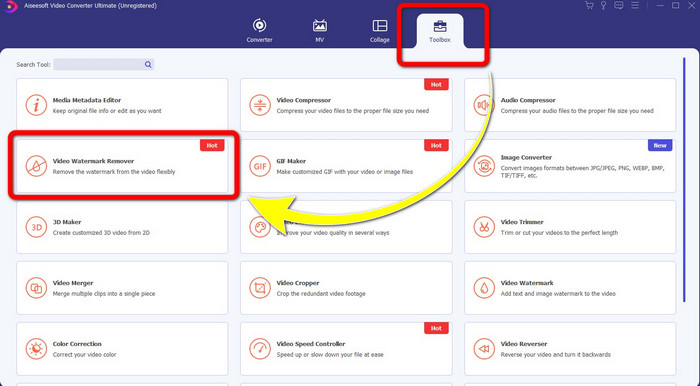
Krok 2: Po dokončení instalace otevřete aplikaci a přejděte na Toolbox > Video Watermark Remover. Na obrazovce se objeví další rozhraní.
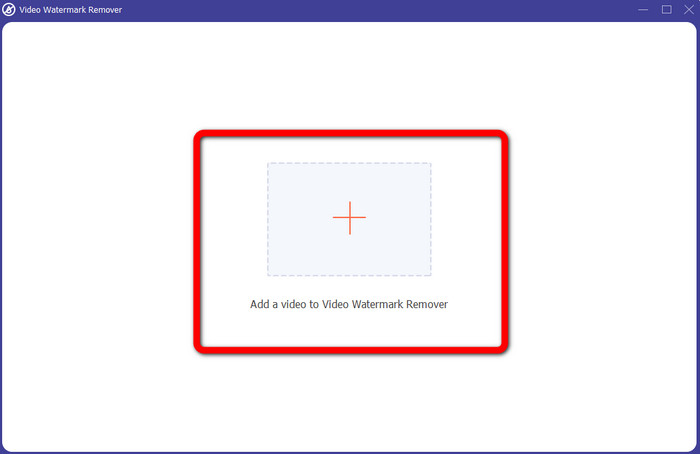
Krok 3: Když se zobrazí další rozhraní, klikněte na tlačítko se znakem Plus a přidejte video s vodoznakem.
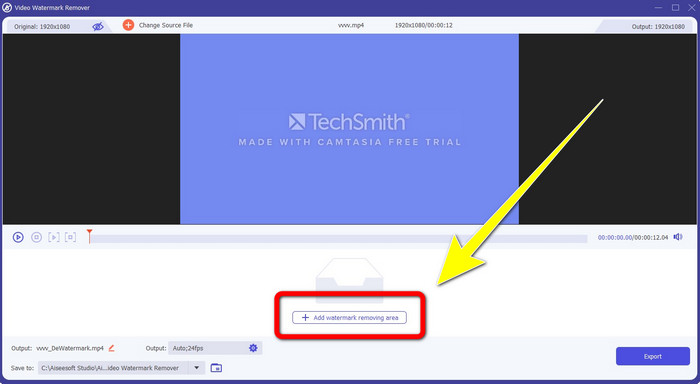
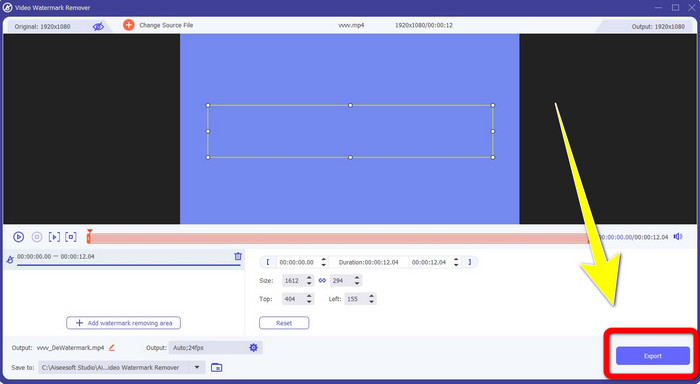
Krok 4: Po přidání videa s vodoznakem klikněte na Add Watermark Removing Area.
Krok 5: Na obrazovce se objeví obrazovka ve tvaru rámečku. Pomocí tohoto rámečku zakryjte vodoznak ve videu.
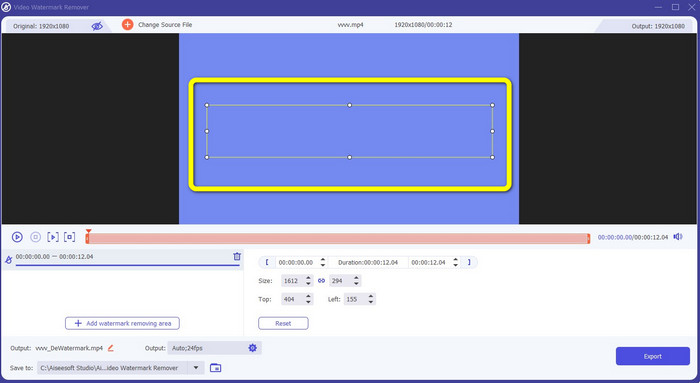
Krok 6: Jakmile je vodoznak zakrytý, vodoznaky z vašeho videa zmizí. Kliknutím na Export video uložíte. Tímto způsobem můžete odstranit vodoznak z videa vytvořeného v Camtasia.
2. Použití funkcí oříznutí
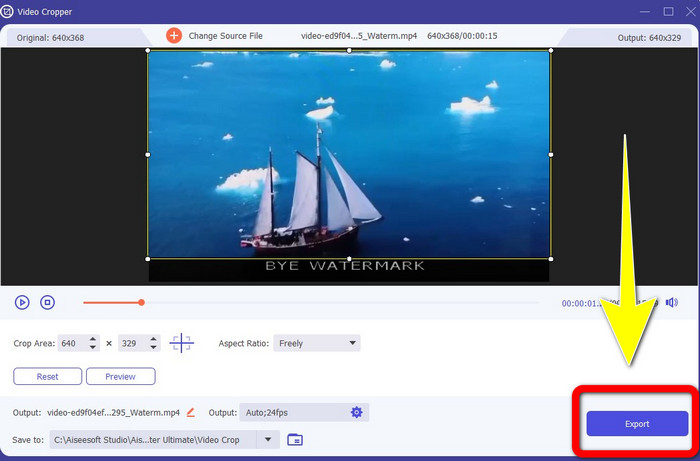
Další možností, kterou můžete vyzkoušet, jsou funkce oříznutí ve Video Converter Ultimate. Jde o jeden z nejjednodušších způsobů, jak odstranit vodoznaky z videí, zvláště pokud je vodoznak pouze v rohu nebo na okraji videa. Oříznutím videa můžete okamžitě odstranit zbytečné objekty. Postupujte podle těchto jednoduchých kroků k odstranění vodoznaků pomocí nástroje pro ořezávání.
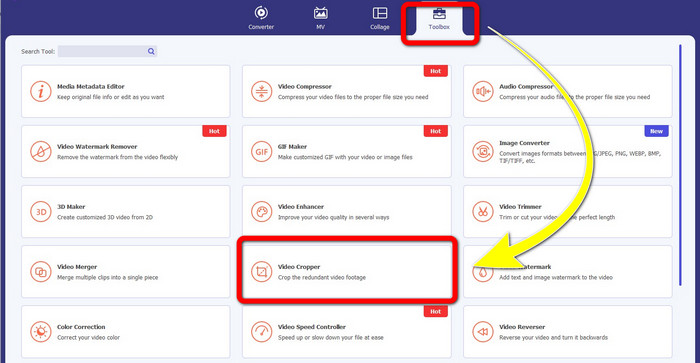
Krok 1: Otevřete Video Converter Ultimate. Klikněte na Toolbox > Video Cropper. Poté se na obrazovce objeví další rozhraní.
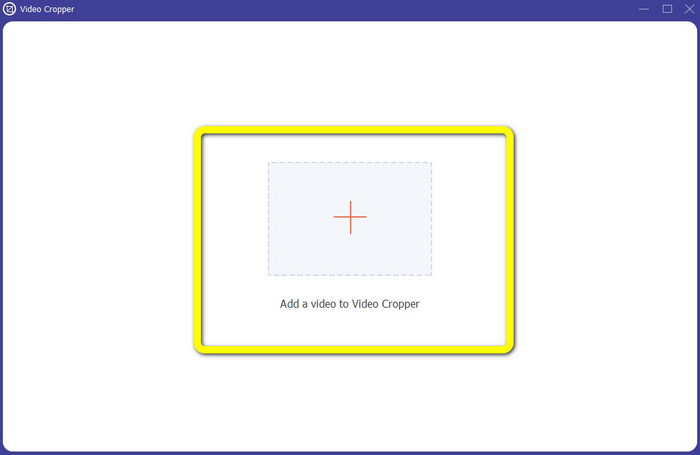
Krok 2: Klikněte na tlačítko se znakem Plus a přidejte video s vodoznakem, který chcete odstranit.
Krok 3: Jakmile jste přidali video s vodoznakem, můžete nyní oříznout okraj videa až k oblasti s vodoznakem. Tímto způsobem vodoznak odstraníte.
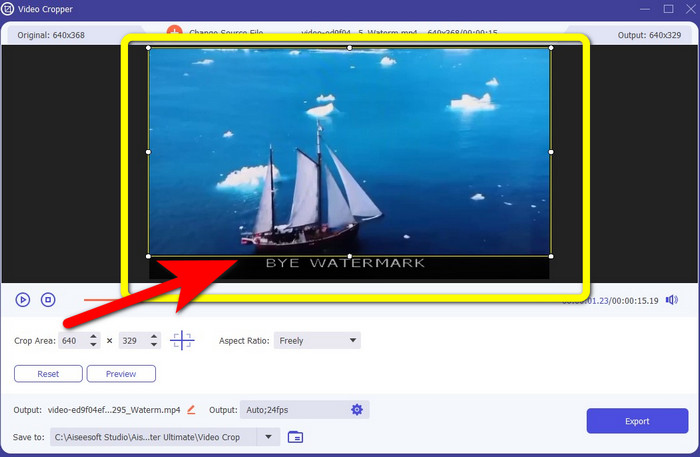
Krok 4: Pokud jste video již ořízli a vidíte, že vodoznak zmizel, klikněte na Export a uložte upravené video. Nyní si můžete vychutnat sledování videa bez jakýchkoli vodoznaků na obrazovce.
Část 2: Jak produkovat videa v Camtasia bez vodoznaku
Chcete se naučit, jak vytvořit video v Camtasia bez vodoznaků? Nejdříve si definujme, co je Camtasia. Camtasia je jednoduchý a užitečný editační nástroj, který můžete používat. Kromě toho je to také software pro záznam obrazovky. Navíc nabízí různé editační funkce, které si můžete užít, jako jsou anotace, přechody, animace, zvukové efekty, obrazové efekty a další. V této aplikaci můžete také vytvářet prezentace.
S pomocí této aplikace můžete svá videa učinit pro diváky atraktivnějšími a jedinečnými. V Camtasia můžete produkovat krásná videa, která si můžete užít. Tato aplikace má však po exportu videa vodoznak, pokud si aplikaci nezakoupíte. Pomocí těchto jednoduchých kroků se v této aplikaci naučíte mnoho věcí, zejména vytváření videí v Camtasia.
S pomocí této aplikace můžete svá videa učinit pro diváky atraktivnějšími a jedinečnými. V Camtasia můžete produkovat krásná videa, která si můžete užít. Tato aplikace má však po exportu videa vodoznak, pokud si aplikaci nezakoupíte. Pomocí těchto jednoduchých kroků se v této aplikaci naučíte mnoho věcí, zejména vytváření videí v Camtasia.
Krok 1: Musíte si stáhnout Camtasia do svého systému Windows. Klikněte na tlačítko Download Free Trial, abyste získali aplikaci. Poté aplikaci po instalaci otevřete.
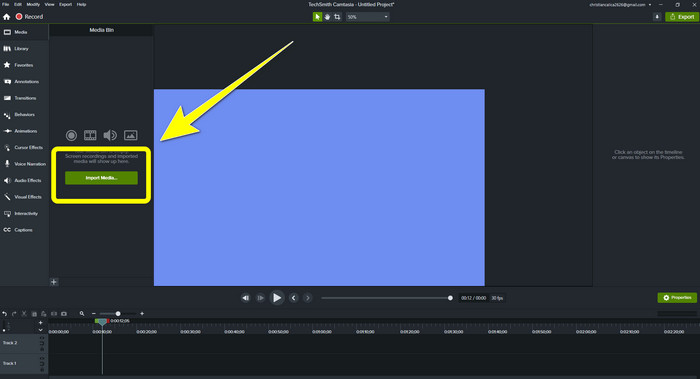
Krok 2: Po spuštění aplikace klikněte na tlačítko Import Media a přidejte soubor, který chcete upravit.
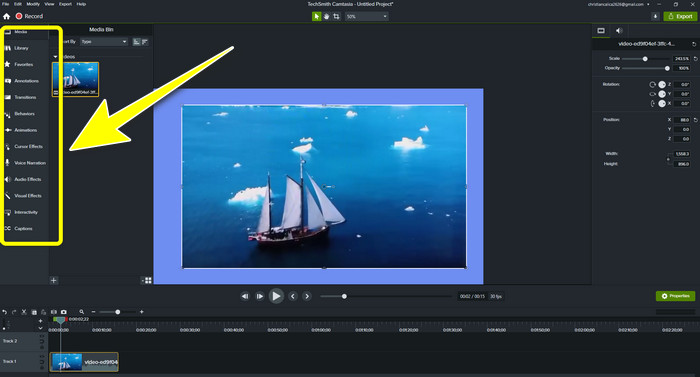
Krok 3: Nyní můžete v této aplikaci upravovat své soubory pomocí editačních nástrojů, jako je přidávání titulků, přechodů, animací, anotací, chování a dalších.
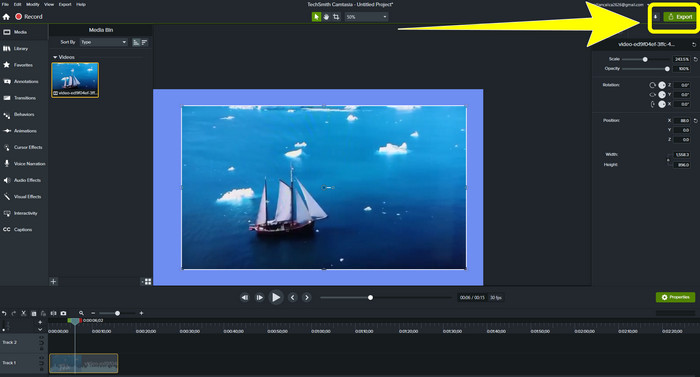
Krok 4: Pokud jste s úpravami videa hotovi a spokojeni, můžete kliknout na tlačítko Export > Local File a uložit svůj výstup.
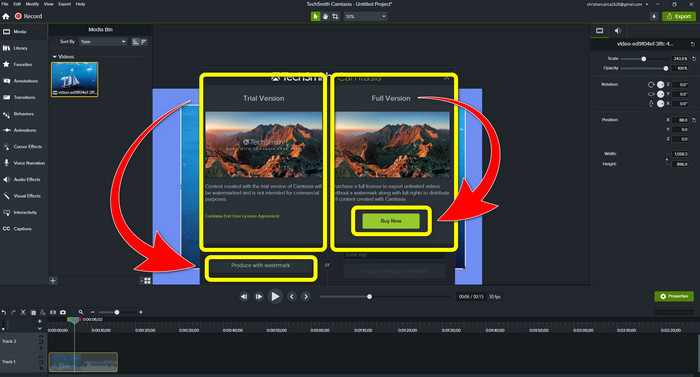
Krok 5: Po kliknutí na Export > Local File Button se objeví další rozhraní. Pokud si chcete aplikaci zakoupit, klikněte na tlačítko Buy, abyste mohli vytvářet videa v Camtasia bez vodoznaku. Pokud však používáte pouze zkušební verzi zdarma, bude mít vaše video po exportu a uložení vodoznak.
Související s:
Jak zdarma odstranit vodoznak Filmora z vašich videí nebo projektů
Nejrychlejší trik, jak odstranit vodoznak Adobe Stock z videa [ Návod ]
Část 3: Nejčastější dotazy o odstraňování vodoznaků
Existuje vynikající odstraňovač vodoznaků, který mohu použít na svém počítači Mac?
Rozhodně ano! Můžete použít aplikace s funkcí odstranění vodoznaku, jako je Video Converter Ultimate. Tento program dokáže odstranit vodoznaky z vašich videí. Navíc je aplikace dostupná jak pro Windows, tak pro Mac, což ji činí ještě pohodlnější.
Existuje způsob, jak odstranit vodoznaky z fotografií?
Rozhodně ano! K odstranění vodoznaků z fotografií můžete ve svém zařízení použít mnoho aplikací. Nejlepší věc, kterou musíte udělat, je vyhledat ve svém prohlížeči nástroje pro odstraňování vodoznaků a vyhledat 10 nejlepších výsledků na stránce s výsledky.
Mohu odstranit vodoznaky pomocí telefonu?
Ano můžeš! Některé z aplikací s odstraňovačem vodoznaku jsou nyní dostupné na počítačích Mac a Windows a mobilních telefonech, jako jsou telefony Android a iPhone.
Jak mohu odstranit vodoznaky pomocí nástroje pro oříznutí?
Odstraňování vodoznaků z fotografií nebo videí pomocí nástroje pro oříznutí je hračka, zvláště pokud je vodoznak na okraji obrázku. Vše, co musíte udělat, je oříznout, odstranit vodoznak a máte hotovo.
Závěr
Jak vidíte, tento článek ukazuje nejlepší způsoby, jak odstranit vodoznak z Camtasia 9. Také představuje vynikající a spolehlivou aplikaci se dvěma metodami pro odstranění zbytečných objektů z vašich videí. Touto aplikací je Video Converter Ultimate.
-
 5 způsobů, jak profesionálním způsobem odstranit vodoznak z videa
 Potřebujete z videa odstranit vodoznak, aby vypadalo profesionálně? No, přečtěte si tento článek, protože přidáváme návod, jak na to!
-
 3 z nejnovějších odstraňovačů vodoznaků Shutterstock, které budete kdy potřebovat
 Nelíbí se vám vodoznak Shutterstock připojený k exportovanému videu? K účinnému vymazání můžete použít odstraňovač vodoznaku Shutterstock.
-
 Nejjednodušší způsoby, jak odstranit vodoznak z fotografií
 Dráždí vás vodoznak na vaší fotografii? Nebojte se! Tento článek poskytuje jednoduché a snadné způsoby odstranění vodoznaků z vašich fotografií
