


 Video Converter Ultimate
 Screen Recorder
 Oprava videa
 Bezpečné stažení
Nejjednodušší způsoby, jak odstranit logo ManyCam z vašeho zařízení
Chcete se naučit jak odstranit logo ManyCam ve Windows a na Macu? V tom případě vám tento článek představí různé způsoby, jak z vašich videí odstranit logo, které byste měli určitě vyzkoušet. Přehrávání oblíbených videí s vodoznaky nebo logy je poněkud otravné. Video si neužijete a stává se rušivým prvkem. Kvůli vodoznakům, obrázkům, textu nebo logům navíc někdy ani neuvidíte některé části videa. Naštěstí můžete použít skvělé softwarové aplikace s funkcí odstranění vodoznaků, které tyto zbytečné objekty z vašich videí odstraní.
S pomocí těchto aplikací už nikdy nebudete zklamáni. Pokud vás zajímá, jak nejlépe odstranit logo ManyCam, nejlepší volbou je přečíst si tento článek.

Část 1: Jak odstranit logo ManyCam aktivací předplatného
Pokud se chcete naučit, jak odstranit vodoznaky z ManyCam, jste na správném místě. ManyCam je software pro živé vysílání, který je dostupný jak pro Windows, tak pro Mac. Tato aplikace vám umožní vytvářet jedinečná vysílání na vašich platformách, tvořit tutoriály, firemní prezentace, streamovat hry a mnoho dalšího. Kromě toho nabízí i další skvělé funkce, které si můžete užít, jako je přidávání hudby, nahrávání obrazovky, použití zeleného pozadí (green screen), streamování her atd. Pro tvůrce obsahu je ManyCam cenný a užitečný. Obsahuje základní nástroje, které potřebují, jako je screencasting a záznam obrazovky, což je pro ně velmi pohodlné.
Pokaždé, když vytváříte nebo upravujete své video, je ve spodní části videa logo manycam, což působí rušivě. Naštěstí můžete toto logo odstranit aktivací předplatného ManyCam. Podle následujících kroků níže se dozvíte, jak odstranit logo manycam aktivací předplatného.
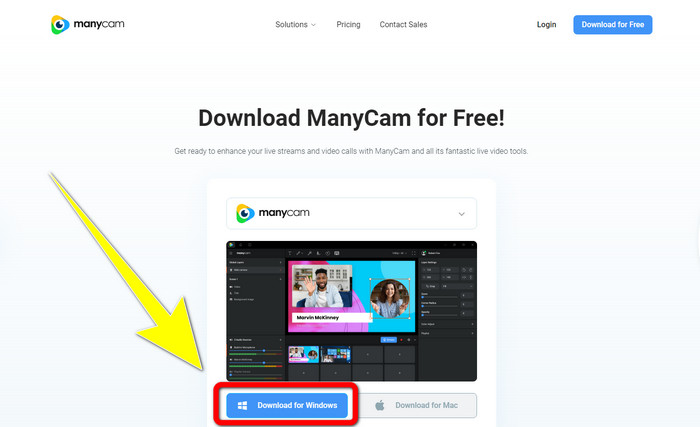
Krok 1: Chcete-li ManyCam stáhnout, klikněte na tlačítko Download for Windows. Poté pokračujte instalačním procesem.
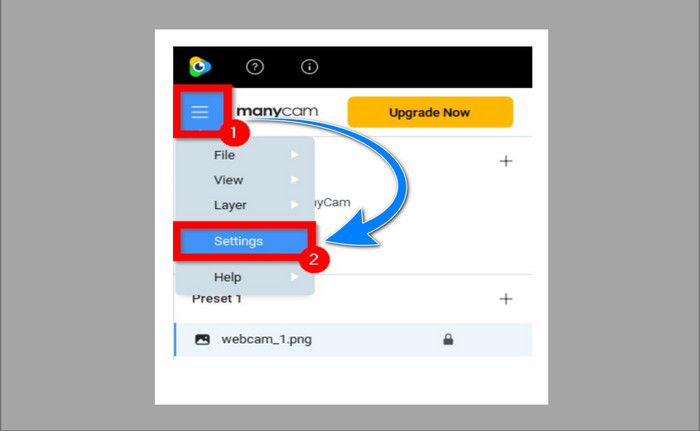
Krok 2: Spusťte aplikaci v počítači a klikněte na ikonu nabídky (tři čárky) v ManyCam, poté přejděte do Settings > Account a přihlaste se k účtu, který jste vytvořili po zakoupení předplatného.
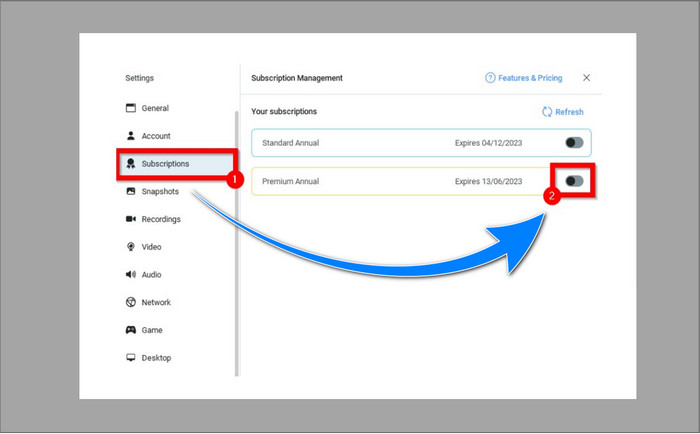
Krok 3: Přejděte na kartu Subscription a ověřte, že je předplatné aktivní.
Krok 4: Pokud je předplatné již aktivováno, zobrazí se pop-up zpráva a máte hotovo.
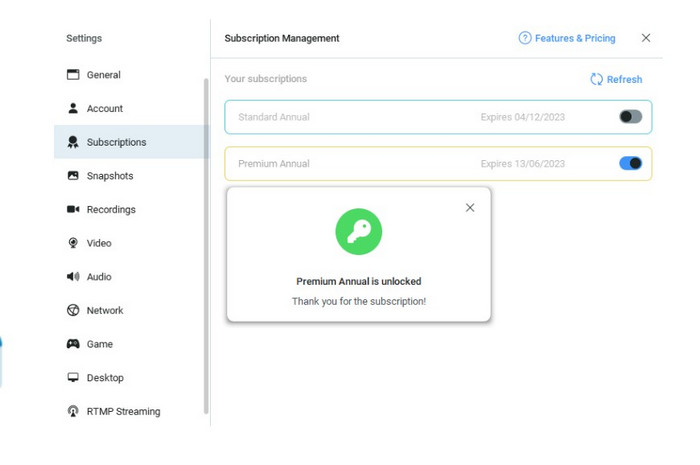
Pokud je vaše aplikace ManyCam již aktivována, vodoznaky nebo logo z vašich videí budou automaticky odstraněny. Můžete si užívat sledování svých oblíbených videí, aniž byste na nich narazili na vodoznaky.
Část 2: Jak odstranit logo ManyCam bez předplatného
Chcete odstranit vodoznak z ManyCam zdarma? Kromě samotné aplikace ManyCam můžete použít i jiný program k odstranění loga z ManyCam. Nejlepší aplikací, kterou můžete využít, je Video Converter Ultimate. Tato aplikace dokáže z vašich videí odstranit zbytečné objekty, jako je text, vodoznaky, loga atd. Kromě toho má Video Converter Ultimate mnoho editačních nástrojů, které si můžete užívat, například řízení rychlosti videa, vylepšení videa, přidávání a odstraňování vodoznaků, korekci barev, zesílení hlasitosti a další. Nejlepším nástrojem pro odstranění vodoznaků ve Video Converter Ultimate je funkce Video Watermark Remover.
Tento nástroj vám pomůže snadno odstranit vodoznaky. Kromě toho je tato aplikace dostupná pro Windows i Mac. S používáním této aplikace také nebudete mít potíže. Podporuje také několik formátů audio a video souborů, jako jsou MP4, FLV, MOV, MKV, MP3, AAC a další. Pokud chcete odstranit logo ManyCam pomocí Video Converter Ultimate, tento článek vám ukáže dva způsoby. Tyto způsoby využívají ořezávač videa a odstraňovač vodoznaku videa.
1. Použití Video Cropper
Krok 1. Stáhněte si FVC Video Converter Ultimate a pokračujte v instalaci.
Zdarma ke staženíPro Windows 7 nebo novějšíBezpečné stažení
Zdarma ke staženíPro MacOS 10.7 nebo novějšíBezpečné stažení
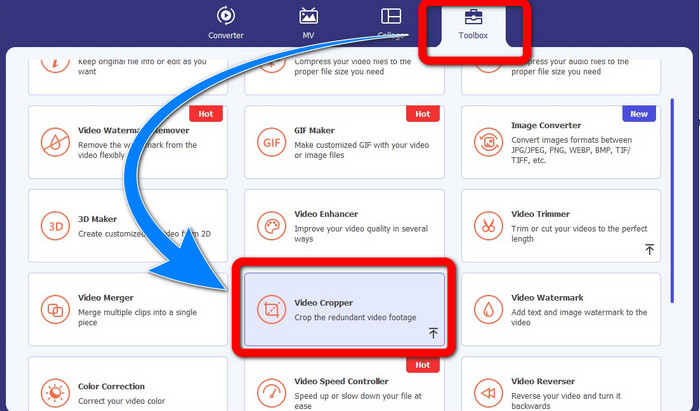
Krok 2: Po instalaci aplikaci spusťte. Klikněte na Toolbox > Video Cropper.
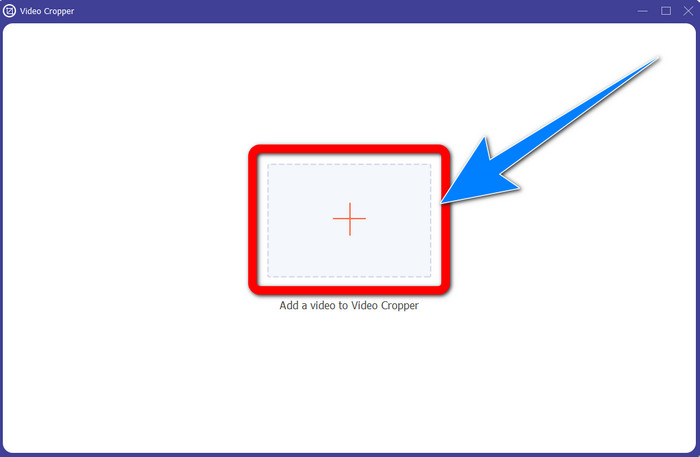
Krok 3: Po kliknutí na Video Cropper se otevře nové okno. Klikněte na tlačítko se znakem Plus a přidejte svá videa s vodoznakem z ManyCam.
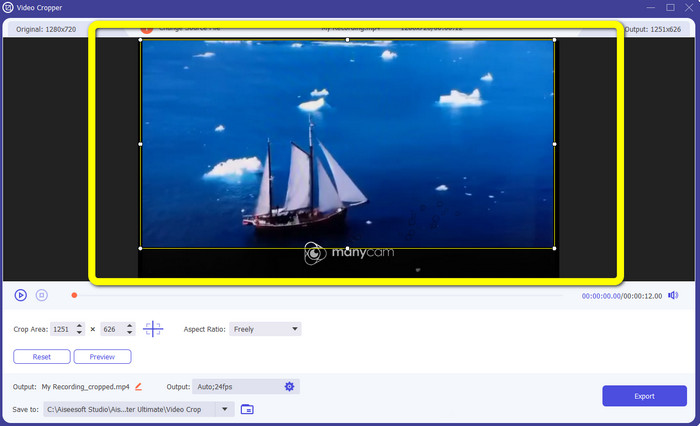
Krok 4: Jakmile je soubor přidán, můžete video oříznout a tím odstranit vodoznak.
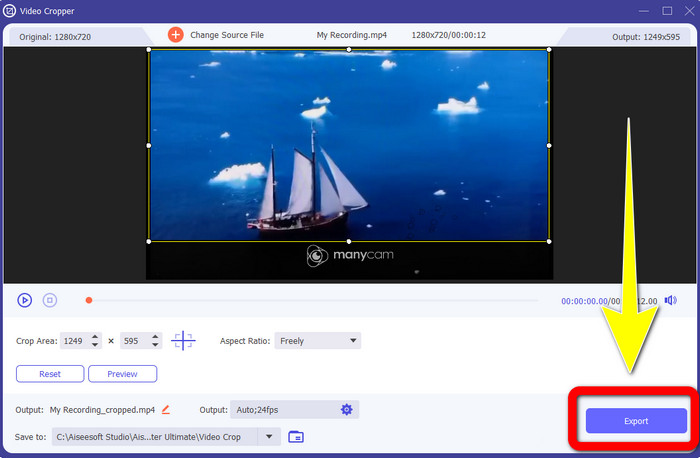
Krok 5: Po odstranění vodoznaku klikněte na tlačítko Export, abyste uložili finální výstup. Nyní si můžete přehrávat své oblíbené video bez vodoznaku.
2. Použití Video Watermark Remover
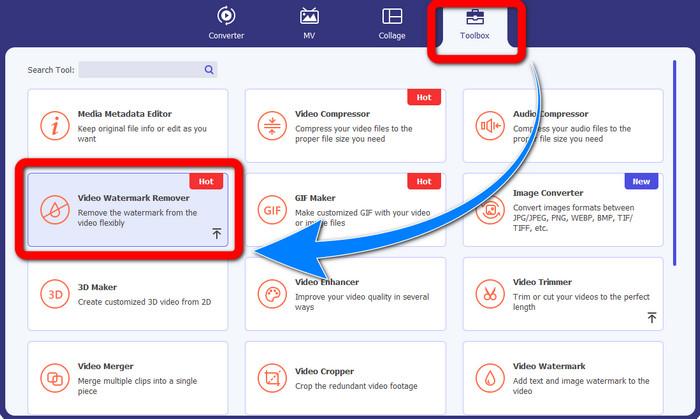
Krok 1: Otevřete aplikaci. Přejděte do Toolbox > Video Watermark Remover.
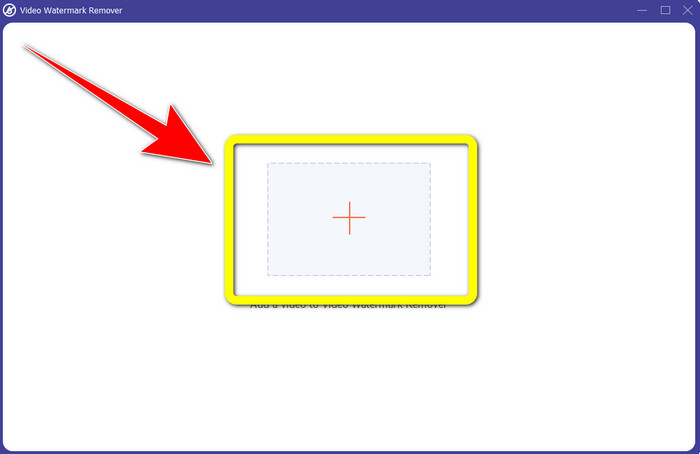
Krok 2: Po kliknutí na Video Watermark Remover se zobrazí další okno. Klikněte na tlačítko se znakem Plus a připojte své video s vodoznaky z ManyCam.
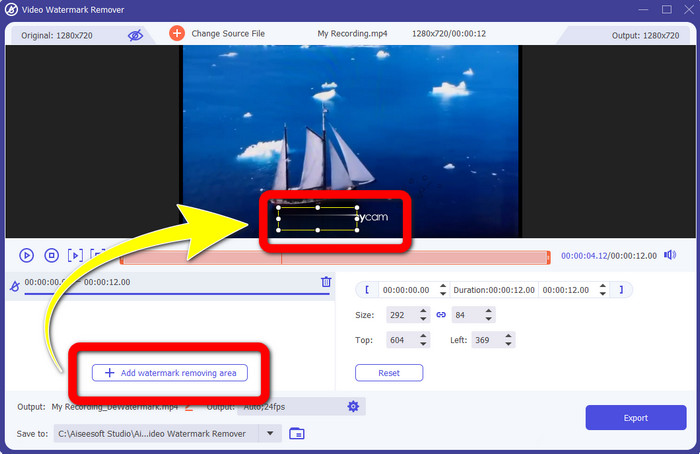
Krok 3: Jakmile máte video připojeno, klikněte na Add Watermark Removing Area a ve videu se objeví box. Přetáhněte box na vodoznak, aby jej zakryl.
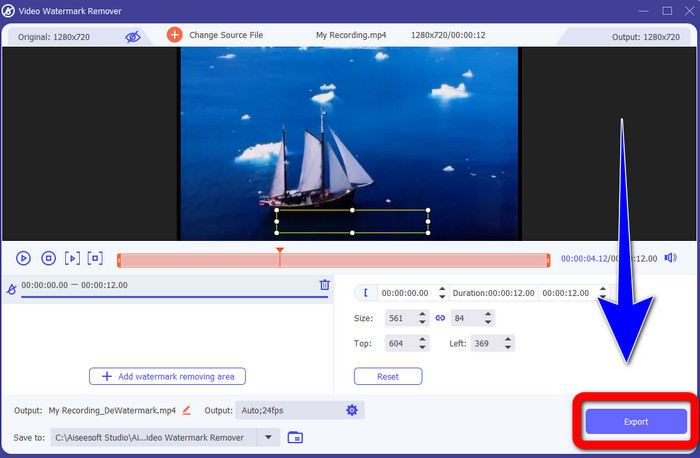
Krok 4: Až budete hotovi s odstraňováním vodoznaků z videí, klikněte na Export a uložte výstup. Toto je nejlepší způsob, jak zdarma odstranit logo ManyCam.
Část 3: Nejčastější dotazy týkající se odstranění loga ManyCam
Jak dlouho bude trvat odstranění loga?
Nemusíte čekat déle, protože proces odstranění loga nebo jakýchkoli nepotřebných předmětů zabere jen několik sekund.
Mohu odstranit logo ManyCam z mého telefonu?
Ano! Logo ManyCam můžete ze svého Androidu nebo iPhonu odstranit pomocí různých softwarových aplikací s odstraňovačem vodoznaku. Vyhledejte aplikaci v obchodě Play nebo v obchodě s aplikacemi a zkuste použít aplikace, které vidíte v horní části výsledků.
Existuje nejlepší způsob, jak odstranit vodoznaky na mém Macu?
Rozhodně ano! Pro odstranění vodoznaků na Macu můžete použít skvělou aplikaci s funkcí odstranění vodoznaků. Tou aplikací je Video Converter Ultimate. Je ideální jak pro Windows, tak pro Mac. Tento software vám pomůže odstranit z videí zbytečné objekty, jako jsou loga, vodoznaky, obrázky a text.
Mohu k odstranění loga ManyCam použít nástroj oříznutí z aplikace ManyCam?
Bohužel ne! Použití nástroje pro oříznutí k odstranění loga z ManyCam není účinné. I kdybyste se pokusili video oříznout tak, abyste logo odstranili, stále se bude zobrazovat. Jediným řešením, jak logo odstranit, je aktivovat si předplatné v ManyCam.
Existuje kromě ManyCam alternativní způsob, jak odstranit vodoznaky z mých videí?
Ano, tam je! Kromě ManyCam existuje více aplikací s odstraňovačem vodoznaku, které můžete používat bez nákupu. Jednou z nejlepších aplikací, které můžete použít k odstranění vodoznaků z vašich videí, je Video Converter Ultimate. Je jednoduchý a snadno se používá, což je vhodné pro začátečníky.
Závěr
Na základě výše uvedených informací se můžete naučit, jak odstranit logo ManyCam ve Windows a na Macu. Logo můžete snadno odstranit pomocí aplikace ManyCam po aktivaci svého předplatného. Navíc, pokud chcete zdarma používat aplikaci s funkcí odstranění vodoznaku, měli byste sáhnout po Video Converter Ultimate. Tato aplikace vám výrazně pomůže při odstraňování zbytečných objektů z vašich videí.
-
 Nejjednodušší způsoby, jak odstranit vodoznak z fotografií
 Dráždí vás vodoznaky na vašich fotografiích? Nebojte se! Tento článek poskytne jednoduché a snadné způsoby odstranění vodoznaků z vašich fotografií.
-
 Jak odstranit Powtoon vodoznak pomocí 4 účinných metod
 Přečtěte si tento článek a zjistěte, jak odstranit vodoznak Powtoon pomocí nejlepších nástrojů, které jsme zde uvedli, a tutoriálu.
-
 Recenze odstraňovače vodoznaků Apowersoft – funkce, výhody a nevýhody a ceny
 Apowersoft Watermark Remover je jedním z nejlepších odstraňování vodoznaků, který podporuje online i offline, kliknutím na toto se dozvíte více!
