


 Video Converter Ultimate
 Screen Recorder
 Oprava videa
 Bezpečné stažení
Podrobné postupy pro převod souborů AVI do formátu M4V
Multimediální kontejnerový formát AVI, což je zkratka pro Audio Video Interleaved, je funkcí video softwaru Windows. Umožňuje současné přehrávání zvukových a obrazových dat sloučených do jednoho souboru. Díky svým jedinečným schopnostem, včetně synchronizovaného řízení a zobrazení v reálném čase, se AVI rychle stal jedním z nejpoužívanějších video formátů. Pokud však chcete přehrát své video na počítači Mac, musíte převést AVI na M4V, protože M4V je formát společnosti Apple, který lze přehrávat v iTunes, Apple QuickTime Playeru a na zařízeních iOS. Občas můžete chtít převést soubory .avi na Macu na univerzální formát, jako je M4V. V takovém případě se doporučuje převést AVI na M4V, aby vše v systému Mac OS správně fungovalo. Ukážeme vám nejlepší metody, jak převést AVI na M4V pomocí online a offline aplikací.

Část 1: Úvod do AVI a M4V
| AVI | M4V | |
| Název souboru | Audio video prokládání | Video MPEG-4 |
| Přípona souboru | .avi | .m4v |
| Popis | Formát souboru AVI je jedním z nejpopulárnějších multimediálních kontejnerů, které byly kdy vytvořeny. Zkratka AVI, což je zkratka pro audio video interleaved, byla původně zpřístupněna veřejnosti společností Microsoft v roce 1992 jako součást jejich multimediálního rámce „video pro Windows“. Soubor AVI s příponou názvu souboru .avi může mít synchronizovaný video i zvukový obsah, protože jde o kontejnerový formát. Autoři tak mohou upravovat a kódovat audio-video sekvence nebo videosekvence pomocí standardu. | Apple vytvořil příponu souboru M4V, která je nápadně podobná příponě MP4, pro obsah obchodu iTunes. Zařízení Apple jsou jediná, která umí přehrávat soubory M4V. Chcete-li přehrávat na zařízeních Apple, lze jiné formáty videa, jako je MP4 a MOV, převést na M4V. Primární rozdíl mezi formáty souborů M4V a MP4 spočívá v tom, že formáty souborů M4V a MP4 podporují ochranu autorských práv DRM, která zakazuje porušování autorských práv k mediálnímu obsahu. Aby bylo možné přehrát soubor M4V chráněný DRM, musí počítač udělit oprávnění přihlášením k účtu iTunes k zakoupení mediálního souboru. Pokud však soubory nejsou chráněny DRM, může uživatel jednoduše přejmenovat příponu souboru M4V na MP4, aby byla kompatibilní se zařízeními jiných výrobců než Apple. |
| Vyvinul | Microsoft | Společnost Apple Inc. |
| Přidružené programy | Přehrávač VLC Media Player Apple QuickTime Player Adobe Premiere Pro 2020 Windows přehrávač médií | KMPlayer Klasický přehrávač médií Zoom Player \VLC Media Player |
| Kategorie souboru | Video | Video |
| Typ MIME | video/x-video | video/x-m4v |
Část 2: Nejlepší způsob, jak převést AVI na M4V
Chcete převést AVI na M4V zdarma? Můžete použít FVC Free Video Converter Online. Tento nástroj dokáže snadno převést váš soubor AVI do formátu M4V. Podporuje také další video formáty, jako jsou FLV, MP4, MOV, WMA a další. Pokud navíc plánujete převést více souborů AVI do různých formátů, můžete použít tuto aplikaci, protože nabízí dávkovou konverzi. Před převodem můžete své video také upravit, například změnit snímkovou frekvenci, rozlišení a datový tok. Kromě toho může FVC Free Video Converter Online převádět i zvukové soubory, jako jsou MP3, AAC, AC3, FLAC atd.
Funkce
◆ Převod mnoha formátů video souborů, jako jsou M4V, AVI, MP4, MOV, VOB, FLV, WMV atd.
◆ Může změnit rozlišení videa, přenosovou rychlost a snímkovou frekvenci.
◆ Převod zvukových souborů jako MP3, AAC, AC3, FLAC atd.
Chcete-li snadno převést AVI na M4V, postupujte podle jednoduchých pokynů níže.
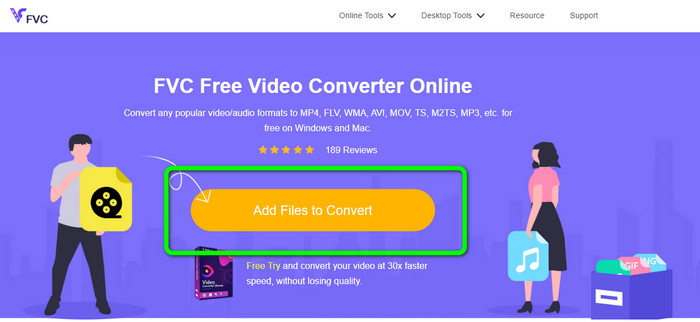
Krok 1: Nejprve otevřete prohlížeč a navštivte web FVC Free Video Converter Online. Stiskněte tlačítko Add Files to Convert a nahrajte svůj soubor AVI.
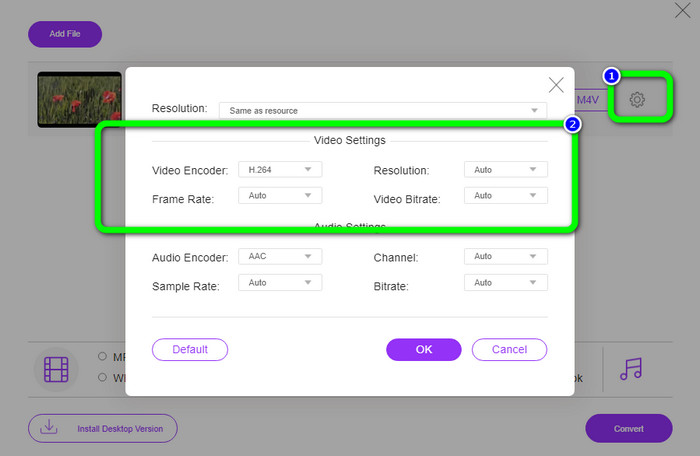
Krok 2: Pokud si přejete změnit rozlišení, snímkovou frekvenci a datový tok videa, klikněte na ikonu Nastavení v levé části rozhraní. Až změny dokončíte, stiskněte OK.
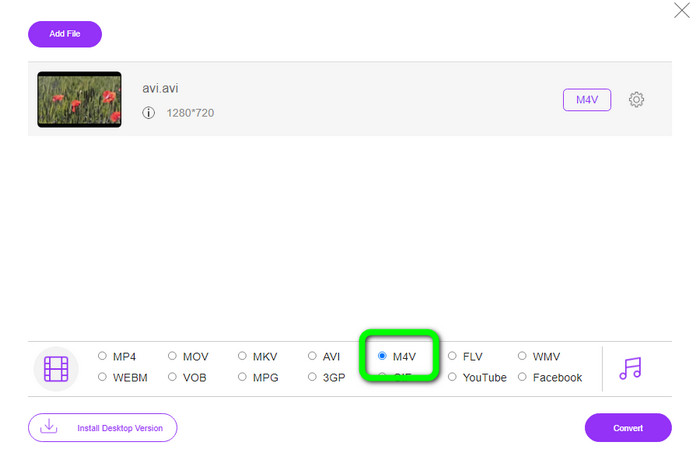
Krok 3: Poté ve spodní části rozhraní vyberte jako výstupní formát soubor M4V.
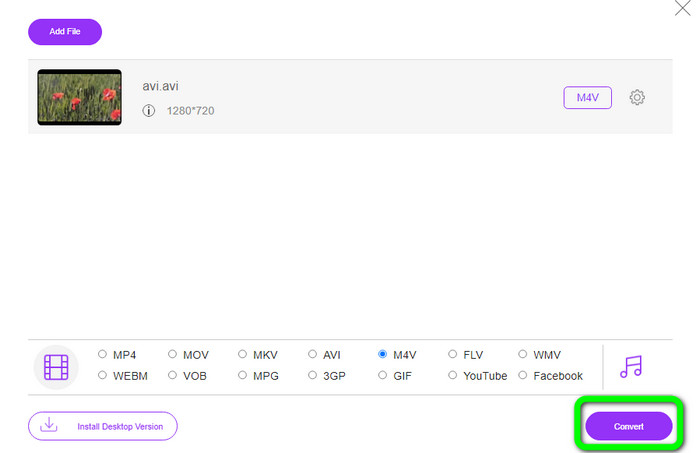
Krok 4: Nakonec pro uložení video souboru klikněte na tlačítko Convert. Počkejte na dokončení převodu a stáhněte si výsledný soubor.
Část 3: Snadná metoda převodu AVI na M4V na Windows a Mac
Dalším vynikajícím převodníkem, který můžete použít, je FVC Video Converter Ultimate. Tento nástroj dokáže převést AVI na M4V ve Windows. Vaše soubory dokáže převést okamžitě, protože má ultra rychlý převodní proces, který je až 30× rychlejší. Také můžete převádět více souborů najednou, protože podporuje dávkový převod. Navíc má jednoduché ovládání s intuitivním rozhraním, takže je ideální pro začátečníky. Kromě toho není tento offline nástroj dostupný pouze pro Windows, ale také pro Mac. Dále můžete při převodu provádět i úpravy videí. Můžete je vylepšovat, stříhat, přidávat filtry a mnoho dalšího.
Funkce
◆ Převádí více než 100 video souborů, včetně M4V, MP4, AVI, FLV, MKV, MOV, VOB, WMV a dalších.
◆ K dispozici je vytváření koláže pomocí bezplatných šablon a filtrů.
◆ Nabízí tvůrce hudebního videa.
◆ Upravujte videa pomocí nástrojů pro vylepšení videa, ořezávání, odstranění vodoznaku, kompresi atd.
◆ Převod obrazových formátů, jako je BMP, JPG, PNG atd.
◆ Zrychlete a zpomalte video.
Pomocí podrobných průvodců níže se dozvíte, jak převést AVI na M4V na Windows a Mac pomocí FVC Video Converter Ultimate. Použijeme verzi pro Windows.
Krok 1: Stáhněte si FVC Video Converter Ultimate do Windows nebo Mac kliknutím na tlačítko pro stažení.
Zdarma ke staženíPro Windows 7 nebo novějšíBezpečné stažení
Zdarma ke staženíPro MacOS 10.7 nebo novějšíBezpečné stažení
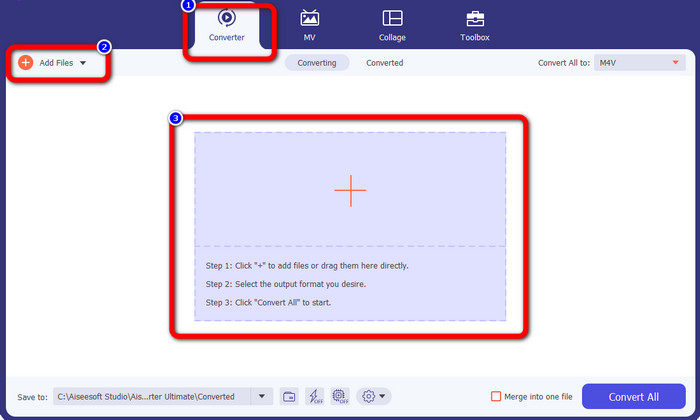
Krok 2: Po otevření aplikace přejděte na panel Converter. Poté máte tři možnosti, jak vložit svůj soubor AVI. Nejprve můžete kliknout na tlačítko Add File ve druhém poli. Druhou možností je kliknout na znaménko Plus ve třetím poli. A nakonec můžete soubor přetáhnout přímo do středu okna.
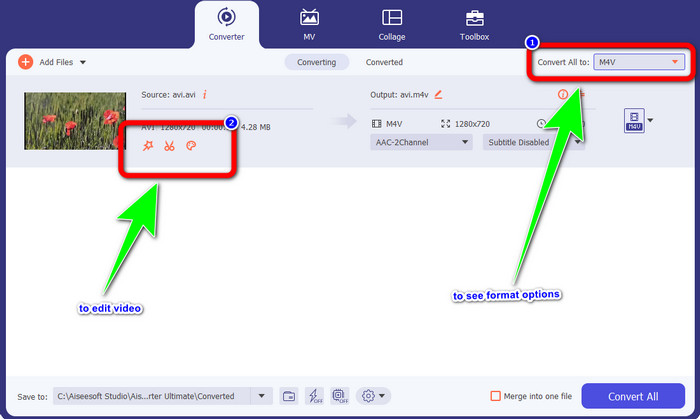
Krok 3: Po přidání souboru AVI klikněte na tlačítko Convert All to, abyste zobrazili možnosti formátů, a vyberte formát souboru M4V. Pokud chcete video upravit, můžete přejít do druhého pole. K úpravě videa můžete použít nástroje, jako je přidávání filtrů, otáčení a ořezávání videí, stříhání a další.
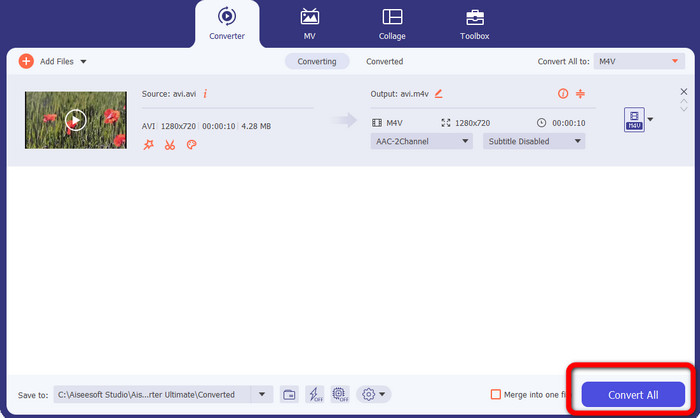
Krok 4: V závěrečném kroku klikněte na tlačítko Convert. Počkejte na rychlý proces převodu a uložte převedené video.
Část 4: Jak převést AVI na M4V pomocí ruční brzdy
Handbrake je další převodník, který umožňuje převést AVI na M4V zdarma. Umí převádět různé soubory, jako WEBM, M4V, MP4, MKV atd. S pomocí tohoto nástroje můžete snadno převádět mnoho souborů. Handbrake je však složitý na používání. Musíte mít o tomto převodníku dostatek znalostí. Také proces instalace je matoucí. Před samotným použitím musíte provést mnoho kroků, což je pro uživatele časově náročné.
Krok 1: Stáhněte si Handbrake do počítače.
Krok 2: Vyberte soubor ve formátu AVI, který chcete převést.
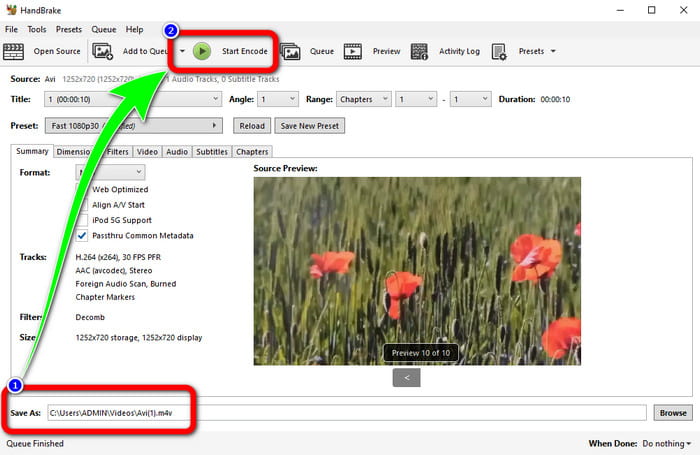
Krok 3: Přejděte na položku formát a vyberte M4V. Poté spusťte převod kliknutím na tlačítko Start.
Část 5: Časté dotazy o převodu AVI na M4V
1. Jak převést AVI na M4V na Mac?
Můžete použít FVC Video Converter Ultimate. Tento konvertor může snadno převést vaše AVI na M4V pomocí vašeho Macu.
2. Jak velký je soubor AVI?
Protože jsou AVI videa nekomprimovaná, zabírají více místa na pevném disku. Například jedna hodina videozáznamu 352x288 AVI může využít až 33 GB (3300 MB) místa na pevném disku.
3. Je soubor AVI univerzální?
Ano. Ačkoli byl formát AVI nahrazen modernějšími formáty, jako jsou MP4, MOV nebo WMV, lidé stále AVI používají díky jeho přenositelnosti. Téměř každý počítač nebo zařízení dokáže přehrávat soubory AVI.
Závěr
Tento návod vám ukazuje vynikající metody, jak převést soubory AVI na M4V pomocí tří převodníků. Pokud však chcete ultra rychlý převod, použijte FVC Video Converter Ultimate. A pokud chcete jednodušší postup, použijte FVC Free Video Converter Online.
-
 Top 5 přehrávačů M4V pro Windows / Mac / Android / iOS, které byste měli vědět
 Když nemůžete přehrávat videa M4V na přehrávači QuickTime Player, měli byste se dozvědět více z 5 vynikajících přehrávačů M4V pro Windows, Mac, Android a iOS z tohoto článku
-
 AVI VS MP4 - rozdíly a podobnosti mezi formáty AVI a MP4
 Který formát videa je lepší, AVI nebo MP4? Pokud chcete získat podrobné srovnání, můžete se podívat na tento článek AVI VS MP4. Rozdíly a podobnosti mezi AVI a MP4 můžete znát v mnoha ohledech
-
 3 Program Video Converter Slouží k převodu iTunes M4V do AVI na Macu
 Nevíte, jak převést MKV do formátu AVI? Jak budeme pokračovat ve čtení tohoto článku, budeme znát 3 nástroje, které vám mohou pomoci převést tento formát souboru
