


 Video Converter Ultimate
 Screen Recorder
 Oprava videa
 Bezpečné stažení
Jak převést obrázky do SVG: Objevte dokonalé konvertory pro vás
The SVG file can offer great graphics at any scale. It can improve SEO and speed up the website. It is also capable of dynamic animations. These are some of the reasons why users use an SVG file format. In that case, do you also want to convert your images to SVG files? Then it would be best if you read this article. You will discover the most effective ways to convert your images to SVG file format. In addition, we will offer you the best and most trustworthy image converters you can use for converting images. Let's read the article carefully as we give you all the details you need in converting image files.

Část 1. Vynikající způsoby převodu obrázků do formátu SVG online
Jak převést obrázky do SVG na Convertio
Another online tool you can utilize to convert images to SVG is Convertio. This online tool is capable of transcoding your images to SVG formats. You can convert your images in just three steps. In addition, Convertio has a batch conversion feature. This way, you can upload and convert multiple files in a single click. Moreover, it has understandable layouts and options, making it more suitable for all users, especially beginners. Besides the SVG file format, it also supports different image file formats. It includes JPG, PNG, BMP, TIFF, ICO, and more. Furthermore, you can access Convertio on various browsers. It includes Google, Mozilla, Edge, Explorer, and more. However, Convertio has disadvantages, especially when using the free version. The maximum file size you can upload is up to 100MB. Also, if you plan to do a batch conversion process, you can only convert two image files simultaneously. To enjoy its unlimited feature, you need to purchase the unlimited plan.
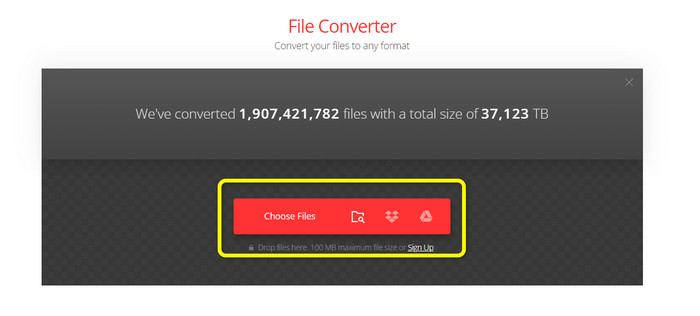
Step 1. Open your browser and visit the main website of Convertio. When on the main webpage, click the Choose Files button. After clicking, you will see that your computer file will appear on the screen. Choose the image you want to convert to an SVG file and open it.
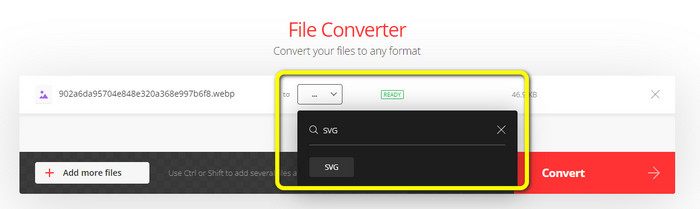
Step 2. After uploading the file you want to convert, go to the format options. Find the SVG file format and click it. You can search the SVG on the search box to see it easily.
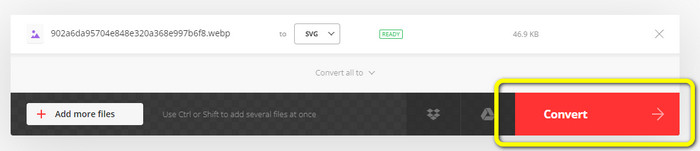
Step 3. When you are done selecting the SVG file format as your output format, click the Convert button. The conversion process will start. Please wait for a while until it's done.
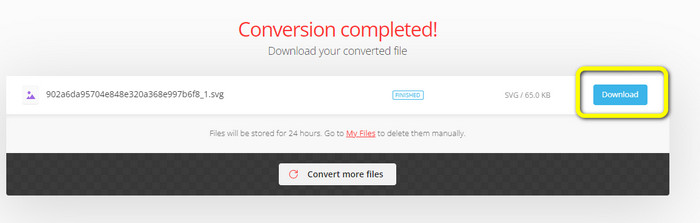
Step 4. When the conversion process is done, click the Download button. This way, you can keep and save your converted image on your desktop. Click the Add more files button to convert more images.
Bonus: Jak převést obrázky SVG
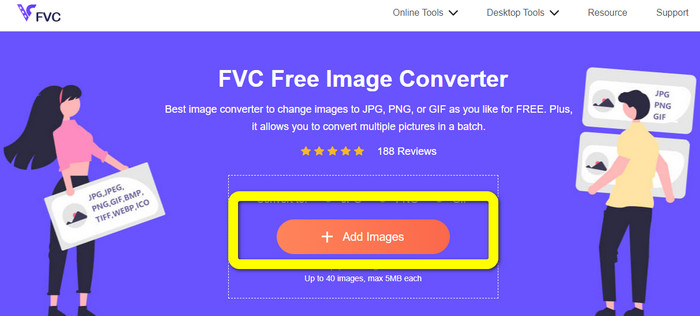
If you need an effective image converter to convert your SVG images to JPG, and other widely-supported images, FVC Free Image Converter is your best choice. It is easy to convert images using this tool because of its intuitive interface. You can convert images in just a few clicks. In addition, other than SVG, it also supports converting other image formats to PNG, JPG, and GIF, including WebP, BMP, TIFF, etc. FVC Free Image Converter also offers a batch conversion feature. This way, you can convert many images simultaneously. Moreover, the image converter is accessible to all platforms. You can convert image files on Google, Explorer, Edge, and more.
Step 1. Go to the FVC Free Image Converter website. After that, click the JPG, PNG, or GIF format from the format option.
Step 2. Click the Add Images button on the middle interface to upload SVG images you want to convert. You can add multiple images to convert them in a single click.
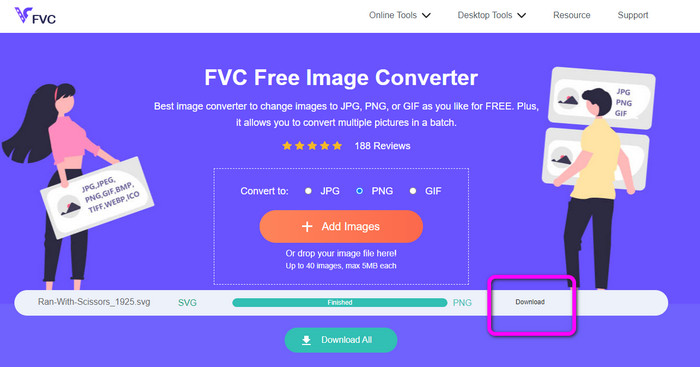
Step 3. Your SVG images will be converted automatically in this tool. Then, click the Download button to save the converted images.
Část 2. Nejlepší způsob převodu obrázků na SVG offline
Using Converseen is the best way to change images to SVG. It includes straightforward conversion instructions. Additionally, this offline image converter features a basic UI with a simple set of choices. Meaning to say, the converter is appropriate for all users. Converseen also has a batch conversion feature. In this manner, you can convert many files in a single operation. The converter also supports a variety of file formats. Along with others, it contains PNG, JPG, BMP, WEBP, TIFF, and SVG. Furthermore, there is no subscription fee required to download this offline converter. The Converseen is also available for both Windows and Mac users. After the conversion process, the program won't put watermarks on your converted photos. In this manner, you can see your photographs free of bothersome, pointless objects. Follow the simple instructions below to convert images to SVG easily.
Step 1. Get the installer of Converseen to its website. After installing the offline converter, launch it on your computer.
Step 2. The tool is simple to use. You can see the function buttons up the front. Select your photos by clicking the Add images button on the main screen.
Step 3. Right after, navigate to the Convert to option. Then, select the SVG file format from the format options.
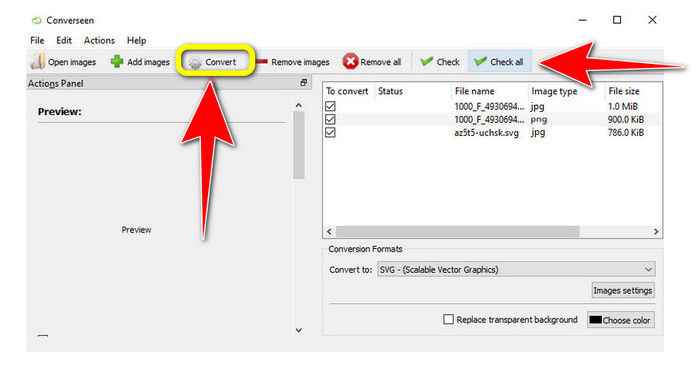
Step 4. You may confirm that you will convert the loaded photographs by checking the boxes. Just select Check or Check All from the top menu. To start the session, click the Convert button at the end.
Část 3. Jak převést obrázky do SVG na iPhone a Android
File Converter je nejlepší aplikace pro převod obrázků do SVG, kterou můžete použít na svém iPhone a Androidu. Aplikaci můžete také používat zdarma. Je k dispozici na Google Play Store a App Store. Proces instalace je však příliš pomalý. A proces je náročný, zvláště pro začátečníky. Také se ujistěte, že máte připojení k internetu.
Step 1. Install the File Converter app on your mobile device. Then, launch the application.
Step 2. Go to the Image Converter option. After that, select the SVG file as your output format.
Step 3. After that, another interface will show up. Click the File option to insert the image you want to convert.
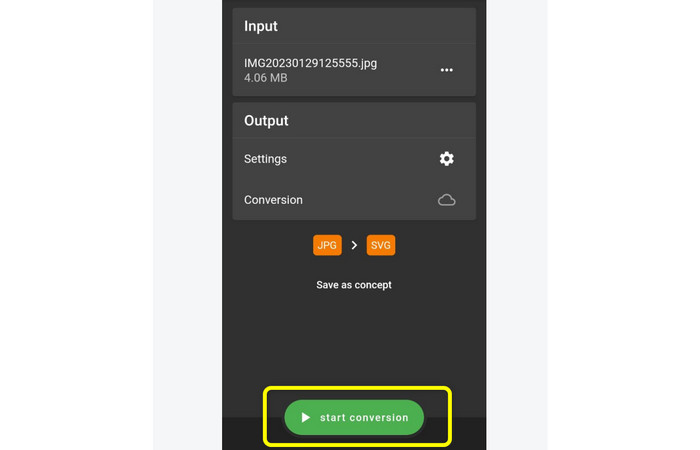
Step 4. Lastly, press the Start Conversion button to start the conversion process. Then, you can save your converted image on your phone. Click here to learn how to convert images to PNG.
Část 4. Časté dotazy o převodu obrázků do SVG
1. Jaké kompresní schéma používá SVG?
Bezztrátový soubor je SVG. Soubory SVG proto zahrnují bezeztrátovou kompresi souborů. V důsledku toho můžete tyto soubory přibližovat a oddalovat bez ztráty kvality. Po kompresi neztratíte žádné informace.
2. K čemu jsou nejlepší soubory SVG?
Vektorové obrázky, jako jsou SVG, nikdy neztrácejí rozlišení bez ohledu na to, jak velké nebo malé je uděláte, na rozdíl od rastrových souborů, jako jsou JPG, které se skládají z pixelů. Jsou vynikající pro digitální návrhy, jako jsou infografiky, ikony a loga.
3. Jak uložit JPG jako SVG?
K uložení formátu JPG jako SVG můžete použít mnoho konvertorů obrázků. Jedním z běžných způsobů překódování obrázku je vložit soubor JPG, vybrat SVG jako výstupní formát a pokračovat v procesu převodu. Tímto způsobem můžete uložit soubor obrázku JPG do formátu SVG.
Závěr
This guidepost taught you the best methods to convert your images to SVG online, offline, and on mobile devices. Also, you can use FVC Free Image Converter to change SVG to other images. This online tool is simple to operate and offers a batch conversion process without requiring a subscription plan.
-
 Metody, jak převést obrázky do JPG online a offline
 Chcete z nějakého důvodu převést soubor do formátu JPG? Pak je tento článek právě pro vás. Naučíme vás, jak nejlépe převést obrázek do JPG
-
 Nejjednodušší způsoby převodu SVG na PNG
 Vědět, jak změnit soubor obrázku z SVG na PNG pomocí užitečných konvertorů obrázků. Přečtěte si tento průvodce a dozvíte se vše, co potřebujete vědět o převodu.
-
 Snadné způsoby, jak převést SVG do formátu JPG
 Hledáte nejlepší způsob, jak převést SVG na JPG? Tento příspěvek poskytne několik zaručených návodů, které můžete vyzkoušet. Objevíte také konvertor SVG na JPG.
