


 Video Converter Ultimate
 Screen Recorder
 Oprava videa
 Bezpečné stažení
Profesionální způsoby, jak převést obrázky na vektor
Nejlepším grafickým formátem pro loga a kresby je vektorová grafika. Je to dáno jejími přesně definovanými křivkami a liniemi. Navíc se místo pixelů používají k jejímu vytvoření rovnice. Vektory lze přepočítat na libovolnou velikost bez ztráty ostrosti. Uživatel proto potřebuje umět převádět fotografie na vektory. Dobrou zprávou je, že se díky množství dostupných nástrojů a návodů můžete vše potřebné naučit online. Designéři a marketéři se musí naučit pracovat s rozšířeným typem souborů, kterým jsou vektorové obrázky. Ostatně billboardy a další formy reklamy tento formát upřednostňují. Existuje mnoho technik, jak převést rastrový obrázek na vektor. Pokud hledáte nejlepší způsob, jak převést obrázky na vektory, pak máte důvod číst tento návod.

Část 1. Co je to obrazový vektor?
Počítačový obrázek s body, čarami a křivkami se nazývá vektorový obrázek. Na základě matematických rovnic se používá k vytváření různých tvarů. Každá matematická rovnice má jedinečné vlastnosti, jako je barva, tloušťka, křivka a další. Z tohoto důvodu lze vektorový obrázek zvětšit a zvětšit nebo zmenšit bez ztráty detailů obrázku. To znamená, že čáry, křivky a body zůstávají hladké bez ohledu na velikost nebo stupeň přiblížení obrazu. V kresbě nikdy nebudou rozmazané nebo roztřepené okraje. Loga jsou často vektorové soubory. Navíc jsou barvy rozděleny do odlišných tvarů. Stejně jednoduché jako kliknutí na tlačítko zjednodušuje změnu barev těchto grafik.
Část 2. Nejlepší způsob vektorizace obrázku
Jak vektorizovat obrázek v Illustratoru
Pokud chcete svoje obrázky vektorizovat, můžete použít Illustrator. Tento program vám umožní perfektně převést obrázek do vektoru. Obsahuje kompletní sadu nástrojů a voleb, které potřebujete. Podporuje také téměř všechny běžné obrazové formáty, takže můžete přidat jakýkoli obrázek. Můžete přidat JPG, BMP, PNG, EPS, TIFF a další. Pokud ho ale chcete používat denně, musíte si program zakoupit. Illustrator nabízí jen několikadenní zkušební verzi zdarma. Kromě toho má složitý instalační proces. Pokud jste začátečník, bude se vám s ním těžko pracovat. Abyste mohli v Illustratoru vektorizovat své obrázky, budete potřebovat pomoc pokročilejších uživatelů. Program má navíc komplikované volby. Je nutné se s programem nejprve seznámit, než ho začnete používat. Také samotná vektorizace obrázku zahrnuje mnoho kroků. Postup, jak vektorizovat obrázek, se dozvíte níže.
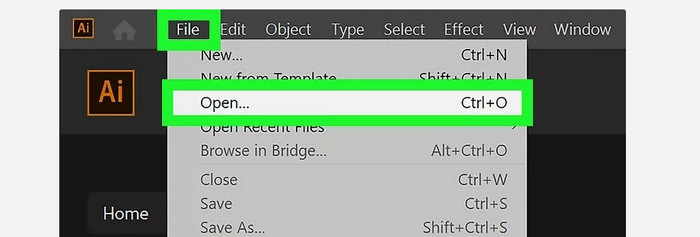
Krok 1. Stáhněte si Illustrator do svého počítače. Pokud chcete, můžete použít zkušební verzi zdarma. Po dokončení instalace program spusťte. Přejděte do nabídky File > Open a přidejte obrázek, který chcete vektorizovat.
Krok 2. V nově zobrazeném okně zaškrtněte políčko Preview, abyste mohli svůj obrázek v reálném čase zobrazit ve vektorovém formátu.
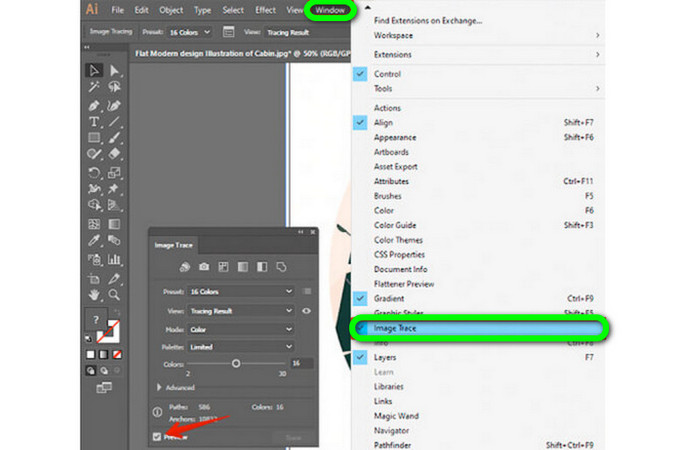
Krok 3. Dalším krokem k pochopení, jak v Illustratoru vektorizovat, je výběr režimu. Najděte rozevírací nabídku Mode v panelu Image Trace a zvolte režim, který se nejlépe hodí k vašemu návrhu. K dispozici jsou režimy stupně šedi, černobílý nebo barevný.

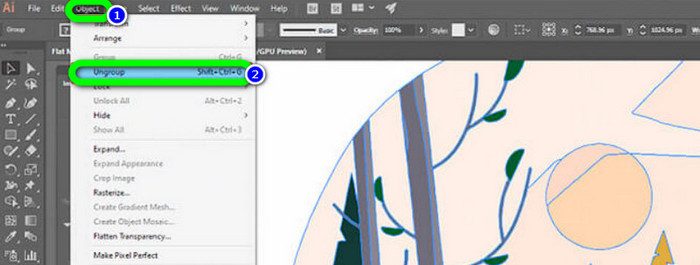
Krok 4. Poté na obrázek klikněte pravým tlačítkem. V rozevírací nabídce na kartě Object zvolte možnost Ungroup. Pokud dáváte přednost klávesovým zkratkám, můžete použít také kombinace kláves Shift+Ctrl+G/Shift+Cmd+G pro snadnější přístup. Tato operace rozdělí barevné plochy na části.
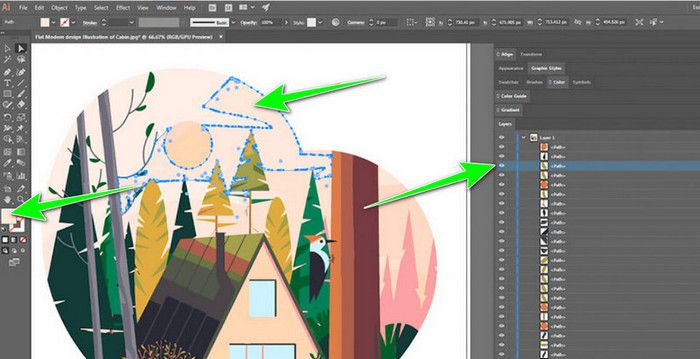
Krok 5. Jakmile je převod dokončen, můžete obrázek libovolně upravovat. Klikněte na tvar a poté použijte Select > Same > Fill Color, abyste odstranili libovolné skupiny barev, které nechcete.
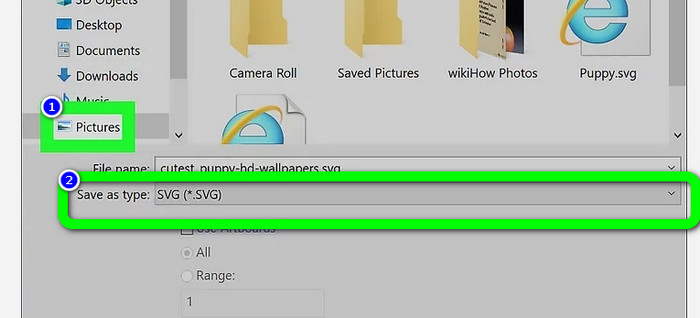
Krok 6. Nakonec svůj obrázek uložte jako vektorový soubor. Přejděte na možnost File > Save as. Poté vyberte formát souboru SVG.
Jak vektorizovat obrázek ve Photoshopu
Adobe Photoshop je také vhodný k vektorizaci obrázku. Má účinné metody, které to usnadňují všem uživatelům. Obrázek můžete navíc převést na vektor v několika málo krocích. Photoshop je také schopen obrázky upravovat. Pokud je chcete před uložením ještě editovat, můžete to udělat. Photoshop má ale i určité nevýhody. Nabízí pouze 7denní zkušební verzi. Po jejím uplynutí musíte zaplatit za předplatné. Instalační proces je navíc časově náročný.
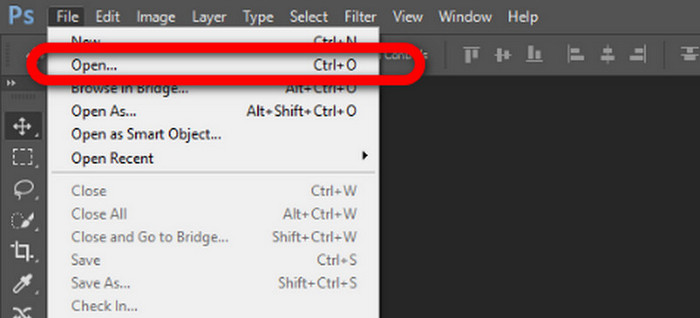
Krok 1. Spusťte na počítači Adobe Photoshop. Poté přejděte do nabídky File a zvolte možnost Open, abyste přidali obrázek, který chcete vektorizovat.
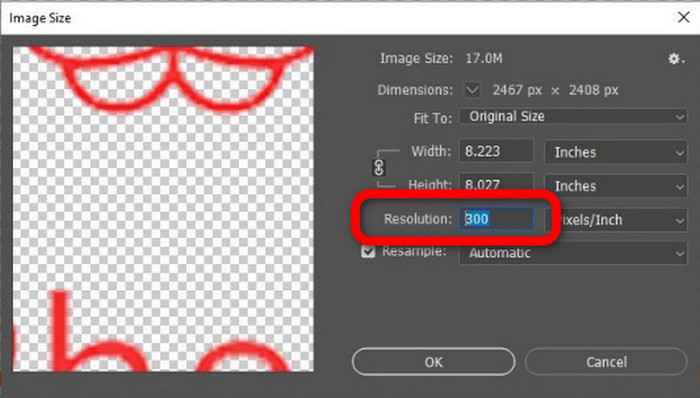
Krok 2. Stiskněte na klávesnici Ctrl + Alt + I, aby se zobrazilo okno Image Size, a nastavte rozlišení na 300.
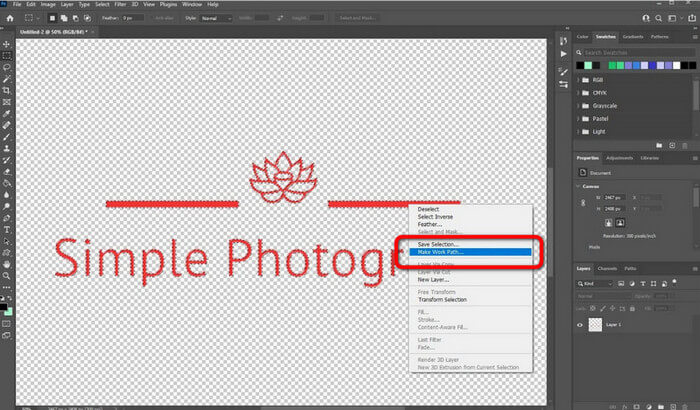
Krok 3. Přesuňte kurzor nad výběr, v panelu nástrojů zvolte nástroj Marquee a klikněte pravým tlačítkem. Poté z nabídky vyberte možnost Make Work Path.
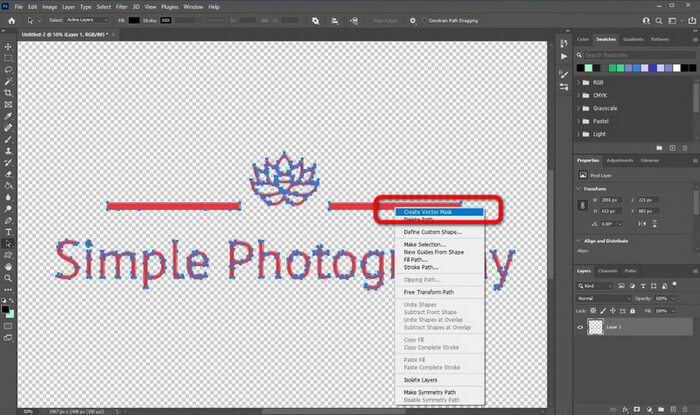
Krok 4. Poté stiskněte na klávesnici Ctrl + A, čímž přepnete na nástroj Direct Selection. Následně klikněte na obrázek pravým tlačítkem a zvolte možnost Create Vector Mask. Tímto způsobem se nad vrstvou vytvoří vektorová maska.
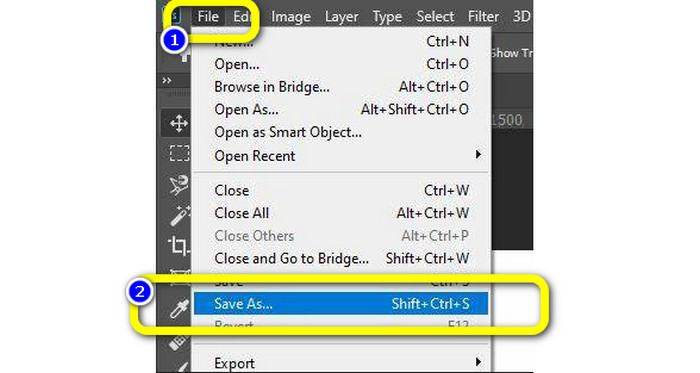
Krok 5. Chcete-li vektorizovaný obrázek uložit, přejděte do nabídky File a zvolte možnost Save as.
Část 3. Jak převádět vektorové obrázky
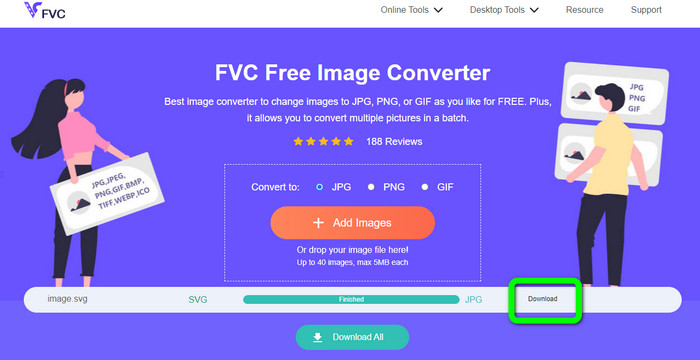
Vynikajícím online převodníkem obrázků je FVC Free Image Converter. Umí převádět vektorovou grafiku do jiných formátů, jako jsou JPG a PNG. Má skvělé uživatelské rozhraní. Můžete se soustředit na samotný převod souborů, protože neobsahuje rušivé reklamy. Také není nutné tento převodník instalovat. Ovládáte ho přímo ve svém prohlížeči. Po převodu navíc bude kvalita obrázku stejná jako u původního souboru. Nabízí přehledné rozhraní a pokyny, což je ideální pro uživatele. Je také možné převádět více obrazových souborů najednou. Tento převodník obrázků podporuje dávkový převod. Kromě toho si můžete jedním kliknutím stáhnout mnoho převedených souborů. Přijímá také vstupní soubory v různých dalších formátech, jako jsou PNG, BMP, TIFF a GIF. Jedním z pozitivních aspektů tohoto nástroje je absence otravné reklamy. Díky tomu může být výsledný produkt příjemný na používání i prohlížení. Při použití FVC Free Image Converter je vaše soukromí chráněno. Po uložení obrázku vaše data neukládá.
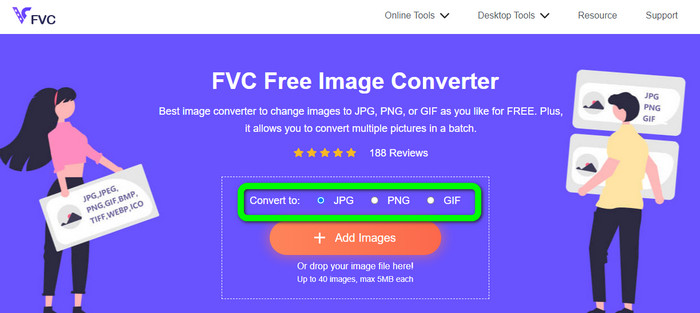
Krok 1. Přejděte na webové stránky FVC Free Image Converter. Otevřete možnost převodu a vyberte požadovaný výstupní formát.
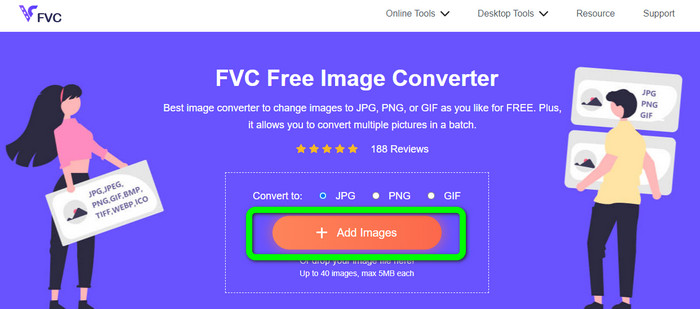
Krok 2. Klikněte na tlačítko Add Images a nahrajte vektorový obrázek. Obrázek můžete také přetáhnout do vyznačeného pole.
Krok 3. Po nahrání vektorového obrázku nástroj obrázek automaticky převede. Po dokončení převodu klikněte na tlačítko Download.
Související s:
Snadné metody převodu obrázků do černobílé podoby
Nejlepší způsoby, jak převést obrázky na odkazy [Kompletní metody]
Část 4. Časté dotazy o převodu obrázků na vektor
1. Jaká jsou různá použití vektorových obrázků?
Existuje mnoho důvodů, proč potřebujete použít vektorové soubory. Pokud plánujete tisknout obrázky, je lepší vložit obrázek do vektorového souboru. Kromě tisku je také ideální pro animaci. Uživatelé to používají pro snímky po jednotlivých snímcích, které vyžadují menší výpočetní výkon. Někteří návrháři také používají vektorové obrázky pro billboardy a reklamy.
2. Jaké jsou hlavní typy formátů vektorových obrázků?
Primárními formáty vektorových obrázků jsou Scalable Vectors Graphics (SVG), Windows Metafile (WMF), Adobe Illustrator Artwork (AI), Encapsulated PostScript (APS) a Portable Document Format (PDF).
3. Potřebuji vždy vektorový soubor, když mám hotovou návrhářskou práci?
Ne vždy. Existují způsoby, jak používat různé formáty souborů. Ale to, zda budete nebo nebudete potřebovat vektorové soubory, nakonec závisí na druhu práce, kterou jste udělali. Nakonec, pokud máte návrhářskou práci hotovou, proberte formáty souborů s návrhářem. Tímto způsobem můžete shromáždit nebo vygenerovat správné soubory, pokud nejsou k dispozici.
4. Jak převést libovolný obrázek na černobílou vektorovou siluetu?
Chcete-li převést obrázek na černobílý, můžete použít Photoshop. Přejděte do nabídky Soubor a vyberte možnost Otevřít pro přidání obrázku. Poté v horním rozhraní klikněte na nabídku Obrázek. Vyberte Úpravy > Práh. Poté se objeví okno Threshold. Potom klepněte na tlačítko OK.
Závěr
Vektorové obrázky jsou skvělé pro použití v reklamě, na billboardech a podobně. Proto vám článek ukázal nejlepší metody, jak vektorizovat obrázek. Také jste se naučili, jak převádět vektorové obrázky do jiných formátů, jako jsou JPG a PNG. Pokud chcete vektorizovat obrázek a převádět obrázky do jiných formátů, použijte FVC Free Image Converter.
-
 Snadno srozumitelné způsoby převodu PSD do PNG nebo JPG
 Tento příspěvek vám poskytne zvládnutelné kroky k převodu PSD na JPG nebo PNG. Existují různé konvertory, které můžete použít k převodu souborů. Přečtěte si další informace.
-
 Testované způsoby, jak snadno, ale profesionálně převést TGA na PNG
 V těchto příručkách se dozvíte, jak převést TGA na PNG pomocí online převodníků obrázků. Kliknutím na článek se dozvíte úplné podrobnosti o převodu obrázků.
-
 Nesrovnatelné návody na převod obrázků do formátu SVG
 Chcete převést své fotografie do formátu SVG? Pak vám tento příspěvek poskytne vynikající převodníky, které můžete používat online, offline a na mobilních zařízeních.
