


 Video Converter Ultimate
 Screen Recorder
 Oprava videa
 Bezpečné stažení
Pozoruhodné způsoby, jak vystřihnout video na Snapchat [včetně offline způsobu]
Aplikace Snapchat je jiná aplikace, která si v poslední době získala popularitu. Hlavním zaměřením Snapchatu byla výměna soukromých, personalizovaných fotografií. Nyní jej však můžete používat k různým úkolům, jako je odesílání videí a účast na živých videohovorech. Na druhou stranu můžete tuto aplikaci také použít k oříznutí svých videí. Jak všichni víme, Snapchat přijímá videa pouze do 60 sekund. Pokud plánujete na tuto mobilní aplikaci nahrát nebo zveřejnit video, je nejlepším řešením jeho zkrácení. V tom případě si přečtěte tento příspěvek a podívejte se na podrobné metody, které můžete vyzkoušet, jak oříznout video na Snapchatu a jak připravit videa pro Snapchat.

Část 1. Jak oříznout video pro Snapchat pomocí PC
Snapchat má při zveřejňování videa limit. Jedním z nejlepších řešení tohoto problému je video zkrátit. Tímto způsobem, jakmile video oříznete nebo zkrátíte, můžete ho na Snapchat přidat. Pokud chcete nejlepší software pro střih videa, kterým zkrátíte dlouhé video pro Snapchat, použijte Video Converter Ultimate. Tento program má vynikající funkci rozdělení, která umožňuje rozdělit video na části. Postup rozdělování videí je navíc ideální pro neprofesionální uživatele. Videa můžete rozdělit jen několika kliknutími. Jeho rozvržení je také uživatelsky přívětivé, takže každé nastavení snadno pochopíte. Kromě rozdělování videí má i mnoho dalších skvělých funkcí. Video Converter Ultimate vám umožní videa ořezávat, otáčet a vylepšovat podle vašich preferencí. Také podporuje různé video formáty, včetně MP4, MOV, MKV, AVI a dalších. Program je navíc dostupný jak pro Windows, tak pro Mac, takže jej mohou používat uživatelé obou systémů.
Krok 1. Kliknutím na tlačítko Stáhnout níže si stáhněte Video Converter Ultimate. Jelikož je program dostupný pro počítače Mac i Windows, jsou níže dvě tlačítka. Klikněte na tlačítko podle zařízení, které používáte. Poté program spusťte.
Zdarma ke staženíPro Windows 7 nebo novějšíBezpečné stažení
Zdarma ke staženíPro MacOS 10.7 nebo novějšíBezpečné stažení
Krok 2. Klikněte na panel Toolbox v horní části rozhraní. Když se pod Toolboxem zobrazí nástroje, vyberte nástroj Video Trimmer.
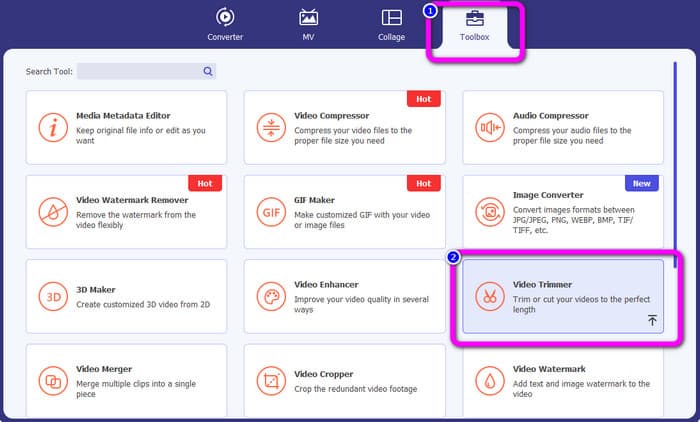
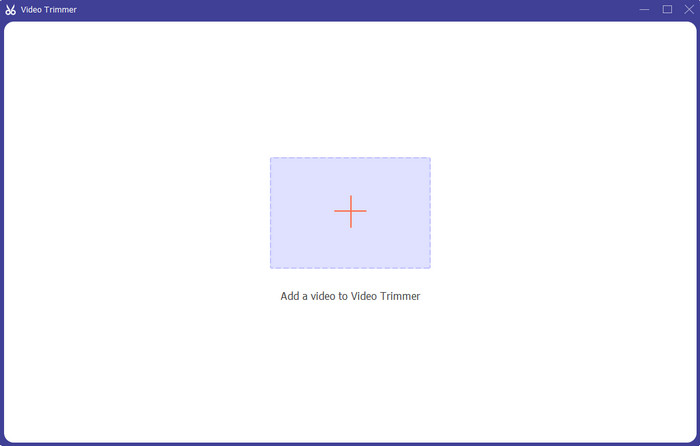
Krok 3. Klikněte na symbol Plus ve střední části rozhraní. Poté z vybraného souboru zvolte video, které chcete oříznout.
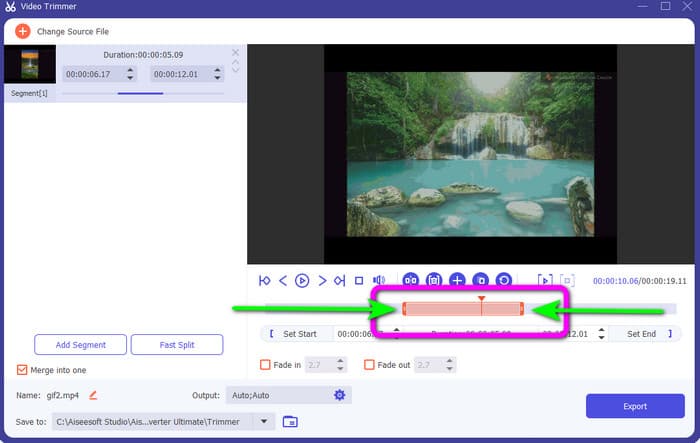
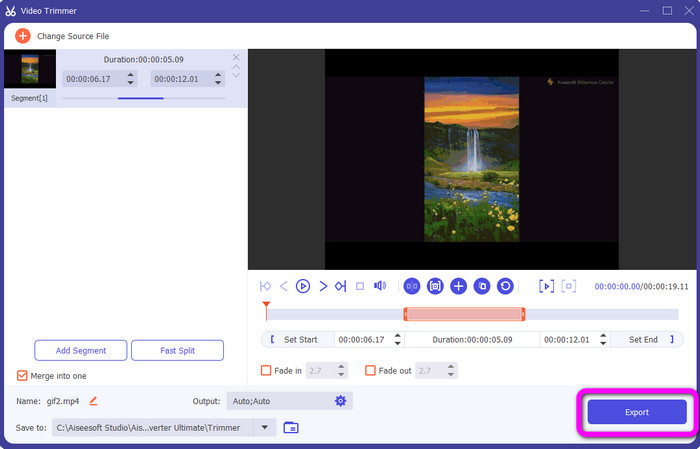
Krok 4. Video můžete oříznout úpravou oranžového pruhu, který vidíte ve spodní části videa. Tento pruh má okraje na obou stranách. Posunutím okrajů pruhu nastavte část videa, kterou chcete upravit.
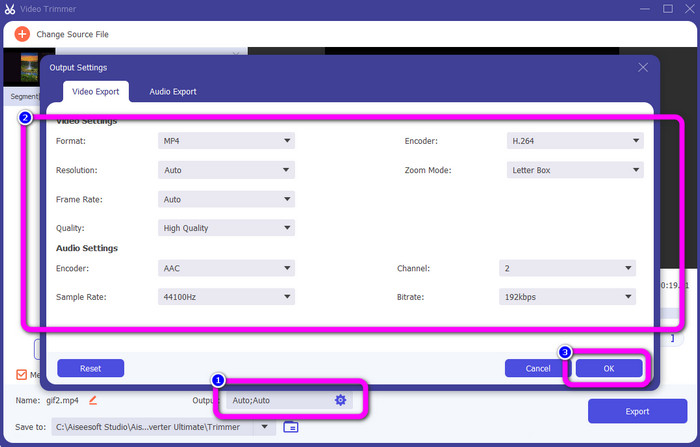
Krok 5. Kliknutím na možnost Output Settings můžete pro další úpravy změnit snímkovou frekvenci, kvalitu, rozlišení a režim přiblížení videa. Také můžete upravit vzorkovací frekvenci a datový tok zvuku. Poté klikněte na OK.
Krok 6. V posledním kroku klikněte na tlačítko Export. Počkejte na dokončení procesu a po několika sekundách si můžete uložit finální upravené video do počítače.
Část 2. Jak vystřihnout video na Snapchat
V tomto díle se dozvíte, jak oříznout video na Snapchatu. Tato mobilní aplikace je vynikající pro pořizování fotografií a videí. Poskytuje vám mnoho efektů, které je vylepší a uspokojí uživatele. Je také považován za komunikační platformu pro ostatní lidi. Snapchat navíc není schopen jen takových věcí. Mobilní aplikace také umožňuje snadno stříhat nebo ořezávat video. Kromě toho vám Snapchat umožňuje upravovat video změnou filtrů, přidáváním efektů, ořezáváním a dalšími. Stejně jako ostatní aplikace se však i Snapchat zaměřuje na pořizování fotografií a videí. Z aplikace tedy nemůžete používat pokročilé nástroje pro úpravy. Také přijímá pouze krátká videa, což je neuspokojivé pro uživatele, kteří chtějí nahrávat dlouhá videa. Podívejte se na níže uvedené postupy, jak zkrátit video na Snapchatu.
Střih videa po nahrávání
Krok 1. Stáhněte si Snapchat z App Store nebo Google Play Store. Po instalaci mobilní aplikace ji v telefonu otevřete.
Krok 2. Poté pomocí Snapchatu nahrajte video. Po dokončení nahrávání se ve spodní části obrazovky zobrazí miniklip. Kliknutím na něj spustíte proces ořezávání.
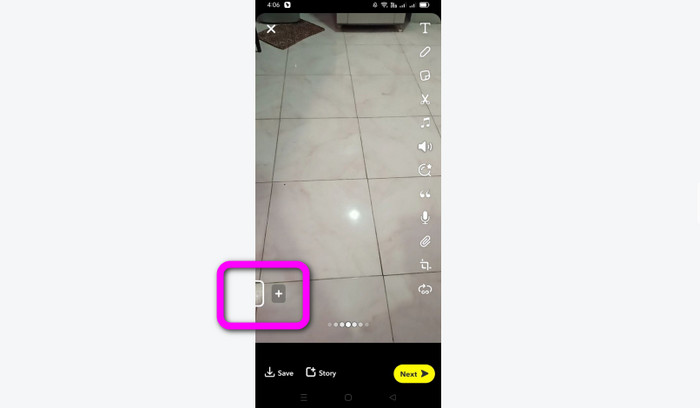
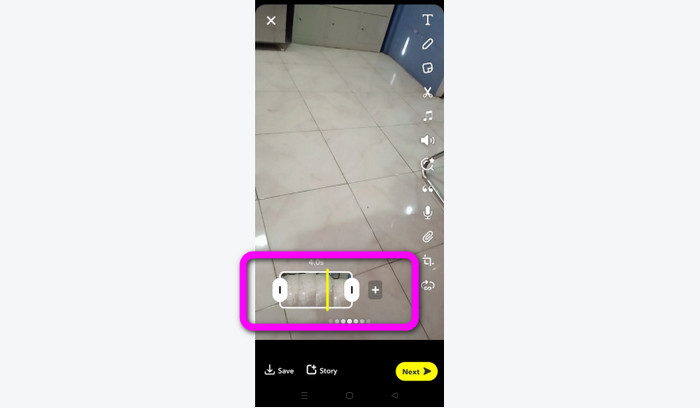
Krok 3. Jakmile se klip zobrazí na obrazovce, můžete pokračovat. Táhněte za okraje klipu a ořízněte video podle svých představ.
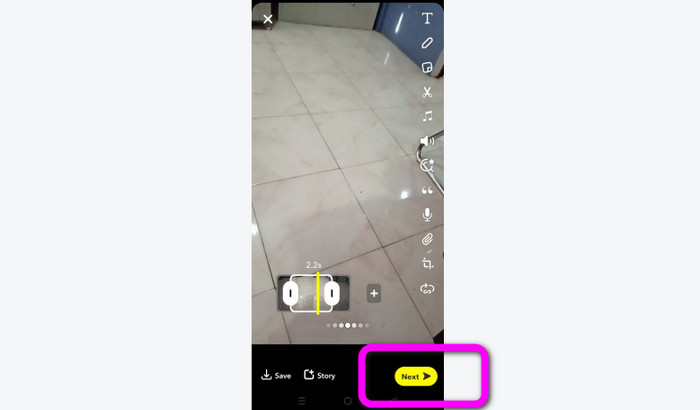
Krok 4. Když jste s výsledkem spokojeni, stiskněte tlačítko Next v levém dolním rohu rozhraní. Tím uložíte oříznuté video.
Vystřihněte video ze vzpomínek
Krok 1. Otevřete aplikaci Snapchat ve svém telefonu. Poté přejděte do části Memories. V této části uvidíte svá videa. Několik sekund podržte prst na videu a klikněte na možnost Edit.
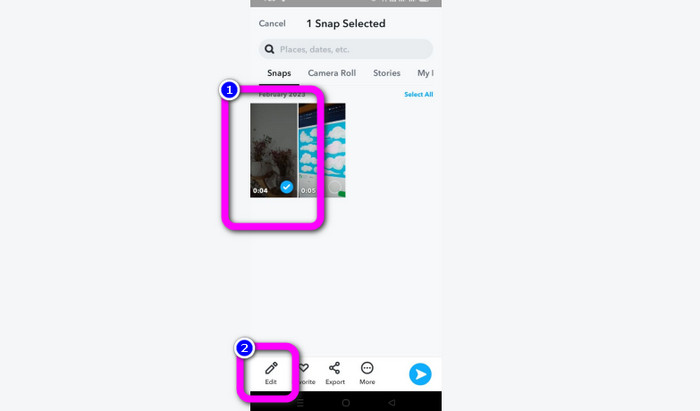
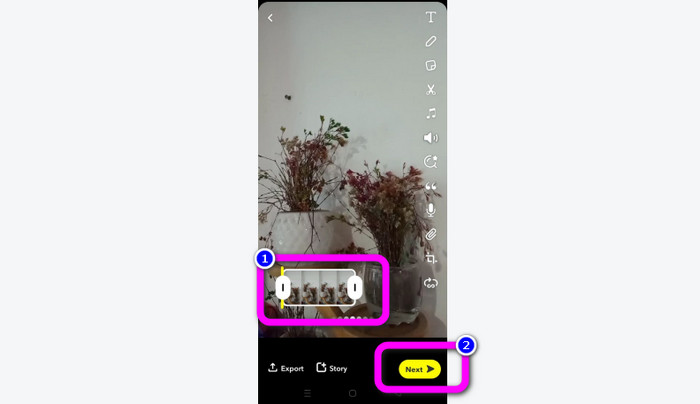
Krok 2. Poté uvidíte video ve spodní části obrazovky. V této oblasti můžete posunutím okrajů klipu začít video ořezávat. Až s ořezáním skončíte, klikněte na tlačítko Next a uložte finální video.
11 pozoruhodných nástrojů pro ořezávání videa [zdarma i placené]
Skvělé způsoby, jak pohodlně stříhat video online
Část 3. Časté dotazy o tom, jak vystřihnout video na Snapchat
1. Co to znamená ořezat video na Snapchatu?
Oříznutí videa znamená provedení střihu, který stanoví určitou část jako začátek a určitou část jako konec videoklipu. Tato možnost vám umožňuje vybrat začátek a konec videa na Snapchatu. Tato možnost je ideální, pokud chcete nahrát části videa, které původně trvaly déle než 10 sekund.
2. Můžete použít funkci rozdělení na snapchat?
Tuto funkci byste nemohli použít, pokud jste nahráli video z alba fotoaparátu. Pokud jste k zachycení použili fotoaparát Snapchat, můžete. K rozdělení filmu na upravitelné části a odstranění částí, které nechcete zachovat, můžete použít nástroj Rozdělit.
3. Jaká je maximální velikost videa pro jedno video snapchat?
Pokud přenášíte fotografie nebo videa z fotoaparátu na Snapchat, můžete odeslat pouze jedno video do velikosti 2,5 MB. Vaše soubory jsou před doručením zkomprimovány.
Závěr
Pokud používáte Snapchat k oříznutí videa, je tento článek určen právě vám. Tento článek vám poskytl nejlepší způsob, jak oříznout video na Snapchatu. Pokud navíc dáváte přednost ořezávání videa pro Snapchat v počítači, existuje program, který můžete použít. Video Converter Ultimate je vynikající program pro ořezávání videí v počítači. Má intuitivní rozhraní a je zcela zdarma.
-
 6 Oblíbená volba Snapchat Animované Snapchat filtry na Snapchatu
 Chcete znát nejlepší způsoby, jak přidat filtry do videí Snapchat? Můžete na to kliknout a naučit se různé filtry, které můžete použít na videa Snapchat.
-
 Jak snadno zpomalit video na Snapchat na jakémkoli zařízení
 Nejlepší způsob, jak zpomalit video na Snapchat, jsou již zde. Chcete-li vědět, jaké jsou tyto techniky zpomalení videa, pečlivě je sledujte.
-
 Nejjednodušší způsoby, jak odstranit text Snapchat ze snímku obrazovky
 Odstraňme text Snapchat z fotografií a videí pomocí spolehlivých nástrojů online i offline. Nabídneme vám snadné způsoby. Vyzkoušejte to hned a pojďme to zkusit!
