


 Video Converter Ultimate
 Screen Recorder
 Oprava videa
 Bezpečné stažení
Nejlepší převodníky MP3 na M4A: Rychlý a snadný převod zvuku
Nejste spokojeni, když posloucháte nekvalitní zvuk, který vašim oblíbeným skladbám vůbec neodpovídá? Nastal čas povýšit váš poslech na vyšší úroveň díky převodu pomocí MP3 na M4A! Převodem zvukových souborů do formátu M4A můžete odemknout skutečný potenciál své hudební knihovny a sami uslyšíte rozdíl. V tomto průvodci vám vysvětlíme výhody převodu z MP3 na M4A a představíme nejlepší konverzní programy, které zajistí plynulý průběh konverze. Připravte se na proměnu svého zvukového zážitku a užívejte si hudbu jako nikdy předtím.

Část 1. Nejlepší způsoby, jak převést MP3 na M4A
Zde jsou některé z nejlepších audio převodníků z MP3 na M4a. Existuje offline způsob, kterým je desktopová aplikace, a další online nástroj, kterým je webový program. Podívejte se na ně a dozvíte se více.
1. Video Converter Ultimate
Video Converter Ultimate je flexibilní program, který nabízí řadu funkcí pro převod zvuku i videa. Pokud jde o převod MP3 na M4A, je Video Converter Ultimate vynikající volbou, protože uživatelům poskytuje jednoduchý a přímočarý postup převodu zvukových souborů. Nástroj podporuje širokou škálu zvukových formátů a jeho pokročilá technologie zvukových kodeků zaručuje vysoce kvalitní výstup. Ať už potřebujete převádět zvukové soubory pro osobní nebo profesionální účely, Video Converter Ultimate činí proces rychlým, takže se můžete soustředit na to nejdůležitější – vychutnat si své vysoce kvalitní zvukové soubory.
Krok 1. Získejte program a nainstalujte ho
Nejprve zvolte jedno z tlačítek Free Download (Stáhnout zdarma) a poté podle pokynů na obrazovce uložte soubor do počítače. Dalším krokem je spuštění aplikace a seznámení se s jejími intuitivními ovládacími prvky.
Stáhnout zdarmaPro Windows 7 nebo novějšíBezpečné stažení
Stáhnout zdarmaPro MacOS 10.7 nebo novějšíBezpečné stažení
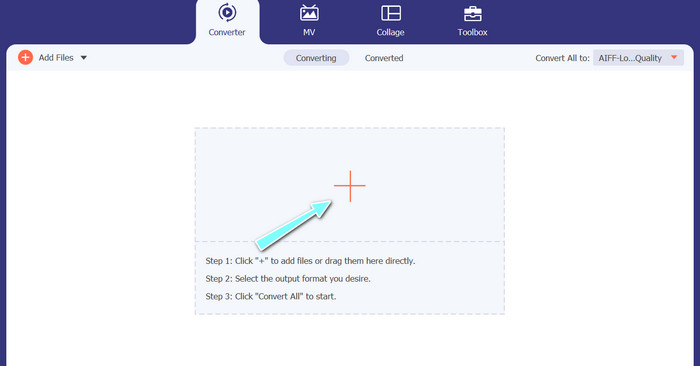
Krok 2. Přidejte zvukové soubory
Dále na hlavním rozhraní zvolte ikonu plus a přejděte do umístění zvukového souboru, který chcete převést. Po nahrání souboru se jeho náhled zobrazí v uživatelském rozhraní. Pokud chcete dávkově převádět MP3 na M4A, můžete nahrát celou složku souborů.
Krok 3. Zvolte výstupní formát
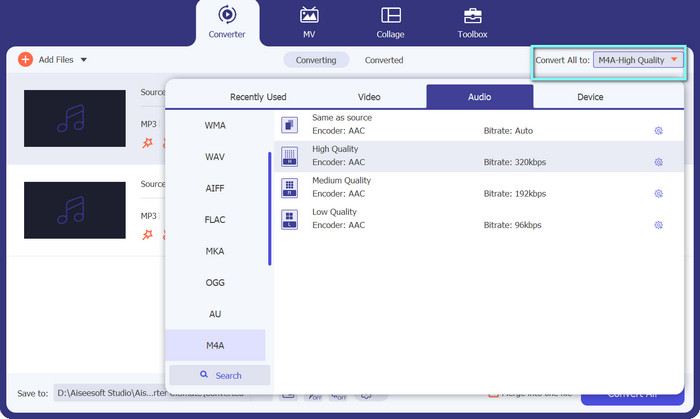
Poté zvolte výstupní formát kliknutím na kartu Audio v nabídce Profile (Profil), která se nachází v pravém horním rohu nástroje. Můžete převádět do nebo z formátu MP3 pomocí formátů MP3 nebo M4A.
Krok 4. Uložte výstup
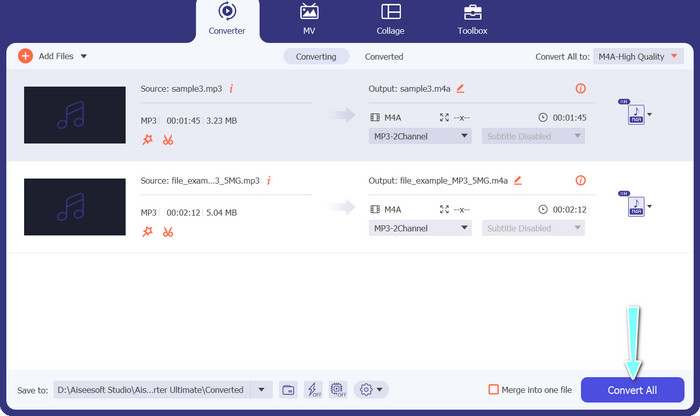
Ve spodní části obrazovky zvolte cílovou složku. Až budete připraveni spustit konverzi, klikněte na tlačítko Convert All (Převést vše).
2. Free Video Converter Online
Nemáte prostor pro instalaci dalšího programu? Nevadí, můžete sáhnout po online nástroji, který vám umožní převádět soubory bez nutnosti cokoli instalovat. Webová aplikace Free Video Converter Online vám umožní převádět soubory přímo z prohlížeče. Podporuje navíc mnoho formátů jak pro video, tak pro audio soubory. Nemluvě o tom, že s tímto online nástrojem můžete provádět hromadný převod. Navrch nabízí i možnost přizpůsobit podobu výstupního zvukového souboru. Podívejte se, jak tento online převodník MP3 na M4A funguje.
Krok 1. Abyste mohli začít používat Free Video Converter Online, nejprve otevřete svůj oblíbený webový prohlížeč a přejděte přímo na jeho webové stránky.
Krok 2. Poté kliknutím na tlačítko Add Files to Convert (Přidat soubory k převodu) vyberte soubor MP3, který chcete převést na M4A.
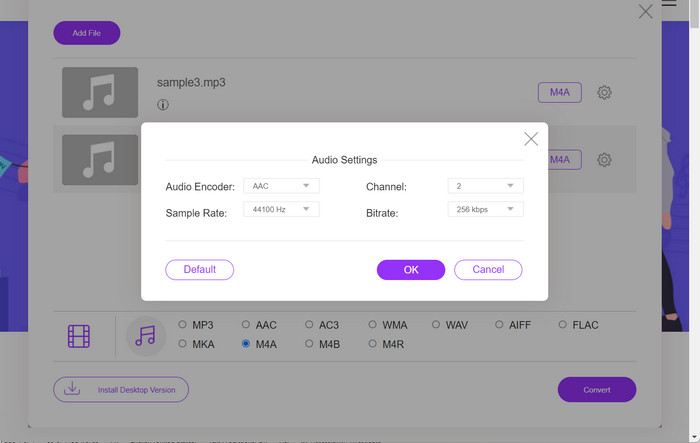
Krok 3. V nabídce formátů Audio zvolte jako požadovaný výstupní soubor formát M4A. U souboru M4A můžete také upravit výstupní kvalitu neboli datový tok (bitrate).
Krok 4. Kliknutím na tlačítko Convert (Převést) spusťte proces převodu. Takto převedete MP3 na M4A online.
Část 2. Převod MP3 na M4A v systému Windows
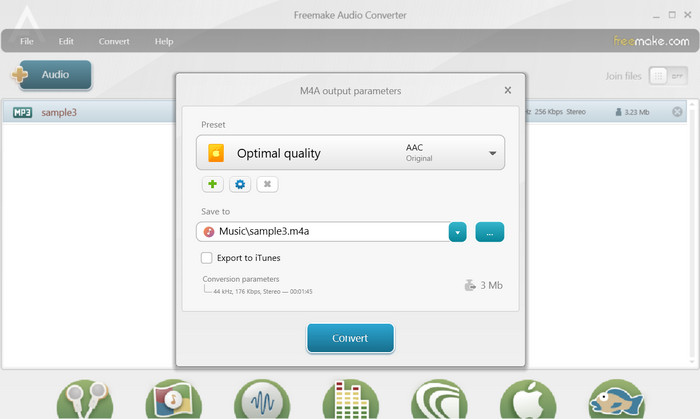
Freemake Audio Converter je bezplatný a snadno použitelný program, který uživatelům umožňuje převádět zvukové soubory do různých formátů, včetně M4A, MP3, WAV a dalších. S jeho jednoduchým rozhraním drag-and-drop mohou uživatelé snadno přidávat své soubory MP3 a převádět je na M4A bez jakýchkoli složitých nastavování nebo konfigurací. Nástroj má také řadu možností přizpůsobení, které uživatelům umožňují upravit parametry, jako je přenosová rychlost a vzorkovací frekvence, aby získali požadovanou kvalitu výstupu. Celkově vzato je to jeden z nejlepších převodníků MP3 na M4A, které můžete použít.
Krok 1. Stáhněte a nainstalujte Freemake Audio Converter do svého počítače s Windows.
Krok 2. Spusťte program a kliknutím na tlačítko +Audio přidejte do programu své soubory MP3.
Krok 3. Ze seznamu dostupných formátů ve spodní části okna programu vyberte možnost to M4A (do M4A). Pomocí rozbalovací nabídky zvolte požadovanou kvalitu výstupního souboru.
Krok 4. Zvolte výstupní složku, do které chcete uložit převedený soubor. Nakonec klikněte na tlačítko Convert (Převést) a spusťte proces převodu.
Část 3. Převod MP3 na M4A na Mac
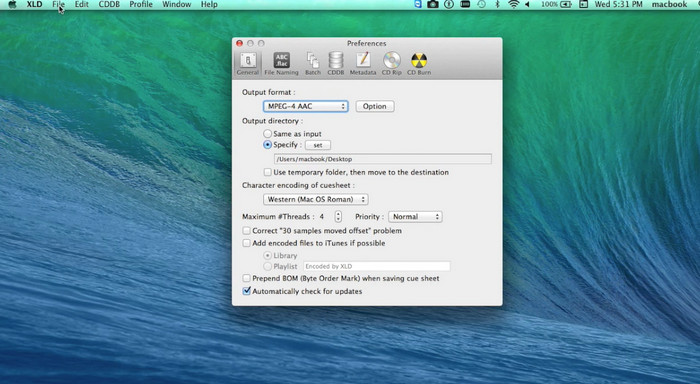
XLD je bezplatný a snadno použitelný program, který umožňuje uživatelům počítačů Mac převádět zvukové soubory do různých formátů, včetně M4A, MP3, FLAC a dalších. S jeho jednoduchým rozhraním drag-and-drop mohou uživatelé snadno přidávat své soubory MP3 a převádět je na M4A bez jakýchkoli složitých nastavování nebo konfigurací. XLD také nabízí řadu možností přizpůsobení, které uživatelům umožňují upravit parametry, jako je přenosová rychlost a vzorkovací frekvence, pro dosažení požadované kvality výstupu.
Krok 1. Stáhněte a nainstalujte XLD do svého počítače Mac.
Krok 2. Spusťte program a kliknutím na tlačítko Open (Otevřít) přidejte do programu své soubory MP3.
Krok 3. V předvolbách programu vyberte ze seznamu dostupných formátů M4A. Pomocí rozbalovací nabídky můžete zvolit požadovanou kvalitu výstupního souboru.
Krok 4. Dále zvolte výstupní složku, do které chcete uložit převedený soubor. Nakonec stiskněte tlačítko Convert (Převést) a spusťte proces převodu. Takto zdarma převedete MP3 na M4A na Macu.
Část 4. Převod MP3 na M4A na Androidu
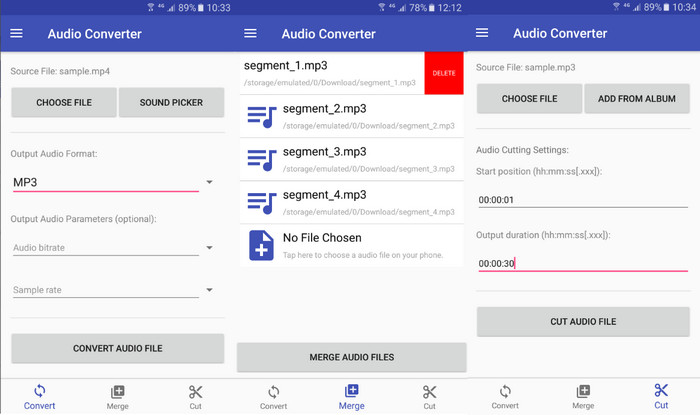
Pokud jde o převod zvukových souborů, je těžké porazit bezplatný a jednoduchý software pro Android Audio Converter od Online-Convert.com. Uživatelé mohou jednoduše přetáhnout své MP3 soubory do rozhraní programu a zahájit proces převodu na M4A. Výstupní kvalitu zvukového souboru lze upravit změnou nastavení, jako je bitrate a vzorkovací frekvence v Audio Converter. Zde jsou kroky ke změně MP3 na M4A v systému Android:
Krok 1. Stáhněte a nainstalujte aplikaci Audio Converter od Online-Convert.com z obchodu Google Play do svého zařízení se systémem Android. Spusťte aplikaci a klepněte na tlačítko Convert Audio (Převést zvuk).
Krok 2. Poté zvolte MP3 jako vstupní formát a M4A jako výstupní formát.
Krok 3. Nyní klepněte na tlačítko Select Files (Vybrat soubory) a přidejte do aplikace své soubory MP3. Nakonec klepněte na tlačítko Start Conversion (Spustit převod) a zahajte proces převodu. Je to tak jednoduché! Teď už víte, jak převádět MP3 na M4A v systému Android.
Část 5. Převod MP3 na M4A na iOS
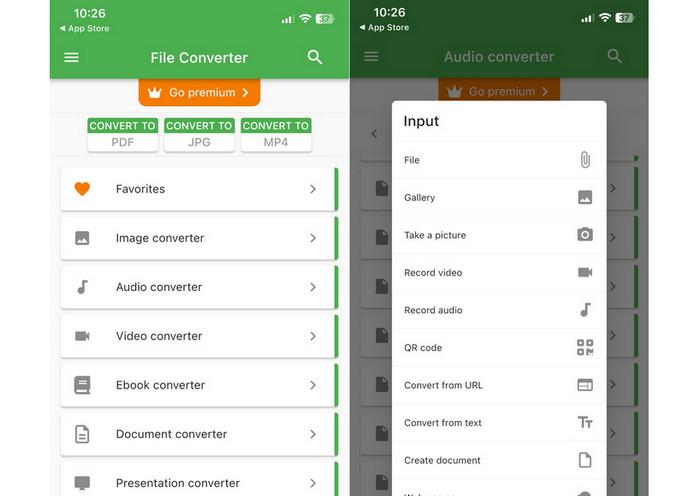
Zvukové soubory, jako je MP3, lze převést do přenosnějšího a bezztrátového formátu M4A pomocí File Converter Free, bezplatného a přímočarého softwaru pro iOS. Jeho přímočarý design usnadňuje komukoli načítání souborů MP3 a jejich převod na M4A, aniž by se musel potýkat s jakýmikoli nastaveními nebo nastaveními.
Krok 1. Aplikaci File Converter Free najdete v App Storu, kde je k dispozici zdarma ke stažení i používání. Spusťte program a klepněte na kartu Audio.
Krok 2. Zvolte MP3 jako vstupní formát a M4A jako výstupní formát v rámci Apple AAC. Pomocí rozbalovací nabídky vyberte požadovanou kvalitu výstupního souboru. Chcete-li do programu importovat soubor MP3, zvolte tlačítko Add File (Přidat soubor).
Krok 3. Pro zahájení procesu převodu klikněte na tlačítko Convert (Převést).
Část 6. Časté dotazy o převodu MP3 na M4A
Mohu převést MP3 na M4A pomocí Windows Media Player?
Ano, MP3 můžete na M4A převést i pomocí Windows Media Playeru, ale vyžaduje to několik dalších kroků, protože formát M4A není ve Windows Media Playeru nativně podporován. Případně můžete jednoduše použít některou z alternativ k Windows Media Playeru.
Bude mít převod MP3 na M4A za následek ztrátu kvality zvuku?
Převod MP3 na M4A může mít za následek mírnou ztrátu kvality zvuku kvůli rozdílům v kompresních algoritmech používaných těmito dvěma formáty.
Mohu převést M4A zpět na MP3?
Ano, mnoho programů a nástrojů pro převod zvuku umožňuje v případě potřeby převádět M4A na MP3. Mějte však na paměti, že opakované převádění mezi formáty může vést ke ztrátě kvality.
Závěr
Převod z MP3 na M4A je užitečný proces pro každého, kdo chce zlepšit kvalitu a kompatibilitu svých zvukových souborů. Dodržením kroků a tipů uvedených v této diskusi můžete své soubory MP3 snadno převést do formátu M4A a vychutnávat si vysoce kvalitní zvuk na jakémkoli zařízení.
-
 Zdarma a online | Jak převést MP4 na M4A na Windows / Mac
 Jak převést MP4 na M4A online? Mohu extrahovat zvuk ze souborů MP4? Přečtěte si tento příspěvek a získáte všechny odpovědi týkající se převodu z MP4 na M4A.
-
 Nejlepší nástroje, které můžete použít k hromadnému převodu souborů MP3 na M4R
 Hledáte převodník, který dokáže dávkově transformovat váš soubor MP3 na vyzváněcí tón M4R pro váš iPhone nebo iPad? Přečtěte si článek a objevte některé z nejlepších, které existují.
-
 5 MP3 řezaček pro snadné řezání jakéhokoli zvuku [2023 Aktualizováno]
 Potřebujete MP3 řezačku pro oříznutí zvuku? V takovém případě si přečtěte tento článek, protože poskytujeme nástroje, na které se můžete spolehnout a které umožňují snadné řezání zvuku.
