


 Video Converter Ultimate
 Screen Recorder
 Oprava videa
 Bezpečné stažení
Komprimovat video pro textovou zprávu Android? Důkladná řešení jsou tady
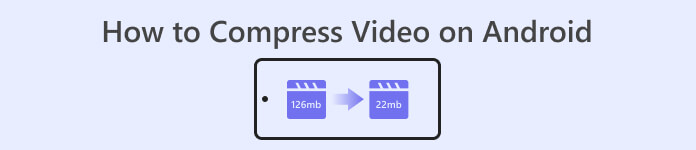
Pokud jste uživatelem Androidu, který často nahrává videa, možná jste si všimli, že zabírají ve vašem zařízení značné množství místa. To může být frustrující, protože to omezuje množství obsahu, který si můžete uložit. Uchovávání více videí v systému Android navíc může poškodit výkon zařízení, způsobit zpomalení procesů a zařízení pak nepracuje dobře. Naštěstí existují způsoby, jak komprimovat video v systému Android bez ztráty kvality. Některá z těchto řešení jsou zmíněna v tomto článku. Níže si je můžete přečíst a zanalyzovat, zatímco představujeme jejich funkce.
Část 1. Jak komprimovat video na Androidu
1. Compress Video Size Compressor
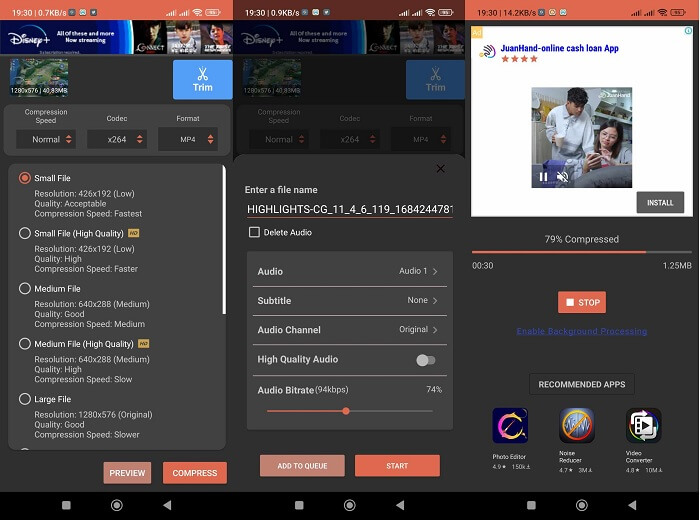
Hledáte pro své zařízení Android vyhledávaný video kompresor? Compress Video Size Compressor je nástroj, který vám bezpochyby odzvoní. Už od svého názvu dokáže tento video nástroj komprimovat velikost videa vhodnou pro vaše zařízení Android. Uživatelé mohou na svých videích používat širokou škálu kompatibilních video kontejnerů. Mohou používat MP4, MKV, 3GP, MTS, MPG, WMV, M4V, VOB, FLV, MOV, MPEG, AVI a další. Tento nástroj je jedinečný jako nástroj pro kompresi videa, protože dokáže komprimovat video ručně zadáním přesného počtu velikostí souborů, které uživatelé pro své video potřebují. Tato funkce je výhodná pro uživatele, kteří potřebují přesný počet velikostí video souborů při ukládání svých videí na Android. Podívejte se na níže uvedený způsob ovládání této aplikace.
Klíčové funkce
◆ Dodává se s procesem dávkové komprese.
◆ Uživatelé si mohou pro své video vybrat vlastní rozlišení.
◆ Může přímo ukládat video do zařízení Android nebo do aplikace Galerie.
Uživatelská příručka:
Krok 1. Přejděte do Obchodu Play a vyhledejte aplikaci Compress Video Size Compressor pomocí vyhledávacího pole aplikace. Klepněte na ikonu Instalovat, abyste ji získali do svého zařízení.
Krok 2. Spusťte aplikaci ve svém zařízení Android a klepněte na tlačítko Import, abyste přidali video, které potřebujete komprimovat.
Krok 3. Jakmile video vyberete, nástroj jej zanalyzuje a nabídne různé možnosti komprimovaných videí. Zvolte malé soubory, které mají přijatelnou kvalitu videa.
Krok 4. Klepněte na compress a uložte videosoubor do svého zařízení. Můžete také zvolit možnost, která smaže původní větší soubor.
Klady
- Tato aplikace umožňuje vysoce kvalitní a nekvalitní kompresi.
- Dodává se s vestavěným video přehrávačem pro přehrávání komprimovaných videí.
- Uživatelé mohou přímo sdílet videa s touto aplikací.
- Dodává se s kodeky HEVC.
- Tento nástroj má předdefinovaná nastavení komprese videa.
- Uživatelé mohou komprimované video porovnat s původním souborem.
Nevýhody
- V jeho rozhraní je příliš mnoho reklam.
- Abyste si mohli užívat pokročilé kompresní funkce, budete muset využít jeho prémiových plánů.
2. FVC Free Video Compressor
Potřebujete spolehlivý nástroj ke komprimaci videí z vašeho zařízení Android? FVC Free Video Compressor je nástroj, který byste měli vyzkoušet. Tato webová aplikace je dostatečně flexibilní pro uživatele, kteří se chtějí vyhnout instalaci aplikací kvůli komprimaci videoklipů v systému Android. Je to spolehlivý nástroj, který vás může ušetřit instalace aplikací do zařízení, protože funguje ve webových prohlížečích na PC. Tento nástroj dokáže upravit datový tok (bitrate), vzorkovací frekvenci, snímkovou frekvenci, hlasitost a rozlišení souboru, aby se jeho velikost zmenšila či komprimovala. Je také kompatibilní s různými video kontejnery, včetně MP4, MKV, AVI, MOV a dalšími. Jeho API nemá žádná omezení; k aplikaci máte přístup zdarma. To, co tento nástroj odlišuje od podobných aplikací, je skutečnost, že výstupní soubor neobsahuje žádný vodoznak. Proto jej můžete používat jako alternativní metodu k různým aplikacím, které komprimují videa v systému Android.
Klíčové funkce
◆ Funguje v prohlížečích Chrome, Firefox, Mozilla, Opera Mini a dalších webových prohlížečích.
◆ Dodává se s posuvníkem pro ruční zmenšení video souborů.
◆ Dodává se s funkcí dávkové komprese.
Krok 1. Otevřete online nástroj
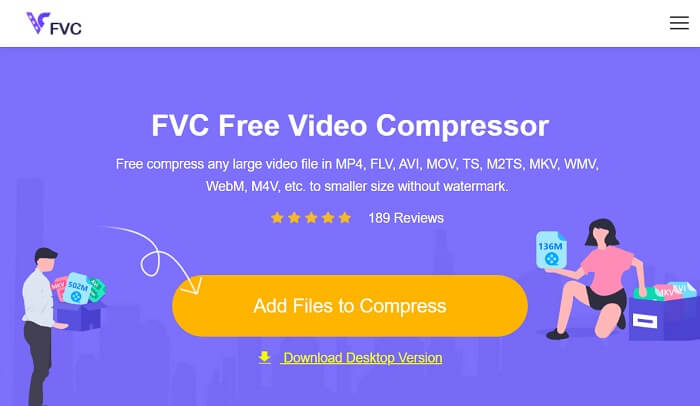
Prvním krokem ke kompresi video souborů pořízených ze zařízení Android je přístup k FVC Free Video Compressor. V aplikaci můžete vyhledávat pomocí Chrome, Firefox, Opera Mini nebo vestavěného prohlížeče. Vyhledejte hlavní stránku aplikace z výsledků vyhledávání a přejděte na její hlavní stránku.
Krok 2. Importujte video
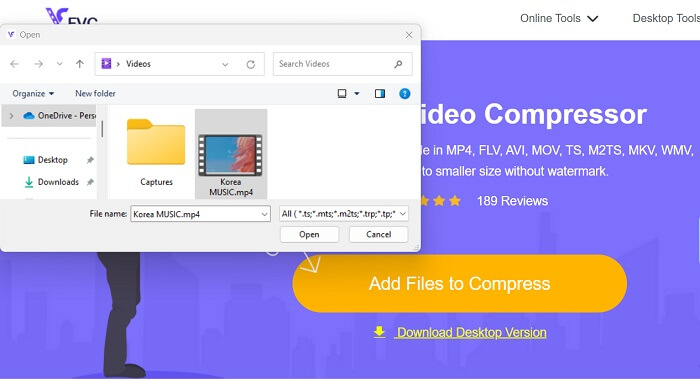
Chcete-li importovat videosoubor, který potřebujete komprimovat, klepněte na Add Files to Convert a zobrazí se složky vašeho zařízení. Vyberte videosoubor, který musíte komprimovat, a klepněte na Otevřít, abyste soubory importovali.
Krok 3. Zmenšete videosoubor
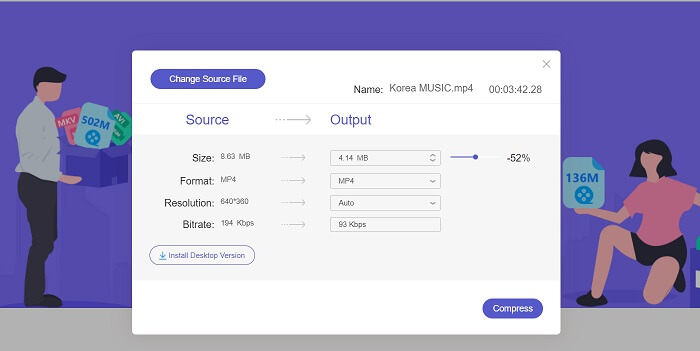
Poté se na obrazovce zobrazí dialogové okno. Posuňte tlačítko, zkontrolujte posuvník a nastavte přesné procento zmenšení souboru. Klepněte na tlačítko Compress, abyste snížili velikost souboru. Výstupní soubor si můžete zkontrolovat na svém PC a dvojitým kliknutím jej přehrát a zobrazit komprimované video.
Klady
- Dokáže komprimovat 4K videa.
- Uživatelé mohou také zmenšit velikost souboru 3D videí.
- Aplikace zajišťuje soukromí vašich video souborů.
- Na výstupním videu můžete komprimovat video bez vodoznaku.
- Dodává se s 30x rychlostí komprese.
- Zdrojový soubor můžete snadno změnit bez zavření aplikace.
Nevýhody
- Závisí na rychlosti internetu.
Část 2. Komprimujte Android Video na počítači
Hledáte účinný nástroj ke komprimaci videosouborů ve svém zařízení? Vždy můžete použít Video Converter Ultimate ke zmenšení a úpravě velikosti videosouborů ve svém počítači. Tato aplikace je kompatibilní a dostupná pro Mac i Windows, takže ji můžete mít v jakémkoli zařízení. Kromě toho podporuje širokou škálu video formátů, včetně MP4, MOV, MKV, WebM, AVI a dalších. Je vybavena posuvníkem, pomocí kterého mohou uživatelé komprimovat určitá procenta velikosti videosouboru, aniž by museli zkracovat délku videa. Tato aplikace také bez problémů zpracovává videa v rozlišení 4K. Používá pokročilou technologii pro zpracování a komprimaci vašich videí. Schopnost tohoto nástroje zmenšovat velikost souboru bez omezení a restrikcí z něj dělá jedinečný kompresor. Podívejte se na podrobný návod, jak tento nástroj používat.
Krok 1: Nainstalujte aplikaci
Nejprve musí uživatelé stáhnout Video Converter Ultimate do svého počítače nebo notebooku. Pro snadnou instalaci této aplikace klepněte na ikonu Free Download uvedenou níže.
Stáhnout zdarmaPro Windows 7 nebo novějšíBezpečné stažení
Free DownloadPro macOS 10.7 nebo novějšíBezpečné stažení
Krok 2: Importujte videosoubor
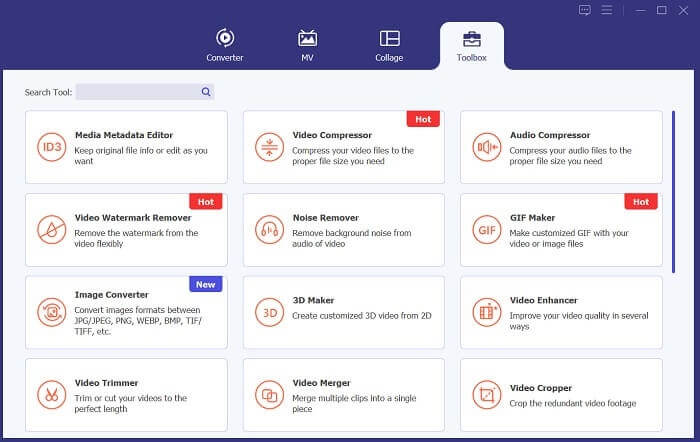
Dalším krokem je import vašeho videa do rozhraní aplikace. Můžete to udělat tak, že v rozhraní nástroje kliknete na možnost Toolbox. Ze seznamu vyberte funkci Video Compressor a klepněte na ikonu +.
Krok 3: Komprimujte video
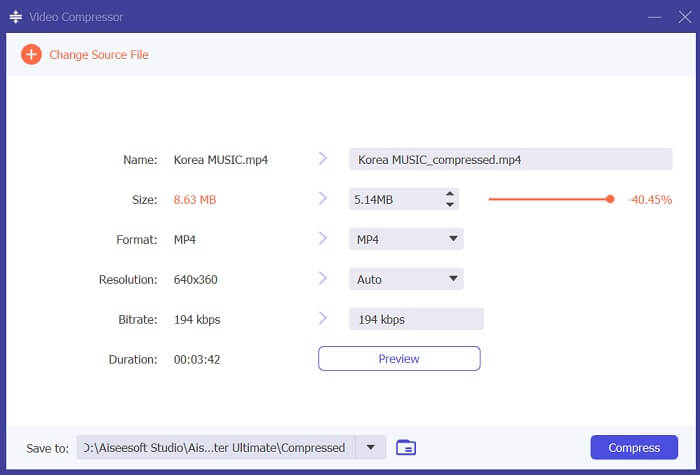
Poté se vám zobrazí složky vašeho PC. Vyberte video, které potřebujete převést, a klepněte na Open, abyste jej importovali. Zobrazí se nová stránka, na které budete moci zmenšit velikost souboru. Posuňte posuvník nebo změňte parametry videa, jako je rozlišení, formát a datový tok (bitrate). Klepněte na možnost Compress, abyste proces spustili.
Další čtení:
Jak komprimovat video pro Twitter? 4 spolehlivé metody
3 vynikající metody, jak oříznout video v systému Android
Část 3. Nejčastější dotazy o kompresi videa pro Android
Jak zazipuji video na svém telefonu Samsung?
Chcete-li zazipovat video v telefonu Samsung, můžete použít aplikaci pro správu souborů, která podporuje kompresi souborů. Nejprve vyhledejte soubor videa, který chcete zazipovat do úložiště telefonu. Poté prosím vyberte soubor a zvolte komprimaci nebo zip. Můžete si také vybrat formát komprese a úroveň komprese. Jakmile je soubor videa zazipován, můžete jej sdílet nebo uložit do úložiště telefonu se zmenšenou velikostí souboru.
Proč nemohu poslat velké video e-mailem?
Z několika důvodů možná nebudete moci odeslat velké video e-mailem. Za prvé, poskytovatelé e-mailů mají často omezení velikosti souborů připojených k e-mailům. Tato funkce zabraňuje přetížení jejich serverů a zajišťuje rychlé a efektivní doručování e-mailů. Kromě toho mohou někteří e-mailoví klienti omezovat typy video souborů, které lze připojit, například videa v určitých formátech. V těchto případech možná budete muset použít jiný způsob sdílení videa, například jej nahrát do služby pro sdílení souborů a odeslat odkaz příjemci.
Sníží komprimace videa na Androidu jeho kvalitu?
Komprese videa v systému Android může ztratit kvalitu, zejména pokud zvolíte vysoké úrovně komprese. Existují však způsoby, jak minimalizovat ztrátu kvality, jako je výběr správného nastavení komprese a použití vysoce kvalitní aplikace pro kompresi.
Závěr
Celkově, pokud jste uživatel Androidu, který často nahrává videa, možná jste si všimli, že zabírají ve vašem zařízení značné množství místa. Tato situace může být frustrující, protože omezuje množství obsahu, který můžete uložit, a může zpomalit výkon vašeho zařízení. Znalost toho, jak komprimovat video v systému Android, vám může pomoci šetřit úložný prostor a zlepšit výkon mobilního zařízení. S vhodnými nástroji a technikami, jako jsou ty, které byly zmíněny výše, můžete tento proces provést, aniž byste obětovali kvalitu svých videí.
-
 Nejjednodušší způsoby, jak zrychlit video na vašich zařízeních Android [2023]
 Věděli jste, že na svém Androidu můžete zrychlit video? Pokud tedy chcete vědět, jak zrychlit video na telefonu Android, přečtěte si tento zápis.
-
 Jak oříznout video v systému Android a předělat obsah videa
 Nedovolte, aby vás příliš velké video zpomalilo! Naučte se, jak změnit velikost videí v systému Android, pomocí našeho podrobného výukového průvodce.
-
 Průvodce opravou videí, která se na telefonech Android nehrají
 Chcete znát důvody, proč nelze přehrávat videa na vašem zařízení Android? Pokud ano, chcete-li problém vyřešit sami, můžete pokračovat ve čtení a dozvědět se více.
