


 Video Converter Ultimate
 Screen Recorder
 Oprava videa
 Bezpečné stažení
3 tipy, jak opravit VLC nehrající DVD
VLC Media Player is one of the most popular video and audio playing software. Besides various digital media formats, VLC is also capable of playing DVDs, Audio CDs, and VCDs. However, many users have encountered the VLC not playing DVD problem. Are you facing the same situation?

In fact, many reasons may cause the VLC Media Player does not play DVD. This post will discuss how to solve it in 3 different ways, whether VLC can’t read DVD disc, video and audio files of DVD are choppy, or VLC does not play the whole DVD.
Část 1. Aktualizujte nebo přeinstalujte VLC a opravte tak, že VLC nehraje DVD
When the VLC Media Player does not play DVD, you should first restart computer and VLC to check if the problem is still there. If the VLC not playing DVD issue is still existing, you can choose to upgrade VLC to its latest version.
Open VLC Media Player on your Windows 10/8/7 PC or Mac. Click Help tab on the top menu bar. From the drop-down list, choose the Check for Updates option. If there is an available one, you can follow the on-screen instructions to upgrade your VLC to the latest version.
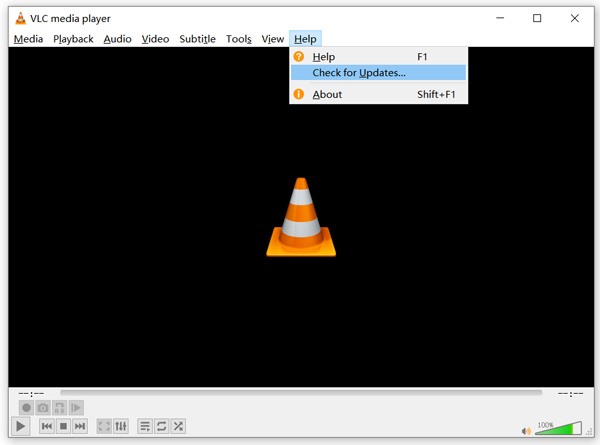
Here you can also uninstall VLC and then re-install it on your computer. You can go to the VideoLAN site to free install a suitable version.
Když si nainstalujete novou verzi VLC, můžete si přehrát DVD a zkontrolovat, zda je možné jej otevřít jako obvykle.
Část 2. Obnovte předvolby a opravte problém s přehráváním DVD VLC
V některých případech můžete upravit nebo obnovit předvolby VLC, abyste vyřešili problém s přehráváním DVD VLC. Následující průvodce vám ukáže, jak nastavit předvolby VLC.
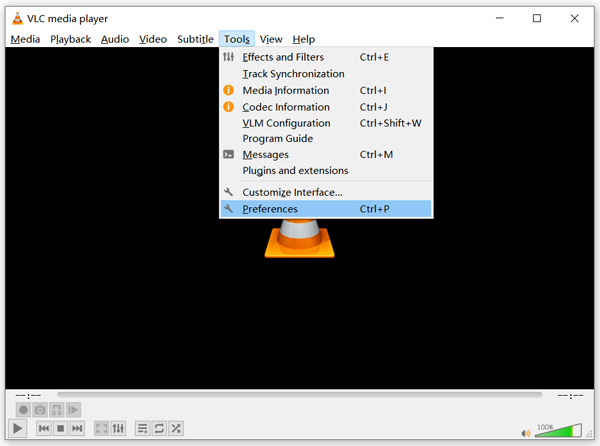
Step 1. Open VLC and choose the Tools menu. Select the Preferences option from the drop-down list.
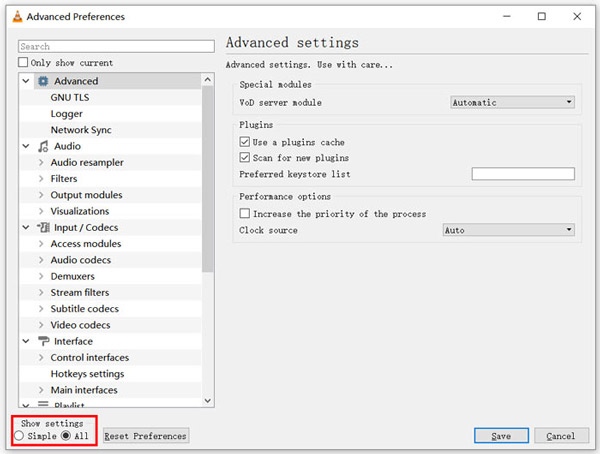
Step 2. Now you will be guided to the Simple Preferences window. Tick All under the Show Settings at the bottom left corner to enter the Advanced Preferences window.
Step 3. Here you can click on the Reset Preferences button to try fix VLC not playing DVD issue. Also, you can go to the Video section on the left, click Filters and then choose Deinterlacing video filter option on the right. Click Save button to confirm your operation.
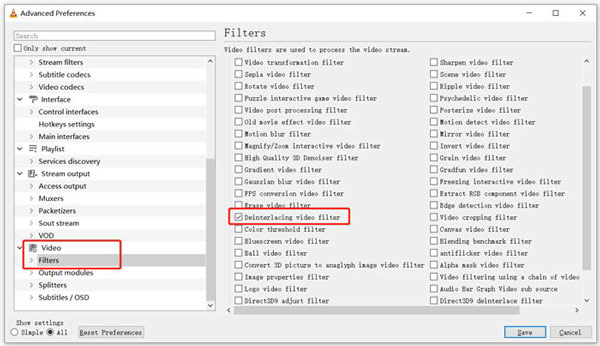
Whether you choose to reset or custom VLC preferences, after all your operations, you should restart VLC and then use it play DVDs.
Část 3. Získejte alternativní nástroj VLC pro přehrávání DVD
If VLC is still not playing DVD on Windows 10/8/7 PC or Mac, you should find a VLC alternative player to help you watch DVD movies on computer. Here we strongly recommend the Free Online DVD Player for you to watch any DVDs with high quality.
Jedná se o zcela bezplatný přehrávač DVD, který vám umožňuje přehrávat disky DVD, složky DVD a obrazové soubory ISO v počítačích Windows 10/8/7 PC i Mac. Tento bezplatný přehrávač DVD může přímo přehrávat vaše DVD v libovolném webovém prohlížeči, jako jsou Chrome, IE, Firefox a Safari. Je vybaven všemi funkcemi přehrávání DVD, které potřebujete. Kromě toho vám umožňuje pořizovat snímky, přidávat, upravovat a vybírat titulky a zvukové stopy.
Step 1. When you want to play DVD, you can go to this Free Online DVD Player page and click on the Play Now button to install a Launcher for the DVD playback. Once the installation is finished, the DVD player will be initiated automatically.

Step 2. When you enter this DVD player, you can choose Open Disc or Open File according to your need. To play a DVD disc, you should insert your DVD disc and select the Open Disc option. To open DVD folder or DVD ISO file, you can use the Open File.
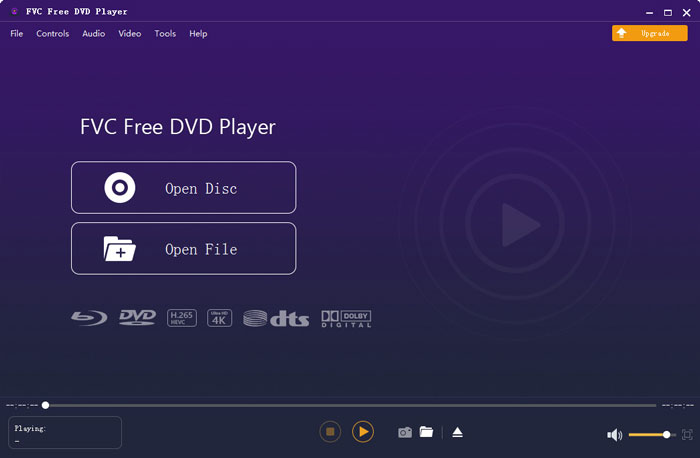
Step 3. You are given the full control of the DVD playing. You can forward, backward, pause, and stop it anytime you like. You are also able to take screenshots of your favorite scenes. Also, you can change the audio track, video track, and subtitle track based on your need.
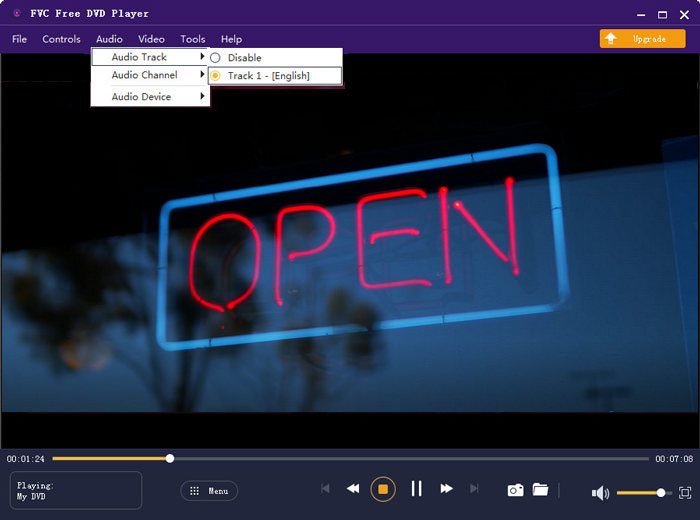
Tato alternativa přehrávače VLC Media Player má schopnost přehrávat jakékoli filmy DVD s vysokou kvalitou obrazu a zvuku. Je navržen s pokročilou technologií kódování videa a podporuje DTS-HD i Dolby TrueHD. Takže když se setkáte s problémem VLC, který nehraje DVD, můžete se spolehnout, že tento DVD přehrávač bude sledovat vaše DVD.
More VLC alternatives are here.
Část 4. Často kladené dotazy k přehrávači VLC Media Player nepřehrává DVD
Otázka 1. Jak přehrávat DVD s VLC?
Chcete-li přehrát film DVD na přehrávači VLC Media Player, můžete vložit disk DVD do diskové jednotky počítače, otevřít přehrávač VLC Media Player a poté kliknout na nabídku Média. Vyberte Otevřít disk a DVD a poté kliknutím na tlačítko Procházet načtěte soubor DVD. Poté začne VLC přehrávat vaše DVD.
Otázka 2. Proč nemohu přehrávat DVD ve Windows 10?
Integrovaná podpora přehrávání DVD od společnosti Microsoft již není k dispozici v systému Windows 10. Proto nemůžete přehrávat DVD na počítači se systémem Windows 10. Místo toho společnost Microsoft nabízí software Windows DVD Player, který za sledování DVD stojí $14,99.
Otázka 3. Jak zkopírovat DVD na MP4?
When you want to watch DVD on computer, you can also choose to convert DVD to a digital video file like MP4. You can rely on the powerful DVD to MP4 converter to rip your DVD to MP4 without quality loss.
Závěr
VLC can work as a free DVD player to help you play DVDs on Windows 10/8/7, Mac and Linux computer. It can easily access DVD menu, chapters, and other related contents. However, many users complained about the VLC not playing DVD problem.
Here in this post, you can get 3 effective solutions to fix the VLC Media Player does not play DVD issue. Hope you can better watch your DVD movies after reading this page.
-
 Jak vypálit video _TS soubor na DVD v systému Mac / Windows 10
 Jak převést a vypálit soubory TS na disk DVD? Tento podrobný průvodce vám ukáže, jak kopírovat soubory a složky TS na DVD ve Windows / Mac, abyste mohli soubory TS sledovat na DVD přehrávači nebo televizi.
-
 Jak nahrávat video na obrazovce se zvukem pomocí VLC Media Player
 Jedná se o podrobného průvodce o komplexním využití funkce nahrávání obrazovky VLC. Podrobný postup, řešení potíží a nejlepší alternativu najdete v článku.
-
 Top 5 nejlepších přehrávačů videa pro iPhone, které byste si neměli nechat ujít v roce 2021
 Chcete -li na svém iPhone přehrávat videa ve všech formátech a mít lepší zážitek ze sledování, měli byste si přečíst tento článek a seznámit se s nejlepšími 5 přehrávači videa pro iPhone 12/11/X/8/7/6.
