


 Video Converter Ultimate
 Screen Recorder
 Oprava videa
 Bezpečné stažení
5 způsobů, jak opravit Windows Media Player nefunguje ve Windows 7/8/10
Windows Media Player přestal fungovat. Problém způsobil, že program přestal správně fungovat. Bude také přehrávat zvuk, ale ne video. Jak tento problém vyřešit?
Když Windows Media Player přestane fungovat, můžete obdržet chybu „Windows Media Player přestal fungovat“ bez jakýchkoli konkrétních informací nebo jste informováni, že „Typ souboru není podporován“. Dokonce neexistují žádné výzvy a vaše kliknutí prostě nefungují.
There are many reasons causing Windows Media Player not working. The most common problem is that the files are not supported, and it will lead to playing videos without images, or audio, or subtitles. Otherwise, the causes will be very various without any specific prompt. In this case, you have to check all the problems listed in the following article to fix this complex error. But you can also choose the best way to use an alternative video player to watch any video without issues and limitations.

Část 1: Nejlepší alternativní přehrávač médií, který byste si neměli nechat ujít
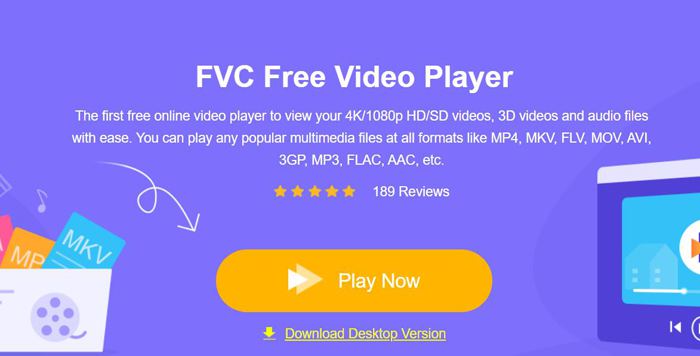
To avoid Windows Media Player not working, you’d better choose a professional alternative. FVC Free Video Player is a free online video player that will solve all of the problems you may encounter when using Window Media Player. It supports playing videos without the limitation of format and resolution. And without downloading any other software, you can play all video formats smoothly.
- 1. Podpora přehrávání téměř všech formátů, včetně souborů FLV, MKV, RMVB a DVD nebo Blu-ray.
- 2. Přehrávejte videa ve vysoké kvalitě s rozlišením 4K.
- 3. Schopen upravit zvukové stopy a titulky v různých jazycích.
- 4. Při přehrávání videa můžete kdykoli pořídit snímek obrazovky.
Step 1: Navigate to the website of FVC Free Video Player on any browser. Then click the Play Now button to install the launcher. After a few minutes, click the Play Now button again to start the FVC Free Video Player.
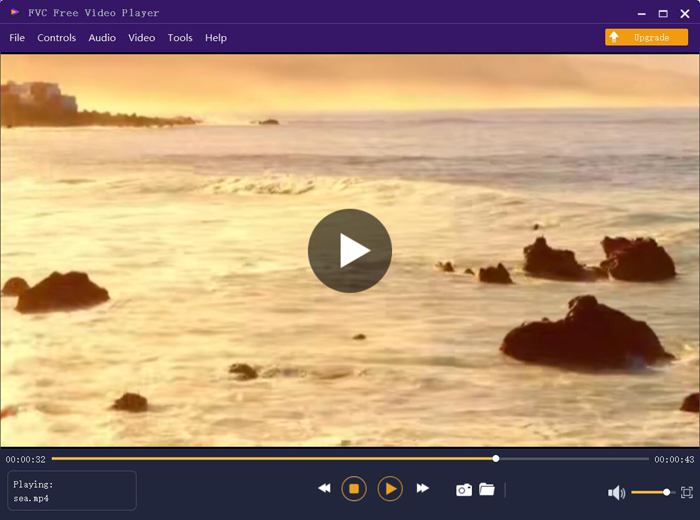
Step 2: Click the Open Files button to choose the desired video. Then it will start playing automatically. In the Control menu, you can see the hotkeys to adjust the volume. And you can also choose the audio or video tracks according to your need. Moreover, if you click the Tools button and choose the Effect option, you can even adjust the hue, brightness, contrast, saturation, and gamma.
Část 2: Jak opravit Windows Media Player nefunguje ve Windows 7/8/10
Jak již bylo zmíněno dříve, Windows Media Player nefunguje z mnoha důvodů a existují 3 způsoby, jak tento problém vyřešit v různých situacích.
Metoda 1: Spusťte nástroj pro odstraňování problémů aplikace Windows Media Player
Pokud váš Windows Media Player po kliknutí nereaguje, pomůže vám to vyřešit.
Step 1: Press the Windows and R buttons on your keyboard to start the Run program. Then you should copy and paste msdt.exe -id WindowsMediaPlayerConfigurationDiagnostic in the search bar. Click the OK button to locate to the troubleshooter of Windows Media Player Settings. Then click the Next button to start it.
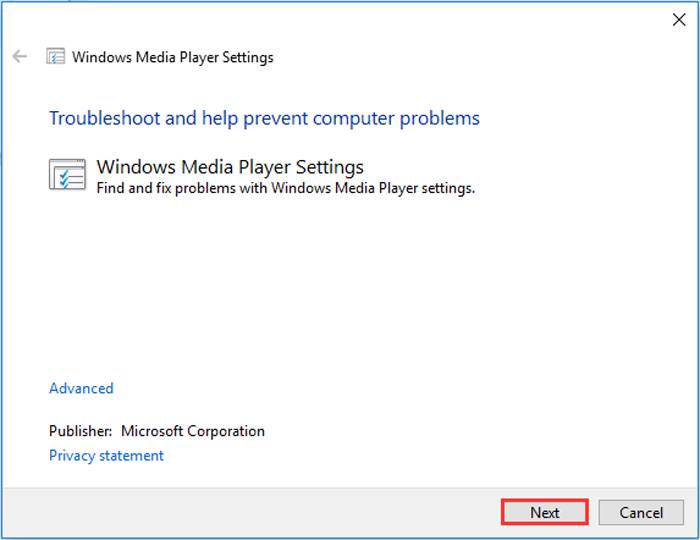
Step 2: After the window pops up, click the Apply this fix button to reset Windows Media Player to the default settings. Then you can try restarting Windows Media Player.
Metoda 2: Instalace dalších dekodérů do aplikace Windows Media Player
Pokud váš Windows Media Player nefunguje s některými speciálními videi nebo zvuky, můžete si stáhnout odpovídající dekodér a tato videa přehrát.
Step 1: Open Microsoft Store on your computer. Click the Search button, and then input the Video Extension in the search bar. You can download the desired video expansion on your computer.
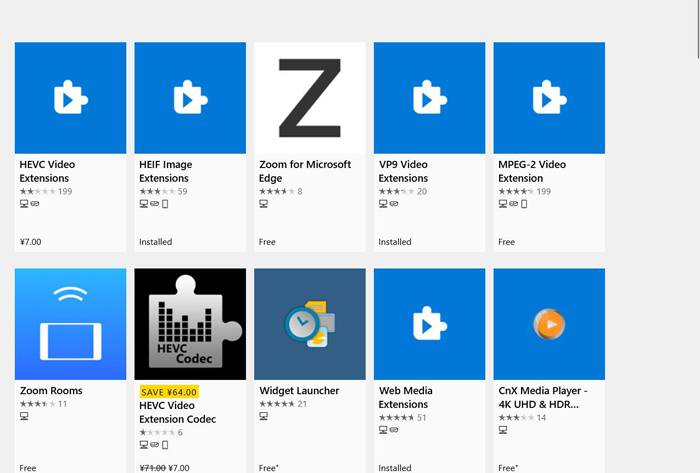
Step 2: After the installation, reopen the videos through Windows Media Player. But you should note that there are still many formats not supported, including FLV, RMVB, etc.
Metoda 3: Přeinstalujte Windows Media Player.
Pokud uvedená metoda nefunguje, zkuste přeinstalovat software, když Windows Media Player přestane fungovat.
Step 1: Press Windows and R buttons on your keyboard to open the Run program. Then type optionalfeatures.exe in the search bar. Click the OK button to open or close a function. Then you can cancel the tick of Windows Media Player.
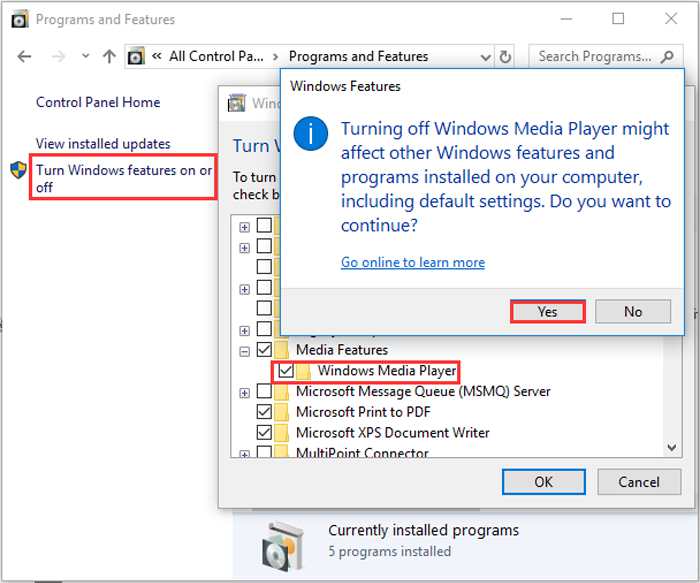
Step 2: Restart your computer and repeat the previous operation. Then tick the Windows Media Player. After that, reboot your computer again, and the software will be installed automatically on your computer.
Kromě těchto problémů má Windows Media Player také mnoho nevýhod. Nelze upravit rychlost přehrávání videa a klávesové zkratky jsou vždy k ničemu. Proč si tedy nevyřešit online videopřehrávač, který vyřeší všechny problémy?
Část 3: Časté dotazy týkající se Windows Media Player nefunguje
1. Proč nelze přehrávat video soubory FLV v programu Windows Media Player?
Although Windows Media Player supports installing multiple decoders to playback videos in some uncommon formats, FLV format is not supported. In this case, you can try downloading Windows Media Player alternatives or converting the video formats.
2. Proč můj přehrávač Windows Media Player nefunguje po aktualizaci systému Windows 10?
Možná se Windows Media Player po aktualizaci poškodil. Můžete zkusit zmíněnou metodu 3 a přeinstalovat Windows Media Player.
3. Jak vybrat stopy titulků v přehrávači Windows Media Player?
V programu Windows Media Player bohužel není možné zvolit různé titulky, video a zvukové stopy. Můžete si vybrat jiné alternativy k přehrávání videí.
Závěr
Důvody, proč Windows Media Player nefunguje, budou velmi složité, což znesnadňuje vyřešení tohoto problému. Můžete si tedy jednoduše stáhnout nejlepší alternativní přehrávač médií - FVC Free Video Player, který umožňuje plynulé přehrávání videí ve vysoké kvalitě. Tímto způsobem můžete zabránit tomu, aby Windows Media Player nepracoval věčně.
-
 Jak hrát DVD na Windows Media Player v roce 2021
 Proč se moje DVD nepřehrává v programu Windows Media Player? Jak přehrávat DVD v přehrávači médií Windows 7? Tento příspěvek sdílí 3 způsoby přehrávání DVD s WMP nebo bez WMP.
-
 6 ověřených řešení pro opravu videí, která se v prohlížeči Chrome nehrají
 Chcete-li vyřešit problém, že se videa v Chromu nehrají, stačí si přečíst naše řešení potíží a postupně provádět ověřená řešení.
-
 5 100% Working Solutions to Fix Videos Not Playing on iPad
 Vaše videa se na iPadu nehrají? Zde je pět řešení, která vám pomohou zbavit se tohoto problému, a poté si můžete snadno vychutnávat svá oblíbená videa na sluchátku.
