


 Video Converter Ultimate
 Screen Recorder
 Oprava videa
Top 4 FLV rekordéry vhodné pro Chrome, Windows a počítače Mac
Přemýšleli jste někdy nad tím, proč videa, která vidíte, běží na webu? Většina webových stránek HTML 5 používá k přehrávání videí formát WebM. Kromě WebM se používá také FLV. Zejména ty bezplatné filmové a televizní pořady bezplatné stránky. Jak poznáte, že se jedná o soubor FLV? Pokud se video nepřehraje, obvykle se zobrazí chybová zpráva, že nainstalujte Adobe Flash Player. V dnešní době je mnoho videí vloženo do souborů FLV. Ale když nahráváte video buď pomocí vestavěného rekordéru, nebo jiného rekordéru, možnost, že se kvalita videa změní, je vysoká.
Takže bude lepší použít rekordér, který umí vytvářet také soubory FLV, nebo takový, který dokáže produkovat lepší kvalitu bez ohledu na formát souboru. Pokud se obáváte, že bude kvalita videa pozměněna, podívejte se na FLV rekordéry, které nevyžadují registraci, abyste je mohli používat.

Část 1. Nejlepší volba uživatele - FVC Screen Recorder
Mezi FLV rekordéry dostupnými online patří FVC Screen Recorder ke špičce, nebo jednoduše řečeno, je naprosto nejlepší. Požadavky uživatelů jsou někdy vyšší, než co produkt dokáže nabídnout, a ne každý může být tou nejlepší volbou. Jiní zákazníci hledají ten nejlepší produkt, který by měli používat. FVC Screen Recorder překonává více než tisíc prémiových rekordérů, zejména ve srovnání s vaším současným rekordérem. Díky jeho plynulému záznamu videa získáte z nahrávaného videa maximum. Navíc můžete změnit datový tok a snímkovou frekvenci videa, což povede k lepší kvalitě videa. Proto je nezbytné věnovat pozornost této recenzi nejlepšího FLV rekordéru. Mezitím, abyste nástroj používali, zde je snadno pochopitelný návod.
Krok 1. Použijte tlačítka pro stažení níže a získejte aplikaci. Nainstalujte ji a postupujte podle průvodce, dokud se aplikace nespustí.
Zdarma ke staženíPro Windows 7 nebo novějšíBezpečné stažení
Zdarma ke staženíPro macOS 10.7 nebo novějšíBezpečné stažení
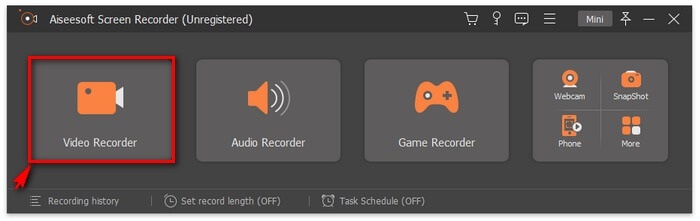
Krok 2. Vyberte si mezi záložkami. Jelikož se snažíme nahrát video, klikněte na Video Recorder. Poté se objeví čárkovaný rámeček spolu s plovoucím panelem.
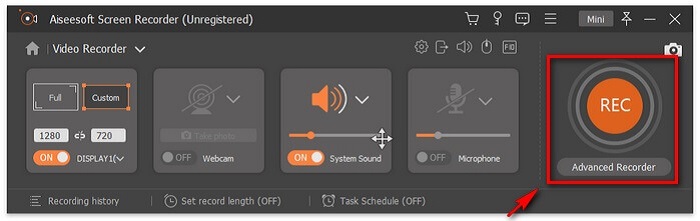
Krok 3. Upravte čárkovaný rámeček tak, abyste nastavili poměr stran obrazovky, a pak klikněte na tlačítko REC pro zahájení nahrávání.
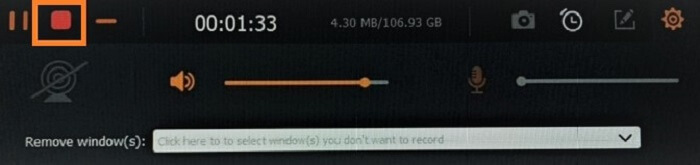
Krok 4. Chcete-li nahrávání zastavit, klikněte na červené tlačítko Square na plovoucím panelu. Odtud vyskočí nové okno. Zde si můžete vybrat, zda soubor uložit, nebo nahrát znovu, pokud s výsledkem nejste spokojeni.
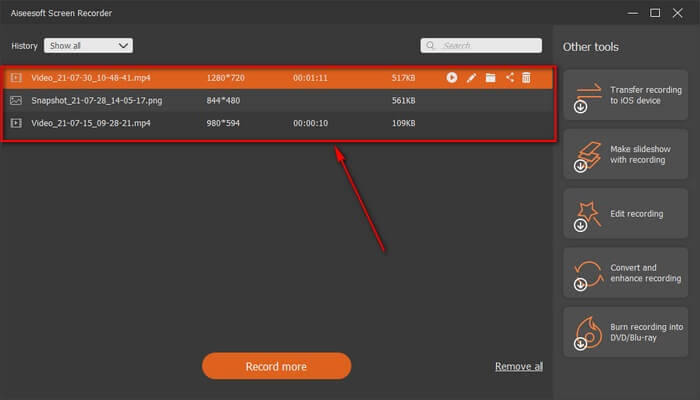
Krok 5. Řekněme, že jste soubor uložili; další okno vám umožní vybrat umístění souboru, kam se nahrávka uloží. Vyberte složku a klikněte na Next.
Část 2. Další bezplatný videorekordér FLV
FLV Recorder pro všechny prohlížeče - FVC Free Screen Recorder
Je všeobecně známo, že FVC Free Screen Recorder je nenáročný na systém a zároveň nabízí výkonné funkce. Pokud jste začátečník, který chce nahrávat pro zábavu, můžete ho použít, nebo pokud jste profesionál, který potřebuje nahrávat obchodní schůzky. V obou případech funguje skvěle. Nejlepší funkcí tohoto rekordéru je, že můžete nahrávat jakoukoli část obrazovky, aniž by vás rušil plovoucí ovládací panel nástroje. Automaticky nahrává pouze obrazovku. Pořizujte libovolné množství snímků obrazovky bez rušení díky funkci Lock-in screen. Bez dalších řečí přejděme k tomu, jak tento FLV rekordér používat. Musíte následovat kroky uvedené níže.
Krok 1. Navštivte oficiální webovou stránku FVC Free Screen Recorder a spusťte aplikaci.
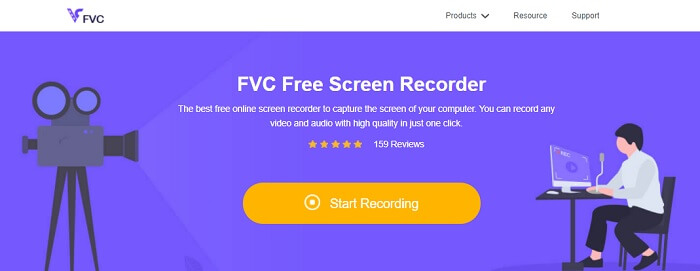
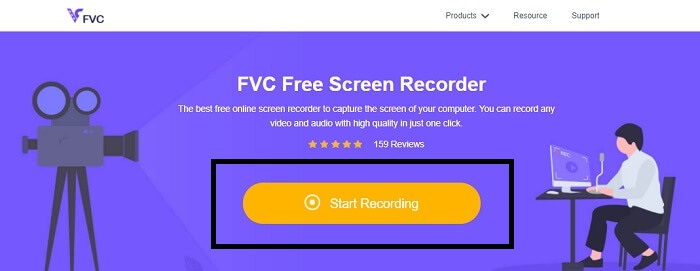
Krok 2. Spusťte nástroj kliknutím na Start Recording a pokračujte dalším krokem.
Krok 3. Na panelu nástrojů klikněte na tlačítko gear (ozubené kolečko), abyste změnili nastavení podle svých potřeb. Jakmile jste v nabídce předvoleb, najděte část Output a změňte formát videa podle svých požadavků. Klikněte na OK, pokud je vše nastaveno.
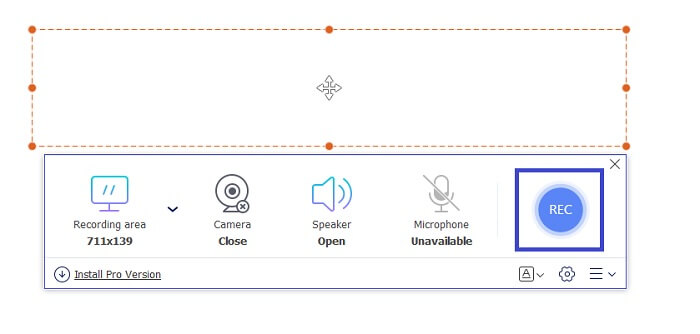
Krok 4. Na plovoucím panelu nástrojů nyní můžete upravit poměr stran obrazovky. Přidejte také svou reakci zapnutím Webcam. System Sound se používá k přidání přirozeného zvuku programu. A nakonec přidejte svůj hlas zapnutím mikrofonu. Pro zahájení FLV nahrávání klikněte na tlačítko REC.
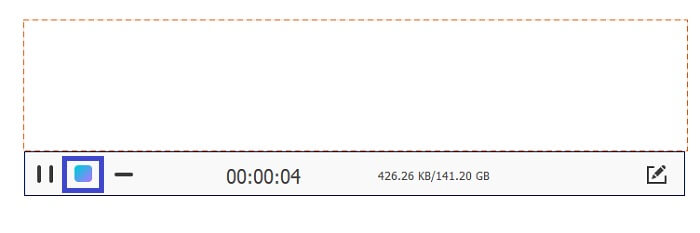
Krok 5. Pro ukončení FLV nahrávání klikněte na tlačítko cube (kostka) pro zastavení. Poté klikněte na Uložit a Další (Save and Next). Všechny nahrávky, které vytvoříte, najdete v History list (seznam historie).
FLV Recorder pro Chrome – SCREEN.IO
Pokud nechcete stahovat další soubory na disk, můžete použít tento vestavěný rekordér Chrome. Tento FLV rekordér pro Chrome pomáhá spoustě lidí na celém webu. Takže, pokud jste fanouškem úspory místa na úložišti, musíte vyzkoušet tento SCREEN.IO. Ačkoli tento nástroj neposkytuje speciální funkce, které jsou podobné jinému rekordéru. Ale nahrávací schopnost je velmi standardní. Pokud porovnáme rekordér Chrome a stolní rekordér, desktop je efektivní způsob nahrávání, protože vám nebude vadit, když dojde k přerušení připojení k internetu.
FLV Recorder pro Windows - VLC Media Player
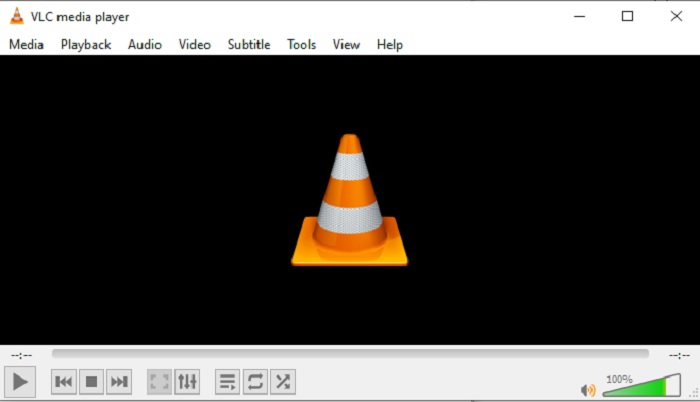
Přehrávač VLC Media Player není známý jen jako nejlepší multimediální přehrávač. Má také několik funkcí, jako je nahrávání, konverze a další. Přestože je to špičkový přehrávač, všechny zmíněné funkce nejsou úplně nejlepší. A v některých případech zde nelze přehrát určité formáty videa či audia, protože jejich kodeky jsou proprietární. Místo toho tedy můžete použít alternativu k VLC Media Playeru, která podporuje i proprietární soubory.
FLV Recorder pro Mac - OBS Studio
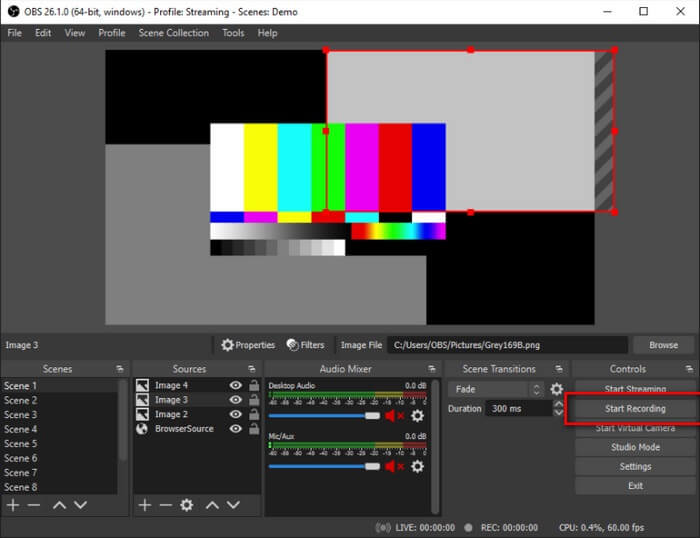
Možná si myslíte, že jsme zapomněli na uživatele Macu. Tento FLV rekordér pro Mac patří mezi nejvýkonnější rekordéry v seznamu, protože v něm můžete také streamovat. Navzdory úžasným funkcím může být nástroj sám o sobě poněkud odrazující, zvláště pokud s nahráváním začínáte. Při otevření aplikace je totiž na rozhraní vidět opravdu mnoho prvků.
Část 3. Nejčastější dotazy o FLV Video Recorder
FLV soubor, Je bezpečné jej stáhnout do mého PC?
Ve skutečnosti to není soubor, o kterém mluvíme, pokud jde o bezpečnost. Soubory FLV jsou vloženy na weby pro sdílení videa, takže vaše otázka by měla znít, jak mohu zjistit, zda video, které stahuji z webu, neobsahuje malware? Použijte ochranu pro váš počítač. Existuje spousta softwarových obránců a skenerů, které můžete najít online. Ale samotný soubor je bezpečný. Pokud do něj nevloží malware, je to bezpečné.
Jaký program může otevřít soubory FLV?
Existuje spousta multimediálních přehrávačů, ale já doporučuji VLC player. Tento přehrávač je univerzální a dokáže přehrát téměř všechny formáty souborů, ať už nekomprimované nebo komprimované. Klikněte zde, abyste získali přístup k dalším populárním FLV přehrávačům.
Jaké jsou výhody souborů FLV?
První velkou výhodou FLV je jeho schopnost produkovat vysoce kvalitní video v malé velikosti. Soubor je od přírody flexibilní. Proč? Tento soubor můžete snadno převést do jiného formátu i pomocí online převodníků.
Část 4. Srovnávací tabulka
| Funkce | Záznamník obrazovky FVC | Záznamník obrazovky FVC zdarma | Přehrávač VLC Media Player | OBS Studio |
| Screen Recorder |  | | | |
| Záznamník zvuku | | | | |
| Podporuje FLV | | | | |
| Multimediální přehrávač |  | | | |
| Nastavitelná přenosová rychlost a snímková frekvence | | | | |
Závěr
Všechny uvedené nástroje jsou užitečné při nahrávání videí FLV a vytváření nejlepší možné kvality videa. Pokud si také nejste jisti, který nástroj použít, můžete se podívat na napsanou srovnávací tabulku. Ale mezi uvedenými FLV rekordéry. FVC Screen Recorder má větší výhodu díky funkci uzamčení okna.
-
 Nejužitečnější OGG rekordér roku 2021 [zdarma a online]
 Tento zápis hovoří o nejlepších nástrojích pro nahrávání OGG, které vám pomohou nahrávat zvuk OGG. Chcete-li přidat podrobnější informace pro uživatele, pokračujte v čtení.
-
 Top 5 nejlepších M4B Recorder Software pro PC a Mac [zdarma a placeno]
 Nahrávání M4B je ztrátově komprimováno pro soubor zvukové knihy MPEG-4. V některých aspektech jsou M4A a M4B téměř běžné, ale mají rozdíly. Chcete -li vědět, co to je, přečtěte si článek.
-
 Top 5 Nejlepší nástroj pro záznam AMR k dispozici pro všechny operační systémy
 Chcete vědět, co je to formát AMR a jaký je nejlepší rekordér AMR, který byste si měli vybrat a který bude poskytovat úžasný záznam.
