


 Video Converter Ultimate
 Screen Recorder
 Oprava videa
 Bezpečné stažení
Kombinujte soubor M4A: Rychlé a snadné kroky pro slučování zvuku
Používání souboru M4A je už samo o sobě poměrně obtížné, protože ne všechna zařízení a veškerý zvukový software tento formát podporují. Jeho úprava představuje pro uživatele další výzvu. Samozřejmě existuje spousta způsobů, jak spojit soubory M4A do jednoho zvukového souboru, a použití nástrojů třetích stran, jako jsou programy a online nástroje, to umožňuje. Tento návod pomůže tápajícím uživatelům najít spolehlivý nástroj pro spojování jejich souborů M4A a zároveň poskytne postup krok za krokem, který jim usnadní začátky při práci se softwarem i online nástroji.

Část 1. Nejrychlejší metoda Kombinace souborů M4A na Windows/Mac [pro vysokou kvalitu]
Jako první je na seznamu Video Converter Ultimate vybraný FVC. Tento software dokáže efektivně vytvářet přesné střihy, ořezy, komprimované soubory a v tomto případě i spojovat soubory M4A. Sloučení souborů M4A umožňuje uživatelům nahrát více souborů M4A najednou bez nutnosti je nejprve převádět. Je to velmi rychlé a snadné, protože samotný program je dobře uspořádaný a přehledný, což z něj dělá okamžitý favorit pro začátečníky.
Krok 1. Stáhněte a spusťte Video Converter Ultimate vybraný FVC na svůj počítač.
Zdarma ke staženíPro Windows 7 nebo novějšíBezpečné stažení
Zdarma ke staženíPro MacOS 10.7 nebo novějšíBezpečné stažení
Krok 2. Jakmile je software nainstalován, klikněte na tlačítko Add Files a vyberte soubory M4A, které chcete sloučit.
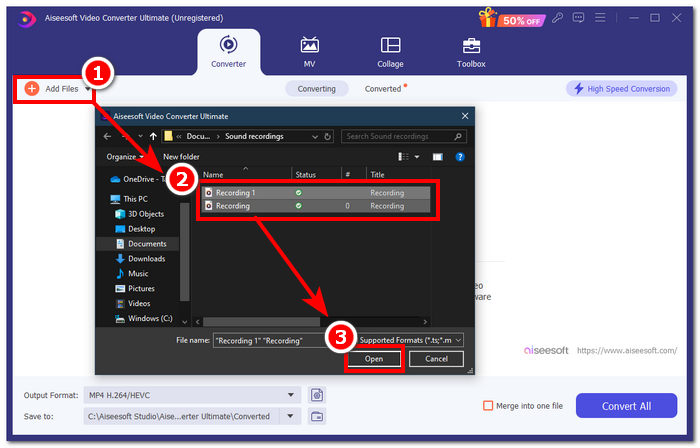
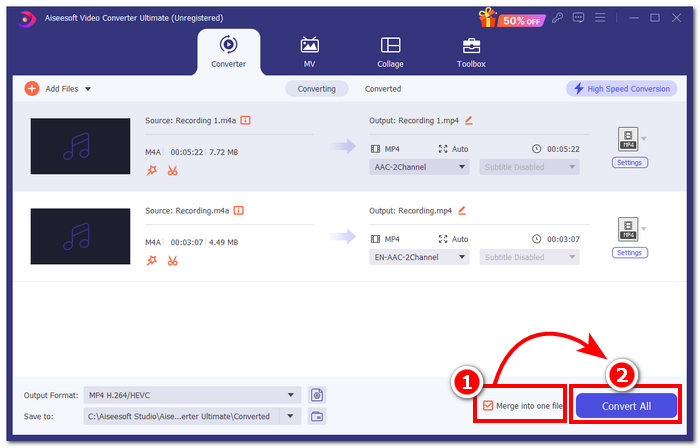
Krok 3. Jakmile jsou vaše soubory M4A nahrány do rozhraní nástroje, klikněte na zaškrtávací políčko v pravé dolní části nástroje a povolte sloučení svého souboru M4A. Poté klikněte na tlačítko Convert All hned vedle, čímž spustíte proces sloučení.
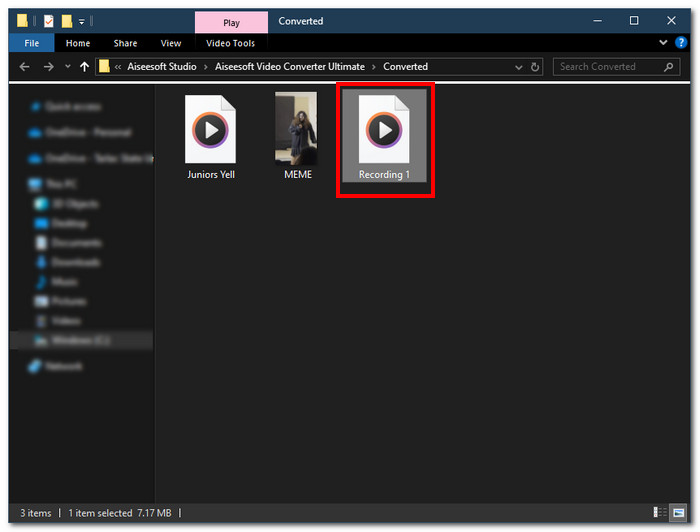
Krok 4. Jakmile je proces sloučení dokončen, na obrazovce se otevře nové okno. V tomto okně najdete své sloučené soubory M4A. Gratulujeme, úspěšně jste sloučili své soubory M4A.
FVC-vybraný Video Converter Ultimate je nejrychlejší z uvedených softwaru, protože je integrován s technologií vysokorychlostního zpracování, aby zajistil výsledek bezztrátové kvality a zároveň nabízí velmi intuitivní rozhraní, díky kterému je sloučení vašich souborů M4A bezproblémové. Na rozdíl od jiného softwaru, který podporuje pouze omezený počet formátů audio souborů, tento software podporuje širokou škálu formátů audio a video souborů, včetně M4A, MP3, MP4, WAV, AAC atd.
Část 2. Kombinace souborů M4A na Macu s GarageBandem [For Music Makers]
Pro profesionální hudební nadšence nebo tvůrce v ekosystému Apple je GarageBand nástroj pro slučování souborů M4A. Sloučení souborů M4A pomocí zařízení Mac je snadné, protože Apple GarageBand je zvukový editor předinstalovaný ve vašich zařízeních. Chcete-li sloučit dva soubory M4A do jednoho zvukového souboru, postupujte podle níže uvedených kroků GarageBand patří mezi softwarové nástroje, které fungují přímočaře a snadno.
Krok 1. Stáhněte a spusťte GarageBand na svém zařízení Mac.
Krok 2. V hlavním rozhraní načtěte své soubory M4A kliknutím na File > Open v levém horním rohu nástroje.
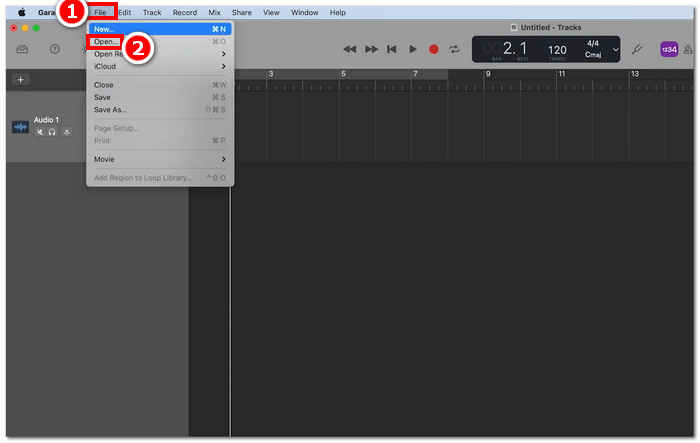
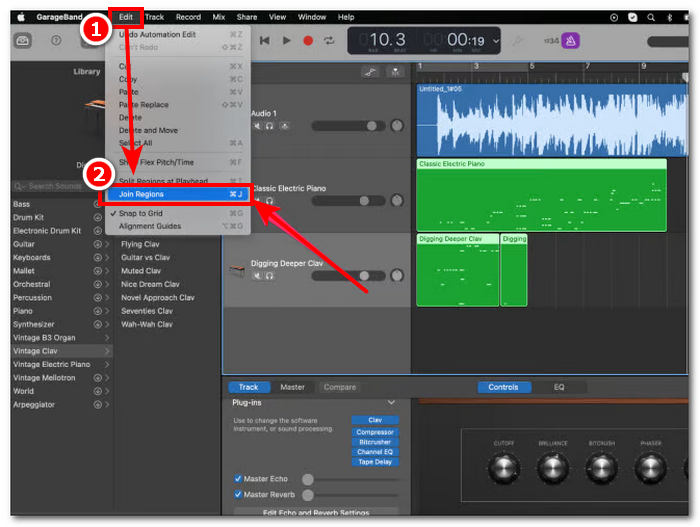
Krok 3. Jakmile jsou vaše soubory M4A načteny v rozhraní nástroje, klikněte na Edit > Join Regions, čímž spustíte sloučení nahraných souborů M4A.
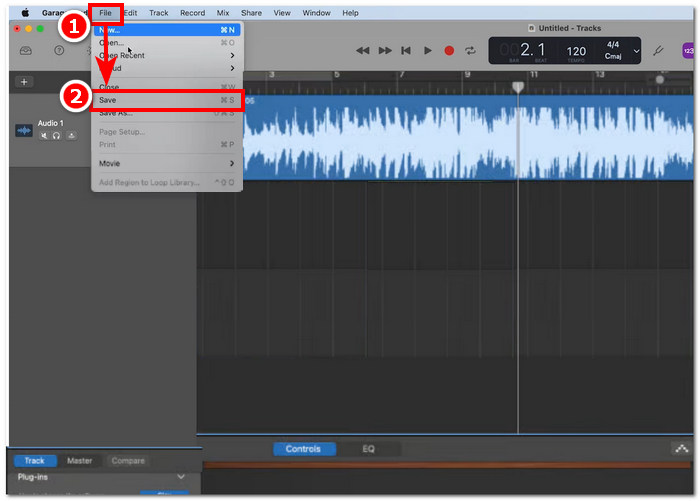
Krok 4. Jakmile jsou vaše soubory M4A sloučeny do jedné zvukové stopy, můžete ji uložit nebo stáhnout kliknutím na tlačítko File > Save v levém horním rohu nástroje.
GarageBand je skutečně jedním z nejjednodušších, a přitom profesionálně vytvořených programů pro slučování a úpravu souborů M4A. Dodržení výše uvedených kroků je skvělý způsob, jak uspořádat dva a více souborů M4A do jednoho zvukového souboru, což usnadňuje sdílení mixu.
Část 3. Kombinace souborů M4A v systému Windows s VLC [pro základní uživatele]
VLC Media Player překvapivě umí sloučit soubory M4A do jednoho. Umožňuje bezproblémový a přímočarý proces slučování s využitím výhod jeho nastavení v prohlížeči vlastností médií a souborů. Tento bezplatný a užitečný populární audio a video přehrávač, bez ohledu na to, který formát souborů chcete kombinovat VLC, je dokáže efektivně převést a sloučit.
Krok 1. Stáhněte a spusťte VLC Media Player na svém počítači.
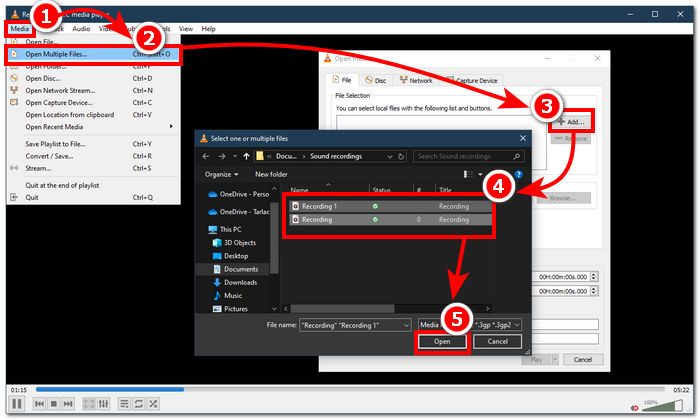
Krok 2. V hlavním rozhraní nejprve klikněte na Media > Open Multiple Files v levém horním rohu přehrávače. Po kliknutí se zobrazí nové okno. Pro pokračování klikněte na tlačítko + Add a vyberte soubory M4A, které chcete sloučit.
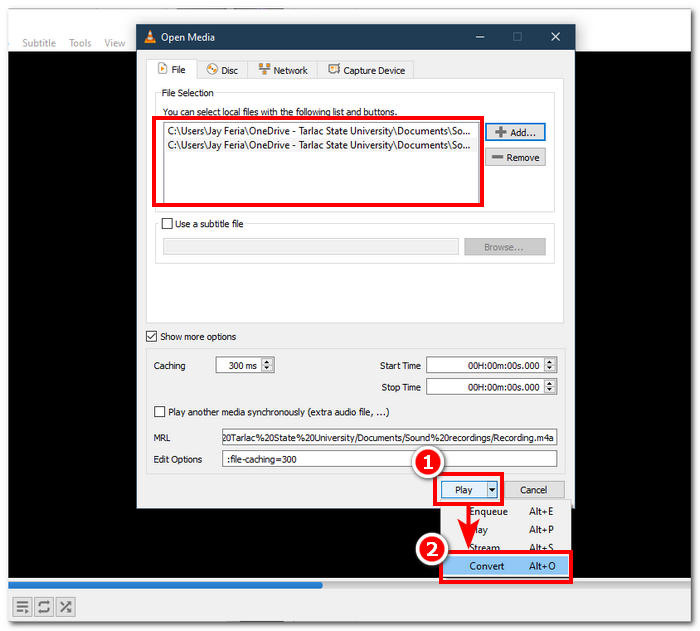
Krok 3. Jakmile jsou vaše soubory M4A v poli se soubory, klikněte na šipku dolů vedle tlačítka Play ve spodní části rozhraní nástroje a vyberte Convert.
Krok 4. Následně se otevře nové okno. Zaškrtněte políčko Append ‘-converted’ to filename. Poté přejděte do nastavení profilu a zvolte Audio. Jakmile je vše nastaveno, klikněte na tlačítko Start a váš sloučený soubor M4A bude k dispozici v té složce, kde se nacházejí vaše původní soubory M4A.
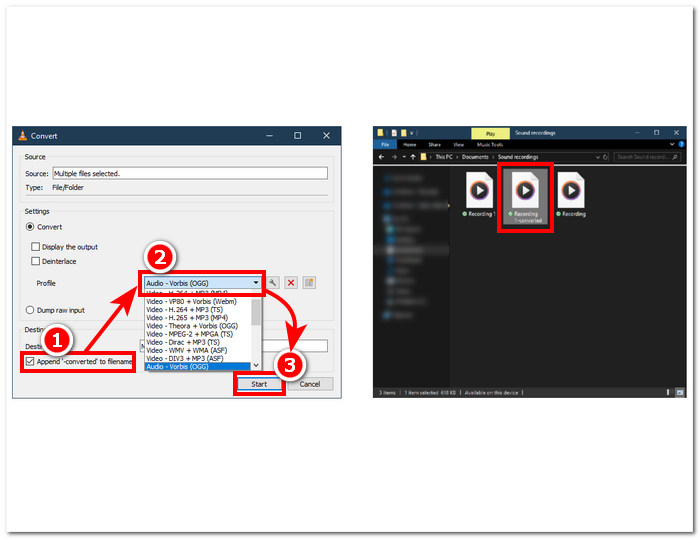
Nezapomeňte při jejich spojování upravit délku zvuku, aby byl správně synchronizovaný s videosouborem. Pokud je zvuk ve VLC zpožděný, pomůže vám tento článek: Jak opravit zpoždění zvuku ve VLC.
Po provedení uvedených kroků zajistíte bezproblémové sloučení vašich souborů M4A. VLC Media Player není jen typickým přehrávačem pro všechny druhy médií, ale může být také použit jako editor metadat a může kombinovat nejen M4A, ale také videa.
Část 4. Kombinace souborů M4A online [Pro malé soubory M4A]
Pokud hledáte efektivnější a časově úspornější nástroj pro slučování M4A, možná se budete chtít uchýlit k online nástroji. Chcete-li sloučit soubory M4A online, musíte použít spolehlivý nástroj, protože online existuje spousta zavádějících nástrojů pro sloučení M4A. Naštěstí vám Audio Joiner stojí za zády, protože je to webový nástroj pro slučování souborů M4A. V zásadě to funguje tak, že nahrajete své soubory M4A na web a jediným kliknutím okamžitě sloučí vaše zvukové soubory do jednoho.
Krok 1. Přejděte na oficiální webovou stránku Audio Joiner a získejte přístup ke službě.
Krok 2. Jakmile jste v rozhraní webu, klikněte na zelené tlačítko + Add Tracks a vyberte soubory M4A, které chcete spojit.
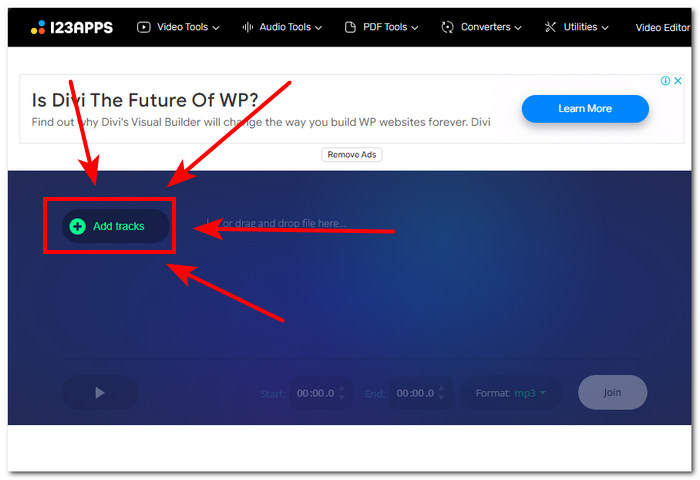
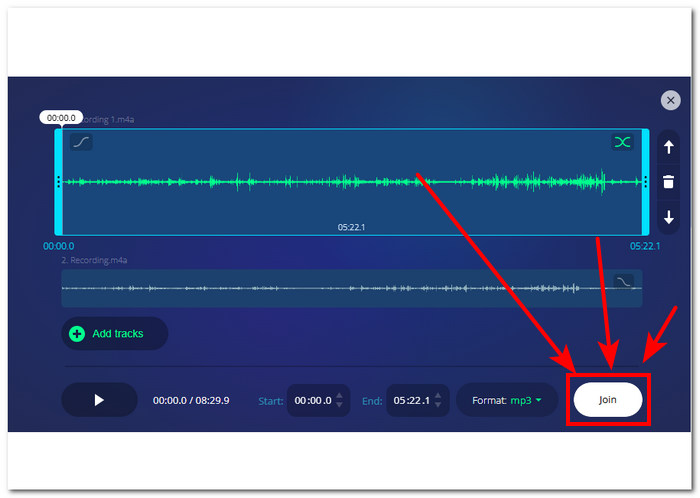
Krok 3. Jakmile se vaše soubory M4A načtou do nástroje, klikněte na tlačítko Join v pravé dolní části stránky a počkejte na dokončení procesu slučování.
Krok 4. Po dokončení slučování můžete kliknout na tlačítko Download na obrazovce a stáhnout a uložit svůj sloučený soubor M4A do počítače.
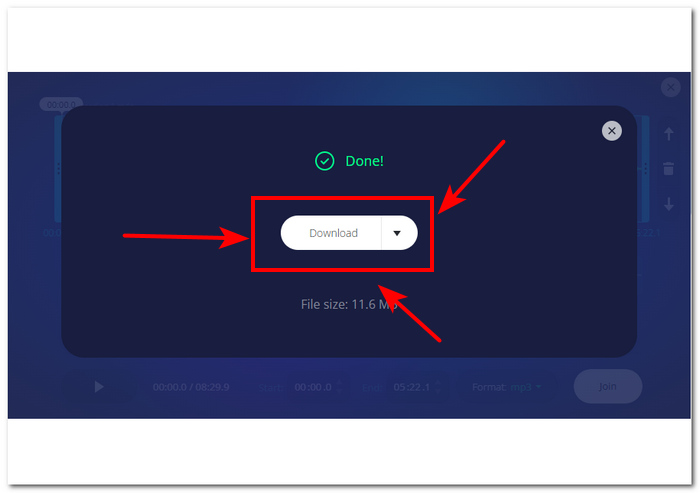
Přestože je tento webový nástroj pro slučování souborů M4A pohodlný pro uživatele, kteří nechtějí trávit čas instalací softwarového nástroje, běží s vyskakovacími reklamami a bohužel načítá vaše zvukové soubory pomaleji.
Část 5. Často kladené otázky o tom, jak kombinovat soubory M4A
Jaký je nejjednodušší způsob, jak kombinovat zvukové soubory?
Nejjednodušší způsob, jak zkombinovat soubory M4A, je spolehnout se na online nástroje, které nabízejí okamžité sloučení zvukových souborů jediným kliknutím. Dejte si však pozor na používání takových nástrojů, protože jsou s tím spojena určitá rizika.
Jaký je příkaz ke sloučení stop v GarageBandu?
Klávesovou zkratkou pro sloučení skladby v GarageBandu je současné stisknutí Command + J.
Můžete použít Windows media player k mixování skladeb?
Bohužel Windows Media Player stále nemá takové funkce nebo vestavěné funkce, které by vám pomohly míchat nebo slučovat skladby.
Existuje způsob, jak kombinovat soubory M4A bez ztráty kvality?
Ano, existuje spousta způsobů, jak kombinovat M4A bez ztráty kvality. Některé nástroje mají určenou úpravu nastavení a některé prostě pokaždé nabízejí přímo vysoce kvalitní export, jako například Video Converter Ultimate vybraný FVC.
Mohu kombinovat soubory M4A na svém smartphonu?
Ano, slučování souborů M4A je dostupné na stolních počítačích a webových prohlížečích i na mobilních zařízeních. GarageBand nabízí mobilní verzi své desktopové verze, ale ta je dostupná pouze na iOS zařízeních, zatímco WavePad mobile je k dispozici pro iOS i Android.
Závěr
Znalost toho, jak slučovat stopy M4A, je skvělá dovednost při učení se úpravám zvuku. Pomůže vám při zkracování a organizaci projektů, aby žádný z nich neměl v danou chvíli aktivní absurdní množství stop. Aby bylo slučování souborů M4A efektivní, mohou uživatelé potřebovat spolehlivý software nebo online nástroje k provedení takového úkolu. Proto vám následování našich kroků pomůže tuto užitečnou dovednost zvládnout dříve, než přejdete na pokročilejší nahrávací platformy.
-
 Jak převést M4A na MP3 pomocí 4 bezplatných převaděčů zvuku
 Nemůžete hrát M4A a potřebujete jej převést na MP3? Existuje nějaký bezplatný způsob, jak převést M4A na MP3 online? Tento příspěvek sdílí 4 bezplatné způsoby, jak vám pomoci převést M4A na MP3 s iTunes, online a profesionálními převaděči zvuku.
-
 Stažení MP3 přehrávače - 10 nejlepších hudebních přehrávačů MP3 zdarma do roku 2021
 Jaký je nejlepší hudební přehrávač MP3? Jak vložím hudbu do přehrávače MP3? Jak si stáhnout hudební přehrávač MP3? Tento příspěvek poskytuje podrobnou recenzi 10 nejlepších bezplatných MP3 přehrávačů pro Windows PC a Mac.
-
 Získejte svůj nejlepší přehrávač MP4 pro přehrávání souborů MP4 s vysokou vizuální kvalitou
 Přečtěte si a získejte svůj nejlepší přehrávač MP4 z doporučení 10 nejnovějšího softwaru přehrávače videa MP4. Můžete přehrávat video soubory MP4 ve Windows a Mac bez problémů.
