


 Video Converter Ultimate
 Screen Recorder
 Oprava videa
 Bezpečné stažení
Bezproblémové sloučení souborů WAV pomocí softwarových nástrojů a tipů
Ať už jste v oblasti úpravy zvuku začátečník, nebo profesionál, je pro to, abyste mohli slučovat soubory WAV, nutné používat správné nástroje a techniky, které zajistí, že dva různé soubory WAV budou spojeny a exportovány v bezztrátové kvalitě. Hledání vhodného nástroje však může uživatele stát čas i úsilí. S pomocí tohoto článku se však seznámíme s různými nástroji, kroky k jejich efektivnímu používání a tipy, které vám pomohou začít a celý proces zjednodušit a zefektivnit.

Část 1. Bezztrátová kombinace souborů WAV během několika sekund [s akcelerací GPU]
Když chcete sloučit dva soubory WAV do jednoho výstupního souboru, nejlepším a nejjednodušším způsobem je použít FVC-picked Video Converter Ultimate. Tento softwarový nástroj od Aiseesoft je přístupný všem typům uživatelů, protože je zcela zdarma ke stažení na oficiálních stránkách. Nástroj nabízí funkce pro úpravu videa i zvuku a umožňuje sloučit více souborů WAV do jednoho souboru. Kromě toho je software vybaven technologií vysokorychlostního zpracování, která výrazně zrychluje slučování a export souborů WAV z pohledu uživatele. Pro snadnou orientaci při úkolu slučování souborů WAV postupujte podle níže uvedeného návodu.
Krok 1. Stáhněte a nainstalujte slučovač souborů WAV do počítače a poté jej otevřete.
Zdarma ke staženíPro Windows 7 nebo novějšíBezpečné stažení
Zdarma ke staženíPro MacOS 10.7 nebo novějšíBezpečné stažení
Krok 2. Jakmile se ocitnete v rozhraní softwaru, klikněte na tlačítko Add Files v levém horním rohu. Poté vyhledejte a vyberte soubory WAV, které chcete sloučit do jednoho souboru, a klikněte na tlačítko Open.
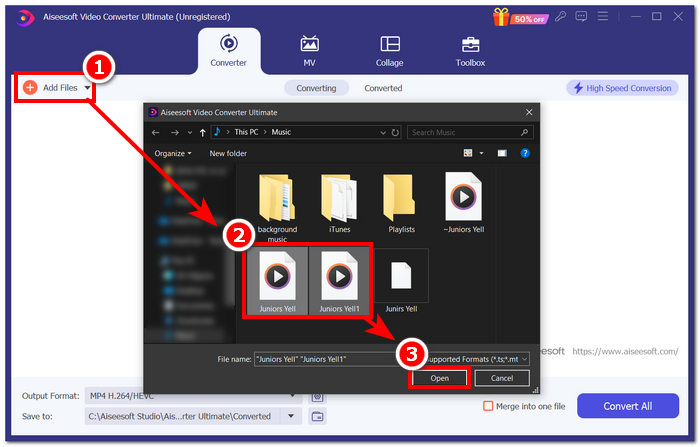
Krok 3. Jakmile nahrajete soubory WAV, které chcete ve softwaru sloučit, zaškrtněte možnost Merge into one file, která se nachází vedle tlačítka Convert All v pravé dolní části rozhraní.
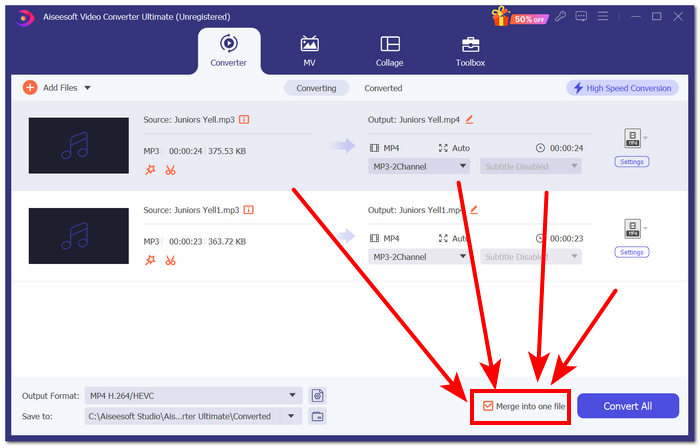
Krok 4. Kliknutím na tlačítko Convert All spusťte proces slučování; hotový soubor se automaticky exportuje do vaší složky pro stahování.

Tipy
• V softwarovém nástroji můžete sloučit více souborů WAV současně.
• V levém dolním rohu softwarového rozhraní můžete před exportem ovládat výstupní formát na nejžádanější formát souboru.
• Můžete také změnit cíl sloučeného souboru WAV přístupem a výběrem určené složky umístěné v levém dolním rohu softwarového rozhraní.
• Chcete-li maximalizovat technologii vysokorychlostního zpracování při slučování a exportu souboru WAV, povolte nastavení High-Speed Conversion umístěné v pravém horním rohu softwarového rozhraní.
• Tento nástroj navíc podporuje různé formáty, takže můžete slučovat MP4, MKV, FLV, MP3, FLAC a mnoho dalších formátů.
Část 2. Kombinujte soubory WAV online
Když zjistíte, že sloučení souborů WAV pomocí softwarového nástroje je docela obtížné, může být online řešení to, co potřebujete. Descript je webový nástroj, který funguje jako nástroj pro úpravu zvuku, videa a transcriber v jednom. Slučování souborů WAV je relativně snadné, protože webový nástroj používá AI k automatickému sloučení vašich vstupních souborů WAV v okamžiku, kdy je nahrajete, a umožní uživatelům jejich náhled před jejich stažením.
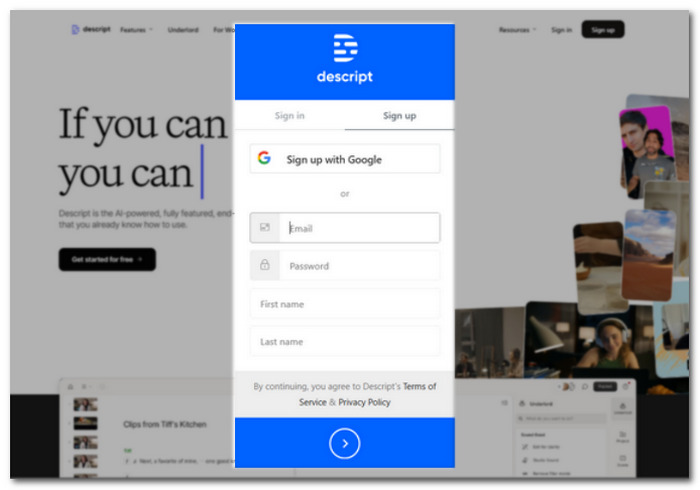
Krok 1. Přejděte na oficiální web Descript a vytvořte si účet, abyste mohli tento nástroj použít ke sloučení svých souborů WAV.
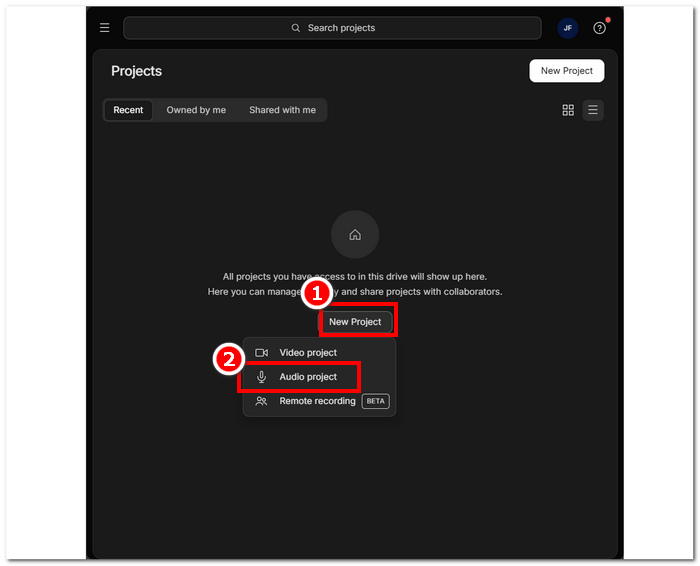
Krok 2. Po přihlášení do rozhraní nástroje klikněte na New Project > Audio Project.
Krok 3. Nahrajte soubory WAV, které chcete sloučit do jednoho, do pole Upload a file v rozhraní nástroje.
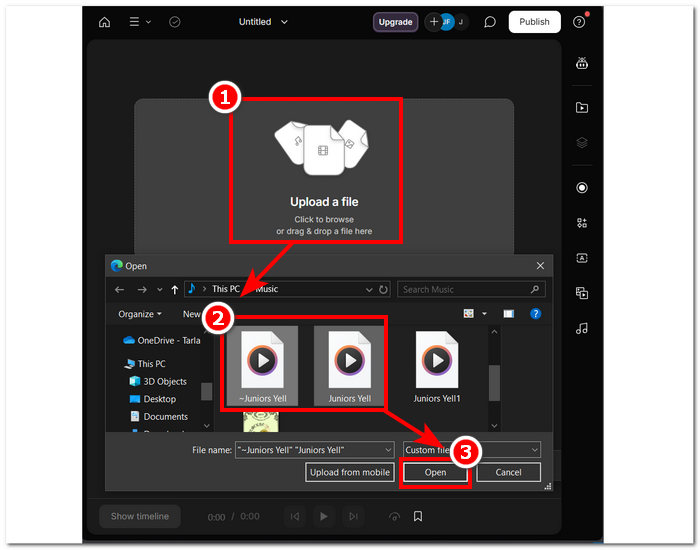
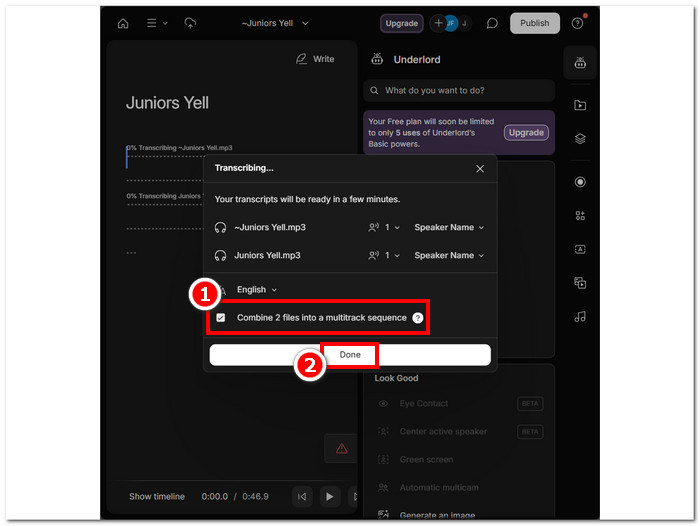
Krok 4. Během nahrávání souborů WAV do rozhraní se zobrazí okno, ve kterém se rozhodnete, zda je chcete automaticky sloučit. Zaškrtněte volbu, která povolí automatické slučování pomocí AI, a klikněte na tlačítko Done.
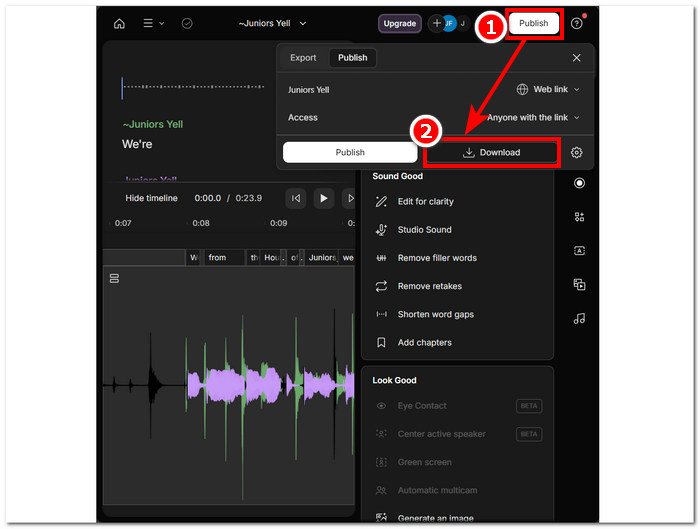
Krok 5. Počkejte, až nástroj dokončí slučování vašich souborů WAV. Jakmile je hotovo, přehrajte si výsledný výstup a zkontrolujte, zda si AI s kombinováním souborů WAV poradila dobře, a v případě potřeby proveďte úpravy. Jakmile budete spokojeni, klikněte na Publish > Download a stáhněte si sloučené soubory WAV do počítače.
Tipy
• Před stažením vašich kombinovaných souborů WAV nezapomeňte důkladně zkontrolovat zvukovou stopu, abyste se vyhnuli trhlinám.
• Seznámení s tímto nástrojem může pomoci efektivně urychlit proces slučování souborů WAV.
Část 3. Kombinujte soubory WAV s Audacity
Jako open-source audio editor dokáže Audacity také slučovat stopy, například soubory WAV, a to zcela zdarma. Tento bezplatný software uživatelům dlouhodobě pomáhá s úpravami zvuku a slučování souborů WAV s ním je mnohem jednodušší. Audacity umožňuje přidat více souborů WAV najednou a zároveň podporuje import různých zvukových formátů. Navíc má praktickou funkci, která umožňuje dokonale seřadit jednotlivé stopy za sebe, což výrazně usnadňuje slučování bez rizika přepsání. Následující podrobný návod vám pomůže se v softwaru lépe zorientovat.
Krok 1. Stáhněte program Audacity do počítače. Jakmile jej budete mít, otevřete jej a načtěte soubory WAV, které chcete sloučit do jednoho souboru.
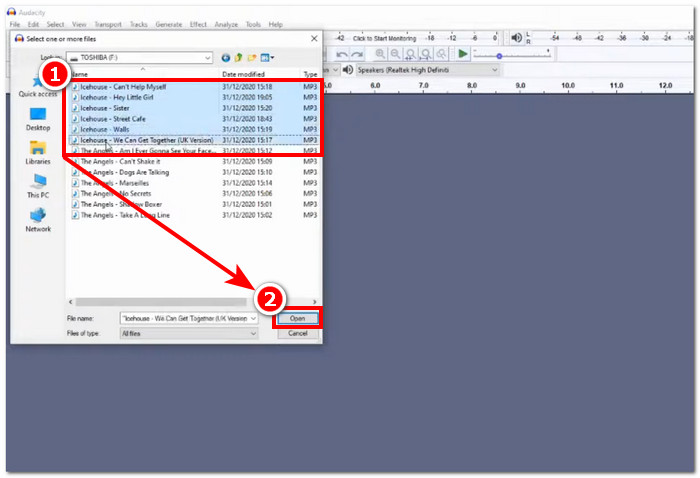
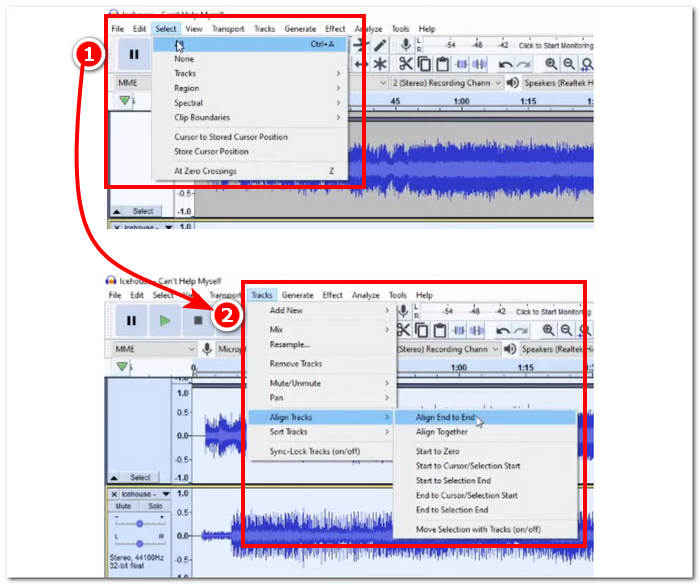
Krok 2. Jakmile jsou soubory WAV načtené v rozhraní nástroje, nejprve vyberte všechny stopy kliknutím na Select > All v horní nabídce nástroje. Poté je třeba zarovnat vybrané stopy WAV: klikněte na sekci Track a v nabídce Align Tracks zvolte Align End to End.
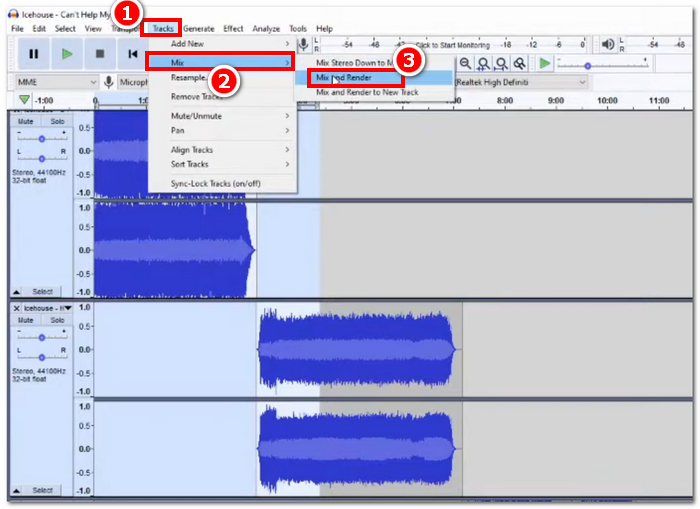
Krok 3. Jakmile jsou vaše soubory WAV zarovnány za sebou, klikněte znovu na sekci Track a v nabídce Mix vyberte funkci Mix and Render, čímž spustíte proces slučování.
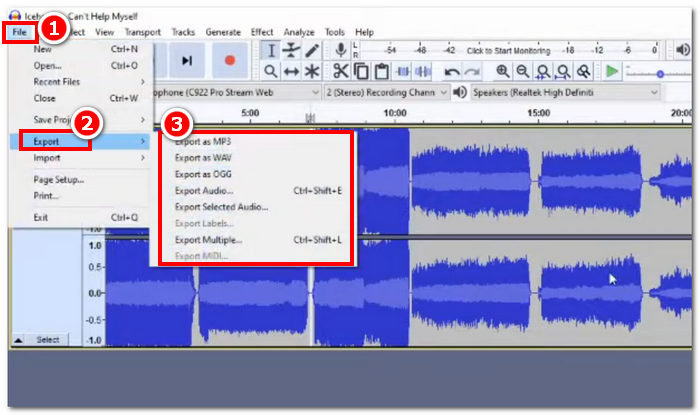
Krok 4. Po dokončení slučování můžete soubor WAV exportovat tak, že kliknete na File > Export a zvolíte požadovaný výstupní formát.
Tipy
• Při exportu kombinovaných souborů WAV zvolte export jako WAV, protože zachová původní kvalitu zvuku.
Část 4. Kombinujte soubory WAV pomocí FFmpeg
Dalším open-source softwarovým nástrojem pro manipulaci se zvukem a videem je FFmpeg. Tento výkonný multimediální rámec lze použít jako konvertor a pro úpravy multimédií, jako jsou video, audio a další mediální soubory. Při zpracování úloh, jako je slučování souborů WAV, software vloží do příkazového řádku specifický kód, aby zahájil proces slučování nazývaný zřetězení souborů WAV do jednoho výstupního souboru. Níže je podrobný návod, jak používat FFmpeg jako sloučení souborů WAV.
Krok 1. Přejděte na web FFmpeg a nainstalujte program podle toho, jaké zařízení používáte.
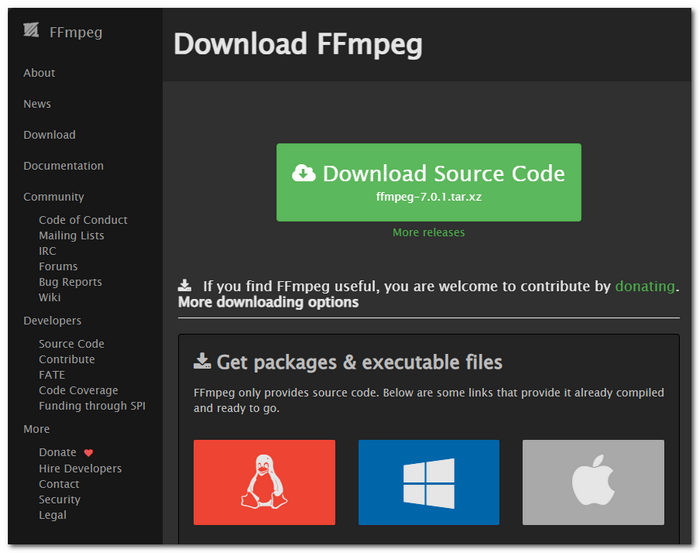
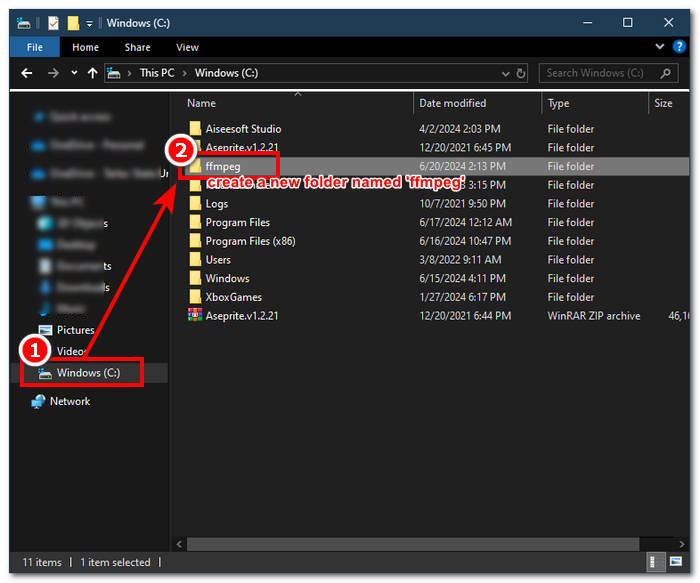
Stáhněte si soubor zip z webové stránky a vytvořte novou složku v systémové cestě pro uložení všech spustitelných souborů FFmpeg, včetně přesunutí souboru zip do složky.
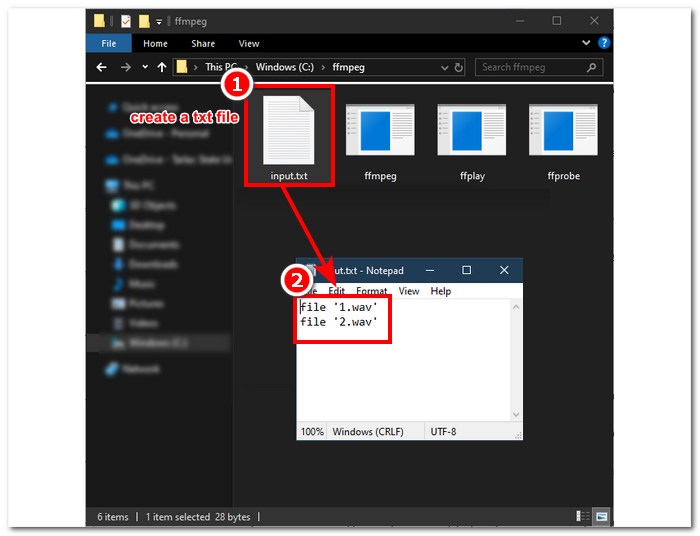
Krok 2. Přesuňte soubory WAV do složky ffmpeg, kterou jste právě vytvořili, a připravte je tak, že je v adresáři přejmenujete na ‘input1.wav’ a ‘input2.wav’.

Poznámka: Ve stejné složce pak vytvořte soubor s názvem ‘input.txt’ a vložte do něj následující obsah:;
file 'input1.wav'
file 'input2.wav'
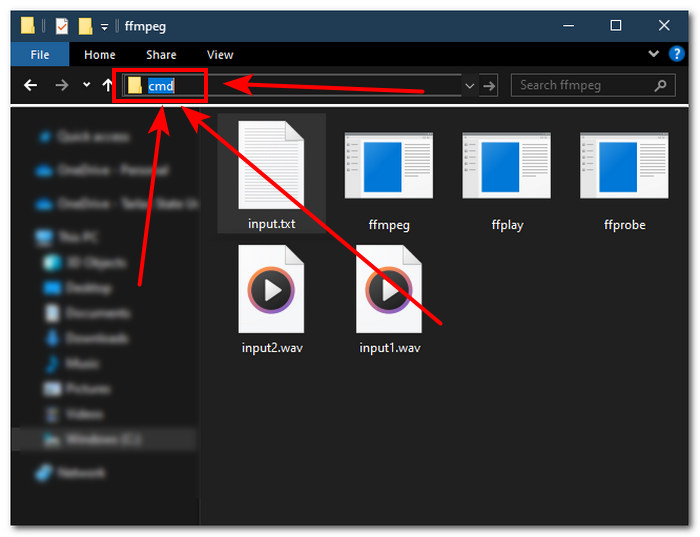
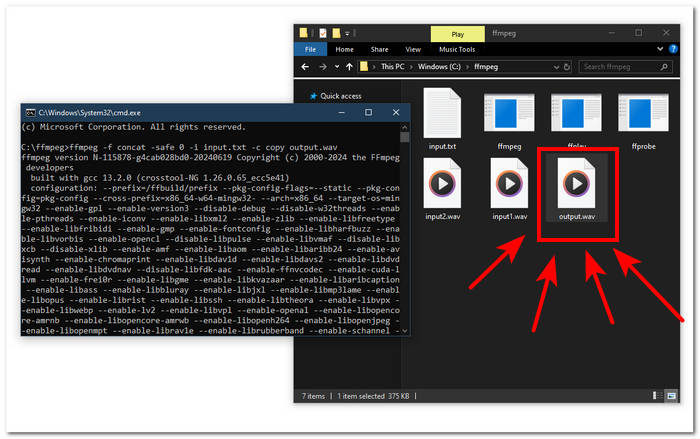
Krok 3. Spusťte příkazový řádek FFmpeg tak, že do pole cesty ve horní části okna napíšete ‘cmd’ a stisknete Enter.
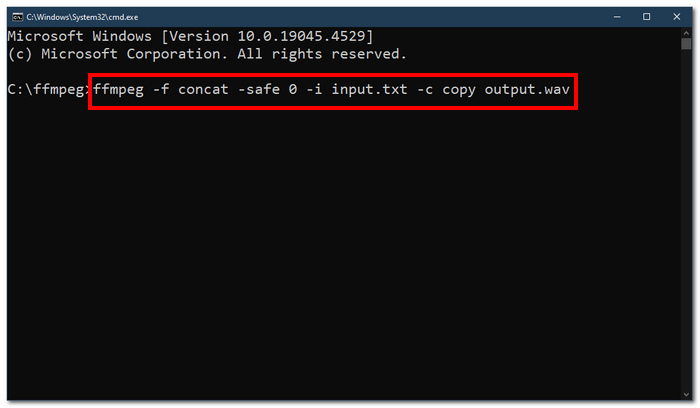
Krok 4. Jakmile jste v příkazovém řádku FFmpeg, zadejte následující příkaz a stiskněte Enter:;
ffmpeg -f concat -safe 0 -i input.txt -c copy output.wav
Krok 5. Ve složce se objeví nový soubor WAV, což znamená, že se vám podařilo sloučit soubory WAV do jednoho.
Tipy
• Protože je nástroj založen na příkazovém řádku, je důležité znát a znát základní příkazový řádek pro efektivní navigaci nástrojem.
• Udržujte všechny složky a soubory související s FFmpeg v jedné složce pro organizaci a snadný přístup.
• Pokud chcete dělat jiné úkoly, než je slučování souborů WAV, sledujte výukové programy a přečtěte si průvodce na internetu.
Část 5. Často kladené otázky o tom, jak kombinovat soubory WAV
Můžete míchat soubory WAV?
Ano, soubory WAV můžete míchat pomocí softwaru třetích stran vytvořeného pro slučování souborů WAV, jako je Video Converter Ultimate a Audacity vybraný společností FVC.
Může VLC sloučit zvukové soubory?
Přehrávač médií VLC nemá schopnost slučovat soubory WAV, protože je určen výhradně pro streamování médií a konverzi médií.
Jak sloučit video soubory ve Windows Media Player?
Windows Media Player nepodporuje úpravy souborů WAV, natož slučování souborů WAV. Windows Media Player je software vytvořený pro zařízení se systémem Windows určený k přehrávání mediálního obsahu.
Jaký je nejjednodušší způsob, jak kombinovat zvukové soubory?
Nejjednodušší způsob, jak sloučit soubory WAV, je použít FVC-vybraný Video Converter Ultimate; tento software je navržen s technologií vysokorychlostního zpracování, aby byl vhodný pro uživatele s nejmenšími zkušenostmi s úkoly úpravy zvuku, jako je kombinování souborů WAV.
Může kombinace souborů WAV ovlivnit kvalitu zvuku?
Ano, softwarové nástroje mohou výrazně ovlivnit kvalitu souboru WAV v závislosti na kvalitě softwaru, který používáte. Nejhorší kvalitu může mít při použití načrtnutého nástroje. Když používáte důvěryhodné a spolehlivé softwarové nástroje, jako je Video Converter Ultimate, Audacity a další, vybraný pro FVC, může to pomoci zachovat původní kvalitu.
Závěr
Na závěr: slučujte soubory WAV pomocí uvedených softwarových nástrojů, abyste je efektivně zkombinovali a exportovali v bezztrátové kvalitě. Je třeba mít na paměti, že klíčovou částí procesu je jak nalezení správných nástrojů, tak naučení se s nimi pracovat. Od plnohodnotných nástrojů, jako je FVC-picked Video Converter Ultimate, až po pokročilý nástroj pro příkazový řádek FFmpeg vám tento článek poskytuje kroky i užitečné tipy, takže stačí postupovat podle nich a získáte přímý a bezproblémový proces slučování.
-
 Jak mohu převést MP4 na WAV online zdarma
 Snažíte se převést MP4 na WAV? Nevíte, který převodník vám s tím dokonale pomůže, aniž byste zaplatili cent? Přečtěte si tento příspěvek a všechny vaše otázky budou zodpovězeny.
-
 Recenze 10 nejlepších bezplatných hudebních přehrávačů MP3
 Jaký je nejlepší hudební přehrávač MP3? Jak vložím hudbu do přehrávače MP3? Jak si stáhnout hudební přehrávač MP3? Tento příspěvek poskytuje podrobnou recenzi 10 nejlepších bezplatných MP3 přehrávačů pro Windows PC a Mac.
-
 8 nejlepších přehrávačů MOV pro PC a Mac pro přehrávání video souborů QuickTime MOV
 Prostě se dozvíte více o 8 nejlepších přehrávačích MOV dostupných pro Windows i Mac. Můžete vybrat požadovaný a vhodný soubor pro přehrávání souborů MOV v původní kvalitě.
