


 Video Converter Ultimate
 Screen Recorder
 Oprava videa
 Bezpečné stažení
2 efektivní metody pro převod videí AVI na GIF zdarma
Když si chcete vystřihnout zajímavý úsek vystoupení nebo výraznou grimasu ze svých oblíbených filmů v AVI a poslat je přátelům jako memy, je lepší převést tato AVI videa na soubory GIF. Přestože jsou AVI videa kompatibilní s prohlížeči a mnoha platformami, jejich velká velikost ztěžuje rychlé odesílání. Proto je převod klipů z AVI do GIF nejlepším způsobem, jak memy šířit. GIF je totiž grafický formát s velmi malou velikostí, a proto se skvěle hodí pro sdílení na internetu.
Možná vás zajímá, zda lze formát videa AVI převést na grafický formát GIF, či nikoli. Odpověď je ano. Pokračujte v čtení tohoto článku a dozvíte se 2 snadné a efektivní metody přenosu videí AVI do souborů GIF.

Část 1: Nejlepší způsob, jak snadno klipovat videa AVI a převádět soubory AVI na soubory GIF
Když chcete převést dlouhá AVI videa na krátké soubory GIF, abyste vytvořili memy nebo je vložili do své prezentace PowerPoint, musíte původní videa oříznout a ponechat jen potřebné části. Proto je FVC Free Video to GIF Maker vaší nejlepší volbou – je to univerzální software, který dokáže videa stříhat a převádět segmenty AVI do GIF. Navíc můžete upravit rozlišení GIF a snímkovou frekvenci, abyste zachovali plynulost a kvalitu.
- 1. Snadno převádějte videa AVI na animované soubory GIF s 30krát rychlejší rychlostí zpracování.
- 2. Schopen oříznout původní videa AVI a vybrat požadované části k převodu.
- 3. Přizpůsobte rozlišení videa a snímkovou frekvenci a vytvořte plynulé soubory GIF s vysokou kvalitou.
- 4. Poskytněte funkci úprav pro přidání motivů, efektů, vodoznaků a titulků.
Zdarma ke staženíPro Windows 7 nebo novějšíBezpečné stažení
Zdarma ke staženíPro MacOS 10.7 nebo novějšíBezpečné stažení
Krok 1: Stáhněte si do počítače FVC Free Video to GIF Maker a spusťte jej. Klikněte na tlačítko Add Files a vyberte požadovaná AVI videa; do programu na tvorbu GIF můžete přidat i dávku AVI souborů.
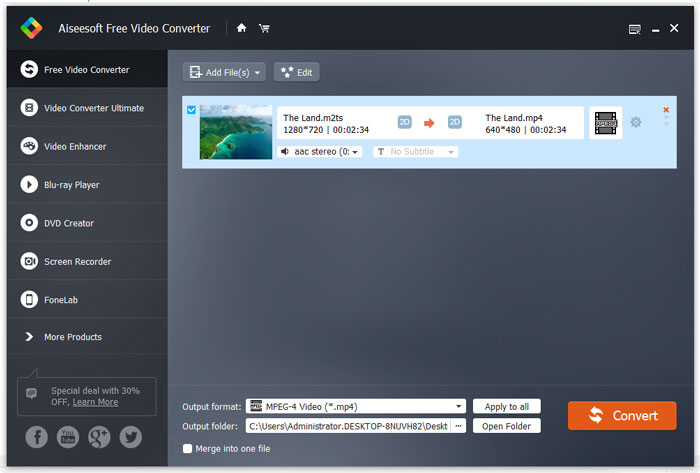
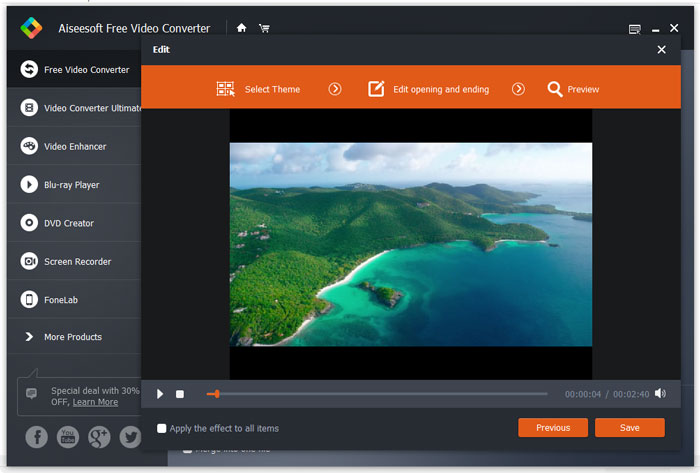
Krok 2: Abyste vyřízli požadovanou část a vytvořili z ní GIF, můžete použít funkci Clip. Snadno posunete časovou osu a volně vystřihnete vybraný segment. Dále můžete kliknout na tlačítko Edit a k videu přidat přednastavená témata a titulky. Před exportem si můžete efekty také zobrazit v náhledu. Poté klikněte na tlačítko Save, abyste nastavení uložili.
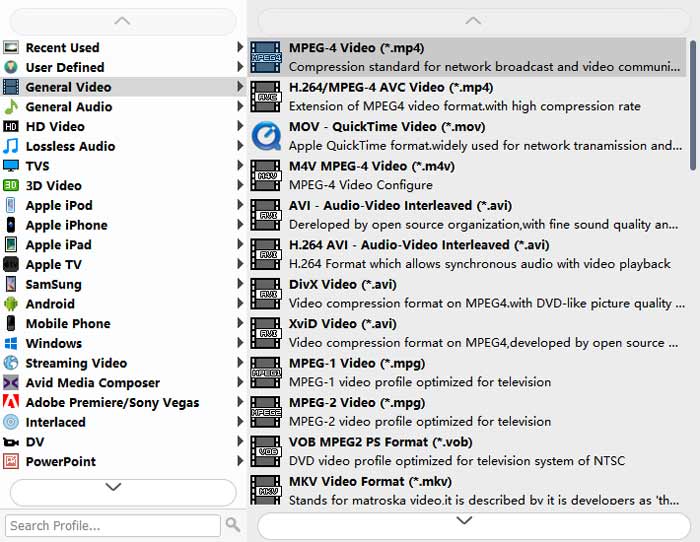
Krok 3: Po návratu do hlavního rozhraní klikněte dole na nabídku Output Format a zvolte formát GIF pro export. Pokud chcete změnit podrobnější nastavení, klikněte na ikonu Settings u videí. Můžete ponechat původní rozlišení videa a upravit snímkovou frekvenci. Při dávkovém převodu AVI videí do GIF nezapomeňte kliknout na tlačítko Apply to all. Nakonec klikněte na tlačítko Convert a uložte soubory GIF.
Můžete zde zůstat a zjistit rozdíl mezi formáty AVI a MP4.
Část 2: Jak převádět videa AVI na soubory GIF online zdarma
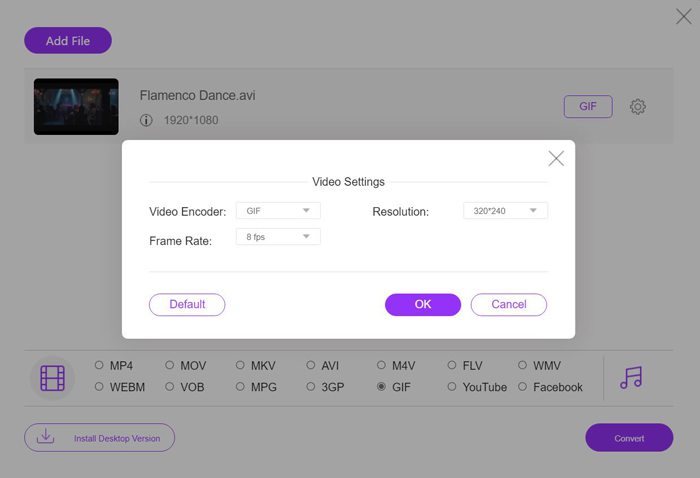
K dispozici je pro vás také snadno použitelný bezplatný online převodník videí. Bez stahování jakéhokoli softwaru můžete převést AVI na animované soubory GIF jednoduše pomocí FVC Free Online Video Converter. Ačkoli můžete upravovat parametry videa, pro soubory GIF nabízí maximálně rozlišení 320×240 a snímkovou frekvenci 8 fps, což vytváří GIFy s nižší plynulostí a kvalitou. Navíc musíte videa oříznout předem, protože nepodporuje střih videí. Podrobné kroky jsou popsány níže:
Krok 1: Otevřete oficiální webové stránky FVC Free Online Video Converter v libovolném prohlížeči. Klikněte na tlačítko Add Files to Convert, během několika sekund nainstalujte spouštěč a poté na tlačítko klikněte znovu, abyste vybrali požadované videosoubory z počítače a přidali je do převodníku.
Stáhněte si desktopovou verzi a převádějte soubory hromadně.
Krok 2: V dolním seznamu videí zvolte formát GIF a poté klikněte na ikonu Settings, abyste vybrali rozlišení videa a snímkovou frekvenci. Kvůli omezením můžete jen zvolit maximální nastavení, abyste co nejvíce zachovali kvalitu. Poté klikněte na tlačítko OK pro uložení nastavení. Kliknutím na tlačítko Convert pak vyberte cílovou složku a spusťte převod AVI do GIF.
AVI vs. GIF
Formát AVI, založený na formátu RIFF (Resource Interchange File Format), byl představen společností Microsoft v roce 1992. Dokáže uložit vysoce kvalitní video/audio, protože používá méně komprese. To však také způsobuje velkou velikost souboru AVI, což může být problém, když je k dispozici omezený prostor.
GIF je běžný formát obrázků pro webovou grafiku. Kromě ukládání malých obrázků a obrázků, které obsahují text, může GIF také obsahovat a zobrazovat základní animace na webových stránkách. Je to bezztrátový formát a komprese GIF nesnižuje čistotu obrazu.
Část 3: Časté dotazy týkající se převodu AVI na animované soubory GIF
1. Mohu při transformaci videí AVI na GIF přidat slova nebo vodoznaky?
Ano můžeš. Prostřednictvím FVC Free Video to GIF Maker můžete pomocí funkce úprav přidávat do exportovaných souborů titulky, vodoznaky a motivy při převodu videí AVI na GIF. Kromě toho můžete původní videa volně ořezávat do několika segmentů.
2. Poškodí převod AVI na animovaný GIF kvalitu videa?
Ano. Formát GIF je určen k šíření souborů na internetu, takže videa komprimovaná do formátu GIF mají vždy velmi malou velikost a nízkou kvalitu. A formát AVI má nízkou míru komprese, takže videa AVI mají velké velikosti s vysokou kvalitou.
3. Je bezpečné převádět videa AVI na GIF online?
Samozřejmě je to bezpečné. FVC Free Online Video Converter po dokončení procesu převodu neuloží vaše soubory pro import a export. Pomocí tohoto převaděče tedy můžete spolehlivě přenášet soubory AVI do souborů GIF.
Závěr
Soubory GIF jsou pro šíření na internetu lepší než videa ve formátu AVI. A tento článek představil 2 efektivní řešení pro převod videí AVI na soubory GIF. Profesionální software - FVC Free Video to GIF Maker splní všechny vaše požadavky s přizpůsobeným nastavením a vysokou kvalitou. Pokud vám ale nezáleží na kvalitě, můžete si snadno vyzkoušet bezplatný online převodník. Níže můžete zanechat své komentáře a rady.
-
 Podrobný průvodce převodem MP4 na GIF na počítači nebo online
 Hledáte nejlepší způsob, jak převést video MP4 na animované soubory GIF? Zde je podrobný průvodce, jak to provést ve Photoshopu, Windows Movie Maker, online video převaděči a dalších.
-
 Jak převést AVI na MP4 na počítači nebo online zdarma
 Někdy, když sledujeme film v telefonu, přehrávač, který používáme, vyzve, aby video nebylo možné přehrát, protože nepodporuje formát AVI. Jak tedy můžeme rychle změnit AVI na MP4 bez ztráty kvality? Zde můžete vyzkoušet několik bezplatných metod.
-
 GIF Player - 5 nejlepších hráčů GIF pro Windows PC, Mac, Android a iPhone
 Jaký program otevírá soubory GIF? Jak zobrazím soubory GIF v systému Android? Má iPhone přehrávač GIF pro otevírání souborů GIF? Tento příspěvek za vás sdílí 5 nejlepších hráčů GIF.

