


 Video Converter Ultimate
 Screen Recorder
 Oprava videa
 Bezpečné stažení
Vylepšete rozlišení fotografií iPhone pomocí nejlepších způsobů, které musíte znát [Nejnovější]
Pokud potřebujete mobilní zařízení, které dokáže pořizovat snímky ve vysokém rozlišení, je chytrou volbou vybrat si iPhone díky jeho inovativním špičkovým předním i zadním fotoaparátům. Omlouváme se uživatelům Androidu, ale musíme čelit pravdě, že fotoaparát nejnovějšího iPhonu je o dost lepší. Většina lidí obvykle fotí na zařízeních iPhone, ale ne všechny snímky, které pořídí, jsou dokonalé; některé potřebují úpravu, editaci, vylepšení nebo upscalování. Chcete‑li zlepšit rozlišení fotografií na iPhonu, pokračujte ve čtení tohoto článku, kde uvádíme všechny informace, které potřebujete vědět!
Část 1. Doporučený způsob: Jak zvýšit rozlišení fotografií online pomocí nejlepšího nástroje pro vylepšení obrazu
Jak změnit rozlišení fotek na iPhonu 13? Pokud je tohle váš problém, musíte použít FVC Free Image Upscaler. Vše, co sem nahrajete, tento nástroj okamžitě zvětší pomocí své vyspělé technologie umělé inteligence. Jakmile sem obrázek nahrajete, můžete se posadit a odpočívat, protože nástroj automaticky zvýší jeho rozlišení. Na rozdíl od jiného softwaru zde nemusíte stahovat žádný instalační program. Také FVC nevyžaduje, abyste se přihlašovali ke svému účtu, takže jste v bezpečí před únikem informací a nedostáváte žádné cookies. Pokud vás tedy tento nástroj zaujal, můžete hned následovat kroky uvedené níže a problém vyřešit.
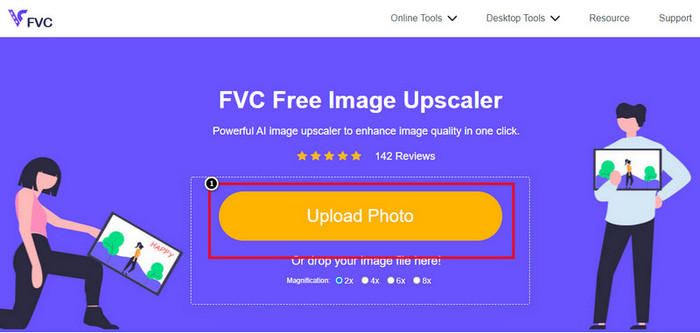
Krok 1. Otevřete online nástroj kliknutím na jeho název výše a automaticky se otevře nová karta, která vás přesměruje na oficiální webové stránky.
Krok 2. Klikněte na Upload Photo, abyste vložili obrázek, který chcete v tomto nástroji zvětšit. Po kliknutí se na obrazovce zobrazí složka, vyberte obrázek a stiskněte Open.
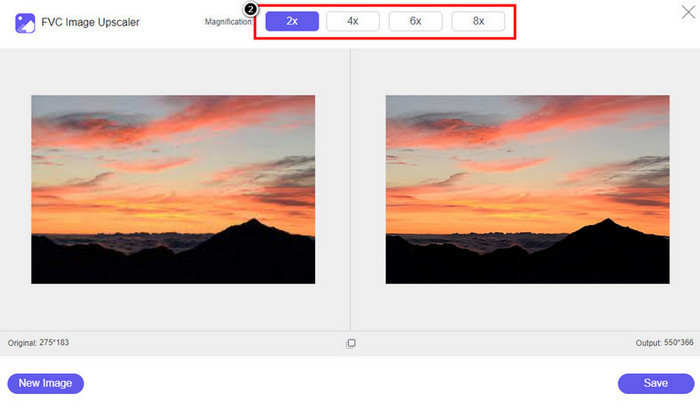
Krok 3. Zvolte typ zvětšení (Magnification), které chcete na vylepšenou verzi obrázku použít; můžete vyzkoušet všechny možnosti a zjistit, která varianta vypadá na vašem snímku nejlépe.
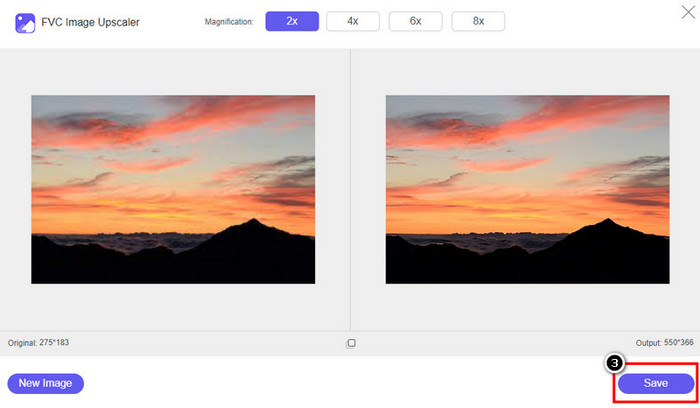
Krok 4. Klikněte na tlačítko Save, abyste si stáhli obrázek, který jste zde vylepšili; nástroj jej přímo uloží do vašeho místního úložiště. Podívejte se na upscalovanou verzi obrázku, který jste zde upravili.
Část 2. Jak změnit rozlišení fotografie na iPhone [Snadné vylepšení ukládání obrázku]
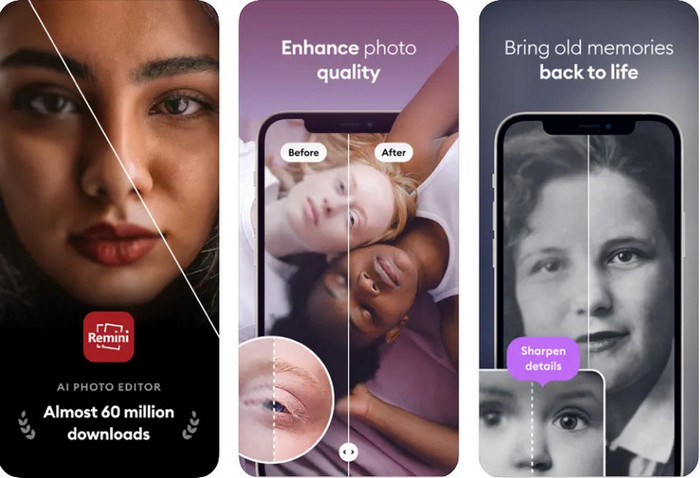
Aplikace Remini App vám umožní změnit rozlišení fotek na iPhonu, aby vypadaly ještě lépe. Tuto aplikaci si můžete stáhnout v App Storu. Jde o všestranný editor obrázků, který vám pomůže vylepšit fotografie a jedním tahem proměnit černobílé snímky v barevné. S touto aplikací můžete díky technologii AI zvětšit jakýkoli obrázek až 4×. Pokud chcete tuto aplikaci používat, můžete postupovat podle návodu krok za krokem, který uvádíme dál.
Krok 1. Stáhněte si aplikaci do svého iPhonu, abyste ji mohli začít používat.
Krok 2. Otevřete aplikaci a stiskněte Enhance. Vyberte snímek, který chcete vylepšit, z aplikace Fotky.
Krok 3. Počkejte, než se nahraný obrázek zpracuje a vylepší; tažením posuvníku můžete porovnat stav před a po úpravě.
Krok 4. Jakmile je zpracování dokončeno, klikněte na tlačítko Save a stáhněte si vylepšený obrázek.
Část 3. Jak změnit rozlišení fotografií v systému Android [Efektivně vylepšit obrázky]
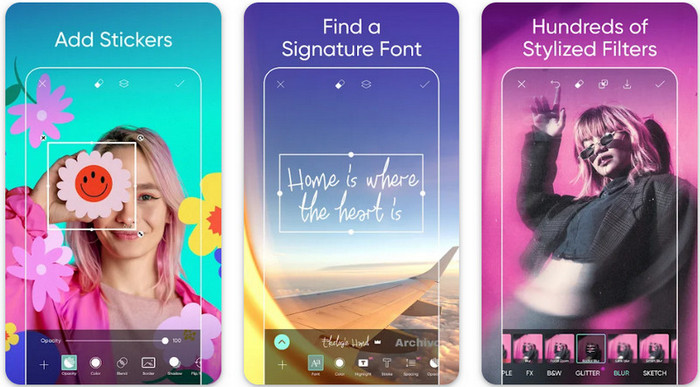
Jak změnit rozlišení obrázků na Androidu? Pokud chcete zvýšit rozlišení snímků, které pořizujete na Androidu, můžete zkusit použít aplikaci Picsart. Je to známá aplikace, kterou si můžete do svého Androidu stáhnout a upravovat v ní fotografie tak, aby vypadaly lépe. Aplikace je bohatá na funkce, kterých můžete využít. Vylepšení, které vás naučíme, není úplně to, co byste možná čekali, ale dokáže kvalitu obrázků zlepšit. Další podrobné informace najdete níže!
Krok 1. Stáhněte si aplikaci přes Obchod Play a poté ji spusťte. Vyberte snímek, který chcete vylepšit, a nahrajte jej.
Krok 2. Přejděte do Effects, klikněte na Blur, posuvníkem nastavte rozmazání na hodnotu 5 až 10 a stiskněte ikonu check pro uložení.
Krok 3. Otevřete sekci Tools a přejděte na Curve.
Krok 4. Upravte křivku tažením nahoru a dolů tak, aby rozlišení obrázku vypadalo lépe.
Krok 5. Klepněte na ikonu check, abyste uložili změny, které jste na obrázku provedli úpravou křivky, a poté jej Exportujte.
Část 4. Jak upravit nastavení fotoaparátu pro zachycení lepších snímků! [Tipy a triky]
Jak zvýšit rozlišení fotografie na iPhonu pro zachycení lepšího obrazového portrétu? Ne všechny funkce jsou uvedeny v aplikaci Fotoaparát na vašem iPhone. Některé z možností, jak zlepšit kvalitu obrazu, jsou nastavení. Zajímá vás, jak se s tímto problémem vypořádat? Poté pokračujte ve čtení informací, které přidáváme níže.
Krok 1. Přejděte do Nastavení a otevřete aplikaci Fotoaparát.
Krok 2. Klikněte na položku Formats.
Krok 3. Nastavte konečný výstup na Most Compatible, což je JPEG. Všechny snímky, které pořídíte, pak budou v rozšíření JPEG, o kterém víme, že používá ztrátovou kompresi s vysokou kvalitou výsledného obrazu.
Související:
Jak opravit fotografie ve formátu HEIC pomocí nejlepších nástrojů
Část 5. Často kladené otázky o tom, jak změnit rozlišení fotografií na iPhone
Co zhoršuje kvalitu obrazu na iPhone?
Existuje mnoho faktorů, které musíte zvážit, v čem by mohl být problém. Před pořízením snímku se ujistěte, že máte vyčištěnou čočku svého iPhonu a máte pevnou ruku, nebo můžete použít stojánek na fotoaparát a použít vysoké ISO pro pohybující se objekty. Pokud jste to udělali a stále máte špatnou kvalitu, můžete použít nástroje, které uvádíme v tomto článku.
Zvětšuje změna kvality obrazu velikost souboru?
Po vylepšení se kvalita obrazu skutečně zvýší. Když k obrázku přidáte pixely, po jeho vylepšení se také zvětší velikost souboru vylepšené verze.
Je změna rozlišení fotografie na iPhone snadná?
Ano, k vylepšení rozlišení fotografií vašeho iPhonu nemusíte mít dlouholeté zkušenosti, takže pokud chcete vědět, jak to udělat, můžete zkopírovat kroky, které jsme přidali výše, a nástroje, které představujeme a které můžete použít.
Závěr
Nakonec tedy máme jasnou představu o tom, jak díky těmto specializovaným aplikacím ještě více vylepšit rozlišení fotek na iPhonu! Doufáme, že vám tento článek pomohl vyřešit problém pomocí různých řešení pro iPhone i Android. Nikdo nemá rád špatnou kvalitu obrázků, a proto jsme tu, abychom ji napravili. Postupujte podle kroků uvedených výše a vše zvládnete během chvilky!
-
 Jak převést obrázek s nízkým rozlišením na obrázek s vysokým rozlišením online
 Pokud se chcete naučit, jak převádět obrázky s nízkým rozlišením na obrázky s vysokým rozlišením online, pak je tento článek určen právě vám. Přečtěte si úplně, jak na to.
-
 6 nejlepších odstraňovačů skvrn, které musíte mít [2022]
 Potřebujete odstraňovač fotografických skvrn, abyste měli hladkou pokožku? Už se nebojte! Zde představíme různé nástroje, které mohou vašemu zařízení pomoci.
-
 Odstraňte vodoznak StarUML pomocí bezplatné a placené verze, kterou můžete použít
 Chcete odstranit vodoznak StarUML na konečném výstupu? No, existují dva způsoby, jak to udělat, a pojďme si je zde probrat.
