


 Video Converter Ultimate
 Screen Recorder
 Oprava videa
 Bezpečné stažení
Odstraňte objekt z fotografií pomocí 6 efektivního softwaru [zdarma]
Miliony fotografů, včetně těch začínajících, pořizují spoustu snímků západů slunce, pláží, turistických míst, měsíce a mnoha dalších scén. Pomocí obrázků můžeme vyjádřit, kým ve skutečnosti jsme. Jediným jednoduchým cvaknutím můžete zažehnout kreativitu všech kolem a probudit v nich jejich umělecké „démony“. Ne pokaždé, když fotíme, získáme dokonale povedený snímek; někdy je potřeba odstranit určitý objekt, který na výsledné fotografii nechceme. Potřebujete nástroj, který vám pomůže odstranit objekt z fotek? Zde představíme různé způsoby a nástroje, které můžete použít k okamžitému odstranění nežádoucích objektů z pořízených snímků.

Část 1. Odstraňte objekt z fotografie pomocí nejlepšího odstraňovače objektů [webová služba]
FVC Free Watermark Remover je naší první volbou pro bezplatné online odstranění objektů z fotografií. Díky němu můžete během chvilky vymazat cokoli, co kazí vaši dokonalou fotografii, aniž byste museli stahovat software do počítače – a to i v případě, že nemáte s takovou úpravou žádné zkušenosti. Můžete se na tento nástroj spolehnout, protože stačí objekt jen označit a on jej z obrázku odstraní, aniž by po něm zůstaly zbytky. Tento nástroj považujeme za zábavný a zároveň účinný při odstraňování zbytečných prvků z fotografií; pokud jej chcete použít, postupujte podle níže uvedených kroků.
Krok 1. Abyste otevřeli obrázek a odstranili objekt pomocí vývojového nástroje FVC, klikněte na tento odkaz na oficiální web.
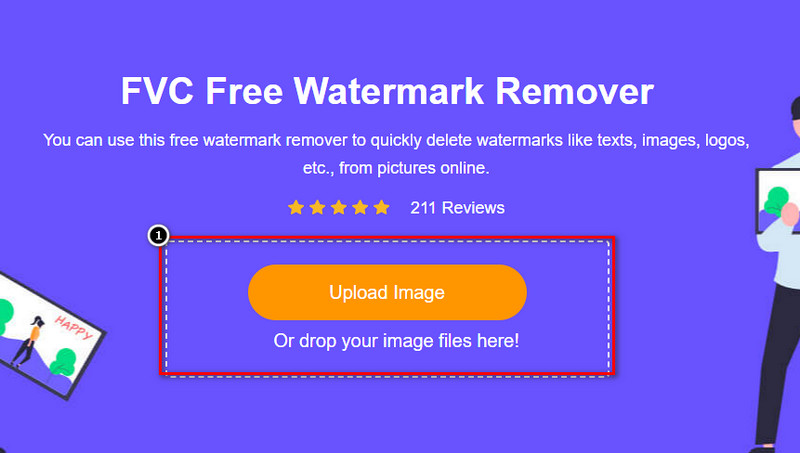
Krok 2. Klikněte na Upload Image a naimportujte fotografii, na níž se nachází nežádoucí objekt.
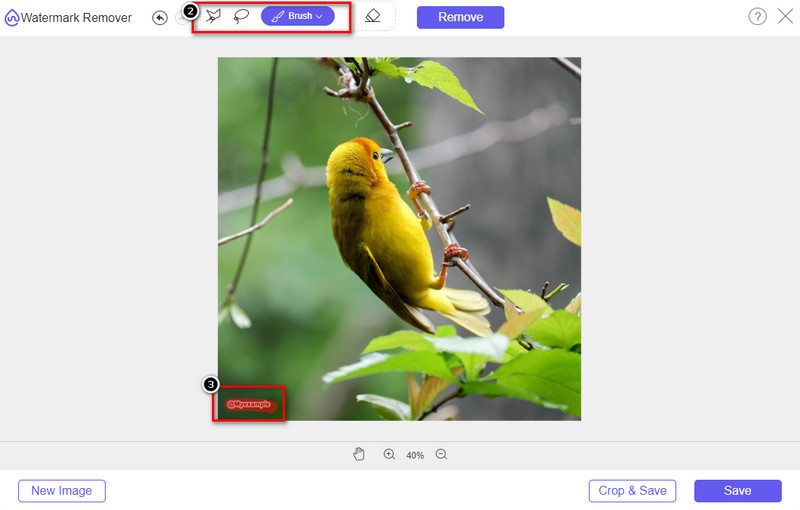
Krok 3. Pomocí zde dostupných nástrojů označte objekt, který chcete odstranit.
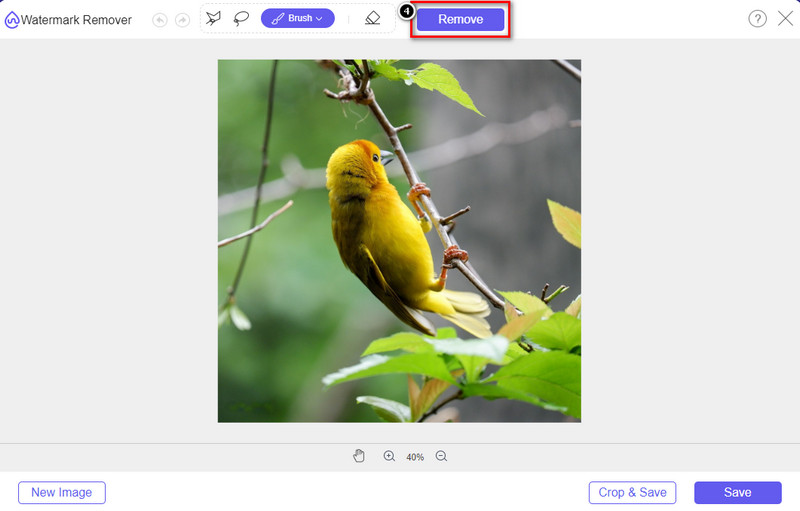
Krok 4. Stiskněte tlačítko Remove, aby se objekt odstranil za pomoci AI technologie, kterou tento nástroj využívá.
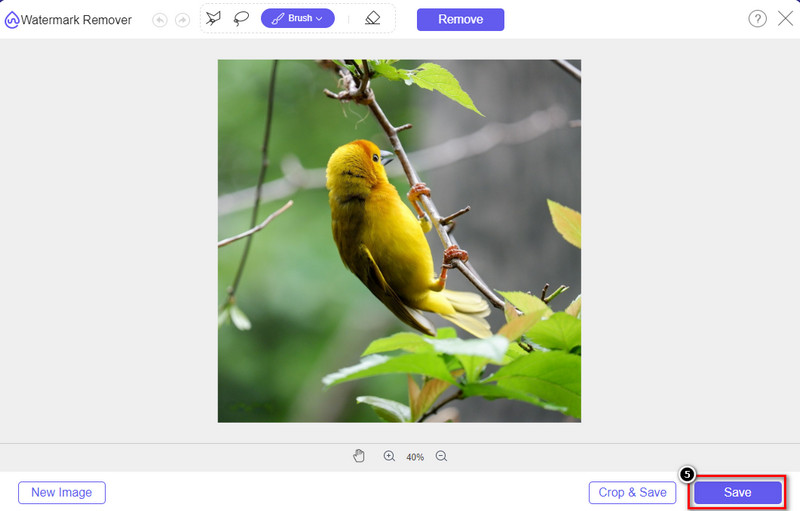
Krok 5. Chcete-li si stáhnout upravený, dokonalý snímek, klikněte na Save.
Část 2. Profesionální odstranění objektu z fotografie pomocí programů pro stolní počítače [Windows a Mac]
Photoshop
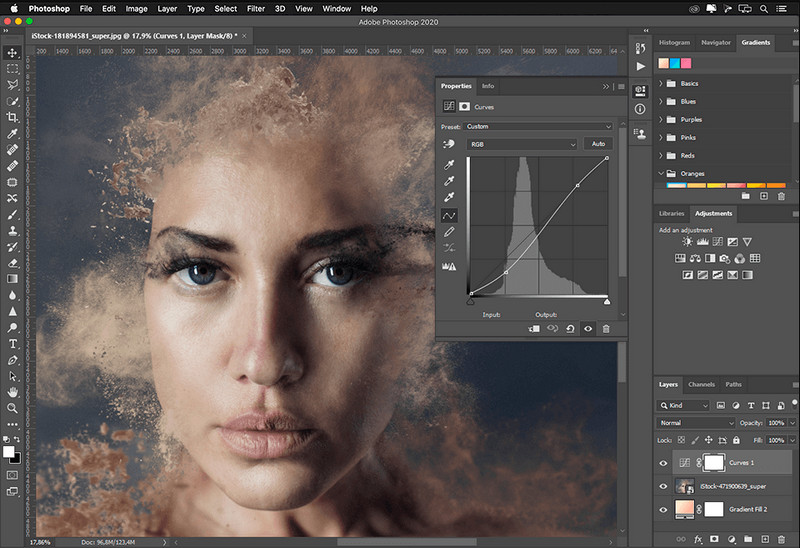
Pokud potřebujete profesionální nástroj k odstranění objektů z fotografií, pak je Photoshop řešením! Tento nástroj je kompletní editor obrázků, který nám Adobe hrdě představuje. Nic vám nebrání v tom, aby obraz díky jeho vlastnostem a funkcím vypadal neuvěřitelně. Vzhledem k jeho popularitě mezi profesionály se mnoho začátečníků pokouší použít tento software k úpravě a vytváření svých obrázků. Pokud tedy chcete vědět, jak používat tento profesionální nástroj, můžete se řídit výukovým programem, který přidáváme níže.
Krok 1. Otevřete oficiální stránky Adobe a stáhněte si Photoshop do počítače.
Krok 2. Klikněte na File a poté na Open, abyste nahráli obrázek, který potřebujete upravit.
Krok 3. V levém panelu vyberte Magic Wand Tool, který automaticky obkreslí objekt na obrázku.
Krok 4. Přejděte do nabídky Edit a pod ní vyberte Content-Aware Fill.
Krok 5. Po otevření této funkce se vodoznak automaticky odstraní, poté klikněte na OK.
GIMP
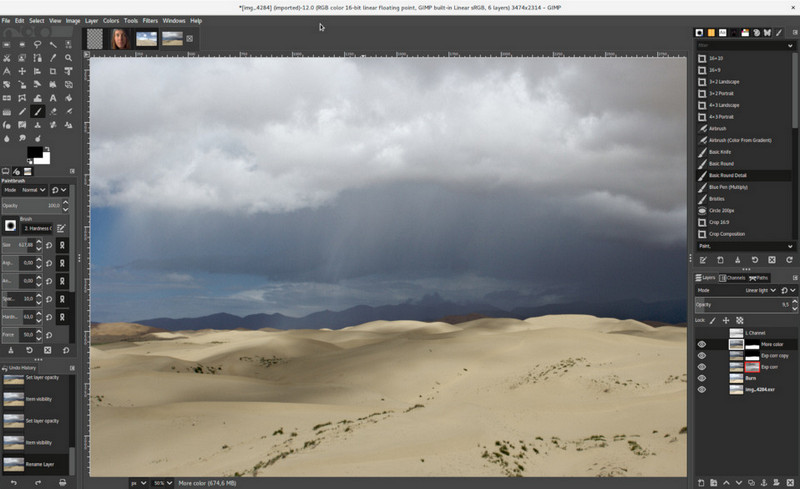
GIMP je plnohodnotný editor obrázků, který můžete zdarma použít k odstranění objektů z fotek na Macu, Linuxu i Windows. Je to spolehlivý nástroj podobný Photoshopu. Přestože se tento nástroj často uvádí jako nejlepší alternativa k Adobe Photoshopu, stále je aktivně vyvíjen. S jeho pomocí můžete své snímky rozsáhle upravovat tak, aby byly pro diváky co nejatraktivnější. Rozhraní si navíc můžete přizpůsobit podle sebe, aby se vám pracovalo pohodlněji. Pokud zvažujete stažení tohoto nástroje pro profesionální úpravy, můžeme vám zaručit, že jich dosáhnete. I když jde o open source editor, stále není úplně „dotažený“, protože jeho grafické rozhraní je ještě ve vývoji. Pokud jej chcete použít, následující kroky vás provedou odstraněním objektu z fotky v GIMPu. Níže uvedené kroky vás provedou celým procesem.
Krok 1. Stáhněte a spusťte software, abyste mohli nahrát obrázek, který potřebujete upravit. Také si stáhněte jeho zásuvný modul Resynthesizer.
Krok 2. V levém panelu nástrojů vyberte Free Select a změňte režim na Add Current Selection.
Krok 3. Obkreslete objekt, který chcete odstranit; po úspěšném vyznačení objektu stiskněte na klávesnici Enter.
Krok 4. Chcete-li použít stažený plug-in, přejděte do nabídky Filter, poté Enhance a klikněte na Heal Selection.
Krok 5. Zobrazí se dialogové okno, ve kterém případně upravte šířku vzorkování, nastavte Sample na all-around a Filling Order na random. Stiskněte OK a začněte syntetizovat oblast uvnitř obrázku.
Aplikace Photo na Macu
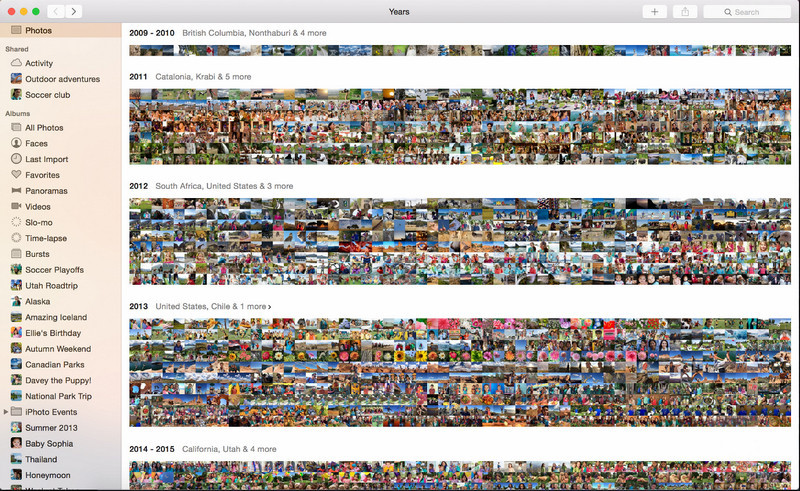
Photo App je vestavěná funkce v novějších produktech Apple, jako je Mac. Tato aplikace je předinstalovaná, takže můžete přeskočit část se stahováním a rovnou ji začít používat. Software sice není plnohodnotný editor obrázků, jeho účelem je hlavně sloužit jako knihovna a prohlížeč fotografií na Macu nebo zařízeních s iOS. Přesto i bez profesionálního editoru na Macu můžete využít jeho funkce a jediným kliknutím dosáhnout profesionálně vypadajícího výsledku. Pokud tedy chcete odstranit objekt v aplikaci Fotky, postupujte podle kroků uvedených níže.
Krok 1. Otevřete na Macu aplikaci Fotky a vyberte snímek, který obsahuje nežádoucí objekt.
Krok 2. Vpravo nahoře klikněte na tlačítko Edit, abyste mohli začít obrázek upravovat.
Krok 3. Vpravo uvidíte možnost Retouch; klikněte na ni, abyste funkci aktivovali.
Krok 4. Klikněte a přetáhněte myší po oblasti, kterou chcete odstranit.
Krok 5. Stiskněte tlačítko Done, abyste uložili provedené změny.
Část 3. Odebrat objekt z fotografie pomocí aplikace pro Android a iOS
Photoshop OPRAVA
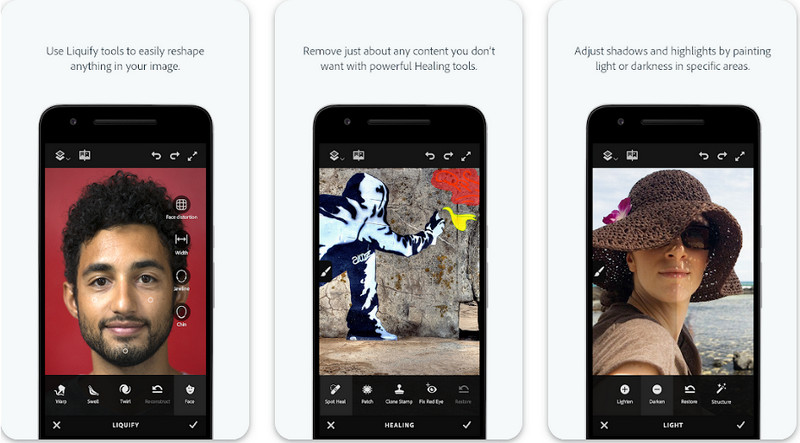
Photoshop FIX je efektivní aplikace pro Android, která dokáže profesionálně, a přitom jednoduše odstranit objekty z fotek. Jedná se o open source aplikaci, kterou si můžete stáhnout do zařízení z Obchodu Play. Přestože je nástroj open source, funkce pro odstraňování objektů je bezesporu výborná. Patří k nejstahovanějším aplikacím pro Android určeným právě k této práci. Chcete-li zjistit, jak aplikaci používat, pokračujte čtením níže.
Krok 1. Stáhněte aplikaci do svého zařízení s Androidem.
Krok 2. Stiskněte On My Phone, aby se zobrazily všechny snímky ve vaší knihovně. Vyberte fotografii, kterou chcete upravit.
Krok 3. Chcete-li použít funkci odstranění objektu v této aplikaci, klikněte na Healing.
Krok 4. K odstranění můžete použít dvě možnosti. Pokud chcete objekt „přebrousit“, zvolte Spot Heal. Pokud chcete klonovat pixely, musíte zvolit Clone Stamp. Pomocí vybrané možnosti zvýrazněte vodoznak.
Krok 5. Uložte obrázek do galerie (camera roll) – a je hotovo!
Retuš fotografií
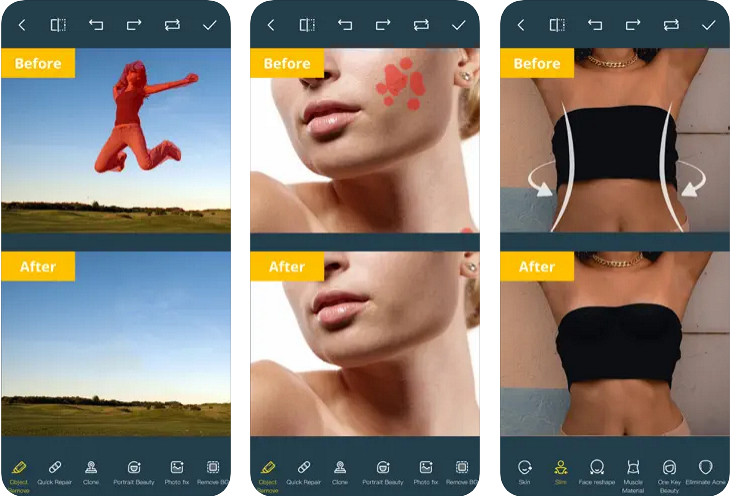
Photo Retouch je spolehlivá aplikace pro bezproblémové odstranění objektů z fotek na iPhonu. I když nejste ostřílený profesionál v odstraňování objektů z obrázků, dokážete je díky ní odstranit efektivně. Aplikaci si můžete zdarma stáhnout z App Storu, pokud ji chcete vyzkoušet. Navíc s ní můžete odstranit i pozadí nebo vodoznak z fotografie, pokud to potřebujete. Jste-li připraveni použít tuto aplikaci k odstranění objektu z obrázku, postupujte podle níže uvedených kroků.
Krok 1. Stáhněte oficiální aplikaci a spusťte ji.
Krok 2. Klikněte na Photo Eraser a poté na Photo. Vyberte snímek s nežádoucím pozadím, které chcete odstranit, a ujistěte se, že je tento obrázek uložen v aplikaci Fotky na vašem iPhonu.
Krok 3. Ve spodní části zvolte možnost Object Removal.
Krok 4. Použijte štětec, který aplikace nabízí, k obkreslení objektu, který chcete odstranit, a klikněte na GO, aby se objekt odstranil.
Související:
Odstranit vodoznak filtru Picsart
Část 4. Často kladené otázky o tom, jak odstranit objekty z fotografií
Proč potřebuji odstraňovat objekty z fotografií?
Je mnoho času, kdy něco zachytíme, a existují fotobombery. Tento objekt je pro většinu profesionálů na jiných lidech problém, protože nezvýrazňuje zachycený obraz. Místo opětovného pořízení snímku si tedy můžete přečíst následující ideální způsoby odstranění objektu na vaší fotografii.
Mohu oříznout obrázek a odstranit objekty?
Ano můžeš. Pokud chcete objekt odstranit na straně fotografie, můžete zkusit oříznout obrázek pomocí vestavěného editoru. Tato volba však není možná, zvláště pokud je objekt ve střední části nebo blízko snímku, který pořizujete. Oříznutím obrázku se fotografie vyřízne, takže je lepší si dobře rozmyslet, zda tuto možnost chcete vyzkoušet.
Proč nemohu nahrát obrázek pro odstranění objektu?
Obrázek nelze nahrát; buď je obrázek poškozen, nebo rozšíření obrázku není podporováno. Pokud je váš obrázek poškozen, existují způsoby, jak to opravit. Můžete je najít na webu, pokud jej budete hledat. Obvykle to může být přípona souboru obrázku; Chcete-li tento problém vyřešit, budete jej muset převést.
Závěr
Odstranění objektů z fotografie je snadné díky nástroji a aplikaci, které používáme v tomto článku. Jaký nástroj tedy preferujete nejvíce? Doufáme, že vám tato příručka, kterou přidáváme, pomůže snadno vyřešit problém.
-
 Jak převést obrázek s nízkým rozlišením na obrázek s vysokým rozlišením online
 Pokud se chcete naučit, jak převádět obrázky s nízkým rozlišením na obrázky s vysokým rozlišením online, pak je tento článek určen právě vám. Přečtěte si úplně, jak na to.
-
 Snadné metody, jak odstranit neprůstřelný vodoznak
 Odstraňte vodoznak Shootproof pomocí následujících jednoduchých metod. Pomocí těchto úžasných odstraňovačů vodoznaku snadno odstraníte vodoznak Shootproof z vašeho obrázku.
-
 Jak odstranit vodoznak Bandicam bez námahy [3 efektivní způsoby]
 Jak odstranit vodoznak Bandicam? S nástroji, které sem přidáváme, budete vědět, jak se s tím efektivně vypořádat!
