


 Video Converter Ultimate
 Screen Recorder
 Oprava videa
 Bezpečné stažení
Odebrat vodoznak z JPG Online: 3 ultimátní metody
V dnešní době je ukládání fotografií tím nejlepším způsobem, jak si uchovat vzpomínky na naše výjimečné lidi. Někdy se však stane, že je na vaší fotografii umístěn vodoznak. Naštěstí vám poskytneme skvělé informace o tom, jak online odstranit vodoznaky z JPG souborů pomocí několika aplikací. Soubor JPG je jedním z nejpopulárnějších obrazových formátů používaných v digitálních fotoaparátech, takže některé vaše fotky mohou být uložené právě v tomto formátu. Pokud patříte mezi ty, kteří chtějí ze svých snímků odstranit zbytečné prvky, zvláště u souborů JPG, musíte si přečíst následující části tohoto článku.

Část 1: Může být vodoznak z JPG odstraněn
V této moderní době je odstraňování rušivých objektů, jako jsou vodoznaky, loga a text, z formátu JPG nekomplikované, pokud víte, co dělat a jaké nástroje budete používat. Nejen u souboru JPG, ale také v jiných formátech obrazových souborů. Jediné, co musíte udělat, je hledat legitimní odstraňovače vodoznaků online.
Část 2: Jak odstranit vodoznak z JPG Online
Odstraňte vodoznak z JPG pomocí FVC Free Watermark Remover
Vědět, jak odstranit vodoznak ze souboru JPG, je skvělé, protože většina lidí nechce na svých fotografiích vidět rušivé objekty. Pokud hledáte nejlepší metody, jak zdarma odstranit vodoznaky z JPG, můžete použít FVC Free Watermark Remover. Tato aplikace nabízí rychlé nahrávání a odstraňování, takže uživatelé nemusí při odstraňování vodoznaků ze svých fotek dlouho čekat. Podporuje různé formáty souborů, jako jsou JPG/JPEG, PNG, BMP a další. Kromě toho existují dva způsoby, jak z vašeho JPG odstranit vodoznak: nástroj oříznutí (Cropping) a nástroj pro odstranění vodoznaku (Watermark Removing). Po úspěšném odstranění vodoznaku navíc můžete obrázek uložit ve stejném formátu jako původní soubor. Díky podrobným návodům, jednoduchým tlačítkům a přehlednému rozhraní je tento online nástroj ideální pro neprofesionální uživatele. K používání tohoto nástroje nepotřebujete účet, na rozdíl od jiného softwaru. Také ho nemusíte instalovat, protože ho můžete používat přímo ve svém prohlížeči. A v neposlední řadě – váš soubor vidíte pouze vy, takže si můžete být jisti, že je bezpečný a chráněný.
Funkce
◆ Může oříznout obrázek před nebo po odstranění vodoznaků.
◆ Nabízí tři nástroje pro odstraňování, Lasso, Brush a Polygonal, k odstranění rušivých objektů.
Klady
- Má podrobné průvodce a jednoduché rozhraní, které je dobré pro začátečníky.
- Online software je zdarma, takže není třeba kupovat předplatné.
- Poskytuje rychlý proces odstranění.
- Uložte obrázek ve stejné kvalitě.
- Soubor je bezpečný a zabezpečený.
- Aplikaci není třeba stahovat, protože ji lze používat přímo v prohlížeči.
Nevýhody
- Pro provoz aplikace potřebujete připojení k internetu.
Pojďme odstranit vodoznaky z JPG pomocí FVC Free Watermark Remover. Postupujte podle jednoduchých kroků níže. Použijeme nástroje na odstranění vodoznaku. Ujistěte se, že oblast vodoznaku byla umístěna ve střední části fotografie.
Použití nástroje Polygonal
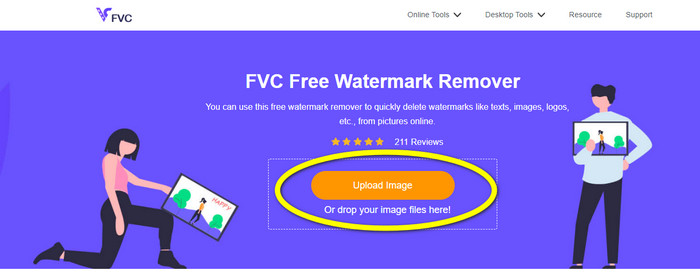
Krok 1: Nejprve navštivte webovou stránku FVC Free Watermark Remover. Stiskněte tlačítko Upload Image (Nahrát obrázek) nebo přetáhněte svůj JPG soubor do tohoto nástroje, abyste ho nahráli.
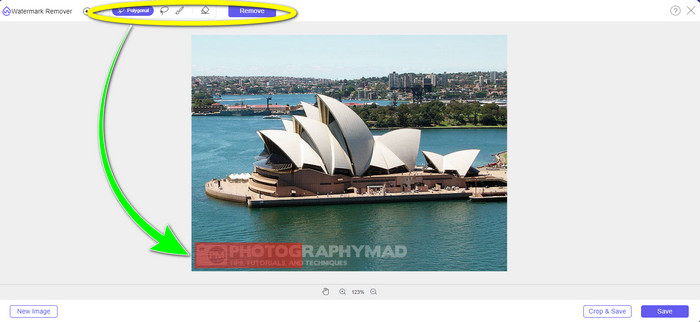
Krok 2: Po nahrání fotografie označte vodoznaky. K jejich zvýraznění můžete použít nástroje jako Lasso, Polygonal a Brush.
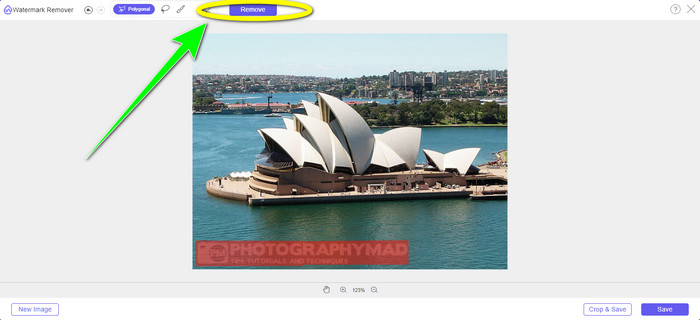
Krok 3: Jakmile označíte všechny vodoznaky v souboru JPG, můžete je odstranit kliknutím na tlačítko Remove (Odstranit). Počkejte na dokončení procesu a poté pokračujte dalším krokem.
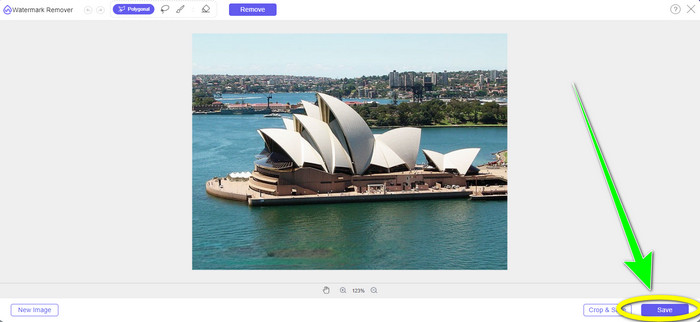
Krok 4: Pokud jste spokojeni s výsledkem, klikněte na tlačítko Save (Uložit) a uložte svůj JPG soubor bez vodoznaku.
Použití nástroje Brush
Krok 1: Nahrajte JPG obrázek s vodoznakem, který chcete odstranit.
Krok 2: Z nástrojů pro odstranění vodoznaku vyberte nástroj Brush (štětec), abyste zvýraznili vodoznak na fotografii. Můžete také kliknout na ikony + a - ve spodní části rozhraní a fotografii si přiblížit nebo oddálit. Pomocí posuvníku pod nástrojem štětec můžete měnit velikost štětce.
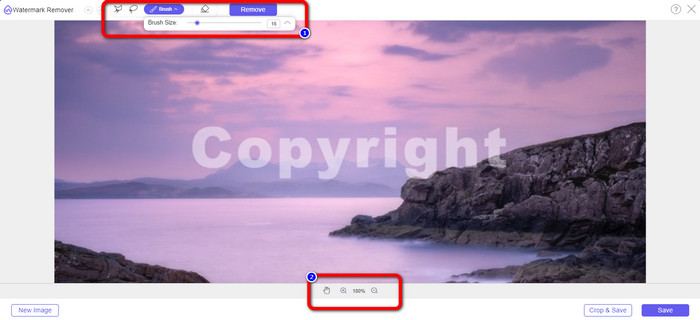
Krok 3: Po výběru nástroje Brush zvýrazněte všechny vodoznaky na své fotografii.
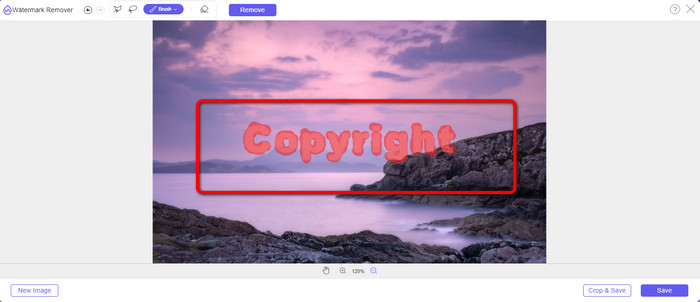
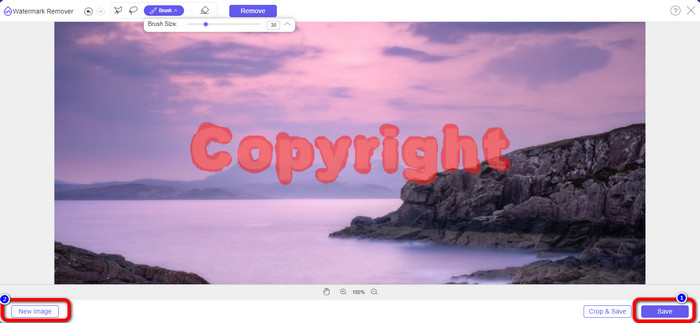
Krok 4: Jakmile dokončíte zvýraznění vodoznaků, můžete je odstranit kliknutím na tlačítko Save (Uložit); fotografie se uloží automaticky. Otevřete soubor a podívejte se na snímek bez vodoznaku. Pokud chcete odstranit vodoznak z další fotografie, klikněte na tlačítko New Image (Nový obrázek) v levé dolní části rozhraní.
Použití nástroje Lasso
Krok 1: Nahrajte JPG obrázek s vodoznakem.
Krok 2: Jako nástroj pro odstranění vodoznaku zvolte Lasso.
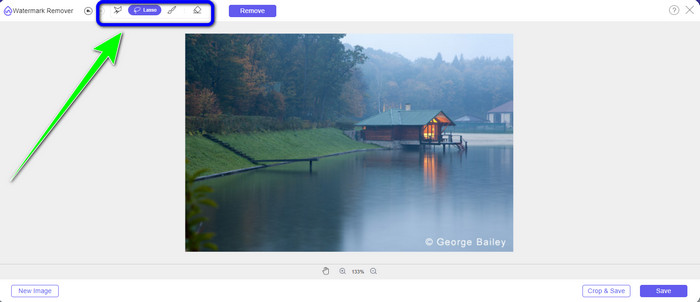
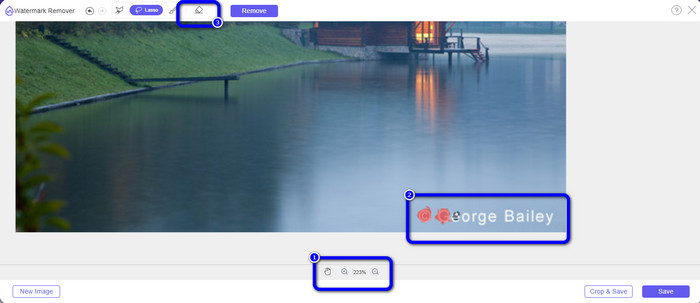
Krok 3: Klikněte na ikonu + pod fotografií, abyste vodoznak lépe viděli. Poté pomocí nástroje lasso zvýrazněte vodoznaky. Postup je podobný jako při kreslení tužkou při stisknutém levém tlačítku myši. Můžete také kliknout na tlačítko Eraser (Guma) v horní části rozhraní a znovu vybrat označenou oblast.
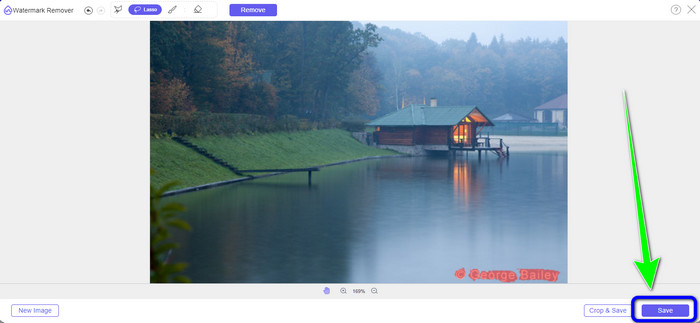
Krok 4: Jakmile dokončíte zvýraznění vodoznaku pomocí nástroje Lasso, klikněte na tlačítko Save (Uložit) pro uložení fotografie. Poté si můžete prohlédnout JPG obrázek bez vodoznaku.
Použití nástroje pro ořezávání
Při použití nástroje oříznutí se ujistěte, že oblast vodoznaku z vašeho jpg je v okrajové nebo rohové části.
Krok 1: Nahrajte JPG obrázek.
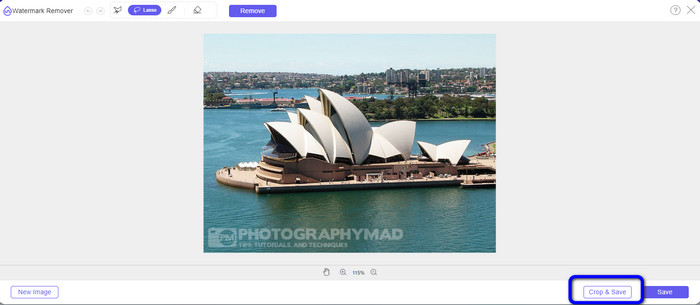
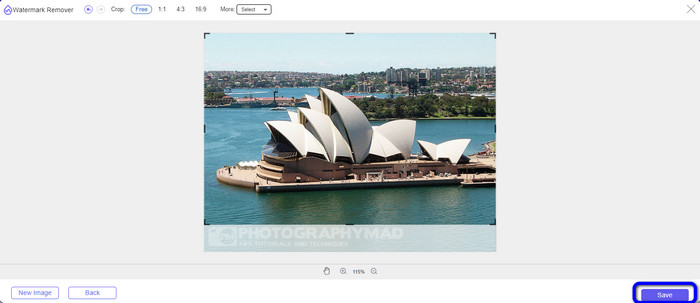
Krok 2: Vyberte tlačítko Crop & Save (Oříznout a uložit), abyste mohli přejít k oříznutí.
Krok 3: V této části můžete fotografii oříznout. Můžete také použít horní část rozhraní k nastavení ořezu.
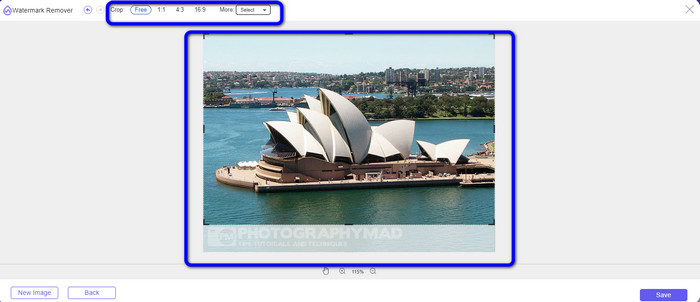
Krok 4: Po oříznutí fotografie klikněte na tlačítko Save (Uložit), abyste ji uložili.
Související s:
Jak odstranit lidi z fotek: snadný a rychlý postup
Snadné způsoby, jak odstranit logo iSkysoft z videa
Část 3: Nejčastější dotazy k odstranění vodoznaku z JPG
Co se stane, když odstraníte vodoznak z fotografie?
Po odstranění vodoznaku z fotografie bude upravený obrázek smazán co nejdříve. Je to kvůli intenzivní úpravě původní fotografie.
Existuje vodoznak, který je obtížné odstranit?
Ano, tam je. Jedinou výjimkou z tohoto pravidla je vodoznak s celým obrázkem, jako je ten, který používají společnosti zabývající se fotografiemi k ochraně fotografií. Je nemožné je zcela vymýtit. Pokud tak učiníte, po odstranění vodoznaku na celý obrázek uvidíte špatnou kvalitu fotografie.
Mohu odstranit vodoznaky z JPG bez ztráty kvality?
Ano, můžete. Použijte FVC Free Watermark Remover. Tento online software vám umožní odstranit jakékoli nežádoucí prvky z JPG obrázků bez ztráty kvality.
Závěr
Tento článek vám ukazuje nejlepší postup, jak online odstranit vodoznaky z JPG. Také jste se seznámili s vynikajícími nástroji pro odstranění vodoznaku, jako jsou Lasso, Polygonal, Brush a nástroj pro oříznutí. Tyto nástroje najdete pouze ve spolehlivé online aplikaci, kterou je FVC Free Watermark Remover.
-
 Nejrychlejší způsob odstranění loga z videa v Adobe Premiere Pro
 Vyzkoušejte tyto snadné a nejrychlejší způsoby odstranění log z videa v aplikaci Adobe Premiere Pro. Tento článek vám nabídne nejlepší způsoby, jak můžete své zařízení vyzkoušet.
-
 Jak odstranit logo z videa pomocí programu Windows Movie Maker
 Pokud se chcete dozvědět o odstraňování log z videí pomocí programu Windows Movie Maker a dalších alternativních způsobů, přečtěte si tento článek. Máme pro vás snadné způsoby.
-
 Jak odstranit logo VideoScribe z videa bez námahy
 Už si nemusíte dělat starosti s odstraňováním loga VideoScribe ze svých videí. Tento článek poskytne bezproblémové metody. Přečtěte si tento příspěvek a dozvíte se více.
