


 Video Converter Ultimate
 Screen Recorder
 Oprava videa
 Bezpečné stažení
Pozoruhodné způsoby, jak odstranit vodoznak z fotografie
Toužíte se naučit, jak odstranit vodoznaky z fotografií? Může se stát, že snímky, které si chcete uložit, mají vodoznaky, které ruší a brání vám vychutnat si plnou krásu obrázků. Naštěstí můžete na počítači, iPhonu i Androidu použít softwarové aplikace, které tyto zbytečné vodoznaky odstraní. Díky nim si pak požadované fotografie uložíte s využitím aplikací s funkcí odstranění vodoznaků. Přečtení tohoto článku je nejlepší volba, pokud se chcete naučit jednoduché metody, jak vodoznaky odstranit.

Část 1. Jak odstranit vodoznak z fotografie na vašem počítači
1. FVC Free Watermark Remover
Pokud chcete odstranit vodoznak z fotografie zdarma online, můžete použít FVC Free Watermark Remover. Tato aplikace umí odstranit jakýkoli vodoznak z vašich obrázků, například loga, texty, obrázky a další. Navíc podporuje různé formáty obrázků, jako JPG, PNG, JPEG, BMP a další. Tento software je také snadno použitelný a přehledný, protože má jednoduché rozhraní, podrobný návod a srozumitelné ovládací prvky. Při samotném odstraňování vodoznaků vám FVC Free Watermark Remover umožní myší nakreslit na snímek mnohoúhelníkovou čáru nebo laso a vybrat tak vodoznak, který chcete odstranit. Další možností pro odstranění vodoznaků z fotografií je štětec. Pokud chcete odstranit vodoznak z fotografie zdarma, postupujte podle níže uvedených kroků.
Krok 1: Přejděte na webové stránky FVC Free Watermark Remover a klikněte na Upload Image. Poté přidejte obrázek s vodoznakem, který chcete odstranit.

Krok 2: Po otevření obrázku s vodoznakem můžete k jeho odstranění použít dostupné nástroje, například Polygonal tool, Lasso a Brush.
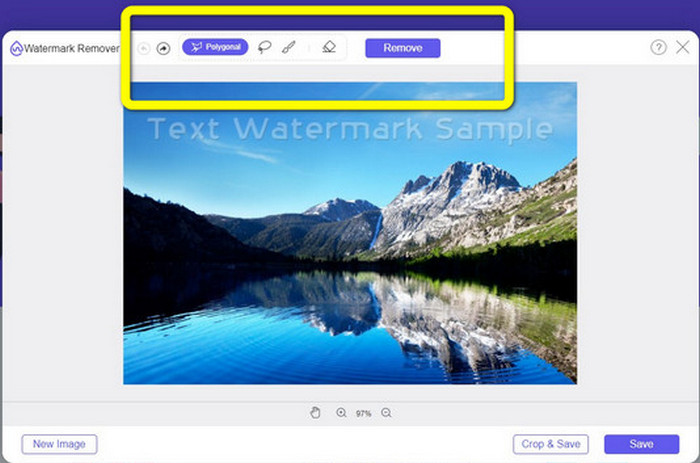
Krok 3: Pomocí nástroje Brush, Lasso nebo Brush zvýrazněte vodoznaky na fotografii.
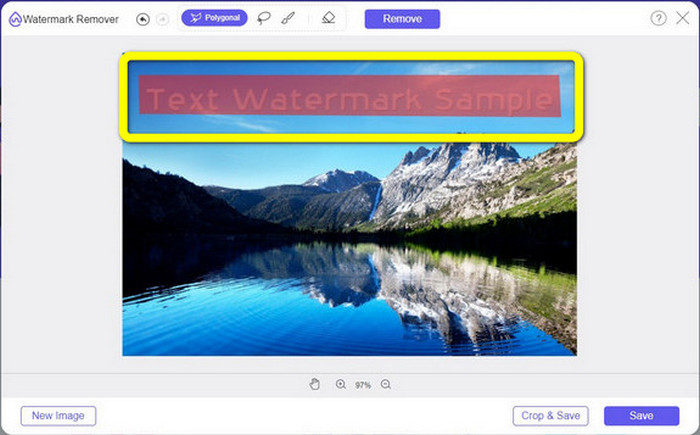
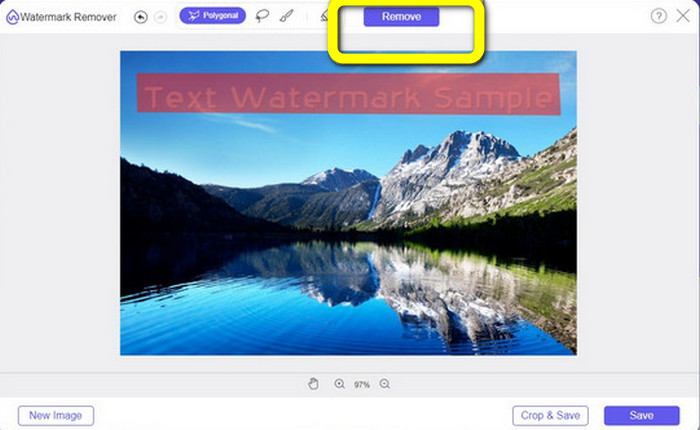
Krok 4: Jakmile máte vodoznaky na fotografii zvýrazněné, klikněte na tlačítko Remove.
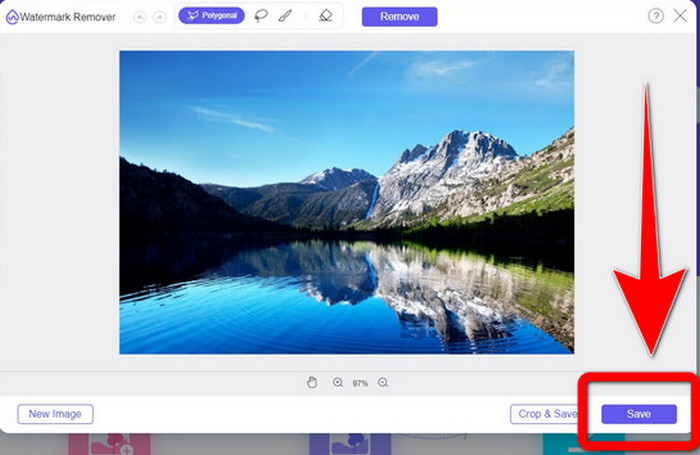
Krok 5: Pokud byl vodoznak z fotografie odstraněn, klikněte na tlačítko Save a obrázek si stáhněte. Pak si můžete své fotografie prohlížet bez nepříjemných vodoznaků.
2. Photoshop
Pokud hledáte také kvalitní a spolehlivou aplikaci, kterou si chcete nainstalovat do počítače, je jednou z možností Adobe Photoshop. V této části uvidíte, jak Photoshop odstraňuje vodoznaky z fotografií. Tato aplikace se hodí pro fotografy, webové designéry, grafické designéry, tvůrce memů apod. Musíte si ji však zakoupit, protože nabízí pouze 7denní bezplatnou zkušební verzi. Photoshop také není vhodný pro hromadné zpracování fotografií a má složitější křivku učení. Pokud chcete znát co nejjednodušší způsob odstranění vodoznaků z obrázků, postupujte podle těchto kroků níže.
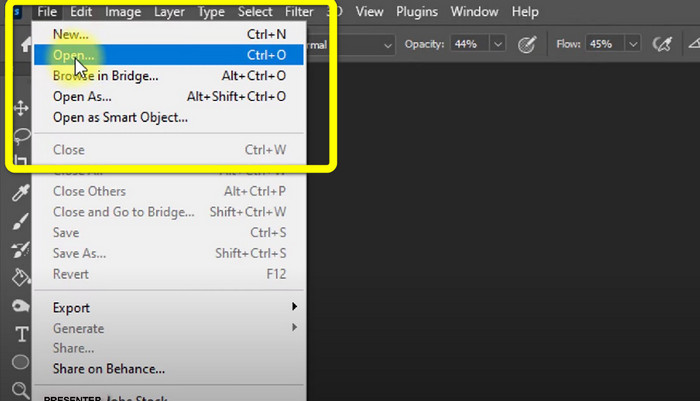
Krok 1: Otevřete Adobe Photoshop. Zvolte File > Open a přidejte svou fotografii s vodoznakem.
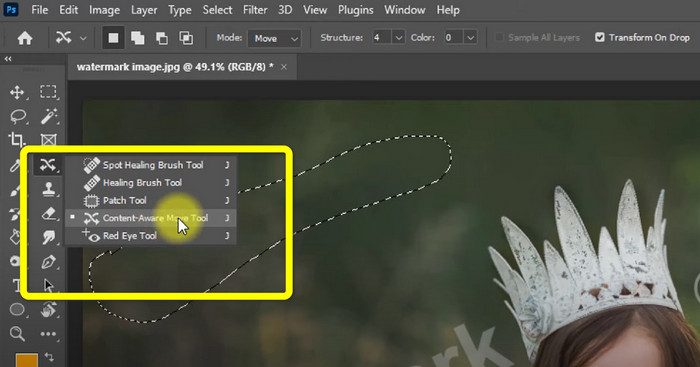
Krok 2: Klikněte na Content-Aware Move Tool v panelu nástrojů pro úpravy.
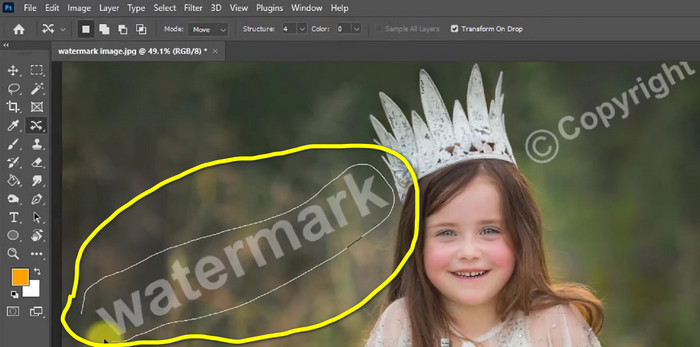
Krok 3: Po kliknutí na Content-Aware Move Tool označte oblast s vodoznakem na fotografii a na klávesnici stiskněte Delete.
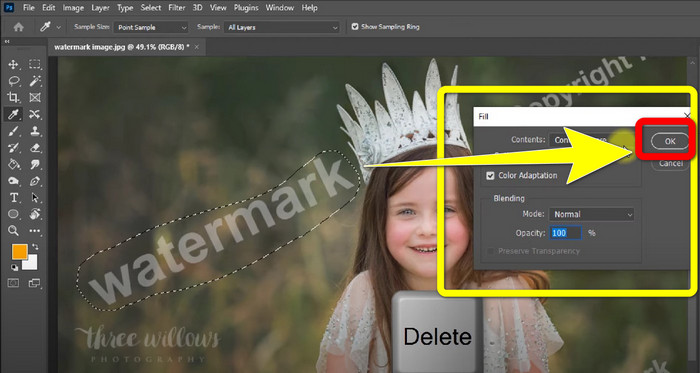
Krok 4: Po stisknutí klávesy Delete se objeví nové malé okno, ve kterém klikněte na OK.
3. GIMP
Další vhodnou aplikací pro odstranění vodoznaků z vašich fotografií je GIMP. Jde o open‑source rastrový grafický editor používaný k úpravě a manipulaci s obrázky, takže je velmi užitečný pro grafické úpravy. Podporuje také mnoho formátů souborů, například JPG, PNG, TIFF, GIF a další. Občas však může náhle spadnout a práce s vrstvami je náročnější. Pokud chcete vědět, jak odstranit vodoznaky z fotografií pomocí GIMPu, postupujte podle kroků níže.
Krok 1: Na webu GIMP klikněte na Download Directly a stáhněte si aplikaci, poté dokončete instalaci.

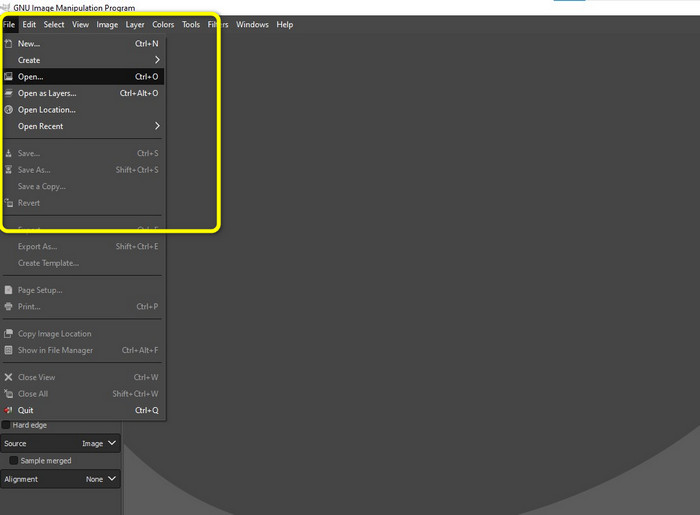
Krok 2: Otevřete aplikaci a klikněte na File > Open, abyste přidali svou fotografii s vodoznakem.
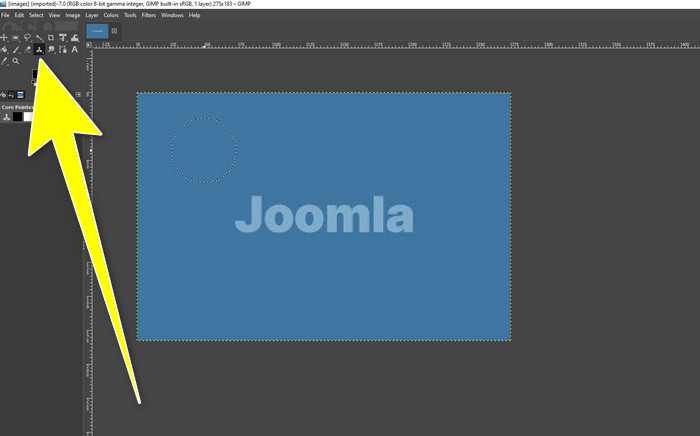
Krok 3: Klikněte na Clone tool a umístěte kurzor na prázdnou oblast. Stiskněte Ctrl a klikněte na tuto prázdnou oblast.
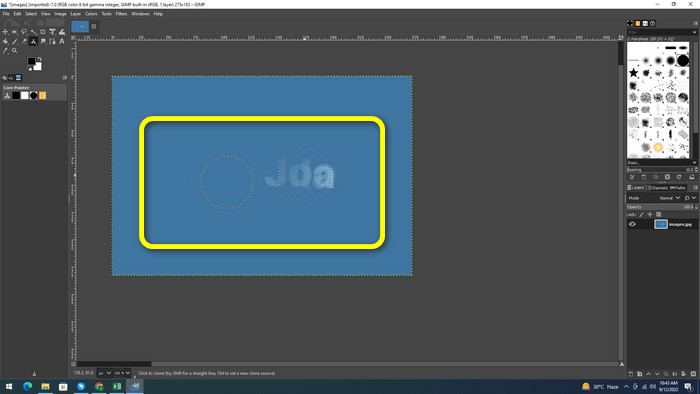
Krok 4: Táhněte kurzor přes vodoznaky, abyste je odstranili. Vodoznak bude pryč a fotografii si můžete uložit.
4. Aiseesoft Free Watermark Remover Online
Pokud chcete nejlepší online nástroj na odstranění vodoznaků z fotografií, je pro vás vhodný Aiseesoft Free Watermark Remover Online. Tato aplikace dokáže odstranit více vodoznaků, text, datumová razítka, loga a další prvky z vašich snímků. Navíc se snadno používá, takže je ideální pro začátečníky. Podporuje různé obrazové formáty, jako PNG, JPEG, BMP, JPG a další. Tato aplikace však není zcela 100% zdarma; pro využití pokročilých funkcí je třeba zakoupit licenci. Chcete‑li odstranit vodoznaky z obrázků, postupujte podle následujících kroků.
Krok 1: Přejděte na webové stránky Aiseesoft Free Watermark Remover Online. Poté klikněte na Upload Image a přidejte fotografii s vodoznakem.
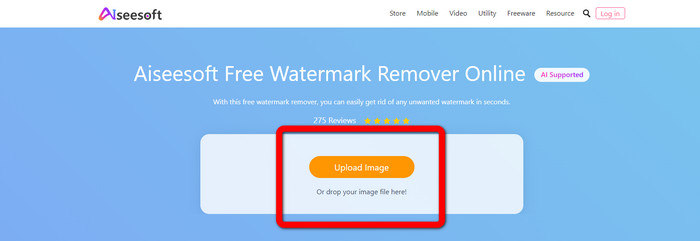
Krok 2: Jakmile je fotografie nahraná, přejděte k watermark remover tool. Zobrazí se vám nástroje pro odstranění, jako Brush, Polygonal a Lasso.
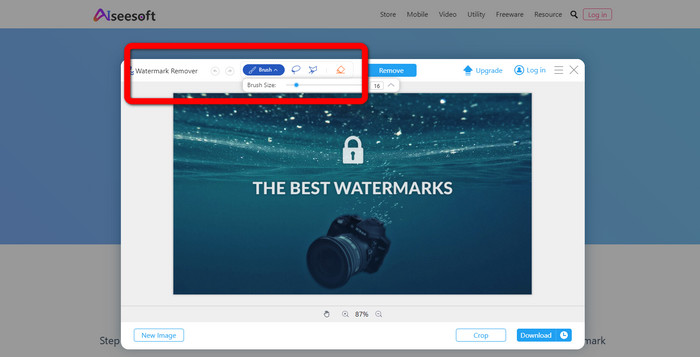
Krok 3: Použijte tyto nástroje a zvýrazněte vodoznaky na fotografii, poté klikněte na Remove.
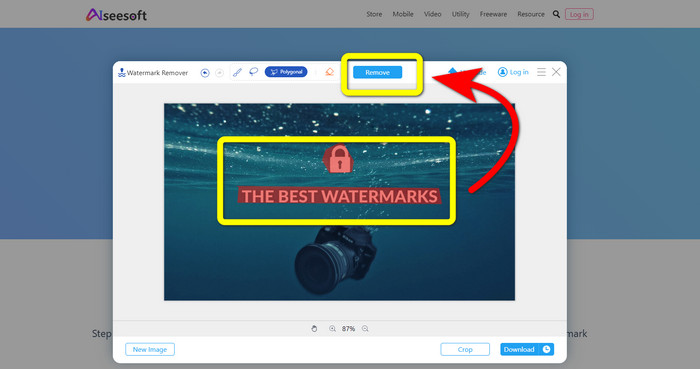
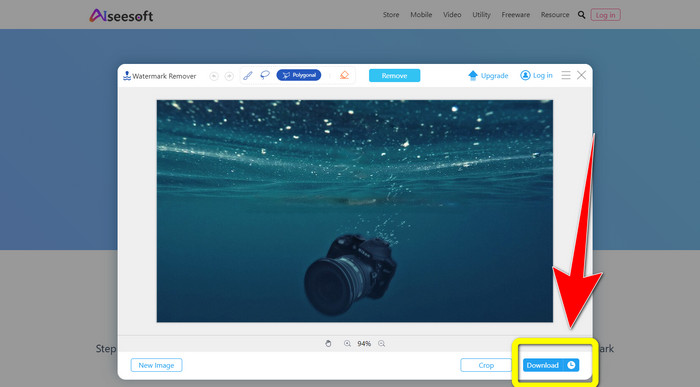
Krok 4: Pokud jste s výsledkem spokojeni, klikněte na Download a fotografii si uložte.
5. Pixlr
Pixlr je další online nástroj, který můžete použít k odstranění vodoznaků z fotografií. Snadno se používá a je vhodný pro začátečníky. Podporuje různé obrazové formáty, jako PSD, PNG, JPEG, WEBP a PXZ. Navíc můžete aplikaci používat na různých zařízeních, jako jsou iPhone, Android, stolní počítač a notebook. Oproti jiným programům ale nenabízí tolik možností a má omezené efekty. Pokud se chcete naučit, jak odstranit vodoznak z obrázku, postupujte podle kroků níže.
Krok 1: Přejděte na webové stránky Pixlr. Klikněte na Open Image a přidejte obrázek s vodoznakem.

Krok 2: Po přidání fotografie přejděte k nástroji retouch > heal.
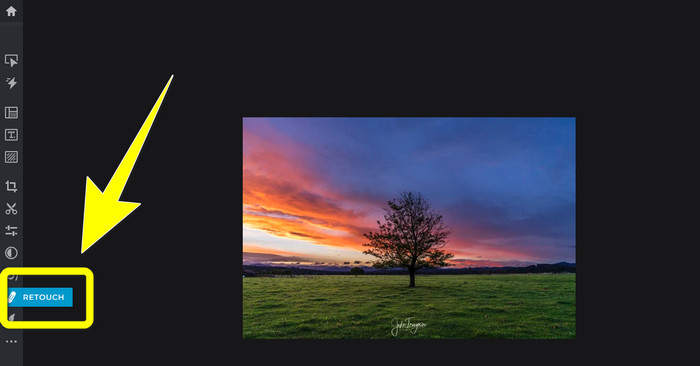
Krok 3: Po kliknutí na nástroj retouch > heal klikněte na vodoznak na obrázku.
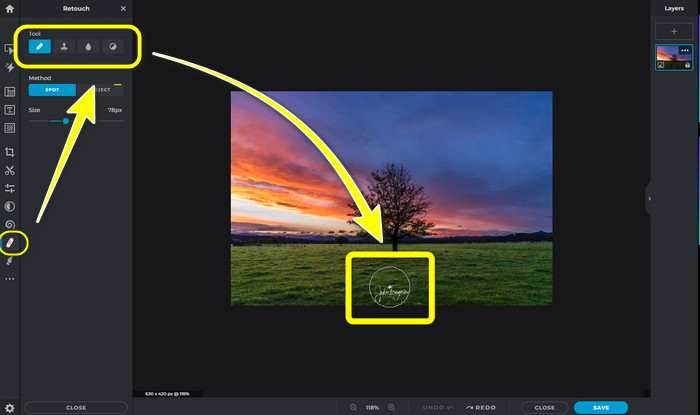
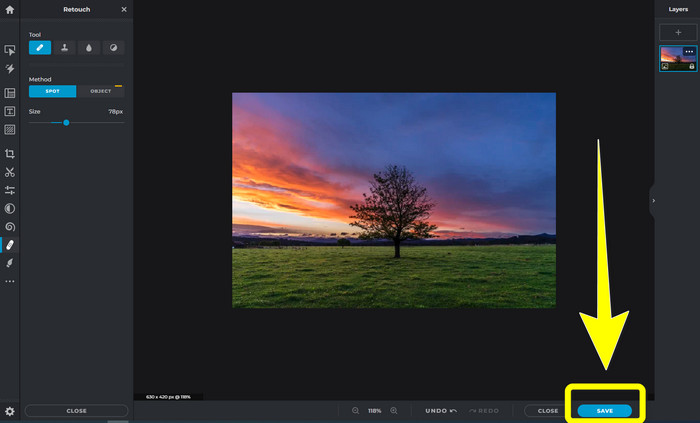
Krok 4: Jakmile vodoznak zmizí, klikněte na tlačítko Save.
6. Malovat
Inpaint je další online aplikace, kterou můžete použít, pokud chcete z obrázků odstranit vodoznaky. Nejen vodoznaky, ale také loga a text. Podporuje rovněž obrazové formáty jako JPG, PNG a WEBP. Pokud však chcete získat obrázky ve vysoké kvalitě, musíte si aplikaci zakoupit. Pokud chcete odstranit vodoznaky z fotografií, postupujte podle jednoduchých kroků níže.
Krok 1: Přejděte na webové stránky Inpaint. Klikněte na Upload Image a nahrajte snímek s vodoznakem.

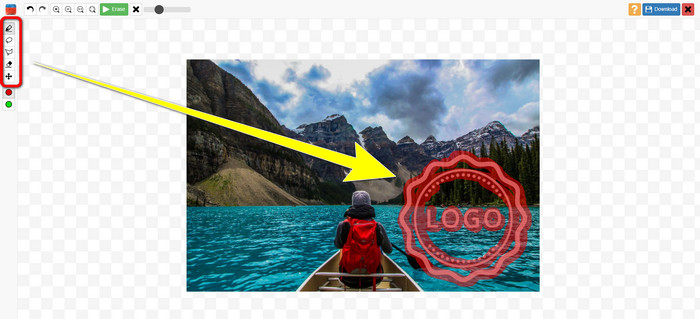
Krok 2: Po nahrání obrázku zvolte watermark remover tools, jako Marker, Polygonal, Lasso a Eraser tool, a zvýrazněte vodoznaky na fotografii.
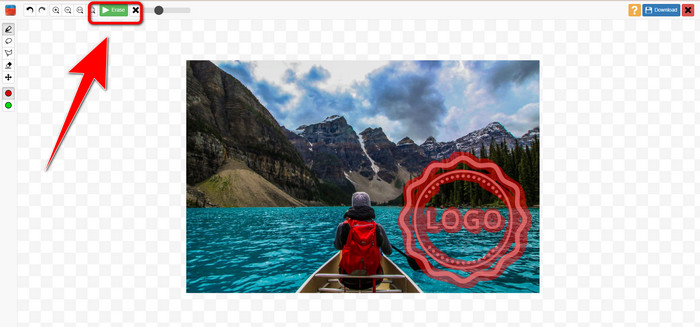
Krok 3: Po dokončení zvýraznění vodoznaků klikněte na Erase.
Krok 4: Jakmile vodoznak zmizí, klikněte na tlačítko Download a obrázek si uložte.
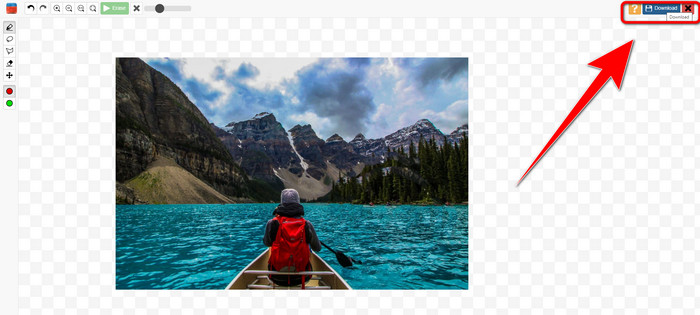
7. Odstraňovač fotografických známek
Photo Stamp Remover je aplikace, kterou můžete používat s počítačem. Můžete si jej stáhnout zdarma. Tato aplikace dokáže z vašich obrázků rychle odstranit nepotřebné objekty, jako jsou loga, text, vodoznaky a data. Nefunguje však dobře na obrázcích se složitým pozadím. Tento software navíc dokáže obnovit barvy a texturu původní fotografie tak, aby zakryla vodoznaky, takže bude vypadat autenticky. Chcete-li odstranit vodoznaky z obrázků, postupujte takto.
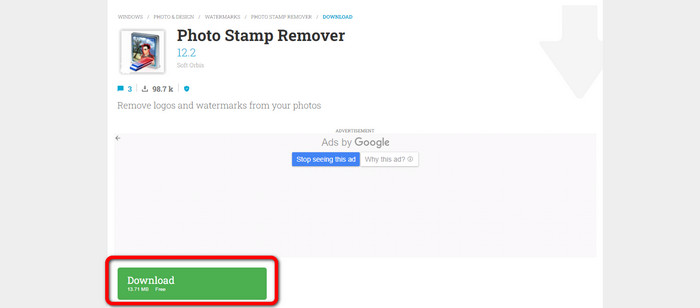
Krok 1: Klikněte na tlačítko Download a stáhněte si Photo Stamp Remover do Windows, poté dokončete instalaci.
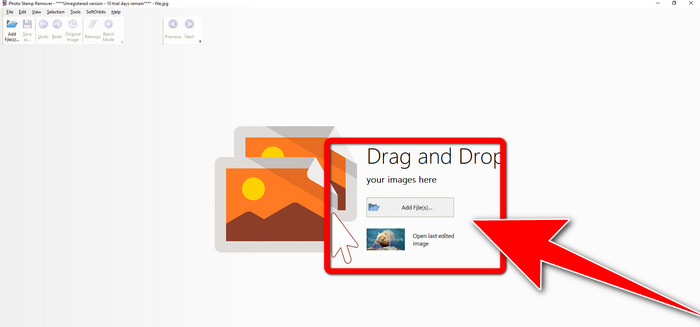
Krok 2: Spusťte aplikaci a klikněte na Add File, abyste přidali fotografii s vodoznakem.
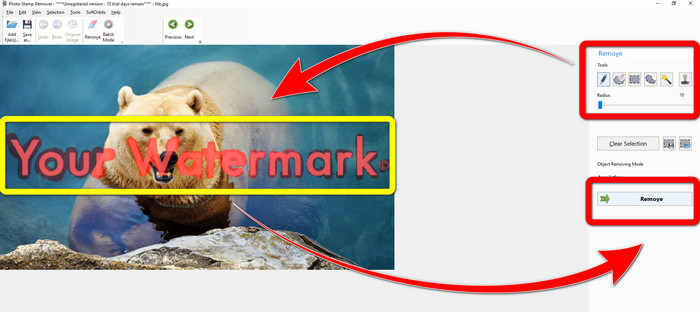
Krok 3: Přejděte do části Remover tools a klikněte na Selection Marker. Zvýrazněte vodoznaky a klikněte na Remove.
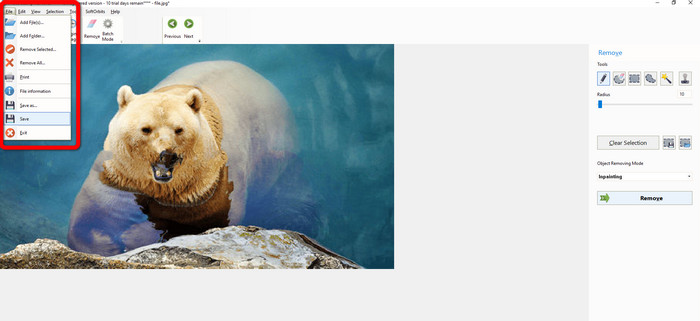
Krok 4: Jakmile vodoznaky z obrázku odstraníte, klikněte na File > Save. Tím jste odstranění vodoznaků z fotografie dokončili.
Část 2. Jak odstranit vodoznak z fotografie na iPhone a Android
1. Video Eraser
Pokud chcete vědět, která aplikace vám pomůže naučit se, jak odstranit vodoznaky z fotografií v systému Android, je pro vás vhodný Video Eraser. Tato aplikace umí odstranit z fotografií zbytečné objekty, jako text, vodoznaky atd. Navíc s ní můžete odstraňovat vodoznaky i z videí. Oblast, kde byl vodoznak odstraněn, však může být na snímku skvrnitá. Pokud se chcete naučit používat Video Eraser, postupujte podle níže uvedených kroků.
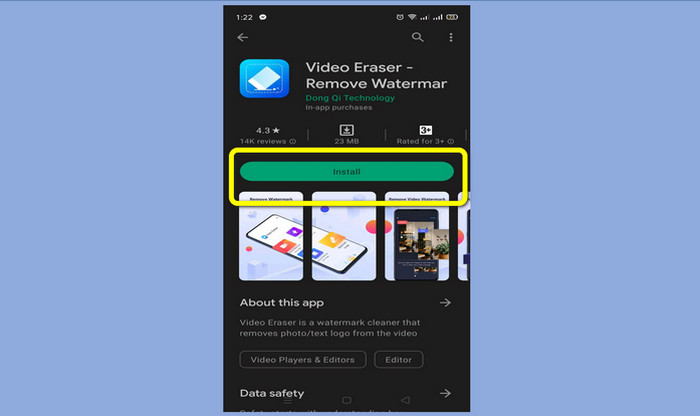
Krok 1: Nainstalujte Video Eraser do svého zařízení s Androidem. Po dokončení instalace aplikaci otevřete.
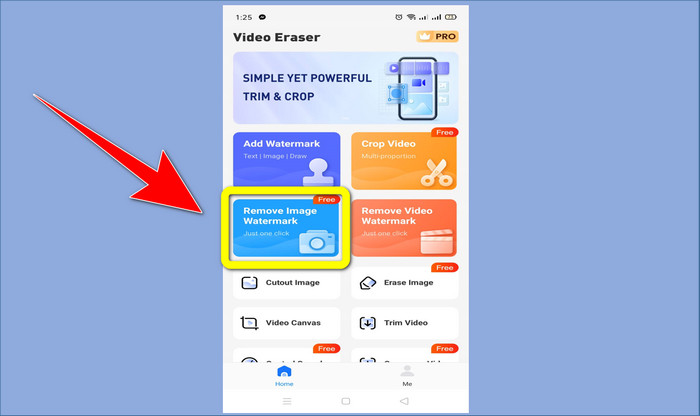
Krok 2: Klikněte na Remove Image Watermark a přidejte fotografii s vodoznakem.
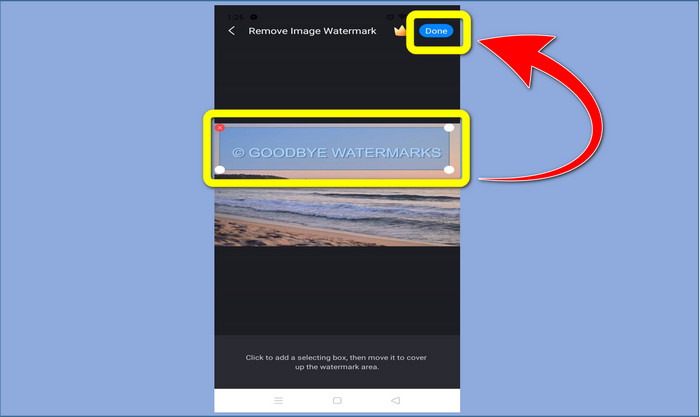
Krok 3: Zvýrazněte vodoznak na fotografii a klikněte na Done.
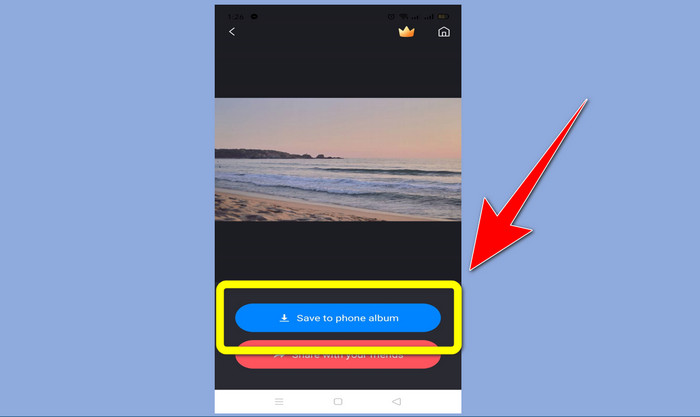
Krok 4: Po kliknutí na Done vodoznak zmizí. Klikněte na Save to Photo Album, abyste si fotografii uložili.
2. Snapseed
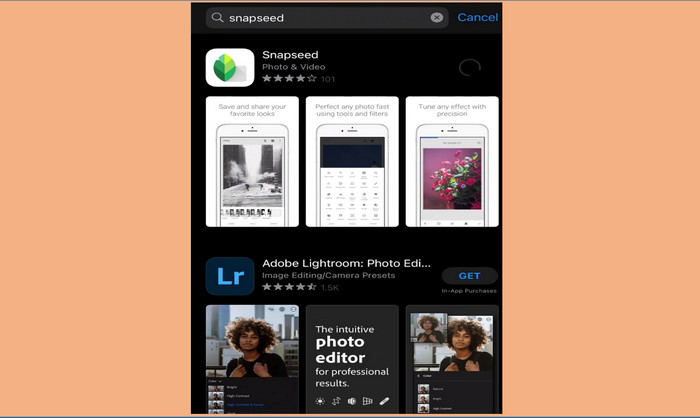
Snapseed je vynikající editor, který můžete použít zejména tehdy, když se chcete naučit, jak odstranit vodoznak z fotografie na iPhonu. Tato aplikace je vhodná, pokud chcete odstranit vodoznaky z obrázků. Kromě toho nabízí různé editační nástroje, například ořez, otočení a další. Aplikace však není zcela ideální pro úplné začátečníky při pokročilejších úpravách a i když je uživatelsky přívětivá, má určitou křivku učení. Chcete‑li pomocí této aplikace odstranit vodoznaky z fotografií, postupujte podle následujících kroků.
Krok 1: Nainstalujte Snapseed do svého iPhonu. Po dokončení instalace software otevřete.
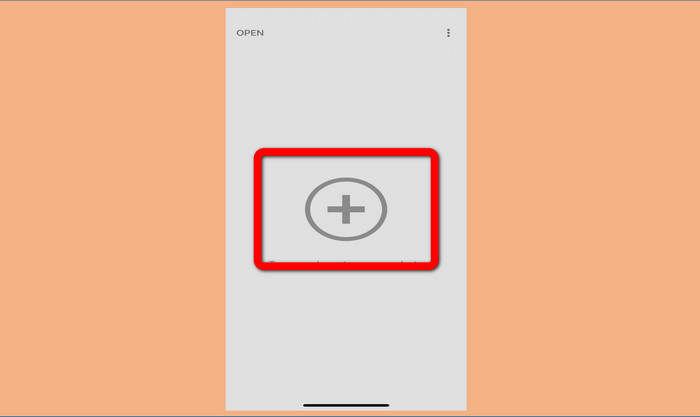
Krok 2: Klikněte na tlačítko Plus a přidejte fotografii s vodoznakem.
Krok 3: Jakmile fotografii přidáte, zvolte Tools > Healing a zvýrazněte vodoznaky na snímku. Po jejich zvýraznění automaticky zmizí.
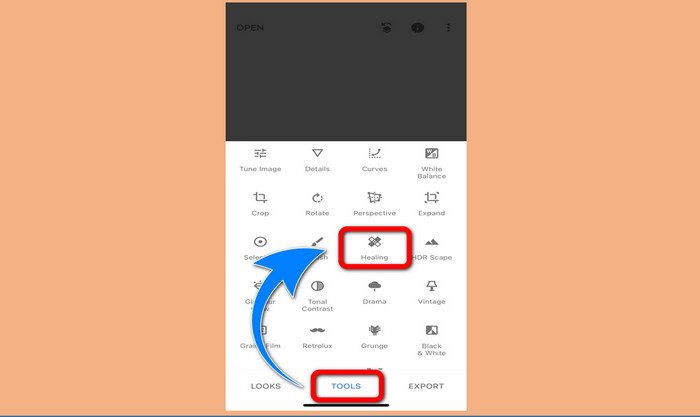
Krok 4: Po zvýraznění vodoznaků automaticky zmizí.
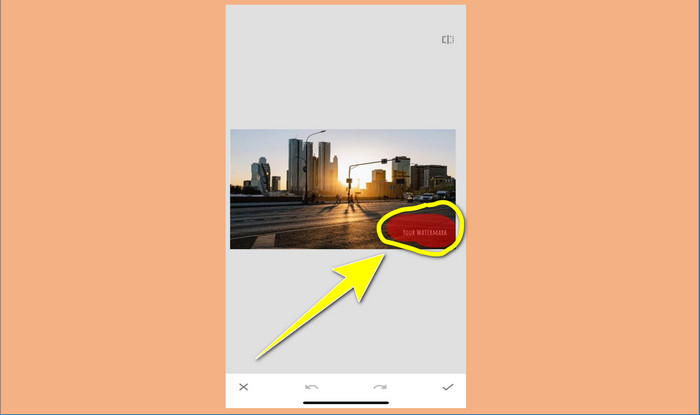
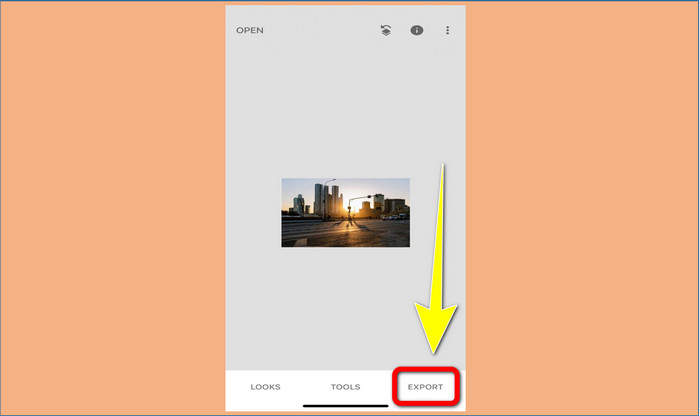
Krok 5: Po dokončení odstraňování vodoznaků z fotografie klikněte na ikonu Check a poté na Export, abyste si obrázek uložili do iPhonu.
Související s:
Nejrychlejší trik, jak odstranit vodoznak Adobe Stock z videa [ Návod ]
5 způsobů, jak profesionálně odstranit vodoznak z videa
Část 3. Časté dotazy o odstraňování vodoznaků z fotografií
Existuje odstraňovač vodoznaku, který mohu použít zdarma, zejména pro Mac?
Ano, existuje! Na Macu můžete použít mnoho nástrojů na odstranění vodoznaků, například FVC Free Watermark Remover. Jde o online aplikaci pro odstranění vodoznaků na počítačích Mac.
Existuje způsob, jak odstranit vodoznak z videa?
Rozhodně! Je to snadná věc. Některé z aplikací pro odstraňování vodoznaků, které nyní můžete použít, mohou odstranit vodoznaky z fotografií a videí. Vše, co musíte udělat, je vyhledat odstraňovač vodoznaku ve vyhledávacím poli a zobrazit stránku s výsledky.
Je snadné odstranit vodoznaky?
Ano, samozřejmě! Pokud již máte aplikaci, kterou budete používat, musíte hledat nástroje pro odstranění, jako je štětec, značka, laso a mnohoúhelníkové nástroje. Poté zvýrazněte vodoznaky a hotovo.
Závěr
Jak je uvedeno výše, tento článek představuje výjimečné způsoby, jak odstranit vodoznaky z fotografií. Pokud však chcete skvělý nástroj, který můžete použít k odstranění vodoznaků, FVC Free Watermark Remover je pro vás tou nejlepší volbou.
-
 Jak se zdarma zbavit vodoznaku Power Director [Dokončit]
 Jak se zbavit vodoznaku Power Director zdarma? Nejlepší nástroje k odstranění vodoznaku jsou zde, takže se je naučte čtením tohoto.
-
 Nejlepší techniky pro odstranění vodoznaku zkušební verze Canvasjs, které musíte znát
 Nejlepší způsob, jak odstranit vodoznak Canvasjs, budete muset použít nástroj. Pokud jste si nástroj nevybrali, můžete si jej vybrat v tomto článku.
-
 Jak odstranit vodoznak Animaker bez nákladů [Osvědčené způsoby]
 Jak odstranit vodoznak Animaker? S nejlepšími nástroji, které používáme na tomto blogu, je můžete použít, abyste se zbavili vodoznaku.
