


 Video Converter Ultimate
 Screen Recorder
 Oprava videa
 Bezpečné stažení
Jak převést WebP na MP4 na PC pro animovaný video výstup
Existuje mnoho důvodů, proč převádíme WebP na MP4. Jedním z hlavních je, že když máte sbírku animovaných obrázků ve formátu WebP, vaše zařízení je nepodporují. Je frustrující zjistit, že si nemůžete užít vlastní soubory na vlastním zařízení. Proto se většina uživatelů v podobné situaci rozhodne převést své soubory WebP do formátu, jako je MP4, aby byly jejich digitální soubory kompatibilnější a menší. Jak to ale udělat poprvé? Naštěstí tento příspěvek shromáždil vhodné převodníky, které vám v tom výrazně pomohou. Také jsme přidali profesionální postup, který vám v této věci rovněž pomůže.

Část 1. Jak převést WebP na MP4 online
Tato část představí naše 3 nejlepší řešení pro online převod WebP na MP4.
1. EZGIF
Prvním z nejlepších online řešení je EZGIF. Je to šikovný, bezplatný nástroj, ke kterému máte přístup na webu. Tento nástroj vám pomůže vytvářet, měnit a vylepšovat GIFy. Nejde ale jen o GIFy, protože si poradí i s formáty WebP, AVIF a APNG. Kromě toho vám EzGIF umožňuje přepínat mezi těmito formáty pomocí GIF, JPG, PNG a samozřejmě MP4. Jak jeho název napovídá, EZGIF je o tom, jak věci zjednodušit. Ať už chcete vytvořit animované obrázky nebo přeměnit animace na videa, tento nástroj vám drží záda. Můžete jej tedy použít také k přepnutí souborů WebP, a to jak statických, tak pohyblivých, na MP4. Zde jsou tedy jednoduché kroky, které je třeba provést s EZGIF.
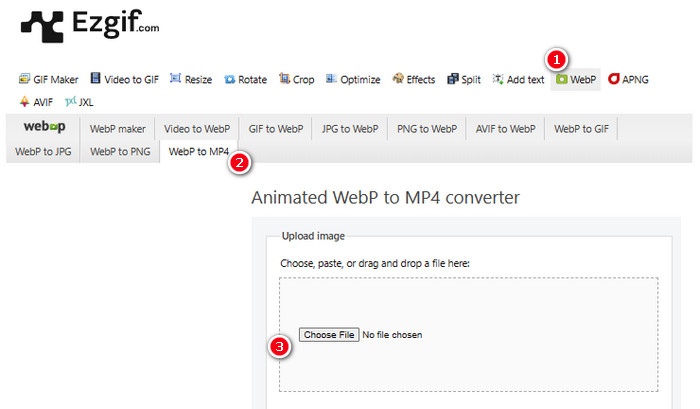
Krok 1. Na webu EZGIF přejděte na nástroj WebP>WebP to MP4, abyste se dostali k jeho převodníku WebP na MP4. Jakmile tam budete, klikněte na tlačítko Choose File a nahrajte svůj soubor WebP.
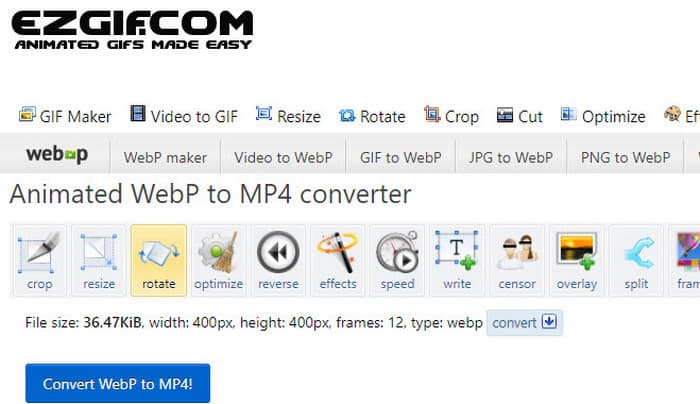
Krok 2. Po nahrání souboru WebP můžete přistoupit k procesu konverze. Klikněte na tlačítko Convert a spusťte převod.
Krok 3. Po dokončení si stáhněte nově převedený soubor.
2. MConverter
Dalším nástrojem je MConverter. Tento převodník je opravdu užitečný nástroj na webu, který vám pomůže změnit soubory z jednoho typu na druhý. Je pozoruhodné, že pokud máte spoustu obrázků WebP, které chcete přeměnit na videa MP4, MConverter vám umožní udělat je všechny najednou. Neušetří to spoustu času? Kromě toho má spoustu formátů, se kterými si poradí – jako videa, písničky, obrázky, titulky atd. Bezplatná verze má ale háček – umožňuje vytvářet soubory do velikosti 200 MB. Mezitím se podívejme, jak funguje MConvert, když s ním převedete WebP na MP4.
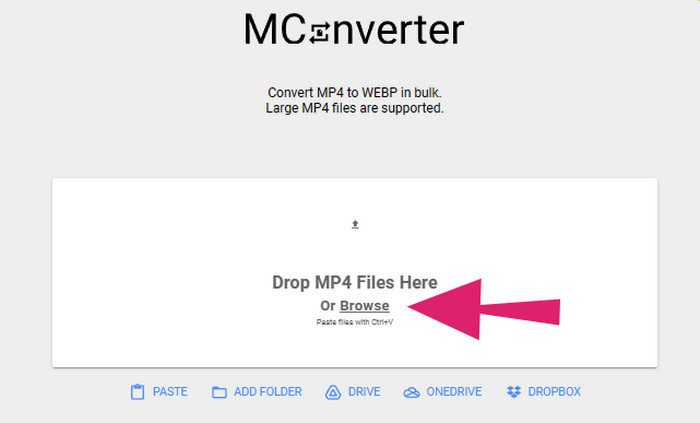
Krok 1. V online nástroji klikněte na tlačítko Browse a nahrajte soubory WebP, které potřebujete převést.
Krok 2. Jakmile je soubor úspěšně nahrán, klikněte mezi nabízenými možnostmi na formát MP4.
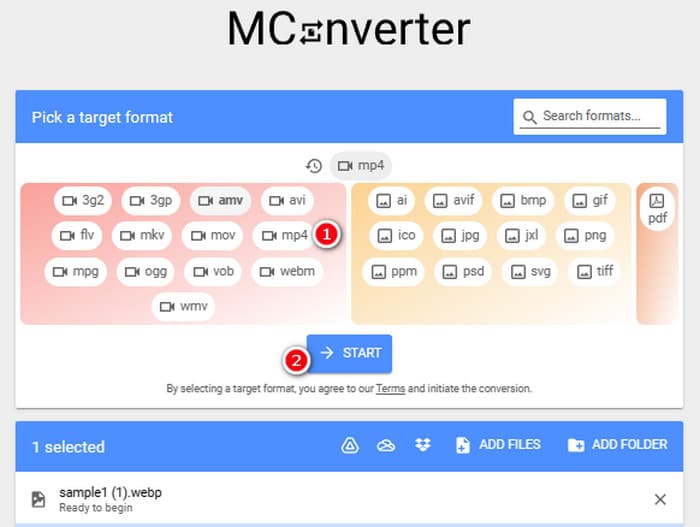
Krok 3. Poté klikněte na tlačítko START, aby se převod spustil.
3. Převod online
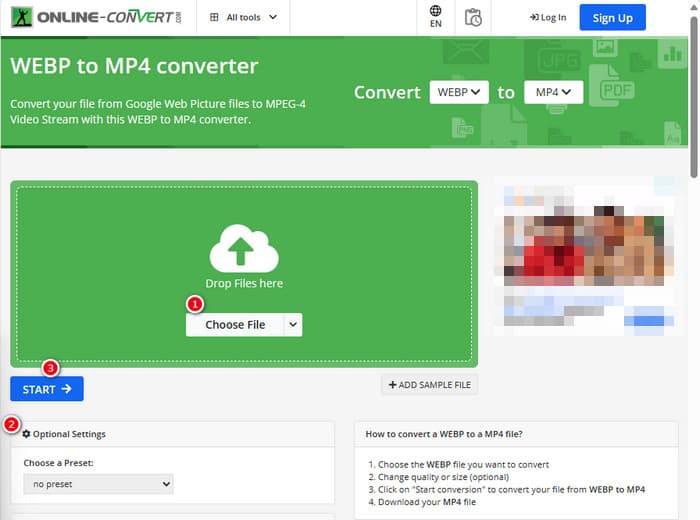
Nakonec povolte Online Convert zaplnit poslední online pozici. Tento online převod je pozoruhodný konvertor, který za vás může změnit téměř jakýkoli typ mediálního souboru. Navzdory tomu vás nebude stát ani cent za žádnou konverzi, kterou chcete provést, pokud ji podporuje. Navíc to funguje docela rychle, kromě případů, kdy je váš internet problematický. Nyní, pokud chcete změnit soubor WebP na MP4, můžete to udělat na jejich webových stránkách. Nejen to, ale můžete upravit parametry videa, jako je jeho velikost, snímková frekvence a kvalita, a dokonce jej otočit, oříznout nebo vyříznout části, které nepotřebujete. Pokud je tedy váš soubor WebP připraven k transformaci, okamžitě postupujte podle níže uvedených kroků.
Krok 1. Jakmile se dostanete na oficiální web, ujistěte se, že používáte nástroj WebP to MP4 converter.
Krok 2. Klikněte na tlačítko Choose File a přiveďte soubor WebP. Poté jej můžete upravit pomocí nastavení, která jsou v rozhraní k dispozici.
Krok 3. Případně klikněte na tlačítko START a spusťte proces převodu.
Část 2. Profesionální přístup k převodu souboru WebP do formátu MP4: FFmpeg
Pro odborný přístup k převodu obrazového souboru na video můžete použít FFmpeg. Jde o výkonný softwarový nástroj používaný ke zpracování multimediálních souborů. Tento program vám umožní převádět audio, video i obrazové formáty mezi širokou škálou kodeků. Pracuje však přes příkazový řádek, což je pro začátečníky náročné. Zde jsou proto zjednodušené kroky, kterých se můžete držet. Pro vaši informaci, FFmpeg jako profesionální video transcoder dokáže dokonce i opravovat poškozená videa.
Krok 1. Po instalaci na počítač otevřete FFmpeg. Poté začněte stisknutím CD pro spuštění příkazového řádku.
Krok 2. Nyní můžete přejít do adresáře, který obsahuje soubor WebP. Poté použijte příkaz ffmpeg -i input.webp output.mp4.
Krok 3. Spusťte proces převodu stisknutím klávesy ENTER na klávesnici.

Část 3. Bonusový tip: Nejlepší způsob, jak převést soubory MP4 na jakýkoli typ videa/audia online
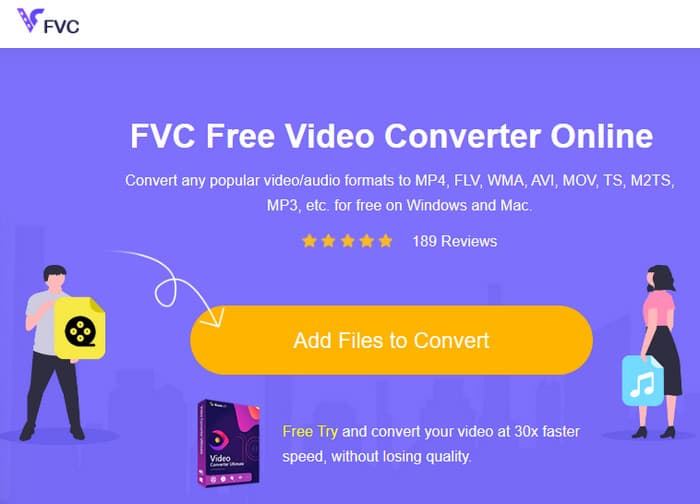
Co takhle převést vaše soubory MP4 do požadovaných video a audio formátů online? To bude snadné, rychlé a efektivní, pokud použijete FVC Free Video Converter Online. Je to vaše bezplatné řešení, které vám umožní měnit videa ve formátu MP4 na různé video a audio formáty jako WMV, MOV, FLV, AVI, MKV, AAC, MP3, WAV a další. Také můžete snadno převádět svá videa ve vysokém rozlišení na menší MP4 bez ztráty kvality. Ještě lépe, můžete převádět více souborů najednou a celý proces bude stále snadný a rychlý. Navíc se nemusíte obávat vodoznaků ve videích nebo ztráty dat během převodu, protože tento online převodník se zavazuje poskytovat čisté a bezpečné výstupy. Zde jsou tři jednoduché kroky k převodu vašich souborů MP4 do různých typů formátů.
Krok 1. Po vstupu na web klikněte na kartu Add Files to Convert. Tím si zpřístupníte nahrání souborů MP4.
Krok 2. Po dokončení importu souborů nastavte pro ně požadovaný výstupní formát.
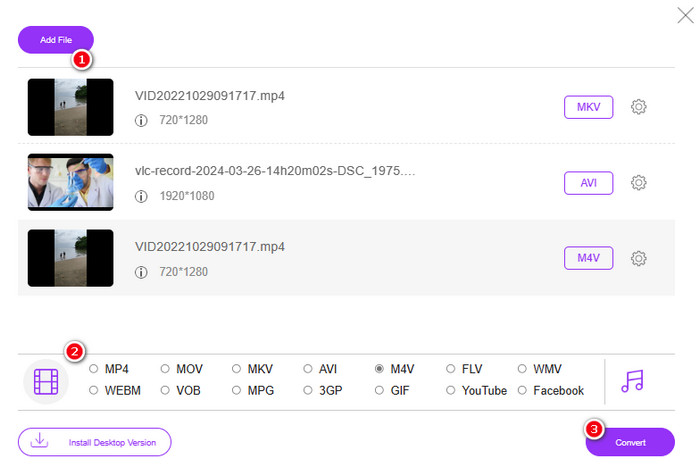
Krok 3. Jakmile jsou nastaveny, klikněte na tlačítko Convert a spusťte převod.
Níže jsou uvedeny další tipy pro převod obrázku na MP4.
Rozšířené čtení
Jak převést VLC na MP4: nejrychlejší postupy, které je dobré ovládnout
Jak bez námahy převést videa z iPhonu na MP4 v PC bez ztráty kvality
Část 4. Nejčastější dotazy o převodu Webp a MP4
Proč bych měl převádět obrázkový soubor jako WebP na video jako MP4?
-Musíte převést obrázek na video pro účely širší kompatibility a zachování.
Mohou být obrázky ve formátu WebP zobrazeny ve všech webových prohlížečích?
-Žádný. Některé starší prohlížeče, zejména Internet Explorer, nativně nepodporují WebP. Moderní prohlížeče však jeho zobrazení podporují.
Jak mohu převést obrázek na WebP?
-Musíte použít specializovaného výrobce WebP. K dispozici je také několik nástrojů a knihoven pro převod obrázků do formátu WebP.
Závěr
S výše představenými převodníky WebP na MP4 bude váš převodní proces nyní přímočarý. Tří běžně používaných metod se tak využívá k dosažení požadované konverze. Pokud narazíte na potíže se zvládnutím procesu u jedné z nich, klidně proveďte převod pomocí některé z ostatních.
-
 Naučte se nejjednodušší přístupy k rychlému převodu WebP na JPG
 Pojďme se všichni naučit efektivní způsoby, jak snadno převést webové obrázky do JPG. Tento článek vám poskytne vynikající konvertory obrázků, které můžete použít k převodu souborů obrázků.
-
 Perfektní metody pro převod WebP na PNG bez námahy
 Buďte informováni o pozoruhodných metodách převodu WebP do PNG. Tento průvodce vám poskytne nejužitečnější konvertory obrázků, které můžete vyzkoušet.
-
 Nejlepší metody, jak dokonale převést WebP na GIF
 Chcete převést WebP na GIF, ale nemáte ponětí, co dělat? Naštěstí tento příspěvek představí několik způsobů, jak okamžitě převést WebP na GIF.
