


 Video Converter Ultimate
 Screen Recorder
 Oprava videa
Jak snadno převést DivX na WMV: Offline a online metody
DivX je video kompresní kodek, který komprimuje video na velikost požadovanou uživatelem. Soubor WMV je soubor Windows Media Video, který dokáže komprimovat obrazové formáty společnosti Microsoft. Mějte na paměti, že DivX a WMV nejsou vždy vzájemně kompatibilní. I když je dnes většina videí kódována v DivX a uložena ve formátu WMV, může být podle situace občas nutné převést DivX do formátu WMV. Naštěstí nabízíme převodníky DivX na WMV, které potřebujete k rychlému provedení tohoto úkolu – pro offline i online použití.

Část 1. Vynikající metoda k použití při převodu DivX do WMV [Offline]
Video Converter Ultimate je pravděpodobně nejlepší volba, pokud hledáte software, který zvládne celý proces najednou a zároveň nabídne další funkce pro jiné editační potřeby. Nejenže podporuje mnoho různých video formátů, ale také vám umožní dále upravit kvalitu videa i zvuku a navíc si klipy přizpůsobit přidáním efektů. Tento software je univerzální převodník vše v jednom. Zde jsou kroky, které je třeba dodržet, abyste mohli tento program používat:
Krok 1: Nainstalujte software do počítače kliknutím na jedno z tlačítek Free Download níže podle vašeho operačního systému. Počkejte, až se soubor .exe stáhne, potom jej otevřete a spusťte instalační proces. Po dokončení instalace klikněte na Start Now a program spusťte.
Zdarma ke staženíPro Windows 7 nebo novějšíBezpečné stažení
Zdarma ke staženíPro MacOS 10.7 nebo novějšíBezpečné stažení
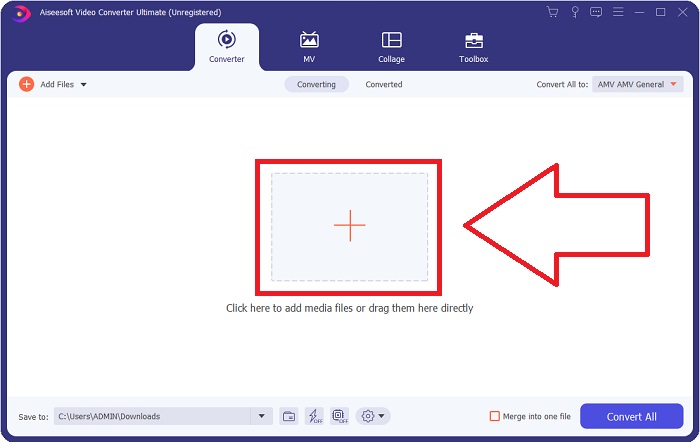
Krok 2: Otevře se okno s rozhraním, uprostřed kterého je tlačítko +. Kliknutím na něj importujete video, které chcete převést, případně můžete soubory jednoduše přetáhnout metodou drag and drop.
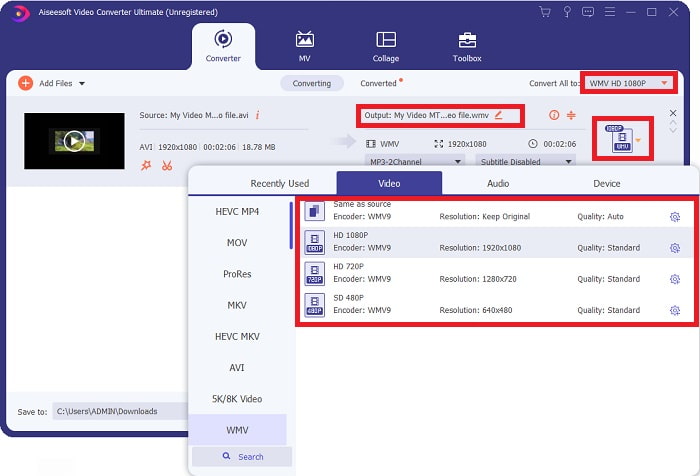
Krok 3: Po dokončení importu souborů se na pravé straně u každého souboru zobrazí jeho aktuální formát. Klikněte na něj a zobrazí se všechny dostupné formáty. Můžete sjet níže nebo do vyhledávacího pole napsat WMV a vybrat jej. Vpravo na kartě budou také k dispozici volby kvality videa.
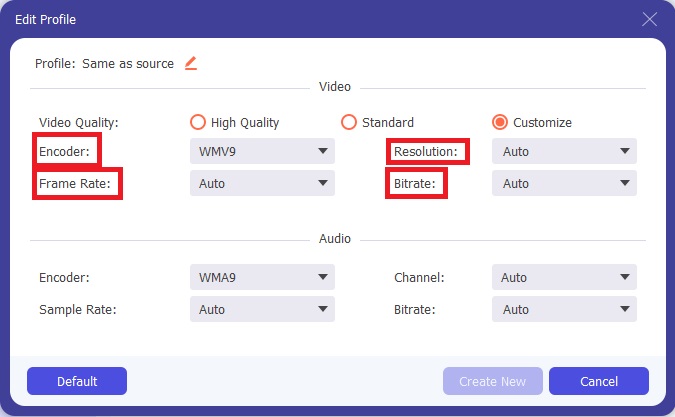
Krok 4: Pro více možností můžete kliknout na ikonu ozubeného kola vedle vybrané kvality videa a zobrazí se další rozhraní. Tam můžete upravit rozlišení, snímkovou frekvenci, datový tok (bitrate) a mnoho dalšího tak, aby to nejlépe vyhovovalo vašim požadavkům. Pokud jste se všemi úpravami spokojeni, klikněte v pravém dolním rohu na tlačítko Create New, abyste změny uložili.
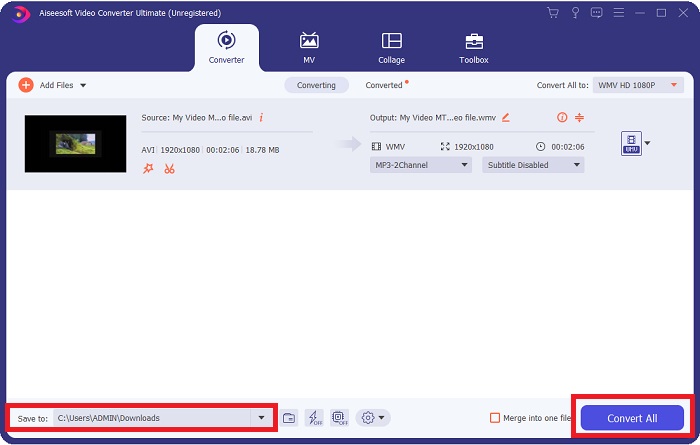
Krok 5: Jakmile dokončíte úpravu nastavení videa podle svých představ, klikněte na tlačítko Convert All v pravém dolním rohu a spusťte proces převodu, pak vyčkejte na jeho dokončení.
Část 2. Další metoda k použití při převodu DivX na WMV [Online]
Video konvertor je možné mít vždy po ruce, aniž byste museli instalovat jakýkoli software. Přesto je také možné převést video rychle a snadno, aniž byste museli cokoliv instalovat. Video Converter Ultimate má online protějšek, který můžete použít jedním pohybem. Stále nabízí další možnosti a podporuje spoustu formátů. Chcete-li použít tento webový nástroj, postupujte podle těchto jednoduchých kroků:
Krok 1: Začněte kliknutím na tento odkaz, který vás přesměruje na online nástroj. Uprostřed stránky najdete tlačítko Add Files to Convert. Klikněte na něj a stáhne se spouštěč, který budete potřebovat pro snadný import video souborů.
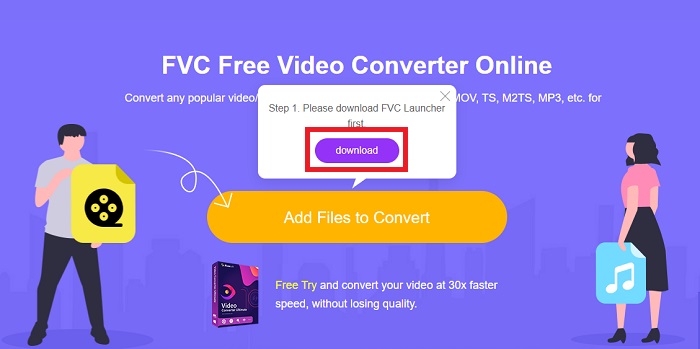
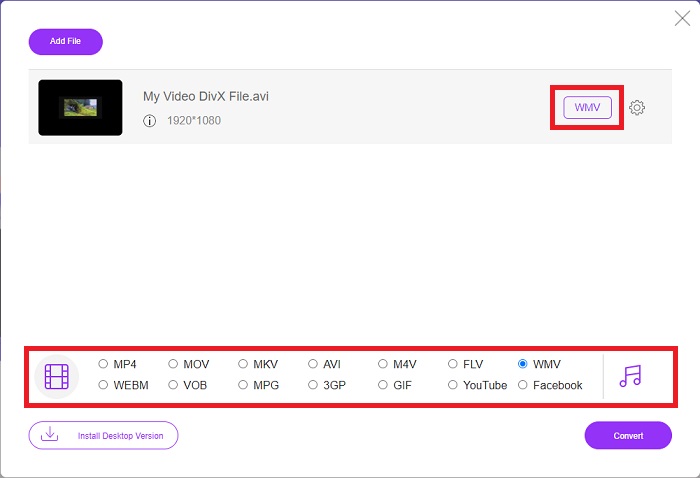
Krok 2: Po dokončení stahování spouštěče klikněte na stejné tlačítko znovu a importujte soubor, který chcete převést. Nyní si můžete ve spodní části okna ze seznamu formátů vybrat WMV.
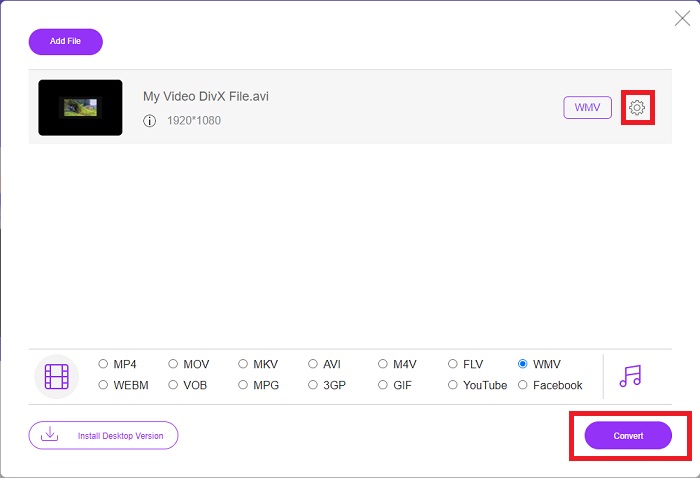
Krok 3: Vpravo najdete také ikonu ozubeného kola, přes kterou můžete stejně jako v programu měnit rozlišení, snímkovou frekvenci a další parametry. Pro uložení provedených změn klikněte na Ok a poté můžete zahájit proces převodu. Klikněte na tlačítko Convert v pravém dolním rohu a vyčkejte na dokončení.
Související:
Část 3. DivX vs. WMV: Informace, které byste měli vědět
Pro srovnání obou zmíněných formátů si můžete přečíst za touto částí, kde se dozvíte všechny podstatné informace:
DivX je značka video kodeku vytvořená společností DivX, LLC. Tento video kodek funguje nejlépe s aplikacemi pro Windows, i když jej uživatelé mohou najít také na herních konzolách, budíkech, stereo vozidlech a dalších zařízeních. Video kodeky MPEG-4 Part 2, HEVC Ultra HD a H.264/MPEG-4 AVC DivX Plus High Definition jsou tři hlavní kodeky DivX, které se dnes používají.
Na druhou stranu, WMV (Windows Media Video) je sada video kodeků a kódovacích formátů vydaných společností Microsoft jako součást jejich rámce Windows Media. Jeho účelem je konkurovat formátu RM na internetových streamovacích aplikacích. Jeho účelem je ukládat komprimované filmy a dokonce dodávat Blu-ray/DVD.
| Digital Video Express (DivX) | Windows Media Video (WMV) | |
| Přípona souboru | .divx | .wmv |
| Vývojář | DivX Networks Inc. | Microsoft |
| Podpůrné programy | ◆ DVD/Blu-ray přehrávače ◆ Budíky ◆ Car Stereo ◆ X-Box 360 | ◆ VLC Media Player ◆ MPlayer ◆ Media Player Classic ◆ Windows Media Player |
Část 4. Nejčastější dotazy o převodu DivX na WMV
Používá se stále DivX?
DIVX (Digital Video Express) je ukončený formát digitálního videa, který se ve Spojených státech nezdařilo vyvinout životaschopnou alternativu k půjčování videa.
Jaká jsou omezení WMV?
Protože WMV je formát Windows, nalezení přehrávačů médií Apple nebo Linux může přehrávat filmy WMV. WMV z tohoto důvodu není běžným formátem streamovaného videa.
Která má záznam ve vyšším rozlišení?
Ačkoli WMV i DivX mohou nahrávat v rozlišení 1280x720, jeden musí mít vyšší kvalitu než druhý. Tyto kodeky mohou nahrávat v několika úrovních kvality s přesným rozlišením, ale přenosová rychlost se mění, aby se vytvořily menší soubory. Přestože je obraz WMV lepší, DivX vytvořil pětkrát rychlejší soubor a o 50 procent menší.
Závěr
Po zvážení všech věcí doporučujeme mít vedle sebe konvertor, takže v dobách, kdy jej budete potřebovat, nebudete muset procházet všemi problémy s hledáním slušného online. Video Converter Ultimate a jeho protějšek online nástroje jsou doporučeny pro spotřebitele videa nebo tvůrce, protože nabízejí mnohem více než jiné převodníky. Navíc vám přináší to nejpohodlnější, protože má rozhraní, ve kterém se mohou snadno orientovat i začátečníci.
-
 4 způsoby, jak zdarma převést DivX na MOV [online a offline]
 Bojujete s omezeními DivX nebo nemáte přehrávače médií pro přístup k videím v tomto formátu? Pokud jej chcete převést do formátu MOV, pokračujte ve čtení tohoto článku, abyste zaplnili mezery.
-
 2 certifikované převodníky používané k převodu souborů DivX do formátu FLV [2022]
 Chcete vědět, jak převést soubory DivX do FLV? Pak si přečtěte tento článek, abyste měli představu, jak na to a jaké dostupné převodníky můžete použít.
-
 Jednoduchý průvodce, jak změnit svůj GIF na WMV ve Windows/Mac
 Chcete vědět, jak převést GIF do formátu WMV? Pak postupujte podle tohoto článku, protože ukazuje různá řešení, ze kterých si můžete vybrat.
