


 Video Converter Ultimate
 Screen Recorder
 Oprava videa
4 nejjednodušší způsoby, jak převést soubor F4V do formátu AVI Media
Macromedia představila F4V a později jej Adobe vyvinula, aby konkurovala modernímu, vysoce kvalitnímu úložišti videa. Je také vytvořen jako náhradní formát za FLV, protože FLV má omezení. Dalším vysvětlením je, že soubor F4V používá základní formát mediálního souboru ISO s kodekem H.264 ke snížení velikosti souboru. Ačkoli formát obsahuje vysoce kvalitní výstup, F4V má nižší kompatibilitu než jiný formát. A nejen to, tento formát byl také postupně ukončen, protože Adobe Flash Player již skončil.
Takže pokud máte stejný problém jako ostatní, protože jejich soubory .f4v nelze přehrát v jejich přehrávači médií, čtěte dál. Shromáždili jsme různé nástroje, které vám pomohou přehrát nehratelný .f4v tím, že jej převedete do formátu AVI. A nyní přejdeme k tomu, jak převést F4V na AVI pomocí dostupných online i offline nástrojů.
Část 1. Naučte se, jak převést F4V na AVI pomocí Fenomenálního převodníku F4V na AVI
Pokud hledáte nejlepší převodník, který vám s tímto problémem pomůže, pak by tím pomocníkem měl být FVC Video Converter Ultimate. Tento nástroj jsme sami otestovali a přečetli si některé komentáře; „Ultimate“ není jen název, ale i výkon a funkce softwaru jsou skutečně špičkové. Jednou z nejpůsobivějších funkcí, které tento nástroj nabízí, je rychlý převod a hardwarová akcelerace, takže uživatelé tohoto softwaru nemusí dlouho čekat.
Také pokud chcete vytvářet GIFy, zrychlovat nebo zpomalovat videa, přehrávat je pozpátku, zesilovat zvuk atd. Protože tento nástroj poskytuje pokročilé funkce, je nutné si jej před použitím zakoupit, ale nemusíte se bát – neutratíte více než sto dolarů. Pokud jste tedy stále ve fázi rozhodování, zda si tento nástroj koupit, zkuste si přečíst níže uvedené kroky a převeďte soubor F4V na AVI podle následujícího návodu.
Krok 1. Než budete moci tento výkonný nástroj použít, musíte si jej stáhnout do počítače. Poté jej nainstalujte a rychle proveďte nastavení; kliknutím na Start Now nástroj otevřete.
Zdarma ke staženíPro Windows 7 nebo novějšíBezpečné stažení
Zdarma ke staženíPro MacOS 10.7 nebo novějšíBezpečné stažení
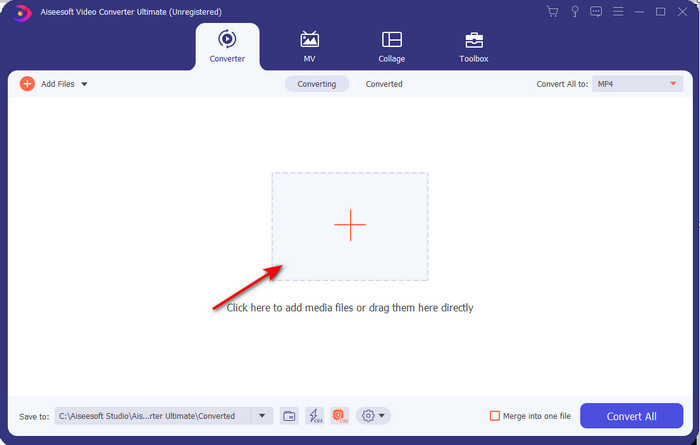
Krok 2. Jakmile je nástroj otevřený, přejděte na Add Files nebo klikněte na tlačítko +, poté se zobrazí složka, ve které vyhledejte soubor s příponou .f4v a klikněte na Open.
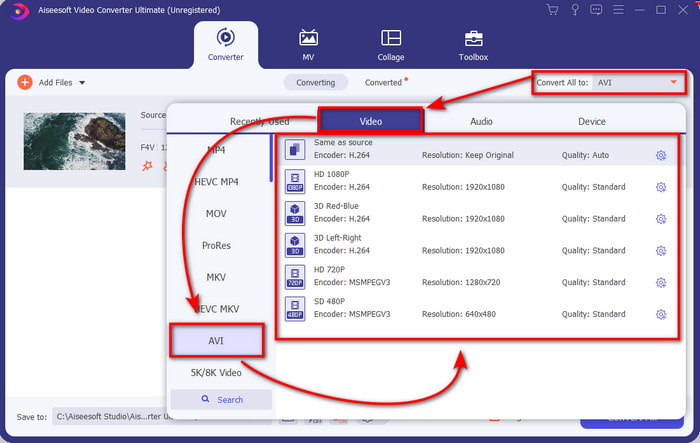
Krok 3. Po vložení souboru klikněte v pravé horní části rozhraní na Convert All to a zvolte formát AVI.
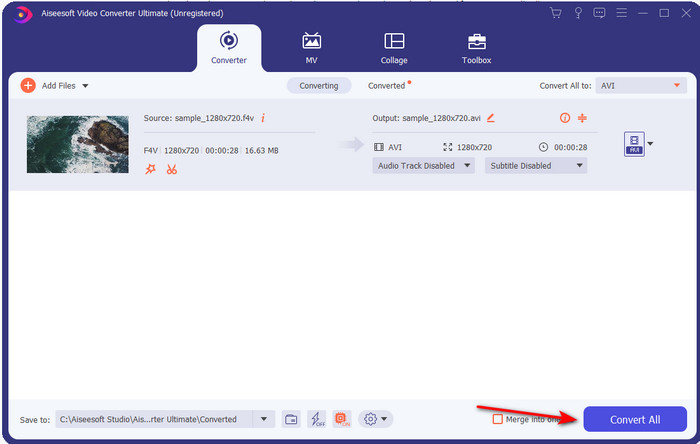
Krok 4. Nyní pro zahájení procesu převodu klikněte na Convert All. Počkejte několik minut, než se vaše video F4V převede na AVI.
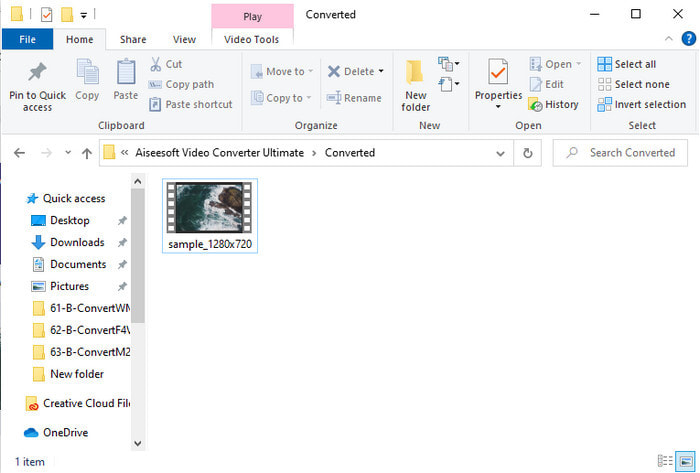
Krok 5. Na ploše se automaticky otevře složka se zkonvertovaným souborem .f4v, který jste zde vytvořili. Kliknutím na video soubor si můžete přehrát dříve nehratelné video na počítači nebo jej podle potřeby přenést do telefonu.
Část 2. Naučte se, jak převést F4V do AVI online pomocí 3 dostupných webových konvertorů
1. FVC Free Video Converter Online
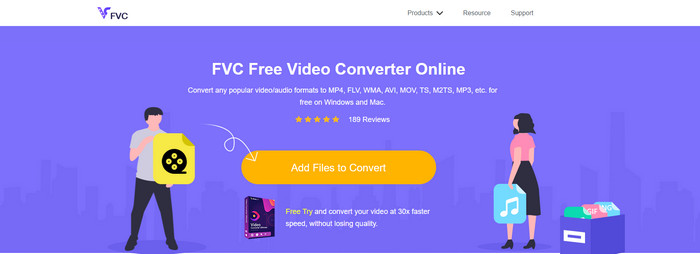
Pokud chcete vědět, který webový převodník je nejlepší, může jím být FVC Free Video Converter Online. Všechny funkce, které byste rádi používali, jsou zde k dispozici – můžete měnit datový tok a snímkovou frekvenci videa, abyste zvýšili kvalitu před samotným převodem. Miliony uživatelů internetu již pochválily celkový výkon tohoto webového nástroje. Tento online nástroj navíc podporuje středně širokou škálu formátů, které můžete vybírat a nahrávat. Nesmíte však své video upravovat tak efektně, jako to umožňuje verze Ultimate. Přesto pokud chcete vyzkoušet a převést F4V do formátu AVI, postupujte podle následujících kroků.
Krok 1. Kliknutím na tento odkaz přejděte na FVC Free Video Converter Online.
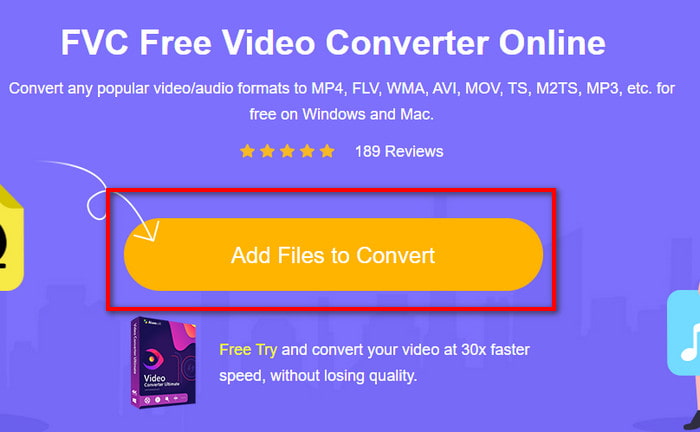
Krok 2. Poté stiskněte Add Files to Convert pro spuštění nástroje a ve složce vyberte soubor, který chcete převést do nového formátu, kliknutím na Open.
Krok 3. Jakmile je soubor načten, v dolní části rozhraní zvolte formát AVI nebo jiný formát, na který jej chcete převést.
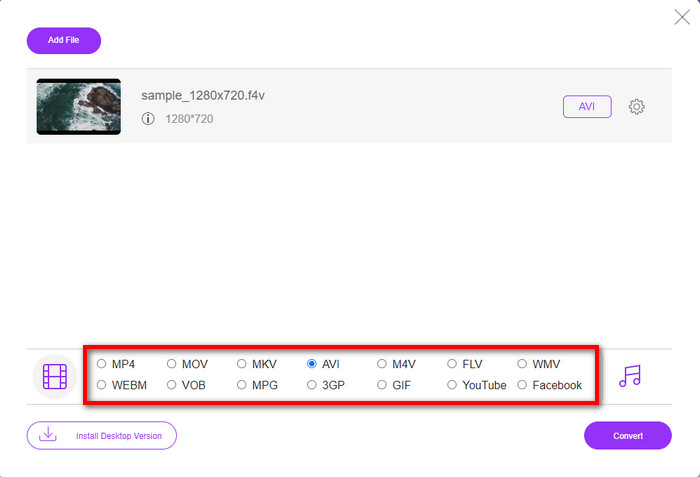
Krok 4. Po výběru formátu AVI nastal ten správný čas převést soubor kliknutím na tlačítko Convert.
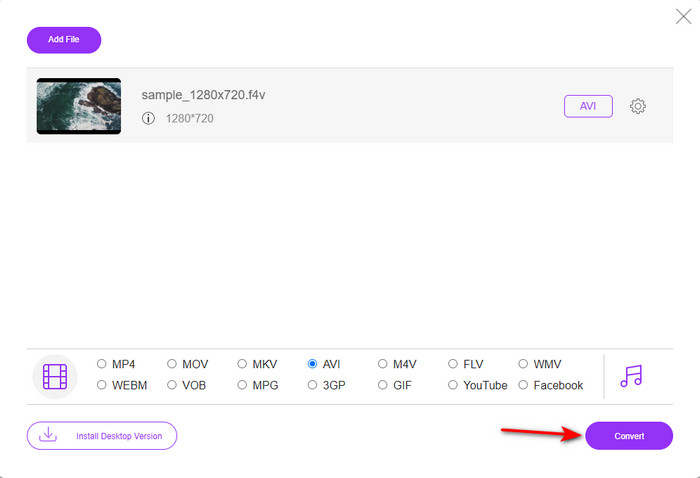
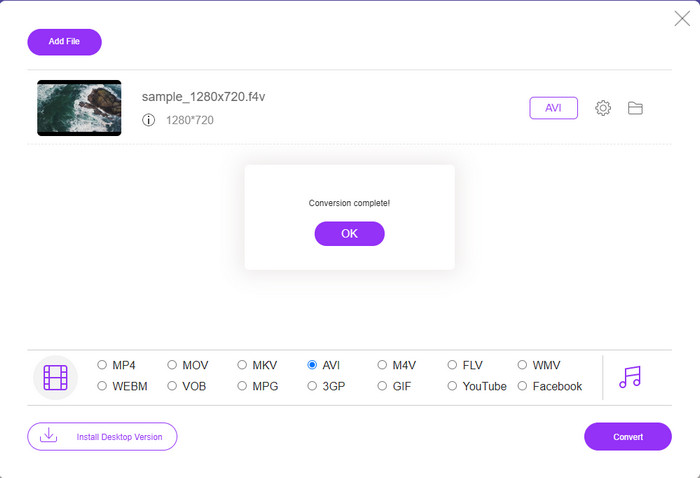
Krok 5. Počkejte několik minut, než se soubor stáhne, a poté se zobrazí složka se zkonvertovaným souborem.
2. Zamzar
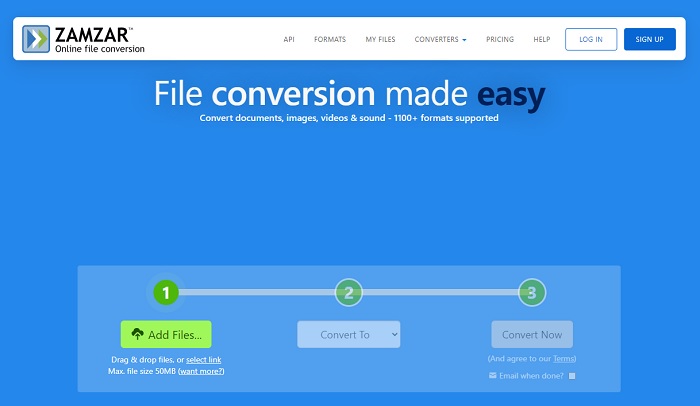
Další alternativou online převodníku, kterou můžete použít, je Zamzar. Stejně jako jakýkoli jiný převodník i tento nástroj potřebuje k používání nebo přístupu k němu připojení k internetu. Všechny webové nástroje představené zde potřebují k provedení převodu internet. Protože jej používá mnoho uživatelů, stal se Zamzar populárním, jelikož podporuje mnoho formátů, které můžete využít a vybrat si. Kromě toho je jeho používání zdarma, ale existuje omezení velikosti souboru, který dokáže převést. Pokud je tedy váš soubor .f4v větší než 50 MB, nemůžete jej zde převést, jak je uvedeno níže. A pokud je váš soubor menší, můžete tento nástroj vyzkoušet a převést F4V na AVI online podle následujícího postupu.
Krok 1. Otevřete webový prohlížeč a vyhledejte Zamzar.
Krok 2. Stiskněte Add Files a vyhledejte soubor, který chcete převést. Poté zvolte formát AVI u volby Convert to a následně klikněte na Convert.
Krok 3. Počkejte na dokončení procesu; poté se zobrazí nové rozhraní a kliknutím na Download soubor uložte.
3. Převést soubory
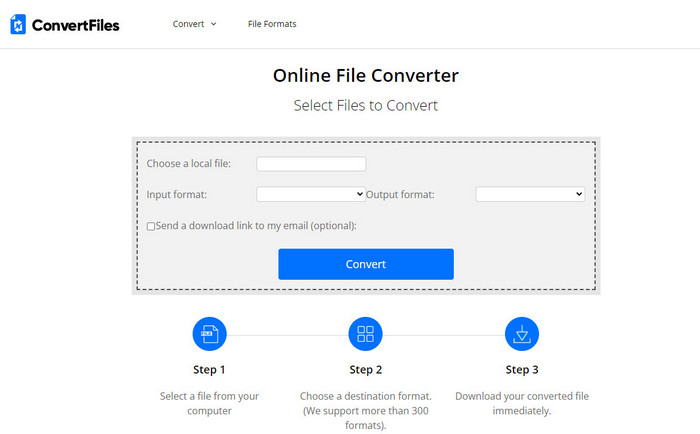
Pokud chcete jednodušší proces převodu, který zabere jen pár minut, zkuste použít ConvertFiles. Nástroj si vede skvěle jak během převodu, tak po něm. Reklamy však tento nástroj značně znepříjemňují, protože jich je v rozhraní webového nástroje opravdu hodně. Proces také trvá déle než u ostatních online i offline převodníků. Velikost souboru, který zde můžete vložit, je však mnohem větší než u Zamzaru. Pokud tedy chcete tímto nástrojem převést soubor F4V na AVI, postupujte takto.
Krok 1. Otevřete webový prohlížeč, vyhledejte ConvertFiles a spusťte jej.
Krok 2. Klikněte na Choose a Local File pro otevření složky a vyhledejte soubor, poté v části Output Format klikněte na AVI. Pak klikněte na Convert pro zahájení převodu.
Krok 3. Po dokončení převodu klikněte na modře zvýrazněnou URL adresu, která vás přenese na novou stránku. Zde klikněte na odkaz pro stažení zkonvertovaného formátu.
Část 3. Který formát je lepší; F4V vs. AVI
No, F4V a AVI dělají svou práci v nejlepším případě jako kontejner. Existuje však mnoho těchto formátů společných a jejich účel není stejný. Pokud například chcete uložit vysoce kvalitní video do malého souboru a zachovat a chránit videodata DRM MPEG-4, F4V je nejlepší volbou. Předpokládejme však, že chcete uložit vysoce kvalitní video, které podporuje synchronizované přehrávání médií. V takovém případě musíte zvolit formát AVI, protože má jiný kontejner pro zvuk i video. Navzdory tomu je velikost souboru AVI pro mnoho zařízení a dokonce i stolních počítačů příliš velká, protože je nekomprimovaný.
Část 4. Časté dotazy o konverzi F4V do AVI
Snižuje konverze F4V po konverzi rozlišení?
Rozlišení videa si musí zachovat původní kvalitu i poté, co jej převedete do nového formátu. V některých případech má mnoho uživatelů zkušenost, že kvalita jejich F4V se snížila. Jedním z důvodů musí být to, že nastavená míra kvality je nízká nebo nástroj, který používáte, nepodporuje 1080 nebo 4k videa.
Proč nelze F4V přehrát na mém přehrávači médií?
Tento formát lze přehrát v několika přehrávačích médií, ale ne všechny přehrávače jej podporují. Pokud tedy chcete toto video sledovat, je nejlepší možností převést ho do nového formátu nebo si najít nový přehrávač médií třetí strany, ve kterém si videa F4V přehrajete.
Musím komprimovat F4V, aby byla menší?
Velikost souboru F4V není ve srovnání s formátem AVI tak velká. Pokud se přesto pokusíte tento kontejner komprimovat, existuje šance, že se kvalita videa sníží. Zde se můžete naučit, jak komprimovat svá videa F4V.
Závěr
Na konci tohoto článku máme nyní přehled o tom, co je F4V a proč jej musíte převést. Veškerý online a offline software zmíněný v tomto článku funguje dobře. Přestože jsou všechny nástroje skvělé, FVC Video Converter Ultimate stále vyniká mezi ostatními. Protože tento software funguje dobře, nemáte připojení k internetu a tento nástroj dokáže dokončit proces převodu během mrknutí oka. Takže teď, pokud chcete zažít fenomenální konverzi, o které mluvíme, pak si ji stáhněte.
-
 Jak převést TS na AVI / MKV / MOV / WMV online a zdarma na Win / Mac
 Chcete rychle převést soubory TS na AVI / MKV / MOV / WMV? Tento článek ukazuje online a offline převaděče videa s kompletním průvodcem. Možná zde získáte nejlepší bezplatný převodník TS.
-
 [Zdarma a online] 7 způsobů, jak převést MTS do AVI na počítači Mac/Windows
 Jak snadno převést MTS na AVI? V této příručce najdete 7 bezplatných a snadných způsobů převodu souborů MTS do formátu AVI ve Windows nebo Mac bez ztráty kvality.
-
 Výukový program pro převod souborů MP4 na AVI se 7 bezplatnými převaděči videa
 Chcete získat všechny bezplatné způsoby, jak převést AVI na MP4 video? Tento článek byste si neměli nechat ujít. Zde je 7 způsobů, jak zdarma převést soubory AVI na MP4 na Windows, Mac, iPhone, Android a online.
