


 Video Converter Ultimate
 Screen Recorder
 Oprava videa
 Bezpečné stažení
Krok za krokem Jak přidat obrázek alba do MP3 pomocí nejlepšího softwaru na ploše
Přidávání přebalu alba se může hodit, zejména pokud chcete posluchači pomoci cítit se více spojený s hudbou, kterou poslouchá. Díky tomuto přebalu alba si uživatelé mohou udělat představu, o čem hudba je, především u digitálních nahrávek. V některých případech nemá soubor MP3 správný přebal alba nebo není k souboru vůbec připojen. Pokud se vám stává totéž, je zásadní naučit se, jak přidat přebal alba k hudbě MP3 na počítači. Chcete‑li se o tomto tématu dozvědět víc, pokračujte ve čtení tohoto článku, ve kterém přinášíme stručné, ale ucelené informace o daném problému.

Část 1. Jak přidat obrázek alba do MP3 pomocí Video Converter Ultimate [Doporučený editor tagů]
Chcete použít špičkový software k přidání přebalu alba k souboru MP3? FVC Video Converter Ultimate je pro tento úkol doporučený editor tagů. Tento software není doporučován bezdůvodně. Na rozdíl od jiných programů, u nichž jsou formáty přebalu alba, které můžete nahrát a použít jako obal pro svou hudbu MP3, omezené, u tohoto nástroje to neplatí. S tímto ultimátním softwarem můžete přidat přebal alba k MP3, WAV, WMA, AAC, FLAC a více než 1000 dalším formátům videa a audia. Skvělé, že? Tento nástroj je první volbou pro přidávání obrázkového obalu k vašemu albu. Chcete vědět, jak tento ultimátní software používat? V tom případě si můžete níže pečlivě přečíst a následovat přiloženou ukázku.
Krok 1. Klikněte na tlačítko Stáhnout níže a zvolte, jaký operační systém právě používáte. Po stažení softwaru přejděte k instalaci nástroje. Pokud je vše hotovo, klikněte na Spustit nyní a spusťte software na svém počítači.
Zdarma ke staženíPro Windows 7 nebo novějšíBezpečné stažení
Zdarma ke staženíPro MacOS 10.7 nebo novějšíBezpečné stažení
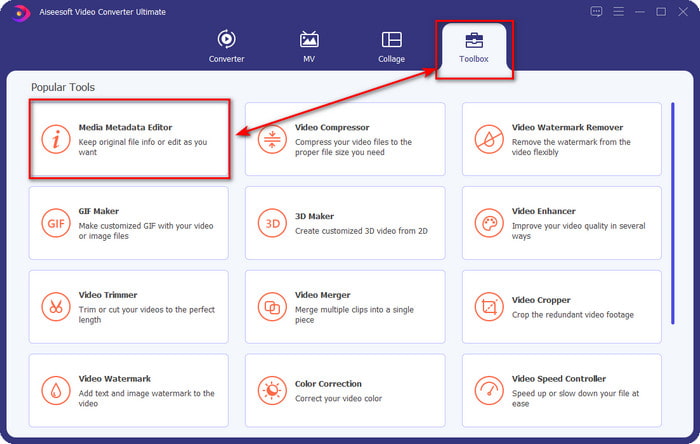
Krok 2. Přejděte do sekce Toolbox a klikněte na Media Metadata Editor v této části.
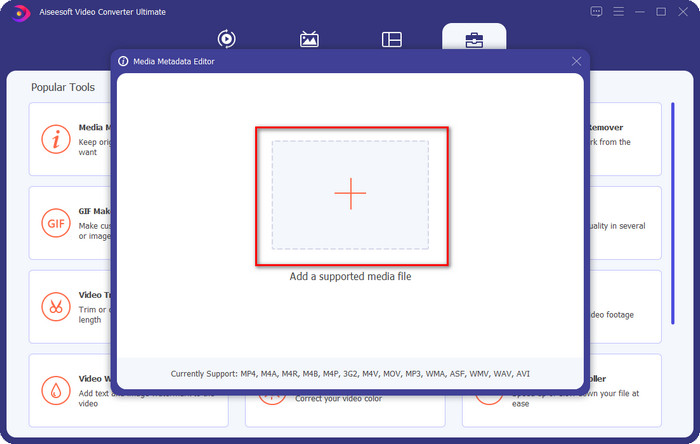
Krok 3. Vyberte hudební soubor, ke kterému chcete přidat přebal alba, kliknutím na tlačítko +. Pro vložení vybraného hudebního souboru klikněte na Open.
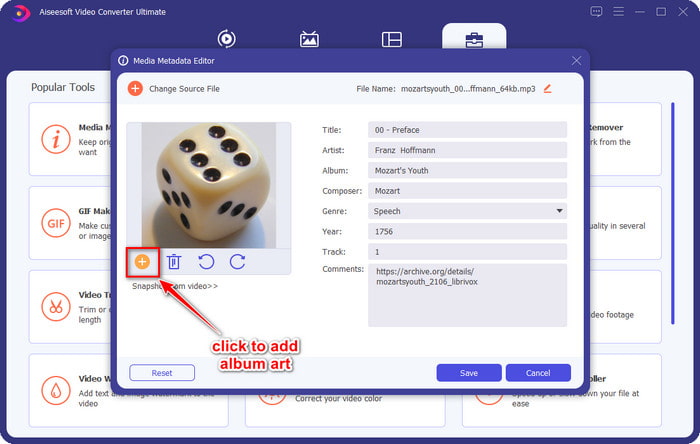
Krok 4. Dále klikněte na tlačítko + vlevo dole v rozhraní, najděte přebal alba, který chcete použít, a klikněte na Open. Pokud potřebujete, přidejte další metadata do textboxu.
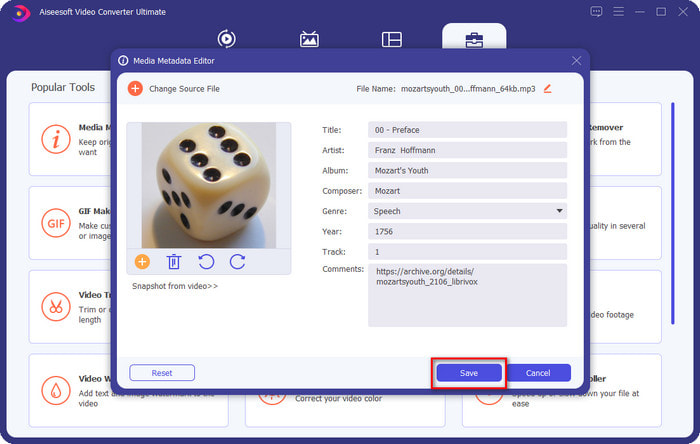
Krok 5. Pokud jste dokončili přidávání přebalu alba a metadat k souboru MP3, můžete nyní kliknout na Uložit a připojit přebal alba k nahranému souboru MP3. Jednoduché, že? Všechno je možné a snadné, pokud k vyřešení problému použijete ultimátní nástroj.
Část 2. Jak přidat obrázek alba do MP3 pomocí bezplatného editoru metadat VLC Media Player]
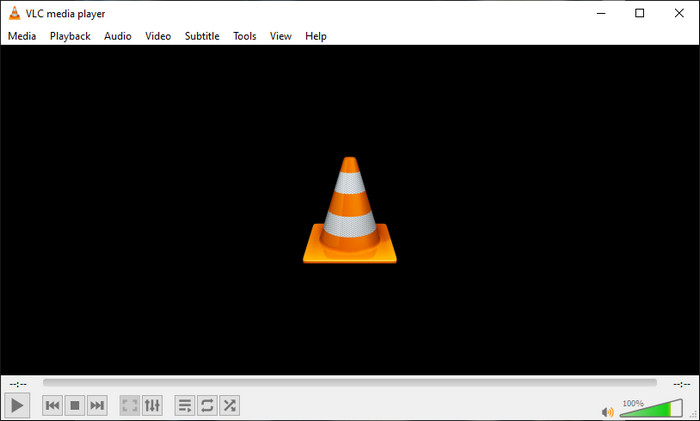
VLC Media Player je nejlepší přehrávač médií, který většina z nás používá. Tento nástroj dokáže přehrát jakýkoli video soubor a umí také upravovat metadata, například přidat přebal alba k hudebnímu souboru. S tímto přehrávačem můžete volně upravovat nebo přidávat metadata. Pokud chcete návod, jak přidat přebal alba k MP3 ve Windows 10/11 nebo na Macu pomocí tohoto nástroje, níže uvedené kroky jsou pro vás.
Krok 1. Stáhněte si přehrávač médií do počítače a otevřete jej.
Krok 2. V hlavním rozhraní klikněte na Nástroje a pod nimi na Information.
Krok 3. Klikněte pravým tlačítkem na ikonu VLC v pravém dolním rohu, přidejte přebal alba a klikněte na Save.
Část 3. Jak přidat obrázek alba do MP3 v iTunes [Vestavěný editor metadat na Macu]
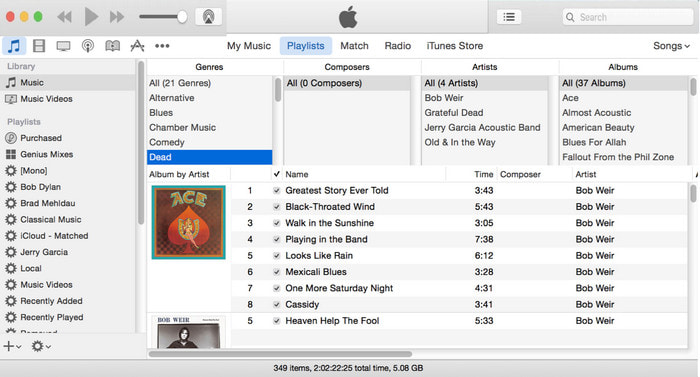
Pro uživatele Macu je iTunes naším oblíbeným editorem metadat pro přidání obrázkového obalu k souboru MP3. Tato vestavěná aplikace nám může pomoci upravit metadata souboru, který máme na Macu. Software však v některých verzích systému macOS již není k dispozici, protože byl nahrazen třemi samostatnými aplikacemi, které plní stejnou funkci jako iTunes. Na některých starších verzích Macu však iTunes stále je. Pokud jste jedním z uživatelů Macu, kteří chtějí vědět, jak přidat přebal alba k MP3 v iTunes, můžete postupovat podle níže uvedených kroků.
Krok 1. Otevřete aplikaci iTunes na svém Macu.
Krok 2. Klikněte na Music, poté na Library a klikněte pravým tlačítkem na hudební soubor, který nemá přebal alba.
Krok 3. V horní nabídce klikněte na Artwork, pak na Add Artwork, vyberte obrázek, který chcete nahrát, a kliknutím na OK jej použijte.
Část 4. Časté dotazy o tom, jak přidat obrázek alba do MP3
Mohu přidat obrázek alba do MP3 na Audacity?
Bohužel nemůžete přidat obrázek do souboru MP3, který máte pomocí Audacity. Tento nástroj nepodporuje žádný formát obrázků nebo videa, protože je určen k použití jako hudební editor. Ale stále můžete Audacity používat jako editor metadat, pokud chcete upravit metadata MP3.
Proč v mém zvukovém souboru chybí obrázek alba?
Existují tři důvody, proč ve vašem zvukovém souboru chybí obrázek alba. Prvním důvodem je, že soubor, který si stahujete, neobsahuje obal alba, zvláště pokud se jedná o pirátství. Většina hudebních souborů, které jsme si stáhli na web, neobsahuje obal alba, aby se předešlo problémům s copywritingem. Dále soubor zmizel, protože obrázek nebyl správně připojen. Někteří uživatelé se s tímto problémem setkávají a je obtížné se s ním vypořádat, takže použití profesionálního nástroje pro tvorbu obrázků je nezbytné. Nakonec je obraz poškozen; Pokud soubor, který jste nahráli, není k dispozici jako obal alba nebo je hudební soubor, který jste nahráli, poškozen, může to být důvodem.
Jaká jsou nejlepší metadata, která mohu použít?
Pokud jsou editory metadat, které jsme výše uvedli, pro vás nedostačující, můžete kliknout na tento odkaz a přejít na nový článek, kde najdete všechny nejlepší editory metadat, které můžete použít.
Závěr
Nyní, když máme myšlenku přidat obrázek alba do MP3, je čas vybrat si, který nástroj nám vyhovuje nejlépe. Pokud jste uživatelem Mac a nechcete stahovat žádný software na plochu, musíte zvolit iTunes. Ale iTunes je na aktualizované verzi Mac vyřazeno. Pokud si chcete stáhnout bezplatný nástroj, který vám pomůže přidat obal k vaší hudbě, pak je VLC skvělou volbou. Tento nástroj však není profesionální nástroj. Pokud tedy chcete odborný software, který vám dokáže vyhovět v tomto úkolu, dostupný na obou operačních systémech, Windows i Mac, použijte ten nejlepší software. Stáhněte si software na plochu, abyste měli profesionální nástroj na dosah, kliknutím na tlačítko stahování uvedené výše.
-
 Jak snadno zobrazit metadata fotografií a videí na iOS
 Chcete vědět, jak zobrazit metadata na iPhone a iPad? Pak vám přečtení tohoto článku může pomoci vyřešit tento problém bez námahy.
-
 Nejlepší techniky, jak upravit značky iD3 na iTunes [Efektivní tipy]
 Potřebujete vědět, jak upravit štítky na iTunes? Pak jste na správném místě. Jak jsme diskutovali o metodách, můžete upravit značky pomocí iTunes.
-
 Jak upravit vlastnosti souborů WAV ve Windows 10/11 a Mac [Vyřešeno]
 Hledáte způsob, jak upravit vlastnosti souborů WAV ve Windows 10/11? Tato otázka bude mít odpověď, pokud budete pokračovat ve čtení tohoto článku.
