


 Video Converter Ultimate
 Screen Recorder
 Oprava videa
 Bezpečné stažení
Řešení pro stříhání videí online [Výukové programy krok za krokem]
Jak zkrátit svůj dlouhý videozáznam? Pokud neznáte nejlepší postupy, máte důvod si přečíst tento návod. V průběhu článku vám poskytneme všechny zásadní informace o zkracování délky videa. Také vám představíme online i offline programy pro úpravu videa, které můžete využít. Díky tomu budete mít větší šanci dosáhnout svého cíle. Takže bez dalších řečí si přečtěte tento příspěvek a zjistěte, jak stříhat video online.

Část 1. Vynikající metody pro stříhání videa online
1. InVideo
Jedním z užitečných nástrojů pro úpravu videa, který můžete najít online, je střihač videa InVideo. Tento webový software nabízí snadno použitelné rozvržení. Po návštěvě webové stránky nemusíte nástroj instalovat. Jediné, co musíte udělat, je přidat video a již můžete přistoupit k ořezávání. Navíc, protože má jednoduché rozložení, bude existovat i srozumitelná metoda. Tímto způsobem můžete používat InVideo, ať už jste profesionální nebo neprofesionální uživatel. Navíc je InVideo dostupné téměř na všech webových platformách. Nástroj můžete použít v prohlížečích Google Chrome, Mozilla Firefox, Internet Explorer a dalších. InVideo má však některé nevýhody. Při použití bezplatné verze nemůže InVideo nabídnout vysokou kvalitu videa. Také může nabídnout pouze nízkou kvalitu videa, což je neuspokojivé. Pokud chcete vynikající kvalitu videa, musíte si zakoupit předplatné. Chcete-li oříznout/oříznout video pomocí ořezávače videa InVideo, postupujte podle následujících kroků.
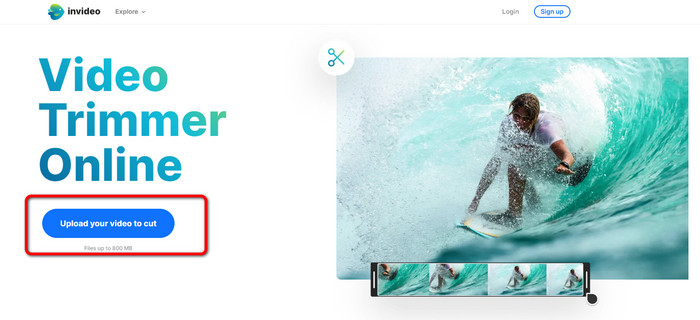
Krok 1. Otevřete prohlížeč a přejděte na oficiální stránky InVideo. Pokud už jste na webu, klikněte na tlačítko Upload your video to cut. Když se na obrazovce zobrazí okno s soubory, vyberte video, které chcete oříznout/zkrátit, a otevřete ho.
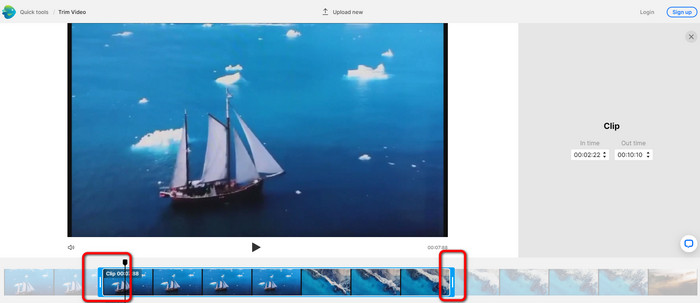
Krok 2. Po výběru videa budete přesměrováni do části, kde jej můžete oříznout. Pro zkrácení videa posuňte posuvníky na obou koncích videa na požadovaný časový údaj.
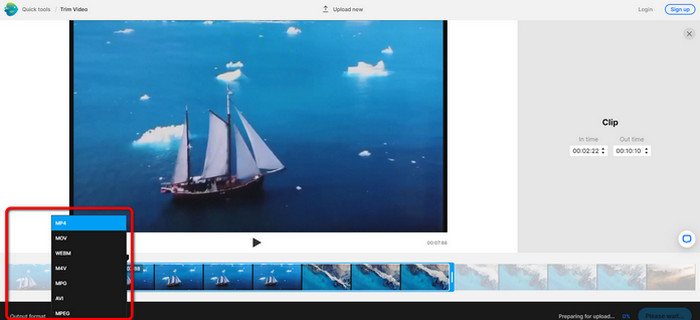
Krok 3. Po oříznutí videa jej můžete uložit v různých formátech. Přejděte na možnost Output Format v levé dolní části rozhraní. Když se zobrazí nabídka formátů, vyberte požadovaný výstupní formát. Poté klikněte na Done.
Krok 4. Než budete moci video uložit, musíte si u InVideo vytvořit účet nebo se přihlásit k již existujícímu účtu. Po vyplnění přihlašovacích údajů bude vaše video během několika sekund připraveno k uložení.
2. Ezgif
Další online střihač videa zdarma je Ezgif. Nabízí jednoduchý postup, jak video zkrátit. Ezgif je bezplatný online nástroj, takže nemusíte utratit ani korunu. Navíc k němu máte přístup v každém prohlížeči, včetně Google Chrome, Edge, Firefoxu, Internet Exploreru a dalších. Online verze však podporuje pouze GIF. Pokud tedy plánujete stříhat video v jiném formátu, Ezgif není vhodný nástroj. Také se při používání nástroje na obrazovce objevuje mnoho rušivých reklam, což může při úpravách videa působit obtěžujícím dojmem.
Krok 1. Přejděte na webové stránky Ezgif a zvolte možnost Cut.
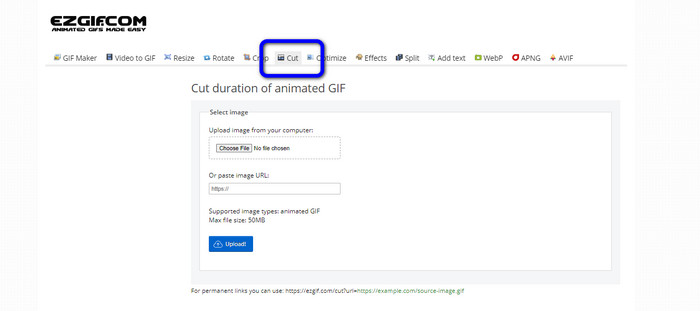
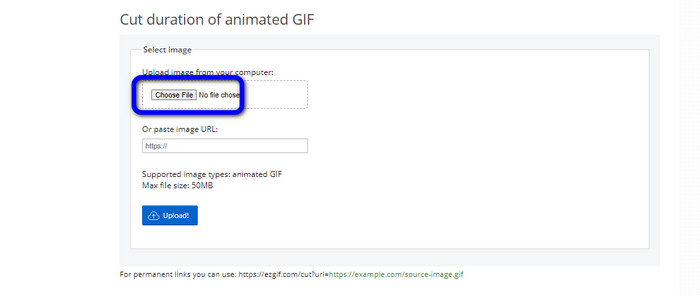
Krok 2. Poté klikněte na tlačítko Choose File. Pak z počítače přidejte GIF soubor, který chcete nahrát.
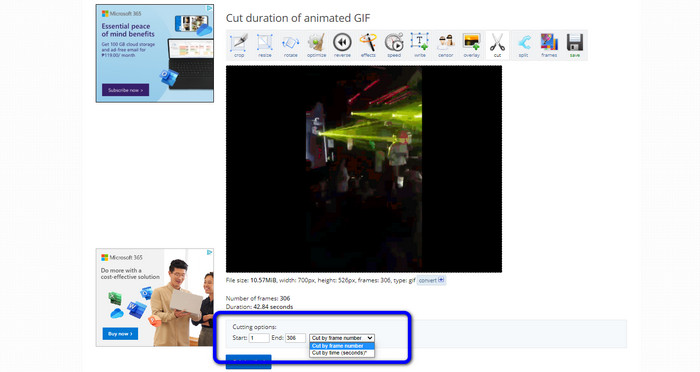
Krok 3. Po nahrání GIF souboru jej můžete začít stříhat. Existují dva způsoby, jak GIF oříznout – podle čísla snímku nebo podle času. Zvolte si způsob, který vám nejlépe vyhovuje.
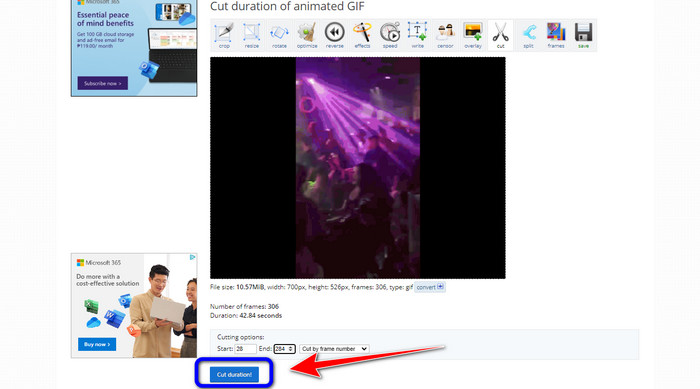
Krok 4. Kliknutím na tlačítko Cut Duration spusťte proces střihu.
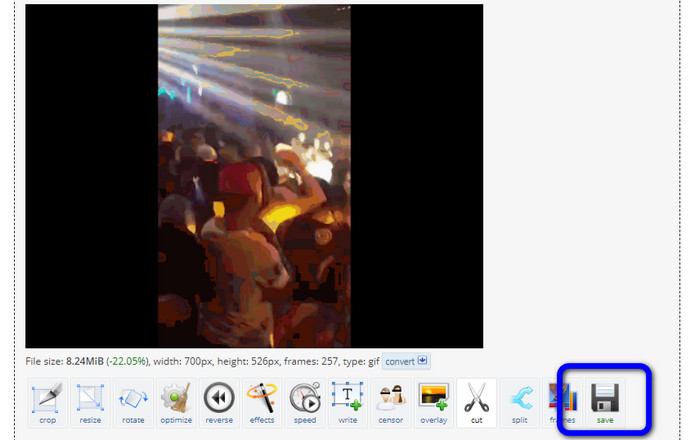
Krok 5. Poté se zobrazí upravený GIF. Klikněte na možnost Save a stáhněte finální výstup do svého počítače.
3. Kapwing
Ke zkrácení videa můžete využít také online střihač videa Kapwing. Tento webový nástroj umí zkrátit video velmi snadno a bez zbytečných komplikací. Navíc je dostupný na různých webových platformách, jako jsou Chrome, Mozilla, Edge a další. Kapwing navíc podporuje různé video formáty, například MP4, MOV, AVI, FLV, WEBM a další, což je pro uživatele velmi pohodlné. Kapwing má ale i některé nevýhody. Na obrazovce se neustále objevují rušivé reklamy. Kromě toho vám ve verzi zdarma umožní nahrát pouze video v rozlišení 720p. Také po úpravě videa přidává nepříjemné vodoznaky. Pokud chcete mít video bez vodoznaku a využívat více pokročilých funkcí, je nutné zakoupit předplatné.
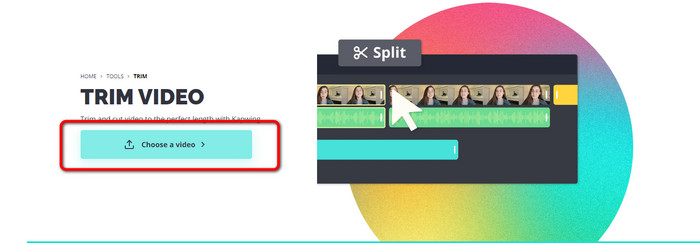
Krok 1. Přejděte na web Kapwing. Poté klikněte na možnost Choose a video, abyste se dostali do hlavního rozhraní nástroje.
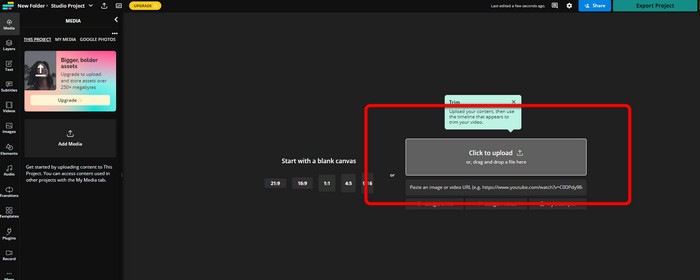
Krok 2. Klikněte na tlačítko Click to upload a vložte video ze složky v počítači.
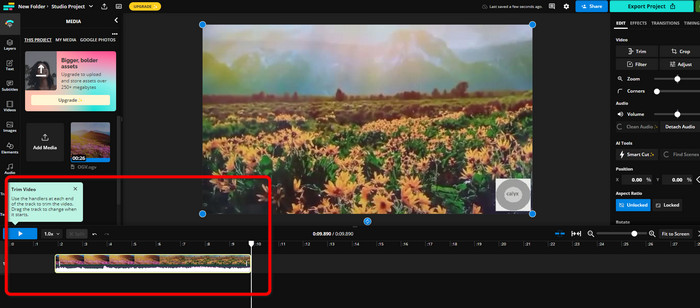
Krok 3. Jakmile je video na časové ose, můžete začít se střihem tak, že uchopíte táhla na obou stranách a posunete je.
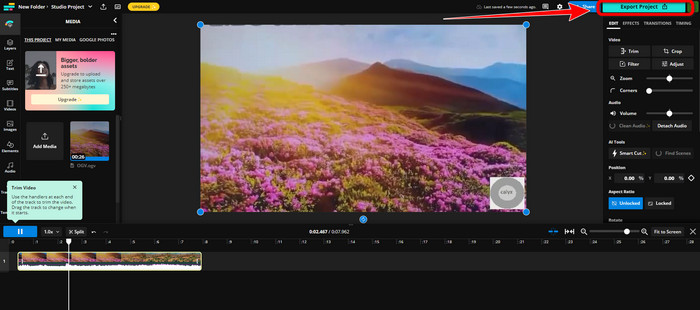
Krok 4. Až budete hotovi, přejděte do pravého horního rohu rozhraní a klikněte na tlačítko Export Project. Tím uložíte upravené video do svého počítače.
Část 2. Alternativní způsob oříznutí videa offline
K úpravě videí offline v co nejvyšší kvalitě použijte Video Converter Ultimate. Tento nástroj vám umožní snadno klipovat a/nebo zkracovat video. Má jednoduché rozhraní a přehledné ovládání, takže se hodí pro všechny typy uživatelů. Hotové video můžete uložit v různých formátech, například MOV, AVI, MP4, MKV a dalších. Při stříhání videa můžete udělat ještě mnohem více. V části výstupních nastavení (Output options) můžete provádět různé úpravy – změnit snímkovou frekvenci, rozlišení, kodek, kvalitu atd. Video Converter Ultimate navíc k upravenému videu nepřidává žádné vodoznaky. Díky tomu můžete výsledný film sledovat bez rušivých prvků. Program je dostupný jak pro Windows, tak pro Mac, což znamená, že je pohodlný pro uživatele obou platforem. Postupujte podle podrobného návodu níže a začněte video stříhat.
Krok 1. Kliknutím na tlačítko Download níže si stáhněte Video Converter Ultimate do svého počítače. Po dokončení instalace program otevřete.
Zdarma ke staženíPro Windows 7 nebo novějšíBezpečné stažení
Zdarma ke staženíPro MacOS 10.7 nebo novějšíBezpečné stažení
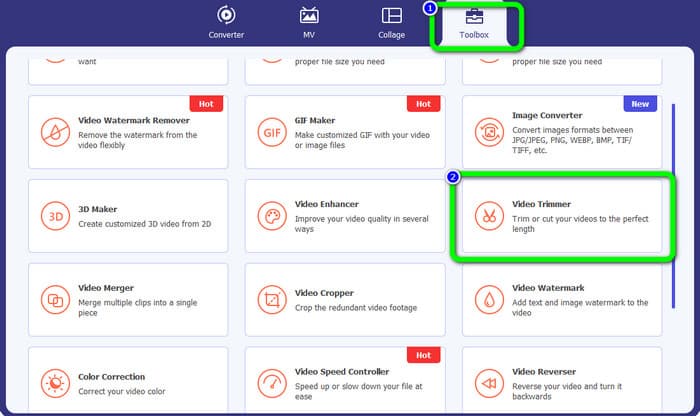
Krok 2. V hlavním rozhraní klikněte na nabídku Toolbox a vyberte nástroj Video Trimmer.
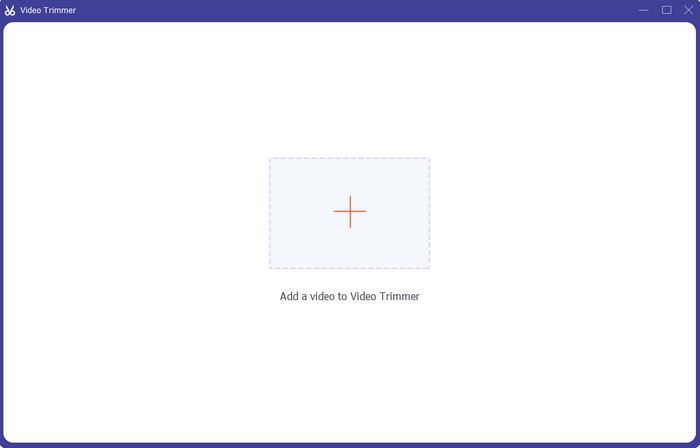
Krok 3. Když se na obrazovce objeví nové rozhraní, klikněte na ikonu Plus a vložte video, které chcete upravit.
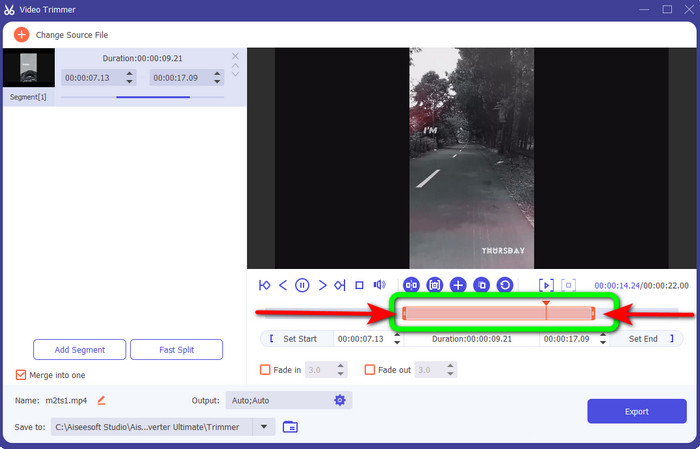
Krok 4. V této části už můžete začít video upravovat. Posouváním okrajů časové osy určíte, jak chcete video oříznout/zkrátit. Pravý i levý okraj můžete posunout podle svých potřeb.
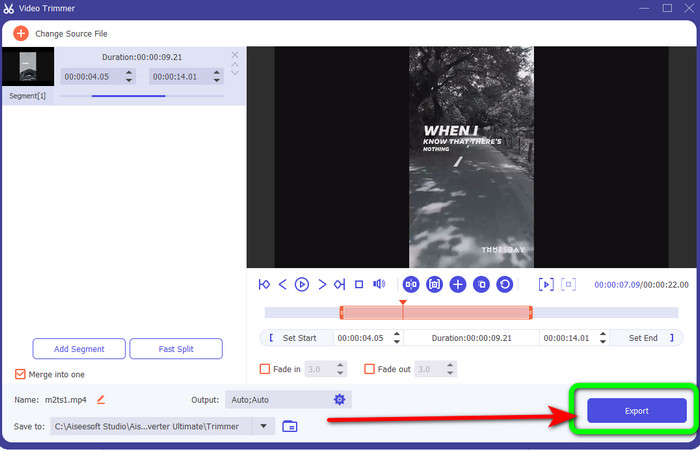
Krok 5. Jakmile jste s videem spokojeni, klikněte na tlačítko Export, čímž spustíte export. Poté uložte finální upravené video.
Část 3. Časté dotazy o tom, jak stříhat video online
Jak oříznout video na iPhone?
Po spuštění klepněte v aplikaci Obrázky na video, které chcete upravit. Klikněte na Upravit. Změňte čas začátku a konce přetažením posuvníků na každé straně časové osy videa. Pomocí tlačítka přehrávání zobrazíte náhled upraveného videa. Po výběru Hotovo vyberte Uložit video nebo Uložit video jako nový klip.
Jak stříhat videa v Shotcut?
Po importu do Shotcut přetáhněte soubor videa na časovou osu. Umístěte přehrávací hlavu na začátek segmentu, který chcete oříznout. Poté stiskněte klávesovou zkratku I. Po posunutí přehrávací hlavy k závěru sekce stiskněte klávesu O. Segment bude nyní oddělen od zbytku videa.
Jaký je nejlepší software pro stříhání souborů MP4 offline?
Pokud chcete soubory MP4 stříhat offline, použijte Video Converter Ultimate. Tento program ke stažení zdarma vám umožní zkracovat soubory MP4 bez zbytečných potíží.
Závěr
Toto jsou nejlepší způsoby, jak stříhat video online. Ke zkrácení videa můžete využít všechny výše uvedené nástroje pro úpravu. Při používání online nástrojů se ale může stát, že kvůli slabému internetovému připojení nebudou fungovat spolehlivě. V takovém případě použijte Video Converter Ultimate. Jde o program ke stažení, který vám umožní upravovat videa i bez připojení k internetu.
-
 [4 způsoby] Jak snadno zrychlit svá videa online
 Chcete zrychlit video online? Přečtěte si tento článek, kde se dozvíte více o zrychlení videa různými možnými způsoby.
-
 Jak stříhat a slučovat skladby online - 4 nejlepší způsoby, které byste měli vědět
 Chcete-li ořezávat a slučovat písničky online a vytvořit hudební skladbu, můžete se dozvědět více o 4 nejlepších online nástrojích pro ořezávání skladeb a kombinování souborů z článku.
-
 Objevte nejlepší vyžínač MP4 s postupem a informacemi
 Chcete se naučit stříhat videa jako vlogeři, které sledujete? Pak pokračujte ve čtení tohoto příspěvku, abyste věděli, jaké zastřihovače MP4 můžete použít.
