


 Video Converter Ultimate
 Screen Recorder
 Oprava videa
Jak snížit rozlišení videa na Windows, Mac a mobilních telefonech
Videa v rozlišení 1080 a 720 HD mají nejlepší kvalitu, kterou budete rádi používat, zejména při sledování. Přestože jsou tato rozlišení nejlepší, dříve nebo později budete muset rozlišení videa převést na nižší, abyste ušetřili místo na disku. Otázkou ale je, jak převést rozlišení videa na nižší? V tomto článku představíme přední převodníky rozlišení videa, které umí snížit rozlišení videa ve Windows, na Macu, online, v systému Android i na iPhonu.

Část 1. Proč potřebujete snížit rozlišení videa
V rámci přípravy před snížením rozlišení videa nejprve určíme příčinu, proč musíme změnit rozlišení videa, abychom snížili rozlišení. Níže uvedené informace jsou nejčastějším případem, který budete potřebovat ke snížení rozlišení.
Důvod 1. Nepodporováno na mobilních zařízeních
Některá mobilní zařízení nepodporují vyšší rozlišení videa, protože je váš mobil nerozpozná. Někdy jsme si mysleli, že se video neotevře kvůli kompatibilitě formátu, ale to je další důvod. Pokud chcete video přehrát, musíte mít na paměti rozlišení videa, které jste si uložili do telefonu.
Důvod 2. Udělejte si čas na načtení souboru do přehrávače médií
Každý přehrávač médií dokáže přehrát vaše video v nejvyšším možném rozlišení, ale ne každý dokáže okamžitě načíst video ve vysoké kvalitě. I když sledování videa s vysokým rozlišením je příjemnější než sledování nižšího. Naučit se, jak snížit rozlišení videa, je nutností, pokud chcete video sledovat okamžitě s malým nebo menším zatížením přehrávače médií.
Důvod 3. Video s vysokou kvalitou zabere hodně místa
Tento důvod pro nás není nový; u videa s vysokou kvalitou je pravděpodobnější, že bude mít obrovskou velikost souboru. Kvůli vysoce kvalitnímu výstupu musíte počítat s velkou velikostí souboru. Například 720 a 1080 jsou jedny z nejvyšší kvality, ale velikost souboru 720 videí je mnohem menší než 1080 videí. Na druhou stranu, rozlišení 1080 je mnohem vyšší než 720.
Nyní, když máme představu, proč potřebujeme snížit rozlišení videa, následující informace níže vás naučí různé sady nástrojů, které můžete použít ke snížení rozlišení videa. Udržujte míč v pohybu, abyste o něm měli komplexní představu.
Část 2. Nejjednodušší způsob, jak snížit rozlišení videa na ploše
Pokud potřebujete uživatelsky přívětivý video konvertor, který vám pomůže rychle změnit rozlišení videa, pak vám to Video Converter Ultimate nabídne. Tento nástroj podporuje více než 200 formátů s různými předvolbami, z nichž si můžete vybrat. Chcete vědět, co nás na tomto konvertoru zaujalo? Pomocí tohoto nástroje můžete vytvářet předvolby až do 4K nebo naopak snižovat rozlišení až na 360p. Navíc nemusíte být profesionální střihač videa, abyste se naučili, jak převést video na nižší rozlišení; když budete postupovat podle kroků níže, můžete úspěšně změnit rozlišení.
Krok 1. Klikněte na příslušné tlačítko a stáhněte si verzi pro systém, který právě používáte, ať už Windows nebo Mac. Otevřete stažený soubor a postupujte podle instalačního průvodce, abyste program správně nainstalovali. Po instalaci otevřete Video Converter Ultimate a pokračujte dalším krokem.
Zdarma ke staženíPro Windows 7 nebo novějšíBezpečné stažení
Zdarma ke staženíPro MacOS 10.7 nebo novějšíBezpečné stažení
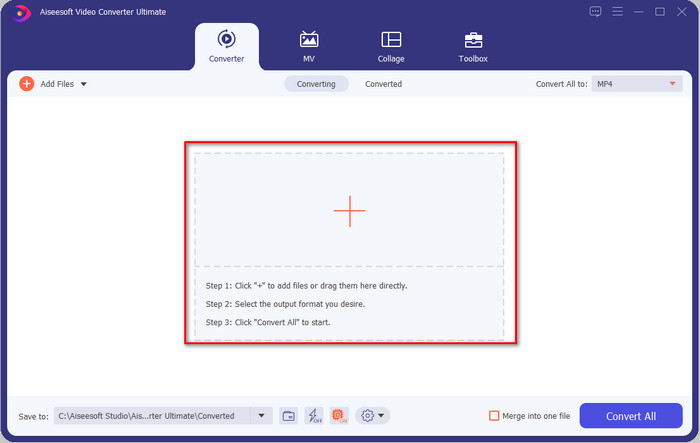
Krok 2. Nahrajte video s nejvyšším rozlišením tak, že jej přetáhnete a upuštíte do rozhraní nástroje. Případně můžete kliknout na tlačítko +, otevřít složku, najít soubor a kliknutím na Otevřít video nahrát.
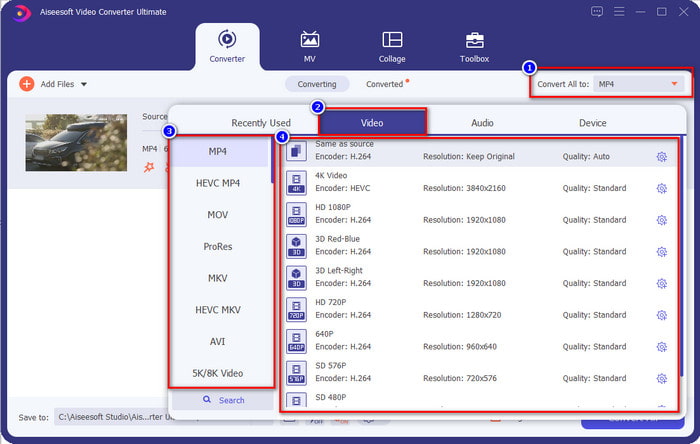
Krok 3. Klikněte na Convert All to a zobrazí se seznam předpřipravených formátů. Můžete zvolit různé formáty jako MP4, MOV, AVI, MKV a dalších 200+ formátů s různými rozlišeními, klikněte na formát, který chcete, a pokračujte.
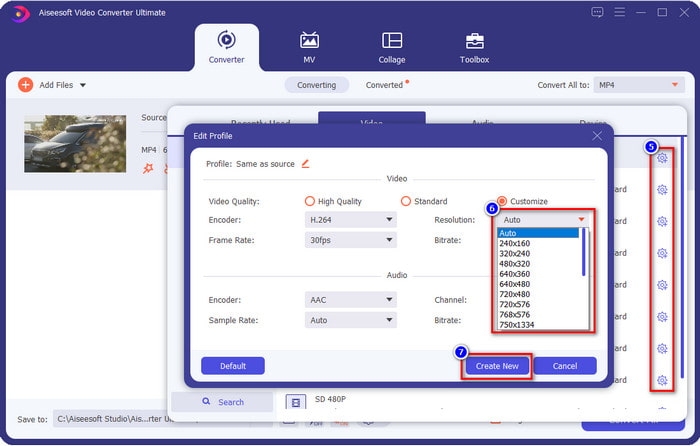
Co když požadované rozlišení není na předpřipraveném seznamu? Nemusíte se obávat, můžete si vytvořit vlastní rozlišení. Po kliknutí na Convert All to zvolte formát, který chcete, a klikněte na ozubené kolečko se symbolem plus. Klikněte na rozbalovací nabídku, vyberte požadované rozlišení, klikněte na Create New a poté zvolte vámi vytvořenou předvolbu.
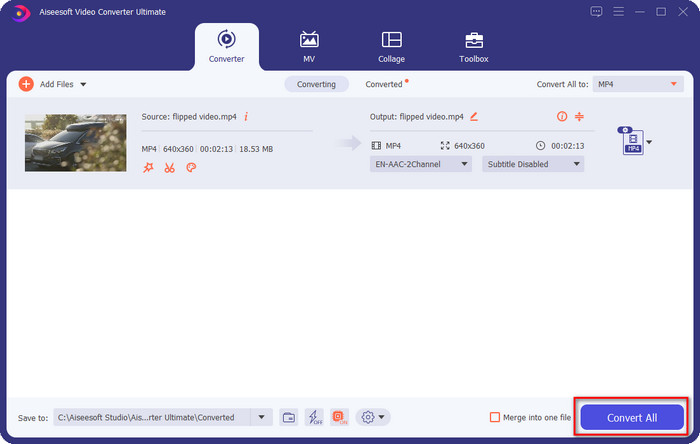
Krok 4. Abyste začali snižovat rozlišení videa, stiskněte tlačítko Convert All. Díky ultra rychlému převodu bude stahování trvat méně než minutu. A voilà, rozlišení vašeho videa je nyní sníženo, a to díky tomuto špičkovému nástroji.
Část 3. Bezplatný způsob převodu rozlišení videa na nižší rozlišení na webu
Pokud hledáte způsob, jak převést HD video na nižší rozlišení online, můžete k tomu použít FVC Free Video Converter Online. Tento webový nástroj podporuje řadu formátů pro nahrávání i export. Na rozdíl od desktopové verze nemusíte nic stahovat, abyste mohli převést video ve vysokém rozlišení na nižší. Nástroj však nemá ultra rychlý proces převodu a podporovaných formátů není tolik jako u desktopového nástroje. Pokud si přesto chcete tento webový nástroj vyzkoušet, postupujte podle kroků níže.
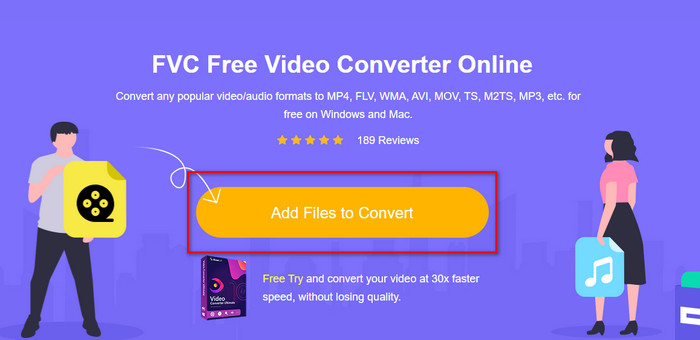
Krok 1. Chcete-li přejít na hlavní stránku FVC Free Video Converter Online, klikněte na tento odkaz.
Krok 2. Stiskněte Add Files to Convert, abyste nahráli video, kterému chcete snížit rozlišení. Pokud tento nástroj používáte poprvé, musíte si nejprve stáhnout launcher. Poté znovu klikněte na Add Files to Convert a nahrajte soubor.
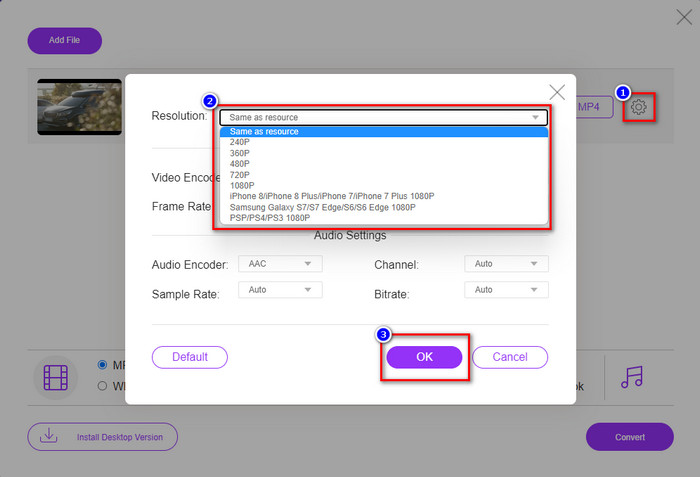
Krok 3. Klikněte na ikonu ozubeného kola na pravé straně zobrazeného okna. Zvolte požadované rozlišení kliknutím na rozbalovací nabídku a stisknutím OK uložte.
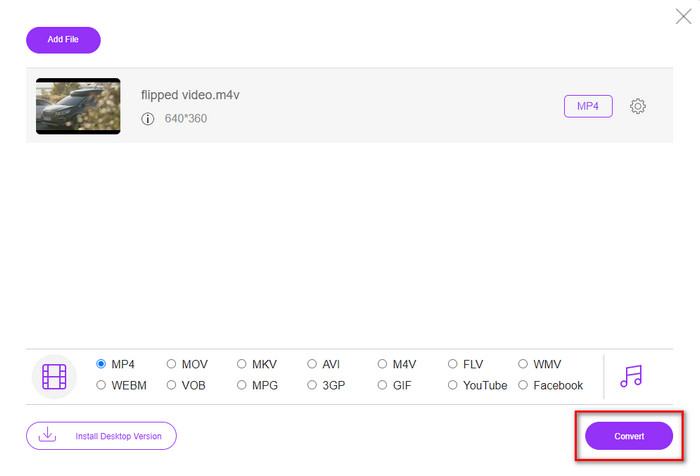
Krok 4. Chcete-li exportovat video s nižší kvalitou, klikněte na Convert a počkejte, než se stáhne do vašeho úložiště.
Část 4. 2 Nejlepší aplikace pro snížení rozlišení videa na iPhone a Android
Video Format Factory (pouze pro uživatele Android)
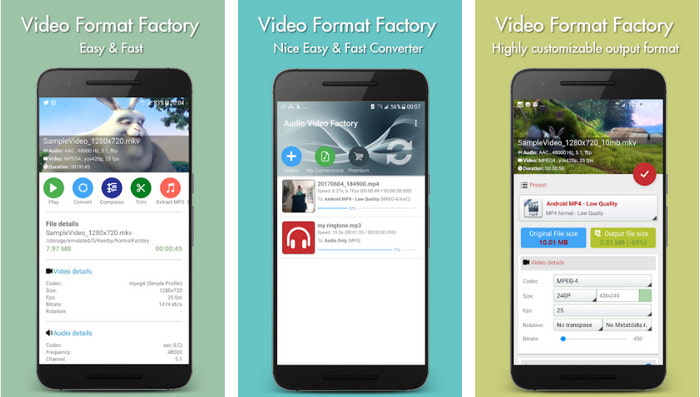
Pokud se potřebujete naučit, jak snížit rozlišení videa na Androidu, pak vám může pomoci Audio Video Factory. Pomocí této aplikace můžete snadno zdarma převést rozlišení videa. Některé reklamy však vyskočí, když provedete konverzi, a pokud si jej nekoupíte, nemůžete využít plný potenciál nástroje. Abyste se jej naučili používat, postupujte podle následujících kroků.
Krok 1. Stáhněte aplikaci z Play Storu a otevřete ji.
Krok 2. Klikněte na Add, abyste nahráli video, zvolte umístění videa a klikněte na něj. Poté klikněte na Convert; klikněte na Size a vyberte rozlišení, které chcete.
Krok 3. Posuňte se nahoru a klikněte na Convert Now pro zahájení procesu.
Kamera s velmi nízkým rozlišením (pouze pro uživatele iOS)
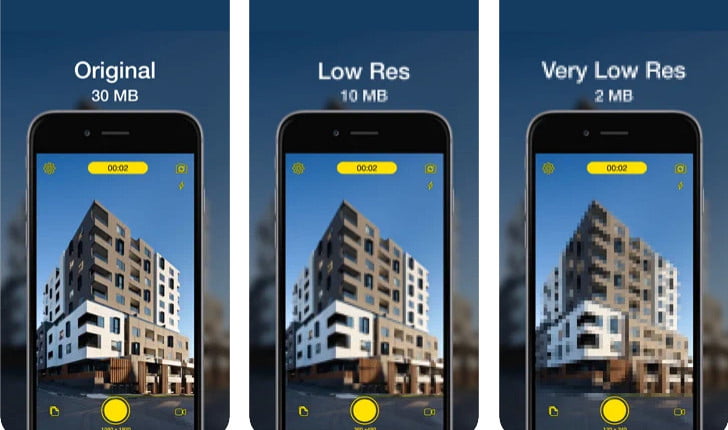
Pokud jste uživatelem iOS, můžete se stále naučit, jak snížit rozlišení videa na iPhonu pomocí aplikace Lower- Very Low Res Camera. Na rozdíl od ostatních nástrojů v tomto seznamu můžete po stažení této aplikace z App Storu pořizovat videa už v nižším rozlišení. Nástroj má však určitá omezení a při používání aplikace se zobrazují vyskakovací reklamy.
Krok 1. Stáhněte aplikaci z App Storu a kliknutím ji otevřete.
Krok 2. Klikněte na ikonu souboru a vyberte video, které chcete převést; po kliknutí na video stiskněte Resize.
Krok 3. Zvolte Recording Quality a proces převodu se spustí.
Část 5. Časté dotazy o snížení rozlišení videa
Podporuje VLC rozlišení 4k?
Ano, VLC 3.0 podporuje přehrávání videí v rozlišení 4K. Věděli jste ale, že VLC toho umí mnohem víc? Pokud chcete VLC prozkoumat podrobněji, klikněte na tento odkaz a zjistěte více o VLC a jeho dalších skvělých alternativách.
Jaké jsou další nástroje, které mohu použít k převodu rozlišení videa?
V této recenzi se seznámíte s 8 nejlepšími převodníky rozlišení videa, které můžete používat na různých platformách. Kliknutím na tento odkaz získáte podrobnější informace a širší výběr převodníků.
Jaké nejvyšší rozlišení videa mohu mít?
Rozlišení videa 8k je nejvyšší rozlišení videa, které můžete v televizi použít. Toto rozlišení je 4x ostřejší než 4k a 16x lepší než 1080.
Závěr
Nakonec už máme jasnější představu o tom, jak snížit rozlišení videa na vaší platformě; ať už používáte Windows, Mac, online nástroje, Android nebo iPhone, můžete využít převodníky z tohoto seznamu. Pokud však chcete nástroj, který dokáže změnit rozlišení bez snížení kvality, doporučujeme použít FVC Video Converter Ultimate. Jak jsme ukázali výše, existuje mnoho důvodů, proč tento nástroj používat, a pokud nám stále nevěříte, stáhněte si jej a vyzkoušejte, zda funguje tak, jak popisujeme v tomto příspěvku.
-
 Ultimate Guide Jak změnit rozlišení videa dostupné na různých platformách
 Potřebujete změnit rozlišení videa? Pokud ano, naučte se různé způsoby, jak můžete snadno změnit rozlišení videa, které sledujete.
-
 8 nejlepších převaděčů rozlišení videa pro použití v multiplatformách [aktualizováno 2022]
 Nemáte představu o nejlepším převodníku rozlišení videa na vašem zařízení? Pokud ano, můžete si celý tento článek přečíst a dozvědět se více o dostupných video konvertorech.
-
 Nejlepší 1080p HD video přehrávač pro Windows / Mac / iOS / Android v roce 2021
 Pokud hledáte videopřehrávač, který by umožňoval sledovat videa ve vysokém rozlišení 1080p na počítači, podívejte se na náš výběr nejlepších přehrávačů videa 1080p HD pro Mac, Windows PC, iOS a Android.
