


 Video Converter Ultimate
 Screen Recorder
 Oprava videa
 Bezpečné stažení
Jak odstranit vodoznak Animaker pomocí nejlepších nástrojů na odstranění vodoznaku
Zkoušeli jste někdy použít Animaker k úpravě videa? Pokud ne, pak nesmíte promeškat svou šanci. Tato platforma umožňuje několika návrhářům, animátorům, začátečníkům, profesionálům, tvůrcům obsahu a dalším vytvořit animovaný film v krátké době. A ano, je to kompletní nástroj; všechny šablony, které budete potřebovat, jsou k dispozici zde. Se všemi funkcemi animace a živé akce si musíte zakoupit software, abyste jej mohli pravidelně používat, aniž byste měli problémy s vodoznakem a omezeními.
Jste smutní, protože si nemůžete software koupit? Naštěstí nástroje, které zde uvádíme, dokážou odstranit vodoznak, který se přidává k vámi vytvořené animaci. Zde vás naučíme, jak odstranit vodoznak Animaker za méně než 5 minut. Čtěte dál, abyste pochopili princip, a později zjistíte, proč jsme zvolili právě tyto nástroje.

Část 1. Jak odstranit vodoznak Animaker ve Windows, MacOS a online [zdarma a placeno]
Má Animaker vodoznak? Ano, přidává vodoznak na animovaná videa, která jste zde upravovali, zvláště pokud nepoužíváte komerční verzi. Vodoznaku, který přidává, se lze vyhnout, pokud si zakoupíte komerční verzi, ale pokud nechcete utrácet, musíte použít odstraňovač vodoznaku, který přidáme níže.
FVC Video Converter Ultimate [Windows a macOS]
Představte si, že potřebujete robustní nástroj, který si s vodoznakem účinně poradí. Budete si muset vybrat FVC Video Converter Ultimate. Tento nástroj je dostupný na všech počítačích, ať už používáte Windows nebo Mac. S jeho pomocí můžete účinně odstranit vodoznak z animovaných videí vytvořených v Animakeru, aniž by po něm zůstaly stopy. I když s tímto problémem nemáte zkušenosti, tento software byste měli použít, protože je snadno ovladatelný a má intuitivní rozhraní.
Nejen, že tento nástroj je účinným odstraňovačem vodoznaků, ale je také účinným celkovým nástrojem pro jiný účel. Nástroj si můžete stáhnout na plochu a zkontrolovat, jaké jsou jeho další funkce. Pokud chcete mít video, exportujte ho na Animaker bez vodoznaku; postupujte podle níže uvedeného postupu.
Krok 1. Abyste tento všestranný nástroj získali, klikněte na tlačítko Stáhnout a pořiďte si verzi pro Windows nebo Mac. Nainstalujte software a poté klikněte na Start Now (Spustit nyní) pro jeho otevření.
Zdarma ke staženíPro Windows 7 nebo novějšíBezpečné stažení
Zdarma ke staženíPro MacOS 10.7 nebo novějšíBezpečné stažení
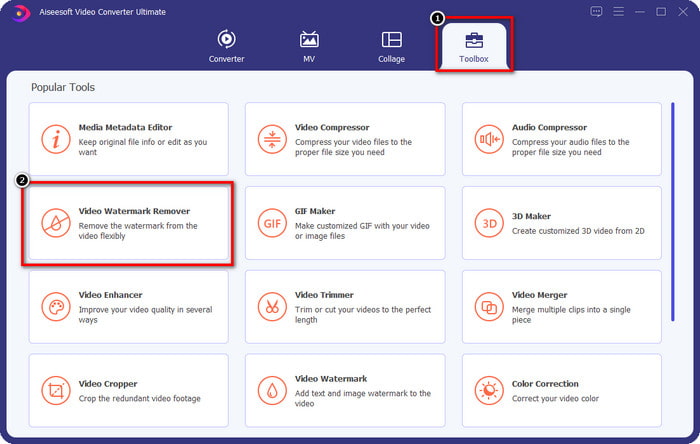
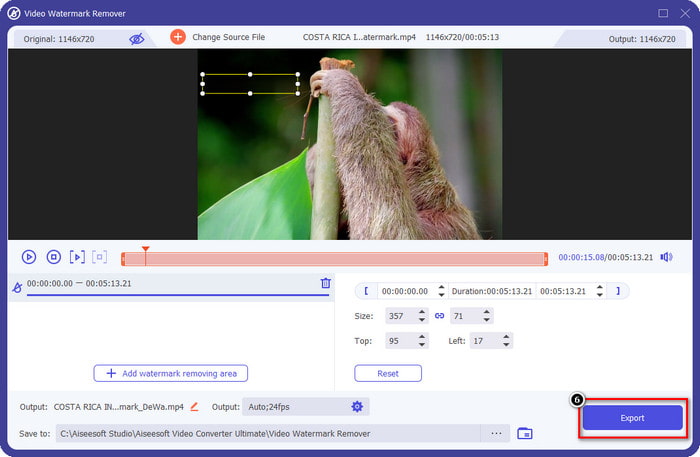
Krok 2. V levé horní části rozhraní klikněte na Toolbox a otevřete Video Watermark Remover. V sekci Toolbox uvidíte i další funkce a nástroje, které program nabízí.
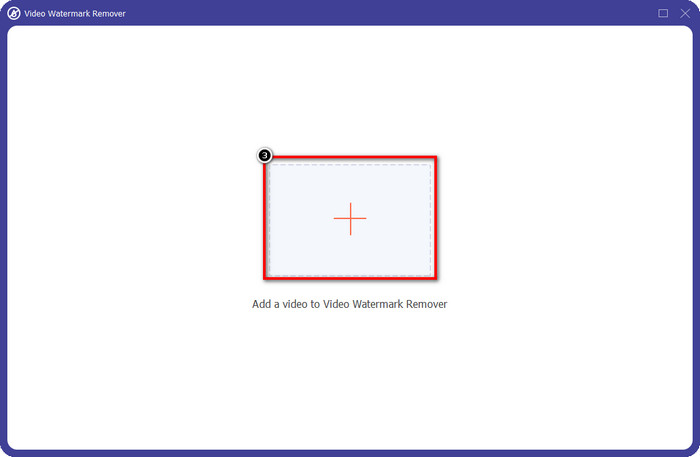
Krok 3. Nahrajte animované video vytvořené v Animakeru kliknutím na ikonu +. Vyberte soubor z lokálního úložiště, klikněte na něj a poté stiskněte Open.
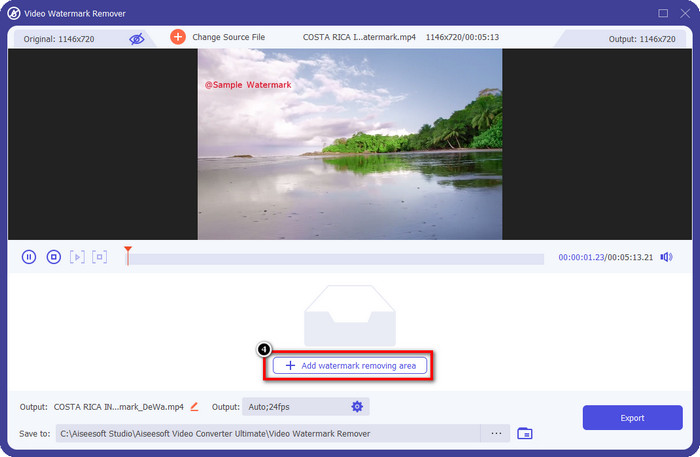
Krok 4. Chcete‑li pokračovat v používání odstraňovače vodoznaku, klikněte na Add Watermark Removing Area.
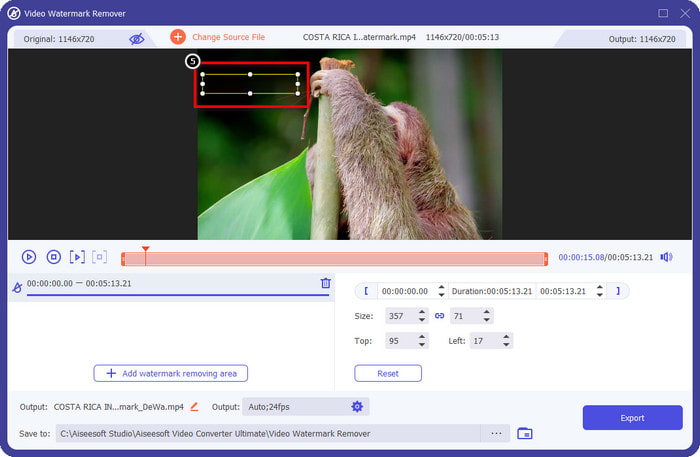
Krok 5. Umístěte výběrový rámeček na oblast s vodoznakem, aby se odstranění vodoznaku projevilo.
Krok 6. Stiskněte Export a stáhněte si video bez vodoznaku Animaker. Jednoduché, že? Díky intuitivnímu rozhraní je tento nástroj tou nejlepší volbou pro odstranění vodoznaku.
Odebrat logo z videí prostřednictvím 123 APPS [Online]
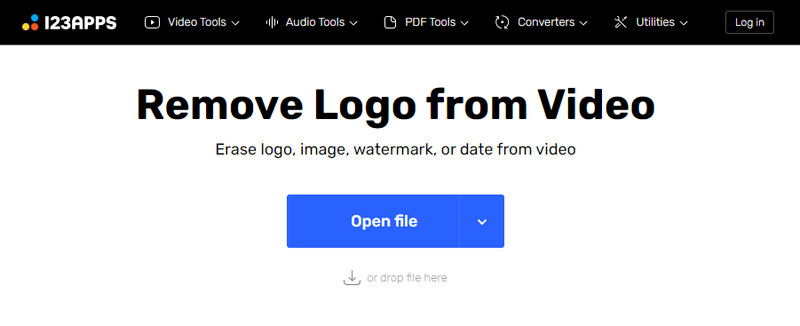
Remove Logo from Videos přes 123 APPS vám umožní efektivně se vypořádat s vodoznakem ve videu díky svým specializovaným funkcím. Na rozdíl od odstraňovačů vodoznaku, které je třeba stahovat, zde na svém zařízení nepotřebujete žádný instalátor, protože nástroj je dostupný na webu. Je také bezpečný pro použití, a není divu, že se stal spolehlivým odstraňovačem vodoznaků, který si s nimi ve videu poradí. Chcete tento online odstraňovač vodoznaků použít, abyste měli video bez vodoznaku Animaker? Následující kroky vám ukážou, jak na to.
Krok 1. Otevřete webový prohlížeč a přejděte na online odstraňovač vodoznaku.
Krok 2. Na oficiálních stránkách klikněte na Open File, nahrajte video, které chcete použít, a odstraňte z něj vodoznak.
Krok 3. Označte oblast, kde se ve vašem videu nachází vodoznak.
Krok 4. Klikněte na tlačítko Save, abyste si stáhli animovaný film bez vodoznaku.
Gilisoft Video Watermark Removal Tool [Windows]
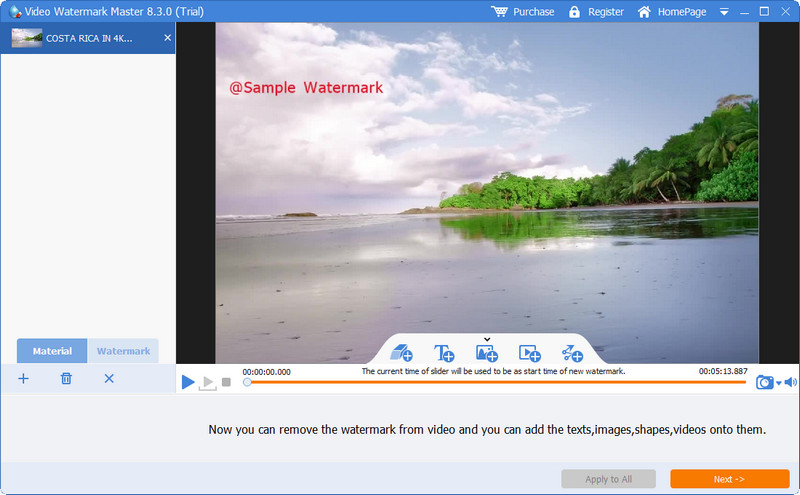
Gilisoft Video Watermark Removal Tool je odstraňovač vodoznaku pro Windows, který můžete použít k odstranění vodoznaku z animovaného filmu vytvořeného v Animakeru. Jde o nástroj, který si musíte stáhnout do Windows, abyste odstranili vodoznak ze souborů uložených na lokálním disku. Pro uživatele Mac tento software není dostupný. Kromě odstranění vodoznaku s ním můžete také přidat nový vodoznak ve formě obrázků, textu nebo tvarů, pokud to potřebujete. Čtěte dál a zjistěte, jak odstranit vodoznak v Animakeru jedním z nejlepších nástrojů pro Windows.
Krok 1. Stáhněte nástroj pro odstranění vodoznaku do Windows, postupujte podle instalačního průvodce a poté klikněte na Launch Video Watermark Master.
Krok 2. Stiskněte Add File/s a importujte animované video, které jste v Animakeru upravili zdarma, ale s vodoznakem.
Krok 3. Klikněte na ikonu eraser (guma), přidejte oblast pro odstranění vodoznaku a použijte ji na část videa s vodoznakem.
Krok 4. Až skončíte s označením oblasti pro odstranění vodoznaku ve videu, klikněte na Next. Na obrazovce se zobrazí malé okno, ve kterém můžete upravit formát, případně změnit výstupní složku, a poté kliknout na Start pro zahájení procesu.
Další čtení:
Jak odstranit vodoznak B612 z vašich obrázků
Jak zdarma odstranit vodoznak WOW Slider
Část 2. Často kladené otázky o tom, jak odstranit vodoznak Animaker
Proč nemohu na Animakeru použít ostatní šablony?
Je to proto, že bezplatná verze má omezený přístup k šablonám dostupným na Animakeru. Prémiové šablony nejsou dostupné pro neregistrovaný Animaker; pokud chcete mít přístup k profesionální verzi, budete se muset podívat na cenové plány, které tento nástroj poskytuje.
Kolikrát si mohu stáhnout šablonu do bezplatné verze Animaker?
Bezplatná verze Animakeru umožňuje uživatelům pětkrát vytvářet a stahovat animovaná videa s vodoznakem na každém. Předpokládejme, že chcete na této platformě vytvořit více animovaných videí. V takovém případě si budete muset zakoupit základní, startovací, profesionální nebo podnikovou verzi.
Proč nemohu na Animakeru vytvořit 6minutové animované video?
Předpokládejme, že používáte bezplatnou verzi Animakeru. V takovém případě budete mít problém nahrát nebo vytvořit video o délce 6 minut. Tento problém můžete vyřešit využitím plánu v tomto nástroji nebo pomocí FVC Video Converter Ultimate k vytvoření videa bez omezení délky.
Závěr
Jaký nástroj tedy používáte raději? Nyní si zde můžete vybrat nástroje, když jste si přečetli podrobnosti o každém z nich, a naučili jsme vás, jak z každého odstranit vodoznak Animaker. Máte problém s tím, co si vybrat? Pokud ano, výběr FVC Video Converter Ultimate je nejbezpečnější software, který můžete použít. Protože to dělá práci v různých problémech efektivně, jakmile využijete tento nástroj, budete; už se nemusíte starat o jakýkoli vodoznak, který máte na svém videu. Řešení je ve vašich rukou, pokud si vyberete nejlepší software pro Windows a Mac.
-
 3 přístupy k odstranění vodoznaku Viva Video z videí [nejrychlejší způsob]
 K odstranění vodoznaku Viva Video z videí budete potřebovat speciální odstraňovač vodoznaku. Přečtěte si tento článek, abyste se o tom dozvěděli více!
-
 Nejlepší nástroje pro odstranění vodoznaku z exportovaných videí Renderforest
 K odstranění vodoznaku z Renderforest budete potřebovat odstraňovač vodoznaku na vašem zařízení, všechny nástroje, které můžete použít, jsou zde.
-
 Kompletní přehled účinných odstraňovačů vodoznaků PlaceIt [2022]
 Odstraňovač vodoznaku PlaceIt, který zde recenzujeme, jsou účinné nástroje, které můžete použít k odstranění vodoznaku z videa, které exportujete na PlaceIt.
