


 Video Converter Ultimate
 Screen Recorder
 Oprava videa
 Bezpečné stažení
Jak bez námahy odstranit kousatelný vodoznak z vašich videí
Pokud hledáte skvělé a zároveň nejjednodušší způsoby, jak odstranit vodoznaky Biteable ze svých videí, nemusíte si už dělat starosti. Upřímně řečeno, sledování videa s vodoznaky je otravné a frustrující. Video si nemůžete naplno užít. Kromě toho tyto vodoznaky diváky ruší. Je pochopitelné, že vodoznaky slouží k ochraně práv vlastníka videa. Umístění velkého vodoznaku ale není dobré řešení. Vyvolává to pouze negativní reakce u lidí, kteří rádi sledují svá oblíbená videa. Jedním z příkladů jsou vodoznaky Biteable. Tyto vodoznaky pocházejí z aplikace Biteable, která k videu po vytvoření či uložení automaticky přidá vodoznak. Naštěstí můžete použít různé aplikace, které vám tyto vodoznaky z videí odstraní. Své oblíbené klipy tak můžete sledovat bez pocitu podráždění a frustrace. Pokud se chcete dozvědět, jaké jsou ty nejlepší a nejspolehlivější programy pro odstranění těchto vodoznaků, čtěte tento článek dál.

Část 1: Nejlepší způsob, jak odstranit kousatelný vodoznak z videí
Video Converter Ultimate je nejvynikající aplikace, kterou můžete použít k odstranění vodoznaků Biteable ze svých videí. Kromě toho si tento skvělý software poradí také s odstraněním dalších nežádoucích a rušivých objektů, jako jsou loga, texty, podpisy atd. Proces odstranění a uložení je navíc velmi rychlý, takže vám nezabere mnoho času. Video Converter Ultimate nabízí dva jednoduché způsoby, jak vodoznaky z videí odstranit – pomocí ořezu videa a pomocí nástroje pro odstranění vodoznaku. Obsahuje také další editační nástroje, které můžete využít, jako například ovladač rychlosti videa, převodník videa, kompresor videa, nástroj pro korekci barev, tvůrce koláží, tvůrce GIF, ořezávač videa, převodník obrázků a další. Nejlepší na tomto nástroji je, že se používá velmi snadno díky přehlednému rozhraní, které je ideální pro začátečníky. Podporuje také různé formáty souborů, jako MP4, MOV, FLV, MKV, OGV, DIVX a další. Video Converter Ultimate je nakonec dostupný jak pro Windows, tak pro Mac, což je pro uživatele velmi pohodlné. Pokud chcete z videa odstranit vodoznak, postupujte podle jednoduchých kroků uvedených níže.
Pomocí nástroje Video Watermark Remover
Krok 1: Přejděte na webové stránky Video Converter Ultimate a stáhněte si aplikaci. Poté pokračujte instalačním postupem. Po dokončení instalace aplikaci spusťte.
Zdarma ke staženíPro Windows 7 nebo novějšíBezpečné stažení
Zdarma ke staženíPro MacOS 10.7 nebo novějšíBezpečné stažení
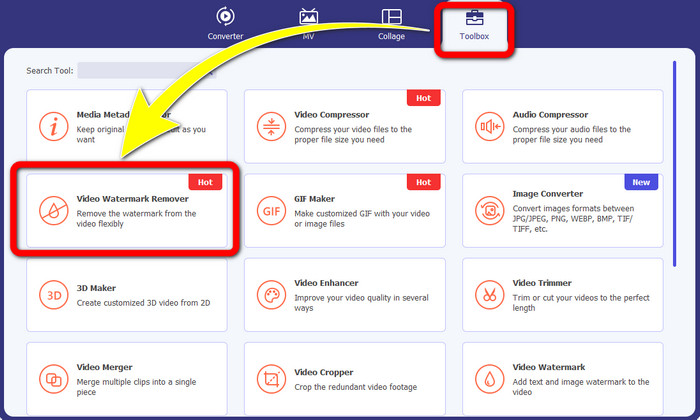
Krok 2: Po otevření Video Converter Ultimate klikněte na Toolbox > Video Watermark Remover. Na obrazovce se zobrazí nové rozhraní.
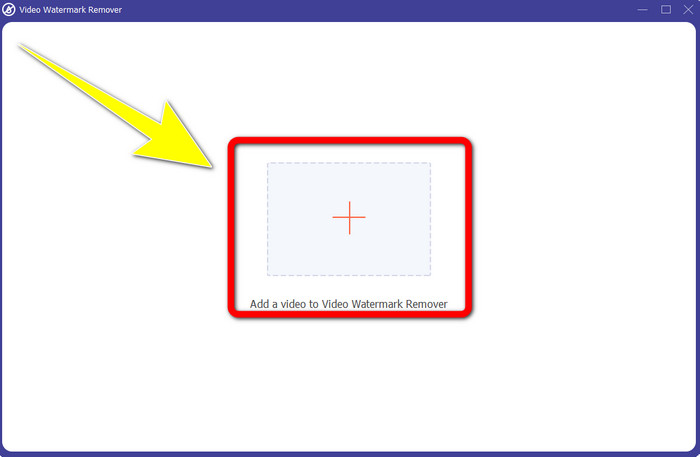
Krok 3: Jakmile se nové rozhraní zobrazí na obrazovce, klikněte na tlačítko se znakem Plus a přidejte své video s vodoznakem Biteable.
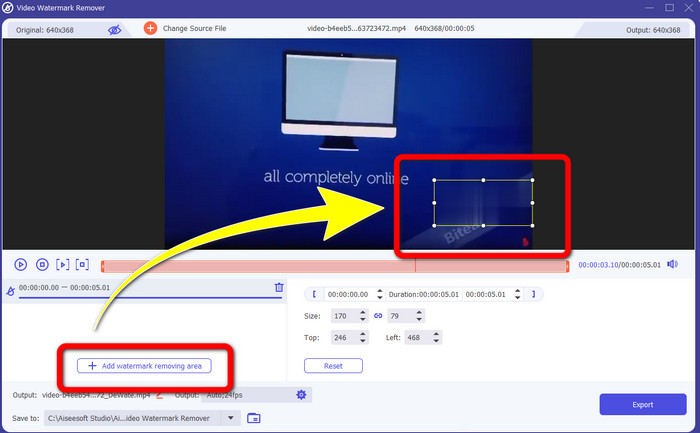
Krok 4: Po přidání videa klikněte na Add Watermark Removing Area. Na videu se objeví malé okno. Přetáhněte toto okno tak, aby zakrylo vodoznaky.
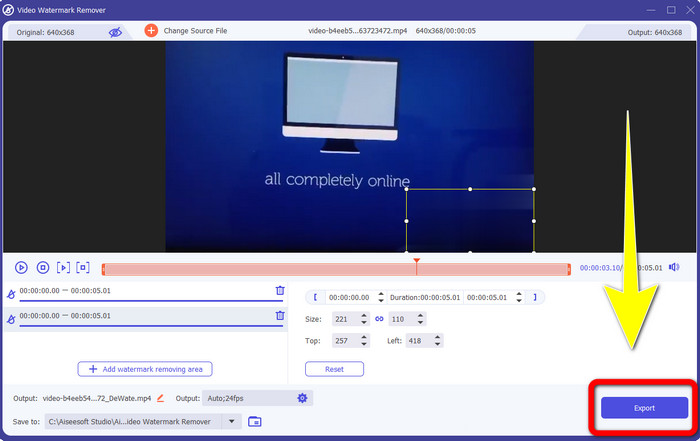
Krok 5: Jakmile odstraníte vodoznak Biteable z videa, klikněte na tlačítko Export a uložte finální výstup.
Pomocí nástroje Video Cropper
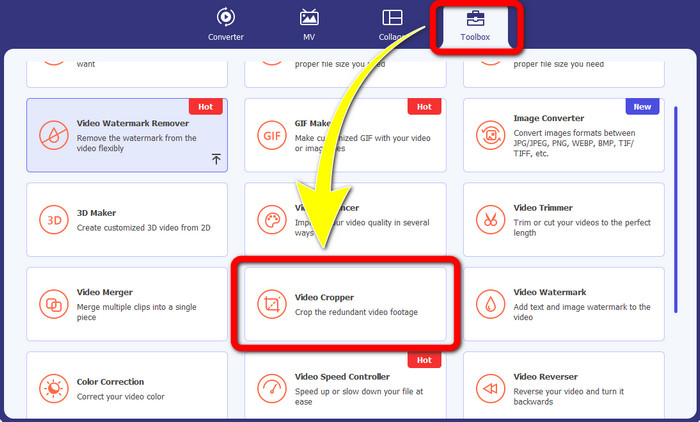
Krok 1: Spusťte Video Converter Ultimate. Klikněte na Toolbox > Video Cropper.
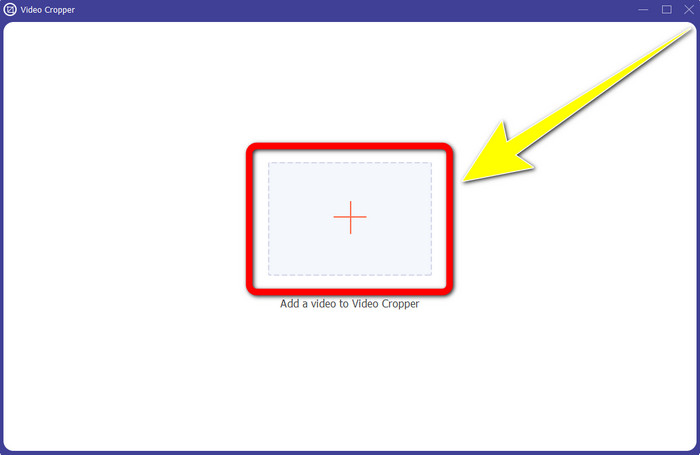
Krok 2: Po kliknutí na Video Cropper se na obrazovce zobrazí nové rozhraní. Klikněte na ikonu Plus a přidejte své video s vodoznakem Biteable.
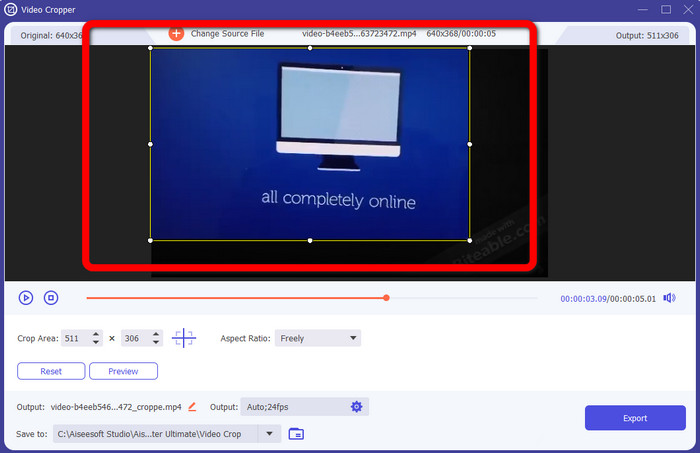
Krok 3: Po přidání videa jej nyní můžete pomocí funkce Crop oříznout tak, aby se vodoznaky odstranily.
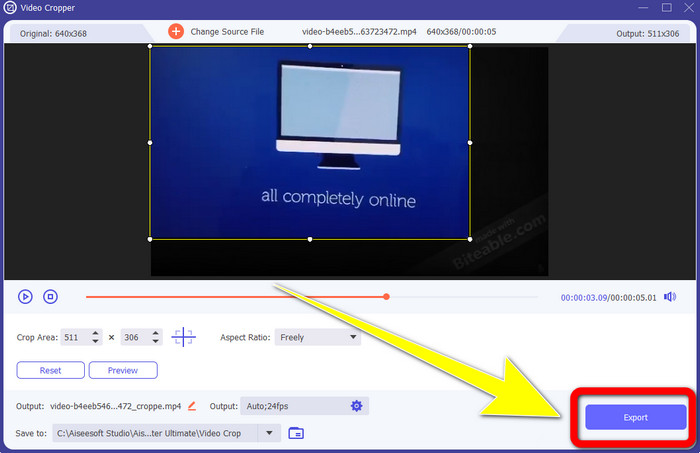
Krok 4: Až dokončíte ořez videa, klikněte na tlačítko Export a uložte své video bez vodoznaku Biteable.
Část 2: Jak odstranit kousatelný vodoznak z videí online
1. Použití BeeCut
Pokud si přejete odstranit kousatelný vodoznak zdarma online, BeeCut je nejlepší online aplikace, kterou můžete využít. Je schopen odstranit vodoznaky z vašich videí. Je to jednoduchý online nástroj, který můžete použít a který je ideální pro začátečníky. V několika krocích můžete odstranit kousatelné vodoznaky ze čtyř videí.
Kromě toho má BeeCut mnoho nástrojů pro úpravy, jako je ořezávání, stříhání, rozdělování a kombinování videí. Navíc, pokud chcete natočit video, můžete k videu níže přidat titulky, což je pro diváky pohodlné. Při nahrávání souborů a ukládání procesů pomocí tohoto nástroje je však pomalý. Tento nástroj také nemůžete použít, pokud nemáte připojení k internetu. Pokud chcete odstranit kousatelné vodoznaky ze svého videa pomocí tohoto online nástroje, postupujte podle několika níže uvedených kroků.
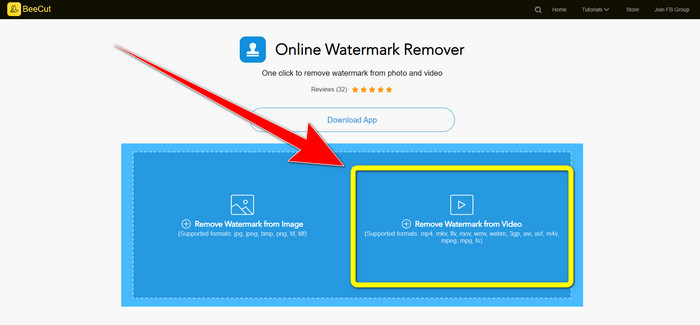
Krok 1: Navštivte webové stránky BeeCut. Poté klikněte na Remove Watermark from Video a přidejte video s vodoznakem Biteable.
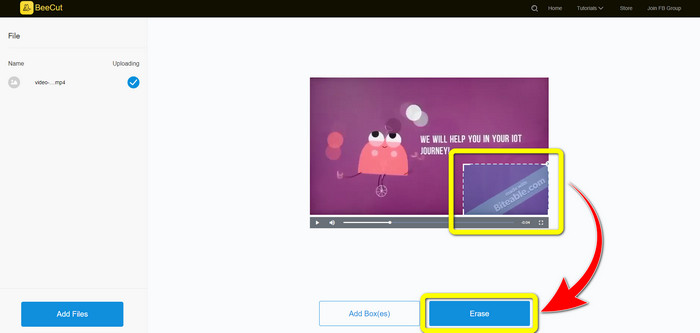
Krok 2: Po přidání souboru se na videu objeví malé okno. Přetáhněte ho a zakryjte vodoznak Biteable. Až budete mít vodoznaky zakryté, klikněte na tlačítko Erase.
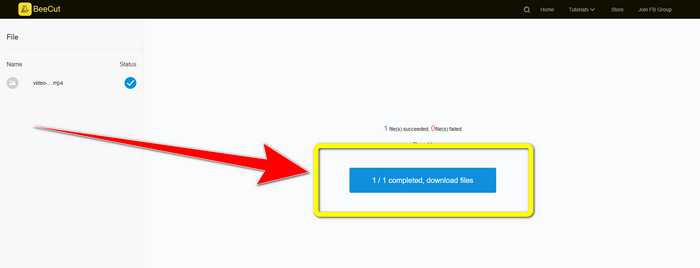
Krok 3: Po kliknutí na tlačítko Erase vyčkejte na dokončení procesu odstranění. Poté si můžete soubor stáhnout a vychutnat si sledování videa bez vodoznaku Biteable.
2. Použití Blur Video Online
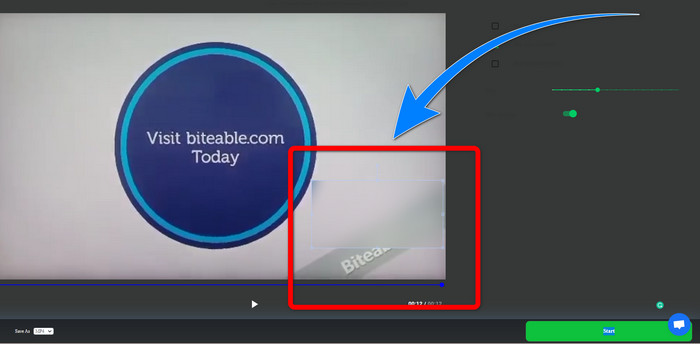
Pokud stále hledáte jinou aplikaci, kterou můžete použít k odstranění kousavého vodoznaku z vašeho videa online, Blur Video Online je pro vás skvělý nástroj. A Blur Video Online je k dispozici pro téměř všechna zařízení a prohlížeče, jako je Google Chrome, Opera, IE, Mozilla Firefox a další. Tato webová aplikace je však při importu videosouborů příliš pomalá a proces odstraňování vodoznaků je časově náročný. Je to také nástroj závislý na internetu, což znamená, že funguje pouze v případě, že máte připojení k internetu. Chcete-li odstranit/rozmazat vodoznak Biteable z vašeho videa, postupujte podle jednoduchých kroků níže.
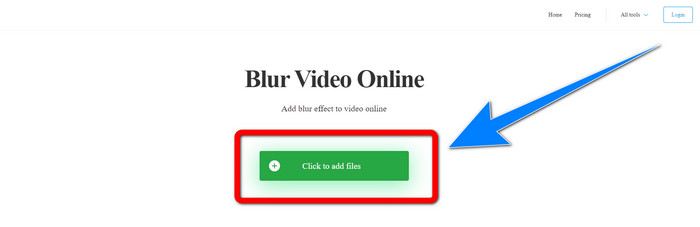
Krok 1: Přejděte na webové stránky Blur Video Online. Poté klikněte na tlačítko Click to Add File a přidejte své video s vodoznakem.
Krok 2: Jakmile video vložíte, na videu se objeví rámeček. Přetáhněte ho tak, aby zakrýval vodoznaky, a poté uložte svůj finální výstup.
Související s:
Nejlepší způsob, jak odstranit vodoznak z Camtasia 9 ve Windows
Jak rychle odstranit banner s vodoznakem v AVS Video Editor
Část 3: Nejčastější dotazy týkající se odstraňování kousatelných vodoznaků z videí
Mohu odstranit datumové razítko pomocí Video Converter Ultimate?
Ano můžeš! Video Converter Ultimate vám může pomoci při odstraňování rušivých objektů z vašich videí, jako jsou datumová razítka, vodoznaky, text atd.
Je odstraňování vodoznaků z mých videí časově náročné?
Záleží na aplikacích, které používáte. Některé aplikace mohou vodoznaky z vašich videí odstranit okamžitě a některým aplikacím trvá odstranění vodoznaků.
Mohu použít odstraňovač vodoznaku, aniž bych ztratil kvalitu svých videí?
Ano, existuje! Můžete použít Video Converter Ultimate. Není dobrý jen na odstraňování vodoznaků a úpravu videí. Tato aplikace vám umožní odstranit vodoznaky z videí bez ztráty kvality.
Závěr
Odstranění vodoznaku z videí je skvělé zejména tehdy, když chcete sledovat svá oblíbená videa bez zbytečných rušivých prvků. Tento článek vám představil praktické aplikace, které můžete použít k odstranění vodoznaků Biteable ze svých videí. A nakonec, pokud hledáte nejkvalitnější a nejpůsobivější aplikaci pro odstranění vodoznaků z videí, je nejlepší volbou Video Converter Ultimate.
-
 Jak odstranit Powtoon vodoznak pomocí 4 účinných metod
 Přečtěte si tento článek a zjistěte, jak odstranit vodoznak Powtoon pomocí nejlepších nástrojů, které jsme zde uvedli, a tutoriálu.
-
 Recenze odstraňovače vodoznaků Apowersoft – funkce, výhody a nevýhody a ceny
 Apowersoft Watermark Remover je jedním z nejlepších odstraňování vodoznaků, který podporuje online i offline, kliknutím na toto se dozvíte více!
-
 3 z nejnovějších odstraňovačů vodoznaků Shutterstock, které budete kdy potřebovat
 Nelíbí se vám vodoznak Shutterstock připojený k exportovanému videu? K účinnému vymazání můžete použít odstraňovač vodoznaku Shutterstock.
