


 Video Converter Ultimate
 Screen Recorder
 Oprava videa
 Bezpečné stažení
Skvělé způsoby, jak odstranit logo z videa pomocí vašich zařízení
Sledování oblíbených videí je uspokojivé – dokud se ve videu neobjeví nějaký zbytečný objekt, jako loga, vodoznaky, texty apod. Pokud hledáte co nejúčinnější a nejužitečnější metody, měli byste si přečíst tento článek, abyste získali přehled. Pomocí špičkových programů můžete vyzkoušet mnoho způsobů, jak odstranit loga z videí offline i online. Díky těmto odstraňovačům log si pak můžete naplno užívat sledování oblíbených filmů, videoklipů, prezentací a dalších videí. Tímto způsobem se se stejným problémem už znovu nesetkáte. Pokud se chcete naučit účinné způsoby, jak odstranit logo z vašich videí, rozhodně nepřeskakujte tento informativní článek.

Část 1: Nejlepší způsob odstranění loga z videa
Pokud hledáte bezplatný odstraňovač log, nejlepší aplikací, kterou můžete použít, je Video Converter Ultimate. Tento program vám pomůže odstranit logo z vašeho videa. Nejen logo, ale i jiné zbytečné objekty ve videu, jako jsou vodoznaky, texty, obrázky atd. Logo navíc odstraníte velmi snadno, protože postup je jednoduchý a zvládne jej i úplný začátečník.
Kromě toho má Video Converter Ultimate rychlý proces odstraňování, na rozdíl od jiných aplikací, které spotřebovávají spoustu času na odstranění log z videa. Pomocí této aplikace můžete odstranit logo pomocí dvou jednoduchých nástrojů, odstraňovače vodoznaku videa a ořezávače videa. Kromě toho má funkce, které si můžete užít, jako je konvertor videa, regulátor rychlosti videa, kompresor videa, korekce barev, ořezávání videa, tvůrce koláží a další. Pokud chcete znát tyto dva způsoby odstranění log pomocí Video Converter Ultimate, postupujte podle následujících kroků.
1. Použití funkce Video Watermark Remover
Krok 1: Nejprve přejděte na webové stránky Video Converter Ultimate a stáhněte si software. Po stažení přejděte k instalaci a poté spusťte Video Converter Ultimate na stolním počítači.
Zdarma ke staženíPro Windows 7 nebo novějšíBezpečné stažení
Zdarma ke staženíPro MacOS 10.7 nebo novějšíBezpečné stažení
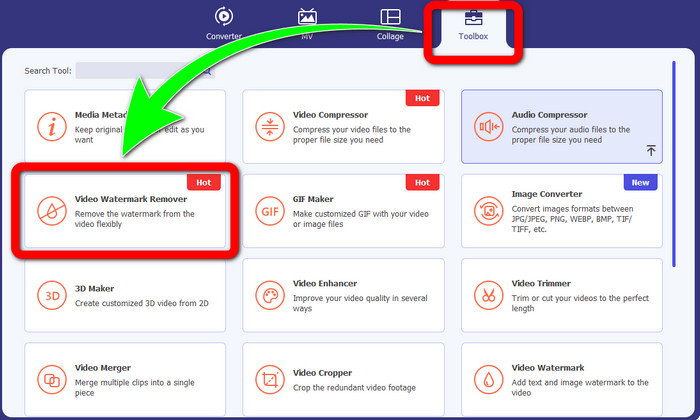
Krok 2: Po spuštění programu přejděte na panel Toolbox. Poté vyhledejte funkci Video Watermark Remover a klikněte na ni.
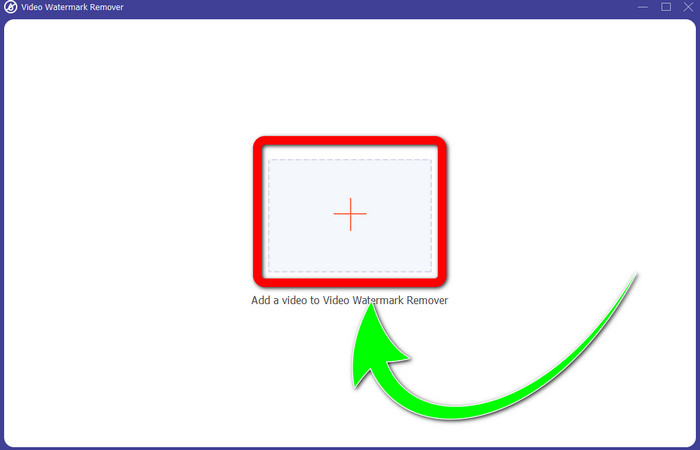
Krok 3: Jakmile kliknete na Video Watermark Remover, na ploše se otevře nové rozhraní. Klikněte na tlačítko se symbolem plus a importujte své video s logem.
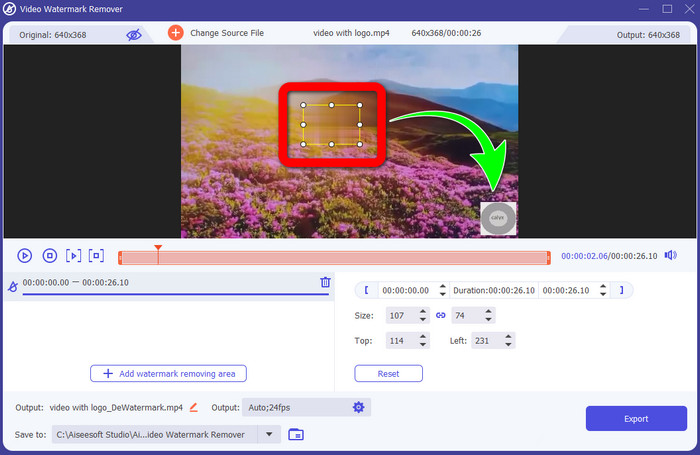
Krok 4: Klikněte na tlačítko Add Watermark Removing Area. Na videu se zobrazí malé okénko. Přesuňte jej na logo tak, aby ho zakrylo.
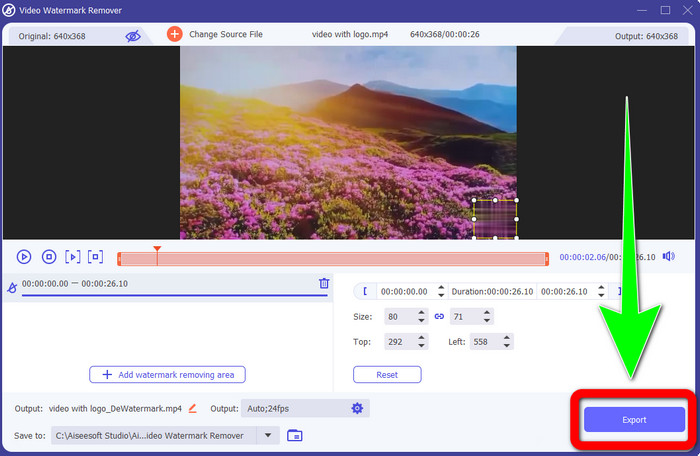
Krok 5: Až dokončíte přesouvání okénka a logo bude zakryto, klikněte na tlačítko Export a uložte finální video.
1. Použití funkce Video Cropper
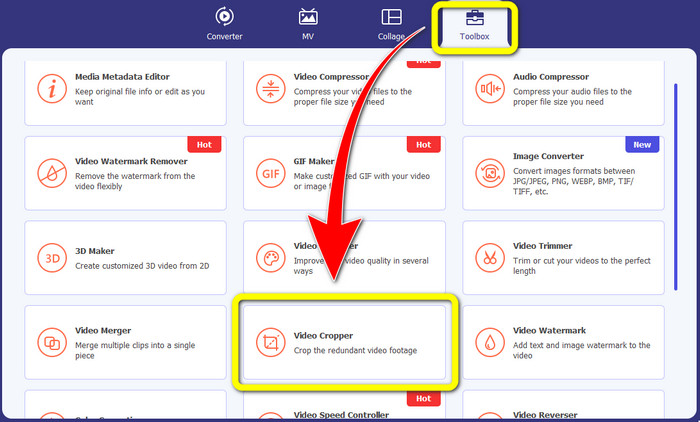
Krok 1: Otevřete Video Converter Ultimate, přejděte do části Toolbox a klikněte na tlačítko Video Cropper. Na obrazovce se zobrazí další rozhraní.
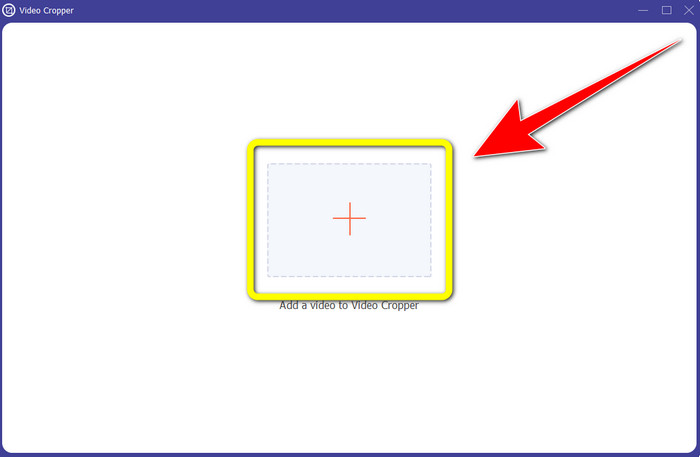
Krok 2: Jakmile se na obrazovce zobrazí nové rozhraní, klikněte na tlačítko se symbolem Plus a importujte své video s logem.
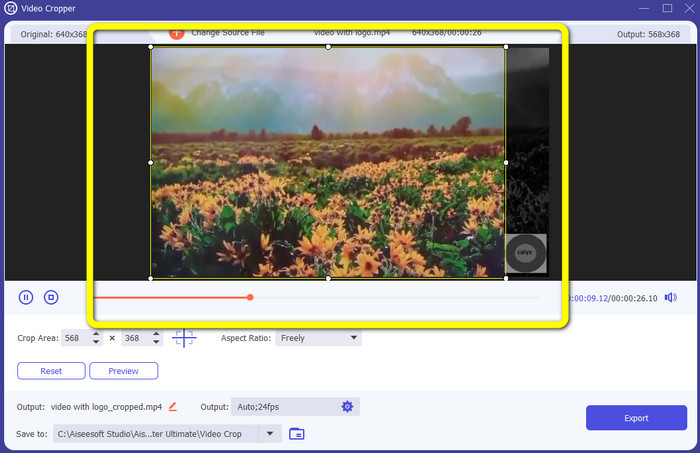
Krok 3: Po importu videa jej můžete oříznout tak, abyste logo odstranili.
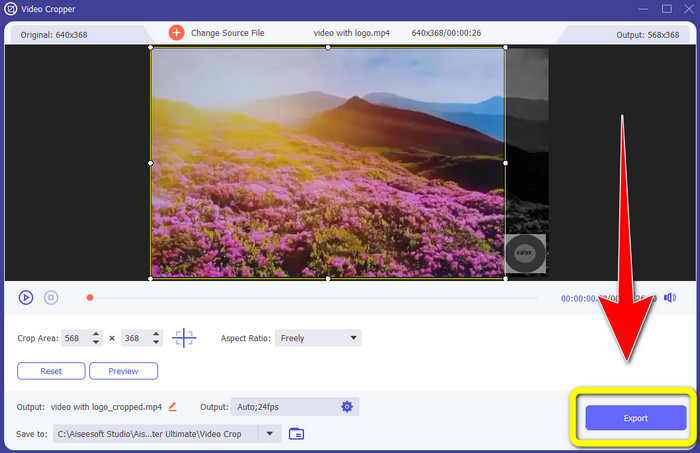
Krok 4: Po oříznutí videa klikněte na tlačítko Export.
Část 2: Jak odstranit logo z videa online
Pokud hledáte skvělou aplikaci, která vám pomůže s odstraněním loga z videa, můžete použít 123APPS. Tento nástroj vám umožní odstranit logo z videa rychle a bez námahy, což je ideální zejména pro začátečníky. Navíc je tento online nástroj zdarma, takže se nemusíte rozhodovat, zda si jej koupit. Další výhodou této aplikace je, že umí odstranit i další rušivé objekty ve videu, jako jsou vodoznaky, texty, obrázky apod. Podporuje také různé formáty souborů, jako MOV, WMV, AVI, MP4 a další. Nevýhodou však je, že nahrávání souborů trvá poměrně dlouho. Také samotný proces odstraňování je dost pomalý. Pokud chcete z videí odstranit logo, postupujte podle těchto jednoduchých kroků.
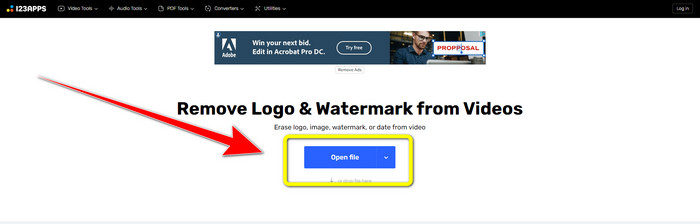
Krok 1: Přejděte na web 123APPS. Klikněte na tlačítko Open file a přidejte své video s logem TikTok.
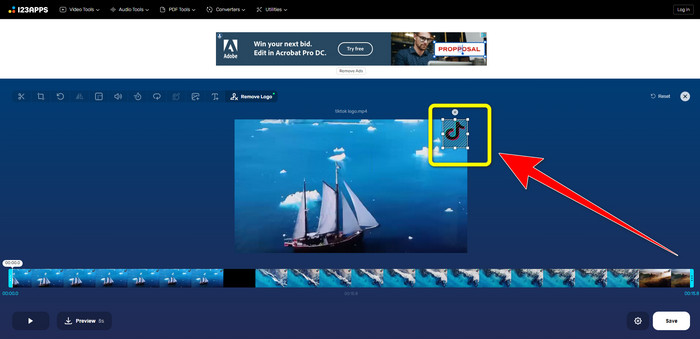
Krok 2: Po přidání videa pomocí myši vytvořte na obrazovce rámček a umístěte jej na logo, aby bylo odstraněno.
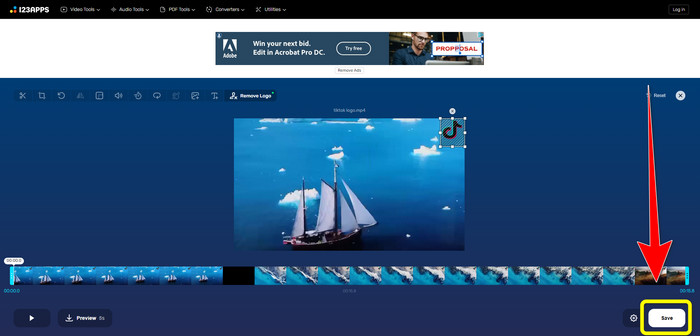
Krok 3: Po zakrytí loga můžete kliknout na tlačítko Save a uložit výsledné video bez loga.
Část 3: Jak odstranit logo z videa na iPhone a Android
Jak vymazat logo z videa na Androidu
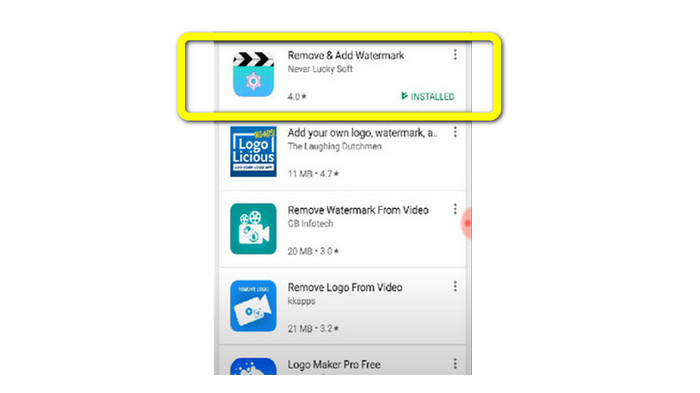
Pokud chcete zjistit, jak odstranit logo z videa na Androidu, můžete použít aplikaci Remove and Add Watermark. Tento software vám pomůže odstranit logo z videí okamžitě. Není však užitečný jen pro odstraňování zbytečných objektů z videí – můžete s ním také odstraňovat loga z obrázků, což je pro uživatele velmi pohodlné. Navíc je tento odstraňovač jednoduchý a snadno ovladatelný. A v neposlední řadě umožňuje rychlé ukládání videí. Pokud chcete z videí odstranit logo, postupujte podle níže uvedených jednoduchých kroků.
Krok 1: Stáhněte si aplikaci Remove and Add Watermark do svého zařízení s Androidem.
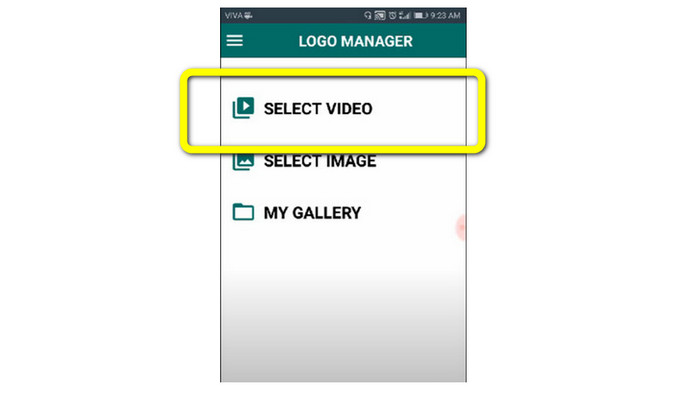
Krok 2: Po stažení aplikace klikněte na tlačítko Select Video > Remove Logo a přidejte své video s logem.
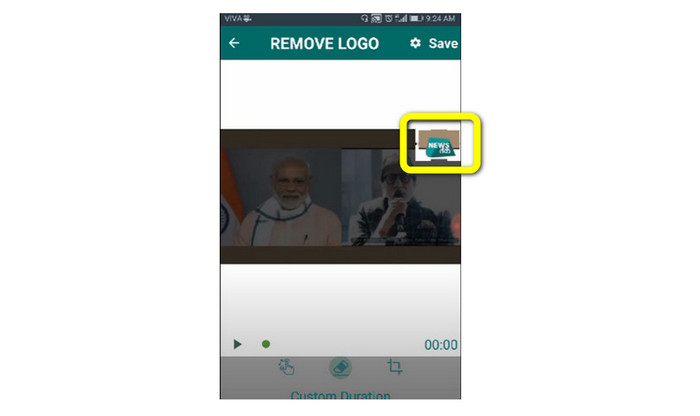
Krok 3: Jakmile je video přidáno, na obrazovce se objeví malé okénko. Pomocí tohoto okénka logo zakryjte.
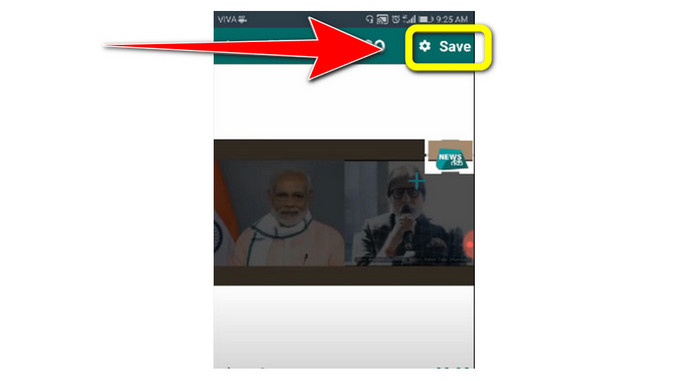
Krok 4: Až budete mít logo zakryté, klikněte na tlačítko Save a uložte video bez loga.
Jak odstranit logo z videa na iPhone
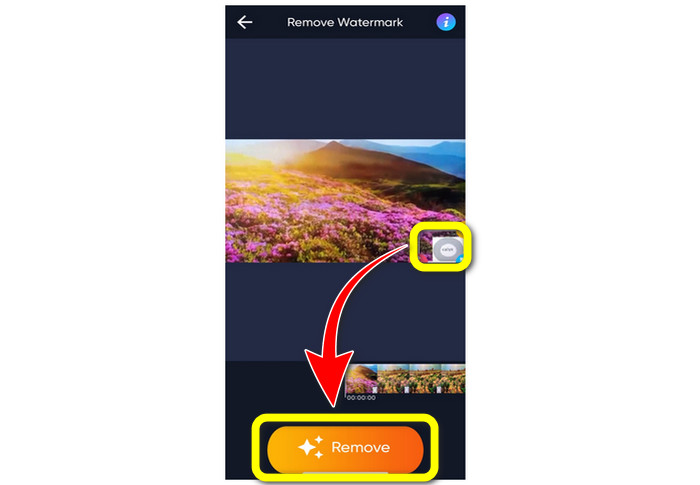
Pokud chcete odstranit logo z videí na iPhonu, nejlepší aplikací je Watermark Remover Retouch. Tento program vám umožní odstraňovat z videí zbytečné objekty, jako loga, vodoznaky, texty, obrázky atd. Vše navíc zvládnete velmi rychle, což je ideální pro nové uživatele. Aplikace má také přehledné a jednoduché rozhraní, takže se snadno používá. Pokud ji chcete využít k odstranění log z videí na iPhonu, postupujte podle následujících kroků.
Krok 1: Stáhněte si Watermark Remover Retouch do svého iPhonu. Poté aplikaci spusťte a přidejte video s logem.
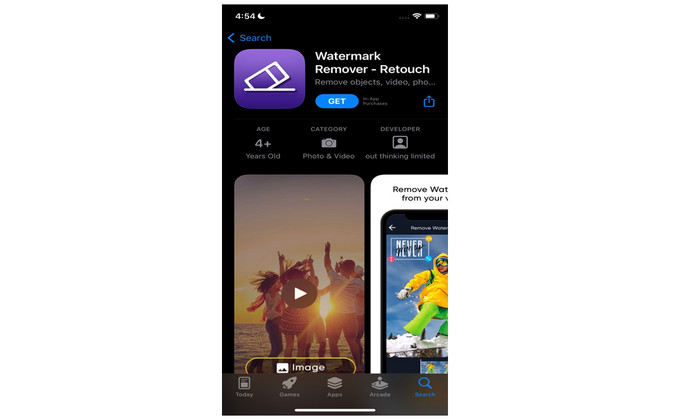
Krok 2: Jakmile je video přidáno, na videu se objeví malé okénko. Pomocí něj zakryjte logo. Potom klikněte na tlačítko Remove a uložte video bez vodoznaku.
Související s:
Jak zdarma odstranit vodoznak Filmora z vašich videí nebo projektů
Nejrychlejší trik, jak odstranit vodoznak Adobe Stock z videa [Návod]
Část 4: Nejčastější dotazy k odstranění loga z videa
Je bezpečné odstranit logo online?
Ano to je! Online aplikace jsou bezpečné a bezpečné. Nejlepší věc, kterou musíte udělat, je vyhledat aplikaci, která vám pomůže odstranit loga a použít je.
Je možné odebrat podpisy z mých videí?
Ano, samozřejmě. Podpisy můžete z videí odstranit pomocí Video Converter Ultimate. Podpisy, vodoznaky, loga a texty lze s touto vynikající aplikací snadno odstranit.
Jaká je nejlepší aplikace, kterou mohu použít k odstranění log pomocí svého Macu?
Nejlepším programem pro odstraňování log na Macu je Video Converter Ultimate. Tato aplikace je dostupná nejen pro Windows, ale i pro Mac, což je pro uživatele velmi praktické.
Závěr
Tento článek vám představil účinné a spolehlivé způsoby, jak odstranit loga z vašich videí. Díky tomu si můžete vychutnat sledování oblíbených videí bez loga. A nakonec, pokud chcete ten nejjednodušší a nejpohodlnější způsob, jak loga z videí odstranit, měli byste použít Video Converter Ultimate.
-
 Jak odstranit vodoznak Animaker bez nákladů [Osvědčené způsoby]
 Jak odstranit vodoznak Animaker? S nejlepšími nástroji, které používáme na tomto blogu, je můžete použít, abyste se zbavili vodoznaku.
-
 Návod na odstranění vodoznaku z grafu původu [100% Working]
 K odstranění vodoznaku z Origin Graph budete potřebovat pomoc. Pomoc, kterou potřebujete, je zahrnuta v tomto článku, můžete si jej přečíst.
-
 Jak snadno odstranit vodoznak v SmartDraw [2 osvědčené způsoby]
 Jak odstranit vodoznak v Smart Draw? Pokud máte stejnou otázku, můžete se spolehnout na tento článek, protože jsme vám pomohli!
