


 Video Converter Ultimate
 Screen Recorder
 Oprava videa
 Bezpečné stažení
Jak odstranit vodoznak z původního grafu efektivně na grafu
Možná budete potřebovat použít Origin Graph k vytvoření šablony pro matematická nebo vědecká data, která jsou příliš složitá na to, abyste je vyjádřili slovy. Tento software už pomohl studentům, výzkumníkům, profesorům, lidem v podnikání i dalším, kteří potřebují vytvořit vlastní graf. Díky sadě šablon, ze kterých si můžete vybírat, dokážete vytvořit vizuálně atraktivní graf, jenž upoutá pozornost diváků. Problém, na který pravděpodobně narazíte při používání bezplatné verze, je skutečnost, že do finálního výstupu přidává textový vodoznak. Dělá vám vodoznak potíže? Už ne! Protože pro vás máme řešení. Zde vám představíme užitečné tipy, jak odstranit vodoznak z Origin Graph a poté jej použít ve vaší prezentaci ve Wordu nebo PowerPointu.

Část 1. Jak odstranit vodoznak z grafu původu pomocí Online Image Watermark Remover
FVC Free Watermark Remover Online je špičkový nástroj na odstraňování textových vodoznaků, který můžete použít k odstranění vodoznaku Origin Graph. Tento nástroj je mimořádně účinný při odstraňování jakéhokoli objektu z vašich obrázků, aby po odstranění vodoznaku působily ještě profesionálněji. Můžeme vás ujistit, že jde o specializovaný odstraňovač vodoznaků, na který se můžete v takových situacích spolehnout. Zajímá vás, zda je tento nástroj snadno použitelný? Už ne! Protože níže uvádíme kroky, které můžete následovat, abyste se zbavili textového vodoznaku na obrázku, který Origin Graph přidává.
Krok 1. Kliknutím na tento odkaz otevřete online odstraňovač vodoznaků z obrázků; automaticky se otevře nová karta, na níž získáte k nástroji přístup.
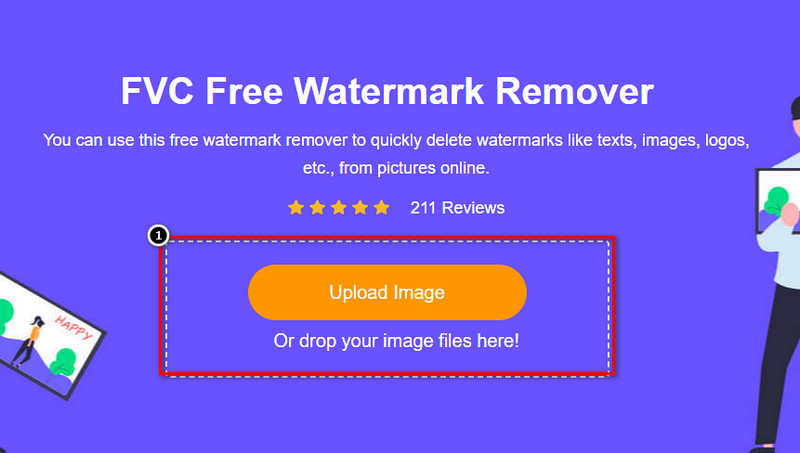
Krok 2. Stiskněte Upload Image a přidejte sem fotografii s vodoznakem, v příslušné složce vyhledejte soubor s fotografií a kliknutím na Open jej úspěšně nahrajte.
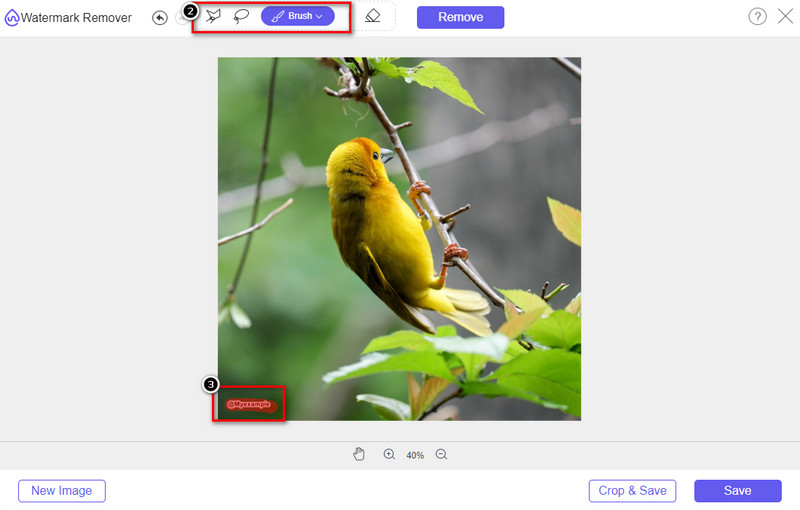
Krok 3. Můžete použít tři různé nástroje k vyznačení vodoznaku; i když fungují odlišně, jejich účinnost je stejná. Vyberte jeden z nástrojů a označte oblast obrázku, na níž se vodoznak nachází.
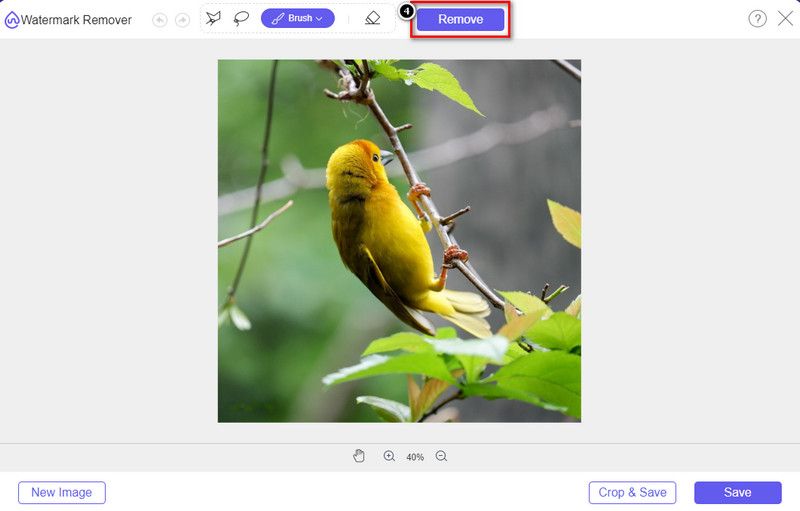
Krok 4. Po zvýraznění vodoznaku nástrojem nezapomeňte kliknout na ikonu Remove. Tento krok je zásadní, aby byl obrázek po exportu bez vodoznaku.
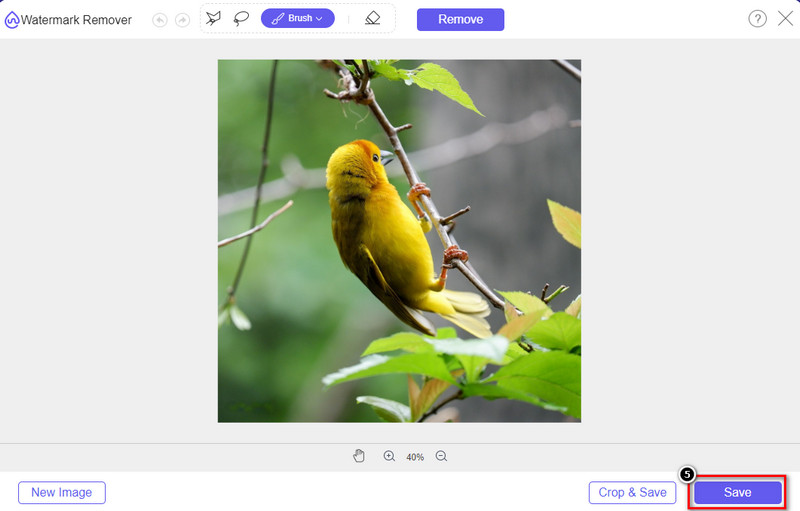
Krok 5. Chcete-li spustit export, klikněte na tlačítko Save. Počkejte na dokončení procesu a poté si můžete zkontrolovat obrázek, na němž už v dané oblasti není viditelný vodoznak Origin Graph.
Klady
- Bezplatný webový odstraňovač vodoznaků, ke kterému máte přístup.
- Funguje efektivně při odstraňování vodoznaku s podporou technologie AI.
- Podporuje širokou škálu obrazových formátů, které můžete mít na místním disku.
- Na exportované obrázky není přidán žádný vodoznak.
Nevýhody
- K fungování je potřeba připojení k internetu.
- Zaměřuje se na odstranění vodoznaku a nic jiného.
Část 2. Jak kopírovat grafy z Origin do Wordu nebo PowerPointu bez vodoznaku
V této části článku vám poskytneme postup, který budete potřebovat znát, abyste mohli přidat graf, který jste vytvořili na Origin Graph, bez vodoznaku. Postupujte podle toho a přidejte graf úspěšně vytvořený v aplikacích Microsoft Word a PowerPoint bez vodoznaku.
Kvůli obrovské velikosti souboru budete muset uvolnit alespoň 1,9 GB. V 1,9GB souboru můžete mít potřebnou nápovědu, ale pokud nápovědu nechcete, můžete si stáhnout její 652 MB verzi přes .zip nebo .exe.
Kroky, jak vytvořit graf na grafu původu bez vodoznaku:
Krok 1. Nejprve si stáhněte Origin Graph do svého operačního systému z jeho oficiálních webových stránek. Otevřete nástroj a začněte vytvářet graf, který potřebujete.
Krok 2. Po spuštění softwaru přidejte hodnoty do tabulky, kterou potřebujete. Můžete zde přidat více proměnných i odpovídající počet grafů.
Dodatečně: Kliknutím na Plot zobrazíte další typy grafů, které můžete použít, například Basic 2D, Bar, Statistical a další.
Krok 3. Klikněte na File a poté stiskněte Save, abyste exportovali graf, který jste zde vytvořili.
Krok 4. Můžete se řídit kroky, které uvádíme v části 1, a následovat návod, jak odstranit vodoznak z Origin Graph pomocí FVC Free Watermark Remover Online.
Jak používat graf ve Wordu bez vodoznaku:
Krok 1. Otevřete na počítači aplikaci Word a klikněte na Prázdný dokument. Pokud už máte dokument vytvořený, otevřete daný soubor.
Krok 2. Přejděte na kartu Insert a klikněte na Pictures. Na místním disku vyhledejte soubor s grafem, jednou na něj klikněte a stisknutím Open jej nahrajte do Wordu.
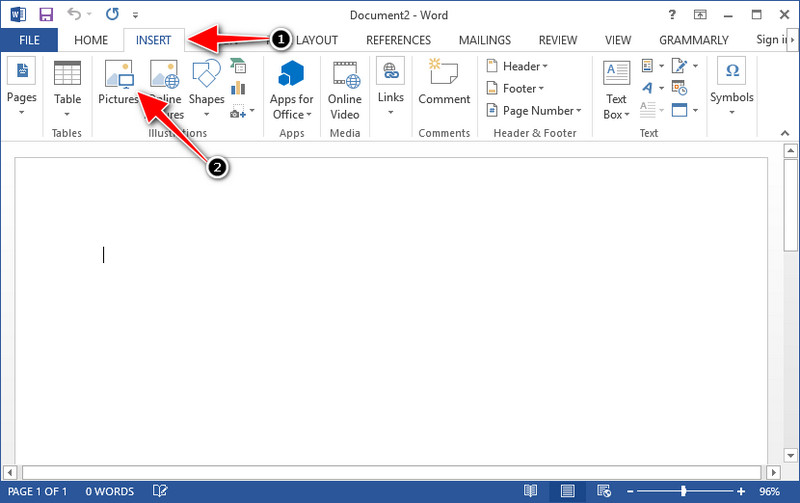
Krok 3. Graf se automaticky načte do dokumentu Word, který jste otevřeli nebo vytvořili; nyní můžete graf umístit tak, že ho podržíte a přetáhnete na požadované místo v dokumentu.
Jak používat graf v Powerpointu bez vodoznaku:
Krok 1. Spusťte na počítači PowerPoint a klikněte na Prázdná prezentace. Na levé straně si také můžete prohlédnout nedávno vytvořené prezentace. Pokud je mezi nimi soubor, do něhož potřebujete graf přidat, kliknutím jej otevřete.
Krok 2. Stiskněte Insert a klikněte na Picture, abyste vložili obrázek grafu, který jste vytvořili v Origin Graph.
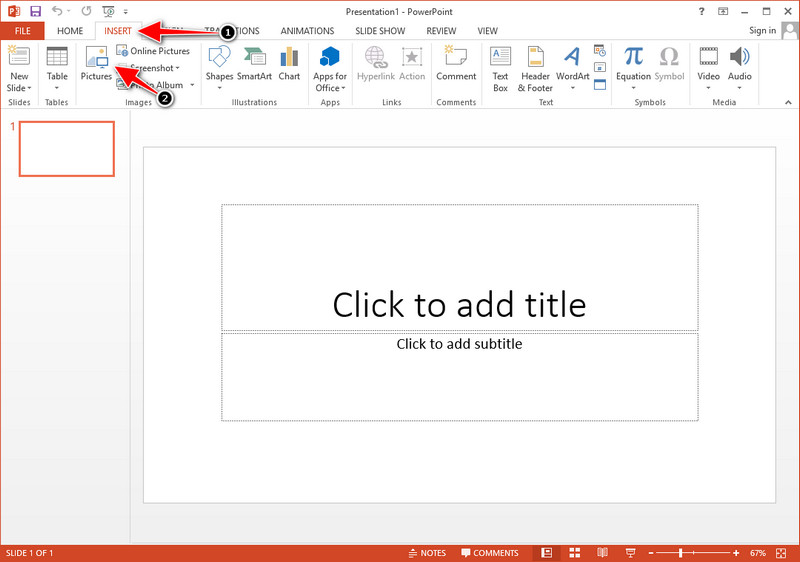
Krok 3. Upravte velikost a umístění obrázku grafu a umístěte ho na snímek.
Další čtení:
Jak odstranit vodoznak B612 z vašich obrázků
Jak zdarma odstranit vodoznak WOW Slider
Část 3. Často kladené otázky o tom, jak odstranit vodoznak z grafu původu
Kolik stojí Origin Pro?
Pro jednotlivé uživatele můžete počínaje verzí $435 získat prémiovou verzi Origin Graph. Můžete navštívit jeho oficiální obchod na Origin Lab.
Kde si mohu oficiálně stáhnout Origin Graph?
Navštivte Origin Lab a stáhněte si Origin Graph. Než si budete moci stáhnout software na plochu, zeptá se. Poté budou dvě možnosti stažení souboru, zda jej chcete stáhnout s nápovědou nebo ne, ve formě .exe nebo zip.
Jsou Excel a Origin totéž?
Excel a Origin mají grafické uživatelské rozhraní podobné tabulkovému procesoru pro uspořádání dat, výpočty a definování štítků. Excel se však zaměřuje na to, aby obsahoval mnoho sloupců a řádků, které můžete použít. Ale u Origin je to pro uspořádání atributů, které používají vzorec sloupce spíše než vzorec buňky, jako to podporuje Excel.
Závěr
Nyní, když jste se naučili, jak odstranit vodoznak z Origin Graph, je váš čas použít graf, který jste vytvořili, a prezentovat jej profesionálně. Pokud je vaším účelem použití ve Wordu nebo Powerpointu, můžete si přečíst část 2 a zjistit, jak na to. Odstranění vodoznaku pomocí tohoto nástroje je zdaleka nejžádanější každým, kdo chce odstranit vodoznak z obrázků. Problém je vyřešen tímto nástrojem. Pokud vám tento článek pomohl, zanechte prosím níže 5 hvězdiček.
-
 Jak odstranit vodoznak pomocí Pixlr v podrobných krocích [efektivní]
 Chcete vědět, jak odstranit vodoznak pomocí Pixlr? Pokud ano, pokračujte ve čtení níže, abyste věděli, jak to udělat a jaké alternativy můžete použít.
-
 Odstraňte vodoznak Animotica z exportovaných videí 3 osvědčenými způsoby
 Přemýšleli jste někdy, zda je možné odstranit vodoznak Animotica z videí, která jste exportovali? Tento článek poskytuje návod, jak postupovat.
-
 Bezplatné způsoby odstranění vodoznaku VideoShop z videí [bez námahy]
 K odstranění vodoznaku VideoShop bude vaše zařízení potřebovat odstraňovač vodoznaku. Chcete-li vědět, které to jsou, přečtěte si tento článek.
