


 Video Converter Ultimate
 Screen Recorder
 Oprava videa
Jak zrychlit video mnoha způsoby pomocí iPhone
Chystáš se vytvořit nejlepší hudební videoklip ve školním projektu a chceš v něm zachytit scénu z životního cyklu. Chceš celý klip převinout dopředu tím, že zvýšíš rychlost přehrávání a správně provedeš přechod z mládí do dospělosti, ale máš k dispozici jen telefon. Přesněji řečeno, máš jen iPhone, na kterém musíš zvýšit rychlost přehrávání a upravit celý hudební videoklip. iPhone je však známý svým omezujícím přístupem ke stahování aplikací, protože u některých z nich je nutné zakoupit plnou verzi, aby bylo možné využít všechny funkce. Pokračuj ve čtení tohoto článku, abys detailně pochopil, jak zrychlit video na iPhonu.

Část 1. Nejlepší způsob, jak zrychlit video na iPhone
Dříve známý jako iPhone OS, iOS je mobilní operační systém společnosti Apple Inc., vyvinutý výhradně pro její hardware. Je také známý svou exkluzivitou při stahování aplikací, na rozdíl od Androidu. iPhone však nabízí i další aplikace, které dokážou video upravovat a přizpůsobovat a jsou v jeho operačním systému k dispozici. Některé z těchto aplikací umí rovněž ovládat rychlost přehrávání; co se týče ovládání rychlosti videa na iPhonu, tyto aplikace se snadno používají a jsou zdarma ke stažení na jakémkoli zařízení s iOS. Aby ses o ovládání rychlosti videa na iPhonu dozvěděl víc, podívej se na následující kroky:
Metoda 1. Použijte iMovie ke zrychlení videa na iPhone
Na svém iPhonu můžeš pomocí aplikace iMovie vytvářet trailery v hollywoodském stylu v rozlišení 4K. Poté, co upravíš všechna svá videa, můžeš přidat animované titulky, hudbu a další závěrečné úpravy, jako jsou filtry a efekty. Aplikace iMovie od Apple ti umožní vyprávět tvůj příběh uhlazeným, profesionálním způsobem a pak se o svou práci podělit s přáteli a rodinou. iMovie nabízí funkce, které mohou zlepšit kvalitu videa díky různým šablonám a nástrojům pro finální úpravy; zároveň přináší možnost ovládat rychlost přehrávání na iPhonu. Protože většina editorů potřebuje věnovat pozornost zmíněným problémům, najdeš níže kroky, které je třeba dodržet, aby ses v této aplikaci na iPhonu dopracoval k požadované rychlosti.
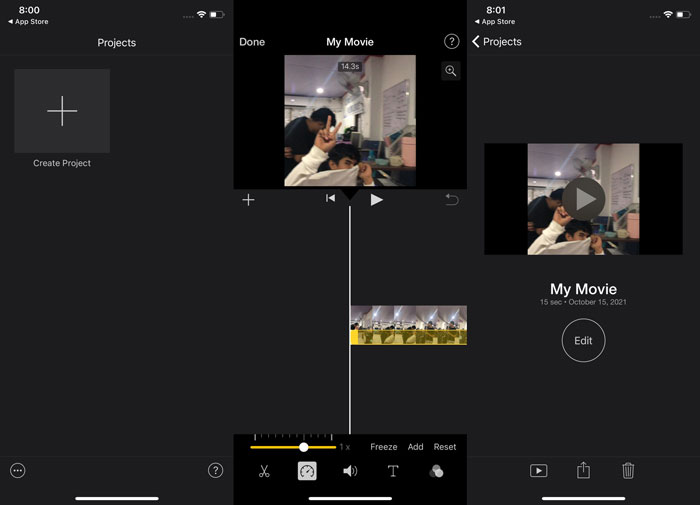
Krok 1: Spusť na svém iPhonu nebo iPadu aplikaci iMovie. Pokud se zobrazí průvodce rozhraním, vyber možnost Continue. Chceš‑li začít s novým videoklipem, přejdi na stránku Projects a klepni na ikonu plus +. Přejdi do okna New Projects a pro pokračování zvol Movie.
Krok 2: Po výběru videa z fotoaparátu klepni dole na obrazovce na Create Movie. Nástroj pro úpravu rychlosti vypadá jako rychloměr a najdeš ho tak, že klepneš na videoklip na časové ose a počkáš, až se zobrazí editační nástroje. Jednoduše posuň dolní žlutý Slider a video tak přetočíš dopředu nebo zpomalíš. Můžeš rychlost zvýšit až na dvojnásobek nebo ji zpomalit až na osminu původní hodnoty.
Krok 3: Pokud je vše hotovo, klepni na Done v levém horním rohu obrazovky telefonu. Chceš‑li hotové video uložit, klepni dole na obrazovce na tlačítko Share a vyber, kam ho chceš uložit.
Metoda 2. Použijte Videoshop ke zrychlení videa na iPhone
Pokud jde o software pro úpravu videa, jen málo možností je lepších než Videoshop. Pomocí něj můžeš své video rychle upravit přidáním efektů, jako je hudba, komentář, text a obrázky. Můžeš na svá videa také jednoduše aplikovat působivé filtry, vytvářet fotoprezentace a videa stříhat, spojovat, kopírovat, vkládat, otáčet a zrcadlit. Kromě toho můžeš v této aplikaci velmi rychle upravit rychlost přehrávání videa a vytvořit tak zrychlené nebo zpomalené záběry. Pouhými několika jednoduchými kroky můžeš měnit rychlost přehrávání videa, dokud nedosáhneš požadovaného tempa. Pokud se chceš dozvědět víc o tom, jak zrychlit video na iPhonu pomocí aplikace Videoshop, podívej se na seznam kroků níže, které ti usnadní její používání.
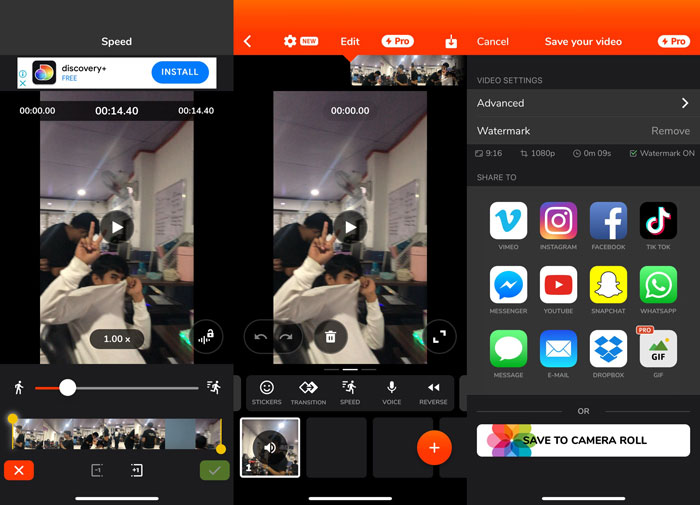
Krok 1: Když na iPhonu poprvé otevřeš video editor, budeš mít na výběr, zda natočit nové video, nebo importovat dříve uložené. Využij editor videa a po přidání souboru videa do okna editoru se zobrazí nové rozhraní. V dolní části editoru videa je Toolbar s řadou nástrojů. V této liště přejeď nebo klikni prstem doleva či doprava. Jakmile vybereš Speed, zobrazí se nabídka pro ovládání rychlosti videa.
Krok 2: Pomocí tohoto editoru videa na iPhonu můžeš rychlost videa snadno změnit. Rychlost přehrávání lze zpomalit nebo zrychlit přetažením Speed Handle doleva nebo doprava. Chceš‑li změnu náhledu, stiskni tlačítko Play. Poté můžeš rychlost videa znovu upravit, dokud nebudeš s upraveným videem spokojený.
Krok 3: Svoji práci uložíš kliknutím na tlačítko Done v pravém horním rohu.
Část 2. Alternativní způsob, jak zrychlit video na iPhone
Pokud se ti nedaří vstřebat všechny kroky z předchozího nástroje, tento článek představuje alternativu, která pomáhá vyřešit problém, jak zrychlit video na iPhonu až 2×. Nepoužíváš iPhone jako editor videa příliš často a nejsi na to zvyklý, zvlášť když chceš zvýšit rychlost přehrávání. Video Converter Ultimate je nejlepší alternativou, kterou bys měl zvážit, protože ti umožní video natrvalo zrychlit. Stáhni a používej Video Converter Ultimate jako ovladač rychlosti pro svá videa. Tento software obsahuje řadu funkcí a nástrojů, které ti pomohou zlepšit editační schopnosti. Zahrnuje také nástroj Video Speed Controller, který řeší problém, s nímž se uživatelé iOS často potýkají. S tímto nástrojem můžeš nyní snadno upravit rychlost videa a dosáhnout jeho vysoké kvality. Díky rychlému procesu konverze navíc dokáže změnit rychlost videa během několika sekund. Celkově tento software pracuje na profesionální úrovni a zároveň nabízí uživatelsky přívětivé rozhraní. Protože tuto alternativu můžeš používat jen na počítači, musíš se naučit, jak přenést video z iPhonu do počítače, abys mohl tento postup dokončit.
1. Chcete-li začít, připojte svůj iPhone k počítači pomocí kabelu USB.
2. Otevřete aplikaci Fotky v počítači kliknutím na tlačítko Start a poté na Fotografie.
3. Po výběru možnosti Importovat ze zařízení USB postupujte podle pokynů na obrazovce. Máte úplnou kontrolu nad tím, co importujete a kam se to uloží. Během procesu detekce a přenosu si dopřejte trochu prostoru pro dýchání.
Nyní můžete podle níže uvedených kroků urychlit svá videa na vašem iPhone.
Krok 1: Aby software fungoval na tvém počítači, musíš si ho nejprve stáhnout kliknutím na tlačítko Free Download níže. Po stažení do počítače jej můžeš nainstalovat a kliknutím na Start Now instalaci dokončit.
Zdarma ke staženíPro Windows 7 nebo novějšíBezpečné stažení
Zdarma ke staženíPro MacOS 10.7 nebo novějšíBezpečné stažení
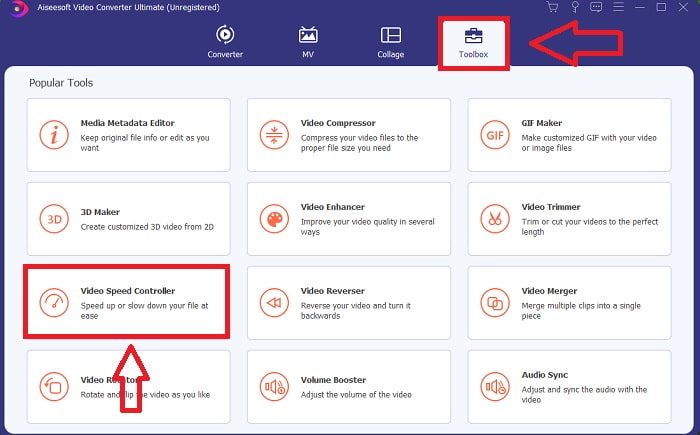
Krok 2: Po instalaci software spusť a na hlavní obrazovce uvidíš konverzní část programu. Poté přejdi na funkci Toolbox. Zobrazí se zde různé nástroje, které software nabízí; chceš‑li upravit rychlost videa, vyber Video Speed Controller.
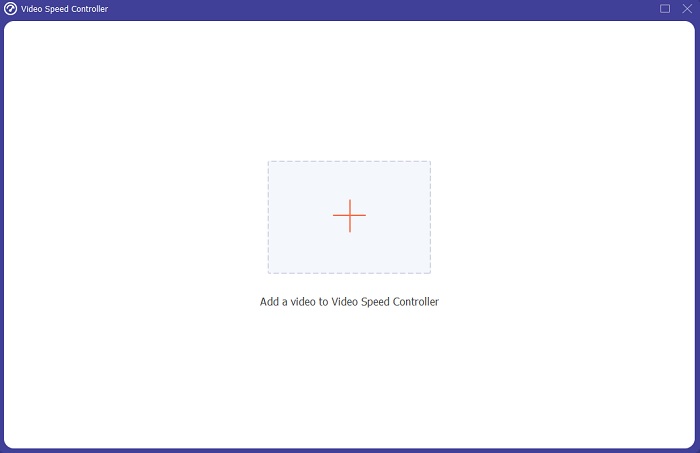
Krok 3: Po pokračování se na obrazovce objeví nové okno. Proces úprav zahájíš stisknutím znaménka +.
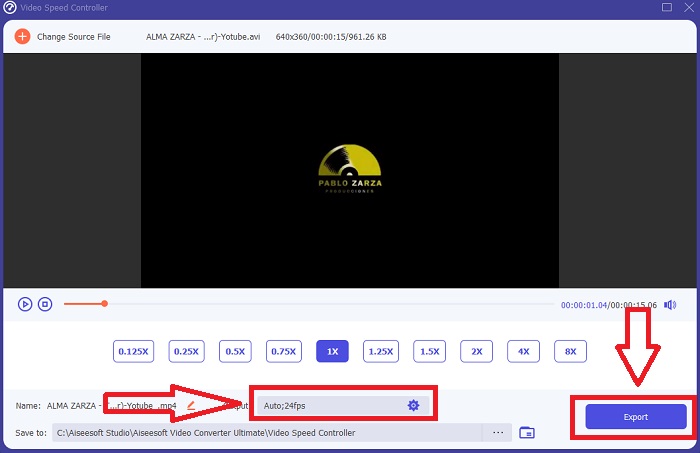
Krok 4: Fázi úprav můžeš zahájit výběrem, kolikrát se snímková frekvence videa zvýší nebo sníží, aby se změnila rychlost přehrávání. Pokud jsi už s rychlostí videa spokojený, můžeš ještě přizpůsobit kvalitu výsledného videa úpravou formátu, rozlišení, snímkové frekvence atd. Zároveň dostaneš možnost svůj výstupní soubor s videem přejmenovat.
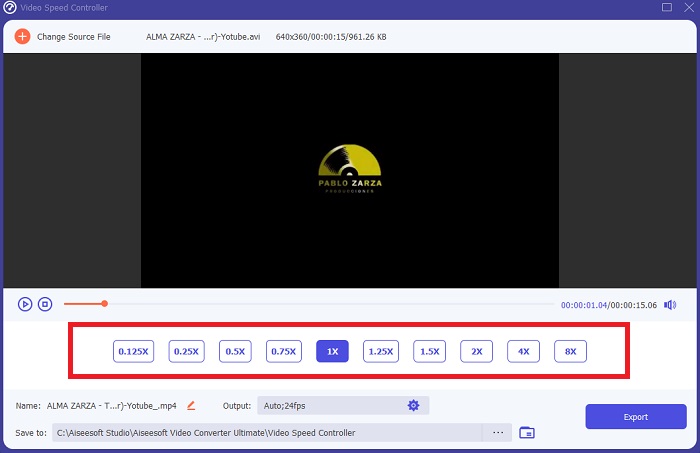
Krok 5: Chceš‑li svou práci uložit, klikni na Export a vyber cílové umístění v souborovém systému počítače.
Související:
Část 3. Nejčastější dotazy o tom, jak zrychlit video na iPhone
Jak funguje ovladač videa?
Ovladač rychlosti videopřehrávače určuje rychlost přehrávání videa. Při použití přehrávače médií ke sledování filmu se video přehraje stejnou rychlostí jako standardní video. Účelem ovládání rychlosti videopřehrávače je umožnit uživateli měnit rychlost přehrávání videa. Některá videa je třeba zpomalit, abyste mohli sledovat dění.
Jak trvale změním rychlost přehrávání videa?
Zamyslete se nad tím, kolik kroků je potřeba ke změně rychlosti přehrávání vašich videí. Navzdory skutečnosti, že video nástroje a video editory jsou snadno dostupné online, stále hledáte ten nejlepší nástroj, jak vyřešit problémy s rychlostí přehrávání vašeho videoklipu. Na internetu je k dispozici řada webových nástrojů, z nichž některé jsou zdarma, ale k odemknutí všech funkcí je třeba zaplatit. Video Converter Ultimate, bezplatný program pro zrychlení videí, je vaším nejlepším řešením pro trvalou změnu rychlosti přehrávání.
Jak zrychlím MP4 video?
Existuje mnoho převodníků dostupných ke stažení a použití offline. Přehrávání videa můžete urychlit použitím Video Converter Ultimate jako alternativy k jiným video konvertorům. Posilovač rychlosti videa je jen jednou z mnoha dostupných funkcí, protože jde o bezplatný software s otevřeným zdrojovým kódem.
Závěr
Jak jsem již řekl, uživatelé iPhone, kteří sní o vyřešení rychlosti přehrávání videa, nemusí kupovat různé nástroje. Existuje mnoho volně použitelných editorů, které musíte hledat; některé potřebují kritické porozumění, aby je mohly správně používat, ale většina z nich je přístupná. Když už mluvíme o nejlepších dostupných nástrojích, doporučujeme použít Video Converter Ultimate ke zrychlení vašich videoklipů až 2x oproti normální rychlosti nebo dokonce až 8x rychleji. Pomocí této funkce lze navíc video zpomalit na čtvrtinu jeho normální rychlosti. Tento software má vše, co profesionální editor chce mít, a jeho používáním budete mít možnost stát se profesionálem.
-
 [2 nejlepší řešení] Jak snadno přehrávat filmy AVI na iPhonu/iPadu
 Nedaří se vám přehrávat filmy ve formátu AVI na vašem iPhonu/iPadu a nechcete stahovat videopřehrávače třetích stran? Můžete se naučit 2 efektivní způsoby, jak převést AVI videa pro přehrávání na iPhone.
-
 [Vyřešeno] Jak opravit videa, která se na iPhone nepřehrávají, pomocí podrobných kroků
 Místní videa v galerii nelze přehrávat na vašem iPhone prostřednictvím výchozího přehrávače videa? Nepřehrávání online videí YouTube na iPhonu se vždy stává? Zde je 5 řešení, která vám pomohou v tomto článku.
-
 Top 5 nejlepších přehrávačů videa pro iPhone, které byste si neměli nechat ujít v roce 2021
 Chcete -li na svém iPhone přehrávat videa ve všech formátech a mít lepší zážitek ze sledování, měli byste si přečíst tento článek a seznámit se s nejlepšími 5 přehrávači videa pro iPhone 12/11/X/8/7/6.
