


 Video Converter Ultimate
 Skærmoptager
 Video reparation
 Sikker download
Sådan tilmelder du dig MOV (QuickTime) -filer gratis
Efter at have samlet mange MOV-videomaterialer, kan du arrangere materialerne og slutte dem til en komplet fil. For begyndere eller amatørvideoproducenter kan det dog være for kompliceret at bruge et teknisk værktøj som Adobe Premiere Pro. Måske bruger du dage eller endda måneder på at studere, hvordan du betjener programmet.
In fact, if you only want to merge video clips, you can use a simple and effective video joiner to solve your problem, which only takes a few minutes to merge two or more MOV files together.
With the following steps, you can easily combine MOV files on both Mac and Windows. So, please read on and try the methods yourself.

Del 1. Sådan flettes MOV-videoer i QuickTime
MOV, also known as QuickTime File Format (QTFF), is a digital video container with MPEG-4 codec. It was introduced by Apple in 1998 to support QuickTime Player. Therefore, if you have a Mac, you can actually use QuickTime Player to join mov files with ease.
Overraskende nok er QuickTime ikke kun en medieafspiller, men også en videoredigerer, der giver dig mulighed for at flette separate videoer, redigere videoklip og endda optage lyd eller video på din Mac. Desuden er det let at bruge og holder den originale kvalitet af videoer.
Her er trinene til, hvordan du deltager i videoklip i QuickTime.
Step 1. Find the videos you want to merge and open one of them with QuickTime Player. (You can move them to one folder or to desktop first to save trouble.)
Step 2. After opening the file, there will be player window showing up on the screen. Now drag the other video clip into the QuickTime Player. You can hold and drag the video clip to the right order. When you release the mouse, there will be a Done button next to your video clips. Click it.
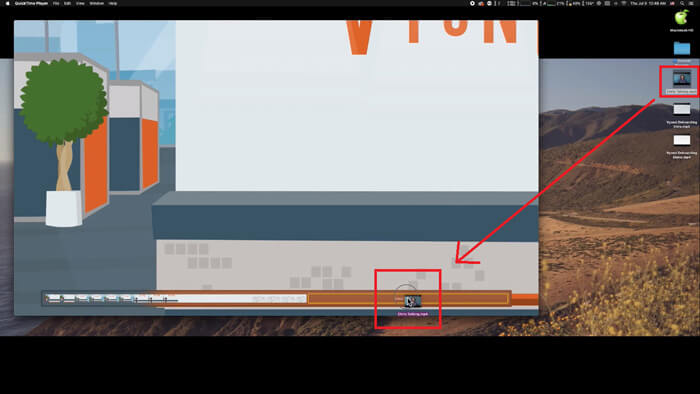
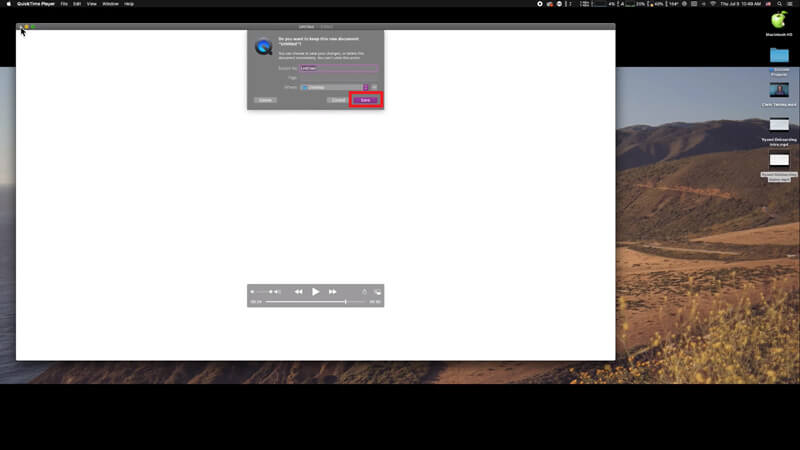
Step 3. Exit QuickTime and you will get a prompt immediately to remind you save the merged video. Just input a new name and select a destination before clicking the Save button.
Del 2. Sådan flettes MOV-filer online og gratis
However, QuickTime cannot help you merge various video files in different formats, such as MP4, MOV, AVI, WMV, FLV, etc. into one MOV file. In this case, you need to use a more professional video merger that supports multiple video formats.
So, meet FVC Free Online Video Merger, the best video joiner to merge videos for free. Using this tool, you can upload as many videos as you like with no limit. Besides MOV, you can export other popular video formats, which is very convenient for you to share the video to streaming sites like YouTube.
I stedet for at installere seriøst og dyrt program til din pc kan du deltage i alle videoer for at producere en fantastisk video online med denne brugervenlige videokombiner, som også giver dig mulighed for at oprette en video uden vandmærke. Uanset hvilket system du bruger, Windows, Mac eller Linux, kan det fungere godt. Alt hvad du behøver er en browser og et stabilt netværk.
De følgende trin vil guide dig om, hvordan du betjener dette videofusioneringsværktøj.
Step 1. Click the link above to open the website of FVC Free Online Video Merger on your browser.
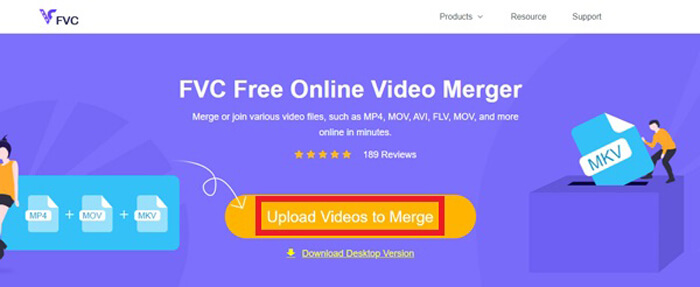
Step 2. Click the Upload Videos to Merge button in the banner first. Then you need to follow the on-screen instructions to download and install a launcher to your computer.
Step 3. Once the installation is over, a window will pop up immediately. Now, you can select and add all the MOV files you want to join to the video merger.
Step 4. After uploading, please check if the order of video clips is right. Then change the Resolution as you need and the Format to MOV or any other format you want.
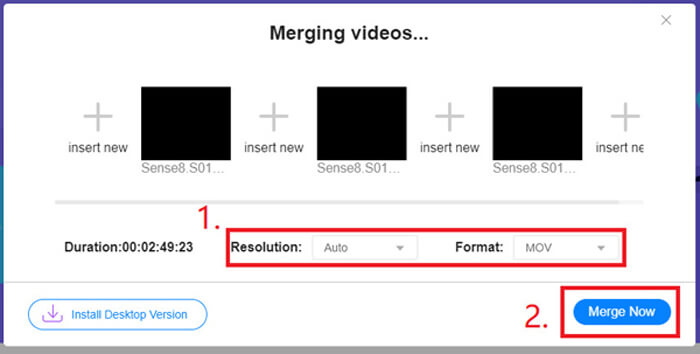
Step 5. Click Merge Now to start the combination.
Del 3. Sådan flettes MOV-filer i Windows 10
Hvis du ikke har en Mac, men ejer en pc med Windows 10, kan du prøve følgende trin for at deltage i MOV-filer.
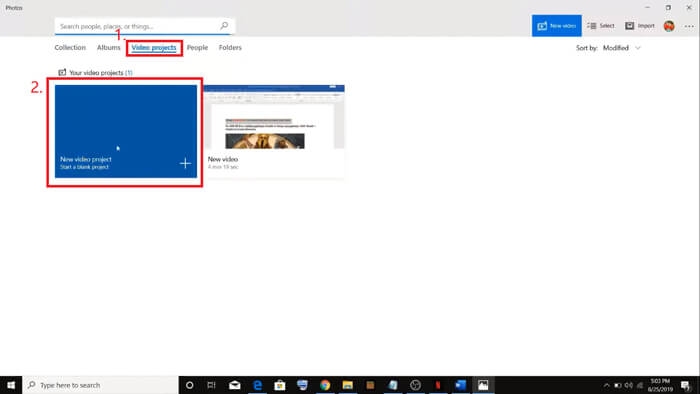
Step 1. Open the Photos app on your PC. You can find it by searching it in the Search bar. Then select the Video projects tab above and click on New video project. Name the video project.
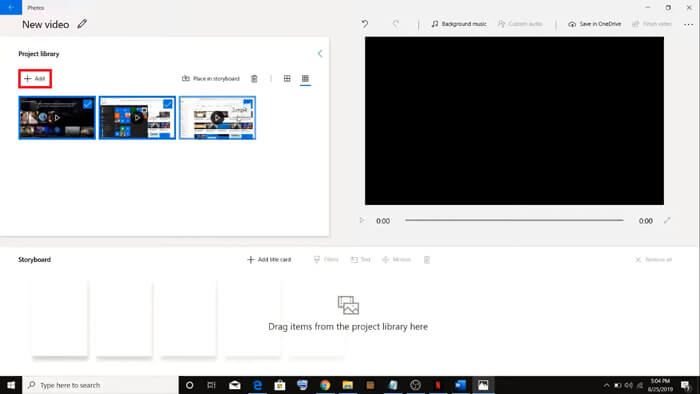
Step 2. Click the Add button in the top left corner and select all the videos you want to convert from your PC.
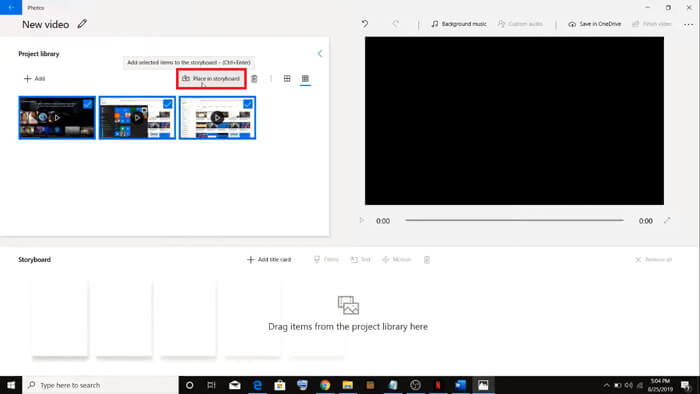
Step 3. Then click the Place in storyboard button to combine all your MOV files.
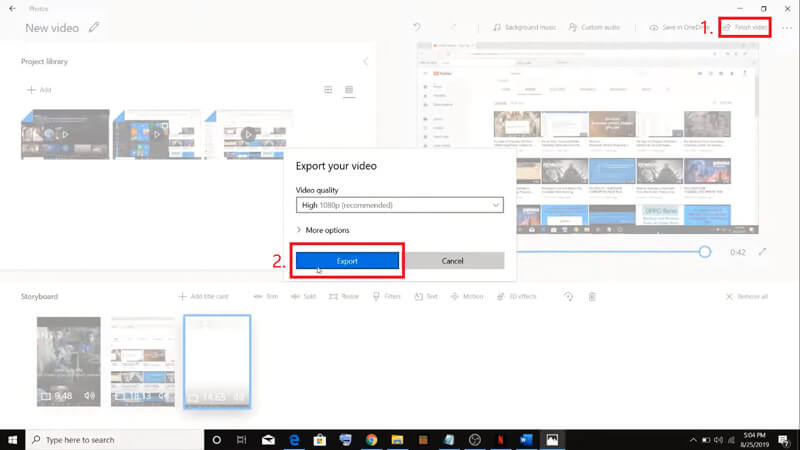
Step 4. After adjusting the video order, click Finish video in the top right corner. Then Export the merged video to your PC.
Del 4. Ofte stillede spørgsmål om fletning af MOV
1. Kan jeg bruge QuickTime Player i Windows?
Even though Apple doesn’t support QuickTime for Windows any more, you can still find the installation package of QuickTime on the Internet. However, you should notice that you can only use it to play videos. So, it’s basically a normal player that helps you little.
If you are a Windows user who wants to merge MOV files, you can just use the powerful FVC Free Online Video Merger.
2. Hvilket er bedre for YouTube, MOV eller MP4?
After producing a wonderful video by merging all your video materials, you may want to upload it to YouTube, Facebook, Instagram, or other platforms. If so, MP4 will be a better choice. Because it is smaller in size and easier to share over the Internet.
Maybe you want to know more differences between MOV and MP4.
3. Kan QuickTime Player eksportere MP4-video?
No and yes. Because QuickTime itself does not support users in exporting MP4 files. But if you have paid and upgraded your QuickTime to QuickTime Pro, then you can enjoy merging MOV files and get the converted MP4 file automatically. If you don’t want to pay a penny but still want to convert MOV to MP4 on Mac, you can try a free online converter called FVC Free Online Video Converter which is compatible with both Mac and Windows.
Konklusion
So, these are the methods you can adopt when you need to merge MOV files into one. If you are using Mac, you can use the built-in software, QuickTime Player, directly to obtain the merged MOV file. Windows 10 users can give Photos a try. As for other Windows computers, users can choose FVC Free Online Video Merger and experience a fantastic video merging journey with no restriction, no ad and no virus.
Hvis du kan lide dette indlæg og finder det praktisk, kan du dele det med dine venner. Og tøv ikke med at efterlade os din kommentar. Nu er det din tur til at prøve metoderne og flette dine filer.
-
 Sådan konverteres QuickTime til MP4 på Windows / Mac / Online / iOS / Android
 Læs og få 4 måder at konvertere QuickTime til MP4-videoer gratis på din telefon eller computer. Du kan nemt ændre filformat fra MOV til MP4 på Windows / Mac / iPhone / Android / online.
-
 Top 4 måder at gratis konvertere MP4 til MOV
 Sådan konverteres MP4 til MOV på Mac? Er der nogen gratis måde at konvertere MP4 til MOV uden kvalitetstab? Dette indlæg deler 4 enkle måder at hjælpe dig med at lave videokonvertering fra MP4 til MOV på Mac, Windows PC og online.
-
 Sådan konverteres M2TS til MOV på Windows / Mac (online / offline)
 Brug for at konvertere M2TS til MOV til afspilning af videofiler på et antal afspillere og platforme? Denne artikel hjælper dig med at finde den bedste online / offline-metode til at konvertere M2TS til MOV på Windows / Mac.
