


 Video Converter Ultimate
 Skærmoptager
 Video reparation
 Sikker download
Sådan tilføjer du nemt et vandmærke til en video | 3 bedste metoder
Watermarks play an essential part in our published digital content, and they serve as an identity and a layer of protection against unauthorized use. So, if you’re a content creator who posts videos and you want your videos not to be used without your permission or credit, adding a watermark is a simple yet effective solution. Therefore, in this article, we’re going to help you add a watermark to a video in three different ways. So, if you’re now ready, let’s get into it.

Del 1. Tilføj et vandmærke til video | Ultimativ løsning
The ultimate solution to add a watermark to a video is by using the FVC Screen Video Converter Ultimate. With this tool, users can easily add a watermark to their videos using the Video Watermark tool. Yes, this video converter tool has a Toolbox that contains various tools that users can use whenever they need a solution for any audio and video problem they may encounter.
Hovedtræk
• Understøtter over 1000 inputformater, der kan håndtere næsten alle typer videoer.
• Giver brugerne mulighed for at tilføje et vandmærke til en video.
• Giver brugerne mulighed for at tilføje et tekstvandmærke til en video.
• Tillader tilpasning og grundlæggende redigering af det tilføjede vandmærke.
• Understøtter forskellige videooutputmuligheder.
Sådan tilføjer du et vandmærke til en video ved hjælp af FVC Video Converter Ultimate:
Step 1. First, you need to download and install the FVC Video Converter Ultimate on your computer. Please note that it is compatible with both Windows and macOS.
Gratis download til Windows 7 eller nyere Sikker download
Gratis download til MacOS 10.7 eller nyere Sikker download
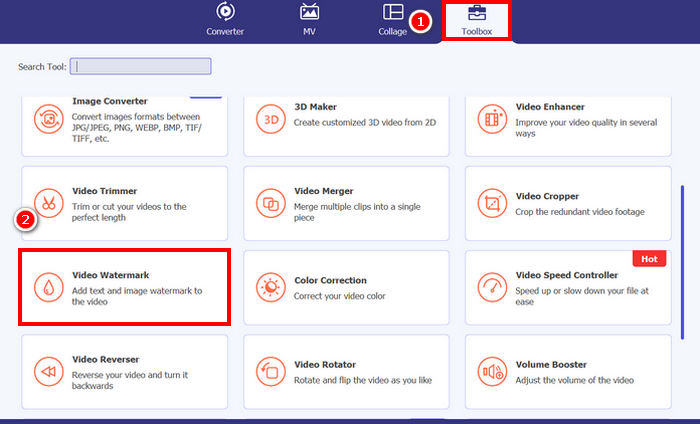
Step 2. Launch the tool, click on the Toolbox tab, and from there, select Video Watermark.
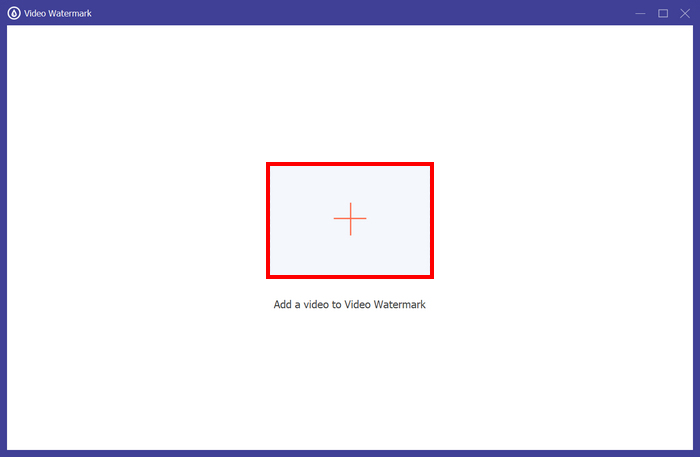
Step 3. After that, click on theAdd a Video to Video Watermark and select the video that you want to add an image watermark to.
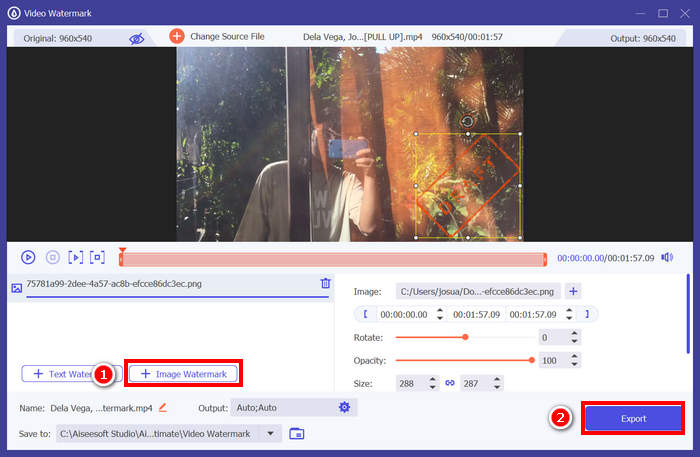
Step 4. Now, choose + Image Watermark to add the image that you want to use as a watermark for your video. From there, you can adjust it. Once done, click the Export button.
Med FVC Video Converter Ultimate kan du nemt tilføje et vandmærke til en video, og bemærk, at du kan tilføje enten et tekst- eller et billedevandmærke. Det har også grundlæggende redigeringsfunktioner, hvor du kan justere dets opacitet, størrelse og endda rotere det. Endelig er brugerfladen meget enkel og intuitiv, så selv begyndere nemt kan lære at bruge det.
Del 2. Hvordan tilføjer man et vandmærke til en video i Canva?
Canva is a popular editing tool, and for sure, you’ve heard about it. But did you know that this tool can be used to add a watermark to a video? Yes, with its user-friendly interface and powerful drag-and-drop features, Canva makes it easy to upload your logo or custom watermark and place it exactly where you want on your video. Below is the step-by-step guide on how you can add a watermark to a video using Canva:
Step 1. First, you need to have a Canva account. You can sign up or log in with your Google account.
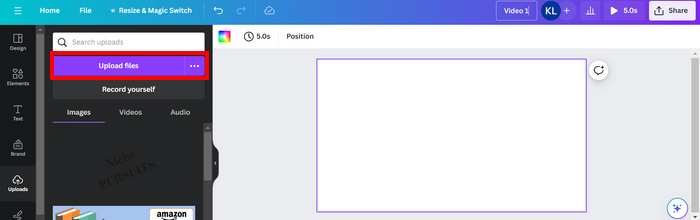
Step 2. Next, open your Canva and click on Create a Design and select the Upload option to import the video file that you want to watermark.
Step 3. Now, do the same with your watermark, upload it, and drag it to the video. Once in position, you can make the watermark larger or smaller and edit the color and its transparency.
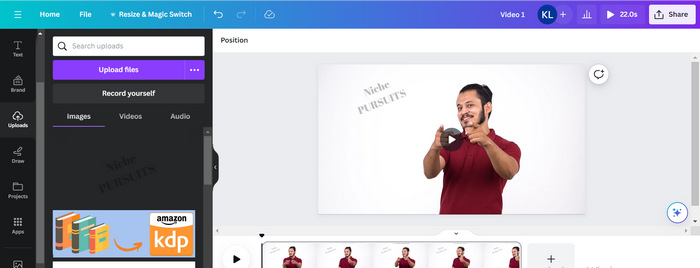
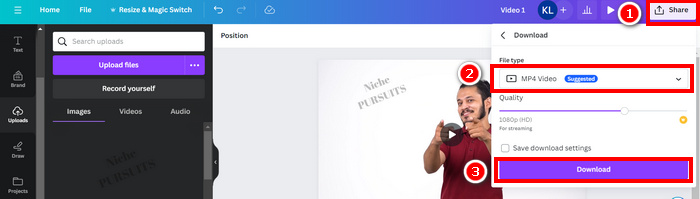
Step 4. Play your video to preview if the watermark is showing on the video. If everything is working well, click the Share button and download the file as an MP4 video file by clicking the Download button.
Note: In case your watermark image is too vibrant or dark for your video, you can adjust its transparency so it blends more naturally with the footage without overpowering the visuals or distracting viewers.
Del 3. Tilføj tekstvandmærke til en video online [Gratis]
Hvis du foretrækker en webbaseret og gratis metode til at tilføje et vandmærke til en video, kan echowave.io være en god mulighed. Dette online platformværktøj tilbyder intuitive funktioner, der giver brugerne mulighed for at oprette, redigere og visualisere lyd- og videoindhold. Men bortset fra det kan brugerne med dette værktøj drage fordel af dets redigeringsfunktion, hvor de kan tilføje et tekstvandmærke. Nedenfor er en trinvis vejledning til, hvordan man tilføjer et tekstvandmærke til en video online:
Step 1. First, on your Chrome, look for echowave.io.
Step 2. Next, once you’re on the interface of the tool, click the Create Watermarked Video.

Step 3. After that, click on the Upload Photo, Video, or Audio to upload the video that you want to watermark.

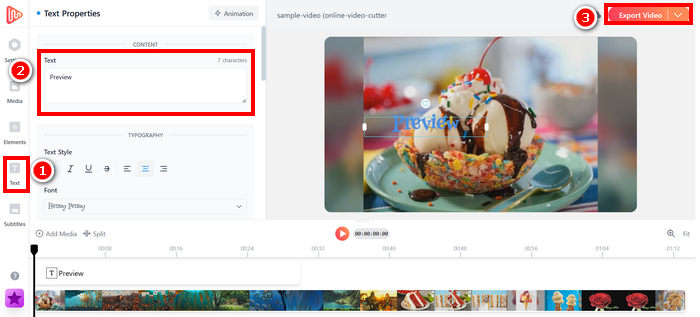
Step 4. Lastly, on the left panel of your screen, click on the Text to add and compose the text watermark that you are going to make. But first, you need to select what format you want to use. After that, type the text. Once done, you can adjust where you want to position your watermark, and when it’s all good. Click the Export button to save the file.
Selvom det er ligetil og brugervenligt at tilføje et vandmærke til en video ved hjælp af echowave.io, kan værktøjet nogle gange halte, selv når det behandler korte videoer eller filer med små størrelser.
Click here to read more about adding watermark to GIF if interested.
Del 4. Ofte stillede spørgsmål om at tilføje et vandmærke til en video
Er det ulovligt at dække et vandmærke?
Ja, det er ulovligt. Vandmærker bruges ofte som en form for ophavsretsbeskyttelse, der angiver ejerskab eller ophavsret til indholdet. Bevidst skjulning eller fjernelse af dem kan overtræde ophavsretsloven og kan føre til juridiske konsekvenser, især hvis det ændrede indhold videredistribueres, genbruges eller bruges til kommercielle formål.
Hvordan tilføjer man et vandmærke til en video i DaVinci Resolve?
For at tilføje et vandmærke i DaVinci Resolve skal du importere din video og dit vandmærkebillede eller tekst. Placer videoen på tidslinjen, og træk derefter vandmærket over det på et separat spor. Brug inspektørpanelet til at ændre størrelsen på, flytte og justere opaciteten. Når alt ser korrekt ud, skal du eksportere videoen med vandmærket inkluderet.
Hvordan tilføjer jeg et vandmærke til en video i Lightroom?
For at tilføje et vandmærke til en video i Lightroom skal du starte med at åbne Lightroom og vælge det billede, du vil vandmærke. Klik derefter på fanen Lightroom øverst på skærmen og vælg Rediger vandmærker i rullemenuen. I vinduet Vandmærkeredigering, der vises, skal du skrive den ønskede vandmærketekst i feltet under forhåndsvisningsbilledet. Derfra kan du også tilpasse stil, skrifttype, størrelse og placering af dit vandmærke.
Konklusion
Adding a watermark to a video is really a thing, and learning how to do it is essential for protecting your content and showing ownership. While there are many tools available, FVC Video Converter Ultimate offers a simple and efficient way to add a watermark in a video. It’s, indeed, a practical choice for beginners who want a quick solution, but exploring other tools like Canva or online editors can also be helpful depending on your needs.
-
 5 måder at fjerne et vandmærke fra en video på på en professionel måde
 Skal du fjerne et vandmærke fra en video for at få den til at se professionel ud? Nå, læs denne artikel, mens vi tilføjer en tutorial om, hvordan man gør det!
-
 2 fantastiske apps, du kan bruge til at fjerne vandmærke fra MP4-videoer
 Denne artikel vil tilbyde dig enkle og nemmeste måder om, hvordan du fjerner vandmærket fra MP4-videoer ved hjælp af dine enheder som Windows og Mac
-
 Fjern Animotica vandmærke på eksporterede videoer på 3 gennemprøvede måder
 Har du nogensinde spekuleret på, om det er muligt at fjerne Animotica-vandmærket på videoer, du eksporterede? Denne artikel giver en vejledning.
