


 Video Converter Ultimate
 Skærmoptager
 Video reparation
3 måder at tilføje baggrund til foto online, på iPhone, Android og computer
Når du redigerer et billede, har du ofte brug for at fjerne den oprindelige baggrund og tilføje en anden. For et billede med gennemsigtig baggrund kan du nemt ændre baggrunden ved hjælp af et billedredigeringsprogram. I de fleste tilfælde skal du dog først fjerne den nuværende baggrund og derefter tilføje en ny baggrund til fotoet. Leder du efter en god billedredigeringsapp til at tilføje baggrund til et foto?
Dette indlæg fortæller 3 effektive metoder til at tilføje en baggrund til et billede. Uanset om du vil tilføje hvid baggrund til et billede direkte online, tilføje en baggrund til et billede på en iPhone eller ændre billedbaggrunden på en Android-enhed, kan du følge den specifikke metode til at gøre det.

Del 1. Sådan tilføjer du gratis en baggrund til et billede online
For hurtigt at tilføje en baggrund til et foto kan du først prøve nogle online billedredigeringsværktøjer. Her anbefaler vi på det kraftigste det brugervenlige Free Background Remover Online, så du kan fjerne den oprindelige baggrund på dit billede og tilføje en anden baggrund til det. Dette gratis værktøj til ændring af billedbaggrund understøtter alle ofte anvendte billedformater som JPG, PNG, GIF og flere. Det giver dig en enkel måde at tilføje hvid baggrund til et foto eller erstatte den nuværende baggrund med et andet billede.
Trin 1. Åbn din webbrowser som Chrome, Safari, Yahoo, IE eller Firefox, og gå ind på dette gratis websted til ændring af fotobaggrund. Når du kommer til siden, kan du blot klikke på knappen Upload Portrait for at vælge og tilføje dit foto til senere redigering.

Trin 2. Med avanceret AI-teknologi vælger den automatisk hovedobjektet i dit uploadede billede. Derefter kan du bruge funktionen Keep or Erase til yderligere redigering.
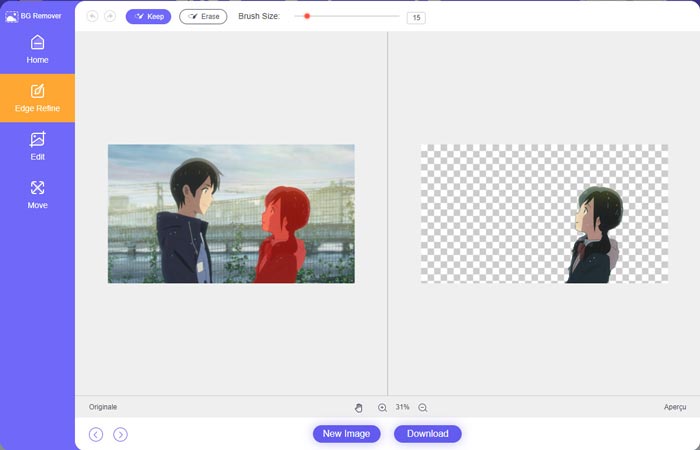
Trin 3. Klik på Edit-valgmuligheden til venstre, og så kan du vælge at ændre baggrundsfarven eller tilføje en baggrund til fotoet. I dette trin kan du også benytte dens Crop-funktion til at tilpasse billedstørrelsen efter dine behov.
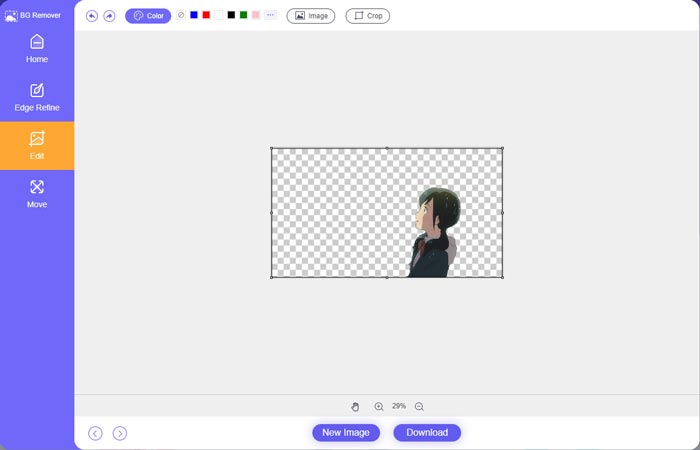
Trin 4. Når du har tilføjet en passende baggrund til fotoet, kan du klikke på knappen Download for at gemme det på din computer. Din redigerede billedfil bliver som standard gemt i PNG-format.
Del 2. Sådan tilføjes en baggrund til et billede ved hjælp af Adobe Photoshop
Adobe Photoshop er et af de mest berømte billedredigeringsprogrammer, der har mange funktioner, så du kan redigere billeder, tilpassede effekter og udføre andre handlinger. Hvis du har Photoshop installeret på din computer, kan du vælge at tilføje baggrund til billedet i Photoshop.
Trin 1. Åbn Photoshop-programmet på din computer, og tilføj dit foto. Du kan frit downloade den nyeste version af Photoshop fra Adobes officielle hjemmeside. Bemærk, at Adobe kun tilbyder en 7-dages gratis prøveperiode til at bruge Photoshop.
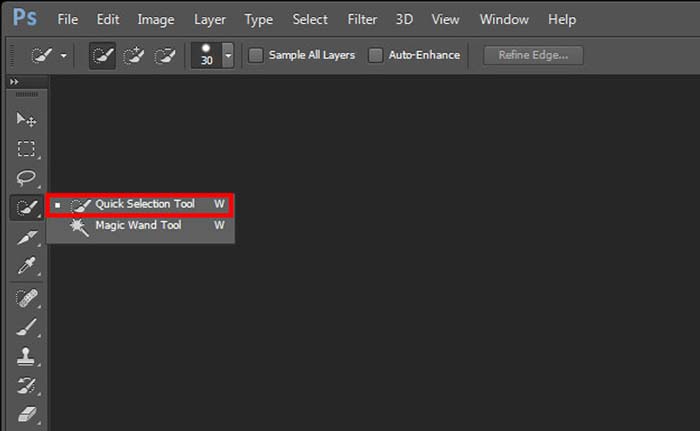
Trin 2. Når dit foto er indlæst i Photoshop, kan du klikke på ikonet Quick Selection Tool or Magic Wand Tool i værktøjslinjen til venstre for at vælge den baggrund, du vil ændre.
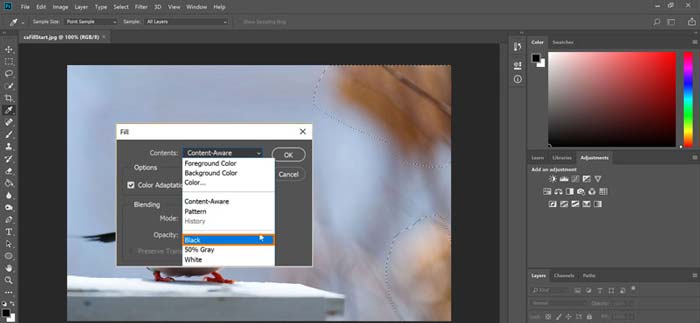
Trin 3. Når du har valgt fotobaggrunden, kan du højreklikke på den og vælge indstillingen Fill. Nu kan du nemt tilføje hvid baggrund til fotoet eller ændre baggrunden til en anden farve som sort, blå, grå eller en anden farve, du har brug for.
Trin 4. Hvis du vil tilføje et nyt billede som baggrund, skal du først fjerne den valgte baggrund. Du kan trykke på Delete-tasten på tastaturet for at fjerne den nuværende baggrund. Derefter kan du tilføje billedfilen til Photoshop og trække dens lag under baggrundslaget. På den måde kan du nemt erstatte den oprindelige baggrund med et nyt billede.
Trin 5. Når du har tilføjet en baggrund til et foto i Photoshop, kan du klikke på menuen File øverst og derefter vælge indstillingen Save As i rullemenuen. Vælg det rigtige billedformat til dette foto, og gem det på din computer.
Del 3. Sådan tilføjer du en baggrund til et billede på iPhone og Android-telefon
Når du vil tilføje baggrund til et billede på en iPhone, iPad eller Android-telefon, skal du finde en god billedbaggrundsredigeringsapp.
LightX er en fuldt udstyret fotoeditor-app til både iOS- og Android-brugere. Den tilbyder en praktisk måde at fjerne uønsket baggrund, tilføje ny baggrund til fotoet, tilføje forskellige effekter, skabe selfies i høj kvalitet og meget mere direkte på din telefon. Mange avancerede billedredigeringsværktøjer er indbygget i LightX-appen, såsom farveblanding, tilpasset fotosaturation, kontrast, farvetone, kurver og mere. Du kan downloade den fra App Store eller Google Play Butik.
Trin 1. Installer og åbn LightX-appen på din iPhone, iPad eller Android-telefon. Giv denne app tilladelse til at få adgang til billederne på din enhed. Tilføj dit foto til den for yderligere redigering af baggrunden.
Trin 2. For at fjerne den nuværende fotobaggrund og ændre den til noget andet kan du swipe til venstre for at få vist mange forskellige muligheder. Under Creative kan du vælge funktionen Cutout for at tilføje baggrund til fotoet. Nu skal du manuelt vælge hovedobjektet og slette den oprindelige baggrund.
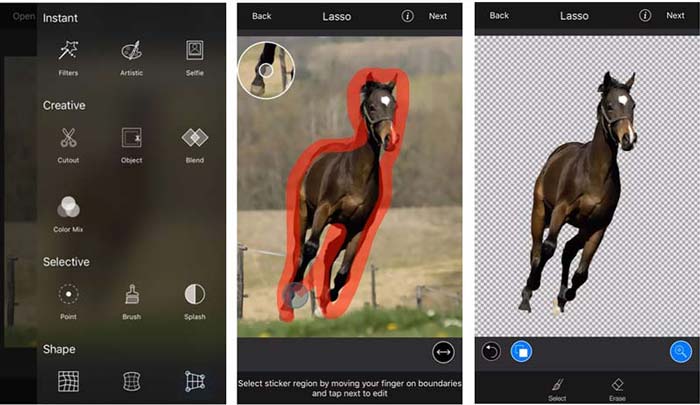
Trin 3. Når baggrunden er fjernet, kan du trykke på Next øverst til højre for at fortsætte. Derefter kan du bruge dens Crop-funktion til at ændre størrelsen på billedet. Tryk på Done for at bekræfte din handling. Derefter kan du trykke på BG Image nederst på skærmen for at tilføje en anden baggrund til fotoet. Du kan frit justere effekterne af den nye baggrund efter dine behov.
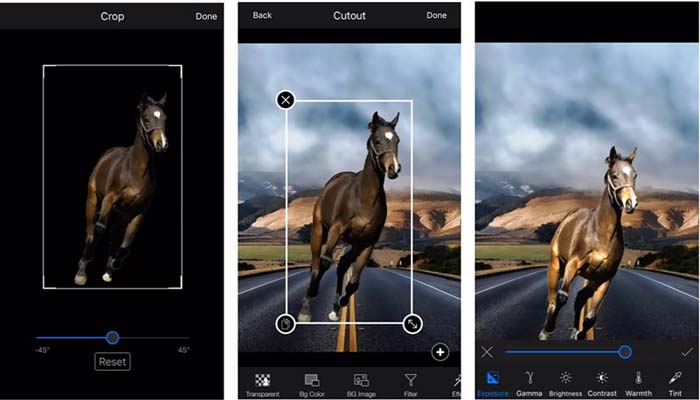
Uanset om du bruger en iOS- eller Android-enhed, kan du følge lignende trin for at tilføje en baggrund til et billede ved hjælp af LightX-appen. Bemærk, at du som iOS-bruger skal betale $3.99 for denne baggrundsapp. Hvis du er en Android-bruger, kan du installere den fra Google Play Butik. For at opgradere til en premium-version skal du betale den samme pris.
Relateret:
Hvad er videoopløsning: Indgående indsigt i opløsning og mere
6 foretrukne animerede Snapchat-filtre på Snapchat
Del 4. Ofte stillede spørgsmål om, hvordan man tilføjer en baggrund til et billede
Hvordan tilføjer jeg en anden baggrund til et billede på min Mac?
Du kan bruge de første 2 metoder til enkelt at ændre fotobaggrunden på en Mac. Udover det anbefalede Free Background Remover Online og Adobe Photoshop kan du også bruge andre billedredigeringsprogrammer til at tilføje en ny baggrund til dit foto.
Hvordan ændrer man tapetet på en iPhone?
iOS tilbyder en enkel måde at ændre tapet på en iPhone eller en iPad. Du kan gå til appen Indstillinger, trykke på indstillingen Baggrund og derefter trykke på Vælg en ny baggrund.
Kan jeg tilføje en baggrund til et livebillede på min iPhone?
Nej. iPhone tilbyder dig ikke en direkte måde at ændre baggrunden på et livebillede på. Du har kun lov til at beskære det, anvende filtre, justere effekter og ændre det til et stillbillede.
Konklusion
Dette indlæg deler 3 nyttige metoder til at tilføje baggrund til et billede. Når du har behov for at fjerne den originale fotobaggrund og tilføje en ny til den, kan du vælge din foretrukne billededitor for at gøre det.
-
 Top 3 måder at tilføje filtre på GIF med de bedste GIF-editorer [Favorit]
 Vil du vide, hvordan man tilføjer et filter til GIF for at gøre det bedre? I denne blog vil du nemt lære de forskellige teknikker til at tilføje filtre til dine GIF'er.
-
 3 nemmeste måder at tilføje vandmærke til en GIF online og offline
 At tilføje et vandmærke til en GIF kan være så let som 1-2-3, hvis du bruger det rigtige værktøj korrekt. Værktøjerne på markedet er for brede, men vi vil præsentere de tre værktøjer, du kan stole på.
-
 5 bedste måder at ændre billede til animeret GIF [Opdateret 2022]
 Har du brug for et konverterbillede til GIF? Denne artikel vil give de fem bedste konvertere, vi kan finde på markedet. Så lad os finde ud af disse værktøjer ved at læse denne artikel.
