


 Video Converter Ultimate
 Skærmoptager
 Video reparation
 Sikker download
Sådan fjerner du sløring af billeder ved hjælp af de mest kraftfulde applikationer
Det kan være ret frustrerende at opdage, at billedet, du tog, er sløret. Dit foto er sløret, fordi motivet bevæger sig, kameraet ryster, eller lyset på stedet ikke er godt. Derudover kan du ikke få øjeblikket tilbage, når du først har taget billedet, hvilket er meget skuffende. At rette det billede virker umuligt, men det er det ikke. Heldigvis findes der bestemte metoder, du kan bruge til at gøre et sløret billede skarpere. Med de bedste billedreparations-apps kan du rette dit slørede billede. Denne vejledning vil lære dig, hvordan du gør et billede skarpt igen uden besvær.

Del 1. Sådan fjerner du sløring af et billede online
Folk foretrækker at bruge et onlineprogram til at fjerne sløring af billeder, fordi det giver dem mulighed for at spare plads på deres enheder. Når du bruger et onlineværktøj, skal du også bare have adgang til det i din browser. Praktisk ikke? Derfor søger vi efter den bedste online billedopskalering til at rette op på sløringen af dit billede.
FVC Free Image Upscaler er det bedste valg, hvis du leder efter en måde at gøre et billede skarpere online. Derudover er det gratis og sikkert at bruge. Du kan også få adgang til det i alle webbrowsere, herunder Google, Firefox og Safari. Desuden kan du forbedre kvaliteten af dit billede med 2x, 4x, 6x og 8x forstørrelse. Det bruger også AI-teknologi (kunstig intelligens), som automatisk registrerer de slørede dele af dit billede og derefter forbedrer dem.
Ydermere giver FVC Free Image Upscaler dig mulighed for præcist at rette tabte pixels, farveteksturer og flere detaljer. Og på trods af at den er en onlineapplikation, har den en hurtig opskaleringsproces og indeholder ingen annoncer, der kan distrahere dig. Så hvis du er interesseret i at bruge den gratis billedopskalering, skal du følge den enkle guide nedenfor.
Sådan fjerner du sløring af billeder ved hjælp af FVC Free Image Upscaler:
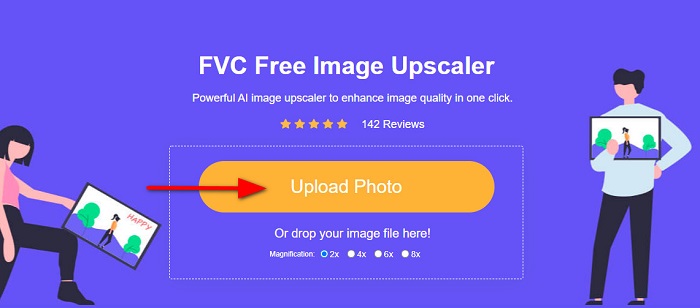
Trin 1. Åbn først din browser, og skriv FVC Free Image Upscaler i søgefeltet. Du kan også klikke på linket direkte til startsiden. Start derefter appen ved at klikke på knappen Upload Photo. Når du har startet appen, går du videre til næste trin.
Trin 2. På den første grænseflade skal du klikke på knappen Upload Photo for at importere det billede, du vil gøre skarpere. Dine computer-mapper vil dukke op, hvor du skal finde dit foto. Klik på Open for at uploade det.
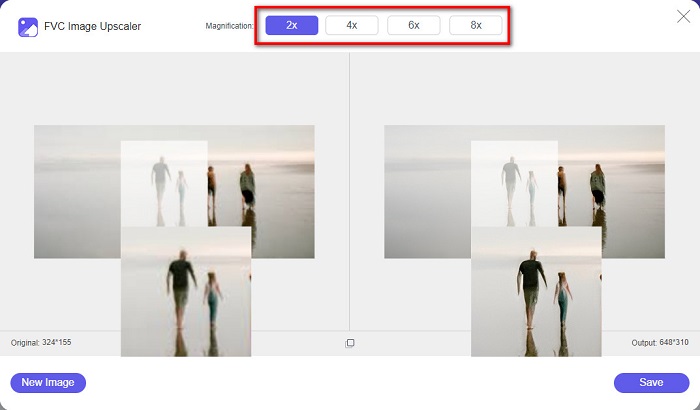
Trin 3. Når du har uploadet dit billede, skal du vælge den forudindstillede forstørrelse, du foretrækker til dit billede. Du kan vælge mellem 2x, 4x, 6x og 8x forstørrelse. Derefter kan du se en forhåndsvisning af dit resultat i højre side for at se forskellen fra din originale fil.
Trin 4. Til sidst skal du gemme dit resultat ved at klikke på knappen Save nederst i højre hjørne af grænsefladen.
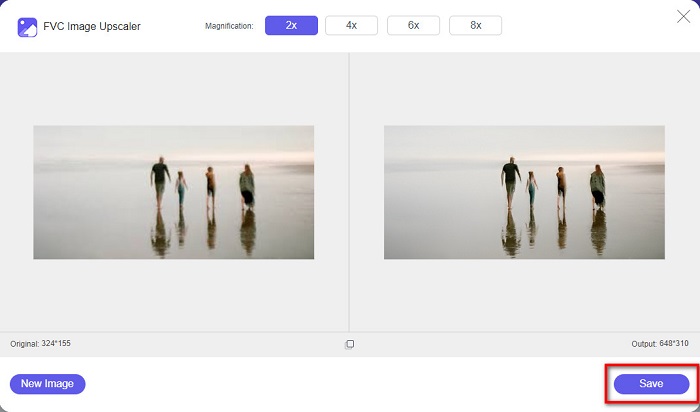
Og det er trinene til, hvordan man fjerner sløring af et billede online. Du vil se på resultatet, hvordan denne gratis billedopskalering kan hjælpe dig med at rette op på kvaliteten af dit billede.
Del 2. Sådan fjerner du sløring af et billede offline på skrivebordet
Mange professionelle bruger en computer til at redigere billeder eller videoer. Mange fotoredigeringsapplikationer er også kun tilgængelige på desktops. Og i denne del vil vi lære dig de bedste metoder til at fjerne sløring af et billede offline på dit skrivebord.
Fjern sløret billede ved hjælp af Photoshop
Adobe Photoshop er formentlig det bedste billedredigeringsprogram, du kan bruge til at gøre dine billeder skarpere. Dette offline-program har mange redigeringsfunktioner og -værktøjer, du kan bruge til at forbedre et billede. Desuden kan du tilføje skarphed til dit foto, hvis kvaliteten ikke er god, eller hvis det er sløret. Ved hjælp af dets avancerede redigeringsværktøjer kan du helt sikkert skabe fremragende resultater. Derudover kan du fjerne personer eller objekter fra dit billede, tegne et billede eller objekt med blyant- eller penværktøjet, manipulere farverne i dit foto og meget mere. Med Adobe Photoshop kan du skabe fantastiske billeder, du selv har redigeret. Men Adobe Photoshop er ikke et brugervenligt værktøj. Du har brug for indgående kendskab til, hvordan du bruger dets værktøjer til at skærpe eller redigere dit billede. Ikke desto mindre giver vi dig trinene til at bruge Photoshop til at gøre billeder mindre slørede. Vi viser dig også to måder at bruge Photoshop på til at reducere sløringen i dit billede.
Billedsløringsproces ved hjælp af Adobe Photoshop:
Trin 1. Download Adobe Photoshop på din computer, og installer det. Når du har downloadet og installeret appen, skal du køre den på din enhed.
Trin 2. Åbn derefter det billede, du vil gøre skarpere, i hovedgrænsefladen. Du kan også trykke på CTRL + O på dit tastatur for nemt at åbne dit billede.
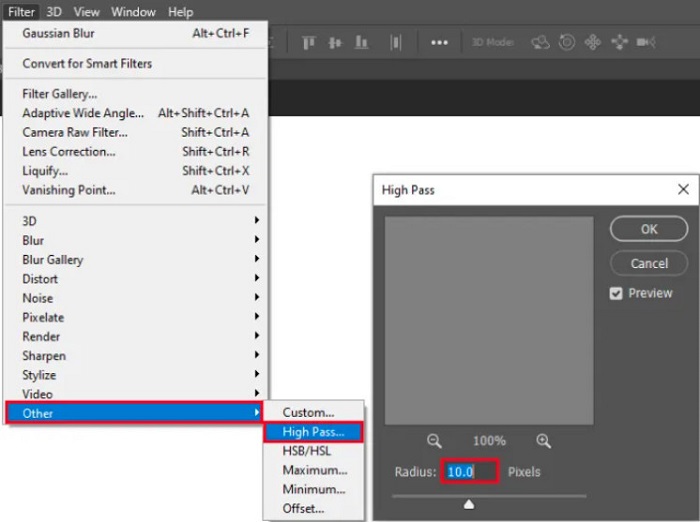
Trin 3. Kopiér derefter baggrundslaget, og vælg det. Klik så på Filter > Other > High Pass. Indstil High Pass til 10%.
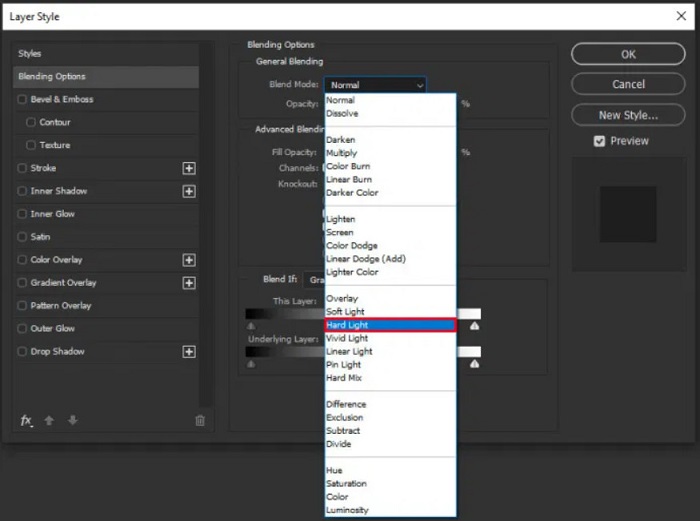
Trin 4. I vinduet Layer Style skal du ændre blandingstilstanden fra normal til hard light og derefter justere opacity, indtil billedet er klart eller forbedret.
Hvis du bruger den nye version af Photoshop, kan du bruge indstillingen til reduktion af kamerarystelser til at gøre et billede skarpere i Photoshop.
Trin 1. Importér det billede, du vil gøre skarpere, i Photoshop.
Trin 2. Gå derefter til Filter > Sharpen > Shake Reduction.
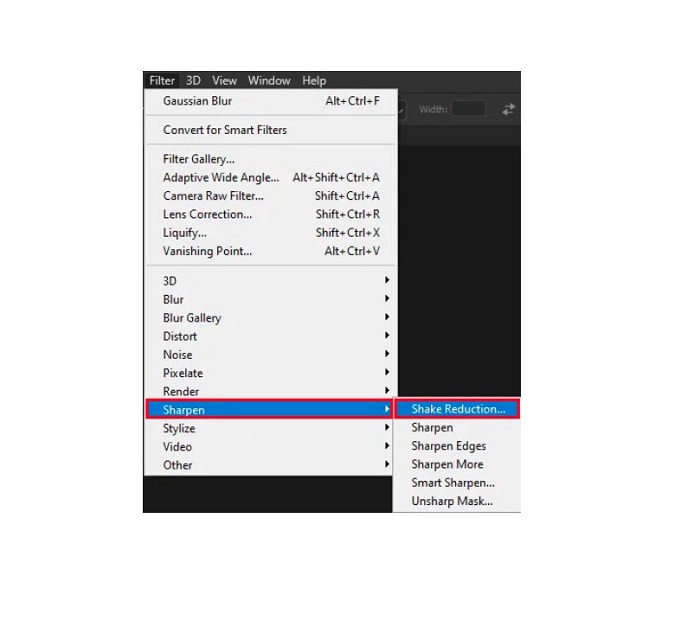
Trin 3. Derefter vil Photoshop bearbejde dit billede, og du kan nu se dit resultat.
Fjern sløret billede ved hjælp af Paint.net
Et andet gratis offline-fotoredigeringsprogram, du kan bruge, er Paint.net. En af de stærke funktioner i dette program er at skærpe et billede. Ved at flytte skyderen kan du justere mængden af skarphed i dit billede, så det får et skarpt og klart udseende og fjerner sløringen i billedet. Desuden er det nemmere at bruge end Adobe Photoshop. Det har også andre redigeringsfunktioner, du kan bruge til at redigere dine billeder. Og hvis du ikke ved, hvordan du bruger programmet, kan du få adgang til dets online-rådgivning og trin-for-trin-vejledninger. Derudover er det blandt de mest populære billedredigeringsprogrammer for Windows-brugere, fordi det har mange korrigeringsfunktioner, du kan bruge til at forbedre dit foto. En lille ulempe ved Paint.net er, at du ikke kan rette den tekst, du har skrevet, efter at du har anvendt effekterne. Ikke desto mindre gør softwaren det muligt for dig at skabe flerniveaus-billedredigeringer.
Sådan fjerner du sløring af et billede ved hjælp af Paint.net:
Trin 1. For at begynde skal du åbne dit billede i Paint.net ved at trykke på CTRL + O på dit tastatur. Du kan også gå til File og finde indstillingen Open. Derefter vises dine desktop-filer, hvor du vælger dit billede og åbner det.
Trin 2. Klik derefter på Effects > Picture, og vælg derefter Sharpen.
Trin 3. På panelet Sharpen ser du skyderen, hvor du justerer skarpheden i dit billede for at gøre det mindre sløret. Du kan også klikke på knappen up/down arrow for at ændre mængden af skarphed i dit foto.
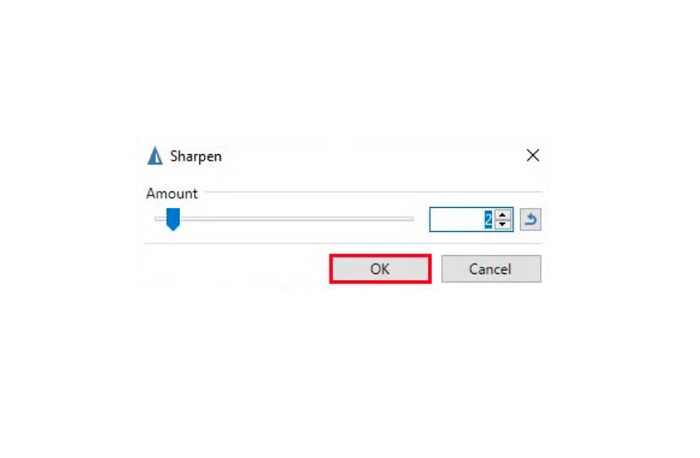
Trin 4. Tryk på knappen OK, og gem dit resultat.
Del 3. Sådan fjernes sløring af et billede på iPhone
Hvis du er en iPhone-enhedsbruger, kan du også downloade nogle apps til at sløre dit billede. Du kan vælge blandt apps fra din App Store for at fjerne sløring af dit billede. Nogle apps kan dog købes, hvilket kræver, at du køber dem, før du bruger dem. Men i denne del vil vi lære dig, hvordan du fjerner sløring af dit billede på din iPhone ved hjælp af et gratis og bemærkelsesværdigt program.
Foton er en af de mest anvendte apps til at gøre slørede billeder skarpere på iPhone. Du kan downloade denne app gratis i App Store. Derudover har den andre redigeringsfunktioner, du kan bruge, såsom collage, beskæring, tilføjelse af skabeloner, opdeling og meget mere. Den har også en brugervenlig grænseflade, hvilket gør den nem at bruge. Med denne app kan du gøre dit billede skarpere ved at justere skarpheden i billedet. Og hvis du vil tilføje ekstra klarhed til dit foto for at gøre det endnu mere imponerende, kan du justere billedets kontrast, klarhed, mætning og dehaze. Desuden er den sikker at bruge, så du behøver ikke bekymre dig om sikkerheden af dine billedfiler. Ulempen ved denne app er, at du skal købe pro-versionen for at bruge dens øvrige funktioner.
Sådan fjerner du sløring af et billede på iPhone:
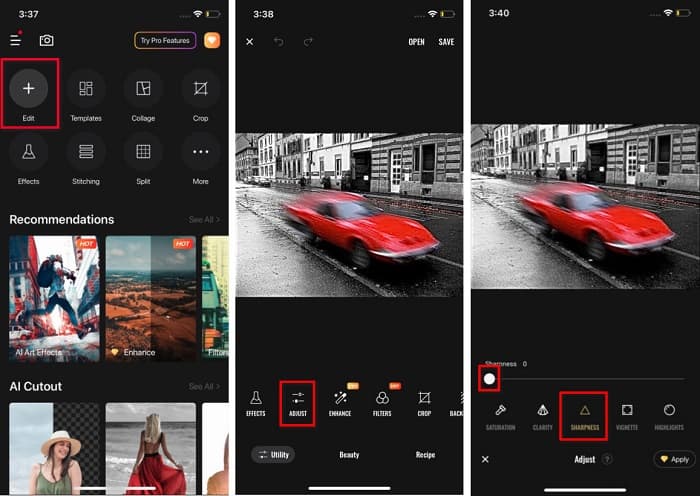
Trin 1. Åbn App Store på din iPhone, og søg efter Foton. Installer den på din telefon, og åbn den, når den er installeret. Tryk derefter på Edit-indstillingen på appens hovedgrænseflade.
Trin 2. Vælg det billede, du vil gøre skarpere; derefter bliver du ført til en anden grænseflade. Tryk på indstillingen Adjust under dit billede, og stryg til venstre for at finde funktionen Sharpness.
Trin 3. På panelet Sharpness skal du trække skyderen til den ønskede skarphed, indtil sløringen i dit billede er reduceret.
Trin 4. Til sidst skal du trykke på knappen Save øverst til højre i grænsefladen for at gemme dit resultat på din iPhone-enhed. Klik her for at lære, hvordan du ændrer størrelsen på et billede på en iPhone.
Del 4. Sådan fjernes sløring af et billede på Android-telefon
Mange mennesker ejer også Android-enheder, og hvis du også bruger en, kan du læse denne del for at lære, hvordan du fjerner sløring af et billede på Android. Vi søgte efter de mest populære apps til fjernelse af sløring til Android og prøvede dem én efter én. Heldigvis fandt vi en app, der er bedst at anbefale.
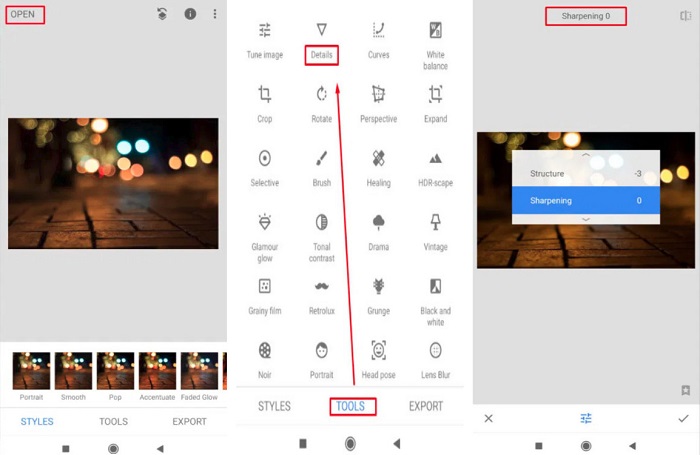
Snapseed er den bedste app, hvis du vil gøre dit billede skarpere på din Android-enhed. Ved at bruge dens sharpen- og structure-funktion kan du tilføje skarphed til dit billede for at fjerne de slørede dele. Derudover har den mange redigeringsfunktioner, der kan hjælpe dig med at forbedre kvaliteten af dit billede. Og ligesom de andre værktøjer, der er nævnt ovenfor, har den en enkel brugergrænseflade. Så hvis du er nybegynder, kan du bruge denne app til at gøre dit billede skarpere. Du skal dog stadig tænde for dit WiFi, før du bruger appen.
Sådan sløres et billede på Android ved hjælp af Snapseed:
Trin 1. Download appen på din Android-enhed, og åbn den. Når du har åbnet den, skal du åbne dit billede i appen.
Trin 2. Gå derefter til panelet Tools, og vælg indstillingen Details.
Trin 3. Vælg derefter Sharpen eller Structure på dit billede for at skabe en forskel i dit slørede billede. Ved at justere disse to indstillinger fjerner du sløringen i dit billede.
Del 5. Ofte stillede spørgsmål om, hvordan man fjerner sløring af et billede
Vil filstørrelsen stige, når du fjerner sløring af et billede?
Ja. Når du fjerner sløring af et billede, vil PPI af det stige, hvilket får filstørrelsen til at være større end originalen.
Hvorfor bliver mit billede sløret, når jeg gør det større?
Det skyldes sandsynligvis et kompressionsproblem. Når du forsøger at ændre størrelsen på et billede, forstørrer du også pixels på dit billede. Så komprimering af et billede kan påvirke kvaliteten af dit billede.
Kan jeg fjerne sløring af et JPG-billede på Adobe?
Helt bestemt! Du kan bruge Adobe Photoshop, hvis du vil fjerne sløring af et JPG-billede. Adobe Photoshop understøtter standard billedformater som PNG, JPG og JPEG
Konklusion
Nu hvor du ved, hvordan du gør et billede skarpt igen ved hjælp af de nemmeste metoder, kan du forbedre dine billeder. Alle de metoder, vi har demonstreret ovenfor, vil helt sikkert hjælpe dig med at nå dit mål. Men hvis du vil spare plads på din enhed, anbefaler vi at bruge FVC Free Image Upscaler, som du kan få adgang til gratis og online.
-
 Sådan ændres størrelsen på et billede i PowerPoint [hurtigste måde at ændre størrelse på]
 Det er vigtigt at lære at ændre størrelse på billeder i PowerPoint, især hvis du vil bruge det i din præsentation. Læs denne artikel for at vide, hvordan du gør det.
-
 1440p billede – alt inklusive information, du skal bruge [2022 opdateret]
 Vil du vide mere om 1440p-billeder? Eller hvor kan man få det? Vil du ændre dit billede til 1440p? Læs dette for at kende dem alle.
-
 Selvstudium til at unpixelate et billede ved hjælp af 3 Best Photo Unpixelator
 Har du problemer med at håndtere pixelerede billeder? I dag har vi løst problemet, og du kan bruge de værktøjer, vi tilføjer her.
