


 Video Converter Ultimate
 Skærmoptager
 Video reparation
 Sikker download
Konverter ubesværet til GIF og lav opmærksomhedsskabende indhold
Har du nogensinde haft lyst til at tilføje lidt ekstra flair til dine opslag på sociale medier eller dit website-indhold? Animerede GIF’er er en fremragende måde at gøre netop det på! Men hvad nu, hvis du ikke har færdighederne eller softwaren til at lave dine egne GIF’er fra bunden? Ingen grund til bekymring – du kan nemt konvertere dine eksisterende filer eller videoer til GIF-format med blot få enkle trin! I denne digitale tidsalder er visuelt indhold afgørende, og animerede GIF’er er en populær måde at tilføje noget ekstra interesse til din online tilstedeværelse. Lad os derfor dykke ned i, hvordan du bliver fortrolig med at konvertere WMV til GIF eller andre videoformater og skabe iøjnefaldende indhold ved at konvertere dine videoer til GIF’er på bare få minutter!

Del 1. Konverter video til GIF
1. FVC Video Converter Ultimate
FVC Video Converter Ultimate er et kraftfuldt program, der kan hjælpe dig med at skabe imponerende animerede GIF’er ud fra dit videoindhold. Værktøjet understøtter forskellige videoformater som SWF, MPEG, M4V, OGV, OGG og mange flere. Desuden leveres det med en GIF-maker, der giver dig mulighed for at lave GIF’er ud fra dine videoer. Derudover kan du også vælge dine stillbilleder og gøre dem mere engagerende ved hjælp af GIF-maker-funktionen.
Det tilbyder også en række andre funktioner, såsom videoredigering, skærmoptagelse og mere, hvilket gør det til et alsidigt værktøj til alle dine videobehov. Uanset om du er marketingmedarbejder, indholdsskaber eller social media manager, kan FVC Video Converter Ultimate hjælpe dig med at skabe engagerende billeder, der vil fange dit publikums opmærksomhed. Se, hvordan du transformerer SWF til GIF og andre videoformater ved at kontrollere trinene nedenfor.
Trin 1. Installer softwaren på din computer
Download og installer FVC Free Video Converter på din PC for at lære, hvordan du konverterer MOV til GIF. Klik på knappen Free Download for at hente softwaren. Installationen findes både til Mac og Windows.
Trin 2: Importer de MOV-filer, du ønsker
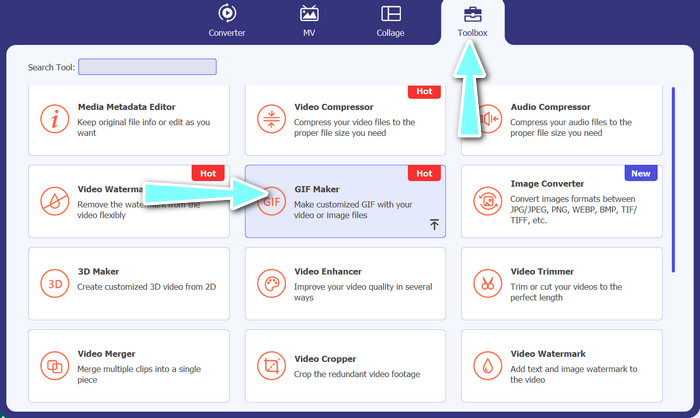
Start programmet for at se hovedmenuen. For at få adgang til GIF Maker skal du klikke på GIF Maker-knappen i menuen Toolbox. Derefter kan du vælge de ønskede MOV-filer og klikke på Video to GIF-indstillingen.
Trin 3. Redigér videoen
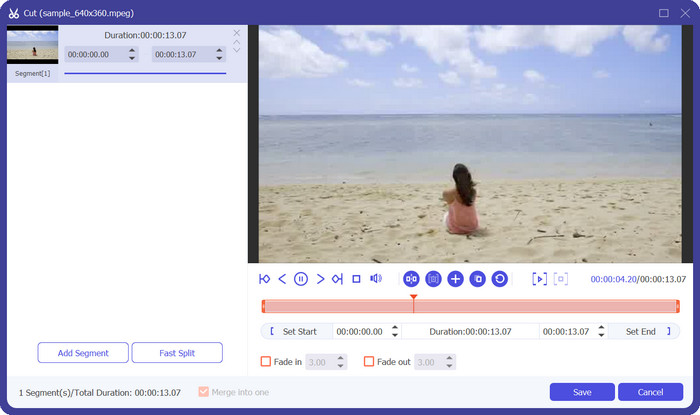
For at fjerne uønskede segmenter skal du vælge Cut-indstillingen. Vælg det tidsinterval, du vil bruge til din GIF, ved at trække i skydebaren eller ved at indtaste en start- og sluttid. Justér derefter GIF’ens egenskaber, så de passer til dine ønsker. Det kan være opløsning, billedhastighed og kvalitet. Hvis du klikker på Edit-indstillingen, kan du tilpasse GIF’en med tekst og klistermærker.
Trin 4. Konverter en videofil til en GIF
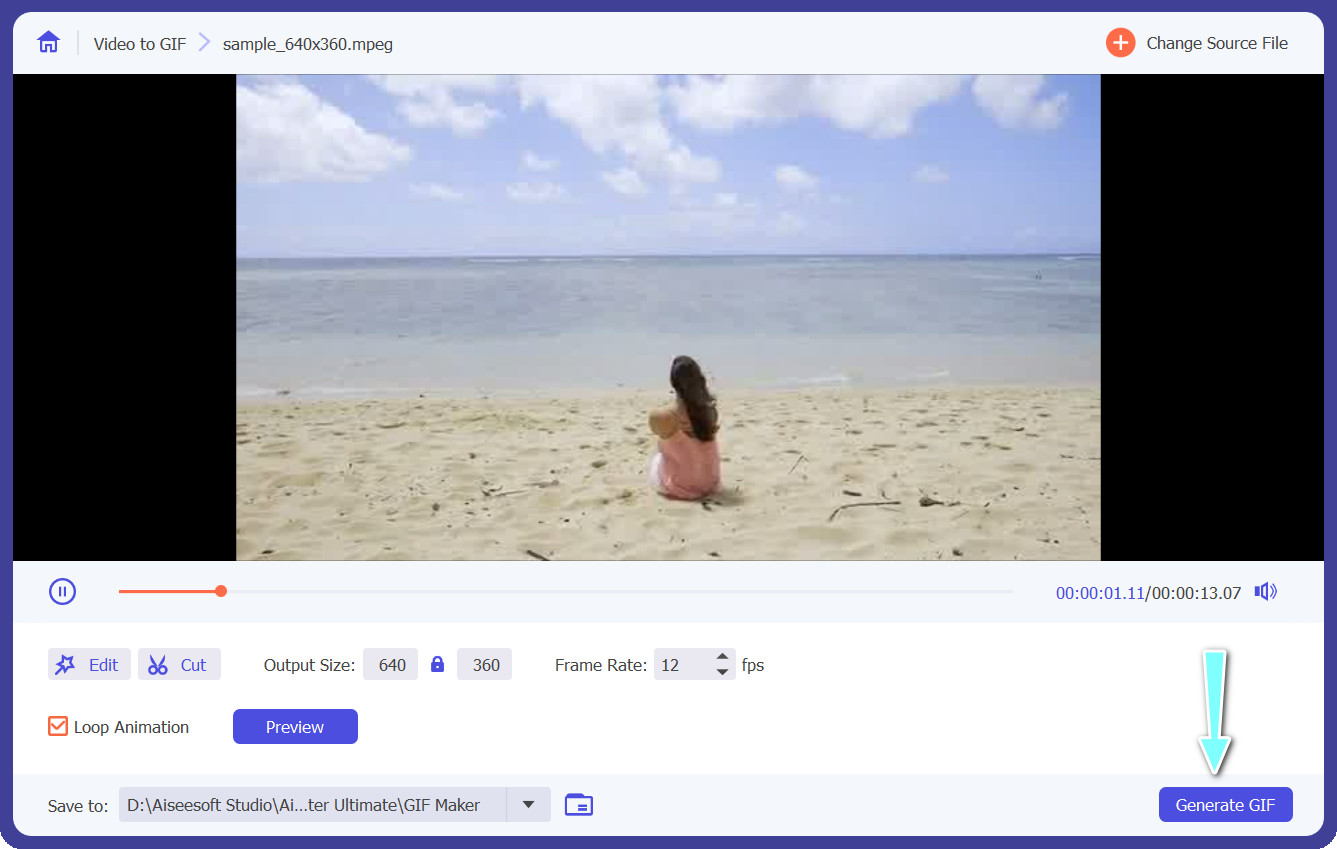
Sørg for, at GIF’en ser ud, som du ønsker, i forhåndsvisningen. For at lave en GIF skal du blot trykke på knappen Generate GIF. I output-indstillingerne kan du vælge, hvor GIF’en skal gemmes på din computer.
2. Gratis Video Converter Online
Hvis videoen er klar til eksport, er Free Video Converter Online det bedste program, du bør bruge. Det er et onlineprogram, der konverterer filer direkte fra din webbrowser. Det har også nyttige funktioner, herunder mulighed for batchkonvertering, redigering af lyd- eller videoegenskaber og meget mere. Her er trinnene, du skal kende for at konvertere MPEG til GIF eller andre videoformater.
Trin 1. Start med at åbne din foretrukne webbrowser og gå til websiden for Free Video Converter Online for at komme i gang.
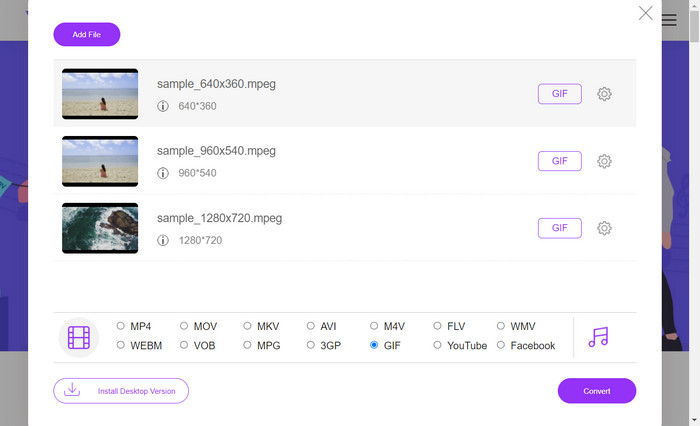
Trin 2. Vælg dernæst den videofil, du vil konvertere til GIF, efter du har klikket på indstillingen Add Files to Convert.
Trin 3. Vælg derefter GIF som filtype til outputformat i video-menuen.
Trin 4. Klik på knappen Convert for at starte konverteringsprocessen.
Del 2. Konverter lyd til GIF
Lad os nu sige, at du ønsker at konvertere OGG til GIF. Desværre er OGG-filer lydfiler og kan ikke direkte konverteres til GIF-format, da GIF er et filformat til billeder og animationer. Antag dog, at du har en videofil, der indeholder OGG-lyd. I så fald kan du muligvis udtrække en del af videoen og konvertere den til en GIF ved hjælp af et videokonverteringsværktøj, der understøtter begge formater. Alternativt kan du overveje at konvertere OGG-lyden til et kompatibelt videoformat såsom MP4 og derefter bruge et videokonverteringsværktøj, der understøtter MP4 til GIF-konvertering. På den anden side er her de værktøjer og trin, du kan kontrollere for at konvertere lydfiler.
1. Video Converter Ultimate
Trin 1. Hent det officielle installationsprogram til FVC Video Converter Ultimate fra udviklerens hjemmeside. Start programmet, og klik på plus-symbolet for at tilføje en lydfil, der skal konverteres.
Trin 2. Ved at klikke på rullemenuen Profile og vælge OGG fra listen over understøttede formater kan du vælge OGG som outputformat. Hvis du vælger indstillingen Settings, kan du også ændre output-indstillingerne. Bithastighed, samplingsfrekvens og antal kanaler kan alle justeres efter behov.
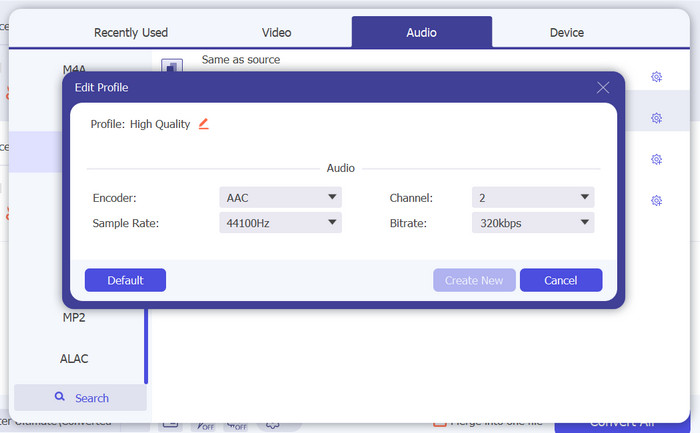
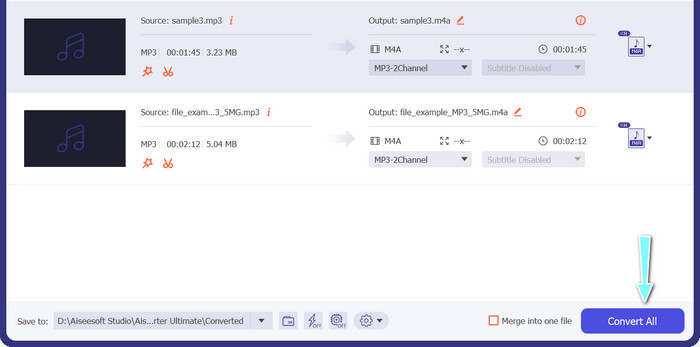
Trin 3. Når du er klar til at starte konverteringsprocessen, skal du klikke på knappen Convert All, efter at du har justeret indstillingerne, som du vil. Din lydfil vil nu blive konverteret til OGG-format af FVC Free Video Converter.
2. Gratis Audio Converter
Free Audio Converter accepterer næsten alle lydformater fra MP3, WMA, FLAC, AAC osv. Hvis du også ønsker at redigere outputindstillingerne, kan du gøre det ved hjælp af dette program. Samlet set er det en problemfri måde at konvertere lydfiler online. Her er en guideline, du kan henvise til:
Trin 1. Gå til programmets officielle hjemmeside via en vilkårlig browser på din computer.
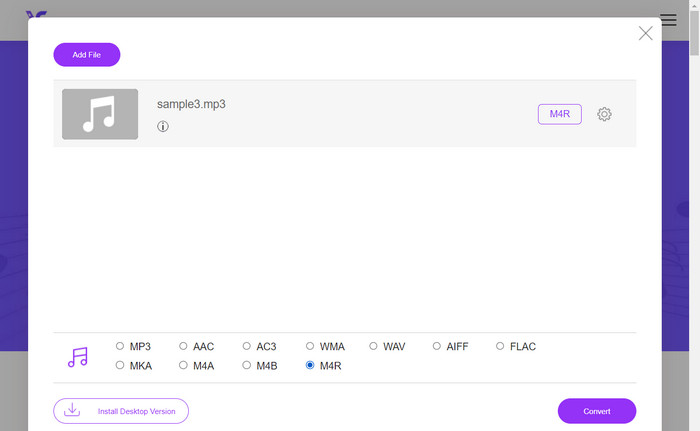
Trin 2. Klik på knappen Add Files to Convert, og vælg de lydfiler, du ønsker at konvertere.
Trin 3. Vælg derefter et outputformat ved at markere dets respektive knap og trykke på Convert-knappen for at starte konverteringsprocessen.
Del 3. Konverter billede til GIF
Free Image Converter Online er et webbaseret værktøj, der gør det nemt for brugere at konvertere billeder mellem forskellige filformater. Uanset om du skal konvertere en PNG til JPEG, en BMP til GIF eller et andet format, kan Free Image Converter Online hjælpe dig med at gøre det hurtigt og enkelt. Med sin enkle og brugervenlige grænseflade er det et godt valg for alle, der søger en praktisk og effektiv måde at konvertere deres billeder mellem forskellige formater på. Derfor bør du overveje dette program, hvis du leder efter et dedikeret værktøj til at gøre dine statiske billeder levende som animerede filer.
Trin 1. Gå til websiden for FVC Free Image Converter Online i den browser, du foretrækker at bruge.
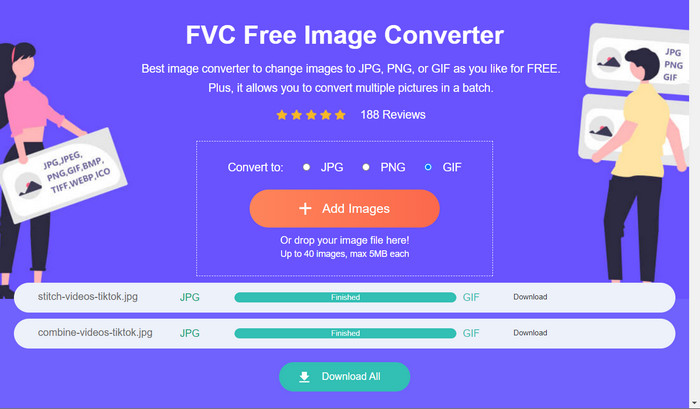
Trin 2. Vælg et outputformat. I dette tilfælde skal du markere den valgmulighed, der svarer til GIF.
Trin 3. Klik derefter på knappen Add Image for at uploade billedfiler fra din computer. Du kan vælge enhver type billedfilformat.
Trin 4. Når filerne er uploadet, bliver billederne automatisk konverteret til GIF. Efter konverteringen kan du klikke på knappen Download All for at hente outputfilerne.
Del 4. Ofte stillede spørgsmål om konvertering af filer til GIF
Kan jeg konvertere M4V til GIF?
Ja, det er muligt at konvertere M4V-filer til GIF-format ved hjælp af et videokonverteringsværktøj, der understøtter begge formater. FVC Video Converter Ultimate er for eksempel et kraftfuldt program, der understøtter M4V-videoformatet og har et indbygget værktøj til at lave GIF’er. Med dette værktøj kan du vælge den del af din M4V-video, du vil konvertere til en GIF, tilpasse størrelsen og kvaliteten af outputfilen og skabe en animeret GIF i høj kvalitet, som du kan bruge til mange forskellige formål.
Hvordan kan jeg optimere kvaliteten af min GIF?
For at optimere kvaliteten af din GIF kan du justere billedhastigheden, opløsningen, farvepaletten og komprimeringsindstillingerne. Det er vigtigt at finde den rigtige balance mellem filstørrelse og kvalitet for at sikre, at din GIF ser godt ud, samtidig med at den er optimeret til webdeling.
Kan jeg redigere min GIF, efter den er blevet konverteret?
Ja, du kan redigere din GIF med forskellige værktøjer som GIMP eller Adobe Photoshop for at tilføje filtre, tekst eller andre effekter. Det er dog vigtigt at være opmærksom på, at redigering af en GIF kan påvirke kvaliteten og kan resultere i en større filstørrelse.
Konklusion
Processen til at konvertere til GIF kan være et nyttigt værktøj til at skabe animationer, komprimere store filer og bevare kvaliteten af et billede eller en video, når du deler det online. Der findes flere softwareløsninger til at konvertere til GIF samt online konverteringsværktøjer.
-
 JPG VS GIF: 3 ubesværede måder til, hvordan man konverterer JPG til GIF
 Vil du vide forskellen mellem JPG og en GIF? Eller vil du skifte JPG til GIF-animeret format? Så læs denne artikel for at få en idé.
-
 Loop GIF med den bedste animerede GIF Looper på Windows og Mac
 Vil du vide hemmeligheden bag den bedste loop GIF? Vil du lave en? Hvis ja, er du på det rigtige sted. Så lær, hvordan du opretter en loop med den bedste tilgængelige looper.
-
 Konverter MOV til GIF og lås op for kraften i animeret indhold
 Konverter dine MOV-videoer til animerede GIF'er og opgrader dit online indholdsspil! Vores brugervenlige MOV til GIF-konvertere hjælper dig med at skabe iøjnefaldende grafik.
