


 Video Converter Ultimate
 Skærmoptager
 Video reparation
Sådan klippes et billede ud i Photoshop
Du kan gøre en masse i Photoshop; det er som et komplet værktøj til redigering af billeder. Hvis du har brugt Photoshop og stadig er fortrolig med alle dets funktioner, eller hvis du er en, der prøver at udforske de frilægningsfunktioner, det tilbyder, er vi her for at hjælpe dig! Lær og forstå hvordan du frilægger et billede i Photoshop hurtigt og nemt. Opdag også andre metoder til at frilægge billeder online, hvis Photoshop ikke passer til dine ressourcer og færdigheder.
Del 1. Sådan klippes et billede ud i Photoshop
At lære at klippe billeder i Photoshop er vigtigt, fordi det giver individer mulighed for at adskille og manipulere forskellige elementer i et billede præcist. Denne færdighed er grundlæggende for opgaver som fjernelse af baggrund, oprettelse af collager og målrettede forbedringer under billedredigering. Uanset om det er inden for grafisk design, produktfotografering eller digital kunst, giver evnen til at skære billeder fleksibilitet og kreativ kontrol, hvilket gør det muligt for fagfolk og entusiaster at opnå de ønskede visuelle resultater i forskellige projekter.
Sådan klipper du et billede i Photoshop:
Trin 1. Åbn et billede i Photoshop ved at gå til fanen File (Fil).
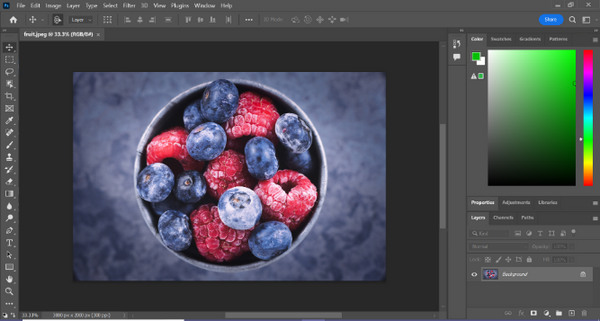
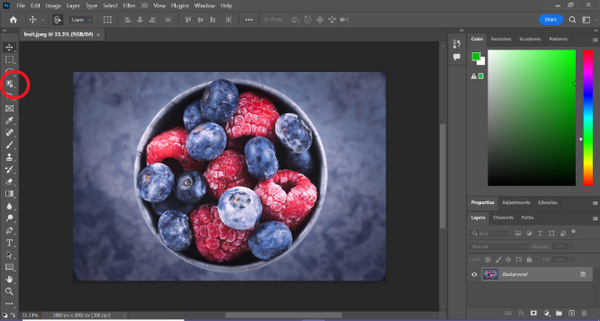
Trin 2. Vælg Object Selection-værktøjet og træk musen hen over dit objekt for at markere det område, du vil frilægge.
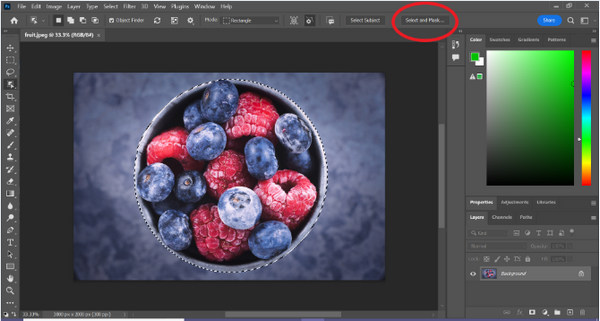
Trin 3. Klik på Select and Mask.
Trin 4. Justér markeringsindstillingerne, f.eks. udtynding (feather), hvis det er nødvendigt.
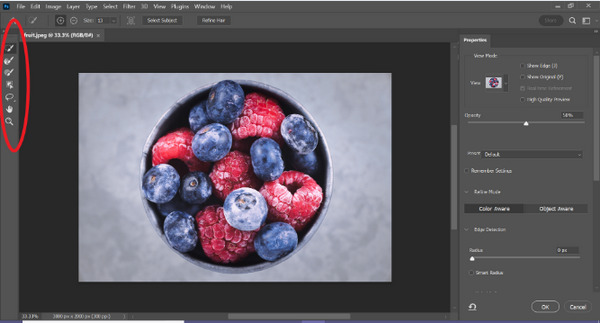
Trin 5. Klik på ikonet Mask for at frilægge dit billede, og gem derefter det ændrede billede.
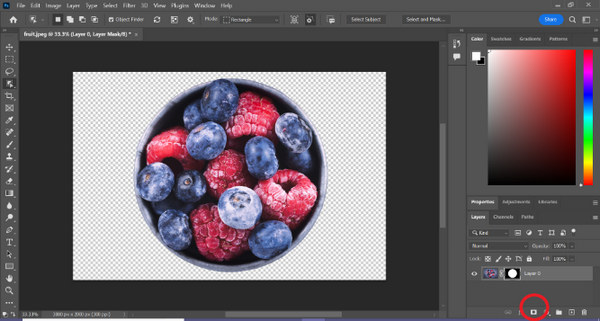
Med denne enkle vejledning kan du nu frilægge et billede i Photoshop hurtigt og nemt. Følg blot guiden og nyd en problemfri proces til præcis billedredigering. Du kan også ændre billedets farve for at erstatte den frilagte del.
Del 2. Hvordan klippes et billede ud uden Photoshop Online?
Hvis du ikke har Photoshop installeret på din computer, er der en måde, hvorpå du kan klippe et billede ud online. Selvom Photoshop er et kvalitetsværktøj til redigering af billeder, især til at klippe et billede perfekt ud, krævede det færdigheder og øvelse at mestre det. Så hvis dette værktøj er ude af dine hænder, kan du bruge disse metoder til nemt at skære et billede ud.
Metode 1: FVC Online Background Remover
FVC Online Background Remover er alsidig og brugervenlig, designet til automatisk at fjerne baggrunde fra billeder i formater som PNG, JPG og JPEG. Dette værktøj gør det nemt at skabe gennemsigtige baggrunde og tilbyder tilpasningsmuligheder, så brugere kan bruge en pensel til at vælge bestemte områder, der skal fjernes eller bevares.
Derudover giver FVC Free Background Remover brugere mulighed for at ændre billedets baggrund til en ensfarvet efter eget valg eller endda erstatte det med et andet foto. Værktøjet rækker ud over baggrundsfjernelse og tilbyder enkle redigeringsfunktioner såsom beskæring, flytning, vending og rotation, hvilket gør det muligt for brugere at forbedre den overordnede tiltrækning af deres billeder. Nedenfor er trinene til, hvordan du bruger dette.
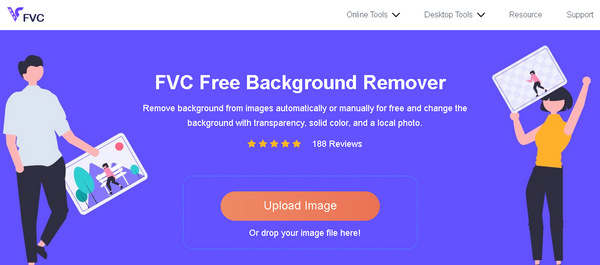
Trin 1. Gå først til deres officielle hjemmeside, og klik på Upload Image.
Trin 2. Vent på, at processen bliver færdig. Derefter kan du redigere dit billede ved at finjustere kanterne og flytte motivet.
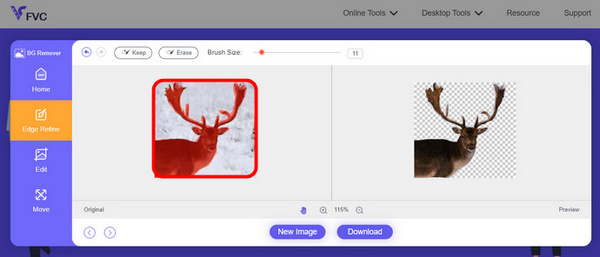
Trin 3. For at gemme resultatet skal du klikke på knappen Download.
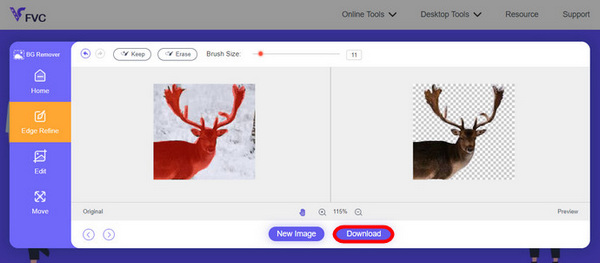
FVC Image Background Remover er virkelig et go-to værktøj til at frilægge et billede. Udover at det er gratis, er værktøjet superbrugervenligt til at tilføje baggrund til et billede. Som du kan se, skal du bare følge et par enkle trin, så kan du nemt fjerne baggrunden på dine fotos uden besvær.
Metode 2: Brug af iPhone iOS 16-funktion
iPhone iOS 16 bringer flere nye funktioner og opdateringer. En af dem er billedet udskåret. Denne billedudskæringsfunktion giver brugerne mulighed for at isolere motivet på et billede og oprette fotoudskæringer direkte på deres iPhones.

Trin 1. Åbn et foto i appen Fotos.
Trin 2. Tryk længe på motivet i fotoet, hvorefter en skinnende hvid kontur vises.
Trin 3. Kopiér og indsæt nu billedet i dine noter, beskeder eller Messenger. Du kan også sende det direkte via AirDrop til en anden iPhone-enhed.
Denne fotoudskæringsfunktion er kun tilgængelig i iOS 16 og nyere på iPhone XS, iPhone XR og nyere.
Del 3. Ofte stillede spørgsmål om udskæring af et billede i Photoshop
Hvordan klipper man nogen ud af et billede og sætter dem i et andet i Photoshop?
For at klippe en person ud af et billede i Photoshop og placere vedkommende i et andet, skal du følge disse trin:
1. Brug Lasso- eller Pen-værktøjet til omhyggeligt at tegne omridset af personen.
2. Højreklik og vælg Layer via Copy for at duplikere det markerede område.
3. Åbn det billede, personen skal sættes ind i, opret et nyt lag, og indsæt det kopierede lag derpå.
4. Justér størrelse og placering efter behov, og finpuds kanterne for en sømløs integration.
Hvordan klipper man noget ud i Photoshop og gør det gennemsigtigt?
For at klippe noget ud i Photoshop og gøre det gennemsigtigt:
1. Brug Pen-værktøjet eller Magic Wand til at markere objektet.
2. Tryk på Delete for at fjerne det markerede område.
3. Gem billedet som PNG.
4. Sørg for, at det slettede område vises som et mønster af tern (skakbræt), hvilket indikerer gennemsigtighed.
Hvordan trækker man en figur fra i Photoshop?
For at trække en form fra en anden i Photoshop:
1. Opret to former ved hjælp af Shape-værktøjet eller et hvilket som helst markeringsværktøj.
2. Sørg for, at begge former ligger på hver deres lag.
3. Vælg det øverste lag, gå til Path Operations i værktøjslinjen, og vælg Subtract Front Shape.
4. Den øverste form trækkes nu fra den nederste form og skaber en ny form med det fratrukne område.
Kan jeg klippe komplekse objekter ud med fine detaljer i Photoshop?
Ja, Photoshop tilbyder avancerede værktøjer som Pen-værktøjet til præcise valg af indviklede objekter. Zoom ind for nøjagtighed, opret ankerpunkter omkring objektet og finjuster stien for detaljerede udskæringer.
Hvad er forskellen mellem Layer via Cut og Layer via Copy, når du klipper et billede i Photoshop?
Layer via Cut fjerner det valgte område og placerer det på et nyt lag. Mens, Layer via Copy dublerer det valgte område til et nyt lag, og efterlader originalen intakt. Vælg ud fra, om du vil beholde originalen eller ej under skæringsprocessen.
Konklusion
Det er nemt, ikke? Nu hvor du ved, hvordan du frilægger et billede i Photoshop, kan du løfte den færdighed og udforske andre funktioner i Photoshop. Derudover kan du prøve andre metoder til at frilægge et billede online ved at bruge FVC Online Background Remover eller via din iPhone-enhed. At frilægge et billede er nu lettere end nogensinde før, så gå ikke glip af chancen for at styrke din kreativitet ved at følge denne vejledning.
-
 Sådan fjerner du vandmærke fra foto i Photoshop [Trin]
 Photoshop er et af de populære redigeringsværktøjer. Få den gratis tutorial her ved hjælp af Photoshop til at fjerne vandmærket fra fotos. Opdag også alternative måder.
-
 Sådan beskæres i Photoshop: Begyndervejledning [2025]
 Opdag, hvordan du beskærer billeder i Photoshop med denne nemme vejledning. Lær også, hvordan du vælger områder, justerer billedformater og mere til billedbeskæring.
-
 Sådan ændres farve i Photoshop | 2025 omfattende guide
 Vil du tage din kreativitet til det næste niveau ved at lære at ændre baggrundsfarve i Photoshop? Denne artikel har alt, hvad du behøver at vide. Læs det nu!
