


 Video Converter Ultimate
 Skærmoptager
 Video reparation
 Sikker download
En komplet guide til, hvordan man trimmer video med VLC på Windows og Mac
VLC Player er virkelig et fremragende værktøj til at håndtere forskellige video- og lydredigeringsopgaver – det er gratis, open source og kompatibelt med Windows, Mac og Linux. Det er utroligt alsidigt: det kan afspille multimediefiler, konvertere filformater, klippe og redigere video og lyd og endda rippe dvd’er. Det fungerer faktisk som et professionelt videoredigeringsprogram.
Denne guide vil fokusere på, hvordan du klipper videoer med VLC, med detaljerede trin til både Windows- og Mac‑enheder, og samtidig introducere dig til de bedste VLC‑alternativer, der kan udføre den samme opgave.

Del 1. Sådan trimmer du video i VLC på Windows og Mac
Lad os først starte med en teoretisk bekræftelse – VLC Player kan helt sikkert nemt håndtere videobeskæring, både på Windows og Mac. Det er dog primært en medieafspiller, så dens redigeringsgrænseflade adskiller sig fra konventionel videoredigeringssoftware. I betragtning af at førstegangsbrugere kan have svært ved at finde beskæringsfunktionen på dens grænseflade, vil denne vejledning i dette afsnit give trinvise instruktioner om, hvordan man beskærer en video med VLC Media Player.
Lad os starte med Windows først:
Beskær video med VLC på Windows
Før du begynder, skal du sørge for at have følgende:
• En stabil internetforbindelse
• VLC Media Player, der er kompatibel med din Windows-computer, helst den nyeste version
Her er en guide til, hvordan man trimmer en video med VLC.
Trin 1. Download og installer den tilpassede VLC Media Player på din Windows‑computer fra VideoLans officielle hjemmeside.
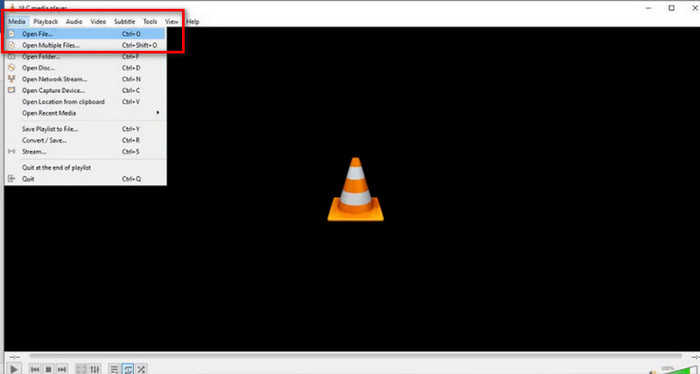
Trin 2. Start VLC Media Player. Gå til øverste venstre hjørne og klik på Media > Open File. Vælg den video, du vil klippe, og klik på Open.
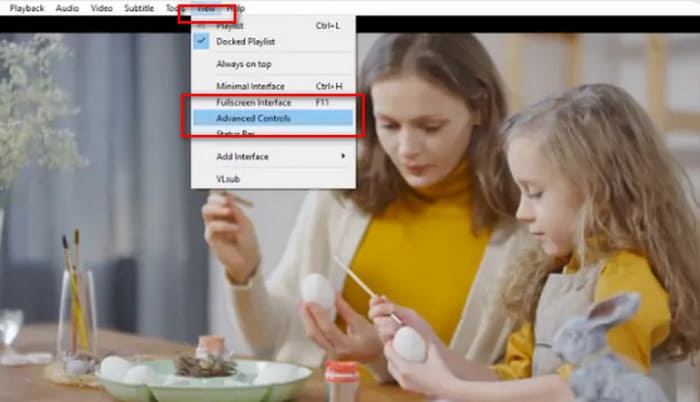
Trin 3. Gå til topmenuen og klik på View > Advanced Controls. Derefter vil du se redigeringsfunktionerne vist under medievisningen.
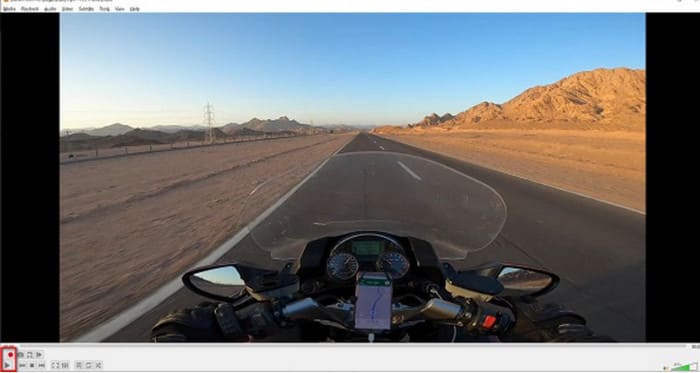
Trin 4. Find den del af videoen, du vil klippe, og klik på afspilningsknappen ved startpunktet. Tryk på den røde Record-knap.
Trin 5. Afspil videoen til det sted, hvor du vil stoppe klippet, og klik derefter på Record‑knappen igen.
Nu har du beskåret en video i VLC. Hvis du vil finde den placering, hvor den beskårne video er gemt, kan du se:
Trin 6. Når klippet er færdigt, gemmer VLC automatisk filen i mappen Videoer på din Windows‑computer. Du kan finde den via stien C:UsersUsersnameideo.
Beskær video med VLC på Mac
Trinene til at beskære video med VLC på en Mac er lige så enkle.
Husk igen at sikre, at din Mac har en stabil netværksforbindelse, og at systemet og VLC‑videotrimmere er kompatible.
Lad os nu lære, hvordan man klipper video i VLC på en Mac-computer.
Trin 1. Download og installer VLC Media Player på din computer.
Trin 2. Start VLC Media Player. Åbn den fil, du vil klippe, og træk den til VLC’s afspilningsliste. Videoen vil automatisk begynde at afspille. Hvis den ikke gør det, skal du dobbeltklikke for at afspille den manuelt.
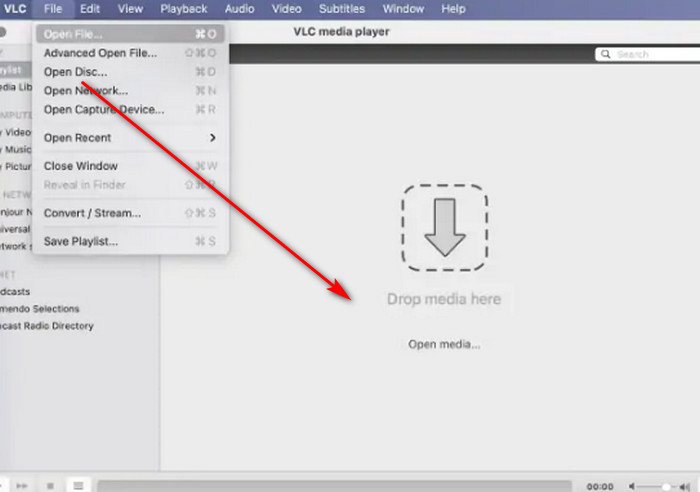
Trin 3. Afspil eller træk tidslinjen til startpunktet for det segment, du vil beholde. Gå til topmenuen og klik på Playback > Record.
Trin 4. Lad videoen afspille, til den når slutpunktet for segmentet. Klik på Record-knappen igen for at stoppe optagelsen.
Den beskårne video gemmes automatisk i din filmmappe. Filnavnet kan starte med vlc-record. Du kan prøve at finde det.
Del 2. Bedste VLC-alternativ til at trimme video
Kan man trimme videoer med VLC Player?
Ja, baseret på retningslinjerne i de to ovenstående afsnit er det ret ligetil at beskære en video med VLC på både Windows- og Mac-computere.
Der er dog nogle problemer, du ikke kan overse:
• Modulet til valg af redigeringssektion i VLC er ikke særlig fleksibelt og kan kun udføre den mest basale kontinuerlige sektionsvalg.
• VLC kan ikke opdele en video i flere mindre segmenter, især ikke flere segmenter af samme længde.
• VLC kan ikke batchbehandle videobeskæring; hver proces kan kun redigere én fil ad gangen.
Lige nu er VLC Media Players klippefunktion kun egnet til at udføre de mest grundlæggende videoredigeringsopgaver. Hvis du efter at have prøvet den synes, at funktionerne ikke er fleksible nok til mere avanceret segmentredigering, anbefaler vi på det kraftigste, at du undersøger nogle af VLC‑alternativerne.
Blandt alle lignende produkter anbefaler vi især at prøve FVC Video Converter Ultimate. Denne software kombinerer flere funktioner såsom videokonvertering, klipning, sammenfletning, komprimering og forbedring og giver dig en alt‑i‑én‑løsning til lyd‑, video‑ og endda billedklipning og redigering. Derudover er den kompatibel med både Windows‑ og Mac‑systemer, har ingen anvendelsesbarrierer og har en ren og intuitiv grænseflade. Du behøver heller ikke bekymre dig om kompatibilitet. FVC Video Converter Ultimate understøtter over tusind multimedieformater og dækker effektivt alle de videoformater, du kan støde på i hverdagen.
Gratis download til Windows 7 eller nyere Sikker download
Gratis download til MacOS 10.7 eller nyere Sikker download
• Understøtter mere end 1000 video-, lyd- og billedformater.
• Tilbyder funktioner til beskæring, beskæring og opdeling. Du kan ikke blot redigere videoens længde, men understøtter også opdeling af videoen i et antal segmenter af samme længde.
• Understøtter batchupload af videofiler til redigering.
• Giver omfattende justeringsindstillinger for videoafspilning, herunder lydstyrkejustering, justering af afspilningshastighed osv.
Sådan trimmer du en video med FVC Video Converter Ultimate.
Trin 1. Download og installer FVC Video Converter Ultimate på din computer. Klik på Add Files for at uploade den video, du vil klippe.
Trin 2. Klik på ikonet Cut for at åbne klippegrænsefladen. Træk tidslinjen for at indstille start- og slutpunkter.
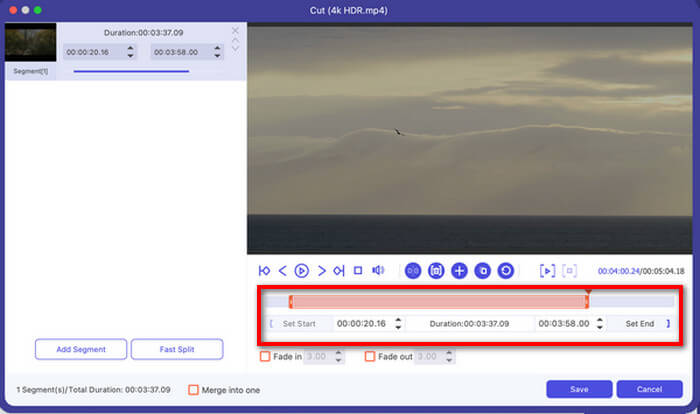
Du kan også bruge knapperne Set Start og Set End.
Når du er færdig med at klippe, skal du klikke på Save.
Trin 3. Gå tilbage til hovedgrænsefladen. Klik på Convert All for at eksportere din video.

Del 3. Ofte stillede spørgsmål om videobeskæring med VLC
Kan jeg trimme en video med VLC?
Ja, du kan sagtens klippe videoer i VLC. Denne videoafspiller har en videoredigeringsfunktion, der fungerer for både Windows- og Mac-brugere. Du kan finde detaljerede trin i teksten ovenfor.
Kan man konvertere videofiler i VLC?
Ja. VLC Media Player understøtter en bred vifte af videoformater og kan hjælpe dig med at udføre formatkonverteringsopgaver. Formatkonverteringsprocessen kan dog være noget kompleks i modsætning til traditionelle videokonvertere.
Er der noget bedre end VLC?
Efter at have brugt VLC til at forkorte en video, kan det være mindre brugervenligt. FVC Video Converter Ultimate klarer sig bedre i denne henseende. Ikke alene er trinnene enklere, men den understøtter også batchbehandling.
Konklusion
Vi kan nu med sikkerhed bekræfte, at VLC Player understøtter videoklipning. For at hjælpe dig med bedre at forstå processen har vi udarbejdet en omfattende guide til, hvordan du klipper videoer med VLC på både Windows og Mac. VLC Player understøtter dog ikke batchbehandling, og klippefunktionen er ret basal.
Hvis du leder efter et enklere værktøj med flere klippemuligheder, f.eks. at opdele videoer i flere segmenter, anbefaler vi at bruge FVC Video Converter Ultimate som et alternativ til at klippe video i VLC.
-
 Sådan bruges VLC til at reparere videoer | Din ultimative guide
 Har du ødelagte videoer fast på dine filer? Udforsk den ultimative guide til VLC-videoreparation for at reparere dine videoer og nemt få dem til at spille igen.
-
 Sådan optager du lyd med VLC Media Player: En komplet guide
 I dette indlæg lærer du, hvordan du optager lyd med VLC Media Player. Denne artikel indeholder detaljerede trin og vil anbefale et af de bedste alternativer til VLC.
-
 Skærmbillede i VLC - Sådan tager du snapshot i VLC Media Player
 Hvordan tager man snapshots i VLC Media Player, og hvor gemmer man dem? Gå gennem VLC-snapshot-funktionen og dens alternativ fra artiklen.
