


 Video Converter Ultimate
 Skærmoptager
 Video reparation
Top 4 FLV-optagere Velegnet til Chrome-, Windows- og Mac-computere
Har du nogensinde spekuleret på, hvad der får de videoer, du ser, til at køre over nettet? De fleste HTML 5-websteder bruger WebM-format til at afspille videoer. Bortset fra WebM bliver FLV også brugt. Især de gratis websteder for film og tv-udsendelser. Hvordan ville du vide, om det er en FLV-fil? Normalt, hvis videoen ikke kan afspilles, vil du se en fejlmeddelelse, der siger installer Adobe Flash Player. I disse dage er mange videoer indlejret i FLV-filer. Men når du optager videoen enten ved hjælp af din indbyggede optager eller en anden optager, er muligheden for, at videokvaliteten ændres høj.
Så det vil være bedre at bruge en optager, der også kan producere FLV‑filer, eller som kan levere bedre kvalitet uanset filformat. Hvis du er bekymret for, at videokvaliteten bliver ændret, kan du finde FLV-optagere, der ikke kræver registrering for at bruge dem.

Del 1. Brugerens bedste valg - FVC Screen Recorder
Blandt de FLV-optagere, man ser online, er FVC Screen Recorder en af de absolut bedste – eller sagt på en enkel måde: den er den allerbedste. Brugernes krav er nogle gange højere, end hvad produktet kan levere, og ikke alle kan være det bedste valg. Andre kunder leder efter det bedste produkt, de bør bruge. FVC Screen Recorder overgår mere end tusind premium-optagere, især sammenlignet med din nuværende optager. Med dens problemfrie optageydelse får du mest muligt ud af den video, du vil optage. Hvad mere er, du kan ændre bithastighed og billedfrekvens for videoen, hvilket giver bedre videokvalitet. Derfor er det et must, at du holder øje med denne anmeldelse af den bedste FLV-optager. I mellemtiden finder du her en letforståelig guide til, hvordan du bruger værktøjet.
Trin 1. Brug download-knapperne nedenfor til at hente appen. Installer den, og følg vejledningen, indtil appen er startet.
Gratis downloadTil Windows 7 eller nyereSikker download
Gratis downloadTil macOS 10.7 eller nyereSikker download
Trin 2. Vælg mellem fanerne. Da vi prøver at optage en video, skal du klikke på Video Recorder. Derefter vises en stiplet ramme sammen med en svævende værktøjslinje.
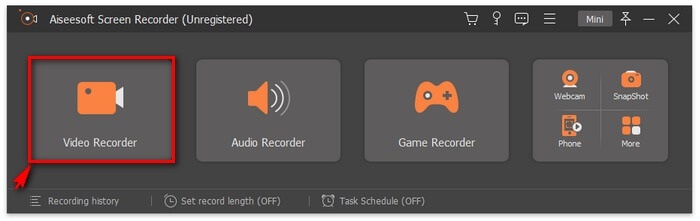
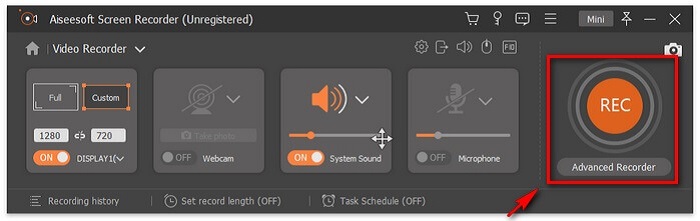
Trin 3. Justér den stiplede ramme for at indstille skærmens billedformat, og klik derefter på REC-knappen for at begynde optagelsen.
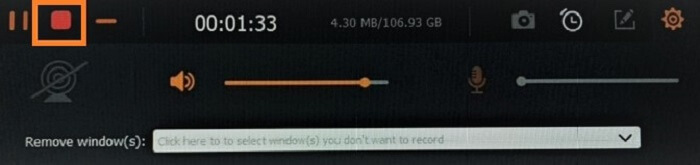
Trin 4. For at stoppe optagelsen skal du klikke på den røde Square-knap på den svævende værktøjslinje. Derfra dukker et nyt vindue op. Her kan du vælge at gemme eller optage igen, hvis du ikke er tilfreds med resultatet.
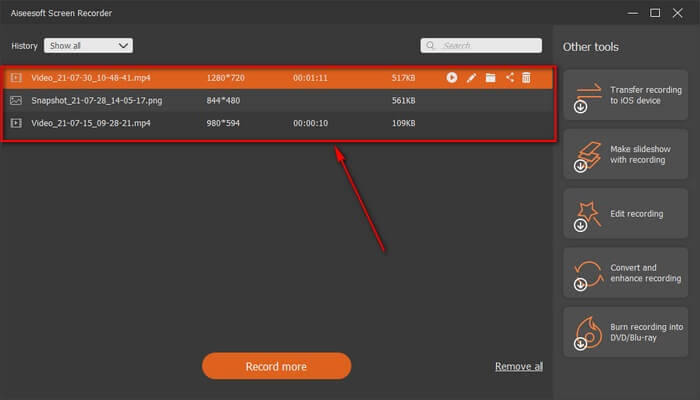
Trin 5. Lad os sige, at du gemte filen; i det næste vindue kan du vælge, hvor filen skal gemmes. Vælg mappen, og klik på Next.
Del 2. Andet gratis FLV-videooptager
FLV-optager til alle browsere - FVC gratis skærmoptager
Det er velkendt, at FVC Free Screen Recorder er letvægts og samtidig har kraftfulde funktioner. Så hvis du er nybegynder, der vil optage for sjov, kan du bruge den, eller hvis du er professionel og vil optage et forretningsmøde. Uanset hvad fungerer den. Den bedste funktion, denne optager tilbyder, er, at du kan optage enhver del af din skærm uden at blive forstyrret af den svævende værktøjslinje. Den optager automatisk kun skærmen. Tag så mange skærmbilleder, du vil, uden forstyrrelser ved hjælp af funktionen Lock-in screen. Uden yderligere snak går vi nu videre til, hvordan du bruger denne FLV-optager. Du skal følge trinnene nedenfor.
Trin 1. Besøg den officielle hjemmeside for FVC Free Screen Recorder, og start appen.
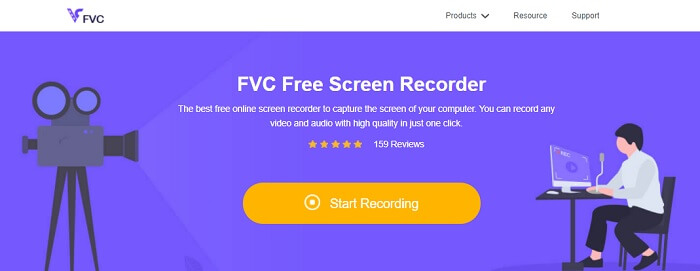
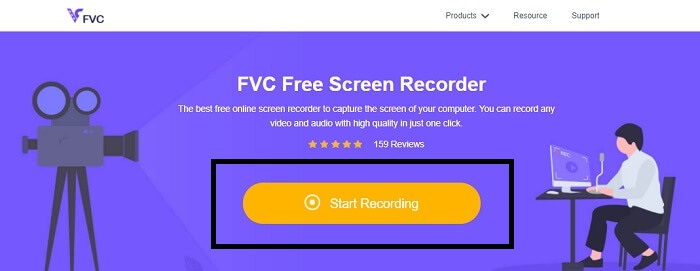
Trin 2. Start værktøjet ved at klikke på Start Recording, og gå videre til næste trin.
Trin 3. Klik på gear-knappen i værktøjslinjen for at ændre indstillingerne efter dine behov. Når du er i menuen Preferences, skal du finde Output og ændre videoformatet, så det passer til dine ønsker. Klik på OK, når alt er på plads.
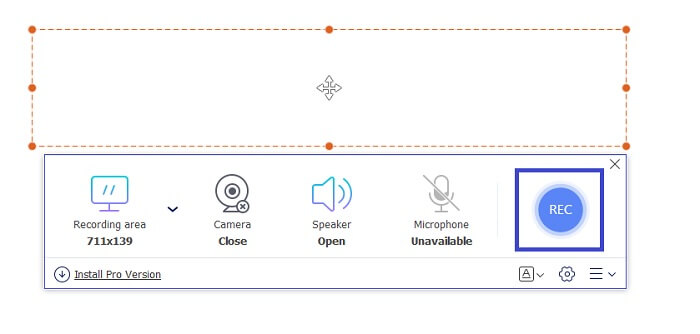
Trin 4. På den svævende værktøjslinje kan du nu justere skærmens billedformat. Tilføj også din ansigtsreaktion ved at tænde Webcam. System Sound bruges til at tilføje programmets naturlige lyd. Og til sidst kan du tilføje din stemme ved at tænde mikrofonen. For at starte FLV-optagelsen skal du klikke på REC-knappen for at gå i gang.
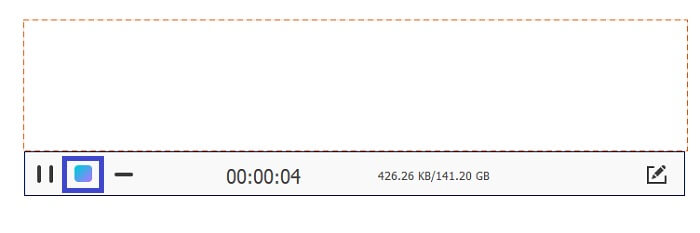
Trin 5. For at afslutte FLV-optagelsen skal du klikke på cube-knappen for at stoppe. Klik derefter på Save og Next. Alle de optagelser, du laver, ligger i History list.
FLV-optager til Chrome - SCREEN.IO
Hvis du ikke ønsker at downloade yderligere filer på dit drev, kan du bruge denne indbyggede Chrome-optager. Denne FLV-optager til Chrome hjælper et væld af mennesker på hele nettet. Så hvis du er fan af at spare plads på dit lager, skal du prøve denne SCREEN.IO. Selvom værktøjet ikke giver specielle funktioner, der ligner en anden optager. Men optageevnen af den er meget standard. Hvis vi sammenligner en Chrome-optager og en desktop-optager, er skrivebordet den effektive måde at lave optagelsen på, fordi du ikke har noget imod, hvis internetforbindelsen er blevet afbrudt.
FLV-optager til Windows - VLC Media Player
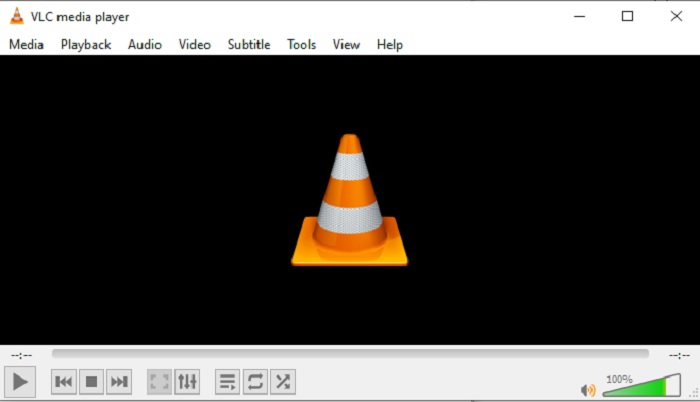
VLC Media Player er ikke kun kendt som den bedste medieafspiller i byen. Den har også flere funktioner som optagelse, konvertering og mere. Selvom det er den bedste medieafspiller, er alle disse nævnte funktioner ikke de bedste. Og i nogle tilfælde kan video- eller lydformater ikke afspilles her, fordi deres codecs er proprietære. I stedet kan du bruge VLC Media Player-alternativet, som understøtter selv proprietære filer.
FLV-optager til Mac - OBS Studio
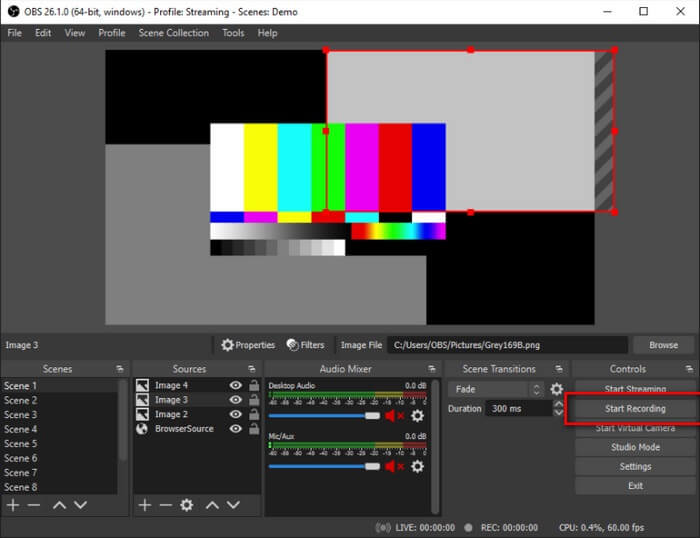
Måske tænker du, at vi har glemt Mac-brugerne. Denne FLV-optager til Mac er en af de kraftigste optagere på listen, fordi du også kan streame her. På trods af dens imponerende funktioner virker værktøjet lidt skræmmende, især hvis du er ny inden for optagelse, fordi der sker rigtig meget i grænsefladen, når du åbner værktøjet.
Del 3. Ofte stillede spørgsmål om FLV Video Recorder
FLV-fil, er det sikkert at downloade den på min pc?
I virkeligheden er det ikke filen, vi taler om, når det kommer til sikkerhed. FLV-filer er indlejret på videodelingswebsteder, så dit spørgsmål bør være, hvordan kan jeg identificere, om den video, jeg downloader fra et websted, ikke har malware? Brug en Safeguard til din pc. Der er tonsvis af softwareforsvarere og scannere, du kan finde online. Men selve filen er sikker. Medmindre de putter malware i det, er det sikkert.
Hvilket program kan åbne FLV filer?
Der findes mange medieafspillere, men det, jeg anbefaler, er VLC Player. Denne afspiller er alsidig og kan afspille næsten alle filformater – uanset om de er ukomprimerede eller komprimerede. Klik her for at få flere populære FLV-afspillere.
Hvad er fordelene ved FLV-filer?
Den første store fordel ved FLV er dens evne til at producere video i høj kvalitet i lille størrelse. I sagens natur er filen fleksibel. Hvorfor? Du kan nemt konvertere denne fil til et andet format, selv ved at bruge online-konvertere.
Del 4. Sammenligningstabel
| Funktioner | FVC -skærmoptager | FVC Free Screen Recorder | VLC Media Player | OBS Studio |
| Skærmoptager |  | | | |
| Lydoptager | | | | |
| Understøtter FLV | | | | |
| Multimedieafspiller |  | | | |
| Justerbar bithastighed og billedhastighed | | | | |
Konklusion
Alle de anførte værktøjer er nyttige til at optage FLV-videoer og producere den bedst mulige videokvalitet. Hvis du ikke er sikker på, hvilket værktøj du skal bruge, kan du også henvise til det skrevne sammenligningsskema. Men blandt de opførte FLV-optagere. FVC Screen Recorder har en større fordel på grund af dens vindueslåsefunktion.
-
 Mest nyttige OGG-optager i 2021 [gratis og online]
 Denne artikel taler om de bedste OGG-optagelsesværktøjer, der hjælper dig med at lave OGG-lydoptagelse. For at tilføje mere detaljerede oplysninger til brugeren, fortsæt med at læse den.
-
 Top 5 bedste M4B-optagersoftware til pc og Mac [gratis og betalt]
 M4B-optagelse komprimeres tabsvist til MPEG-4 lydbogfil. I nogle aspekter er M4A og M4B næsten almindelige, men de har forskelle. For at vide, hvad det er, læs artiklen.
-
 Top 5 bedste AMR -optagerværktøj tilgængeligt til alle operativsystemer
 Vil du vide, hvad et AMR -format er, og hvad der er den bedste AMR -optager, du skal vælge, hvilket giver en fantastisk optagelse.
