


 Video Converter Ultimate
 Skærmoptager
 Video reparation
5 bedste MP4 Cutter: Lær at klippe videoer på pc, Mac og mobile enheder
Hvis du er en vlogger eller en håbefuld en, er det så almindeligt at tage en video af dig selv. Dette ville kræve en masse indsats og selvtillid, såvel som du optager foran et kamera. Også den mest almindelige ting, at alle de professionelle og nye til vlogging er de fejl, du laver. I stedet for at genoptage videoen, har de en tendens til at klippe den og flette til de originale videoer. For at lave en helt ny video, der består af forskellige vinkler, visninger, montager og mere, klipper de den fra forskellige videoer og tilføjer den til én. Men som ny i denne form for job eller endda professionel, er det svært at vælge den rigtige trimmer. Fordi ikke alle funktioner, som de sagde på annoncen af værktøjet, ikke er i værktøjerne. I stedet for at gå til den anden artikel og læse anbefalingen, hvorfor lærer du så ikke af dette først. Da vi kun samlede de rigtige beviser for din egen vindings skyld. Så her på listen er de MP4-kuttere, du kan bruge til at starte vlogging. Hold fokus for at vide, hvad der er de bedste trimmere, du kan bruge, der giver et enkelt, men professionelt syn på dine videoer.

Del 1. Download den bedste MP4 Video Cutter Software på PC og Mac
Hvis vi skal tale om det bedste, så skal du prioritere at læse dette først. Som nævnt tidligere, er det meget sværere at lave vlogs, end vi forventede – det handler ikke kun om selvtilliden til at stå foran kameraet og lægge videoen op. Du skal også overveje at have et multifunktionelt værktøj. Et værktøj, der giver en mere appellerende video for alle seeres øjne. FVC Video Converter Ultimate tilbyder fantastiske redigeringsfunktioner og konverteringsmuligheder, som alle kan bruge. Uanset om du er begynder eller professionel, bør vi kigge efter det bedste af det bedste på markedet. Selvom dette er en betalingsversion, giver den stadig det bedste, du ønsker at have. Og hvis du vælger dette som dit personlige valg, ligger der en lys fremtid foran dig. Vil du begynde at vlogge i dag? Så følg disse trin til, hvordan du bruger denne MP4‑videotrimmer.
Trin 1. Klik på download-knappen nedenfor og installer den på din PC eller Mac. Følg opsætningen af værktøjet, og klik på Afslut for at starte softwaren.
Gratis download til Windows 7 eller nyere Sikker download
Gratis download til MacOS 10.7 eller nyere Sikker download
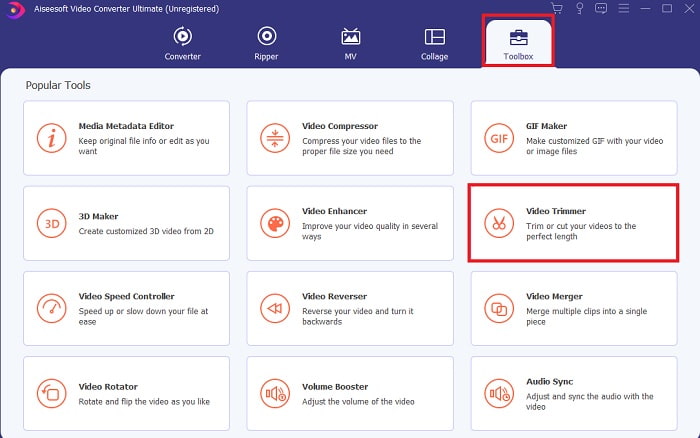
Trin 2. Hvis dette vises på din skærm, så klik på Værktøjslinje og find Video Trimmer nedenunder.
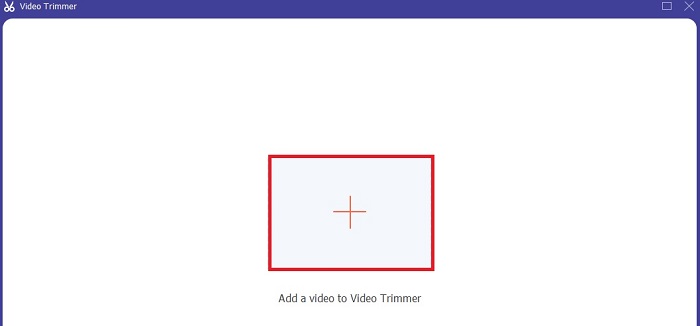
Trin 3. Klik på plus-knappen for at tilføje filen. Vælg den fil på din disk, som du vil klippe, og klik på Åbn for at indsætte videoen.
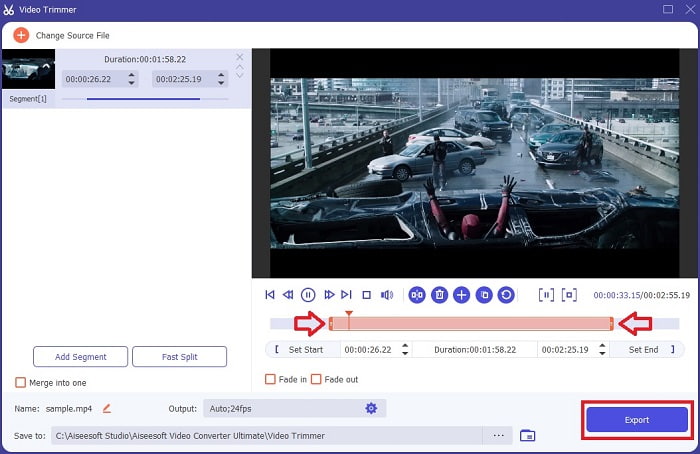
Trin 4. Justér start- og slutpunktet for din video ved at manipulere afspilnings-ind og -ud for at indstille den varighed, du ønsker. Tilføj fade ind og fade ud, hvis du vil. Du kan også ændre medieoutput, hvis du klikker på tandhjuls-knappen. Når du er færdig, klik på Eksportér-knappen for at starte klippeprocessen.
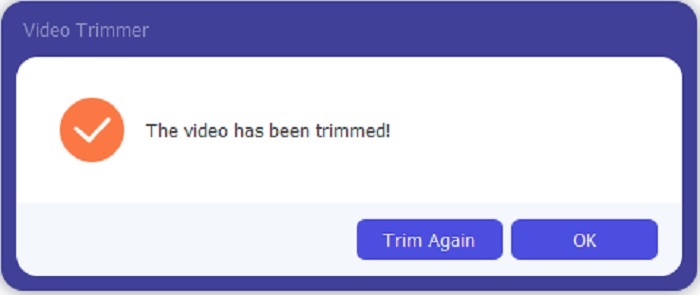
Trin 5. Vent et kort øjeblik, og nu er din video blevet klippet. Klik derefter på OK eller Trim igen, hvis du skal klippe en anden. Hvis du vil forbedre den video, du lige har lavet, skal du klikke på værktøjslinjen igen og finde video-forbedringsværktøjet.
Fordel ved at have et fletteværktøj leveret af FVC Video Converter Ultimate with Steps
I modsætning til enhver anden app er det super nemt at lave sammenlægning af videoer i FVC Video Converter Ultimate. Dette er en bonusfunktion, hvis du anskaffer dig dette værktøj. Som det er sagt, er dette værktøj et multifunktionelt, så lad os uden videre begynde at flette forskellige videoer til en.
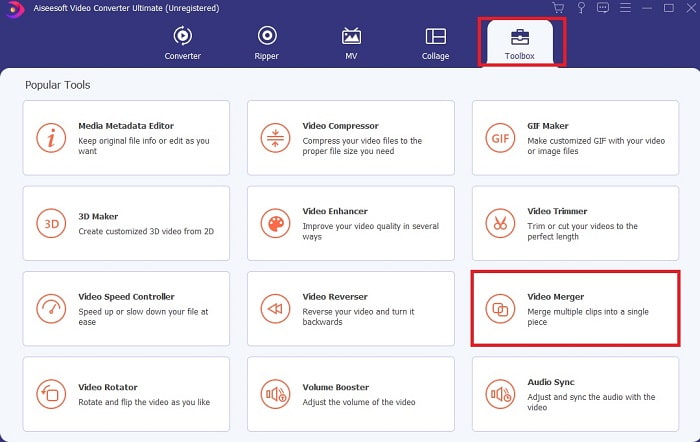
Trin 1. Åbn softwaren, gå til værktøjslinjen, find Video Merger, og klik på den.
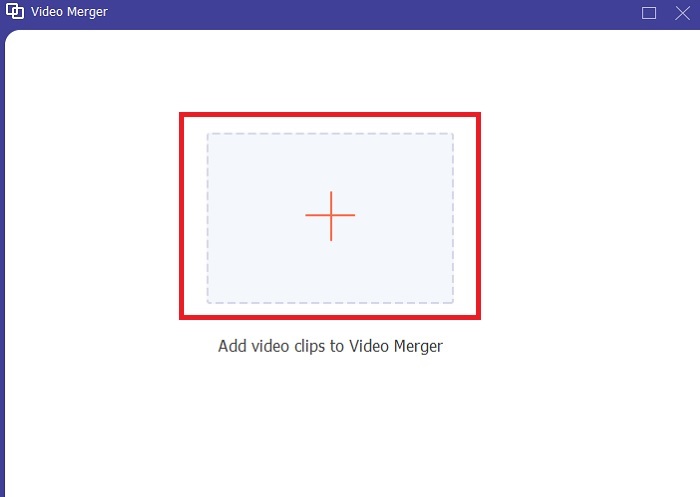
Trin 2. Klik på Tilføj-knappen, vælg den video, du vil sammenføje, og klik på Åbn for at fortsætte. Efter at have valgt den første fil, klik på plus-tegnet for at tilføje den anden fil, du vil sammenføje med.
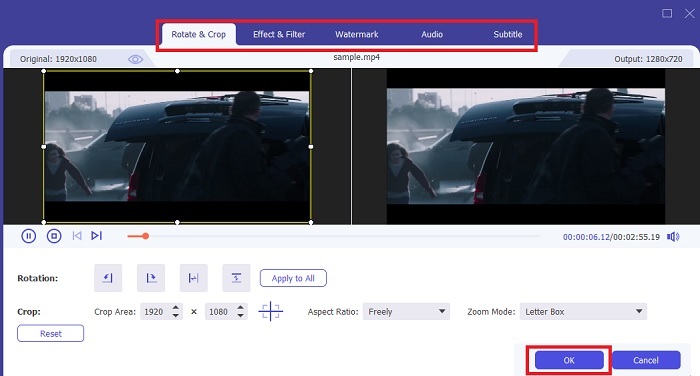
Trin 3. I grænsefladen skal du klikke på tryllestavs-knappen for at tilføje effekter, forbedre lyden, rotere eller beskære og tilføje undertekster også. For at gemme de redigeringer, du lige har lavet, skal du klikke på OK. Gør det samme med de andre videoer, hvis du ønsker det.
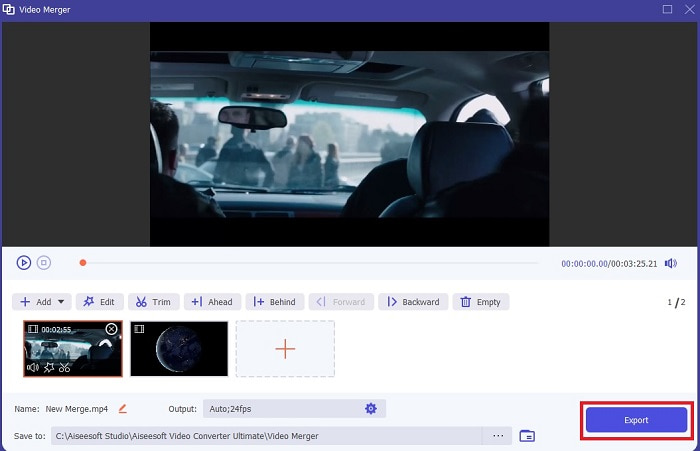
Trin 4. Når du er klar til at starte processen, skal du klikke på Eksportér. Når eksporten er færdig, dukker der et filhåndteringsvindue op på skærmen. For at se den eksporterede video skal du blot klikke på den og nyde.
Del 2. Bedste MP4 Cutters Online
Dette må være en god trimmer, men den er ikke lige så god som FVC Video Converter Ultimate. Men den er trods alt værd at prøve, når det gælder disse online MP4‑cuttere.
1. 123Apps Online Video Cutter
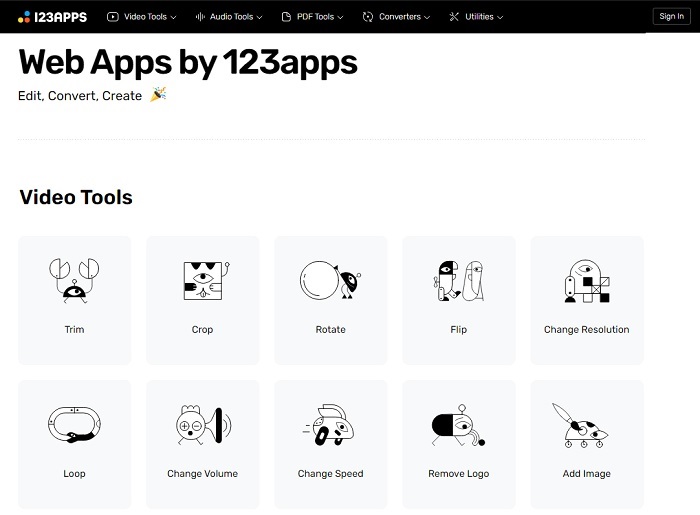
Dette første onlineværktøj er beregnet til at gøre dine videoer bedre. Det kan justere varigheden af videoen, beskære, tilføje tekst og mere. Men dette værktøj tager meget af din tid at blive eksporteret. Når du har eksporteret, skal du downloade det, og denne proces vil være afhængig af din internethastighed. Du kan heller ikke justere kvaliteten af dine videoer. Så hvis din video er en smule sløret og skal justere fps på den, kan du ikke gøre det her. Men alligevel er det værd at prøve.
2. Clideo
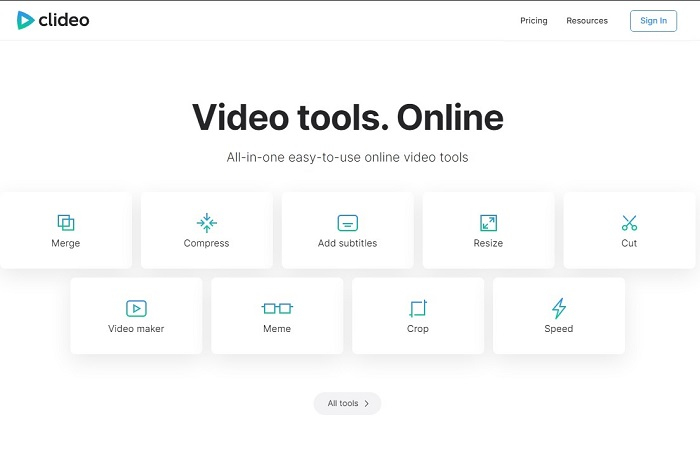
Når vi taler om klipning, så er dette også et godt valg. Clideo er et af de bedste online MP4‑trimmere, du kan finde. Ligesom det første onlineværktøj, der blev nævnt tidligere, tilbyder dette værktøj også grundlæggende redigeringsfunktioner. Selvom det kun understøtter basal redigering, er det stadig ikke nok, hvis du vil lave en virkelig iøjnefaldende video. Men du kan prøve det online uden bekymringer – det er gratis og sikkert.
Del 3. 3 Bedste MP4 Cutter Apps på Android og iOS
Hvad hvis du ikke har et skrivebord til at bruge værktøjerne ovenfor og vil være vlogger, er det stadig muligt? Hvis du har en telefon som Android eller iOS, kan du bruge disse apps til at redigere i dine telefoner. Men der er nogle funktioner, der er tilgængelige ovenfor, som ikke er her. Så fortsæt med at læse nedenfor for at vide, hvad disse værktøjer er, og vælg fra dem.
1. iMovie til iOS
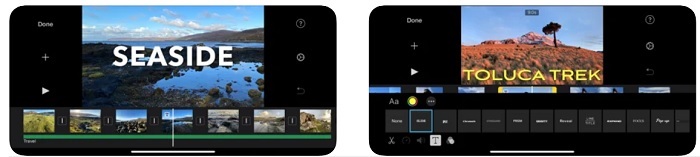
Hvis du vil give din video en Hollywood-lignende stemning, så er iMovie den rette software. Denne MP4‑klippeapp er kun lavet til iOS-brugere. Men selv om værktøjet tilbyder avancerede redigeringsfunktioner, er nogle af fejlene endnu ikke blevet rettet. I visse tilfælde går appen hele tiden ned, når du forsøger at redigere, og skærmen bliver sort. Nogle gange er video og lyd ikke synkroniseret på grund af fejl. Dette er nogle eksempler på bugs – de kan virke små, men er meget irriterende det meste af tiden. Hvis du vil prøve iMovie, kan du stadig downloade det i App Store.
2. Video Editor & Maker – Viva Video til Android
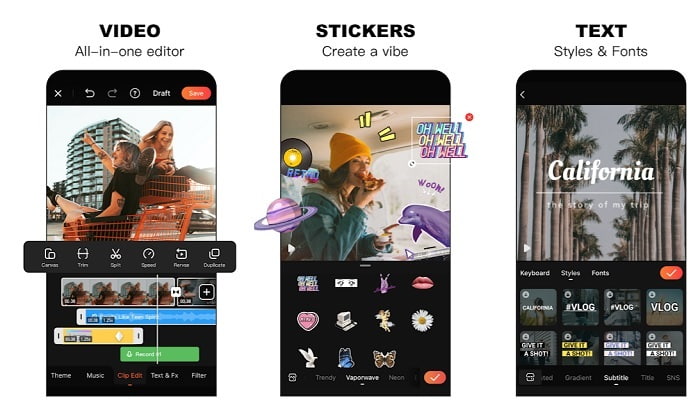
En af de bedste gratis MP4‑cuttere til Android er Video Editor & Maker – Viva Video. Ligesom værktøjet ovenfor tilbyder de begge de bedste redigeringsfunktioner på telefoner, såsom overgange, glitch-effekter og meget mere – men dette er et betalingsværktøj. Der er det problem, at det ikke er optimalt, fordi der ikke er en abonnements-knap til at stoppe appen. Så den løsning, du måske tænker på – at slette appen for at afslutte abonnementet – vil ikke virke. Den vil fortsætte med at trække penge på dit kreditkort, hvis du har valgt denne betalingsmetode. Men alt i alt er værktøjet i A-klassen, hverken mere eller mindre.
Del 4. Ofte stillede spørgsmål om MP4 Cutter
Hvad er en MP4?
MP4 er også kendt som multifunktionsmedieformatet. I stedet for at gemme en kode, gemmer den data fra videoer, stillbilleder, undertekster eller tekster. Det er også det mest brugte videoformat over hele verden.
Er MP4 tabs- eller tabsfri?
Da MP4 er et multifunktionelt format, er komprimering med tab.
Hvad er det bedste format bortset fra MP4?
Der findes nogle formater, der giver bedre medieoutput end MP4, men de er ikke lige så fleksible som dette format. For eksempel WMV: Dette format giver en mindre filstørrelse end MP4, men det er ikke kompatibelt med Apple-enheder, fordi det er beregnet som et native format til Windows Media Player. Du kan vælge at konvertere dine MP4-filer til WMV for bedre afspilning.
Konklusion
Afslutningsvis er det nu lettere at forstå forskellene mellem de enkelte værktøjer, du kan bruge. Men som nævnt tidligere, tilbyder de ikke alle de fremragende klippefunktioner, som FVC Video Converter Ultimate kan. Især hvis du vil lave en mere appellerende video for at få flere visninger – og også indtjening. Så i stedet for at nøjes med en midlertidig løsning, hvorfor så ikke vælge FVC Video Converter Ultimate, se fremad og få den bedste version til dig selv?.
-
 Guide til, hvordan du konverterer RMVB til MP4 på Windows / Mac (3 gratis måder)
 Vil du konvertere RMVB til MP4 for nem afspilning på din computer eller mobiltelefon? Du finder enkle måder at konvertere dine RMVB-filer til MP4 i denne vejledning.
-
 4 bedste MP4 til M4V-konvertere til at gøre MP4-videoer til M4V med lethed
 Når du har brug for at ændre MP4 til M4V-filer, skal du lære flere detaljer om forskellene mellem de to formater samt de bedste MP4 til M4V-konvertere fra artiklen.
-
 AMV Converter - 3 bedste metoder til at konvertere MP4 til AMV på Win / Mac
 Hvad er de bedste MP4 til AMV-konvertere til at gøre videoerne til Amine Music Video, du kan lære mere om 3 mest effektive metoder til let at få de ønskede videoer fra artiklen.
