


 Video Converter Ultimate
 Skærmoptager
 Video reparation
 Sikker download
Sådan konverteres FLV-filer til iPhone-videoer uden at miste kvalitet
Det er velkendt, at iPhone og iPad er udstyret med skærme af seneste generation. Det giver god mening, at det er populært at se film på i-enheder. iOS-brugere står dog altid over for en formatbarriere, når de afspiller film. For eksempel understøtter Apples egen software ikke de meget almindelige FLV-filer. Derfor deler vi denne vejledning, som hjælper dig med nemt at konvertere FLV til iPhone-video-format på computer eller online.

Del 1: Bedste freeware til at konvertere FLV til iPhone-video
iPhone understøtter som standard M4V, en del af MP4, MOV og en del af AVI. Det gør det vanskeligt at konvertere FLV til iPhone-format. FVC Free FLV Converter er et kraftfuldt værktøj. Det indeholder forudindstillinger til at konvertere multimediefiler direkte til iPhone-format. Endnu vigtigere er det helt gratis at bruge.
Hovedfunktioner i den bedste gratis FLV til iPhone-videokonverter
- 1. Konverter FLV-filer til iPhone-videoformat let.
- 2. Inkluder en masse forudindstillinger til iPhone, iPad og mere.
- 3. Tilby omfattende bonusfunktioner, f.eks. Videoforbedring.
Gratis downloadTil Windows 7 eller nyereSikker download
Gratis downloadTil macOS 10.7 eller nyereSikker download
Sådan konverteres FLV til iPhone-video i batch
Trin 1: Tilføj FLV-filer
Åbn den bedste gratis FLV til iPhone-videokonverter, når du har installeret den på din computer. Klik derefter på knappen Add File(s) for at åbne dialogboksen til valg af filer. Find og vælg alle de FLV-filer, du vil afspille på iPhone, og klik på Open. Konverteren understøtter batchkonvertering.

Trin 2: Indstil outputformat
Efter indlæsning af FLV-filerne vil du se dem alle i biblioteksområdet. Gå til det nederste område, klik på og udvid indstillingen Output format. Vælg Apple iPhone på listen, og vælg din enhedsmodel. Derefter optimerer softwaren parametrene tilsvarende. Den indstiller outputformatet for alle FLV-filer. Hvis du ønsker at ændre en specifik parameter, skal du klikke på Gear-ikonet for at åbne profildialogen.

Trin 3: Konverter FLV til iPhone-video
Klik derefter på knappen Open Folder, vælg destinationsmappen og bekræft den. Som standard gemmer softwaren iPhone-videoer i dit videobibliotek, men du kan ændre det efter dine præferencer. Til sidst klikker du på knappen Convert for at begynde at konvertere FLV til iPhone-videoer.

Derudover understøtter programmet også konvertering af FLV-videoer til Xbox, PS4, Samsung, Apple TV eller andre populære enheder.
Del 2: Sådan konverteres FLV til iPhone-format online
Nogle personer kan ikke lide at installere software på deres harddisk. Nogle gange har du måske kun brug for at konvertere FLV til iPhone-videoer en gang imellem. I sådanne tilfælde er en webbaseret videokonverteringsapp, såsom FVC Free Online Video Converter, et bærbart valg. Den kan opfylde dit behov uden installation af nogen software. Desuden kræver den hverken betaling eller registrering. I modsætning til andre webapps har den heller ingen grænse for filstørrelse, så du kan uploade ubegrænsede FLV-filer til konvertering.
Trin 1: Åbn https://www.free-videoconverter.net/free-online-video-converter/ i en webbrowser for at gå til startsiden. Tryk på knappen Add Files to Convert og download starterprogrammet.

Trin 2: Når downloadet er færdigt, dukker starterprogrammet automatisk op. Klik derefter på knappen Add File i øverste venstre hjørne og upload de FLV-filer, du vil afspille på iPhone.
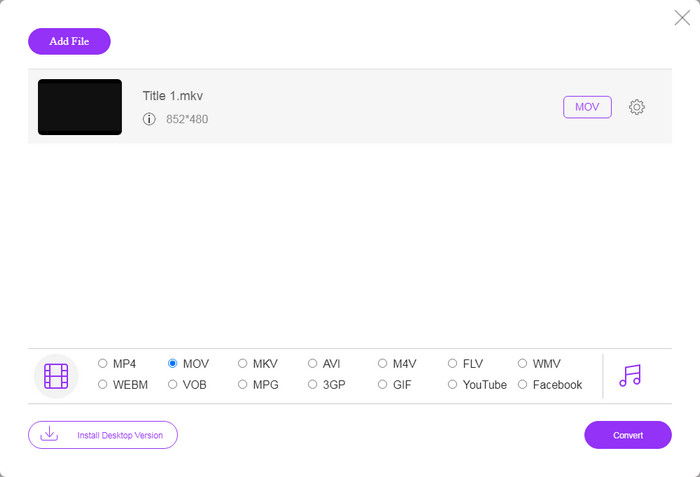
Trin 3: Find formatområdet nederst, og vælg MOV, som er det mest accepterede videoformat til iOS-enheder. Klik på knappen Convert, og webappen vil foretage FLV til iPhone-formatkonvertering online. Vent, til processen er fuldført, og download resultatet til din harddisk.
Hvis du vil nulstille indstillingerne, skal du klikke på ikonet Indstillinger, så finder du dem i indstillingsdialogen, f.eks. Opløsning, codec osv.
Del 3: Ofte stillede spørgsmål om konvertering af FLV til iPhone-video
Kan du afspille FLV-filer på iPhone uden at konvertere?
Den eneste måde at afspille FLV-filer på iPhone uden at konvertere dem er at installere en tredjeparts FLV-afspiller, såsom VLC til iOS. Så kan du nemt se dine yndlingsfilm.
Hvor gemmes videoer på iPhone?
De videoer, du optager og overfører på iPhone, gemmes i appen Fotos. Hvis du downloader en video ved hjælp af en app, gemmes den i appen. Under alle omstændigheder har du ikke adgang til filsystemet på iPhone eller iPad.
Hvilke filtyper bruges iPhone til videoer?
På iPhone er H.264 den eneste understøttede videokodec. Når det kommer til videoformater, er MOV og MP4 tæt forbundet. Til videooptagelse på iOS bruger Apple den nyere H.265 video codec eller HEVC.
Konklusion
Nu skal du forstå, hvordan du åbner og afspiller FLV-filer på iPhone. Du kan tilsyneladende ikke åbne FLV-videoer direkte på iPhone. Den bedste måde er at konvertere dine filer til iPhone-understøttet format, såsom MOV. Derefter kan du afspille videoerne problemfrit. FVC Free FLV Converter er en af de bedste gratis FLV til iPhone videokonvertere. Det er ikke kun let at bruge, men også i stand til at producere fremragende outputkvalitet. Flere spørgsmål? Skriv venligst nedenunder.
-
 3 nemme metoder til at konvertere FLV til AVI på desktop og online
 1. Konverter FLV-videoer til andre multimedieformater let. 2. Understøtter næsten alle videoformater, som AVI, MP4, MKV osv. 3. Batchprocesser hundredvis af FLV-filer pr. Konvertering.
-
 Top 3 måder at konvertere FLV til WMV på Windows og Mac
 Leder du efter den bedste måde at konvertere FLV til WMV uden at miste kvalitet på PC eller Mac? Du er heldig, da vi deler her tre metoder til nemt at udføre jobbet.
-
 Konkret guide til upload af dine FLV-videoer til YouTube
 Upload FLV til YouTube, men mislykkedes? Du kan løse dette problem alene og konvertere FLV til YouTube-understøttede codecs ved at følge vores trin-for-trin vejledning.
